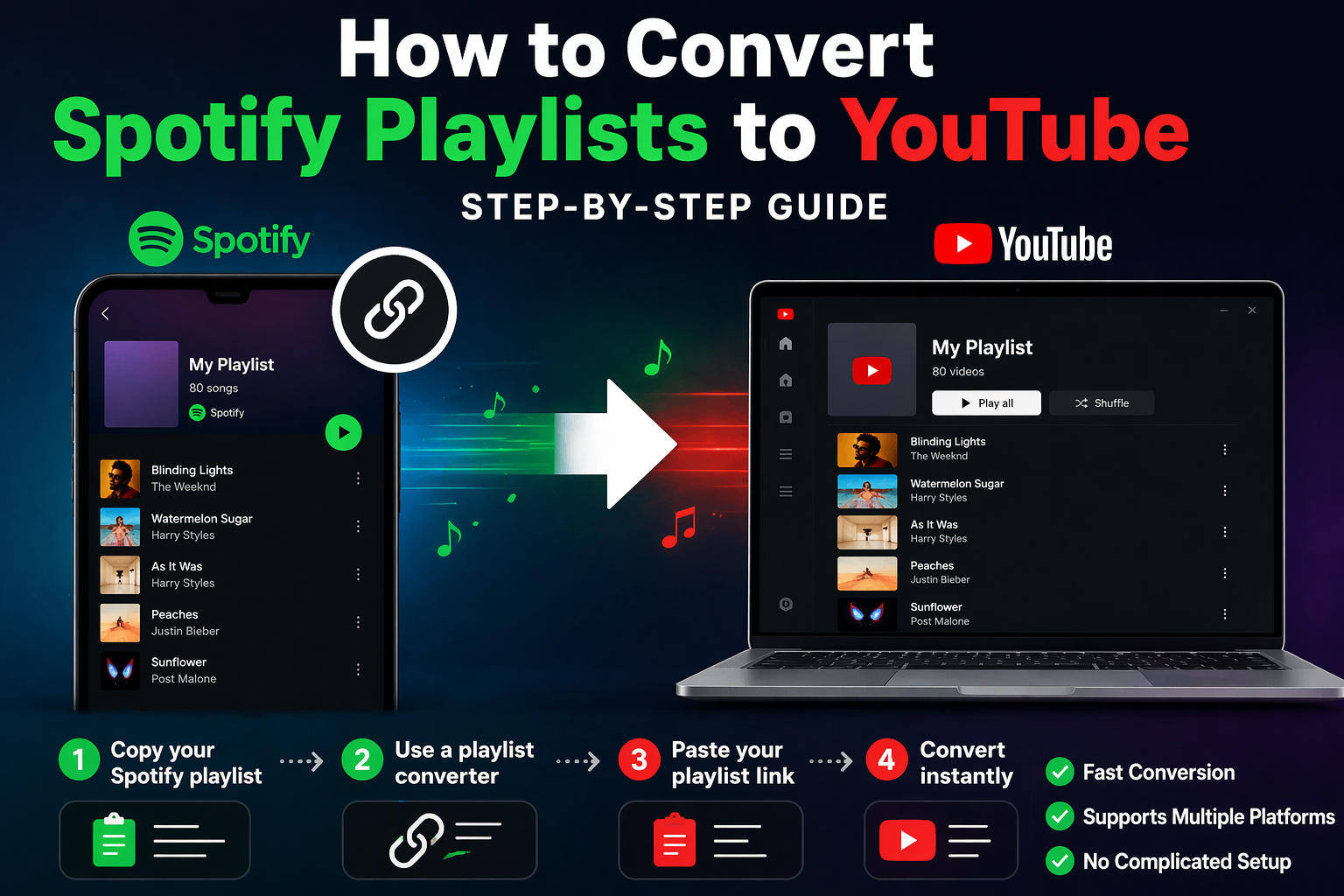
How to Successfully Switch from Spotify to YouTube Music
Switching from Spotify to YouTube Music involves migrating your existing playlists and liked songs to a new streaming ecosystem. While native tools are limited, third-party services and manual transfer methods ensure you retain your mu...
Switching from Spotify to YouTube Music involves migrating your existing playlists and liked songs to a new streaming ecosystem. While native tools are limited, third-party services and manual transfer methods ensure you retain your music library while adapting to the unique features, such as deep integration with Google’s video library and varying audio compression standards.
Contents
Understanding the Landscape of Music Migration
Transitioning between major streaming platforms like Spotify and YouTube Music is a decision often driven by ecosystem preferences, specifically the desire to consolidate services under a Google account or to access the vast catalog of video content available on YouTube that isn't typically found on traditional audio-only platforms.
Spotify has long dominated the market with its robust discovery algorithms and social sharing capabilities. Conversely, YouTube Music thrives on its ability to blur the lines between official tracks, live performances, remixes, and user-generated content. Before initiating a move, it is essential to recognize that while your metadata (song titles, artist names, album info) can be moved, your internal platform-specific data—such as "Wrapped" listening statistics, social friend connections, and localized cache files—cannot be exported or imported.
Prerequisites for a Seamless Transfer
Before you begin the migration process, ensure you have active accounts on both services. It is recommended to keep your Spotify subscription active for at least 48 to 72 hours after the migration process is complete. This buffer period allows you to verify that every playlist has been successfully replicated and that you are satisfied with the recommendation engine of your new platform before canceling your recurring payments.
Additionally, assess your current library size. Most third-party migration tools impose limits on the number of tracks that can be moved per day or per account for free users. If your library contains thousands of tracks, you may need to prepare for a multi-day transfer process or consider a one-time payment for premium access to migration tools to expedite the throughput.
Methods for Moving Your Music Library
There are two primary ways to migrate your data: manual recreation and third-party automated synchronization.
Manual Recreation
If your library is small, manual recreation remains the safest method. This involves creating new playlists in YouTube Music and manually searching for the tracks from your Spotify playlists. While time-consuming, this ensures high accuracy and prevents the "duplicate" or "incorrect version" issues that sometimes arise with automated matching algorithms.
Automated Migration Tools
Third-party services act as a bridge between the APIs (Application Programming Interfaces) of Spotify and YouTube Music. These platforms scan your Spotify library and then search for matches within the YouTube Music database.
- Authorize Access: You will need to log into both your Spotify and YouTube Music accounts through the third-party interface.
- Select Playlists: Choose the specific playlists or your "Liked Songs" folder for migration.
- Initiate Matching: The service will begin the search process. Because YouTube Music includes video content, the algorithm must distinguish between an official studio track and a live performance video.
- Verification: Once the transfer is complete, review the "Failed" or "Not Found" log provided by the tool. These are typically tracks that are unavailable due to regional licensing restrictions or because the metadata was too specific (e.g., a localized remix) to be mapped correctly.
Comparison of Key Features
When evaluating whether the switch makes sense for your specific usage habits, consider how the two services handle media ingestion and playback quality.
| Feature | Spotify | YouTube Music |
|---|---|---|
| Primary Content | Audio-first | Audio and Video hybrid |
| Audio Quality | Max 320 kbps (Ogg Vorbis) | Max 256 kbps (AAC) |
| Library Capacity | 10,000 songs per playlist | 5,000 songs per playlist |
| Algorithm | Predictive/Collaborative | Context-aware/Video-integrated |
| Upload Locker | No (Local files only) | Yes (100k track limit) |
It is worth noting that YouTube Music’s integration with the broader Google ecosystem allows for seamless transitions between watching a music video on YouTube and listening to the track on the music app. However, users who prioritize high-fidelity audio output may notice differences in compression, as Spotify’s Ogg Vorbis implementation is historically viewed as more consistent across a wide range of hardware.
Handling Common Migration Challenges
The most frequent issue users encounter is the "Mismatched Track" phenomenon. Because YouTube Music allows users to upload content and hosts videos that are not official releases, the migration algorithm might occasionally select a live concert version of a song rather than the original studio recording.
To troubleshoot this:
- Check the "Version" metadata: If you find the wrong version of a song, use the search function in YouTube Music to locate the correct official album version and add it to your playlist manually.
- Remove the original: Delete the unwanted video-track from your library to ensure the recommendation algorithm learns your preference for studio recordings.
- Regional Availability: If a song from your Spotify library is missing entirely on YouTube Music, it is almost always due to licensing. In these cases, you can use the "Upload" feature in YouTube Music to add your own personal audio file (MP3/FLAC) to your cloud library, making it streamable anywhere.
Managing Subscriptions and Costs
When moving platforms, do not rely on a simple "cancel" button. Ensure you have properly updated your payment method for the Google subscription to avoid service interruptions. If you subscribe to YouTube Music through the Apple App Store, be aware that you may be subject to different billing cycles than if you subscribe directly through the Google/YouTube portal.
Check your email for confirmation of your new billing cycle. If you were paying for an annual Spotify plan, check if your subscription requires a manual cancellation to prevent auto-renewal, as some regions do not allow for partial-year refunds.
Frequently Asked Questions
Will my "Liked Songs" transfer automatically?
No. You must explicitly select your "Liked Songs" or "Favorites" list within your migration tool. Most reputable transfer services categorize this as a playlist-style migration, treating your "Liked" collection as just another folder to be mapped.
Can I move my listening history and preferences?
No. Spotify’s algorithms for "Daily Mixes" and "Discover Weekly" are proprietary and tied to the platform's internal data. Your history on YouTube Music will start from zero. You must spend the first two weeks actively liking or disliking tracks to "train" the new recommendation engine.
Do I lose my playlists if I cancel Spotify immediately?
Yes. If you close your Spotify account, the data becomes inaccessible. Always ensure the migration is 100% verified before terminating your previous account.
How do I handle local files I added to Spotify?
Spotify allows you to play local files via the desktop app. YouTube Music handles this differently via its "Upload" feature. You must upload your personal files to the YouTube Music cloud interface; once uploaded, they become part of your private library and can be streamed alongside your curated playlists.
Is the sound quality significantly different?
For the average listener, the difference between 320 kbps and 256 kbps is negligible, especially on mobile devices or standard Bluetooth earbuds. However, if you use high-end DACs and wired audiophile-grade headphones, you may notice slight variations in high-frequency clarity.
Final Steps for a Successful Transition
Once your library is successfully mirrored, your final step is to personalize your new environment. Start by engaging with the "My Supermix" feature, which acts as a dynamic starting point for your daily listening. Spend the first week being diligent with the "Thumbs Up" and "Thumbs Down" buttons; YouTube Music relies heavily on these manual signals to build a personalized profile when previous listening history is unavailable. If you encounter any gaps, rely on the Upload feature to bridge the licensing divide, ensuring your transition from Spotify to YouTube Music is as complete as possible.
Image Gallery