Lock Your Screen: Simple Steps to Secure Your Workstation
To secure your workstation, lock your screen immediately whenever you step away by using keyboard shortcuts like Windows Key + L on Windows or Control + Command + Q on macOS. Additionally, configure your operating system to automatical...
To secure your workstation, lock your screen immediately whenever you step away by using keyboard shortcuts like Windows Key + L on Windows or Control + Command + Q on macOS. Additionally, configure your operating system to automatically lock after 2 to 5 minutes of inactivity and enforce password or biometric authentication upon waking.
Contents
The Critical Importance of Workstation Physical Security
An unattended, unlocked computer represents one of the most accessible vulnerabilities in any organization's security posture. While digital firewalls, endpoint detection systems, and encrypted networks protect data against remote cyber threats, physical security at the endpoint remains the first line of defense. Stepping away from a workstation—even for a brief coffee break or quick conversation—leaves active user sessions, confidential files, email accounts, and internal network portals exposed to unauthorized access.
Unauthorized access to an active session bypasses primary authentication controls, including multi-factor authentication (MFA) and strong password protections. Once an intruder gains physical access to an unlocked desktop, they can export proprietary data, deploy malicious scripts, send impersonated communications via email or messaging platforms, or install persistent remote-access tools. This form of insider threat or physical tampering is commonly referred to as "walk-by hacking" or opportunistic access.
Regulatory frameworks and cybersecurity standards explicitly dictate physical access controls for endpoint devices:
- NIST SP 800-53 (Rev. 5): The NIST Special Publication 800-53 Rev. 5 mandates session lock controls (Control AC-11) to conceal display information and require user re-authentication after a period of inactivity.
- ISO/IEC 27001: Requires clear desk and clear screen policies (Control A.7.7 / ISO 27002:2022 Control 7.7) to prevent unauthorized access to sensitive information on displays and physical media.
- HIPAA Security Rule: Mandates automatic logoff mechanisms under 45 CFR § 164.312(a)(2)(iii) to protect Electronic Protected Health Information (ePHI) on workstations accessible in clinical or administrative settings.
- PCI-DSS 4.0: Requires screen locking and automatic session termination for systems processing credit card data to prevent unauthorized physical tampering.
Quick Keyboard Shortcuts to Lock Your Screen Instantly
Manual screen locking should become an automatic habit whenever a user leaves their seat. OS native hotkeys provide the fastest method to secure a desktop within milliseconds.
| Operating System | Primary Keyboard Shortcut | Alternative Manual Method |
|---|---|---|
| Windows 11 / 10 | Windows Key + L | Ctrl + Alt + Del -> Lock |
| macOS | Control + Command + Q | Lock Screen key / Apple Menu |
| Linux (GNOME) | Super (Windows Key) + L | System Menu -> Lock |
| Linux (KDE) | Ctrl + Alt + L | Application Launcher -> Lock |
Windows Systems
Pressing Windows Key + L instantly locks the user session without closing open applications, background processes, or active network connections. Alternatively, pressing Ctrl + Alt + Delete opens the Windows Security screen, where selecting Lock achieves the same result. For devices equipped with hardware lock keys or convertible keyboards, power-button mapping can also be configured to lock the display immediately upon a brief press.
macOS Systems
Mac users running current macOS releases can lock their screens by pressing Control + Command + Q. Devices equipped with a modern Apple Magic Keyboard or MacBook keyboard with a dedicated Lock Key (represented by a padlock icon) can trigger an immediate lock with a single keypress. Furthermore, closing the lid on a MacBook automatically locks the system if password prompt settings are configured correctly under macOS security preferences.
Linux Systems
Most Linux desktop environments support standard hotkey triggers. In GNOME-based distributions such as Ubuntu and Fedora, pressing Super + L (where the Super key corresponds to the Windows or Command key) immediately locks the display server session. In KDE Plasma environments, the default keybinding is Ctrl + Alt + L. Administrators can also invoke manual locks via the command line using commands such as gnome-screensaver-command -l or loginctl lock-session.
How to Configure Automatic Screen Lock Timers
Because manual habits can fail due to distraction or urgency, automated inactivity timers act as an essential fallback mechanism. Configuring an automatic lock timer ensures that an unattended workstation secures itself after a predetermined period of user inactivity.
- User Inactivity Detected
- Inactivity Timer Reaches Threshold (e.g., 3 mins)
- Display Turns Off / Screen Saver Activates
- Session Locked: Password / Biometric Required to Resume
Configuring Auto-Lock on Windows 11
To set up automated session locking on a Windows system, follow these procedural steps:
- Open Settings by pressing Windows Key + I.
- Navigate to System > Power & battery (or Power).
- Expand Screen and sleep and set the inactivity timeout (recommended: 2 to 5 minutes when on battery or plugged in).
- Return to Settings > Accounts > Sign-in options.
- Under Additional settings, locate If you've been away, when should Windows require you to sign in again?
- Select Every Time (or "When PC wakes from sleep").
For enhanced legacy display protection, access the Classic Control Panel, navigate to Appearance & Personalization > Change screen saver, select a screensaver, check On resume, display logon screen, and set the wait time to 3–5 minutes.
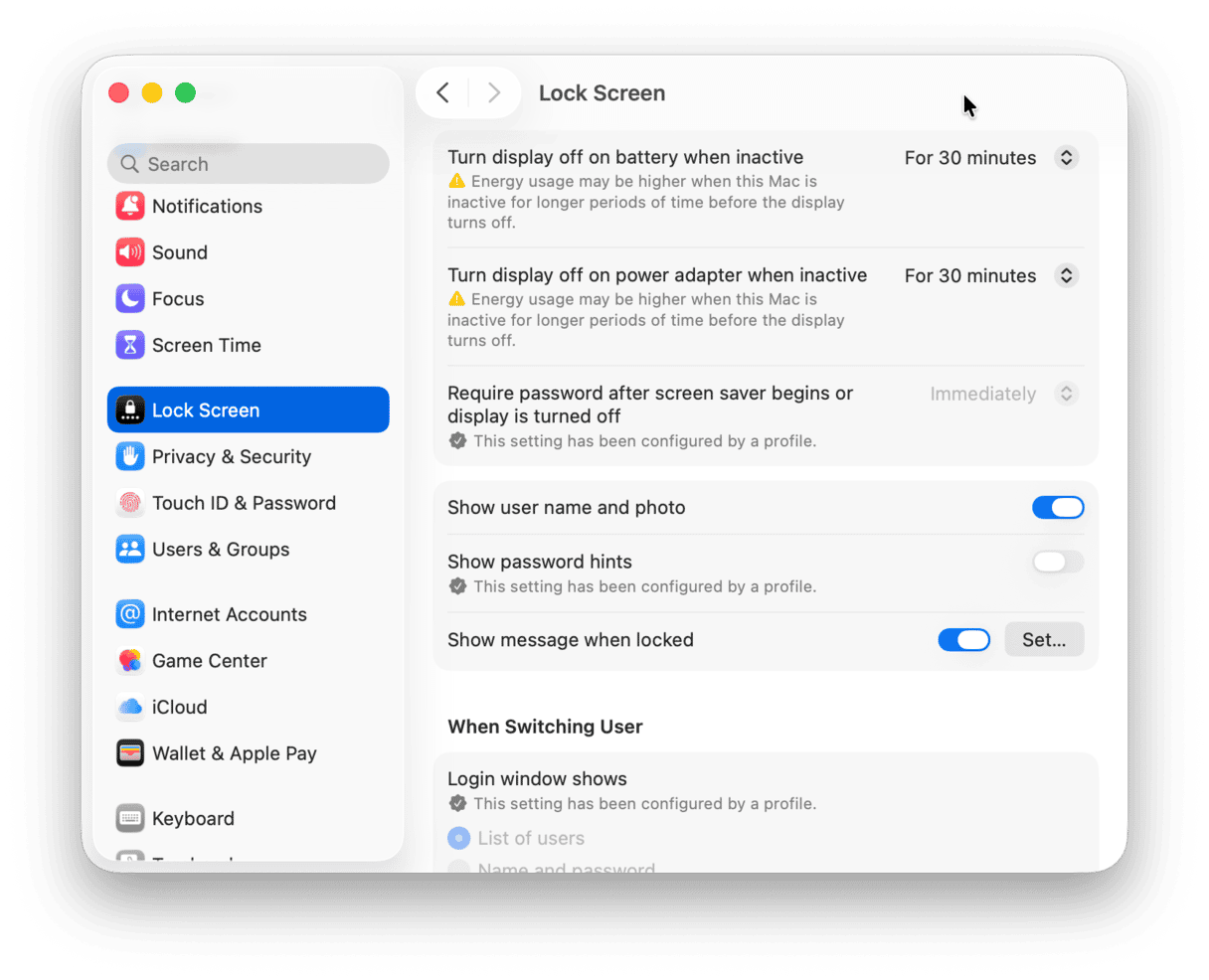
Configuring Auto-Lock on macOS
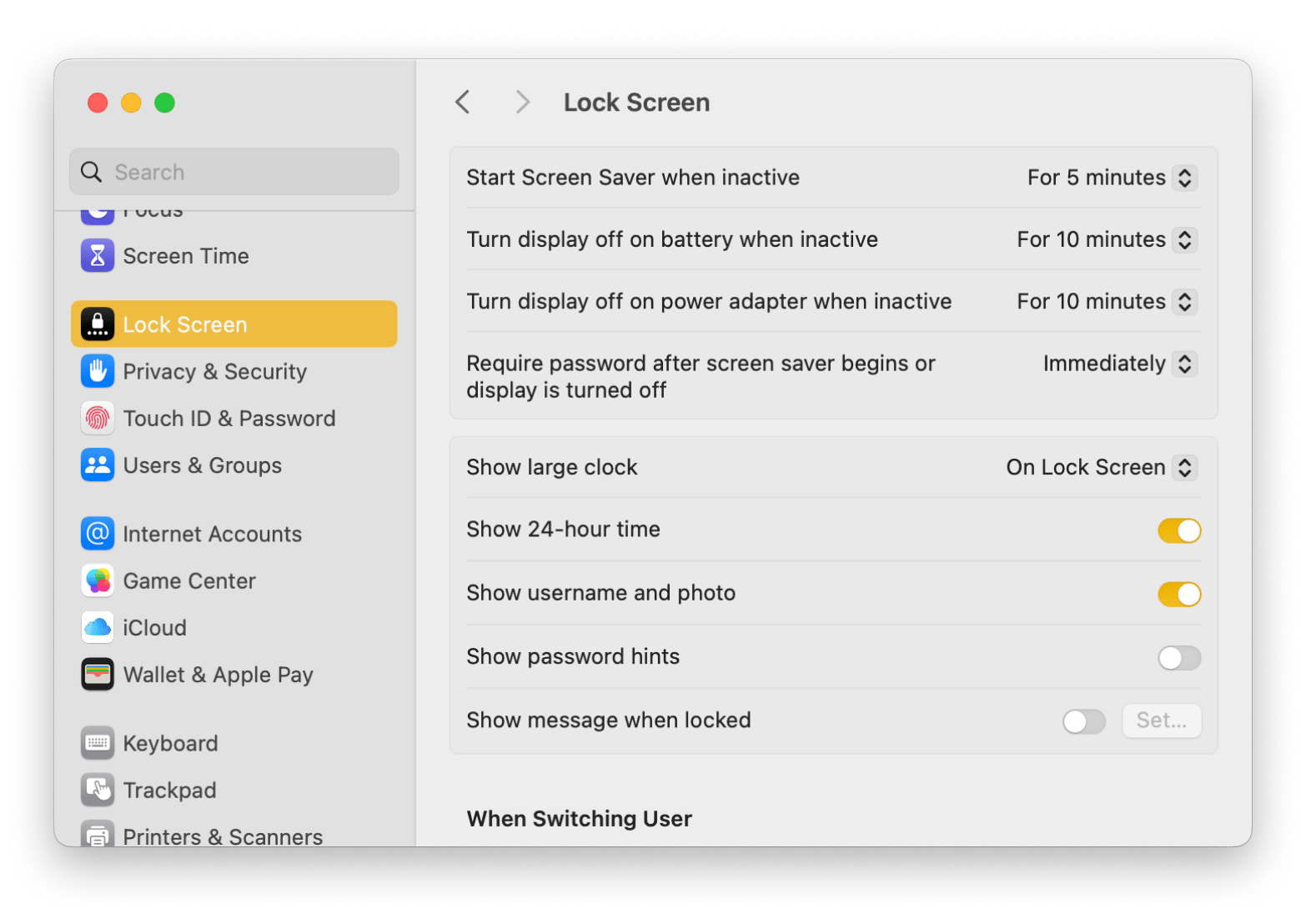
Apple operating systems consolidate display timeout and authentication rules within System Settings:
- Click the Apple Menu () in the top-left corner and select System Settings.
- Navigate to Lock Screen in the sidebar.
- Set Turn display off on battery when inactive and Turn display off on power adapter when inactive to 5 minutes or less.
- Set Require password after screen saver begins or display is turned off to Immediately.
For detailed operational guidance, review official recommendations within the Apple macOS User Guide.
Configuring Auto-Lock on Linux (GNOME)
On modern Linux desktop configurations using GNOME:
- Open Settings from the application menu or system tray.
- Select Privacy & Security (or Power depending on desktop version).
- Select Screen Lock.
- Toggle Automatic Screen Lock to On.
- Set Lock Screen Delay to Screen turns off immediately or select a 1-minute window.
- Set Blank Screen Delay under Power settings to 2–5 minutes.
Advanced Workstation Locking Mechanisms & Enterprise Controls
Organizations needing protection beyond basic shortcuts and inactivity timers deploy automated zero-trust locking mechanisms and centralized management policies.
- Advanced Locking Mechanisms
- Dynamic Lock (Bluetooth RSSI)
- Hardware Keys (Smart Cards / FIDO2 Tokens)
- Group Policy / MDM Enforcement (Central Admin)
Dynamic Lock via Bluetooth Proximity
Windows operating systems feature Dynamic Lock, which pairs the computer with a mobile phone via Bluetooth. The operating system monitors the Received Signal Strength Indicator (RSSI) of the paired device. When the user walks away carrying their smartphone, the Bluetooth signal drops below a designated threshold, prompting Windows to automatically lock the screen within approximately 30 seconds.
- Setup Path: Settings > Accounts > Sign-in options > Dynamic lock > Check Allow Windows to automatically lock your device when you're away.
Hardware Security Tokens and Smart Cards
High-security enterprises enforce hardware-based session locking. Standard mechanisms include:
- PKI Smart Cards: Inserting a Personal Identity Verification (PIV) card into a built-in or USB reader authenticates the session. Removing the smart card instantly triggers an operating system lock event.
- FIDO2 Security Keys: Physical keys (such as Yubico YubiKeys) combined with software utilities can lock the workstation automatically upon physical removal of the USB token.
Enterprise Deployment via Group Policy (GPO) and MDM
Enterprise IT departments bypass individual user configurations by enforcing screen locking policies across domain-joined endpoints using Microsoft Active Directory Group Policy Objects (GPO) or cloud-native Mobile Device Management (MDM) platforms such as Microsoft Intune or Jamf Pro.
Administrators configure the following Group Policy paths on Windows environments:
- Inactivity Timeout:
Computer Configuration \ Windows Settings \ Security Settings \ Local Policies \ Security Options \ Interactive logon: Machine inactivity limit(set to300seconds). - Screen Saver Lock Enforcement:
User Configuration \ Administrative Templates \ Control Panel \ Personalization \ Password protect the screen saver(Enabled) andScreen saver timeout(set to300seconds).
Detailed deployment parameters for Windows enterprise environments are maintained within the Microsoft Windows Security Documentation.
Operational Comparison of Screen Locking Methods
Selecting the correct combination of locking controls depends on user workflow, workplace environment, and enterprise security posture.
| Locking Mechanism | Activation Speed | User Intervention Required | Primary Failure Mode | Recommended Scenario |
|---|---|---|---|---|
| Manual Shortcut (Win+L / Ctrl+Cmd+Q) | Immediate (0 seconds) | Yes (Manual execution) | Human oversight (forgetting to press keys) | Primary habit for all users whenever leaving workstation |
| Automatic Timeout (OS Settings) | Delayed (2–5 minutes) | No (Automated) | Workstation remains exposed during the timer window | Secondary safety net for unexpected departures |
| Dynamic Lock (Bluetooth) | Moderate (~30 seconds post-range loss) | No (Device-dependent) | Phone left on desk; Bluetooth signal penetration through walls | Hybrid office environments and shared open spaces |
| Smart Card / Security Key Removal | Immediate (0–1 second) | Semi-automated (Physical removal) | Token left attached to workstation | High-security, financial, healthcare, and government facilities |
| GPO / MDM Enforced Policy | Automated / Non-overrideable | No (System enforced) | User setting overrides disabled by policy | Corporate-managed endpoints and remote fleet laptops |
Physical Security Best Practices for Workstations
Locking the screen software-side is only one component of comprehensive physical endpoint security. Physical controls must complement operating system configuration to mitigate visual eavesdropping and unauthorized tampering.
Clean Desk Policies
A clean desk policy ensures that sensitive printed documents, access credentials, USB storage drives, and handwritten notes containing sensitive data are locked in drawers or secure storage containers when workstations are left unattended. Leaving passwords written on sticky notes attached to locked monitors completely nullifies screen lock security.
Screen Privacy Filters
In open-plan offices, co-working facilities, public spaces, and remote work environments (such as coffee shops or airports), visual eavesdropping—known as shoulder surfing—poses a significant risk. Privacy screen filters utilize micro-louver technology to restrict the viewing angle of the monitor to direct line-of-sight (0 degrees), turning the screen black or distorted when viewed from side angles.
Physical Cable Locks and Port Blockers
Unattended physical hardware can be stolen or compromised using malicious USB hardware keyloggers. Physical security measures include:
- Kensington Lock Cables: Anchoring laptops and monitors to fixed desks to prevent equipment theft.
- USB Port Blockers: Physically restricting unauthorized USB devices from being plugged into endpoint hardware.
Troubleshooting Common Screen Lock Failures
Occasionally, operating system settings fail to lock the screen automatically due to background software interference or hardware conflicts.
1. Media Playback and Background Application Suppression
Certain applications override default OS power management and inactivity timers by issuing API commands (such as SetThreadExecutionState on Windows) to prevent the screen from going to sleep during presentation or video playback.
- Common Culprits: Web browsers playing video streams, media players, virtual meeting software (Zoom, Microsoft Teams), and background presentation utilities.
- Resolution: Close active media streams when stepping away, or manually trigger the screen lock shortcut (Win + L or Ctrl + Command + Q), which overrides software sleep-suppression routines.
2. Dynamic Lock Range Delays
Windows Dynamic Lock relies on Bluetooth RSSI signal degradation. If the smartphone remains close to the desk, or if structural walls reflect Bluetooth signals, the system may fail to register that the user has walked away.
- Resolution: Ensure Bluetooth drivers are updated, re-pair the smartphone, or shorten the signal threshold. Never rely on Dynamic Lock as a substitute for manual hotkey locks.
3. Screen Saver Password Prompt Not Triggering
If a screensaver activates but fails to lock the session, the password prompt requirement option may be disabled.
- Resolution: Verify that On resume, display logon screen is checked in Windows Screen Saver Settings, or ensure Require password immediately after sleep is selected in macOS System Settings.
Frequently Asked Questions
Does locking my screen close my running applications or drop active downloads?
No. Locking your screen secures the display server and suspends interactive display sessions, requiring authentication to restore access. Applications, network connections, file transfers, and background calculations continue running unaffected behind the lock screen.
What is the recommended inactivity timer duration for screen auto-lock?
Industry security benchmarks, including NIST guidelines, recommend setting the inactivity timer between 2 and 5 minutes for corporate environments. For personal or home workstations in low-risk physical environments, a timer between 5 and 10 minutes is standard, provided the manual locking hotkey is used whenever leaving the machine.
Can an intruder access my files if my screen is locked?
If your screen is locked and your drive is encrypted (using technologies such as Windows BitLocker or macOS FileVault), an attacker cannot access your files without your account credentials or encryption recovery keys. However, if unencrypted USB ports are left exposed, advanced physical hardware attacks remain theoretically possible, making full-disk encryption mandatory alongside screen locking.
Why does my computer stay awake and fail to auto-lock when applications are open?
Certain applications—such as video players, web conferencing tools, and web browsers running active media—issue systemic requests to the operating system to suppress power-saving modes. Triggering a manual keyboard lock bypasses application-level sleep prevention requests.
What is the difference between locking the screen and putting the computer to Sleep or Hibernate?
- Lock Screen: Keeps the computer running at full power, preserving memory and active network processes while securing display access behind a password prompt.
- Sleep Mode: Saves the current session to RAM and puts the computer into a low-power state, pausing active network downloads.
- Hibernate: Saves the session state directly to the solid-state drive (SSD/HDD) and powers down the device entirely.
Recommended Next Actions
To maintain robust endpoint physical security, take the following immediate steps:
- Practice the Shortcut: Memorize and habituate pressing Windows Key + L (Windows) or Control + Command + Q (macOS) every time you stand up from your desk.
- Audit Settings: Access your operating system settings right now and verify that your screen display timeout is set to 5 minutes or less.
- Enforce Instant Authentication: Ensure that your OS is configured to demand a password or biometric verification immediately upon waking or screensaver exit.
- Enable Full-Disk Encryption: Verify that BitLocker (Windows) or FileVault (macOS) is enabled to ensure data remains unreadable even if physical access to the device occurs while powered off.
Image Gallery