Choosing Editing Software for iPhone: A Technical Selection Guide
Selecting the best editing software for iPhone requires balancing technical video requirements, hardware capabilities, and budget preferences. While built-in tools like Apple iMovie suit basic clips, advanced creators editing 4K HDR or...
Selecting the best editing software for iPhone requires balancing technical video requirements, hardware capabilities, and budget preferences. While built-in tools like Apple iMovie suit basic clips, advanced creators editing 4K HDR or Apple Log footage need professional multi-track applications like LumaFusion or DaVinci Resolve. Evaluating codec support, export settings, and pricing structures ensures your app choice matches your production workflow.
Contents
Assessing iPhone Hardware and Processing Performance
Before selecting an editing application, evaluating the physical limits of your iPhone hardware is critical. Video editing is one of the most resource-intensive operations a mobile processor performs. The system-on-chip (SoC), internal storage architecture, and memory capacity directly dictate how smoothly an application handles high-resolution timelines.
Recent iPhone models featuring A15 Bionic, A16 Bionic, A17 Pro, or A18 Pro chips contain dedicated hardware media engines. These engines accelerate encoding and decoding for High Efficiency Video Coding (HEVC/H.265) and Apple ProRes codecs. If you shoot in Apple Log on iPhone 15 Pro or newer devices, your editing application must be able to parse 10-bit log color profiles without dropping frames during playback.
- System Performance Factor: Workflow Capability
- A17/A18 Pro + USB-C 3: Real-time 4K ProRes External Editing
- Standard A-Series + Lightning: 1080p/4K HEVC Timeline Rendering
- Low RAM (< 6GB): Single-Track Cuts / Compressed Assets
System memory (RAM) also dictates software stability. Applications running multi-track timelines with layered title cards, color lookup tables (LUTs), and complex audio effects consume substantial unified memory. Devices with 6GB to 8GB of RAM handle complex multi-layer sequences comfortably, whereas older devices with 4GB or less may experience application crashes during export if the software attempts to buffer multiple 4K video streams simultaneously.
Furthermore, physical storage speed and connectivity determine post-production efficiency. Models equipped with USB-C ports operating at USB 3 speeds (up to 10Gbps) allow editors to connect external Solid-State Drives (SSDs) directly to the iPhone. Professional mobile editors like LumaTouch LumaFusion and Blackmagic Design DaVinci Resolve can read and edit project media directly off an external drive, avoiding internal storage exhaustion when processing large video files.
Essential Technical Criteria for Evaluating Editing Apps
Not all iOS mobile editors serve the same operational requirements. Selecting the right software involves auditing specific technical capabilities against your distribution targets, whether producing short-form social video or long-form documentary content.
1. Codec and Format Compatibility
Your editor must natively import and export the video formats produced by your camera app or hardware. Key standards to look for include:
- HEVC (H.265) and H.264: Standard capture formats across all iOS devices.
- Apple ProRes: Broadcast-standard uncompressed/lightly compressed footage (ProRes 422 HQ, Proxy, LT) requiring software capable of handling high-bitrate data pipelines.
- Color Spaces: Support for Rec. 709 (Standard Definition/HD), Rec. 2020, and HLG/HDR10 color profiles.
- Spatial Video: Compatibility with 3D spatial video captured for Apple Vision Pro playback.
2. Timeline Architecture and Multi-Track Flexibility
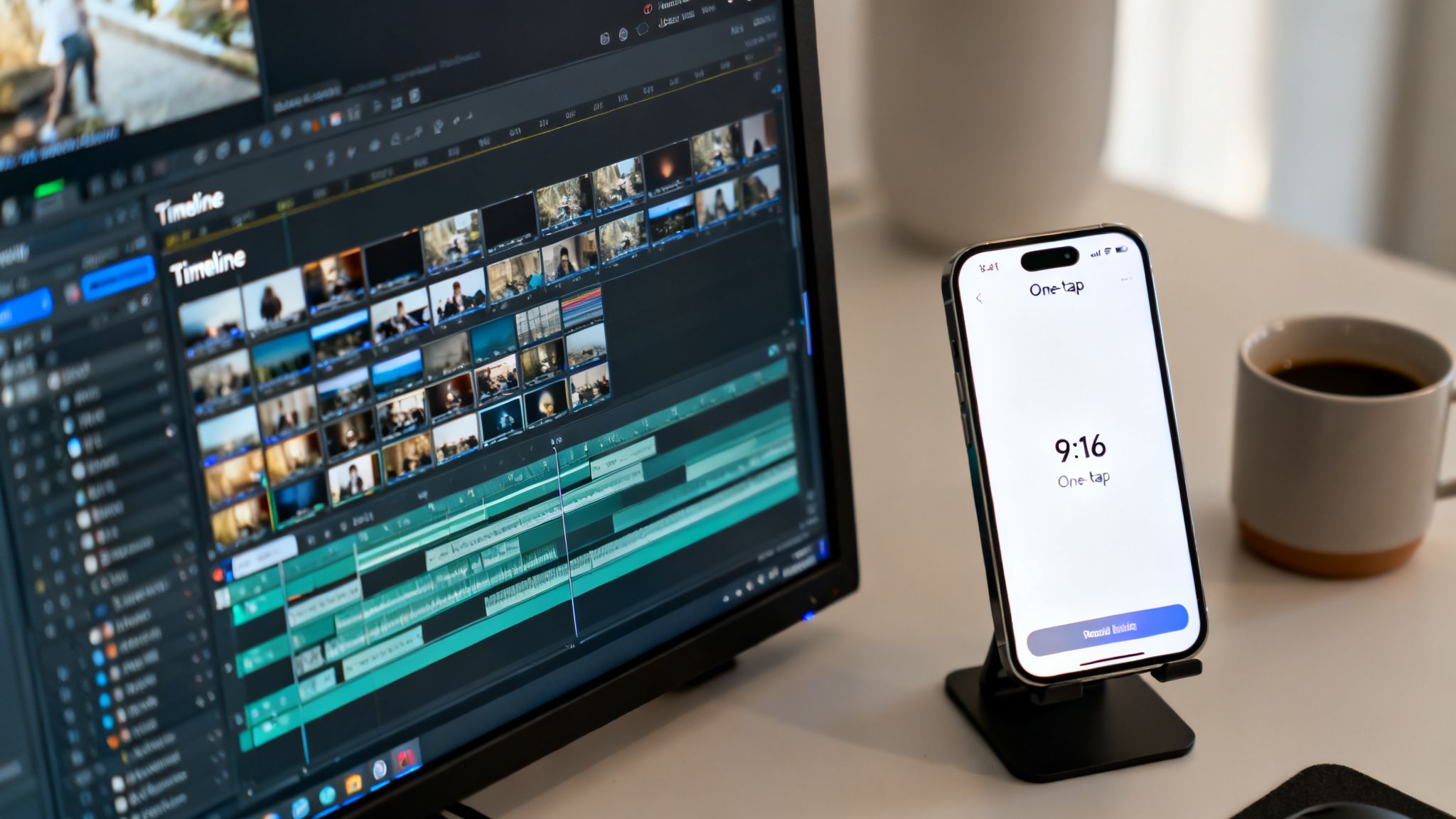
Entry-level mobile editors rely on "magnetic" single-track timelines that force clips to snap together sequentially. Professional workflows demand multi-track non-linear editing (NLE) environments that support stacked video tracks, independent audio channels, keyframe animation for position and scale, and adjustment layers.
3. Color Management and LUT Support
Basic color correction involves adjusting contrast, saturation, and brightness. Advanced editing requires color management workflows:
- Log Conversion: Transforming flat 10-bit Apple Log footage into standard Rec. 709 using official manufacturer conversion tables.
- Custom 3D LUT Import: Loading
.cubefiles to apply custom color grades across clips. - Scope Tools: Access to waveforms, vectorscopes, and RGB parades to ensure broadcast-compliant video levels.
4. Audio Processing and Precision Editing
Audio quality frequently determines overall video production value. Evaluate whether software offers sub-frame audio editing, multi-band equalization (EQ), dynamic noise suppression, and voiceover recording capabilities. Software supporting Apple's AUv3 plugin format allows third-party audio effects to run directly inside the editor.
5. Flexible Export Control
An adequate editing tool must allow custom export parameters. You should be able to select specific frame rates (23.976, 24, 29.97, 50, 60 fps), target bitrates (measured in Mbps), container formats (.mp4 vs .mov), and custom canvas aspect ratios (16:9, 9:16, 1:1, 4:5).
iPhone Editing Software Categorization and Comparison
To narrow down your choices, editing applications can be split into three core operational tiers: quick social editors, cross-platform mid-tier tools, and mobile desktop-class NLEs.
- CHOOSING THE RIGHT TIER
- Tier 1: Fast Social Editors
- Focus: Speed, AI tools, vertical templates, automatic captions
- Examples: CapCut, InShot, Apple iMovie
- Tier 2: Mid-Tier Cross-Platform Editors
- Focus: Cloud sync, desktop parity, balanced features
- Examples: Adobe Premiere Rush, Splice
- Tier 3: Professional Mobile NLEs
- Focus: Color scopes, multi-track, ProRes, external storage
- Examples: LumaFusion, DaVinci Resolve for iPad/iOS
- Tier 1: Fast Social Editors
Entry-Level and Automated Editors
These tools prioritize automated captions, trending transition presets, and rapid vertical video processing for platforms like Instagram Reels, TikTok, and YouTube Shorts.
- Apple iMovie: Pre-installed and completely free. Excellent for simple, single-track cuts and quick stabilization without watermarks, but lacks multi-track versatility, advanced color management, and vertical canvas optimization.
- CapCut: Popular for social creators due to built-in automatic speech-to-text subtitling, AI-driven background removal, and speed ramping presets. However, privacy considerations and cloud subscription lock-ins should be evaluated for enterprise environments.
Mid-Tier Cross-Platform Tools
Ideal for creators who split time between desktop computers and mobile devices.
- Adobe Premiere Rush: Offers cross-device project syncing through Adobe Creative Cloud. It simplifies the interface of desktop Premiere Pro while maintaining multi-track audio/video timeline layouts. It is suitable for basic branding tasks but lacks advanced color grading scopes and deep parameter keyframing.
Professional Mobile Non-Linear Editors (NLEs)
Designed for filmmakers, broadcast journalists, and commercial video editors who require desktop-grade precision directly on an iOS device.
- LumaFusion: The benchmark for mobile non-linear editing. Supports up to six video/audio tracks and six additional audio tracks, frame-accurate keyframing, external display monitoring, 3D LUT color grading, and direct project export to Final Cut Pro desktop format.
- DaVinci Resolve for iOS: Leverages the desktop DaVinci Resolve processing engine. Features the Cut Page and Color Page, supporting advanced node-based color grading, Fairlight audio processing, and full project file compatibility with desktop workstations via Blackmagic Cloud.
Comprehensive Feature Comparison
The table below outlines key technical attributes across leading iPhone video editing platforms to simplify decision-making.
| Application | Primary Use Case | Target User | Apple Log / 10-Bit Support | External Drive Editing | Pricing Model |
|---|---|---|---|---|---|
| Apple iMovie | Basic Home & Personal Clips | Beginners | Limited (Converts to SDR) | No | Free |
| CapCut | Short-Form Social Content | Social Creators | Partial (App-dependent) | No | Free / Monthly Subscription |
| Adobe Premiere Rush | Cross-Platform Quick Edits | Mobile Business & Vloggers | Standard H.264/HEVC | No | Included in Creative Cloud / Monthly |
| LumaFusion | Full Mobile Video Production | Journalists, Filmmakers | Full Native Support | Yes (USB-C iPads/iPhones) | One-time Purchase |
| DaVinci Resolve (iOS) | Cinematic Color & Finishing | Professional Colorists/Editors | Full Native 10-bit / Log | Yes | Free / One-time Studio Upgrade |
| InShot | Quick Social Layouts & Filters | Casual Social Editors | No | No | Free / Subscription / Lifetime |
Monetization Models: Evaluating Long-Term Costs
Software pricing models directly impact the total cost of ownership over a project's lifecycle. Software vendors utilize three main business structures for iOS video apps:
- Software Business Models
- One-Time Perpetual (e.g., LumaFusion): Fixed upfront cost, full feature access
- Monthly/Annual Subscription (e.g., Adobe): Recurring fee, cloud sync, regular updates
- Freemium with Export Locks (e.g., CapCut): Free basic features, paid pro tools/watermarks
- One-Time Perpetual Licenses: Apps like LumaFusion charge a single upfront payment. This model provides predictable costs, lifetime core updates, and complete access to local editing features without recurring monthly bills.
- Recurring Subscriptions: Popular among cloud-centric applications like Adobe Premiere Rush and CapCut Pro. Subscriptions unlock continuous cloud storage syncing, premium stock asset libraries, and server-side AI processing features. However, stopping your subscription often revokes access to project editing capabilities.
- Freemium with Feature/Export Locks: Free downloads that limit export resolution (e.g., capping output at 720p or 1080p unless paid), apply branded watermarks, or block advanced audio tools behind microtransactions.
For professional or recurring commercial workflows, perpetual software licenses or stable subscriptions without watermark traps represent the safest investment.
Common Pitfalls When Choosing Mobile Editing Apps
Selecting mobile post-production software without accounting for operational limits can disrupt your production pipeline. Avoid these common mistakes:
Over-estimating Mobile Canvas Real Estate
Editing complex timelines on an iPhone screen (even 6.7-inch Pro Max displays) presents touch-interface limits. Choosing software with non-customizable workspace layouts can make selecting tiny timeline handles frustrating. Look for apps that allow you to expand preview monitors or collapse track headers as needed.
Ignoring Thermal Throttling Issues
Processing high-bitrate HEVC or ProRes media places continuous heavy load on the iPhone's SoC. Software that lacks optimization for Apple Silicon hardware acceleration causes rapid battery drain and internal heat accumulation. When an iPhone overheats, the system throttles CPU/GPU clock speeds, leading to timeline dropping and delayed render times.
Neglecting Media Backup and Cloud Reliance
Relying entirely on mobile software that stores project files within local application sandboxes risks total project loss if your phone is lost, damaged, or swapped during hardware updates. Ensure your chosen application supports local project archiving to external media, iCloud Drive backup, or cross-platform desktop project migration.
Frequently Asked Questions
Can iPhone editing software handle 4K ProRes footage smoothly?
Yes, provided your hardware and software are aligned. iPhones with A15 Bionic processors or newer contain hardware ProRes decoders. When paired with desktop-class NLEs like LumaFusion or DaVinci Resolve, 4K ProRes playback and editing run smoothly without requiring proxy files.
Do I need a subscription app to produce professional content?
No. Perpetual-license applications like LumaFusion provide comprehensive multi-track timeline editing, frame-accurate keyframing, and advanced color grading for a single upfront cost. Free tools like Blackmagic DaVinci Resolve for iOS also offer broadcast-ready color and editing capabilities without ongoing subscription fees.
How does external drive editing work on USB-C iPhones?
On iPhone 15 Pro, iPhone 16 Pro, and compatible USB-C iPad models, editors can attach a fast external SSD formatted in APFS or exFAT. Applications designed to interface with the iOS Files framework can stream video clips directly from the SSD into the editing timeline without importing raw video files into internal iPhone storage.
Should I choose a desktop cross-platform editor or a mobile-native app?
If your primary goal is editing on location and publishing directly from your device, mobile-native apps optimized for multi-touch (such as LumaFusion or CapCut) offer faster workflows. If your mobile edits need to be finished by a post-production team on desktop workstations, select software like DaVinci Resolve or Adobe Premiere Rush that supports cross-device project file exchanges.
What is the advantage of using Log footage conversion LUTs in mobile software?
Recording in Apple Log preserves a wider dynamic range in highlights and shadows, but produces a low-contrast, desaturated image. Mobile editing software that supports 3D LUT imports allows you to apply precise color translation curves, converting flat Log assets into vivid Rec. 709 video without sacrificing color grading flexibility.
Recommended Next Steps
To choose and deploy the ideal editing software for your mobile production workflow, follow these practical steps:
- Audit Your Capture Formats: Review your camera setup. If you capture in 10-bit Apple Log or 4K ProRes, rule out basic single-track editors that force 8-bit SDR compression.
- Evaluate Device Hardware Specifications: Confirm your iPhone's SoC version, available internal storage, and port speed (Lightning vs. USB-C 3).
- Run Field Stress Tests: Download free tiers or trial versions of your top candidates (e.g., iMovie, DaVinci Resolve, or CapCut). Load a multi-clip test timeline, apply basic color adjustments, and test render speeds to monitor device heating and responsiveness.
- Establish Backup Protocols: Ensure your chosen app allows manual project exports to iCloud Drive or an external SSD to safeguard your master assets.
Image Gallery