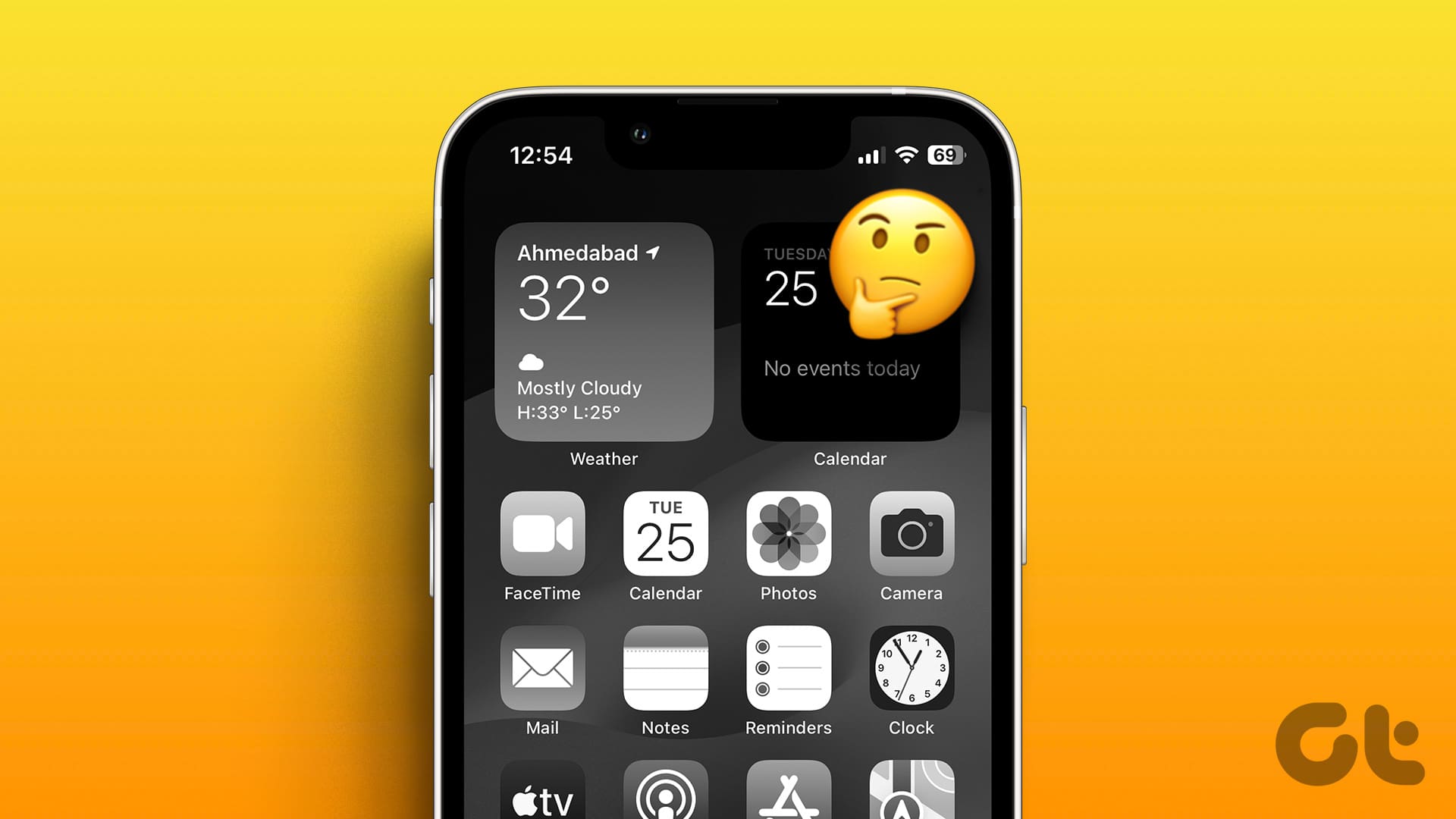
How to Make Your Phone Black and White: A Step-by-Step Guide for Android and iPhone
To make your phone black and white, you must enable the grayscale or color filter settings located within the Accessibility menu of your device. On iPhone, navigate to Settings > Accessibility > Display & Text Size > Color Filters. On...
To make your phone black and white, you must enable the grayscale or color filter settings located within the Accessibility menu of your device. On iPhone, navigate to Settings > Accessibility > Display & Text Size > Color Filters. On Android, go to Settings > Accessibility > Color and Motion > Color Correction.
Contents
In our hyper-connected 2026 landscape, the modern smartphone remains a masterpiece of engineering designed to capture and hold our attention. One of the most effective psychological tools used by app developers is the vibrant use of color. From the bright red of notification badges to the saturated hues of social media feeds, color triggers dopamine responses that keep users scrolling. Transitioning your device to a grayscale (black and white) display is a powerful way to break this cycle, improve digital wellbeing, and even extend the battery life of certain screen types.
The Science and Benefits of a Grayscale Display
Before diving into the technical steps, it is essential to understand why you might want to strip the color from your high-resolution display. While it may seem counterintuitive to use a state-of-the-art 2026 smartphone in monochrome, the benefits are rooted in both psychology and hardware efficiency.
Reducing Digital Addiction and the Dopamine Loop
Human brains are evolutionarily wired to respond to bright colors. Red, in particular, signals urgency and importance. By turning your phone black and white, you remove the "reward" aspect of browsing. Apps like Instagram, TikTok, and YouTube become significantly less stimulating when their vibrant content is rendered in shades of gray. This "boring" interface helps users regain control over their screen time, making it easier to put the phone down after completing a necessary task.
Enhancing Accessibility
For individuals with certain types of color blindness or visual sensitivities, a grayscale mode provides a consistent high-contrast environment. This can reduce eye strain during prolonged use, especially in low-light conditions where the blue light and high-intensity colors of modern OLED screens can be particularly taxing on the ocular nerves.
Battery Preservation on OLED and AMOLED Screens
Most flagship phones in 2026 utilize OLED (Organic Light Emitting Diode) technology. Unlike traditional LCDs that use a backlight, OLED pixels produce their own light. When a pixel is black, it is completely powered off. While grayscale isn't as efficient as a pure "Dark Mode," reducing the intensity and variety of colors processed by the display controller can lead to marginal gains in battery longevity, particularly when combined with lower brightness settings.
How to Make an iPhone Black and White (iOS 19 and Later)
Apple has long been a leader in accessibility features. In the current iOS environment, the process to enable grayscale is streamlined but tucked away within several layers of settings to prevent accidental activation.
Method 1: The Standard Settings Path
- Open the Settings app on your iPhone.
- Scroll down and tap on Accessibility. This menu contains all the tools for modifying the interface.
- Under the "Vision" section, select Display & Text Size.
- Scroll down to find Color Filters and tap it.
- Toggle the Color Filters switch to On.
- Select Grayscale from the list of options that appear. Your screen should immediately transition to shades of black, white, and gray.
Method 2: Creating an Accessibility Shortcut
If you want to toggle black and white mode on and off frequently—perhaps keeping color for photography but using grayscale for work—you should set up an Accessibility Shortcut.
- Go to Settings > Accessibility.
- Scroll to the very bottom and tap Accessibility Shortcut.
- Check the box for Color Filters.
- Now, you can triple-click the side button (or the Home button on older models) to instantly toggle grayscale.
Method 3: Using the Action Button (iPhone 15 Pro and Newer)
For users with devices featuring the programmable Action Button, you can map the "Accessibility" function directly to the button. This allows for a one-press transition to black and white, making the digital detox process much more accessible.
How to Make an Android Phone Black and White (Android 16 and Later)
Android’s fragmented ecosystem means that menus might look slightly different depending on whether you use a Google Pixel, a Samsung Galaxy, or a OnePlus device. However, the core logic remains consistent across Android 16 and modern builds.
On Google Pixel and Stock Android Devices
- Swipe down twice from the top of the screen and tap the Settings (gear) icon.
- Navigate to Accessibility.
- Select Color and motion (in some versions, this may be labeled as "Display").
- Tap on Color correction.
- Toggle Use color correction to On.
- Ensure the Correction mode is set to Grayscale.
On Samsung Galaxy Devices (One UI 8.0+)
Samsung provides multiple ways to achieve a monochrome look, often integrated into their "Comfort" or "Wellbeing" suites.
- Open Settings and tap on Accessibility.
- Tap on Vision enhancements.
- Select Color correction.
- Switch the toggle to On and choose Grayscale.
- Alternative: You can also go to Settings > Modes and Routines to set your phone to turn black and white automatically during "Sleep" or "Work" modes.
Using Developer Options (Advanced Method)
If you cannot find the setting in the standard menu, you can force it through the Developer Options.
- Go to Settings > About Phone.
- Tap Build Number seven times until you see a message saying "You are now a developer."
- Return to the main Settings menu and go to System > Developer options.
- Search for Simulate color space.
- Select Monochromacy.
Technical Comparison: iOS vs. Android Implementation
| Feature | iOS (Apple) | Android (Google/Samsung) |
|---|---|---|
| Primary Setting Location | Accessibility > Color Filters | Accessibility > Color Correction |
| Shortcut Method | Triple-click Side Button | Accessibility Button / Volume Key Shortcut |
| Scheduling | Via Shortcuts/Focus Modes | Via Digital Wellbeing / Bedtime Mode |
| Screenshot Result | Captured in Full Color | Captured in Full Color |
| Automation Strength | High (Integration with Focus) | Very High (Modes and Routines) |
| Impact on Performance | Negligible | Negligible |
Troubleshooting Common Grayscale Issues
While switching to black and white is generally straightforward, users often encounter a few common hurdles during the transition.
Screenshots and Photos Still Appear in Color
A common point of confusion is how the phone handles media. When you enable grayscale, you are applying a filter to the display hardware, not the underlying data. If you take a photo or a screenshot while your phone is in black and white mode and send it to a friend, they will see it in full color. To truly take a black-and-white photo, you must use the monochrome filter within your Camera app's settings.
The Screen Randomly Switches Back to Color
This usually happens because of an automation or a conflicting setting.
- On iPhone: Check if you have a Focus Mode (like "Sleep" or "Do Not Disturb") scheduled to turn off filters.
- On Android: Check Digital Wellbeing. The "Bedtime Mode" or "Wind Down" feature often includes a grayscale trigger that might deactivate when the phone exits its scheduled sleep window.
Third-Party App Overrides
Some apps, particularly high-performance games or video players, may attempt to override system-level color filters to ensure visual fidelity. If an app ignores your grayscale settings, it is likely a limitation of how that specific app interacts with the OS's accessibility layer. In such cases, there is often no workaround other than avoiding those apps during your digital detox periods.
FAQs: Frequently Asked Questions
Does making my phone black and white really save battery?
On phones with OLED or AMOLED screens, yes, but the savings are modest. Because grayscale reduces the overall luminosity and complexity of the signal being sent to the display, the power draw is lower than a full-color vibrant display. However, for maximum battery saving, "Dark Mode" is more effective because it actually turns off pixels entirely (pure black).
Will this affect my phone's warranty or performance?
No. Enabling grayscale is a standard accessibility feature provided by the manufacturer. It does not involve "rooting" or "jailbreaking" the device and has zero negative impact on the long-term health of your hardware or your warranty status.
Can I set it so only specific apps are black and white?
In 2026, both iOS and Android allow for more granular control, but not natively through a single toggle. On iPhone, you can use the Shortcuts app to create an automation that turns on Color Filters when a specific app is opened. On Android (Samsung), you can use Routines to achieve the same effect.
Is it harder on the eyes to read in black and white?
For most people, it is actually easier. Removing the blue light and high-energy wavelengths associated with bright colors can reduce digital eye strain and make text-heavy content (like articles or e-books) more comfortable to read over long periods.
Can I still use my camera properly?
Yes, but it is difficult to judge the quality of a photo's color while the screen is in grayscale. If you are an avid mobile photographer, it is highly recommended to set up the Accessibility Shortcut mentioned earlier so you can quickly toggle back to color to check your shots.
Practical Recommendation: The 24-Hour Trial
If you find yourself spending more time on your phone than you'd like, we recommend the 24-hour monochrome challenge. Set your phone to grayscale on a Saturday morning and use it for an entire day. You will likely notice a significant drop in the urge to "doomscroll" or browse social media apps.
Once the 24 hours are up, re-evaluate which apps you truly need in color. Many users find that keeping the phone in black and white permanently, only switching to color for specific tasks like photo editing or navigation, leads to a much healthier relationship with their technology.
Image Gallery