How to Fix iPhone No SIM Errors and Restore Cellular Connectivity
When your iPhone displays a "No SIM" error, it indicates that the device has lost communication with the physical SIM card or the eSIM profile required to connect to your mobile carrier’s network. This interruption prevents you from ma...
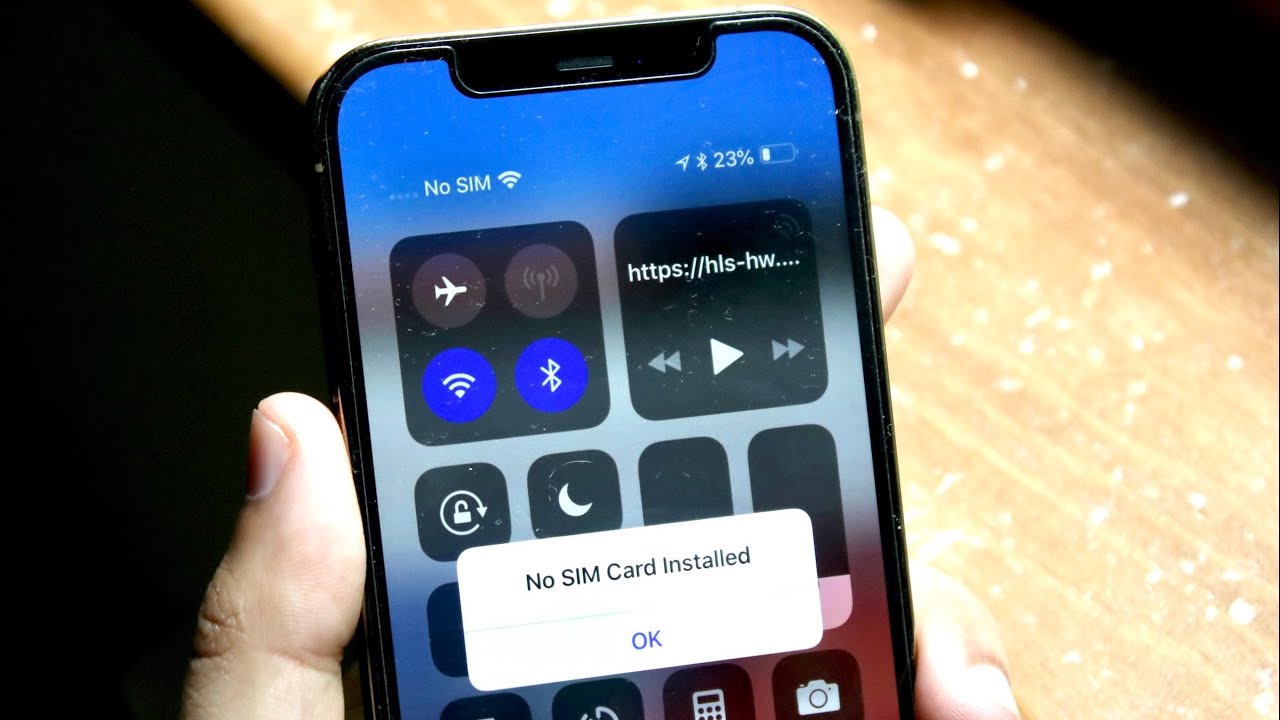
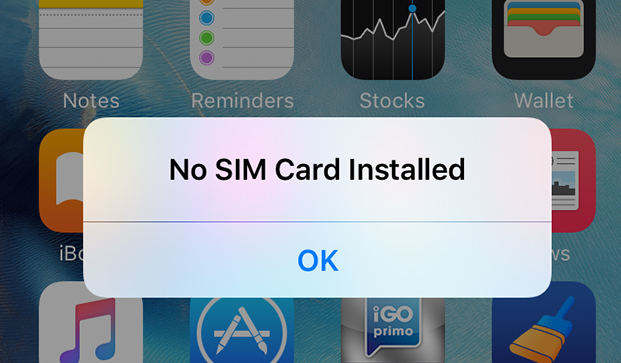
When your iPhone displays a "No SIM" error, it indicates that the device has lost communication with the physical SIM card or the eSIM profile required to connect to your mobile carrier’s network. This interruption prevents you from making calls, sending SMS messages, or using cellular data. Resolving this issue often involves a systematic process of troubleshooting physical hardware connections, refreshing network software configurations, and verifying carrier-side provisioning.
Contents
Immediate Physical Troubleshooting for Physical SIM Cards
If your iPhone uses a physical nano-SIM card, the most common cause of a "No SIM" error is a poor physical connection between the card's gold contacts and the device’s internal pins. Even a microscopic shift in the SIM tray can result in a loss of signal.
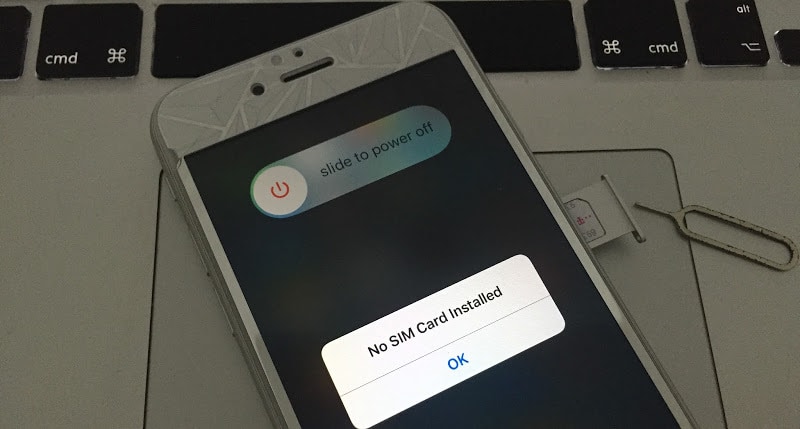
- Eject and Reinsert: Use a SIM ejector tool or a small paperclip to open the SIM tray. Inspect the tray for any debris, dust, or lint that may have accumulated over time. If the tray appears clean, wipe the gold contact surface of the SIM card gently with a soft, lint-free cloth. Reinsert the tray firmly, ensuring it sits flush against the frame of the device.
- Inspect for Damage: Look closely at the SIM card itself. If the gold contact area shows signs of oxidation (a dull, dark discoloration), deep scratches, or if the plastic card is physically warped, the card may be faulty.
- Cross-Device Testing: If you have access to another unlocked phone, insert your SIM card into that device. If the second device also fails to recognize the card, the issue is likely with the SIM card itself, and you should contact your carrier for a replacement.
Software and Network Configuration Diagnostics
If the physical hardware appears sound, the problem may lie within the iOS network stack or a temporary firmware hang.
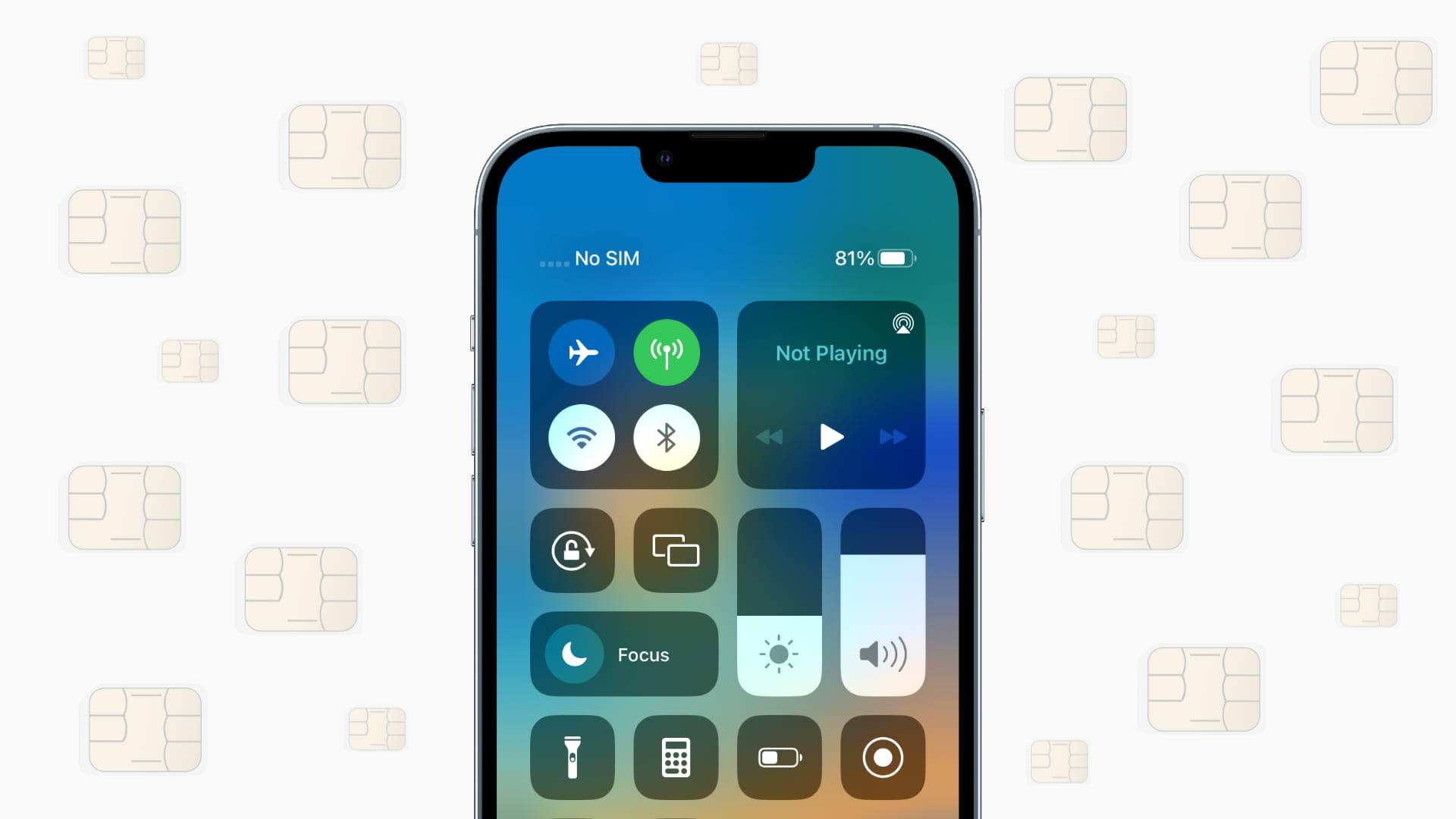
- Toggle Airplane Mode: This forces the iPhone to power down and restart its cellular modem. Enable Airplane Mode in the Control Center, wait approximately 15 seconds, and disable it. This action triggers a new handshake attempt with the local cell tower.
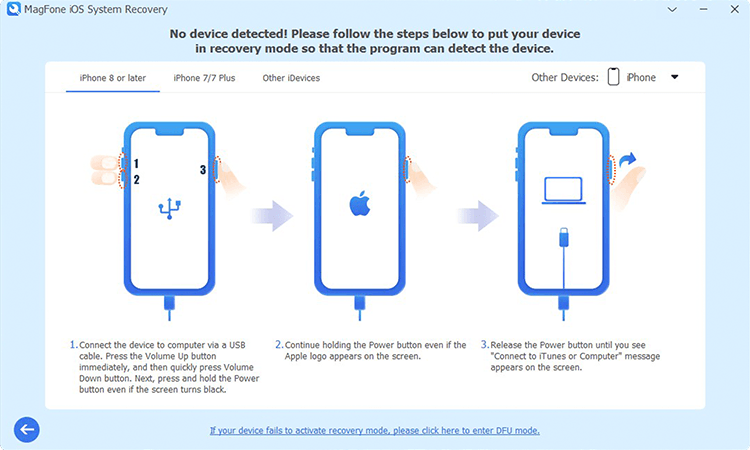
- Restart the iPhone: A standard power cycle clears the temporary memory and reinitializes all system services. A force restart—pressing and quickly releasing the Volume Up button, doing the same for Volume Down, and holding the Side button until the Apple logo appears—is often more effective for persistent errors.
- Check for Carrier Settings Updates: Occasionally, carriers release updates to improve connectivity or compatibility. Navigate to Settings > General > About. If an update is available, a prompt will appear automatically within a few seconds. Follow the on-screen instructions to install it.
Resolving eSIM and Software-Defined Issues
Modern iPhones rely heavily on eSIM technology. If you are using an eSIM, the "No SIM" error is rarely a hardware contact issue and is instead a result of a corrupted digital profile or a failed carrier activation.
- Verify Cellular Plans: Go to Settings > Cellular. Under the SIMs section, ensure your primary line is toggled "On." If it is toggled on but remains inactive, toggle it off, wait a moment, and turn it back on.
- Remove and Re-add eSIM: If the eSIM profile is corrupted, you may need to delete it and re-add it. Note that you will need a new QR code or activation details from your carrier to restore service. Settings > Cellular > [Your Plan] > Delete eSIM. Once deleted, you must contact your carrier to provision a new eSIM to your device.
Comparison of Connectivity Troubleshooting Methods
The following table summarizes the most effective diagnostic steps based on the type of SIM being utilized.
| Method | Physical SIM | eSIM | Effort Level |
|---|---|---|---|
| Toggle Airplane Mode | Yes | Yes | Low |
| Inspect/Clean SIM | Yes | No | Medium |
| Force Restart | Yes | Yes | Low |
| Update Carrier Settings | Yes | Yes | Low |
| Reinstall eSIM Profile | No | Yes | High |
| Carrier Support Request | Yes | Yes | High |
When to Contact Your Carrier
If you have performed the basic troubleshooting steps and the iPhone continues to display "No SIM," the issue may be external to your device. Your carrier controls the status of your SIM card in their database.
- Account Suspension: Check your billing status. If a payment was missed or a service plan expired, the carrier may have remotely deactivated your SIM card, resulting in a "No SIM" or "SIM Failure" message.
- Device Blacklisting: If a device was reported lost or stolen—even incorrectly—the IMEI (International Mobile Equipment Identity) may have been blocked on the carrier’s network.
- Activation Requirements: If you recently transferred your number to a new carrier, the "porting" process may not be complete. Contacting customer support can clarify if the activation process is hung on their end.
Advanced Software Restorations
In rare instances, the iOS operating system may encounter a deeper conflict that prevents the modem firmware from communicating correctly. Before assuming a hardware failure, consider these advanced steps:
- Reset Network Settings: This is a comprehensive action that restores all network configurations to factory defaults. This includes clearing saved Wi-Fi passwords, Bluetooth pairings, and VPN settings. Navigate to Settings > General > Transfer or Reset iPhone > Reset > Reset Network Settings.
- Update iOS: An outdated operating system may contain bugs that affect modem performance. Ensure your device is running the latest version of iOS via Settings > General > Software Update.
- Factory Restore: If all other methods fail, backing up your data to iCloud or a computer and performing a factory reset can rule out deep-seated software corruption. If the "No SIM" error persists after a clean install of iOS, the issue is almost certainly a hardware malfunction of the internal cellular modem or SIM card reader.
Frequently Asked Questions
What does it mean when my iPhone says "SIM Failure"? Unlike "No SIM," which implies the phone cannot find a card, "SIM Failure" suggests the phone has detected a card but cannot read the data on it. This usually indicates a damaged SIM card or a failing internal reader.
Will a "No SIM" error happen if my phone is locked? An "Activation Required" or "No SIM" error can occur if a phone is carrier-locked and you insert a SIM card from an unsupported carrier. Ensure your device is "unlocked" if you are attempting to use a SIM from a different network provider.
Does a dead battery affect SIM recognition? A completely drained battery can occasionally cause the modem to lose its configuration upon reboot. Ensure your iPhone is charged to at least 50% before performing significant troubleshooting, such as network resets.
Can dropping my iPhone cause a "No SIM" error? Yes. Impacts can loosen the internal flex cables that connect the SIM reader to the logic board. If you suspect physical damage, the device should be inspected by a professional technician.
How do I know if the SIM reader is broken? If you test a known-working SIM card from another device in your iPhone and it still shows "No SIM," and you have successfully reset your network settings, the hardware reader is the most likely point of failure.
Recommended Next Action
Begin by checking for a carrier settings update in your settings menu, as this is the least invasive fix. If the error persists, test a different SIM card in your device to isolate whether the fault lies with the card or the iPhone hardware. If the device remains unresponsive to multiple verified SIM cards, contact Apple Support or an authorized service provider to discuss potential hardware repair options.
Image Gallery