Understanding What the WMM Wi-Fi Standard Means for Your Network
The WMM Wi-Fi standard—formally known as Wi-Fi Multimedia—is a certification protocol developed by the Wi-Fi Alliance to prioritize network traffic based on application requirements, ensuring that bandwidth-sensitive tasks like voice a...
The WMM Wi-Fi standard—formally known as Wi-Fi Multimedia—is a certification protocol developed by the Wi-Fi Alliance to prioritize network traffic based on application requirements, ensuring that bandwidth-sensitive tasks like voice and video receive preferential treatment over routine data downloads.
Contents
Modern wireless networks carry a diverse mix of data traffic, ranging from casual web browsing and background file downloads to real-time voice calls and high-definition video streaming. Without an intelligent management framework, all data packets are treated equally on a first-come, first-served basis. This indiscriminate handling can lead to frustrating latency spikes, jitter, and dropped connections during peak network usage. Understanding what the WMM Wi-Fi standard means helps users and network administrators optimize their wireless environments for smoother performance.
Originally introduced to bridge the gap between wired and wireless quality of service limitations, WMM serves as the foundational cornerstone for modern wireless traffic shaping. By implementing strict prioritization rules directly at the media access control layer, the protocol ensures that time-sensitive applications remain stable even when the broader network is heavily congested.
The Core Concept of Wireless Quality of Service
To understand what the WMM Wi-Fi standard means in practice, it is necessary to examine the concept of Quality of Service (QoS). Traditional Ethernet and early Wi-Fi networks operated on a Best-Effort delivery model. In this setup, every data packet is treated with identical priority. While this approach works adequately for low-density networks handling simple tasks, it fails when multiple devices compete for limited wireless airtime.
Quality of Service provides the mechanisms required to prioritize certain types of network traffic over others. However, implementing QoS in a wired network is vastly different from doing so wirelessly. Wired Ethernet uses full-duplex communication and dedicated copper or fiber paths, whereas wireless networks rely on a shared medium—the radio frequency spectrum.
Because Wi-Fi is a shared medium where only one device can successfully transmit at a time without causing collisions, managing access to the airwaves is critical. WMM adapts the rigorous IEEE 802.11e QoS amendment into a streamlined, consumer-friendly implementation tailored specifically for Wi-Fi hardware. Rather than treating all network traffic equally, WMM introduces rules that govern how long a device must wait before attempting to transmit data, effectively giving high-priority packets faster access to the airwaves.
How WMM Categorizes Traffic Access Categories
At the technical heart of the WMM specification is the division of network traffic into four distinct Access Categories (AC). These categories map directly to the 802.1D priority levels and ensure that different types of applications are handled according to their sensitivity to delay and packet loss.
| Access Category | Designation | Description | Typical Use Cases |
|---|---|---|---|
| AC_BK | Background | Lowest priority traffic that has no time sensitivity. | File transfers, backups, system updates. |
| AC_BE | Best Effort | Standard traffic that does not require specific prioritization. | Web browsing, email, standard file viewing. |
| AC_VI | Video | High-priority traffic sensitive to delay and jitter. | Video streaming, security camera feeds, screen sharing. |
| AC_VO | Voice | Highest priority traffic requiring minimal latency. | VoIP phone calls, real-time conferencing apps, gaming chat. |
These access categories operate by modifying specific parameters within the Distributed Coordination Function (DCF) of the Wi-Fi protocol. Specifically, WMM adjusts the Arbitration Interframe Space (AIFS), which represents the waiting period a device must observe after the channel becomes idle before it can transmit.
Furthermore, WMM utilizes Contention Windows (CW), which define a randomized back-off timer to prevent data collisions. Voice and video packets are assigned shorter waiting periods and smaller contention windows, allowing them to bypass background downloads and claim transmission slots much faster than routine web traffic.
Origins and Evolution Within IEEE 802.11 Standards
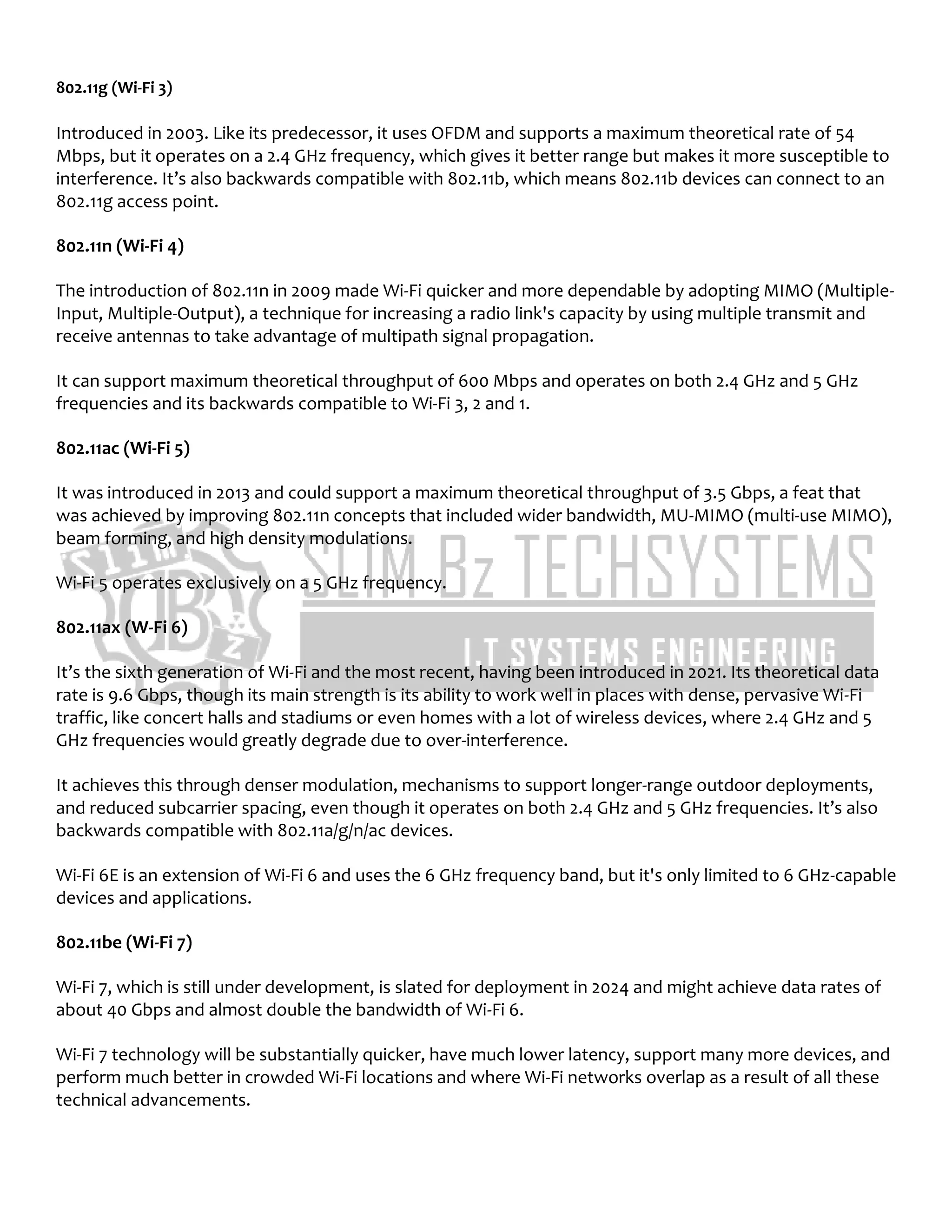
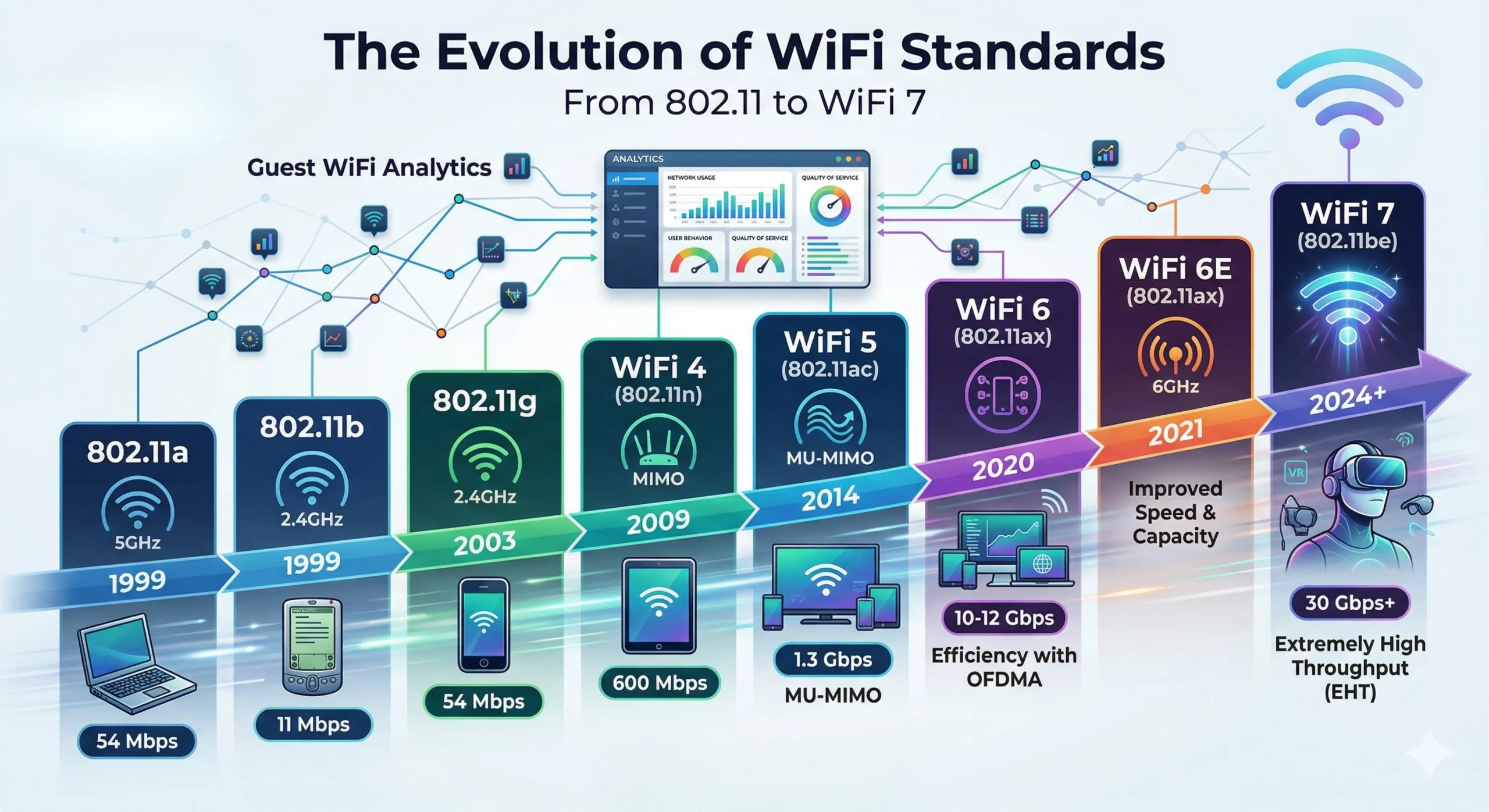
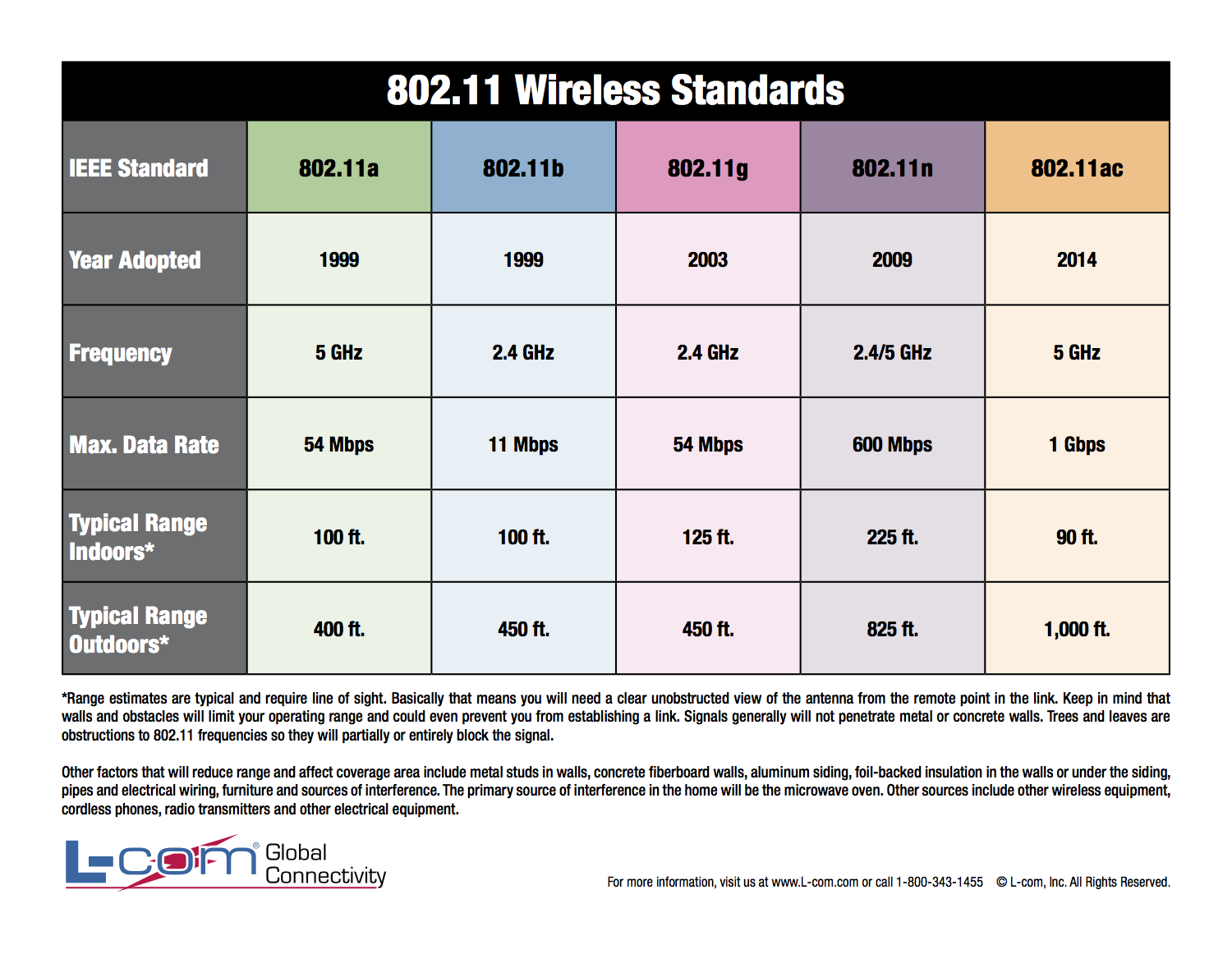
The development of the WMM Wi-Fi standard stems from the evolution of wireless networking capabilities. In the early 2000s, as IEEE 802.11a and 802.11g networks began supporting higher data rates, enterprise environments and home users started utilizing Wi-Fi for applications beyond basic web browsing, such as Voice over IP (VoIP) and video streaming.
Recognizing that the original 802.11 medium access control architecture lacked mechanisms to guarantee performance for real-time applications, the IEEE initiated the 802.11e task group. The goal was to introduce comprehensive QoS enhancements to the MAC layer. However, the full 802.11e ratification process proved exceptionally complex and took years to finalize.
To accelerate market adoption and deliver interoperable solutions to consumers, the Wi-Fi Alliance extracted a subset of the emerging 802.11e draft standard and branded it as Wi-Fi Multimedia (WMM) in 2004. This strategic move allowed manufacturers to implement standardized traffic prioritization long before the formal IEEE amendment was fully ratified.
WMM quickly became a mandatory baseline feature for subsequent Wi-Fi generations. With the release of Wi-Fi 4 (802.11n), Wi-Fi 5 (802.11ac), and Wi-Fi 6/6E/7, WMM integration is deeply embedded into the chipset architecture. It functions seamlessly alongside advanced throughput technologies like Orthogonal Frequency-Division Multiple Access (OFDMA) and multi-user MIMO to maintain consistent latency profiles.
WMM Power Save Mode and Battery Optimization
Beyond traffic prioritization, understanding what the Wmm wi fi standard means requires exploring its secondary component: WMM Power Save (WMM-PS), sometimes referred to as Power Save Mode. While traffic prioritization ensures application performance, power management addresses the energy consumption challenges inherent to battery-powered mobile devices.
Traditional Wi-Fi power saving required a device to periodically wake up and listen for beacon frames from the access point to check if data was waiting. This method, known as Power Saving Mode, often introduced noticeable latency and drained battery life quickly when streaming or maintaining active connections.
WMM Power Save introduces more sophisticated power-saving methodologies, building upon the Automatic Power Save Delivery (APSD) framework. APSD operates in two distinct modes:
- Unscheduled APSD (U-APSD): Allows a client device to wake up and transmit a trigger frame to the access point. This trigger frame signals the access point to release all buffered downlink traffic for that specific access category, after which the client immediately returns to a low-power sleep state.
- Scheduled APSD (S-APSD): Establishes predictable wakeup schedules negotiated between the client and the access point, optimizing power consumption for devices with continuous, periodic traffic patterns like internet-connected sensors or medical monitors.
By enabling devices to remain in sleep states for longer periods without missing critical incoming packets, WMM-PS significantly extends battery life in smartphones, tablets, and Internet of Things (IoT) hardware.
Practical Impacts on Modern Home and Enterprise Networks
In contemporary network environments, the practical impact of WMM is substantial. Without active WMM management, a household member downloading a large software update can saturate the available wireless bandwidth, causing video conferences to stutter, online games to lag, and smart home devices to disconnect.
When WMM is enabled on a wireless router and supported client devices, the networking hardware inspects the Differentiated Services Code Point (DSCP) or 802.1p markings within incoming data packets. It maps these markings to the appropriate WMM Access Categories. Consequently, the router ensures that VoIP packets traveling from a work laptop take precedence over background cloud sync routines running on a desktop computer.
However, users should be aware of how WMM interacts with specific high-throughput features. For instance, legacy Wi-Fi specifications dictate that if a connected client does not support WMM, the access point must disable high data rates (such as 802.11n/ac/ax rates) for that specific basic service set to maintain backward compatibility. Therefore, virtually all modern routers mandate WMM enablement to achieve optimal connection speeds, particularly when operating on the 5 GHz and 6 GHz frequency bands.
Configuring and Troubleshooting WMM Settings
For most users, WMM operates invisibly in the background, enabled by default on modern wireless routers and access points. However, there are scenarios where network administrators or advanced users need to verify or adjust these settings.
Accessing Router Settings
To check WMM status, log into the router management dashboard using an administrative web browser interface. Navigate to the wireless settings, advanced wireless configuration, or Quality of Service submenu. You will typically find toggles for WMM (sometimes labeled as Wi-Fi Multimedia) and WMM Power Save (U-APSD).
Common Configuration Pitfalls
- Legacy Compatibility Issues: Some older Wi-Fi adapters from the early 802.11n era may fail to connect if WMM is enabled, or conversely, modern routers may drop throughput to legacy rates if WMM is turned off. Keeping client drivers updated generally resolves these conflicts.
- QoS Conflicts: Third-party custom firmware or advanced traffic shaping rules can sometimes conflict with native WMM implementation if packet markings are misconfigured.
- Gaming and Latency Perception: Users experiencing jitter should verify that WMM is active on both the router and client device, as disabling WMM forces all traffic into the default Best Effort queue regardless of application demands.
Frequently Asked Questions
What does WMM stand for in Wi-Fi settings?
WMM stands for Wi-Fi Multimedia. It is a certification protocol created by the Wi-Fi Alliance that adds Quality of Service features to wireless networks, allowing routers to prioritize voice, video, and gaming traffic over routine background downloads.
Should WMM be enabled or disabled on my router?
WMM should generally remain enabled. Keeping WMM active is required by modern wireless specifications to achieve maximum data rates on Wi-Fi 4, 5, 6, and 7 networks. Disabling WMM can severely degrade connection speeds and cause performance issues for streaming and voice applications.
Does WMM improve internet speed?
WMM does not increase your Internet Service Provider bandwidth allocation. Instead, it manages how existing wireless bandwidth is distributed among active devices, reducing latency and packet loss for real-time applications during periods of heavy network congestion.
What is the difference between WMM and QoS?
WMM is a specific subset and implementation of Quality of Service (QoS) tailored for IEEE 802.11 wireless networks. While general QoS encompasses wired and wireless traffic management strategies, WMM specifically standardizes wireless airtime prioritization and power-saving mechanisms for Wi-Fi hardware.
Can WMM help with online gaming lag?
Yes. WMM categorizes gaming packets into high-priority access categories (typically Video or Best Effort depending on implementation, or Voice if real-time chat is active), granting them faster access to the wireless medium and reducing packet queuing delays caused by other devices on the network.
Conclusion and Next Actions
The WMM Wi-Fi standard is a foundational technology that transforms unpredictable wireless environments into stable, responsive networks capable of handling demanding real-time applications. By categorizing traffic and managing airtime access efficiently, WMM ensures that voice calls, video conferences, and streaming media maintain high fidelity even during peak household or enterprise usage.
To ensure your network is performing at its best, verify that WMM is enabled within your wireless router configuration interface, keep your client device network adapters updated, and evaluate whether your hardware utilizes WMM Power Save features to optimize battery performance across mobile devices.
Image Gallery