How LogMeIn Remote Control Works for Enterprise Support in 2026
LogMeIn remote control, now primary integrated into the GoTo Resolve and GoTo Central ecosystems, works by establishing a secure, encrypted tunnel between a technician’s console and a remote host device. This cloud-mediated connection...
LogMeIn remote control, now primary integrated into the GoTo Resolve and GoTo Central ecosystems, works by establishing a secure, encrypted tunnel between a technician’s console and a remote host device. This cloud-mediated connection uses proprietary relay gateways to bypass local firewalls, enabling real-time screen sharing, keyboard and mouse synchronization, and administrative file transfers without the need for complex VPN configurations.
Contents
The Architectural Foundation of LogMeIn Remote Control
At its core, the remote control functionality of the LogMeIn (GoTo) suite operates on a client-server-gateway architecture. Unlike traditional peer-to-peer remote desktop protocols that require the host to have a public IP address or an open port, LogMeIn utilizes a centralized gateway system. In 2026, this infrastructure is highly optimized for low-latency delivery even across high-jitter mobile networks.
When a technician initiates a session, they are not connecting directly to the user’s computer. Instead, both the technician’s device and the end-user’s device initiate an outbound connection to a GoTo Gateway. Because these are outbound connections (typically over port 443, the standard port for HTTPS traffic), they are generally permitted by most corporate firewalls and Network Address Translation (NAT) settings. The gateway acts as a secure "meeting point" or switchboard, stitching these two encrypted streams together to facilitate the remote session.
This architecture ensures that the host machine remains invisible to the public internet, significantly reducing the attack surface. In a support context, this allows help desk professionals to reach users on home Wi-Fi, public hotspots, or behind restrictive enterprise perimeters with equal ease.
The Connection Lifecycle: How a Session is Established
The process of "taking control" involves several distinct phases, each designed to ensure security, consent, and performance. Understanding these steps is critical for IT administrators managing large-scale support deployments.
1. Initialization and Identity Verification
The process begins with the "Handshake." Whether using GoTo Resolve for ad-hoc support or LogMeIn Central for managed assets, the system must first identify the target device. In managed environments, a persistent "Host Service" runs in the background of the target machine, constantly maintaining a heartbeat with the GoTo servers. For ad-hoc support, the user often downloads a temporary "applet" or enters a 6-digit code which triggers the execution of a lightweight runtime client.
2. Encryption and Secure Tunneling
Once the identity of both parties is verified through OAuth 2.0 or SAML-based SSO (Single Sign-On), the system establishes an AES 256-bit encrypted tunnel. This encryption is end-to-end, meaning even the relay servers cannot decrypt the actual screen data or keystrokes passing through them. By 2026, these protocols have been further hardened with Zero Trust architectures, requiring secondary authentication factors before a technician can elevate their privileges to a "System" level on the remote OS.
3. Data Streaming and Synchronization
After the tunnel is established, the remote control engine begins capturing the host's screen. LogMeIn uses a proprietary adaptive compression algorithm. This algorithm detects which parts of the screen are changing (e.g., a moving mouse or an opening window) and only transmits those specific pixels. This minimizes bandwidth consumption. Simultaneously, any input from the technician’s mouse or keyboard is packetized, encrypted, and sent to the host, where the LogMeIn driver injects those inputs into the OS as if they were coming from a local hardware device.
Attended vs. Unattended Support Workflows
The mechanics of remote control differ slightly based on the type of support being provided. These workflows are tailored to balance user privacy with technical efficiency.
Attended Support (Ad-Hoc)
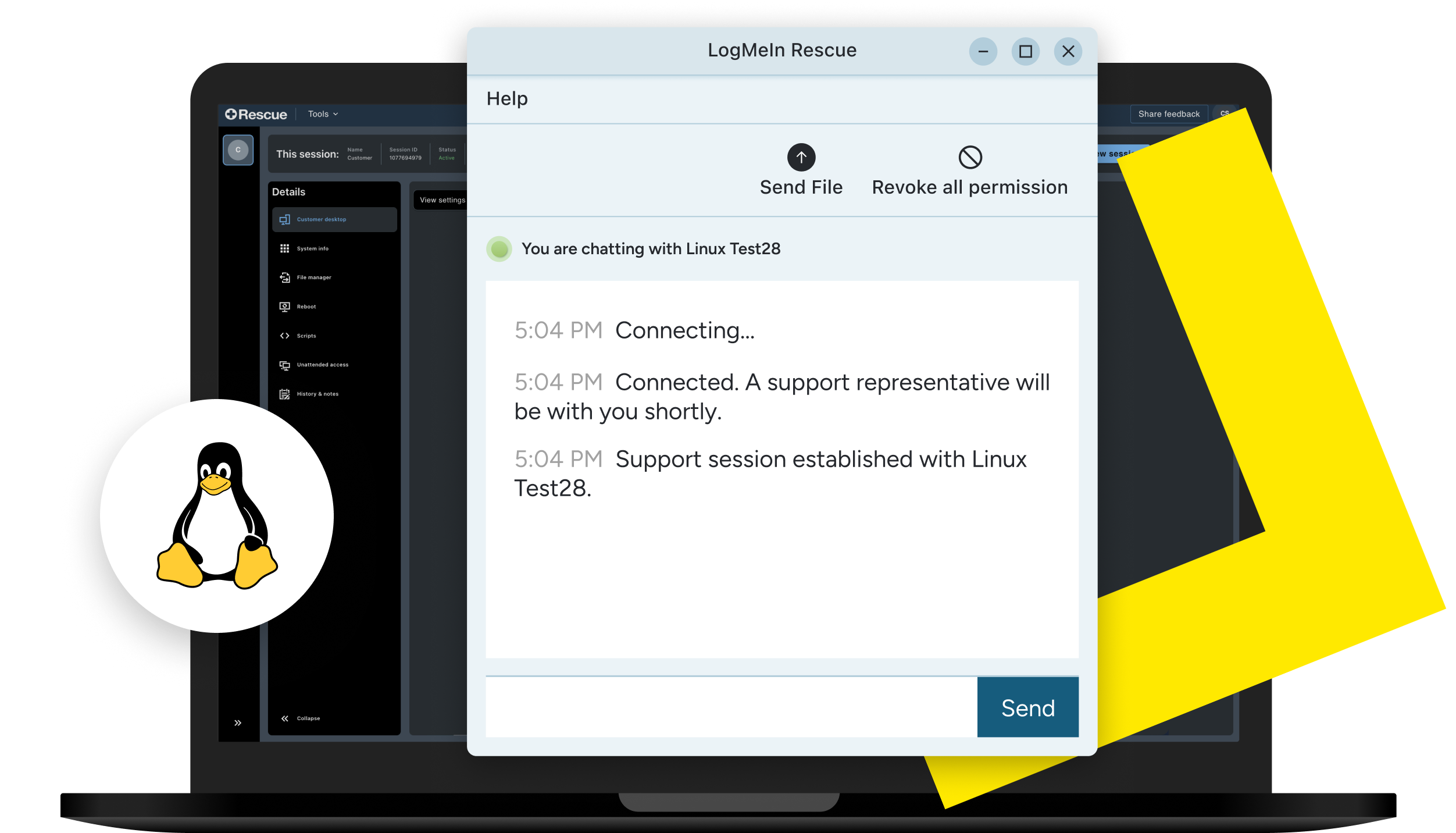
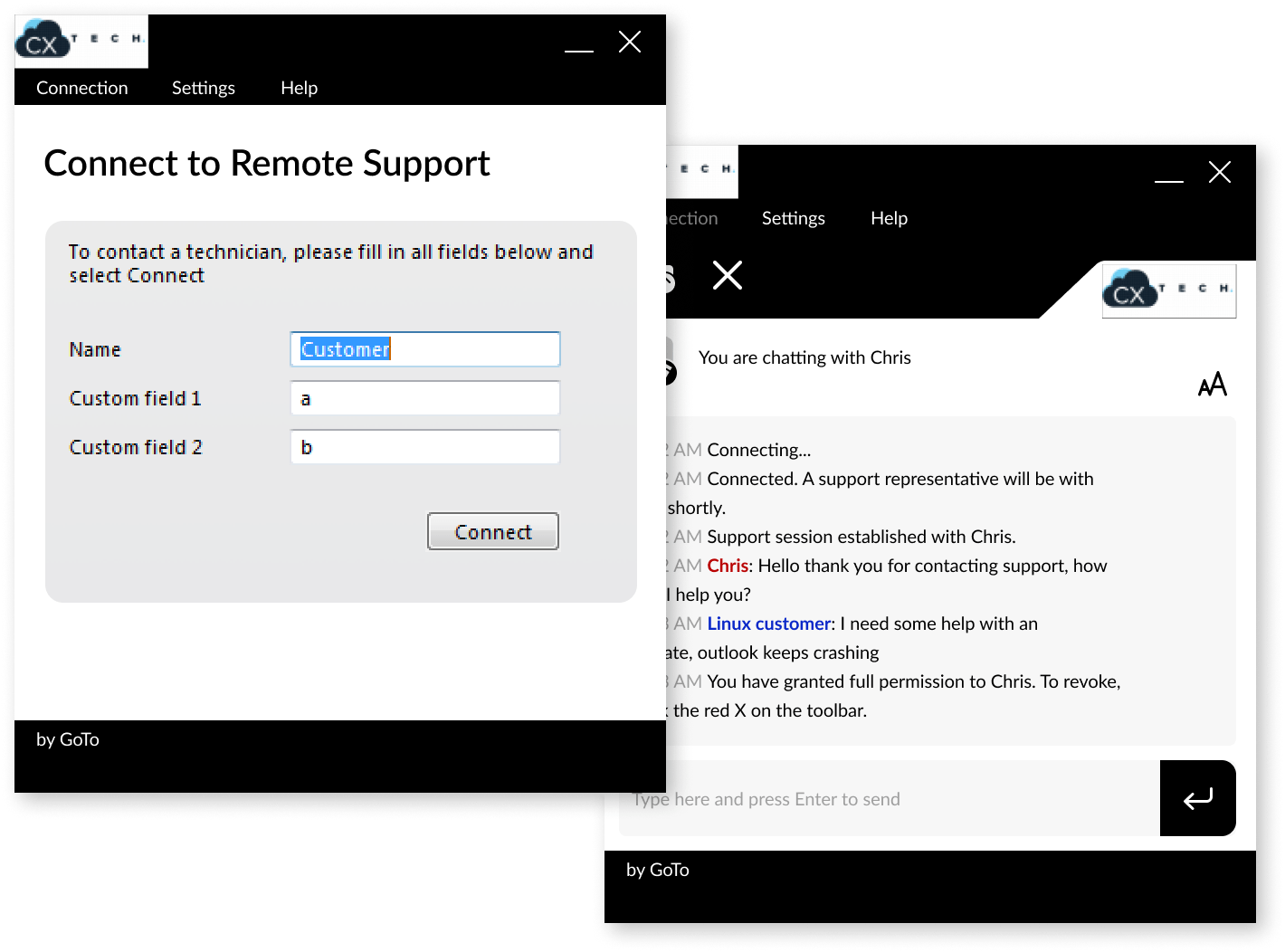
This is the standard "Help Desk" scenario. The technician sends a link or a code to an end-user. The user must manually run the support applet and specifically grant permission for the technician to view the screen and control the mouse. In 2026, GoTo Resolve has streamlined this into browser-based "zero-download" options for many operating systems, leveraging WebRTC (Web Real-Time Communication) to facilitate the control session directly within the technician's browser tab.
Unattended Access (Managed)
Used primarily for server maintenance or remote worker support, unattended access relies on a pre-installed agent. This agent runs as a system service. When the technician initiates a session, the agent "wakes up" the machine (if Wake-on-LAN is configured) and allows the technician to bypass the user-consent prompts. This is vital for off-hours updates, though it requires strict administrative permissions and generates detailed audit logs to prevent unauthorized access.
Technical Specifications and Compatibility
To ensure a seamless remote control experience, certain technical prerequisites must be met. The software is designed to be backwards compatible while utilizing the latest hardware acceleration features of modern CPUs.
| Feature | Specification / Requirement |
|---|---|
| Encryption Standard | AES-256 bit with TLS 1.3 |
| Port Requirements | Outbound TCP/UDP 443, 80, and 8200 (for optimal performance) |
| Bandwidth (Minimum) | 256 Kbps for basic control; 2 Mbps+ for fluid 60FPS support |
| Operating Systems | Windows 10/11/Server 2022+, macOS 12.0+, Linux (Ubuntu/RHEL), Android, iOS |
| Authentication | SAML 2.0, Multi-Factor Authentication (MFA), Zero Trust Architecture |
| Hardware Acceleration | Supports NVENC/QuickSync for reduced CPU overhead during capture |
Advanced Remote Control Features for Support
Beyond simply moving the mouse, the "Control" aspect of the software includes several specialized tools that differentiate it from basic screen-sharing apps.
File Transfer and Synchronization
Technicians can move files between their machine and the host using a dedicated file-transfer window or simple drag-and-drop. The protocol handles the compression and verification of these files to ensure they are not corrupted during transit over unstable connections.
System Diagnostics and Dashboarding
A unique feature of the LogMeIn control mechanism is the ability to pull system information (CPU usage, running processes, event logs) without actually "taking over" the screen. This allows a technician to diagnose a problem in the background while the user continues to work, only interrupting them when a full remote control session is necessary.
Remote Execution and Scripting
For complex fixes, the control console allows the technician to run PowerShell or Terminal scripts on the remote machine. These scripts execute with administrative privileges, allowing for rapid mass-remediation across multiple machines simultaneously.
Security and Compliance Mechanisms
Security is the primary concern for any remote control tool. By 2026, the LogMeIn/GoTo platform has integrated several layers of defense to protect both the technician and the host.
- Session Recording: Every remote session can be automatically recorded and stored in the cloud. This provides an immutable audit trail for compliance with regulations like HIPAA, GDPR, or SOC2.
- Granular Permissions: Administrators can define exactly what a support agent can do. For example, a Tier 1 agent might only have "View Only" access, while Tier 3 agents are granted full "Remote Control" and "Terminal" access.
- Blank Screen and Input Lock: To protect privacy or prevent user interference during a delicate repair, technicians can "blank" the remote user's monitor and lock their physical keyboard/mouse.
Troubleshooting Common Connection Issues
Despite the robustness of the gateway architecture, certain environmental factors can interfere with the remote control service.
- SSL Inspection / Deep Packet Inspection (DPI): Some enterprise firewalls intercept HTTPS traffic to scan for malware. This can break the certificate chain for LogMeIn. The solution is usually to "whitelist" or "exclude" the *.logmein.com or *.goto.com domains from inspection.
- Proxy Server Conflicts: If a network requires a proxy for internet access, the LogMeIn host agent must be configured with those proxy credentials. The agent typically attempts to auto-detect these settings from the OS, but manual configuration is sometimes required for authenticated proxies.
- Low Bandwidth/High Latency: On very slow connections, the "Remote Control" might feel sluggish. Technicians can mitigate this by reducing the color depth (e.g., switching to grayscale) or disabling the remote wallpaper through the session options menu.
Frequently Asked Questions
Does LogMeIn work if the remote computer is behind a VPN?
Yes. Because LogMeIn uses outbound connections to a cloud gateway, it can typically operate through a VPN tunnel. However, if the VPN is configured to "Force Tunnel" all traffic and the VPN gateway restricts port 443, there may be performance degradation. It is usually best to allow LogMeIn traffic to bypass the VPN via split-tunneling.
Can I control a mobile device using LogMeIn?
Yes, but with limitations based on the OS. On Android, technicians can typically achieve full remote control (moving icons, opening apps). On iOS/iPadOS, due to Apple’s security restrictions, the technician can usually only "View" the screen and use a "Laser Pointer" to guide the user, rather than taking direct control of the touch interface.
Is the remote user notified when I start controlling their PC?
In attended support modes, the user must explicitly click "Yes" to allow the session. In unattended mode, a notification banner typically appears at the top of the host's screen, indicating that a remote session is active. These notifications are a security requirement to prevent clandestine monitoring.
How does LogMeIn handle multi-monitor setups?
The technician's console allows for switching between monitors or viewing all monitors at once in a "scaled-down" view. Technicians can also choose to "match" the resolution of the remote monitor to their own for better clarity during the session.
Practical Recommendations for Deployment
When implementing LogMeIn remote control for your support organization, prioritize Identity Governance. Ensure that every technician has a unique login and that Multi-Factor Authentication (MFA) is mandatory for accessing the console.
Furthermore, integrate your remote control tool with your Ticketing System (ITSM). In 2026, GoTo Resolve offers native integrations with platforms like ServiceNow and Jira. This allows a remote session to be launched directly from a ticket, and once the session ends, the audit logs and chat transcripts are automatically attached to the ticket for future reference. This creates a cohesive support loop that improves both security and accountability.
Image Gallery