How to Locate an Android Device: A Comprehensive Guide for 2026
To locate an Android device, visit the official Google Find My Device website or use the Find My Device app on another Android tablet or phone. Provided your device is signed into a Google Account and has location services enabled, you...
To locate an Android device, visit the official Google Find My Device website or use the Find My Device app on another Android tablet or phone. Provided your device is signed into a Google Account and has location services enabled, you can view its real-time position on a map, trigger a sound, lock the screen, or remotely erase all data.
Contents
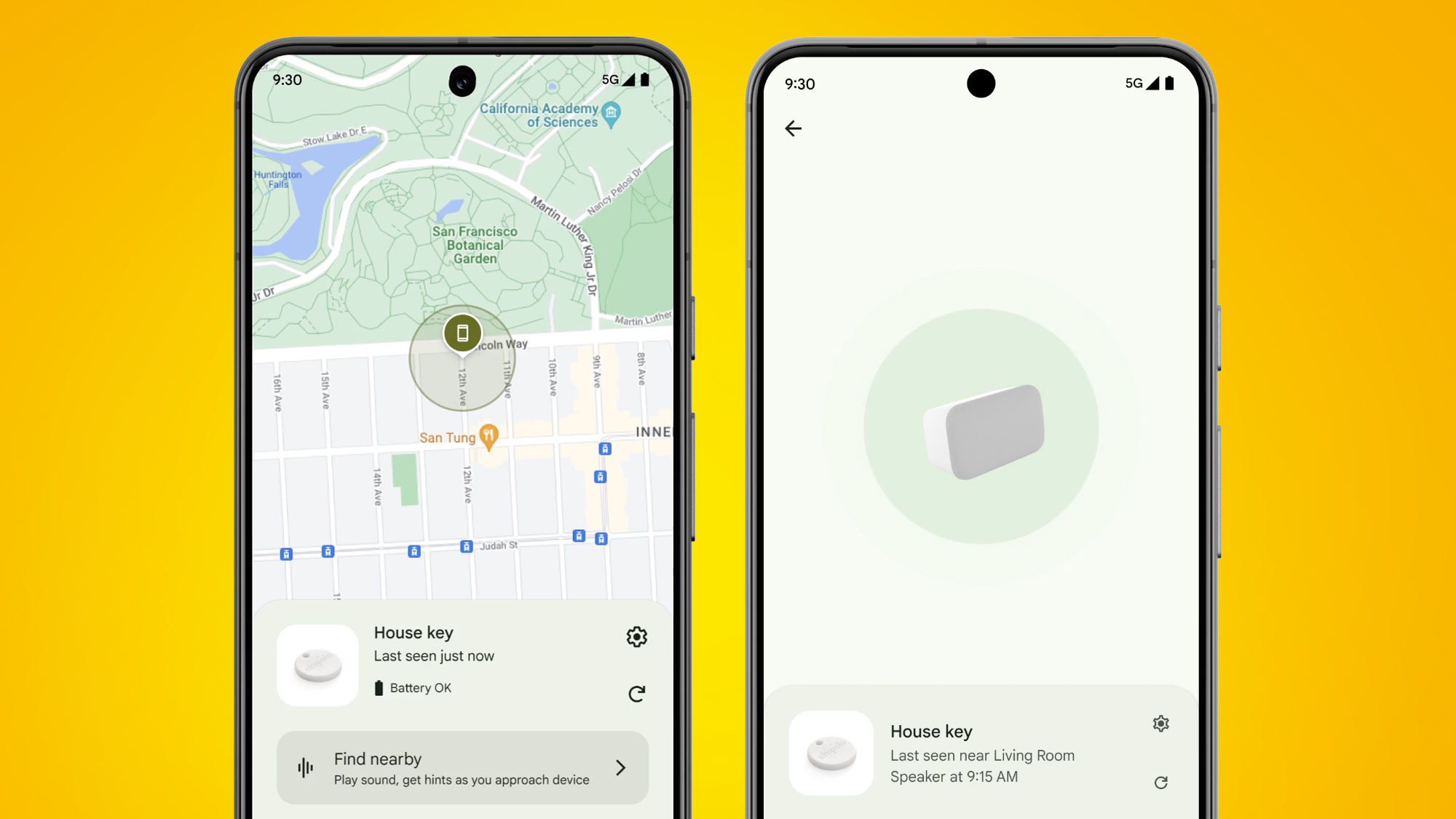
The ecosystem for finding lost hardware has evolved significantly. As of 2026, the Android "Find My Device" network utilizes a massive, crowdsourced mesh of billions of Android devices to help you locate items even when they are offline or powered down. This guide details the prerequisites, technical mechanics, and step-by-step procedures to recover your hardware or secure your data.
Essential Prerequisites for Device Tracking
Before a device can be tracked, several settings must be configured. While Google enables many of these by default during initial setup, missing even one can render a device "unreachable."
1. Account and Connectivity Requirements
For the standard Google tracking service to function, the following conditions must be met:
- Google Account: The device must be signed into a Google Account.
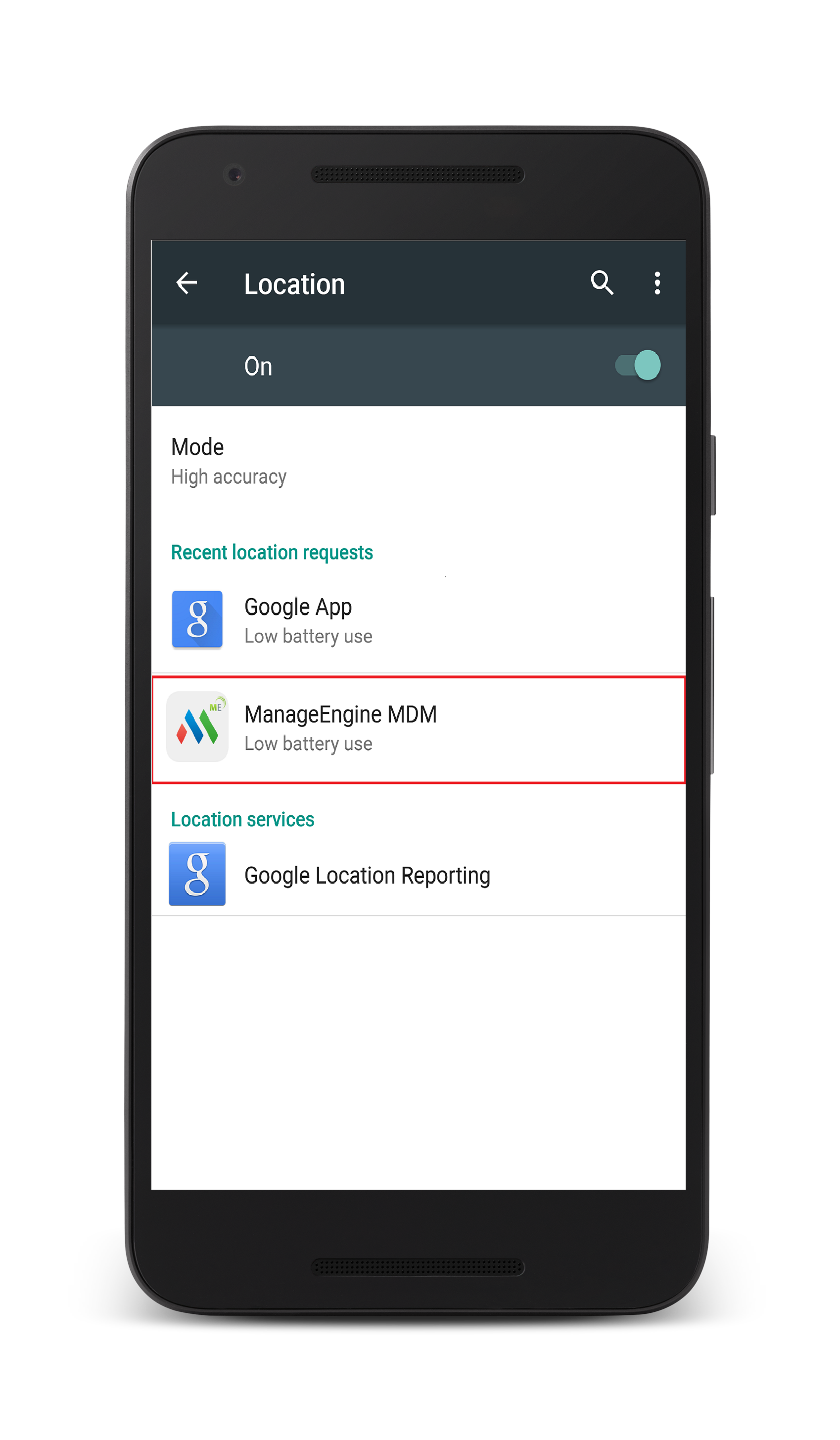
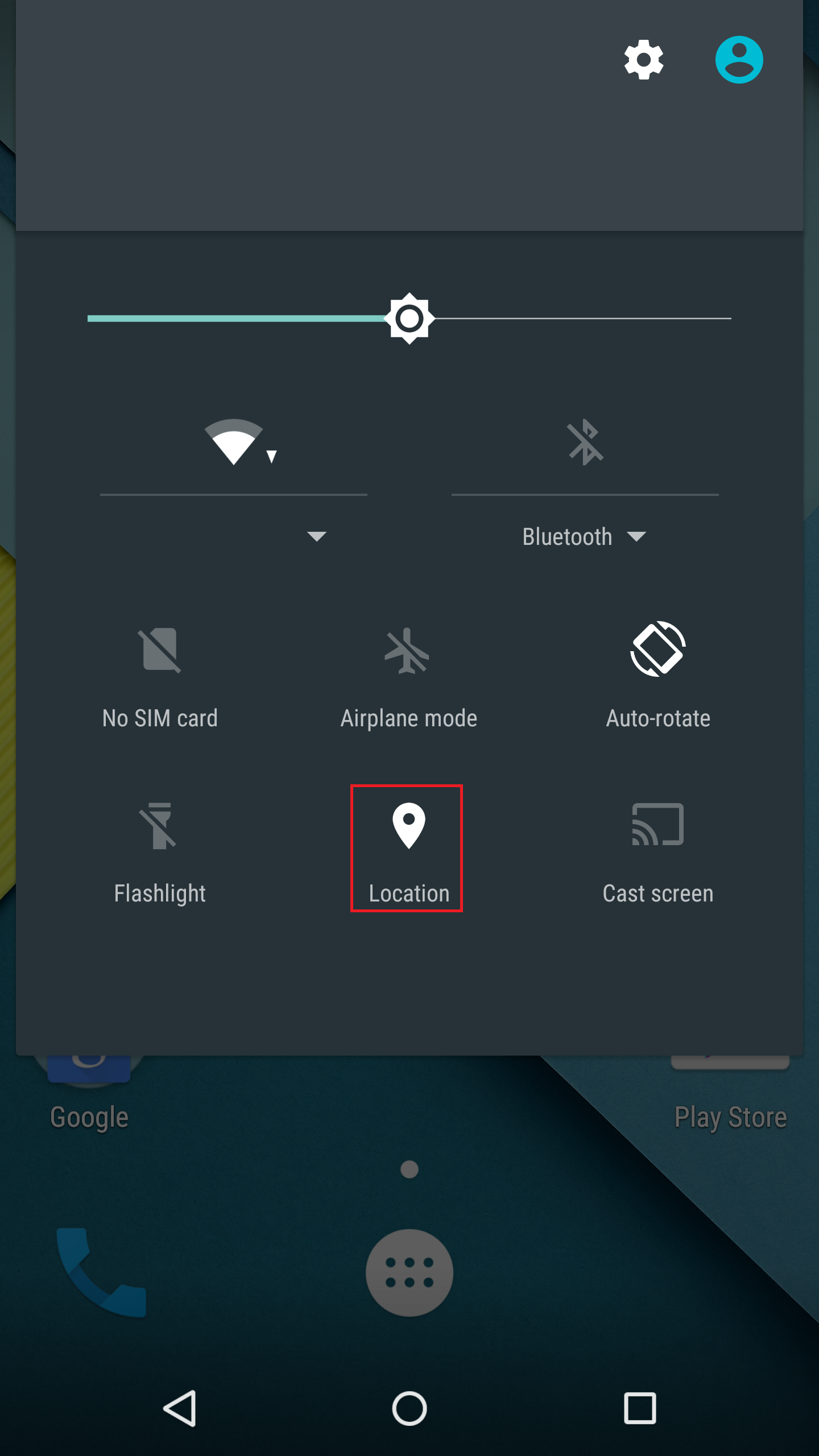
- Location Services: GPS and location accuracy settings must be toggled "On."
- Find My Device Toggle: This is found under Settings > Security & Privacy > Device Finders > Find My Device.
- Visibility on Google Play: The device must not be hidden on Google Play's visibility settings.
2. The Offline Finding Network
One of the most critical advancements in recent years is the Find My Device network. Unlike traditional tracking, which requires a cellular or Wi-Fi connection, this network uses Bluetooth proximity. When a lost device is near another Android device in the network, the "finder" device securely sends the location of the lost item to Google’s servers. In 2026, this is the standard for most modern smartphones, allowing for location updates even in areas without internet access.
3. Power-Off Finding Capability
Certain flagship devices, such as the Pixel 8 series and newer, as well as several high-end models from other manufacturers, include specialized hardware that remains powered for a limited time even after the battery "dies" or the phone is turned off. This allows the Bluetooth beacon to continue transmitting, making it possible to locate a stolen phone that has been powered down by a thief.
Using Google Find My Device (Web and App)
Google provides two primary interfaces for locating your hardware. Both offer identical functionality but are used in different contexts.
Locating via a Web Browser
If you have access to a laptop or a friend's computer, this is the fastest method.
- Navigate to the Google Find My Device portal.
- Sign in using the exact Google Account associated with the lost device.
- Select the specific device from the icon list at the top of the screen.
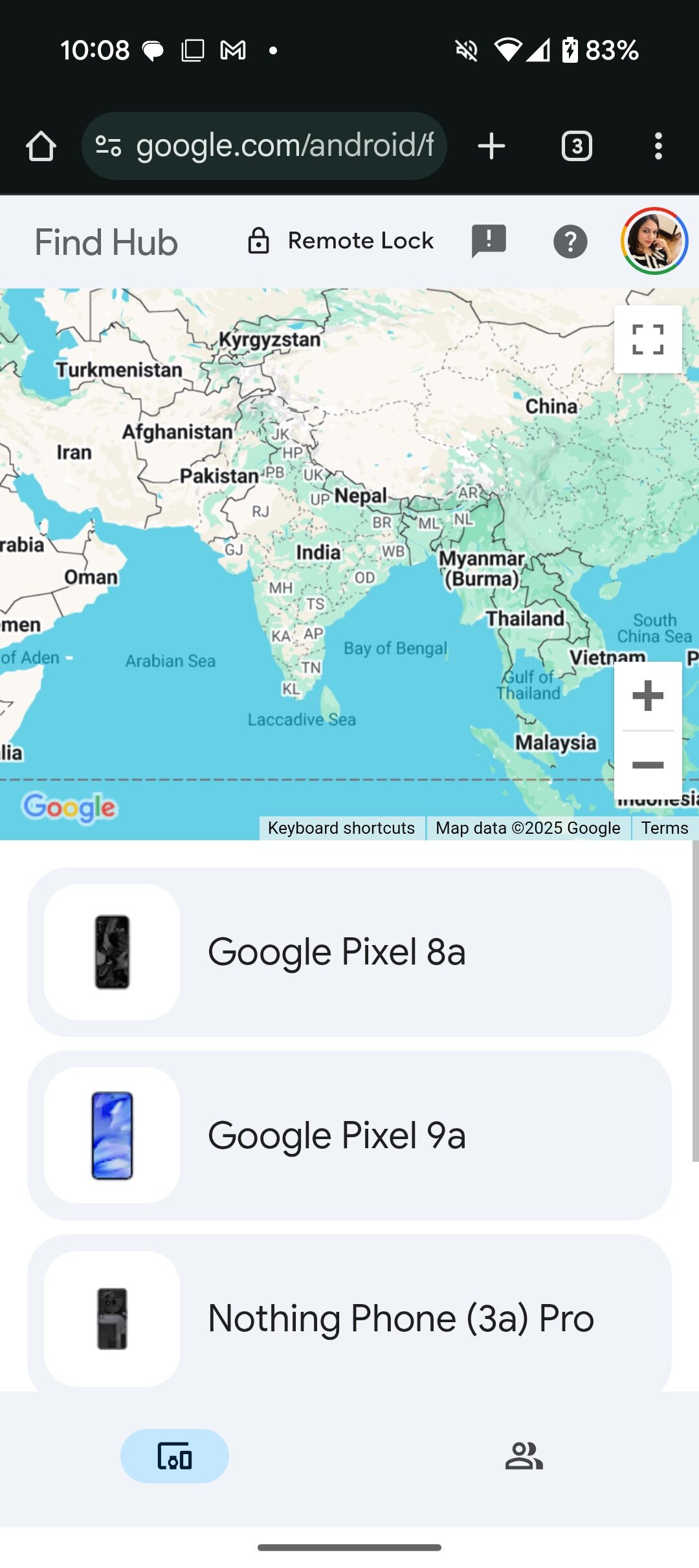
- The map will display the device’s last known location. If the device is currently online or part of the Find My Device network, the location will update in real-time.
Locating via the Find My Device App
If you have a secondary Android tablet or a family member’s phone, use the dedicated app.
- Open the Find My Device app.
- If using someone else’s phone, select "Sign in as Guest" to ensure your credentials are not stored on their device.
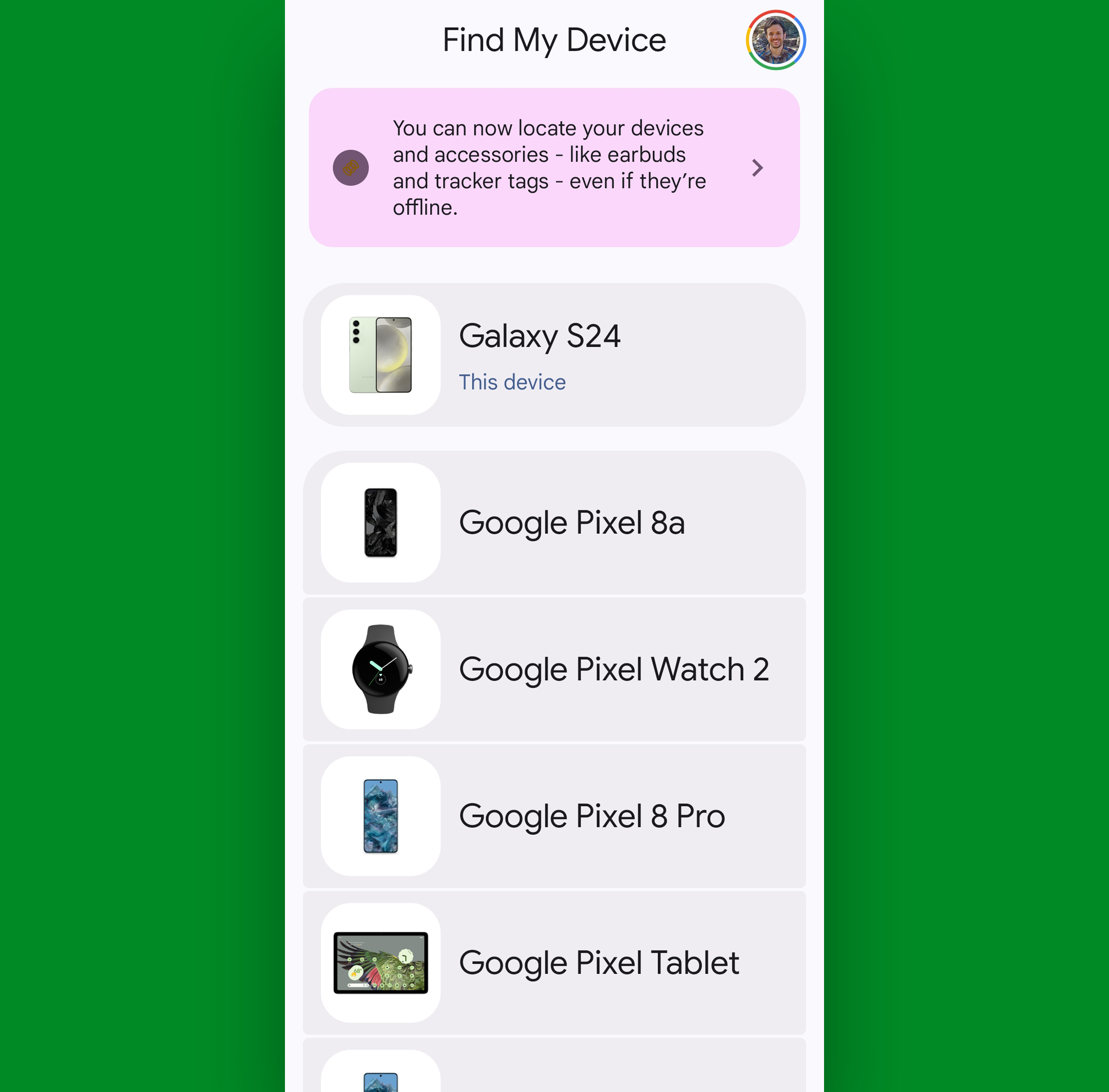
- Once logged in, the interface provides a map and a list of all devices linked to your account, including Wear OS watches and paired Bluetooth earbuds.
Remote Security Actions
Once you have established the location of your device, you have three primary tools to manage the situation.
- Play Sound: This triggers the device to ring at maximum volume for five minutes, even if it is set to silent or vibrate. This is ideal for finding a phone lost within a home or office.
- Secure Device: This locks the device with your PIN, pattern, or password. If you didn't have a lock set, you can create one remotely. You can also display a message or a phone number on the lock screen to help a "Good Samaritan" return it to you. This action also signs you out of your Google Account on the device to prevent unauthorized access to your emails and photos.
- Erase Device: This is the "nuclear option." It permanently deletes all data on the device (though it may not erase SD cards). Once the device is erased, Find My Device will no longer work. However, Factory Reset Protection (FRP) will remain active, meaning a thief cannot set up the device as new without your Google Account credentials.
Manufacturer-Specific Solutions: Samsung SmartThings Find
While Google's solution is universal for Android, manufacturers like Samsung offer proprietary layers that provide additional features. SmartThings Find (formerly Find My Mobile) is a robust alternative for Galaxy users.
Samsung's service is particularly valuable because it can often bypass certain hurdles. For instance, the "Remote Unlock" feature allows you to regain access to your phone if you forget your PIN or biometric data, provided the feature was toggled on beforehand. Additionally, Samsung’s "Offline Finding" network predates Google's and remains highly effective for locating Galaxy Buds, SmartTags, and Galaxy Watches.
How to use SmartThings Find:
- Visit the SmartThings Find website.
- Log in with your Samsung Account.
- The dashboard allows you to "Track Location," "Back up data" to Samsung Cloud before erasing, and even "Extend battery life" remotely to keep the tracking active for longer.
Comparison of Android Locating Methods
| Feature | Google Find My Device | Samsung SmartThings Find | Google Maps Timeline |
|---|---|---|---|
| Best For | General Android recovery | Samsung Galaxy Ecosystem | Historical location data |
| Offline Finding | Yes (via global network) | Yes (Galaxy-specific) | No |
| Remote Wipe | Yes | Yes | No |
| Ring Device | Yes | Yes | No |
| Backup to Cloud | No | Yes (Samsung Cloud) | No |
| Requirements | Google Account | Samsung Account | Location History enabled |
Using Google Maps Timeline for "Dead" Devices
If your device was not part of the new Find My Device network or if it has been powered off for a significant amount of time, your best hope is Google Maps Timeline.
This feature does not track the device in real-time. Instead, it records the history of where the device has been. By checking the Google Maps Timeline, you can see the exact path the device took and the last location it broadcasted before the battery died or the connection was severed. This is particularly useful for determining if you left your phone in a taxi, a restaurant, or if it is currently moving along a highway (indicating it may have been stolen).
What to Do if Your Device is Stolen
Locating a device is only the first step. If the map indicates the phone is in an unfamiliar private residence or is moving, do not attempt to retrieve it yourself.
- Report to Law Enforcement: Provide the police with the device's location data and its IMEI number. The IMEI is a unique identifier found on the device's original box or your carrier's website.
- Contact Your Carrier: Ask them to blacklist the IMEI. This prevents the device from connecting to any mobile network, effectively turning it into a "brick" for cellular use.
- Update Passwords: Even if you remotely lock the device, change the passwords for sensitive accounts like banking, social media, and password managers that were logged in on that device.
- File an Insurance Claim: If you have protection through your carrier or a third party, you will likely need a police report number and a record that you attempted to locate/lock the device.
Troubleshooting Common Issues
"Device Unreachable" or "Location Unavailable"
This error typically occurs if the device has no internet connection and is not near any other devices in the Find My Device network. It can also happen if the device has been factory reset by a professional thief using specialized software (though FRP usually prevents them from using the device afterward).
Accuracy Issues
GPS signals can be obstructed by tall buildings or "multipath interference" in urban environments. If the blue circle on the map is large, the location is an estimate based on Wi-Fi access points or cell towers rather than a direct GPS lock.
Frequently Asked Questions
Can I find my Android phone if it has been factory reset?
No. Once a device is factory reset, all account associations are severed to protect the previous owner's privacy. However, Factory Reset Protection (FRP) will prevent the person who reset it from signing in without your Google Account credentials, making the device useless for resale.
Can I track my phone using only the IMEI number?
As a consumer, you cannot track a phone via IMEI. Only mobile network operators and law enforcement agencies have the equipment necessary to triangulate a device's position via IMEI through cell tower pings.
Does the Find My Device network compromise my privacy?
Google uses end-to-end encryption for the Find My Device network. This means that the locations of the devices in the mesh are not visible to Google or the owners of the "finder" devices. Only you, with your account credentials, can decrypt and view your device's location.
How do I find a lost Android tablet that doesn't have a SIM card?
A Wi-Fi-only tablet can be located as long as it connects to a known Wi-Fi network or is detected by the Find My Device Bluetooth network. If it is in a remote area with no other Android devices nearby, you will only be able to see its last known location from when it was last connected to Wi-Fi.
Can I locate my phone if the battery is completely dead?
Yes, but only if your device supports Power-Off Finding (like the Pixel 8/9/10 series) and the Find My Device network was enabled. For older hardware, you will only see the last location broadcasted before the power failed.
Final Recommendation
To ensure you can always locate your Android device, you should immediately verify that Find My Device and Offline Finding are enabled in your security settings. Additionally, keep a record of your device's IMEI number in a secure, physical location. For users in 2026, the crowdsourced network has made "untraceable" phones a thing of the past, provided the initial setup was handled correctly.
Image Gallery