How to Access Your Google Cloud Account
To access your Google Cloud account, navigate to the Google Cloud Console (console.cloud.google.com) and log in using your Google Workspace or personal Gmail credentials. Alternatively, you can use the gcloud CLI for terminal-based man...
To access your Google Cloud account, navigate to the Google Cloud Console (console.cloud.google.com) and log in using your Google Workspace or personal Gmail credentials. Alternatively, you can use the gcloud CLI for terminal-based management or the Google Cloud Mobile App for monitoring resources on the go.
Contents
The Google Cloud Platform (GCP) has evolved into a highly integrated ecosystem. As of 2026, accessing your account involves more than just a username and password; it requires understanding identity management, project-based hierarchies, and the specific interface best suited for your technical needs. Whether you are an individual developer or an administrator for a multinational enterprise, the entry points to Google Cloud are designed to be secure, redundant, and accessible from virtually any device.
Understanding the Primary Methods of Access
Google Cloud provides several distinct "doors" into its infrastructure. Choosing the right one depends on your immediate task—whether you are deploying a new Kubernetes cluster, checking billing cycles, or troubleshooting a virtual machine from a remote location.
1. The Google Cloud Console (Web Interface)
The Console is the most common entry point. It is a web-based graphical user interface (GUI) that allows you to manage all your Google Cloud resources visually. It is ideal for discovery, initial configuration, and viewing complex data like monitoring dashboards or billing reports.
2. Google Cloud CLI (Command Line Interface)
For developers and system administrators, the gcloud CLI is the primary tool for automation. By installing the Google Cloud SDK on your local machine, you can execute commands to manage resources directly from your terminal. This method is preferred for repetitive tasks and script-based deployments.
3. Google Cloud Mobile App
Available on both iOS and Android, the mobile app provides a condensed version of the console. While it is not designed for heavy development work, it is indispensable for monitoring system health, receiving incident alerts, and performing basic actions like restarting a Compute Engine instance or checking your current month’s spend.
4. Cloud Shell
Cloud Shell is a unique, browser-based terminal environment that is pre-authenticated and pre-loaded with the Google Cloud CLI and other essential tools. It allows you to access a command line without installing anything on your local computer.
Prerequisites for Accessing Google Cloud
Before you can successfully log in and manage resources, certain foundational elements must be in place. Failure to meet these prerequisites often results in the common "Permission Denied" or "Project Not Found" errors that frustrate new users.
Identity and Authentication
You cannot access Google Cloud without a valid Google Identity. This can be a personal @gmail.com account or a managed account through Google Workspace or Cloud Identity. In 2026, most corporate environments strictly enforce Multi-Factor Authentication (MFA), meaning your login process will likely require a physical security key, a biometric prompt, or an authenticator app code.
Billing and Account Status
Even with a valid login, you cannot interact with most services unless your account is linked to an active Billing Account. Google Cloud requires a verified payment method to prevent service interruptions. If your billing account is suspended due to an expired credit card or a missed payment, your access to the console may remain, but your ability to manage or deploy resources will be revoked.
IAM Permissions
Identity and Access Management (IAM) is the gatekeeper of Google Cloud. Simply "logging in" does not grant you the right to see everything. You must be granted specific IAM Roles (such as Project Owner, Editor, or Viewer) by an administrator. If you are logging in to a corporate account for the first time, you may see an empty dashboard until a project administrator grants you access to specific projects or folders.
Step-by-Step: Accessing the Google Cloud Console
The web console remains the flagship experience for GCP users. Follow these steps to ensure a clean login and proper project selection.
- Navigate to the URL: Open your web browser and go to console.cloud.google.com.
- Select Your Account: If you are already logged into multiple Google accounts (e.g., personal and work), the browser may default to the wrong one. Click your profile icon in the top-right corner to switch to the account associated with your cloud resources.
- Authentication: Enter your credentials and complete the MFA challenge if prompted.
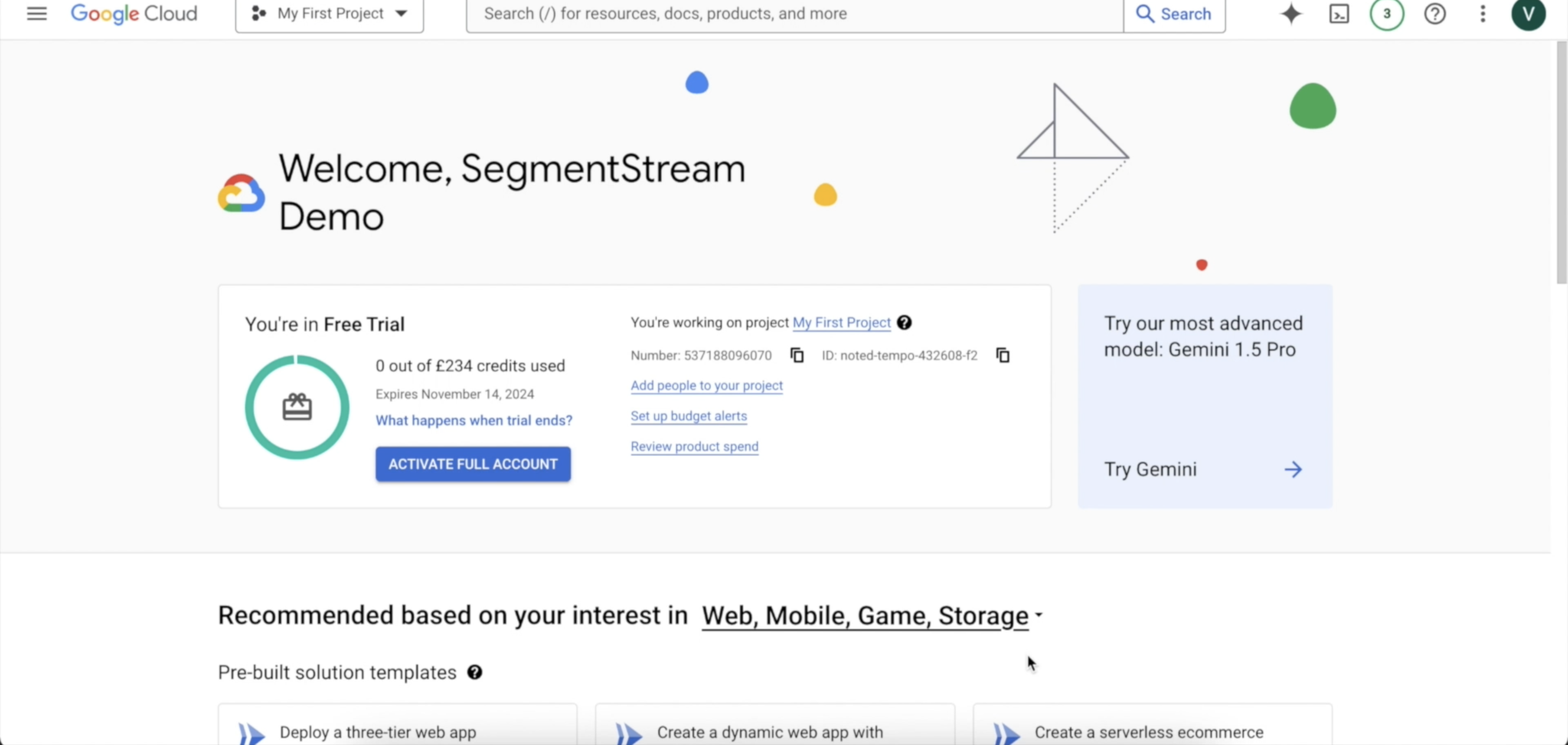
- The Project Selector: Once logged in, look at the top navigation bar next to the "Google Cloud" logo. Click the dropdown menu to select the specific Project you wish to manage. Resources in Google Cloud are organized by projects; if you don't select the right one, the console will appear empty.
- Dashboard Overview: After selecting a project, you will land on the Dashboard. From here, you can use the "Navigation Menu" (the three horizontal lines in the top-left) to find services like Compute Engine, Cloud Storage, or BigQuery.
Comparison of Access Methods
Depending on your role and current environment, one access method may be significantly more efficient than another. The following table compares the primary ways to interact with your Google Cloud account in 2026.
| Access Method | Primary Interface | Best For | Technical Requirement |
|---|---|---|---|
| Web Console | Graphical (GUI) | Visual management, billing, setup | Modern web browser |
| gcloud CLI | Command Line (CLI) | Scripting, automation, speed | Google Cloud SDK installed |
| Cloud Shell | Browser-based CLI | Quick terminal tasks, no install | Browser + Active session |
| Mobile App | Mobile GUI | Monitoring, alerts, emergency stops | Smartphone (iOS/Android) |
| REST APIs | Programmatic | Building custom tools/apps | OAuth 2.0 / Service Accounts |
Accessing via the Google Cloud CLI (gcloud)
For users who prefer the terminal, the gcloud command-line tool is the standard. This is particularly useful in 2026 for managing AI models and automated CI/CD pipelines.
Initial Setup and Login
If you haven't used the CLI before, you must first download and install the Google Cloud SDK from the official documentation. Once installed, follow these steps:
- Initialize the SDK: Open your terminal and type
gcloud init. - Browser Authentication: The command will open your default web browser and ask you to log in to your Google account.
- Grant Permissions: Click "Allow" to give the Google Cloud SDK permission to manage your resources.
- Select Project: Return to the terminal. You will be prompted to select a default project from the list of those associated with your account.
- Configure Region/Zone: You may be asked to set a default compute region (e.g.,
us-central1).
Once initialized, you can stay logged in for extended periods. To check your current active account at any time, run:
gcloud auth list
Troubleshooting Common Access Issues
Even with the correct credentials, you may encounter obstacles when trying to access your Google Cloud account. Understanding these common failure points can save hours of troubleshooting.
1. "Account Not Authorized" or "IAM Policy Denied"
This is rarely a login issue and almost always a Permission issue. Even if you are the person who created the account, specific organizational policies might restrict access to certain services.
- Solution: Contact your Organization Administrator to ensure you have the
roles/viewerorroles/editorrole at the project or organization level.
2. The Wrong Account is Selected
Google’s "Multi-login" feature often causes the console to attempt access with a personal Gmail account instead of a corporate Workspace account.
- Solution: Check the URL. It often contains a parameter like
?authuser=1. Changing this to0or2might switch accounts, but the most reliable way is to use a dedicated Chrome Profile or an Incognito window for cloud work.
3. Billing-Related Lockouts
If Google Cloud cannot process a payment, it may "soft-lock" your projects. You will still be able to log in to the console, but you will see red banners indicating that your services are disabled.
- Solution: Navigate to the Billing section of the console and resolve any outstanding invoices or update your credit card details. Access is usually restored within minutes of a successful payment.
4. API Platform Errors
If you are trying to access Google Cloud via a third-party tool (like Terraform or a custom app) and failing, the issue is likely with Service Account Keys.
- Solution: Ensure the Service Account you are using has not been disabled and that its JSON key has not expired. In 2026, Google strongly recommends using Workload Identity Federation instead of static JSON keys to improve security.
Enhancing Access Security
In 2026, security is paramount. Accessing your account is not just about getting in; it is about ensuring no one else can.
- Enforce MFA: Never rely solely on a password. Enable Google’s "Advanced Protection Program" if you handle sensitive data.
- Use Context-Aware Access: For enterprise users, Google Cloud allows administrators to restrict access based on the user's location, IP address, or device security status. If you cannot log in while traveling, this policy might be the cause.
- Audit Logs: Regularly check the Cloud Audit Logs in the Logging section of the console. This shows every instance of someone (including you) accessing or modifying resources. It is the best way to verify that your account access remains secure.
Frequently Asked Questions
Can I access Google Cloud for free?
Yes. Google Cloud offers a Free Tier that includes a 90-day trial with $300 in credits, as well as several "Always Free" products (like limited usage of Compute Engine and Cloud Storage). You still need to provide a credit card for identity verification, but you won't be charged unless you exceed the free limits.
What should I do if I lost access to my 2FA device?
If you are using a Workspace account, you must contact your organization's IT administrator to reset your MFA. If it is a personal account, you will need to use your backup recovery codes or go through the standard Google Account Recovery process. Google Cloud support generally cannot bypass security settings for individual users for security reasons.
How do I access multiple Google Cloud projects at once?
While the web console displays one project at a time in the main view, you can open different projects in separate browser tabs. In the gcloud CLI, you can switch between projects using the command gcloud config set project [PROJECT_ID].
Why can't I see the "Console" button on the Google Cloud homepage?
This usually happens if you are not logged in or if your browser's ad-blocker is interfering with the site's scripts. Ensure you are signed in at the top right of cloud.google.com, and the "Go to Console" button should appear prominently.
Is there a desktop application for Google Cloud?
There is no "standalone" desktop GUI application for Google Cloud. The official methods are the web-based Console and the terminal-based CLI. Some third-party tools provide desktop interfaces for specific services (like Cloud Storage explorers), but the official Google-supported method remains the browser.
Next Steps for New Users
Once you have successfully accessed your account, your first priority should be to set up a budget alert. This ensures that you receive an email notification if your spending exceeds a specific threshold, preventing "billing shock." Navigate to the Billing section, click on Budgets & Alerts, and create your first alert. After that, you are ready to begin deploying your first resources, such as a Virtual Machine or a Cloud Storage bucket.
Image Gallery