How to Use Bluetooth Settings on Roku TV: A Comprehensive Guide
Connecting external audio devices to your Roku TV via Bluetooth enhances your viewing experience by allowing for private listening, better sound quality, or improved accessibility. While many modern Roku TV models feature built-in Blue...
Connecting external audio devices to your Roku TV via Bluetooth enhances your viewing experience by allowing for private listening, better sound quality, or improved accessibility. While many modern Roku TV models feature built-in Bluetooth capabilities, the exact method of engagement varies depending on your specific hardware, the Roku OS version you are running, and whether you are using the integrated TV settings or the Roku mobile application.
Contents
To use Bluetooth on a Roku TV, you must first confirm if your specific model supports Bluetooth audio streaming. Many Roku TVs allow you to pair wireless headphones or speakers by navigating to the "Remotes & devices" menu within your TV’s Settings. Alternatively, if your TV lacks native Bluetooth, you can achieve the same result by using the "Private Listening" feature within the free Roku mobile app, which routes audio through your smartphone's Bluetooth connection to your preferred headphones.
Determining Your Roku TV Bluetooth Capabilities
Before attempting to configure your settings, it is essential to distinguish between two different types of Bluetooth functionality on Roku devices. Understanding this technical distinction will prevent frustration during the setup process.
Native Bluetooth vs. Roku App Private Listening
Some high-end Roku TVs and specific Roku soundbars include integrated Bluetooth hardware. This allows the TV to act as a source device that broadcasts audio directly to speakers or headphones without needing an intermediary device. If your TV supports this, you will see a "Bluetooth" or "Wireless headphones" option directly within the system settings.
If your Roku TV does not have internal Bluetooth transmitters, you are not out of luck. The Roku ecosystem is designed to rely on the Roku mobile app to bridge the gap. By connecting your smartphone or tablet to the same Wi-Fi network as your Roku TV, you can activate Private Listening. In this configuration, the TV sends the audio signal over your local network to your mobile device, which then transmits that audio via its own Bluetooth chip to your headphones.
Identifying Your Hardware
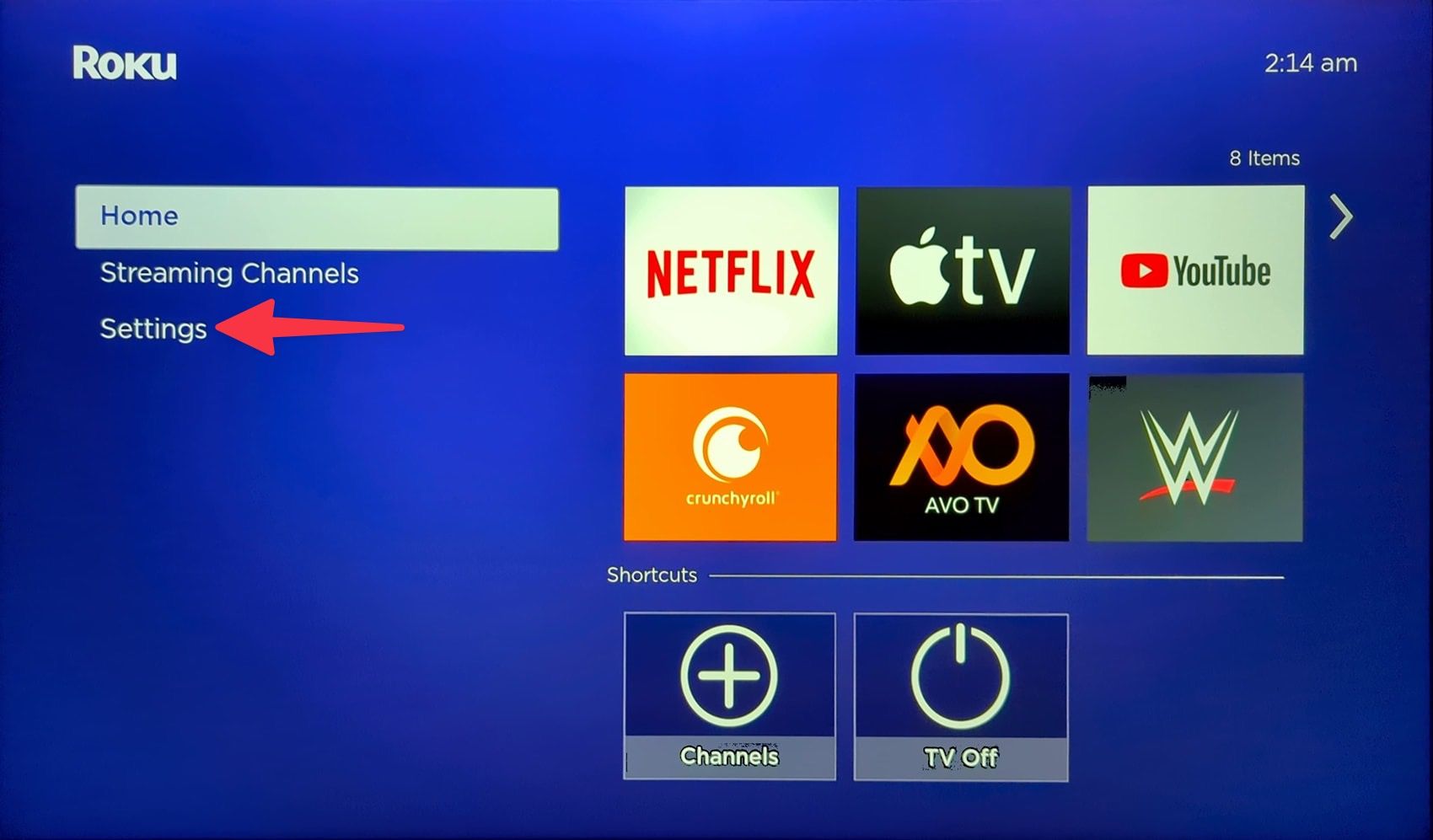
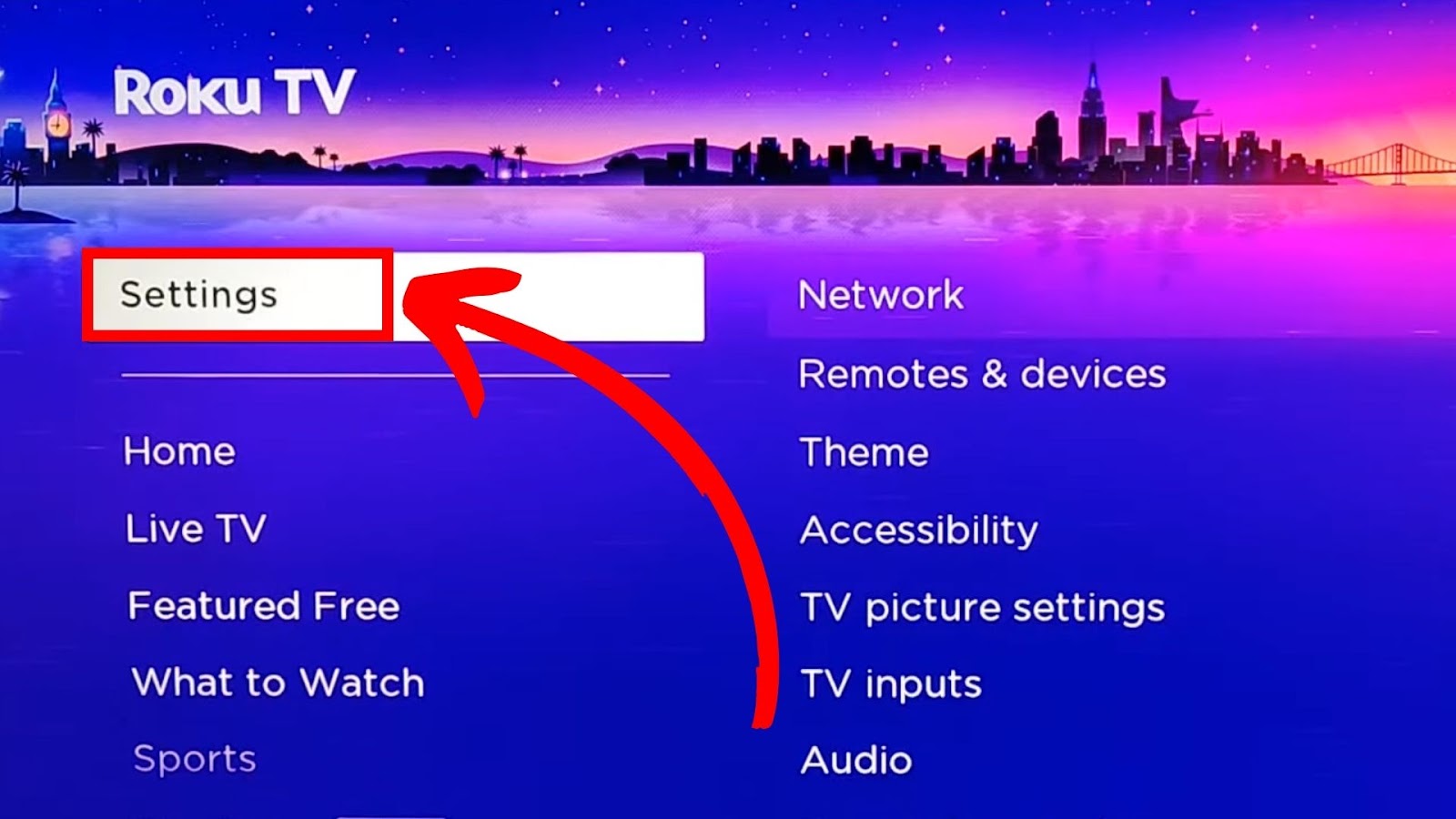
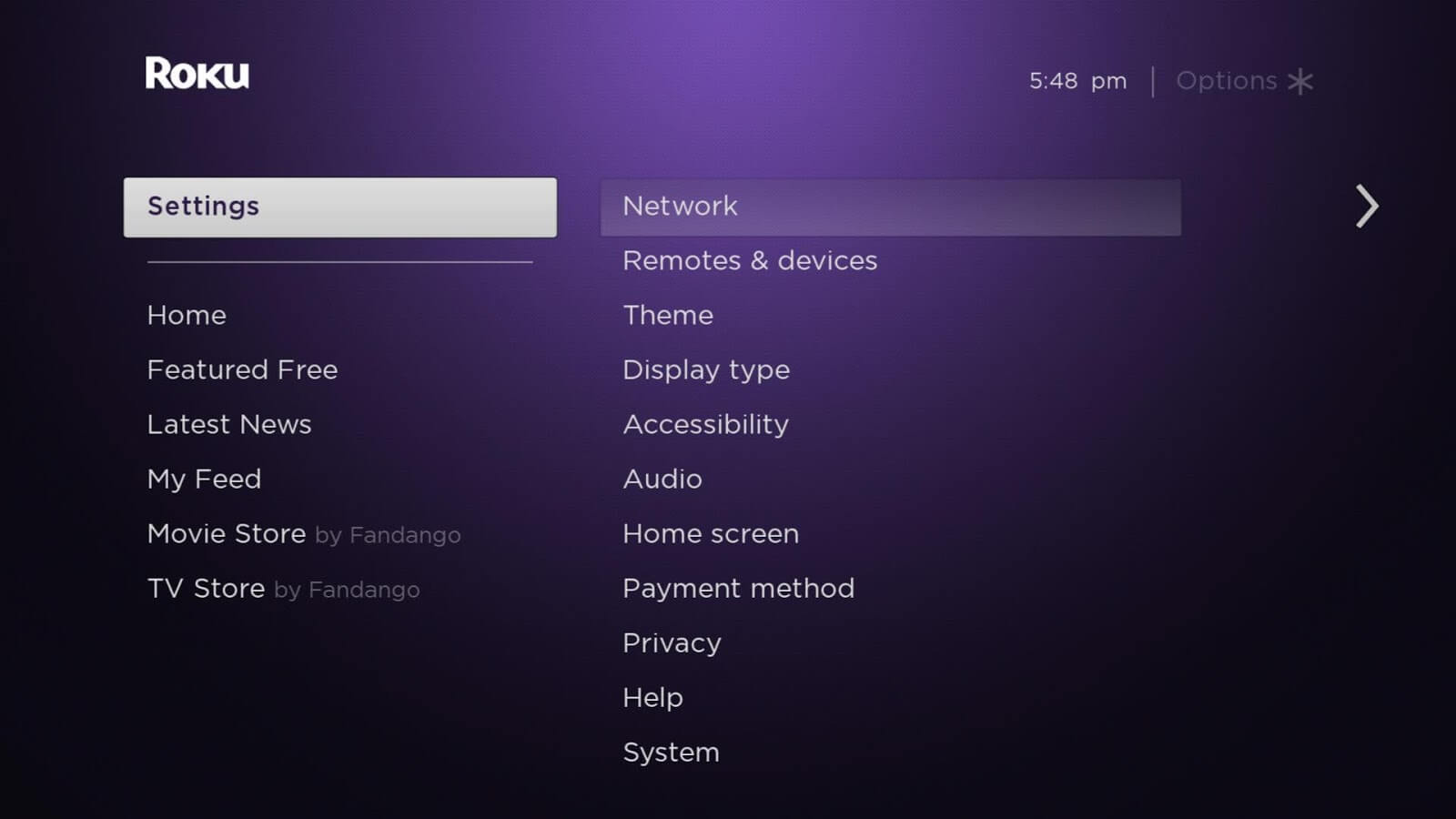
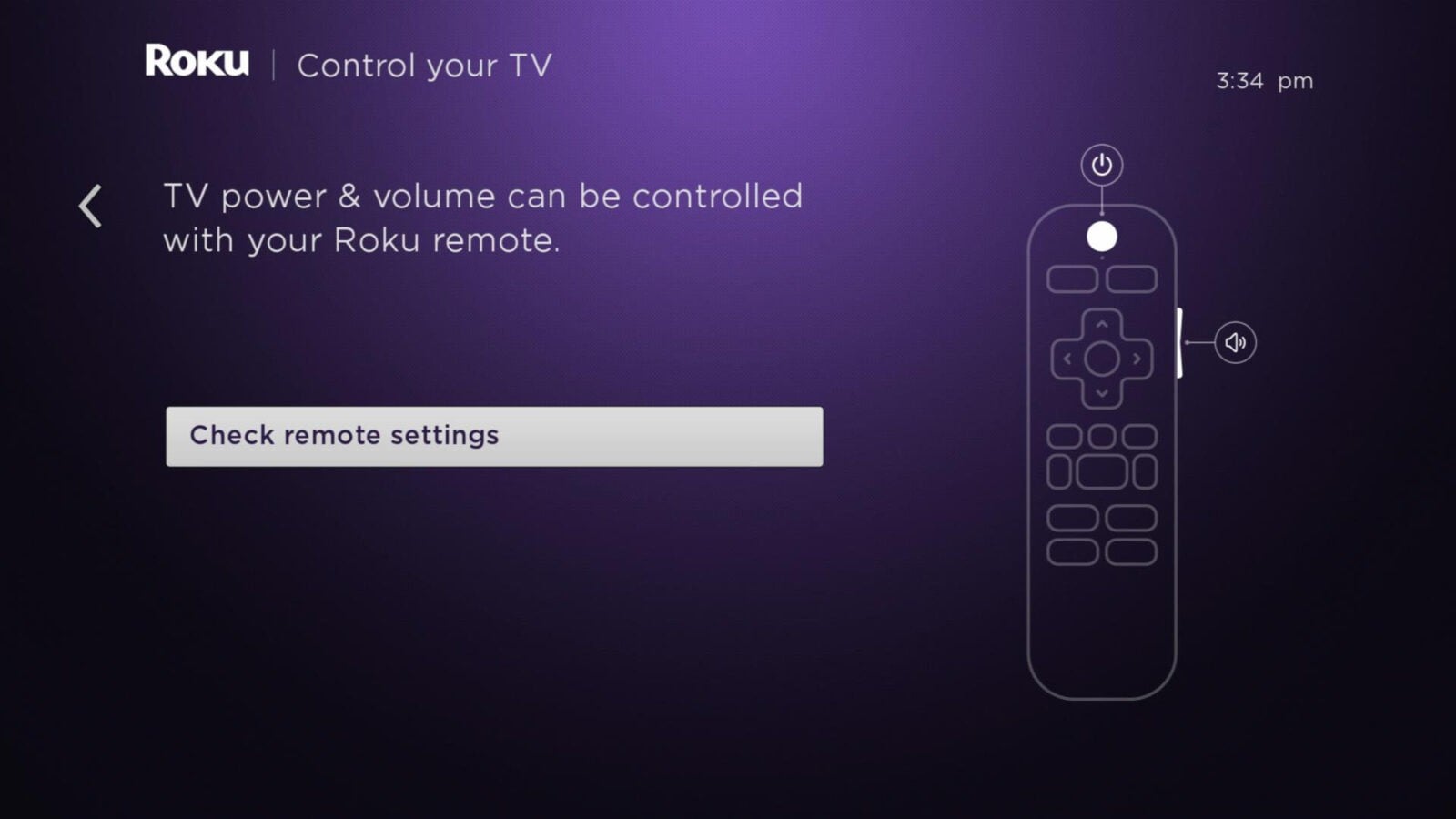
To verify if your TV has native support, navigate to your Home screen, select Settings, and look for Remotes & devices. If you see a menu item labeled Wireless headphones or Bluetooth devices, your TV likely supports direct pairing. If you only see options for remotes and generic device management, your TV relies on the mobile app method for Bluetooth connectivity.
How to Pair Bluetooth Devices via System Settings
For Roku TVs equipped with native Bluetooth, the setup process is straightforward and mirrors the pairing process on a standard smartphone or computer.
Step-by-Step Pairing Procedure
- Prepare your device: Put your Bluetooth headphones or speakers into "pairing mode." Refer to the manufacturer’s manual for these instructions, as the physical button presses vary widely between brands.
- Access Roku Settings: On your TV, navigate to the Settings menu from the Home screen.
- Open Device Management: Select Remotes & devices.
- Initiate Pairing: Select Wireless headphones or Bluetooth devices. If prompted, choose "Add new device."
- Select your hardware: The TV will scan for nearby devices. When your headphones appear on the screen, select them using your Roku remote.
- Confirmation: Once the pairing is successful, the TV will confirm the connection. You may need to select the device again to activate it if it does not automatically switch audio output.
Using the Roku Mobile App for Private Listening
If you prefer using Bluetooth headphones but your TV lacks built-in hardware, the Roku mobile app is the universal solution. This method is highly effective and often provides a more robust connection than basic built-in Bluetooth transmitters.
- Download and Sync: Install the official Roku mobile app on your smartphone and ensure both your phone and Roku TV are connected to the same Wi-Fi network.
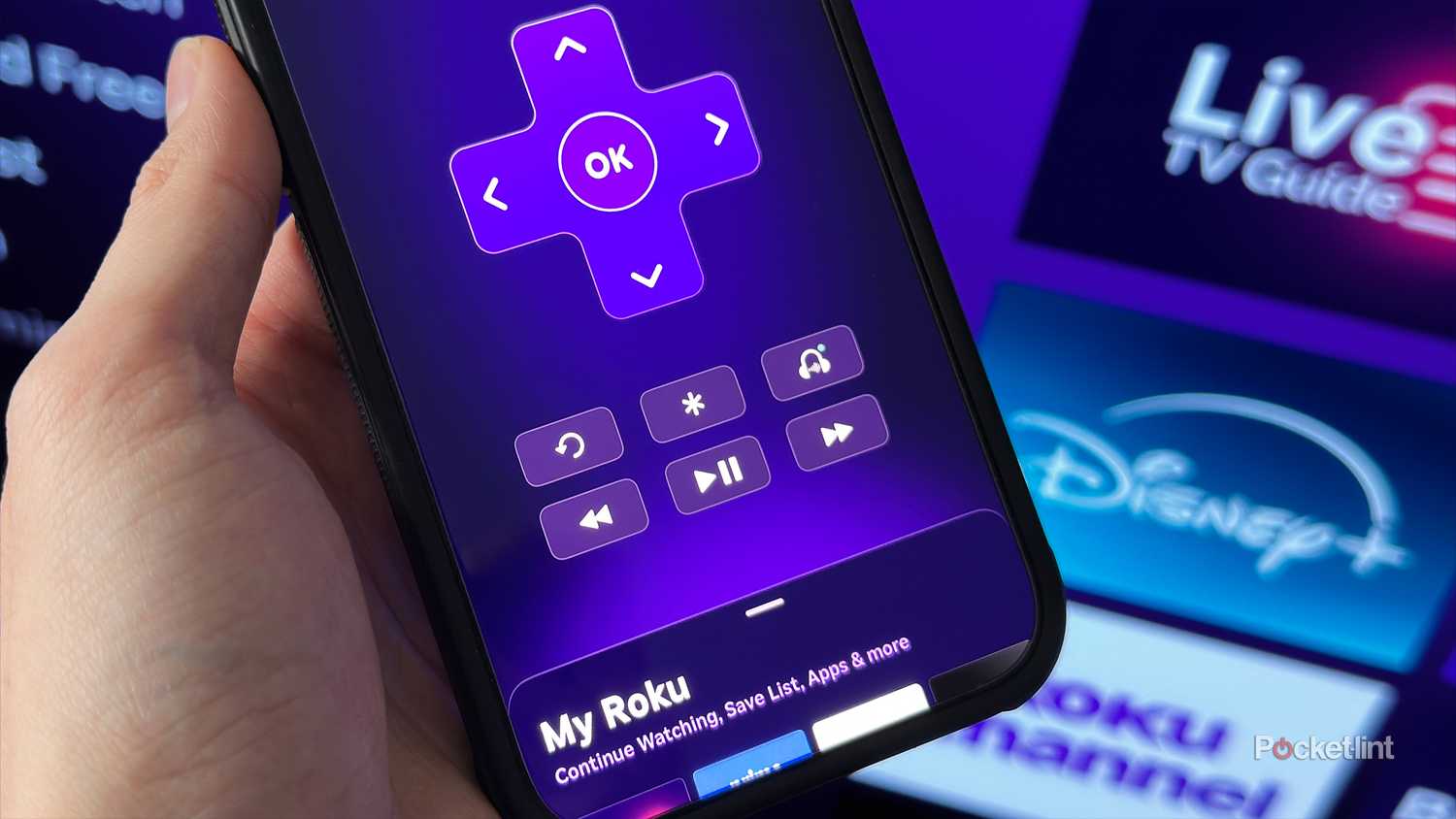
- Access the Remote: Open the app and tap the Remote icon at the bottom of the screen.
- Activate Private Listening: Look for the headphone icon on the remote interface. Tapping this icon enables Private Listening.
- Bluetooth Routing: Once Private Listening is toggled on in the app, your TV’s audio will be sent to your phone. Ensure your phone is already paired with your Bluetooth headphones via the phone's system settings. The audio will automatically route to your headphones.
Advantages of the Mobile App Method
Using the mobile app allows you to control the volume using your phone's physical buttons. Furthermore, because the app handles the handshake between the network and the Bluetooth device, you can often enjoy a more stable connection, provided your local Wi-Fi signal is strong.
Troubleshooting Common Bluetooth Issues
Even with a straightforward setup, technical hitches can occur. Below is a guide to resolving the most common issues users encounter when managing Bluetooth on Roku TVs.
| Problem | Potential Cause | Recommended Action |
|---|---|---|
| Device not found | Headphones still paired to a phone | Turn off Bluetooth on your phone temporarily. |
| Audio lag/delay | Signal interference or network load | Move closer to the router or reduce background Wi-Fi traffic. |
| Distorted audio | Low battery | Charge your headphones or speakers fully. |
| No sound | Output not switched | Check Settings > Audio to ensure output is set to Bluetooth. |
Addressing Signal Interference
Bluetooth operates on the 2.4 GHz frequency, which is shared by many Wi-Fi routers, microwaves, and cordless phones. If you experience "stuttering" or audio dropouts, move the Bluetooth device closer to the Roku TV (if using native Bluetooth) or closer to your phone (if using the mobile app). Clearing physical obstructions between the transmitter and receiver significantly improves performance.
Comparing Bluetooth Integration Methods
| Feature | Native Bluetooth (TV) | Roku Mobile App |
|---|---|---|
| Hardware Requirement | Specific TV model support | Any Roku TV |
| Primary Controller | Roku Remote | Smartphone |
| Ease of Use | High (Integrated) | Moderate (Requires App) |
| Audio Quality | Direct transmission | Subject to Wi-Fi stability |
| Latency | Usually lower | Potentially higher |
Frequently Asked Questions
Can I connect multiple Bluetooth devices at once? Roku TVs typically support only one Bluetooth audio device at a time. Trying to pair a second set of headphones will usually disconnect the first device.
Does Bluetooth audio affect my Roku TV's Wi-Fi speed? If you are using the mobile app method, the audio data travels over your Wi-Fi network. While the bandwidth required is minimal, if your network is already congested, you might experience minor lip-sync issues. Native Bluetooth does not use your Wi-Fi network.
Why is there a delay between the video and the audio? Bluetooth technology inherently introduces a small amount of latency. If the delay is significant, try restarting your Roku TV by navigating to Settings > System > Power > System restart.
Do I need a paid subscription to use Bluetooth features? No, all Bluetooth and Private Listening features available through the Roku operating system and the mobile app are provided at no additional cost.
Can I use Bluetooth for something other than audio? On most Roku TVs, Bluetooth functionality is strictly limited to audio output. You cannot use it to connect keyboards, mice, or game controllers directly via Bluetooth unless specifically supported by the Roku TV remote protocol or external adapters.
Final Recommendation
For the best experience, start by checking your TV's specific settings menu to see if native Bluetooth is available. If you find the option, use it for a direct, high-quality connection. If your hardware does not support this, do not hesitate to use the Roku mobile app; it is a stable, reliable, and free way to achieve the same goal, providing the added benefit of using your smartphone's Bluetooth management interface, which is often more intuitive than the TV's on-screen menus. Ensure your firmware is updated regularly to maintain compatibility with the latest audio codecs and connection protocols.
Image Gallery