How to Search Tweets from a Specific Date
To search tweets from a specific date on X (formerly Twitter), use the platform’s Advanced Search tool or enter specific operators into the standard search bar. The most effective command is from:username since:YYYY-MM-DD until:YYYY-MM...
To search tweets from a specific date on X (formerly Twitter), use the platform’s Advanced Search tool or enter specific operators into the standard search bar. The most effective command is from:username since:YYYY-MM-DD until:YYYY-MM-DD. This allows you to filter historical data by user, keyword, and precise timeframes across the platform's database.
Contents
Navigating the vast archives of X requires more than just a basic keyword search. Whether you are conducting professional OSINT (Open Source Intelligence) research, verifying historical statements for journalism, or simply looking for a specific memory from your own profile, the platform offers several sophisticated methods to retrieve data from any point in its history. As of 2026, these methods remain the most reliable way to bypass the algorithmically driven "For You" feed and access the raw chronological data of the platform.
Understanding the X Advanced Search Interface
For most users, the Advanced Search interface is the most intuitive method for filtering content by date. Unlike the standard search bar, which relies heavily on relevance and engagement metrics, the Advanced Search tool provides granular control over various parameters.
Accessing the Tool
The Advanced Search tool is primarily available on the web version of the platform. To find it, enter a search term into the standard search bar at the top right of your screen. Once the results page loads, click the three horizontal dots (More icon) located next to the search bar and select "Advanced Search" from the dropdown menu. Alternatively, you can navigate directly to the X Advanced Search page.
Configuring Date Parameters
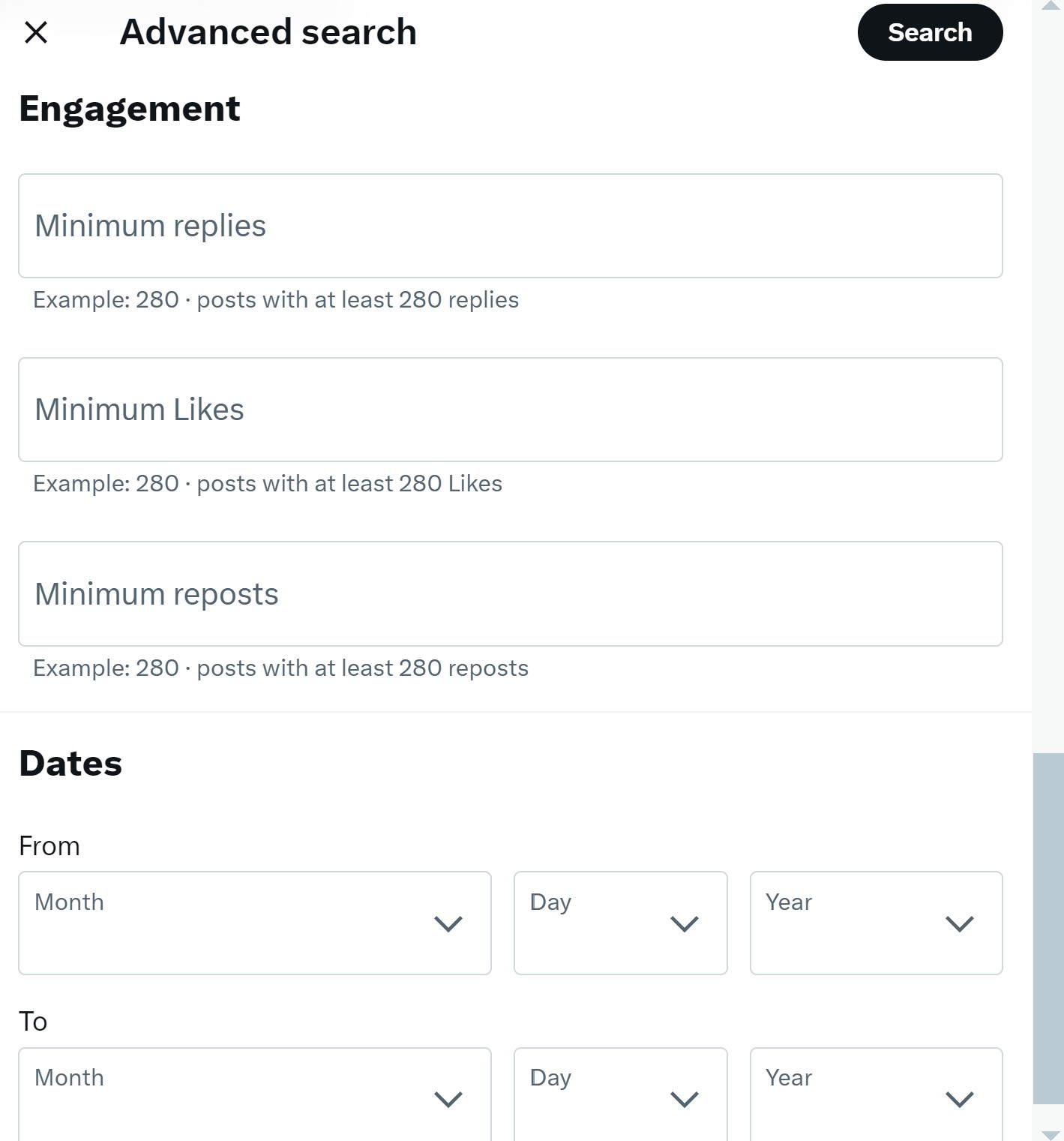
Once the Advanced Search modal opens, scroll to the very bottom to find the Dates section. Here, you can define the "From" and "To" dates using a calendar picker. This feature is particularly useful because it automatically formats the query for you, preventing syntax errors that often occur when typing operators manually.
- From: Select the earliest date you want to include in your search.
- To: Select the cutoff date for your search.
When you click "Search," the platform generates a complex query string in the search bar. This interface is ideal for users who do not want to memorize specific commands but need to perform a deep dive into historical content.
Using Search Operators for Precise Results
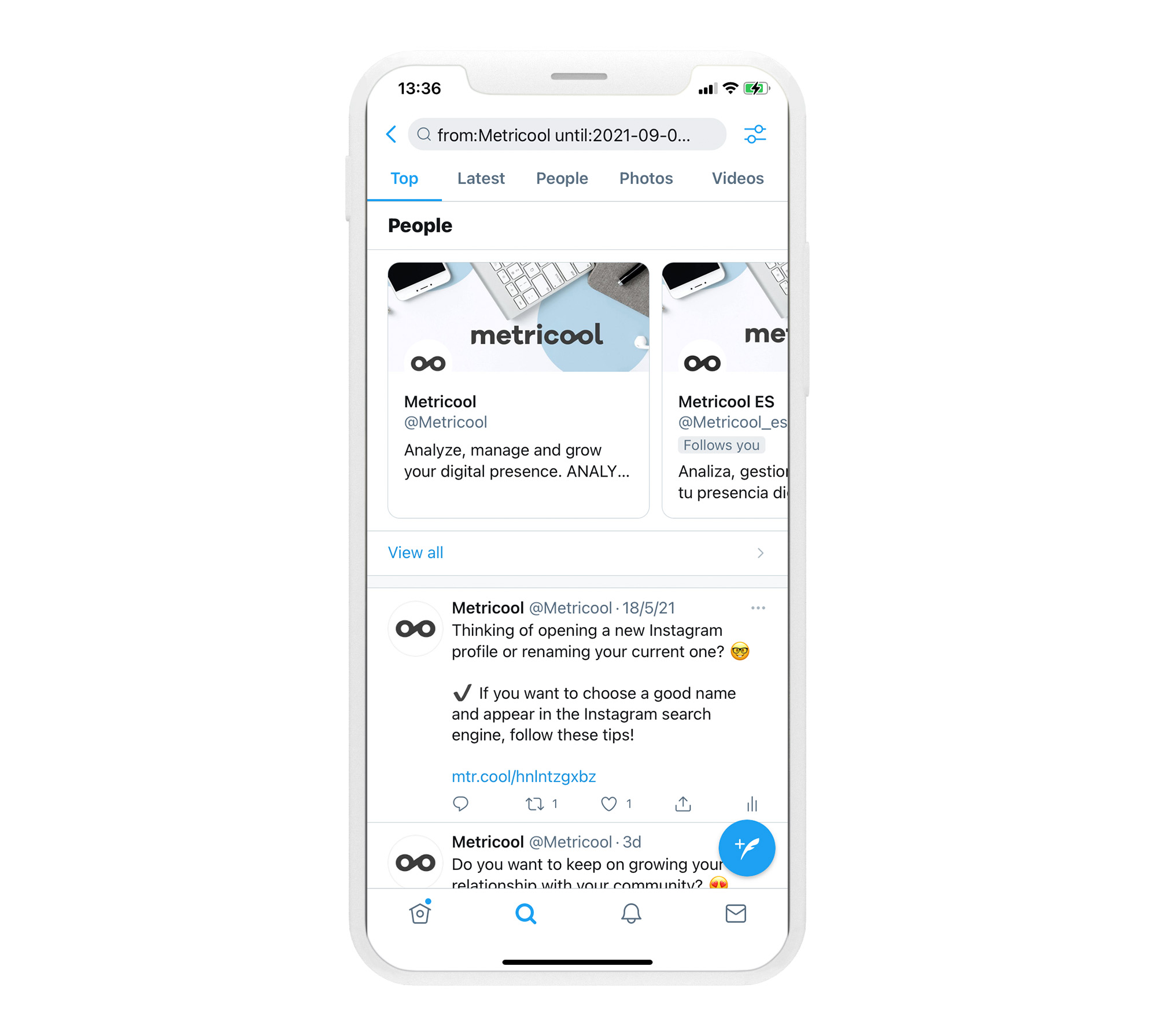
While the graphical interface is convenient, power users and researchers often prefer Search Operators. These are specific text commands that can be typed directly into the search bar on any device—including the iOS and Android mobile apps, where the full Advanced Search menu is often hidden.
The Anatomy of a Date Query
To successfully search by date, you must use the ISO 8601 date format: YYYY-MM-DD. Using any other format (such as MM-DD-YYYY) will result in a failed query or no results.
- Since: This operator filters for tweets posted on or after a specific date.
- Example:
from:NASA since:2021-01-01
- Example:
- Until: This operator filters for tweets posted up to a specific date.
- Example:
from:NASA until:2021-12-31
- Example:
- Combining Operators: To find tweets within a specific window, you must combine both.
- Example:
from:NASA since:2021-01-01 until:2021-01-31
- Example:
Filtering by User and Content
Date filters are most powerful when combined with other operators. If you are looking for a specific topic discussed during a specific month, you can add keywords or account handles.
- By User: Use
from:[handle]to see tweets from a specific person. - By Keyword: Simply add the word or phrase at the beginning or end of your string.
- By Engagement: Add
min_faves:[number]ormin_retweets:[number]to find the most popular posts from that timeframe.
| Operator | Function | Example Syntax | Use Case |
|---|---|---|---|
since: |
Filters for posts after a date | since:2023-05-10 |
Finding news after an event |
until: |
Filters for posts before a date | until:2015-01-01 |
Researching early-platform history |
from: |
Limits results to one user | from:elonmusk |
Verifying a user's past claims |
to: |
Finds replies to a user | to:AppleSupport |
Checking historical customer service |
" |
Exact phrase matching | "breaking news" |
Finding specific quotes or slogans |
min_faves: |
Filters by minimum likes | min_faves:500 |
Identifying high-impact content |
Searching Your Personal Archive
If your goal is to find your own old tweets rather than someone else's, there is a more comprehensive method than the public search bar: the X Archive. This is a downloadable file containing every post, media item, and interaction associated with your account since its inception.
Why Use the Archive?
The public search index sometimes skips very old content or posts from accounts that have been shadowbanned or restricted. Your personal archive is a local database that is not subject to search index limitations. It is also the only way to view your history if you decide to deactivate your account or if the platform’s search functionality is experiencing downtime.
How to Request Your Archive
- Navigate to Settings and Privacy.
- Select Your Account.
- Click on Download an archive of your data.
- You will be prompted to verify your password and enter a 2FA (Two-Factor Authentication) code.
- Click Request Archive.
It usually takes 24 hours or longer for X to prepare this file. Once ready, you will receive a notification and an email with a download link. The file arrives as a ZIP folder containing an archive.html file, which opens in your browser and allows you to search your history by date with high speed and zero latency.
Limitations and Troubleshooting
Despite the power of these tools, several factors can prevent you from finding the tweets you are looking for. Understanding these limitations is essential for professional research.
Private (Protected) Accounts
If an account is set to "Protected," its tweets will not appear in search results for anyone who does not follow them. Even if you follow a protected account, their tweets are generally excluded from the public search index used by the Advanced Search tool. You would need to manually scroll their timeline or use a third-party tool with authorized API access.
Deleted Content and Suspended Accounts
The search index is updated frequently. If a user deletes a tweet or their account is suspended, that content is purged from the active search index. In these cases, your only recourse is a caching service like the Internet Archive’s Wayback Machine. Researchers often use the Wayback Machine to find snapshots of high-profile accounts from specific dates in the past.
Indexing Delays
New tweets are typically indexed within seconds. However, very old tweets (from 2006–2010) occasionally fall out of the "instant" index during platform maintenance. If a search for a specific date range returns no results, try broadening the date range by a few days or removing keyword filters to see if the content is still indexed at all.
Advanced Techniques for OSINT and Data Analysis
For journalists and data scientists, searching by date is often the first step in a larger investigation. In 2026, the use of automated tools and API-based searches has become standard for high-volume data retrieval.
Geolocation and Dates
You can combine date filters with geolocation to see what was happening in a specific city during a historical event. The operator geocode:latitude,longitude,radius allows this.
- Example:
protest since:2020-06-01 until:2020-06-02 geocode:40.7128,-74.0060,5km(This searches for "protest" in New York City during a specific 24-hour window).
Filter by Media Type
If you are looking for a photo or video from a specific date, use the filter:images or filter:videos operator. This significantly reduces the noise from text-only replies and retweets, which can clutter search results for popular dates.
FAQ
Can I search for tweets from a specific time (hours/minutes)?
No, the standard X search engine and Advanced Search interface only support date-level granularity (YYYY-MM-DD). To search by specific timestamps, you would need to use the X API (Application Programming Interface), which provides Unix timestamps for every post.
Why do some tweets not show up even when I use the correct date?
This usually happens due to the "Top" vs. "Latest" toggle. By default, X shows "Top" results based on engagement. When searching for historical data, always click the Latest tab to see every tweet from that date in reverse chronological order.
Is there a limit to how far back I can search?
Technically, you can search back to the platform's launch in March 2006. However, the density of data is much lower in the early years, and some very old content may have formatting issues in the modern search index.
How do I search for my first ever tweet?
The easiest way is to use the operator from:yourusername and set the until: date to roughly a week after you joined the platform. You can find your "Join Date" on your profile page.
Do search operators work on the mobile app?
Yes, operators like since: and until: work perfectly in the search bar of the X mobile app for both iOS and Android. While the "Advanced Search" menu isn't explicitly visible, the manual commands are fully supported.
Practical Recommendation
When searching for historical data, start broad and then narrow down. Begin with a wide date range (e.g., a full month) and the username. If the results are too numerous, add keywords. If you are performing a legal or professional audit, always document your findings with archives or screenshots, as the "live" nature of the X index means content can be deleted by the user at any moment. For the most comprehensive personal search, always rely on the downloadable X Archive rather than the public search bar.
Image Gallery