How to Manage an Airtel Network Issue: Step-by-Step Troubleshooting and Solutions
Managing an Airtel network issue requires identifying whether the disruption stems from local device settings, account limits, SIM card errors, or widespread service outages. You can resolve most connectivity problems by toggling Airpl...
Managing an Airtel network issue requires identifying whether the disruption stems from local device settings, account limits, SIM card errors, or widespread service outages. You can resolve most connectivity problems by toggling Airplane mode, verifying your active data plan on the Airtel Thanks App, reconfiguring Access Point Names (APN), or enabling Wi-Fi Calling for low-coverage areas.
Contents
Understanding Common Airtel Network Issues
Telecommunication disruptions on the Airtel network typically manifest in specific ways. Pinpointing the precise symptom helps select the correct troubleshooting procedure without unnecessary configuration changes.
- Complete Loss of Signal (No Service / Emergency Calls Only): Occurs when the mobile device cannot establish a handshake with the nearest Airtel cell tower. This can result from physical obstructions, SIM card misalignment, damaged SIM hardware, or local network maintenance.
- Slow Data Speeds on 4G or 5G: The phone displays signal bars, but web pages fail to load or video streams buffer excessively. This problem usually stems from bandwidth throttling, data allowance depletion, incorrect APN configurations, or extreme network congestion during peak hours.
- Frequent Dropped Calls or Unclear Voice Quality: Calls disconnect unexpectedly or audio stutters. This is often caused by weak indoor coverage, lack of Voice over LTE (VoLTE) activation, or handoff failures between mobile towers as you move.
- Data Not Working Despite Active Plan: The device connects to cellular towers, but internet routing fails. Incorrect IP assignments or corrupted network configuration caches on the smartphone frequently trigger this specific issue.
Quick Initial Fixes for Airtel Mobile Network Disruptions
Before altering system configurations, perform fundamental reset steps to clean temporary hardware caches and force your device to re-register on the nearest base transceiver station (BTS).
- Toggle Airplane Mode
- Verify Data & Plan Status
- No Plan: Recharge Plan
- Active Plan:
- Check Preferred Network
- Reinsert SIM Card
1. Toggle Airplane Mode
Activating Airplane mode disables all RF communications, including cellular bands, Wi-Fi, and Bluetooth. Disabling it after a short pause forces the radio frequency modem inside your phone to drop its current lease and search for the strongest operational signal tower nearby.
- Swipe down from the top of your screen on Android, or swipe down from the top-right corner on iOS, to open the Control Center or Quick Settings.
- Tap the Airplane Mode (or Flight Mode) icon to turn it on.
- Wait 15 to 30 seconds to allow the device to terminate existing tower handshakes completely.
- Tap the icon again to turn Airplane mode off and monitor the status bar to verify signal restoration.
2. Check Plan Validity and Data Balance
A sudden termination of mobile data or outgoing call facilities often indicates an expired base tariff plan or exhausted high-speed data quota. Airtel enforces strict fair usage policies (FUP) where speed drops drastically after daily quotas are used up.
- USSD Code: Dial
*121#or*121*2#from your Airtel phone dialer to view account balances, active validity dates, and remaining daily data limits directly on your screen. - Airtel Thanks App: Open the official application over Wi-Fi or cellular data to view account status on the main dashboard. If your plan has expired, purchasing a valid top-up or data add-on instantly restores data connectivity.
3. Verify Preferred Network Type
If your device is set to connect exclusively to an unsupported radio band or locked to a fading 5G/4G frequency, it may drop connection entirely when moving through low-reception zones.
- Android: Go to Settings > Network & internet (or Connections) > SIM card & mobile networks > Preferred network type. Select 5G/4G/3G/2G (Auto) or LTE/3G/2G (Auto) to allow the phone to switch dynamically based on signal strength.
- iOS: Go to Settings > Cellular > Cellular Data Options > Voice & Data. Choose 5G Auto or LTE and verify that Data Roaming is enabled if you are traveling outside your home telecom circle.
4. Inspect and Clean the SIM Card
Physical debris, oxidation on copper contacts, or slight misalignment inside the SIM tray can disrupt communication between your smartphone's baseband processor and the Airtel SIM card.
- Power off your mobile device completely.
- Insert an ejector tool into the SIM tray hole to pop out the tray.
- Inspect the SIM card for physical cracks, micro-scratches, or bending.
- Gently wipe the gold contact surface using a clean, dry microfiber cloth or micro-isopropyl wipe.
- Reinsert the SIM card securely into Slot 1 (primary slot) and power the device back on.
Reconfiguring Airtel Access Point Name (APN) Settings
An Access Point Name (APN) defines the network path for all cellular data communications. Corrupted, missing, or altered APN settings prevent your smartphone from establishing a valid IP gateway connection with Airtel servers, even when signal bars display full strength.
Airtel APN Settings for Android Devices
If your data connection fails after a system update or SIM swap, manually creating or resetting your APN profile ensures your device uses the proper gateway routes.
- Open Settings on your Android phone.
- Select Network & Internet or Connections, then tap Mobile Network.
- Scroll down and tap Access Point Names.
- Tap the + (Plus) icon or three-dot menu to add a new APN.
- Enter the exact parameters listed below:
| APN Parameter | Correct Airtel Value |
|---|---|
| Name | Airtel Internet |
| APN | airtelgprs.com |
| Proxy | Not set |
| Port | Not set |
| Username | Not set |
| Password | Not set |
| Server | Not set |
| MMSC | Not set |
| MMS Proxy | Not set |
| MMS Port | Not set |
| MCC | Keep default auto-detected value |
| MNC | Keep default auto-detected value |
| Authentication Type | None or PAP |
| APN Type | default,supl |
| APN Protocol | IPv4/IPv6 |
| APN Roaming Protocol | IPv4/IPv6 |
- Tap the menu button and select Save. Select the newly created APN profile as active and restart your phone.
Resetting Carrier Settings on iPhone (iOS)
iOS manages carrier configuration profiles automatically via official updates. Manual APN fields are frequently hidden on locked iOS software, but clearing local cache errors can be accomplished easily.
- Connect your iPhone to an active Wi-Fi connection.
- Go to Settings > General > About. If an official carrier profile update is pending, a prompt titled Carrier Settings Update will appear automatically. Tap Update.
- If no update appears, navigate to Settings > General > Transfer or Reset iPhone > Reset.
- Select Reset Network Settings. Note: This action clears saved Wi-Fi networks, passwords, and Bluetooth pairings alongside cellular cache files.
- Enter your device passcode to confirm, then wait for the iPhone to reboot.
Resolving Specific Airtel Network Scenarios
Different technical factors require specific diagnostic approaches. Addressing particular symptoms prevents unnecessary troubleshooting steps.
| Issue | Main Cause | Primary Fix |
|---|---|---|
| Slow Data (4G/5G) | Band Congestion / Daily FUP | Reset APN / Switch Auto |
| Call Drops / Poor Audio | Weak Signal / No VoLTE | Enable VoLTE & VoWiFi |
| Emergency Calls Only | SIM Glitch / Unregistered | Clean SIM / Re-register |
| No Data in Roaming | Disabled Data Roaming | Turn On Data Roaming |
Addressing Slow 5G and 4G Speeds
Slow internet speeds during specific hours often stem from cell tower congestion on standard frequency bands (such as 1800 MHz or 2300 MHz). To optimize data speeds:
- Toggle Band Switching: If 5G connectivity fluctuates wildly or causes battery drain due to weak site coverage, lock your connection temporarily to LTE/4G mode. A stable 4G signal delivers consistently lower ping times and reliable bandwidth compared to a weak 5G connection.
- Clear Browser Cache: Heavy background sync processes can bottleneck overall bandwidth. Close background apps and clear system cache partitions using native phone storage managers.
- Disable VPN Software: Active Virtual Private Network (VPN) applications introduce route overhead and encryption latency, often slowing down your connection speed. Disable active VPN tunnels to evaluate your direct Airtel bandwidth.
Resolving Call Drops with VoLTE and Wi-Fi Calling
If you experience regular dropped calls inside buildings or basement areas, modern voice features bypass traditional radio coverage limits by leveraging alternate data networks.
- Enable Voice over LTE (VoLTE): VoLTE transmits high-definition voice calls over 4G/5G data infrastructure rather than falling back to older 2G/3G voice layers. Navigate to Settings > Mobile Networks, locate your Airtel SIM, and ensure the VoLTE Calls toggle is enabled.
- Enable Wi-Fi Calling (VoWiFi): When indoors with weak cellular reception, Wi-Fi Calling routes call signals through your home broadband connection while maintaining your standard Airtel mobile phone number.
- Connect your device to a stable Wi-Fi network.
- Go to Settings > Cellular (or Connections).
- Select Wi-Fi Calling and toggle the switch to On.
- Make a test call; a Wi-Fi icon next to the carrier name indicates active execution.
Managing International and Domestic Roaming Connectivity
When traveling outside your local telecom zone, your phone must negotiate roaming handshakes with partner base stations.
- Activate Data Roaming: Go to Settings > Mobile Network > turn on Data Roaming. Without this setting enabled, smartphones automatically block cellular data transfers outside the native telecom circle to prevent unintended charges.
- Manual Network Selection: If your device displays "No Service" while traveling:
- Go to Settings > Mobile Networks > Network Operators.
- Disable Select Automatically.
- Allow the device to scan available networks (this can take up to 2 minutes).
- Manually tap Airtel (or an authorized roaming partner network) from the list.
Methodical Comparison of Troubleshooting Actions
The table below outlines common troubleshooting procedures for Airtel network issues, detailing when to use each method and its intended outcome.
| Troubleshooting Method | Applicable Network Issue | Execution Difficulty | Data Loss Risk | Expected Outcome |
|---|---|---|---|---|
| Airplane Mode Toggle | Temporary loss of signal, stuck network state | Very Low | None | Forces immediate re-registration on local mobile tower. |
| APN Profile Reset | Full signal visible but no data transfer working | Low | None | Restores original gateway configurations and routing protocol. |
| SIM Removal & Clean | "No SIM", "Emergency Calls Only", frequent drops | Low | None | Eliminates physical contact flaws and seating issues inside tray. |
| Enable Wi-Fi Calling | Weak indoor coverage, call drops inside buildings | Low | None | Routes calls via home broadband, bypassing local radio barriers. |
| Reset Network Settings | Persistent routing glitches, grayed-out networks | Medium | Clears saved Wi-Fi & Bluetooth devices | Wipes corrupted networking caches across OS kernel layers. |
| SIM Swap (eSIM / Physical) | Damaged physical SIM, legacy 3G SIM upgrades | High | None (Contacts stored on cloud remain safe) | Replaces aging hardware with current sub-6GHz & mmWave SIM tech. |
Reporting Network Issues and Escalating to Airtel Support
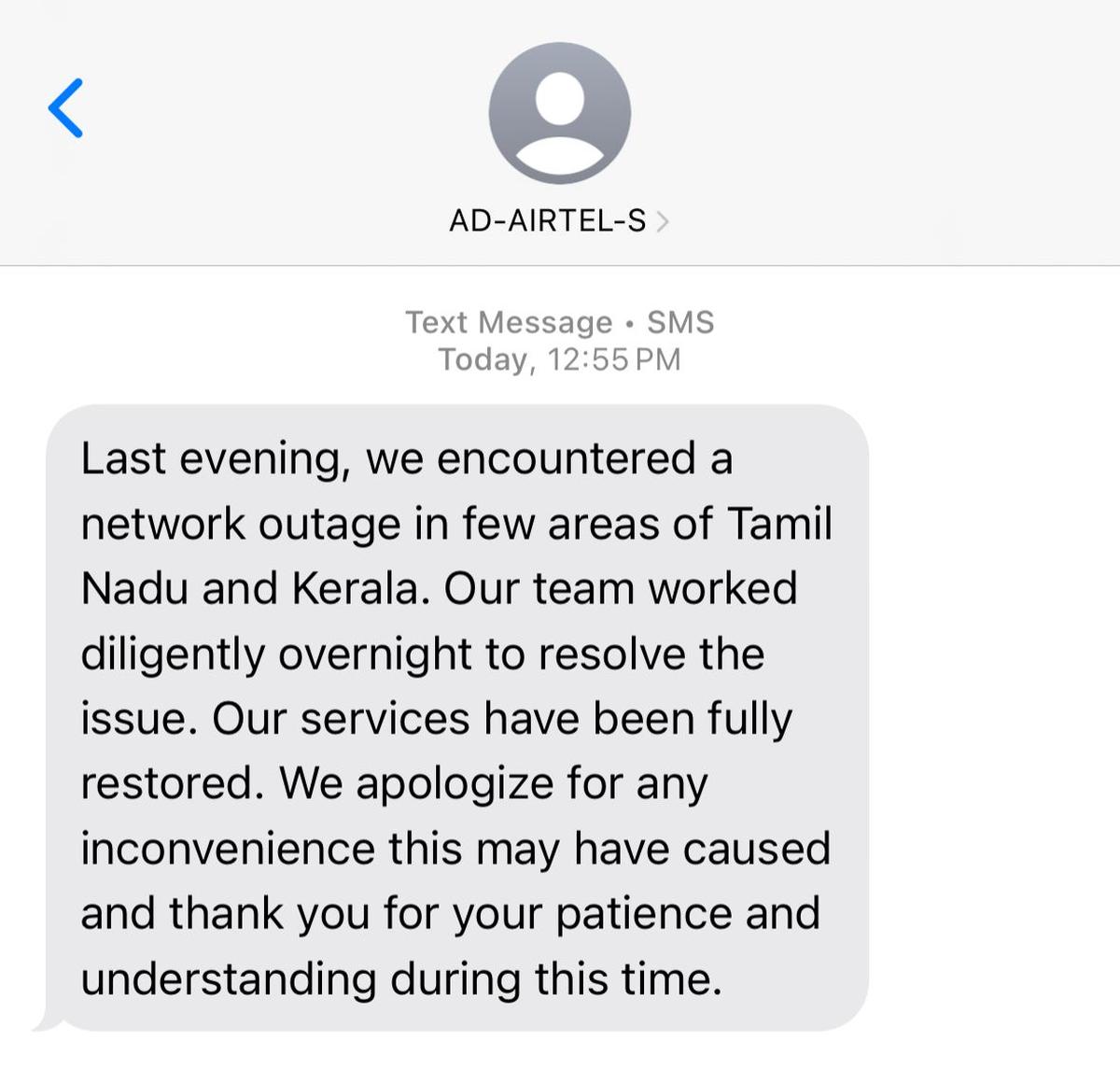
If hardware, configuration, and account checks do not resolve the issue, the problem likely stems from local cell tower maintenance, hardware outages, or unconfigured network infrastructure.
1. Check Outages via the Airtel Thanks App
Airtel provides real-time diagnostic tools within its official customer application.
- Open the Airtel Thanks App.
- Navigate to the Help or Support section.
- Use the automated Check Network Health tool. If tower maintenance or an unscheduled regional outage affects your locality, the app displays real-time tracking notes along with an estimated time of restoration (ETA).
2. Contact Airtel Customer Service
Report persistent network failures to Airtel support engineers using alternative lines or text pathways:
- Helpline Number: Dial
198(Toll-Free Complaint Helpline) from an active Airtel line for automated service diagnostics and direct connection to support agents. Alternatively, dial121for general inquiries. - Alternate Phone/Landline Support: If your Airtel mobile cannot place calls, contact the customer service center via official localized support numbers provided on the Bharti Airtel Official Website.
- Email Support: Send detailed technical complaints, including impacted mobile numbers, precise GPS coordinates, and timestamps of signal failures, to
121@in.airtel.com(or your regional market equivalent).
3. Log a Formal Network Complaint Ticket
When speaking with support staff or submitting a ticket, clearly detail your diagnostic findings:
- Request an official Service Request (SR) Number or Complaint Ticket ID.
- Provide specific technical information, such as whether the issue affects voice calls, mobile data, or both.
- Note if the issue occurs exclusively indoors or extends to surrounding outdoor locations.
- If multiple Airtel subscribers in your immediate vicinity experience identical outages, mention this to escalate the ticket from an individual account check to a local tower inspection.
Frequently Asked Questions
Why does my Airtel phone show full signal bars, but the internet is not working?
Full signal bars indicate a strong radio frequency connection between your smartphone and the cell tower, but internet access requires active data routing. This issue usually occurs when your daily data balance is exhausted, your APN settings are misconfigured, or the local tower's data core is overloaded. Check your data balance via *121# or reset your APN settings to default to restore data throughput.
How do I manually set up Airtel APN settings on Android?
To configure your APN manually, go to Settings > Network & Internet > Mobile Network > Access Point Names. Tap the + icon to add a new APN. Set the Name field to Airtel Internet and the APN field to airtelgprs.com. Leave fields like Proxy, Port, Username, and Password blank. Save the configuration, select it as active, and restart your device.
What should I do if my Airtel SIM card says "No Service" or "Emergency Calls Only"?
First, toggle Airplane mode on and off. If the status does not change, turn off your device, remove the SIM card, and check for dirt or damage. Clean the gold contacts gently with a soft cloth, re-insert the SIM securely into Slot 1, and turn the device back on. If the error persists across multiple devices, the SIM card may be deactivated or damaged, requiring a replacement from an official Airtel store.
How does Wi-Fi Calling help with Airtel network issues?
Wi-Fi Calling (VoWiFi) allows your smartphone to route voice calls and text messages over a Wi-Fi connection instead of relying on cellular signals. If you have weak Airtel coverage inside your home or office, enabling Wi-Fi Calling in your phone's cellular settings maintains clear call quality using your existing internet connection, without incurring extra fees.
How long does it take for Airtel to fix a localized network tower outage?
Unscheduled local tower outages caused by power disruptions or software glitches are usually resolved within 2 to 6 hours. Larger outages involving physical fiber cuts, severe weather damage, or major equipment upgrades can take 24 to 48 hours. You can track ongoing resolution times by logging into the Airtel Thanks App or contacting customer support with your issue's Service Request (SR) number.
Final Recommendations for Reliable Airtel Connectivity
To maintain stable performance on the Airtel network, keep your device's operating system updated to ensure compatibility with recent carrier updates. If you consistently experience poor signal strength inside your primary residence or workplace despite verifying all software settings, enable Wi-Fi Calling to route your calls through a local broadband network.
If signal issues persist across multiple devices in different locations, your SIM card hardware may be aging or damaged. Visit an authorized Airtel Store with government-issued photo identification to perform a SIM swap. The agent will transfer your mobile number to a replacement physical SIM card or activate an eSIM, typically restoring connection quality within a few hours.
EDITORIAL CATEGORY METADATA (exception to the article-only final-output rule):
Image Gallery