How to Configure a Network: A Step-by-Step Practical Guide
Configuring a network requires establishing a physical or wireless topology, assigning unique IP addresses, defining subnet masks, and designating default gateways and DNS servers across host devices and router interfaces. Proper confi...
Configuring a network requires establishing a physical or wireless topology, assigning unique IP addresses, defining subnet masks, and designating default gateways and DNS servers across host devices and router interfaces. Proper configuration ensures secure, low-latency communication between local nodes and external networks while preventing IP address conflicts and security vulnerabilities.
Contents
Essential Network Concepts and Architecture
Before adjusting hardware or modifying operating system parameters, administrators must understand the foundational elements of TCP/IP networking. A network functions by routing packetized data between hardware nodes identified by digital addresses.
IP Addressing and Subnetting
An IP address serves as the unique logical identifier for a device on a network. Modern environments utilize two addressing standards:
- IPv4 (Internet Protocol version 4): Uses 32-bit addresses expressed in dotted-decimal format (e.g.,
192.168.1.10). Because IPv4 address space is limited, local networks rely heavily on private IP ranges defined by RFC 1918, such as10.0.0.0/8,172.16.0.0/12, and192.168.0.0/16. - IPv6 (Internet Protocol version 6): Uses 128-bit hexadecimal addresses (e.g.,
2001:db8:85a3::8a2e:0370:7334) designed to replace IPv4. It offers vast address space and built-in Stateless Address Autoconfiguration (SLAAC).
The subnet mask (or CIDR notation, such as /24) determines which portion of the IP address represents the network identifier and which portion represents the host. For example, a mask of 255.255.255.0 (/24) isolates the first three octets for the network ID, allowing up to 254 usable host addresses on that local segment.
Default Gateways and DNS
- Default Gateway: The IP address of the local router interface that bridges the local subnet to external networks or the internet. Traffic destined for addresses outside the local subnet is automatically forwarded to this gateway.
- Domain Name System (DNS): The service that translates human-readable hostnames (such as
example.com) into numerical IP addresses. Local networks typically point to internal DNS servers for local host lookup, supplemented by public resolvers like Cloudflare (1.1.1.1) or Google (8.8.8.8).
Dynamic (DHCP) vs. Static Allocation
- Dynamic Host Configuration Protocol (DHCP): Automatically assigns IP addresses, subnet masks, default gateways, and DNS servers to client devices upon connection. This eliminates manual configuration for client devices like laptops, phones, and workstations.
- Static IP Assignment: Manually hardcoding network parameters directly into a device's network configuration. Servers, network printers, routers, switches, and security cameras require static addresses to guarantee perpetual accessibility.
Step 1: Design Topology and Physical Connections
A stable network setup relies on structured physical and wireless cabling.
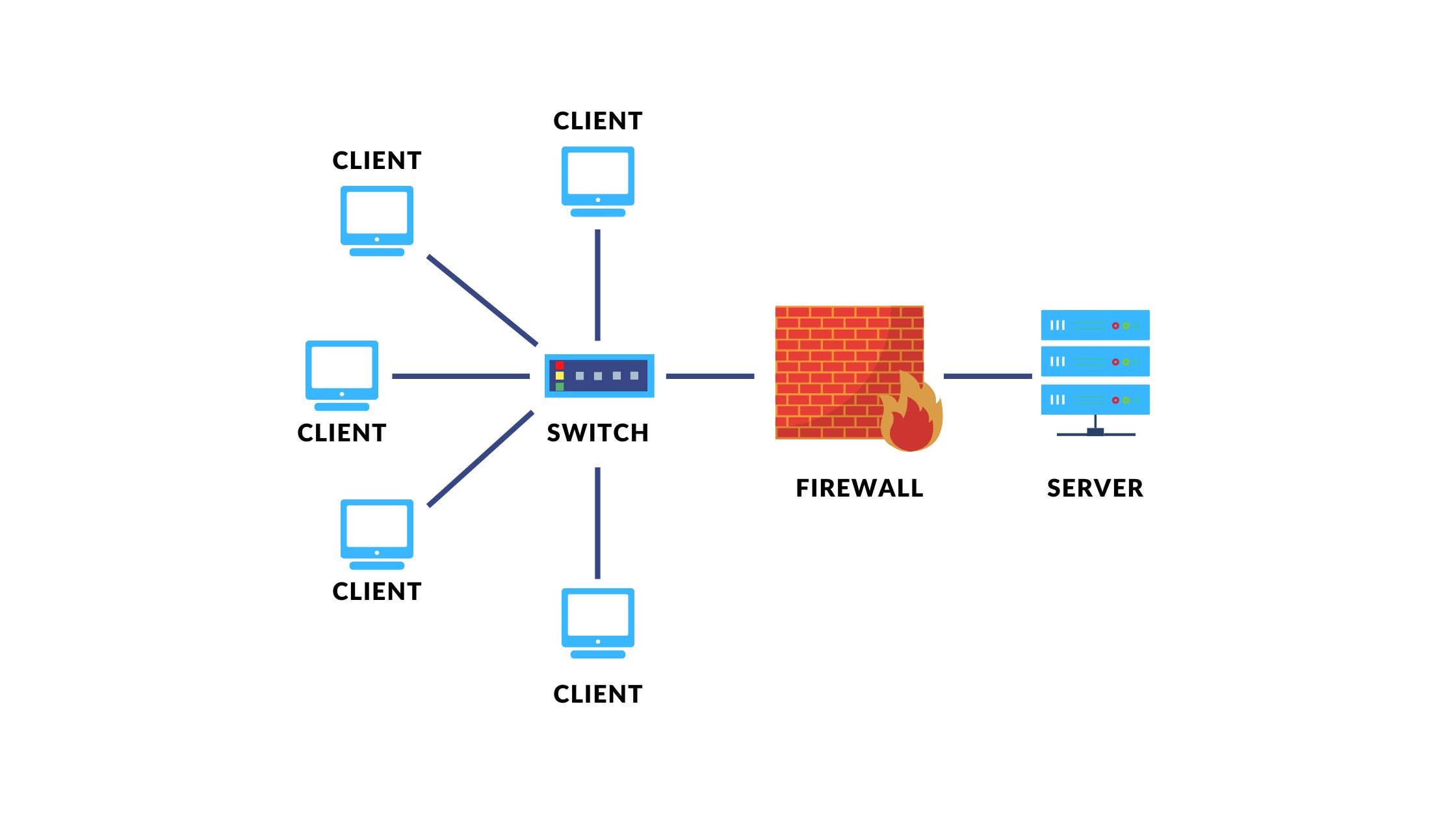
- Core Gateway Router: Place the primary edge router at the network perimeter, connected directly to your Internet Service Provider (ISP) modem or fiber termination unit (ONT).
- Switching Infrastructure: Connect an unmanaged or managed Ethernet switch to one of the router's LAN ports. Managed switches supporting IEEE 802.1Q allow segmenting network traffic into Virtual Local Area Networks (VLANs) to isolate sensitive traffic, such as guest devices or VoIP systems.
- Physical Media: Connect high-density static devices (servers, desktop PCs, storage systems) using Category 6 (Cat6) or Category 6A Ethernet cables to minimize latency and packet drop.
- Wireless Access Points (WAPs): Position access points centrally to maximize wireless coverage. Ensure access points are connected to Power over Ethernet (PoE) switch ports for power delivery and high-speed data transmission.
Step 2: Configure Gateway Routers and DHCP Services
The central gateway manages routing, firewall enforcement, and automatic address distribution.
Accessing the Gateway Administrative Panel
Connect a management laptop directly to the router's LAN port using an Ethernet cable. Open a web browser and navigate to the default router management address (commonly 192.168.1.1, 192.168.0.1, or 10.0.0.1). Enter the administrative credentials specified in the vendor documentation.
Setting Up LAN IP and Subnet Parameters
- Navigate to the LAN Settings or Network Interfaces section.
- Assign the primary router IP address (e.g.,
192.168.10.1). - Set the netmask to
255.255.255.0(/24). This establishes the local range as192.168.10.1through192.168.10.254.
Configuring the DHCP Server Pool
- Enable the built-in DHCP Server.
- Define the dynamic allocation range (e.g.,
192.168.10.100to192.168.10.200). This reserves the lower host numbers (192.168.10.2to192.168.10.99) for static server assignments. - Specify lease duration (typically 24 hours for office environments, or 2 to 8 hours for high-turnover guest networks).
- Assign primary and secondary DNS server IP addresses.
Enabling Wireless Security
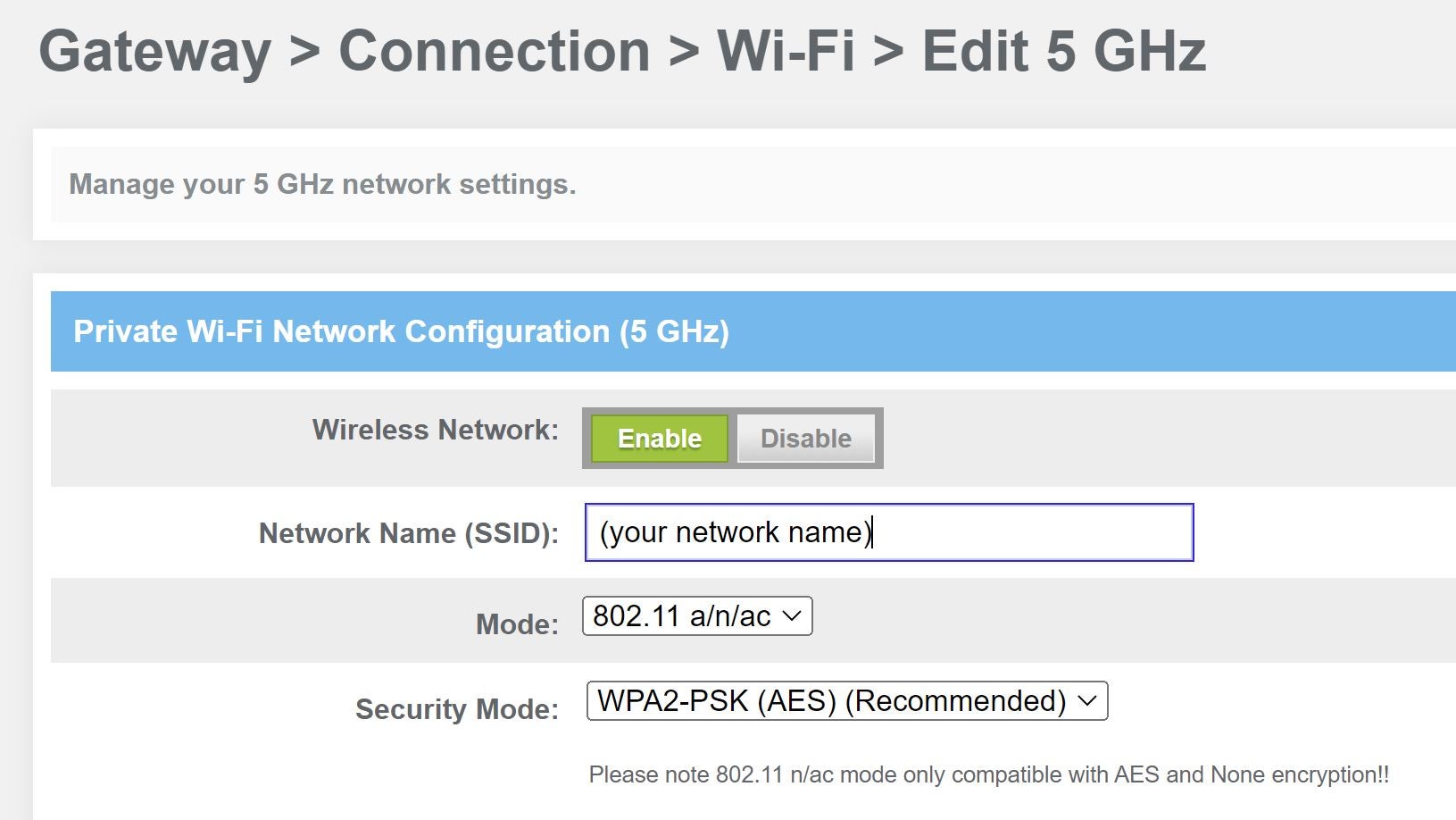
- Navigate to Wireless Settings.
- Set unique SSIDs (Service Set Identifiers) for 2.4 GHz, 5 GHz, and 6 GHz bands, or enable band steering.
- Select WPA3-Personal (or WPA2/WPA3 Enterprise for radius-authenticated corporate networks) as the security protocol. Avoid outdated standards like WEP or WPA-TKIP.
- Set a strong passphrase consisting of at least 16 alphanumeric and special characters.
Step 3: Configure Host Network Interfaces
Depending on the operating system, network configuration involves either dynamic interface assignment or manual static address binding.
Setting Up Network Interfaces on Windows
To configure a static IP address on Windows 11 or Windows Server:
- Open Settings > Network & internet > Ethernet (or Wi-Fi).
- Next to IP assignment, click Edit.
- Select Manual from the drop-down menu and toggle on IPv4.
- Input the host configuration:
- IP address:
192.168.10.15 - Subnet mask:
255.255.255.0 - Gateway:
192.168.10.1 - Preferred DNS:
1.1.1.1
- IP address:
- Click Save to apply the configuration.
Alternatively, command-line configuration can be performed via PowerShell:
Set-NetIPAddress -InterfaceAlias "Ethernet" -IPAddress 192.168.10.15 -PrefixLength 24 -DefaultGateway 192.168.10.1
Set-DnsClientServerAddress -InterfaceAlias "Ethernet" -ServerAddresses ("1.1.1.1","8.8.8.8")
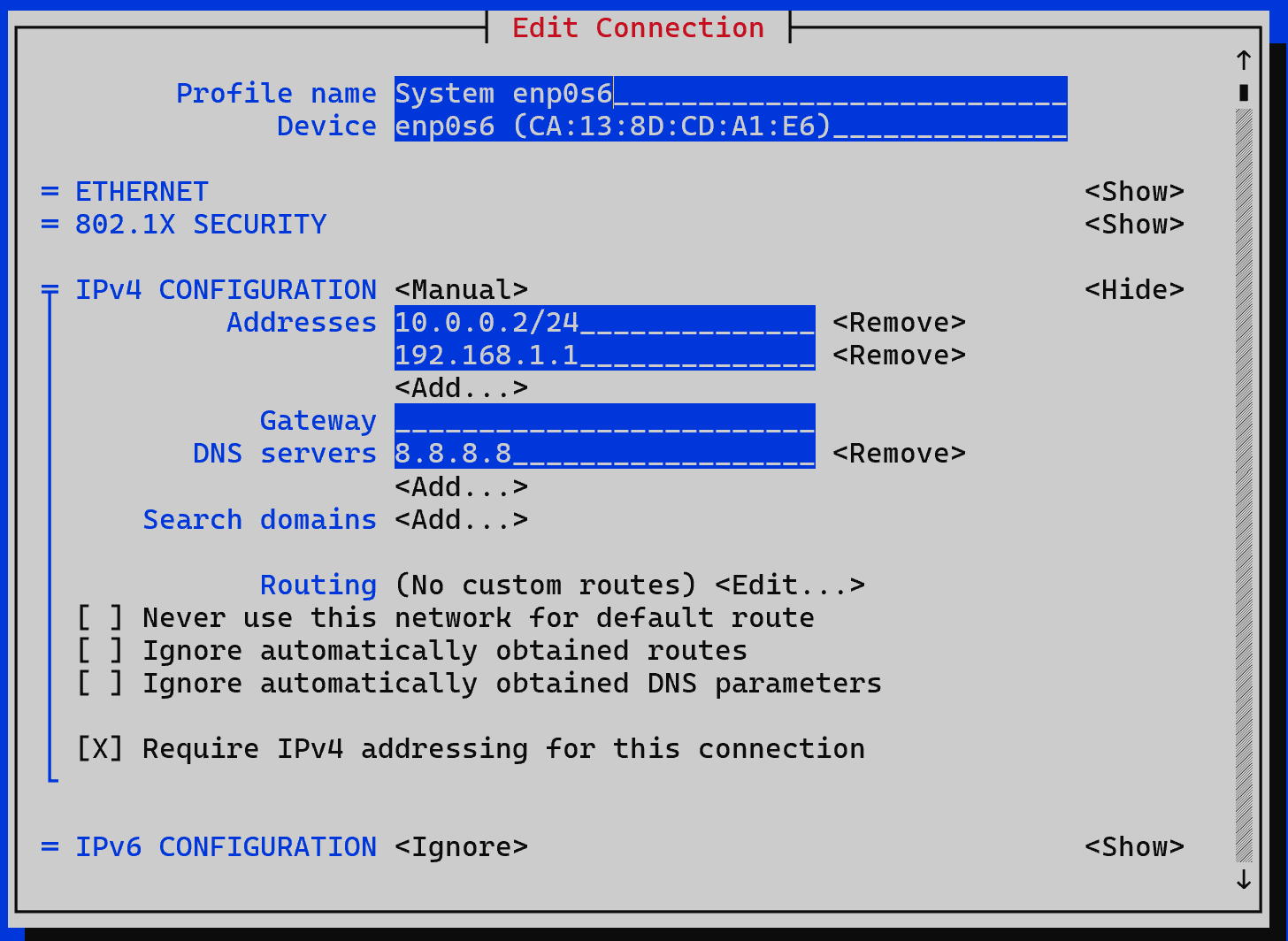
Setting Up Network Interfaces on Linux
Modern enterprise Linux distributions (such as Ubuntu Server) utilize Netplan to control interface configurations.
- Open or create a configuration file in
/etc/netplan/, such as/etc/netplan/01-netcfg.yaml. - Add the following structured YAML configuration:
network: version: 2 renderer: networkd ethernets: eth0: dhcp4: no addresses: - 192.168.10.20/24 routes: - to: default via: 192.168.10.1 nameservers: addresses: - 1.1.1.1 - 8.8.8.8
- Secure file permissions using
sudo chmod 600 /etc/netplan/01-netcfg.yaml. - Apply the updated policy with
sudo netplan apply.
For temporary or command-line runtime configuration on Red Hat, Debian, or Linux desktop systems, use the standard iproute2 utility:
sudo ip addr add 192.168.10.20/24 dev eth0
sudo ip route add default via 192.168.10.1
Network Configuration Method Comparison
Selecting the correct address assignment method depends on the function, mobility, and security profile of each host device.
| Configuration Method | Assignment Type | Primary Use Case | Security & Control Level | Administrative Overhead |
|---|---|---|---|---|
| Dynamic IPv4 (DHCP) | Automatic | Client laptops, smartphones, workstation devices | Moderate (Requires MAC filtering or 802.1X) | Low (Centralized dynamic distribution) |
| Static IPv4 | Manual / Hardcoded | Local servers, firewalls, network printers, IP cameras | High (Fixed identity, predictable access controls) | High (Requires active documentation and tracking) |
| DHCP Reservation | Fixed Dynamic | Networked desktop computers, local office appliances | High (Centralized management with fixed IPs) | Low-Moderate (Configured once on router/DHCP server) |
| IPv6 SLAAC | Autonomous | Scale-out client networks, modern IoT infrastructure | Moderate (Uses cryptographic interface identifiers) | Very Low (No centralized state maintenance needed) |
| Stateful DHCPv6 | Managed Dynamic | Corporate IPv6 environments requiring audit logging | High (Centralized logging of address distribution) | Moderate (Requires active DHCPv6 infrastructure) |
Step 4: Network Verification and Testing Workflow
Once hardware and host configurations are complete, run a structured diagnostic validation to ensure end-to-end communication across the OSI model layers.
| Step 4 Validation Diagnostics | Command |
|---|---|
| 1. Loopback Verification | ping 127.0.0.1 |
| 2. Interface IP Check | ip addr / ipconfig |
| 3. Local Gateway Reach | ping |
| 4. External IP Transit | ping 1.1.1.1 |
| 5. DNS Resolution Test | nslookup example.com |
| 6. Route Path Inspection | traceroute / tracert 1.1.1.1 |
- Verify Local Stack Integrity: Ping the local loopback address to verify that TCP/IP host drivers are operational.
- Command:
ping 127.0.0.1
- Command:
- Verify Assigned Addressing: Check that the host interface displays the correct IP and subnet.
- Windows:
ipconfig /all - Linux:
ip addr showorip a
- Windows:
- Test Local Gateway Connectivity: Ping the local router address to test Layer 2 switch connectivity and physical layer integrity.
- Command:
ping 192.168.10.1
- Command:
- Test External IP Connectivity: Ping a reliable public internet IP address to verify routing without relying on domain name resolution.
- Command:
ping 1.1.1.1
- Command:
- Test DNS Resolution: Verify that local host resolvers can query DNS infrastructure correctly using Microsoft Docs IP Configuration tools.
- Command:
nslookup example.comordig example.com
- Command:
- Trace Routing Path: Perform a trace route to discover hop paths, packet delays, or asymmetric routing drops across external gateways.
- Windows:
tracert 1.1.1.1 - Linux/macOS:
traceroute 1.1.1.1
- Windows:
Troubleshooting Common Configuration Failures
Duplicate IP Address Conflicts
- Symptom: Intermittent connection drops, packet drops, or complete network interface shutdown.
- Cause: Two devices on the same subnet share an identical IP address.
- Resolution: Clear dynamic DHCP leases, use static address tracking sheets, or inspect the local ARP table (
arp -aon Windows/macOS,ip neighboron Linux) to isolate conflicting MAC addresses.
Incorrect Subnet Mask
- Symptom: Hosts can reach certain local machines but fail to communicate with default gateways or external internet hosts.
- Cause: A host configured with
255.255.255.128(/25) cannot communicate natively with a gateway located at192.168.10.254, because that gateway falls outside the host's subnet boundary. - Resolution: Align all host subnet masks with the upstream gateway configuration.
DNS Query Failures
- Symptom: Pinging
1.1.1.1succeeds, but web browsers display "Name Not Resolved" or fail to load web pages. - Cause: Missing, invalid, or blocked DNS resolver addresses in interface settings.
- Resolution: Reconfigure host DNS options to point to reachable external resolvers (e.g.,
1.1.1.1,8.8.8.8) or local domain controllers. Verify port 53 (UDP/TCP) is open on outbound firewalls.
Frequently Asked Questions
What is the difference between a modem, a router, and a switch?
A modem converts analog signals from an Internet Service Provider (cable, fiber, DSL) into digital ethernet signals. A router operates at Layer 3 to route packets between different networks (such as your local network and the internet). A switch operates at Layer 2 to connect multiple local host devices within the same network segment using physical cables.
How do I locate my router's default gateway IP address?
On Windows, open Command Prompt and execute ipconfig. Look for the entry labeled Default Gateway. On Linux, open terminal and type ip route show default. On macOS, navigate to System Settings > Network > Details > TCP/IP or run netstat -nr in the terminal.
Should I assign static IP addresses or use DHCP reservations?
For workstations and mobile client devices, standard dynamic DHCP is recommended. For local servers, printers, and NAS units, DHCP reservations configured on the primary router offer the stability of static addressing with the management convenience of centralized control.
Why can I ping external IP addresses but cannot open websites?
This problem almost always indicates a DNS failure. The TCP/IP connectivity layer works properly (as proven by successful IP pings), but your device cannot resolve human-readable domain names to numerical IP addresses. Inspect your network adapter's DNS settings and replace unverified servers with trusted public DNS providers.
Summary and Practical Next Steps
Configuring a network requires establishing clear IP ranges, assigning appropriate static or dynamic address policies, and validating connectivity at every layer of the network stack. Start by sketching your topology, setting up your gateway router, establishing DHCP boundaries, and then applying host configurations on client devices.
For long-term reliability and security, document all static assignments in an IP Address Management (IPAM) sheet, enforce WPA3 wireless authentication, update router firmware regularly, and implement regular backup schedules for core switch and router configuration files.
Image Gallery