How to Pair Watch With New iPhone Quickly: A Complete Setup Guide
Pairing an Apple Watch with a new iPhone involves syncing the device with your Apple ID and moving the configuration from your previous handset to the new one. This process is designed to be seamless, leveraging iCloud backups and loca...
Pairing an Apple Watch with a new iPhone involves syncing the device with your Apple ID and moving the configuration from your previous handset to the new one. This process is designed to be seamless, leveraging iCloud backups and local Bluetooth handshakes to migrate your watch face settings, health data, and installed applications without requiring a manual rebuild of your wearable environment.
Contents
Prerequisites for a Fast Pairing Process
Before initiating the transfer, ensure both your old iPhone and your new iPhone are updated to the latest available iOS version compatible with your device. Apple’s migration technology relies on synchronization protocols that may change between major firmware releases.
- Check Software Versions: Ensure both iPhones are running the same iOS version or that the new iPhone is updated to a version equal to or higher than the old one. If your new iPhone is on an older version of iOS, the pairing process may fail, requiring you to update the new phone as a standalone device first.
- Back Up the Old Device: Perform a full backup of your old iPhone using iCloud or a encrypted local backup on a computer. This ensures that the most current Apple Watch health and activity data is stored safely.
- Enable Bluetooth and Wi-Fi: Both wireless protocols must be active on both devices. The iPhone and Apple Watch communicate via a low-energy Bluetooth signal during the initial handshake, while Wi-Fi is used to download necessary app assets and cloud configurations.
- Charge Your Devices: Ensure the Apple Watch is charged to at least 50% and is placed on its charger throughout the pairing process. The iPhone should also have sufficient battery life to complete the data migration.
The Standard Migration Path
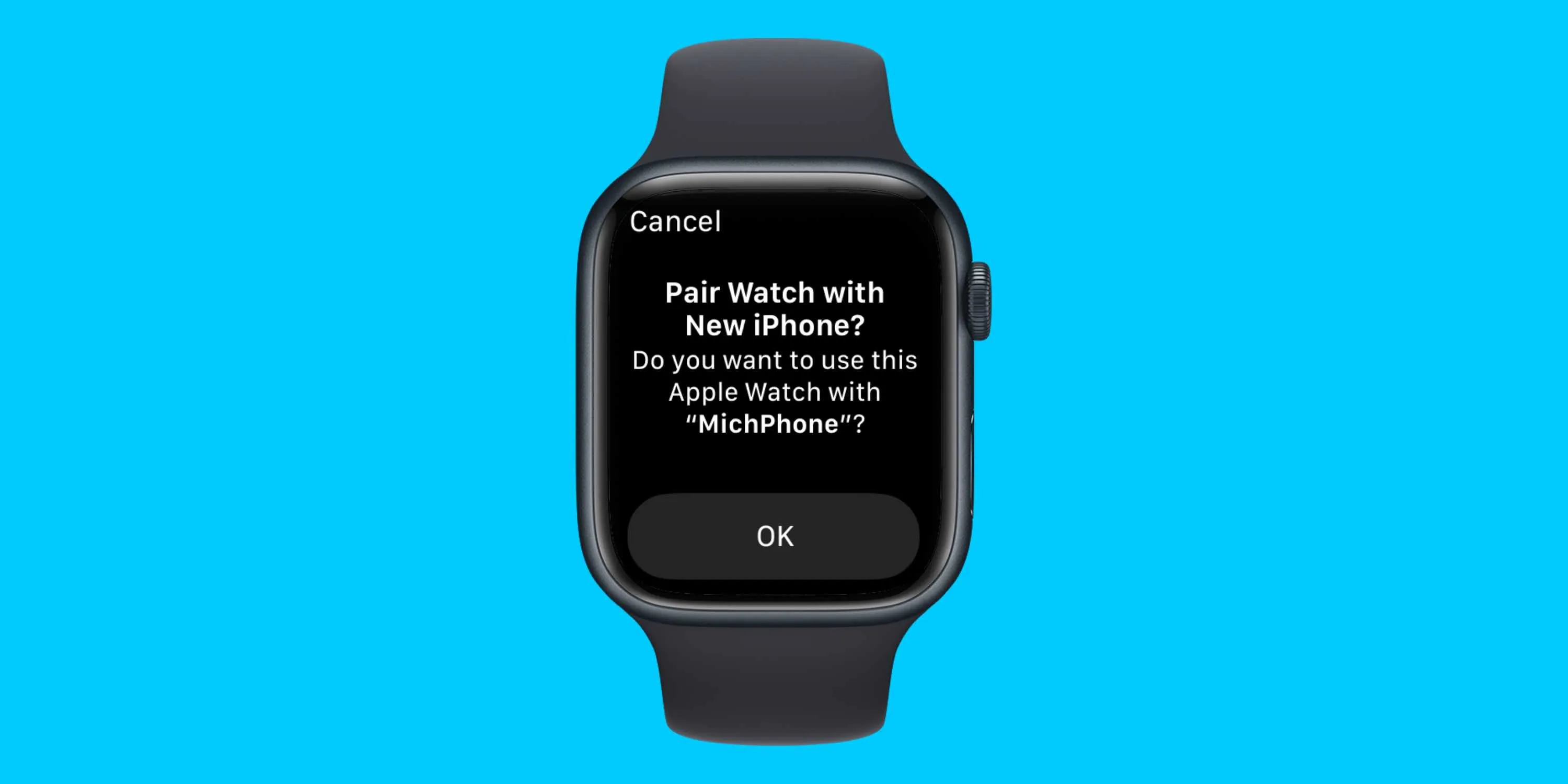
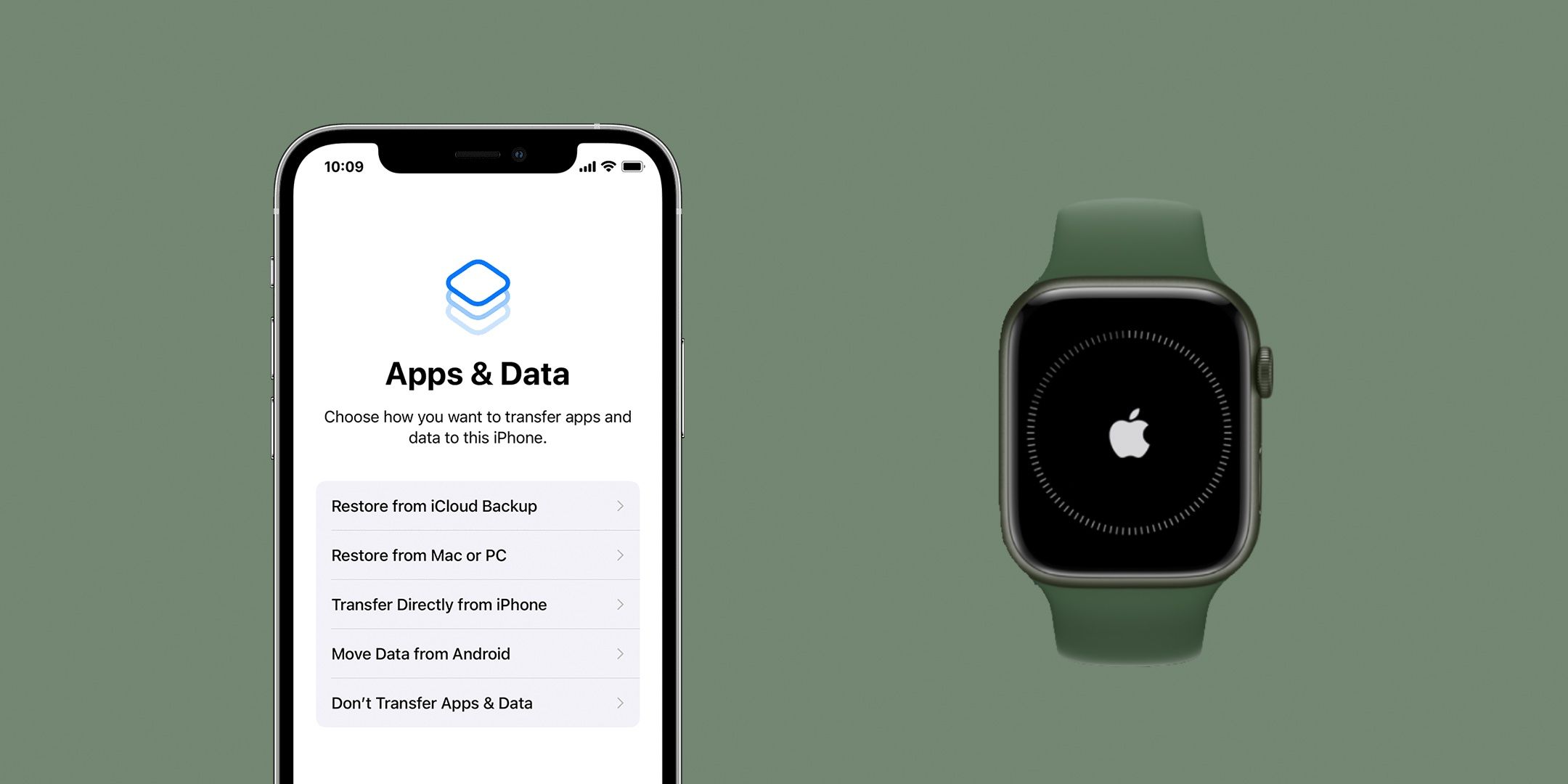
The fastest way to move an Apple Watch to a new iPhone is to include it in the broader iPhone transfer process. If you are setting up your new iPhone from an iCloud backup or a direct device-to-device transfer, the iPhone will prompt you to move your existing Apple Watch during the initial setup wizard.
When the iPhone setup screen asks if you would like to "Use your Apple Watch with this iPhone," select Continue. This action triggers a background service that unpairs the watch from the old phone and authorizes it for the new device. This is significantly faster than unpairing and erasing the watch manually, as it preserves the watch’s local storage and settings state.
Manual Pairing via the Watch App
If you have already set up your new iPhone and skipped the automatic prompt, or if you are pairing a watch that was previously unpaired from your old device, use the Apple Watch app on your iPhone.
- Open the Watch App: Locate the Watch application on your new iPhone.
- Select "All Watches": Tap this option in the top-left corner of the screen.
- Add Watch: Select "Add Watch."
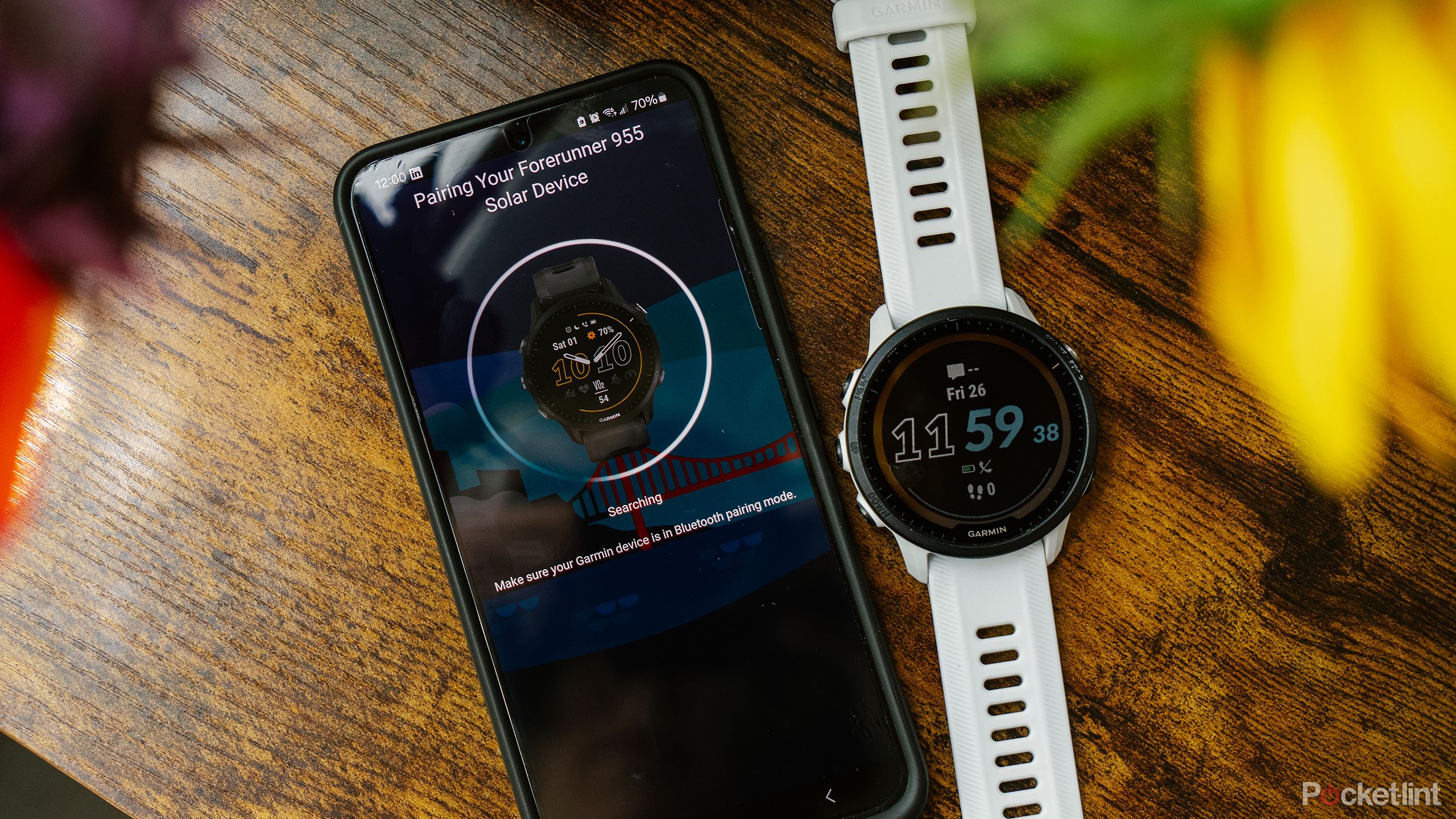
- Pairing Mode: Choose "Set Up for Myself." If the watch is already turned on, you will see a particle cloud animation on the watch face. Hold the iPhone’s camera over this animation to initiate the scan.
- Restore from Backup: After the devices identify each other, you will be prompted to "Restore from Backup." Select the most recent backup of your Apple Watch to retrieve your previous configuration, including preferences, watch faces, and complications.
Troubleshooting Common Pairing Issues
Even with optimized hardware, synchronization issues can occur. Understanding the underlying technology helps in resolving these snags without having to perform a full factory reset.
- Connection Failures: If the iPhone fails to detect the watch, restart both devices. A power cycle forces the Bluetooth module to reset its advertising state, which often resolves handshake errors.
- Update Mismatches: If the iPhone reports that the watch software is incompatible, the watch may require an update that can only be performed if it is currently paired. In this specific scenario, you may need to unpair the watch from the old phone entirely, reset the watch to factory settings, and pair it to the new phone as a "New Watch" rather than attempting to restore a backup.
- Activation Lock: If you see an Activation Lock screen, ensure you are logged into the same Apple ID on the new iPhone that was used on the old one. The Apple Watch is linked to your iCloud account for security; using a different Apple ID will prevent the pairing process from finalizing.
Comparison of Pairing Methods
| Method | Best For | Speed | Data Preservation |
|---|---|---|---|
| Automatic Migration | Upgrading your primary iPhone | Highest | Full |
| iCloud Restore | Replacing a lost or broken iPhone | Moderate | Full |
| Manual Pairing | New watch or fresh setup | Moderate | Selective |
| Factory Reset | Troubleshooting persistent errors | Low | Minimal |
Addressing Frequently Asked Questions
Does pairing to a new iPhone erase my health data? No. Health and activity data are stored in your iCloud backup. As long as you perform an encrypted backup or an iCloud sync of your old iPhone before moving to the new one, your fitness rings and heart rate history will transfer automatically during the watch pairing phase.
Do I need to unpair my watch from the old phone first? If you use the automatic iPhone migration tool, you do not need to manually unpair the watch. If you are moving to the new phone without using the migration assistant, it is recommended to manually unpair the watch from the old iPhone through the Watch app first to release the Activation Lock.
Why is my watch stuck on "Waiting for pairing"? This usually indicates an interference with the Bluetooth connection or an issue with the Apple ID authentication server. Ensure you are on a stable Wi-Fi network and that your Apple ID is signed in on the new iPhone. If the screen remains frozen for more than 10 minutes, restart the watch by holding both the side button and the Digital Crown.
Can I pair one watch with two iPhones? An Apple Watch is designed to be paired with only one iPhone at a time. While you can pair multiple watches to a single iPhone, a single watch cannot be used interchangeably between two different iPhones without going through an unpairing and re-pairing cycle for each switch.
Best Practices for Future Maintenance
To ensure that future transitions remain as fast as possible, keep your devices updated regularly. Apple releases minor patches that often include improvements to the Bluetooth connectivity stack. Additionally, ensure that "Health" is toggled to "On" in your iCloud settings on your iPhone; this ensures your activity data is continuously backed up to the cloud, making the restore process during a new phone setup almost instantaneous.
If you encounter persistent errors during the pairing process, the most reliable next step is to perform a full factory reset on the Apple Watch. To do this, go to Settings > General > Reset > Erase All Content and Settings on the watch itself. Once reset, the watch will return to its out-of-the-box state, which is the cleanest possible starting point for a connection to a new device.
Image Gallery