System Center Virtual Machine Manager (SCVMM): Enterprise Fabric & Virtualization Management Guide
System Center Virtual Machine Manager (SCVMM) is Microsoft’s management solution for configuring, managing, and automating virtualized infrastructure across enterprise datacenters. It consolidates host cluster deployment, Software-Defi...
System Center Virtual Machine Manager (SCVMM) is Microsoft’s management solution for configuring, managing, and automating virtualized infrastructure across enterprise datacenters. It consolidates host cluster deployment, Software-Defined Networking (SDN), storage fabric provisioning, and virtual machine lifecycle management into a centralized administrative control plane.
Contents
What is System Center Virtual Machine Manager?
System Center Virtual Machine Manager is a core component of the Microsoft System Center suite, designed to unify compute, storage, and network resource management across private and hybrid cloud environments. While localized administrative tools like Hyper-V Manager provide basic management for individual host servers, SCVMM is engineered to manage entire virtualization fabrics at enterprise scale.
In a modern datacenter, SCVMM orchestrates resources across hundreds of physical Hyper-V hosts, failover clusters, and storage arrays. It abstracts physical hardware into manageable pools of compute, memory, networking, and storage capacity. System administrators use SCVMM to deploy standardized workloads, enforce compliance policies, provision bare-metal hypervisors, and integrate local datacenters with hybrid platforms like Microsoft Azure Arc.
Core Capabilities and Architectural Pillars
SCVMM structures datacenter management into three distinct fabric layers—compute, storage, and networking—alongside workload template management and cloud integration.
- SCVMM Management Server & Console
- Compute Fabric
- Hyper-V Clusters
- Bare-Metal Hosts
- Shielded VMs
- Storage Fabric
- S2D & SAN/NAS
- Storage QoS
- File Shares
- Network Fabric
- Logical Networks
- SDN Controllers
- Network Controller
- Compute Fabric
1. Compute Fabric Management
SCVMM automates the onboarding and management of physical servers and virtual machine instances. Key features include:
- Bare-Metal Deployment: Provisions unconfigured, bare-metal physical servers with Windows Server OS and hypervisor roles using Preboot Execution Environment (PXE) boot infrastructure.
- Host Cluster Lifecycle Management: Simplifies the creation and maintenance of Hyper-V Failover Clusters, including automated patching via Cluster-Aware Updating (CAU).
- Dynamic Optimization and Resource Balancing: Continuously monitors resource utilization across host clusters and automatically migrates running virtual machines (using Hyper-V Live Migration) to balance CPU and memory consumption.
- Power Optimization: Automatically powers down host servers during periods of low usage and wakes them via Wake-on-LAN (WoL) or management controllers as workload demand increases.
2. Storage Fabric Management
SCVMM provides centralized control over local, clustered, and network-attached storage infrastructure through standard interfaces such as Storage Management API (SM-API) and Storage Management Initiative Specification (SMI-S):
- Storage Spaces Direct (S2D): Fully configures and monitors hyperconverged infrastructure (HCI) clusters running S2D, managing storage pools, tiers, and resiliency settings.
- SAN/NAS Integration: Discovers, assigns, and provisions SAN LUNs and Fibre Channel infrastructure directly to Hyper-V hosts and clusters.
- Storage Quality of Service (QoS): Enforces minimum and maximum IOPS thresholds for virtual disks to prevent individual virtual machines from starving adjacent workloads of disk performance.
3. Network Fabric Management
Networking in SCVMM abstracts physical network infrastructure into logical, policy-driven constructs using Software-Defined Networking (SDN):
- Logical Networks and Pools: Defines network boundaries, VLANs, and IP subnet pools across host clusters to ensure consistent networking across physical sites.
- Software-Defined Networking (SDN) Controller: Integrates with the Windows Server Network Controller to manage virtual networks, Software Load Balancers (SLB), and Gateway routers.
- Network Virtualization: Supports NVGRE and VXLAN overlay protocols to isolate tenant networks without requiring manual physical switch modifications.
System Requirements and Deployment Prerequisites
Deploying SCVMM in an enterprise environment requires careful planning around server operating systems, active directory identity, database availability, and software dependencies.
Software and Operating System Requirements
The management server requires a server-grade operating system and a dedicated SQL Server database backend. Supported configurations for recent versions (including System Center 2022 and System Center 2025) typically include:
- Management Server OS: Windows Server Datacenter or Standard edition.
- Database Backend: Microsoft SQL Server Enterprise or Standard edition. SQL Server must be configured with the standard collation
SQL_Latin1_General_CP1_CI_AS. - Deployment Software: The Windows Assessment and Deployment Kit (Windows ADK) and matching Windows Preinstallation Environment (WinPE) add-on must be installed on the SCVMM server prior to setup to enable deployment capabilities.
Infrastructure Dependencies
- Active Directory Domain Services (AD DS): The SCVMM Management Server, SQL Server, and managed Hyper-V hosts must reside in the same Active Directory domain or across trusted domains.
- Service Accounts: Dedicated Active Directory domain service accounts are required for running the VMM service and performing SQL operations. Distributed Key Management (DKM) must be configured in Active Directory to store encryption keys safely across clustered VMM installations.
- Network Ports: Uninhibited communication across key TCP ports is mandatory, including port 8100 (VMM Console), 443 (HTTPS management), 5985/5986 (WinRM for host management), and 2179 (RDP connection to virtual machines).
Architecture and Step-by-Step Deployment Process
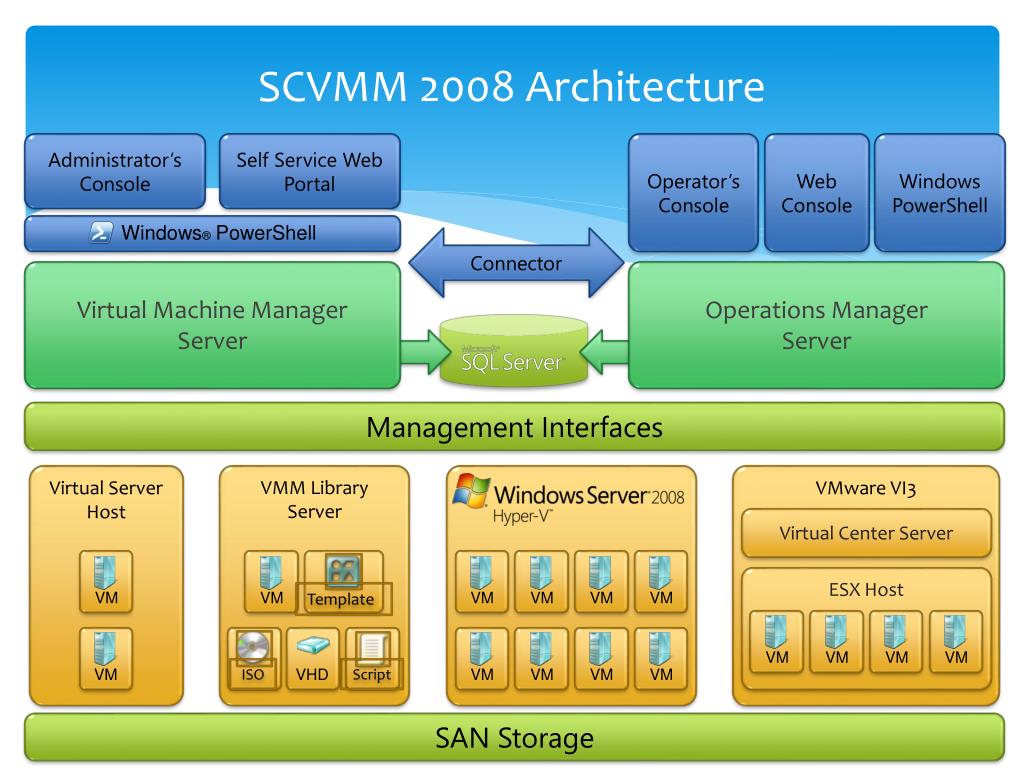
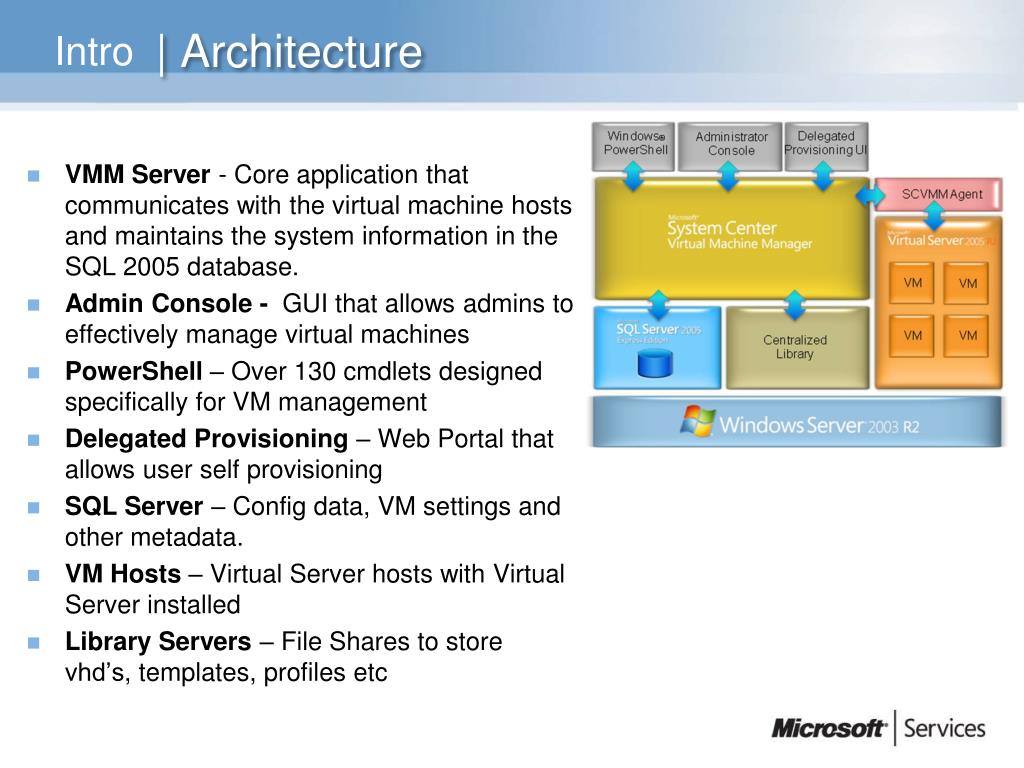
An SCVMM environment consists of the VMM Management Server, the VMM Database, the VMM Console, the VMM Library Server, and local VMM Agents running on target hypervisor hosts.
- Active Directory & Distributed Key Mgmt
- VMM Admin Console (connects via SQL to VMM Management Server)
- VMM Management Server
- Managed Host (Hyper-V Cluster) (connected via Agent / WinRM)
- VMM Library Server (ISO, Templates, VHDX)
Step 1: Active Directory and Database Preparation
- Create a dedicated container in Active Directory Domain Services for Distributed Key Management (DKM). Assign full control permissions on this container to the designated VMM service account.
- Create necessary Active Directory security groups (e.g.,
VMM-Admins,VMM-Delegated-Admins). - Provision a SQL Server instance (standalone or Always On Availability Group). Grant the VMM service account
sysadminprivileges on the SQL instance during initial setup.
Step 2: Install Windows ADK and WinPE Add-On
- Download and run the Windows ADK installer matching your OS version.
- Select the Deployment Tools and User State Migration Tool (USMT) features.
- Download and install the corresponding Windows PE Add-on for the ADK.
Step 3: Install the VMM Management Server
- Launch the System Center VMM setup wizard as a domain administrator.
- Select VMM Management Server (this automatically includes the VMM Console component).
- Select the target SQL Server instance and specify a new or existing database name.
- Configure the service account credentials and specify the Active Directory Distinguished Name (DN) path for the DKM container.
- Define communication port mappings (retain standard ports 8100, 8101, 8102, 8103 unless corporate firewall policies mandate changes).
Step 4: Configure the VMM Library
- Post-installation, launch the VMM Console and navigate to the Library workspace.
- Add network shares designated for storing VM templates, ISO images, virtual hard disk files (VHDX), and custom PowerShell scripts.
- Sync library shares to populate default operating system templates and profile resources.
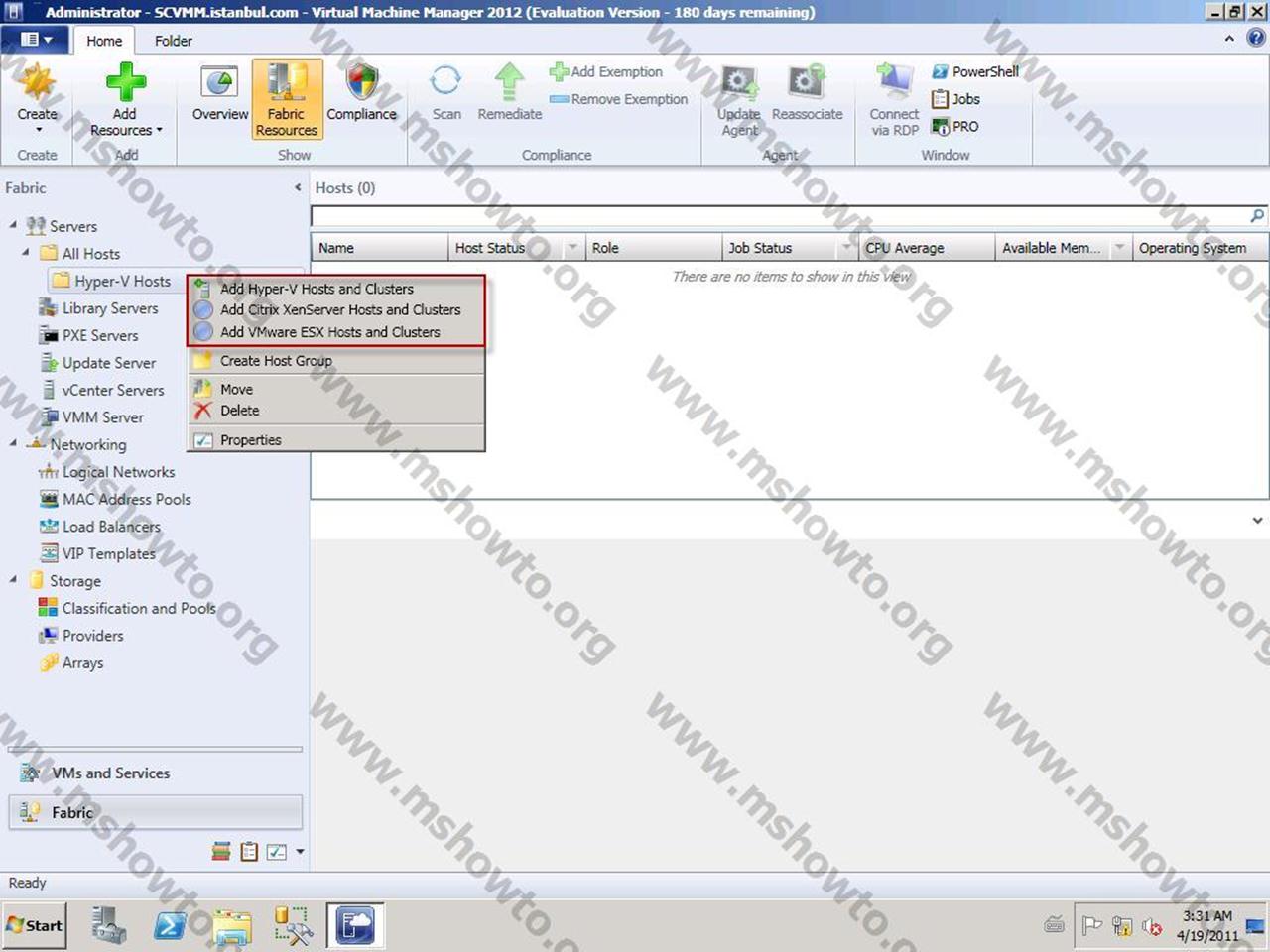
Step 5: Onboard Hosts and Deploy Agents
- Navigate to the Fabric workspace in the VMM Console.
- Click Add Resources and select Hyper-V Hosts and Clusters.
- Supply domain credentials capable of remote administrative access to the target servers.
- Select discovered hosts; SCVMM will automatically push and install the VMM Agent service onto the target servers and register them under management.
Tool Comparison: SCVMM vs. Hyper-V Manager vs. Azure Arc
Choosing the correct virtualization management platform depends on organizational scale, architectural complexity, and enterprise requirements.
| Feature / Capability | Hyper-V Manager | System Center VMM (SCVMM) | Azure Arc Enabled Infrastructure |
|---|---|---|---|
| Primary Focus | Standalone host management | Enterprise fabric & datacenter virtualization | Hybrid & multi-cloud management plane |
| Target Scale | 1 to 5 hosts | Hundreds of hosts & thousands of VMs | Unlimited hybrid edge/cloud nodes |
| Centralized Fabric Management | No | Yes (Compute, Storage, Network) | Governance layer (Policy & Extensions) |
| Software-Defined Networking (SDN) | No | Full configuration and orchestration | Managed via underlying host fabric |
| Bare-Metal Deployment | No | Native PXE-based OS provisioning | No |
| Template & Service Deployment | Basic (Manual VHDX copy) | Advanced multi-tier Service Templates | ARM/Bicep templates & cloud-native |
| Bare-Metal Cluster Creation | No | Native cluster creation & S2D setup | Arc Resource Bridge / Azure Stack HCI |
| Storage QoS & Tiering | Basic per-VM settings | Storage-wide profiles & S2D integration | Governance-level monitoring |
| Licensing Model | Included with Windows Server | System Center Server Management License | Pay-as-you-go / Azure Subscription |
Operational Best Practices for Performance and High Availability
Running SCVMM in production requires adherence to architectural guidelines to prevent management control plane outages.
High Availability Deployment
- VMM Server Clustering: Install the VMM Management Server as a highly available resource on a failover cluster. If a primary management node experiences hardware failure, the VMM service automatically fails over to a secondary cluster node.
- Database Resiliency: Host the VMM database on a SQL Server Always On Availability Group with synchronous replication to ensure zero data loss during server failures.
Host Maintenance and Updates
Always place a managed Hyper-V host into Maintenance Mode before running hardware servicing or software updates.
- Initiate Maintenance Mode
- Is Evacuation (Live Migration) enabled on target host cluster?
- YES: Automatically migrate workloads to healthy cluster nodes
- NO: Save state or pause virtual machines remaining on host
- Host enters Maintenance Mode (No new workloads assigned)
When placing a host in Maintenance Mode with live migration enabled, SCVMM automatically evacuates running virtual machines to remaining healthy nodes in the cluster without downtime.
Role-Based Access Control (RBAC)
Avoid granting full administrative rights across the virtualization fabric. SCVMM provides granular user roles:
- Administrator: Full administrative rights across all fabric resources.
- Delegated Administrator: Rights scoped to specific host groups, library servers, or network segments.
- Read-Only Administrator: Auditing and monitoring access without configuration permissions.
- Self-Service User: Scoped rights allowing tenant users to create, start, stop, and manage their own virtual machines within strict resource quota boundaries.
Common Troubleshooting Scenarios
Scenario 1: Host Refresh Failures (WinRM Errors)
- Symptom: SCVMM indicates a host status of "Needs Attention" or "Not Responding," displaying error codes related to Windows Remote Management (WinRM).
- Root Cause: Corrupted WinRM listeners, firewall blockages, or expired Kerberos authentication tokens between the VMM server and the host.
- Resolution:
- Open an administrative PowerShell prompt on the host and run
winrm quickconfigorwinrm enumerate winrm/config/listener. - Test WS-Management connectivity from the VMM Server using
Test-WSMan -ComputerName. - Re-associate the VMM Agent by selecting the host in the console, right-clicking, and selecting Reassociate Agent with valid local administrative credentials.
- Open an administrative PowerShell prompt on the host and run
Scenario 2: Storage Provider Synchronization Failures
- Symptom: SAN or Storage Spaces Direct changes are not reflected in the SCVMM console.
- Root Cause: Out-of-sync SMI-S or SM-API provider cache, or credential expiration for the storage array user account.
- Resolution:
- Navigate to Fabric > Storage > Providers.
- Select the affected storage provider and click Rescan Provider.
- Verify the underlying storage user credentials in the VMM Run As Accounts security store.
Scenario 3: Library Server Template Deployment Failures
- Symptom: Virtual machine deployment from a VMM template fails midway with file copy or network timeout errors.
- Root Cause: BITS (Background Intelligent Transfer Service) communication issues or blocked TCP port 443/80.
- Resolution:
- Confirm that BITS service is running on both the VMM Management Server and the target destination host.
- Verify that network firewalls do not inspect or break long-lived HTTPS/BITS streams between the library server and target host hypervisors.
Hybrid Management Strategy
While System Center Virtual Machine Manager remains an essential enterprise engine for managing local datacenter hardware, modern IT architectures increasingly integrate SCVMM with cloud control planes.
By projecting SCVMM-managed hosts and virtual machines into Azure via Azure Arc-enabled SCVMM, enterprise administrators gain centralized visibility, governance, and cloud management policies across both on-premises datacenters and Azure cloud environments from a single administrative interface.
Frequently Asked Questions
Can SCVMM manage non-Hyper-V hypervisors?
Historically, SCVMM offered limited native integration for managing VMware ESXi environments via vCenter connection. However, modern deployment guidelines strongly emphasize SCVMM as a dedicated platform for Microsoft Hyper-V, Storage Spaces Direct, and Azure Stack HCI infrastructure, leveraging Azure Arc for broader multi-cloud hypervisor governance.
How does SCVMM handle licensing?
SCVMM is licensed as part of the System Center suite through Core-based Server Management Licenses (SMLs). A license is required for every physical core on the target hosts being managed by SCVMM, rather than per management server or individual virtual machine.
What is the difference between an SCVMM Template and a standard VHDX?
A standard VHDX is simply an unattached virtual hard disk image. An SCVMM VM Template combines a sysprepped virtual hard disk with hardware profiles (vCPU, RAM, network adapters) and guest OS customization profiles (domain join scripts, admin passwords, product keys) to enable standardized, fully automated virtual machine deployments.
Is SCVMM mandatory for running a Hyper-V Failover Cluster?
No. You can build and manage a Hyper-V Failover Cluster using standard Windows Server tools such as Failover Cluster Manager and Hyper-V Manager. However, SCVMM is highly recommended for large-scale enterprise deployments requiring centralized fabric administration, Software-Defined Networking (SDN), automated resource load balancing, and standardized template deployment.
Practical Recommendations & Next Actions
- Audit Environment Size: Evaluate your datacenter scale. If managing more than 10 Hyper-V hosts or requiring Software-Defined Networking (SDN), deploy SCVMM in a clustered high-availability configuration.
- Standardize Naming and IP Pools: Establish standardized logical networks, IP address pools, and storage classifications within SCVMM before onboarding production host workloads.
- Automate with PowerShell: Leverage the native
VirtualMachineManagerPowerShell module to automate operational routines, such as virtual machine provisioning and patch management cycles. - Prepare for Hybrid Governance: Extend your SCVMM deployment using Azure Arc to enable unified access control, security auditing, and automation capabilities across both on-premises and cloud virtualized assets.
Image Gallery