Pop Up Notifications in Modern Operating Systems
Pop-up notifications in modern operating systems are brief, interactive alerts designed to inform users of real-time events, system updates, or communication requests. Found across Windows, macOS, Linux, and mobile platforms, these not...
Pop-up notifications in modern operating systems are brief, interactive alerts designed to inform users of real-time events, system updates, or communication requests. Found across Windows, macOS, Linux, and mobile platforms, these notifications are managed through centralized systems that allow users to control delivery, prioritize content, and interact with applications without leaving their current workflow.
Contents
The Evolution of the Notification Landscape
In the early eras of computing, "pop-ups" were often synonymous with intrusive browser advertisements or critical system errors that halted all user activity until dismissed. As of 2026, the concept has matured into a sophisticated communication layer integrated deeply into the operating system (OS) kernel and user interface. Modern notifications, often referred to as "toasts," "banners," or "heads-up" alerts, serve as a non-modal way to present information. This means they appear on the screen—usually in a corner or at the top—without stealing the focus of the keyboard or mouse, allowing the user to decide when and how to respond.
The transition from modal dialog boxes to non-modal notifications reflects a shift in user experience (UX) design toward "flow." By delegating these alerts to a dedicated Notification Center or Action Center, operating systems like Windows 11 (and its successors) and macOS Sequoia have created a structured environment where information is persistent but not obstructive. This architectural change ensures that a message from a colleague or a low-battery warning does not interrupt a high-stakes presentation or a focused coding session.
Core Mechanisms of Modern Notification Systems
To understand how notifications function in 2026, one must look at the underlying framework that powers them. Most modern operating systems utilize a push-based architecture. Instead of an application constantly checking for new data (polling), which consumes significant battery and CPU resources, the OS provides a standardized API (Application Programming Interface).
The Push Service Architecture
When a remote server (like a messaging app's backend) has new data for a user, it sends a signal to a centralized push service—such as Apple Push Notification service (APNs) for macOS/iOS or Firebase Cloud Messaging (FCM) for Android and Windows. The operating system maintains a single, low-power connection to this service. When a signal arrives, the OS wakes up the relevant application briefly to display the notification. This centralized approach is critical for mobile devices and laptops, as it significantly extends battery life by preventing dozens of apps from running background processes simultaneously.
Interactive and Rich Content
Modern notifications are no longer limited to plain text. The current standards allow for "Rich Notifications," which include:
- Images and Media: Thumbnails of photos, album art, or even short video snippets.
- Action Buttons: The ability to "Archive" an email, "Like" a post, or "Snooze" a reminder directly from the pop-up.
- Inline Replies: A text input field within the notification banner that allows users to type and send a response without opening the parent application.
- Progress Indicators: Live updates for file downloads, ride-share arrivals, or food delivery status.
Management and User Control
As the volume of digital communication increases, the primary challenge for operating systems in 2026 is "notification fatigue." To combat this, OS developers have introduced granular controls that allow users to filter the noise.
Notification Centers and History
Windows and macOS both feature a dedicated space to review missed alerts. On Windows, this is accessed via the date and time section of the Taskbar, while on macOS, it is toggled by clicking the date/time or swiping left from the edge of the trackpad. These centers categorize notifications by application and time, allowing users to clear them individually or en masse.
Focus and Do Not Disturb Modes
Modern OS versions have evolved "Do Not Disturb" into "Focus Modes." These are context-aware settings that change notification behavior based on the user's activity. For example, a "Work" focus might only allow notifications from Slack and Outlook, while a "Gaming" focus might suppress everything except critical system hardware alerts. These modes can be triggered manually, by location, or by a specific schedule.
Granular Permission Models
Privacy is a cornerstone of modern notification management. Apps can no longer send notifications by default upon installation. In 2026, both desktop and mobile platforms require explicit user consent. Furthermore, users can dive into system settings to toggle specific types of alerts for a single app—for instance, allowing "Badges" (the little red number on the icon) while disabling "Banners" (the pop-up alert).
Comparison of Notification Features Across Major Platforms
The following table outlines how different operating systems handle notification delivery and management as of 2026.
| Feature | Windows (11/12) | macOS (Sequoia+) | Android (16/17) | iOS (19/20) |
|---|---|---|---|---|
| Primary Container | Action Center / Taskbar | Notification Center | Notification Shade | Notification Center |
| Default Location | Bottom-Right Corner | Top-Right Corner | Top-Down Swipe | Lock Screen / Top Swipe |
| Grouping | By App & Priority | By App & Thread | Notification Channels | App Bundles / Summary |
| Interactivity | Inline Reply / Buttons | Inline Reply / Hover Actions | Deep Interactivity | Long-press for Details |
| Focus Integration | Focus Sessions | Focus Filters | Digital Wellbeing | Focus Modes |
| Web Push Support | Native (Edge/Chrome) | Native (Safari/Chrome) | Native (Chrome/Firefox) | Native (Safari/Webkit) |
The Role of Web Push Notifications
A significant development in modern computing is the rise of Web Push notifications. Historically, only "native" applications installed on the hard drive could send pop-ups. Today, modern browsers leverage the W3C Push API and Service Workers to allow websites to send notifications even when the browser is closed or the specific tab is not active.
This technology has bridged the gap between web apps and native apps. For example, a project management tool like Trello or a web-based email client can alert a user to a task update through the system's native notification UI. Users must explicitly "Allow" these notifications via a browser prompt, and modern browsers have implemented "Quiet Messaging" to automatically block permission requests from sites the user rarely visits, preventing the "notification spam" that plagued the early 2020s.
Security and Privacy Considerations
Notifications can inadvertently leak sensitive information. If a user receives a private message while sharing their screen during a meeting, the contents of that message might be visible to all participants. To mitigate this, modern operating systems offer "Sensitive Content" filters. When enabled, the OS will display that a notification has arrived (e.g., "1 New Message from WhatsApp") but will hide the actual text until the user unlocks the device or hovers over the alert with an authenticated session (such as FaceID or Windows Hello).
Furthermore, there is the risk of "Notification Prompt Spamming," where malicious sites attempt to trick users into clicking "Allow" to deliver fraudulent system alerts or phishing links. Modern OS security layers now scan the content of web-based notifications for known malicious patterns and provide one-click "Block All" options if an app or site is detected as being overly aggressive.
Troubleshooting Common Notification Issues
Despite the sophistication of these systems, users often encounter issues where notifications fail to appear. Common causes include:
- Focus Mode Discrepancies: The most frequent culprit is an active "Focus" or "Do Not Disturb" session that was not properly deactivated. Users should check the system tray or menu bar for a crescent moon or custom icon indicating a restricted notification state.
- App-Level vs. System-Level Muting: An app may be configured to send notifications in its own internal settings, but the OS-level permissions may be revoked. Both must be enabled for pop-ups to function.
- Background Activity Restrictions: On mobile devices and laptops running on "Battery Saver" mode, the OS may kill the background processes responsible for listening to push signals.
- Corrupted Cache or Service Workers: For web-based notifications, clearing the browser's "Site Settings" for a specific domain often resolves delivery failures.
Frequently Asked Questions
Why do some notifications stay on the screen while others disappear?
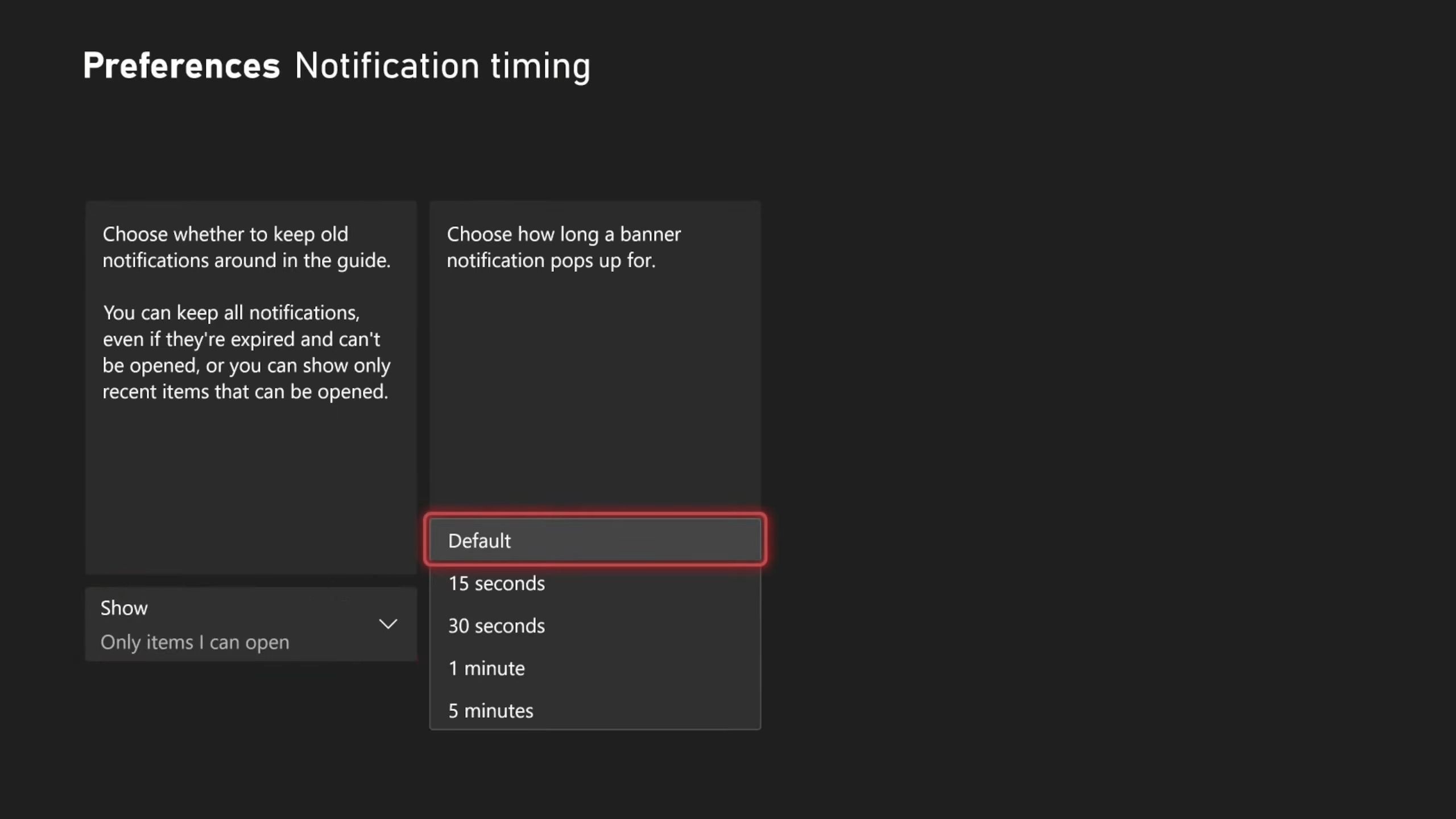
This is usually determined by the "Notification Type" set by the developer or the user. "Transient" notifications (banners) appear for a few seconds and then move to the Notification Center automatically. "Persistent" or "Alert" notifications stay on the screen until you manually dismiss them or take action. These are typically reserved for critical issues, like system errors or incoming calls, that require immediate attention.
How can I stop a specific website from sending me pop-ups?
On a desktop, go to your browser settings (e.g., Chrome Settings > Privacy and Security > Site Settings > Notifications). Here, you can see a list of websites authorized to send alerts and remove or block them. In 2026, most browsers also allow you to right-click a notification as it appears and select "Block all notifications from this site" immediately.
Do notifications drain my laptop or phone battery?
While the push architecture is designed to be efficient, receiving hundreds of notifications a day can impact battery life. Each notification requires the screen to light up and the processor to render the alert. Managing your notifications to only allow essential apps will improve device longevity.
Can I sync notifications between my phone and my computer?
Yes, most modern ecosystems offer this. Windows users can use the "Phone Link" app to see Android notifications on their PC. Apple users benefit from deep integration across macOS, iOS, and iPadOS, where dismissing a notification on one device often clears it from all others associated with the same iCloud account.
What are "Notification Channels" in Android?
Introduced in earlier versions but refined in Android 16/17, channels allow you to categorize alerts from a single app. For a social media app, you could choose to receive "Direct Messages" as pop-ups while forcing "Likes" and "Comments" to stay silent in the notification tray without a pop-up.
Recommendation for Effective Notification Management
To maintain productivity in 2026, it is recommended to conduct a "notification audit" once a month. Navigate to your operating system's notification settings and look at the list of apps authorized to send alerts. Disable everything that is not time-sensitive or essential for your workflow. Utilize "Scheduled Summaries" if available (common in iOS and macOS), which bundles non-urgent notifications and delivers them at specific times of the day, such as lunch or after work, rather than interrupting you throughout the morning.
Image Gallery