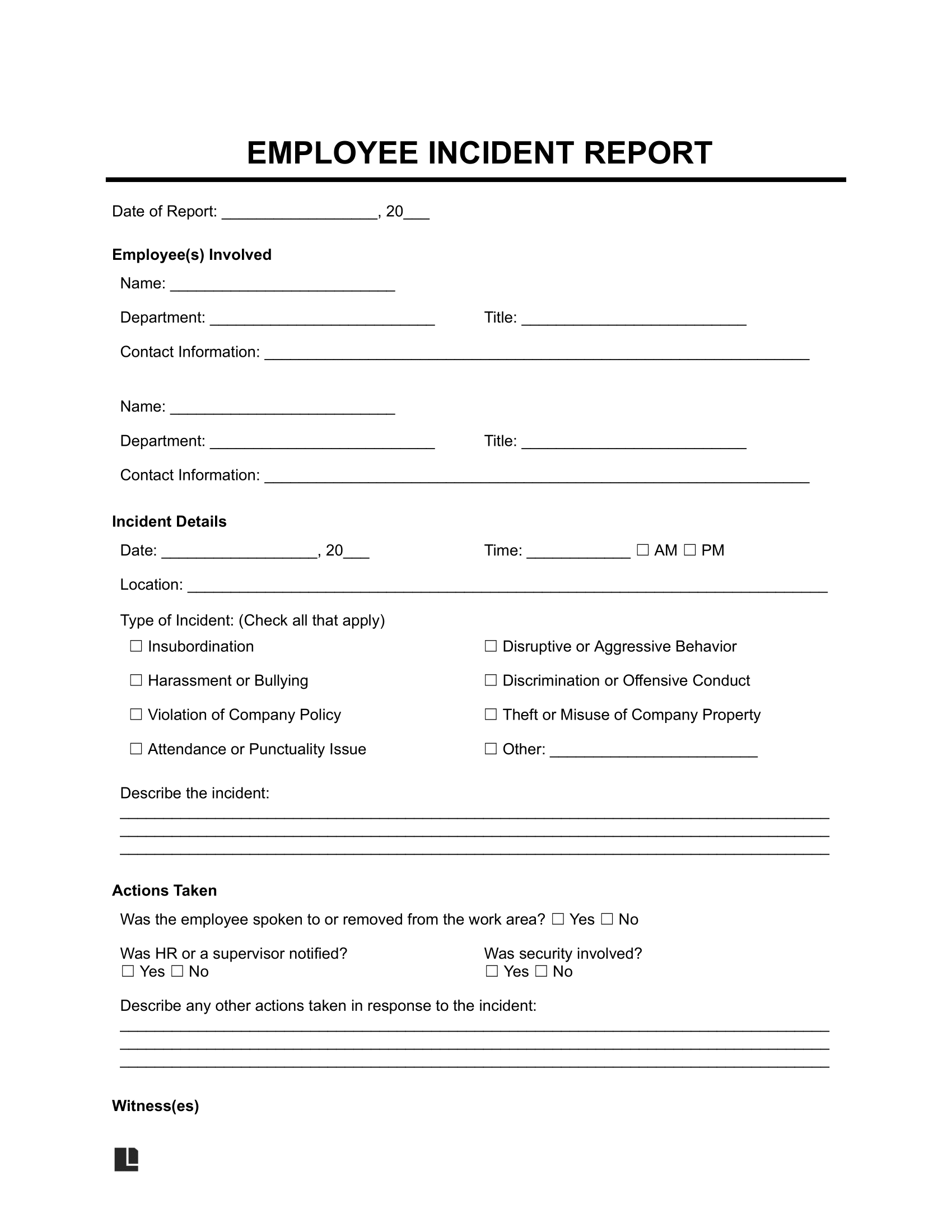
How to Use an Incident Report Template PDF: Step-by-Step Guide
Using an incident report template PDF requires opening the fillable form in a dedicated PDF reader, systematically documenting verifiable facts about an event, attaching supporting visual or physical evidence, and securing necessary di...
Using an incident report template PDF requires opening the fillable form in a dedicated PDF reader, systematically documenting verifiable facts about an event, attaching supporting visual or physical evidence, and securing necessary digital signatures. Following a standardized PDF structure ensures data integrity, compliance with regulatory standards, and clear record-keeping across organizational departments.
Contents
Understanding the PDF Incident Report Format
An incident report is a formal document that records any unexpected event, injury, equipment failure, safety breach, or security compromise within an organization. Utilizing a Portable Document Format (PDF) for incident reporting offers distinct operational advantages over editable word processing files or physical paper forms.
PDF templates maintain fixed visual formatting across all platforms, operating systems, and hardware devices. When an employee completes a PDF form on a smartphone, tablet, or desktop computer, the structural alignment, form fields, and typography remain consistent. Furthermore, interactive PDF templates support specialized form controls—such as restricted dropdown menus, mandatory text boxes, formatted date pickers, and cryptographic digital signature fields—that reduce user entry errors and preserve data integrity for auditing.
From a regulatory and legal perspective, static and digital PDF files prevent unauthorized post-submission alterations. Once an incident report PDF is finalized and signed, security settings can lock editing capabilities, creating an audit-ready document suitable for submission to regulatory agencies, legal teams, or insurance underwriters.
Key Components of a Standard Incident Report PDF Template
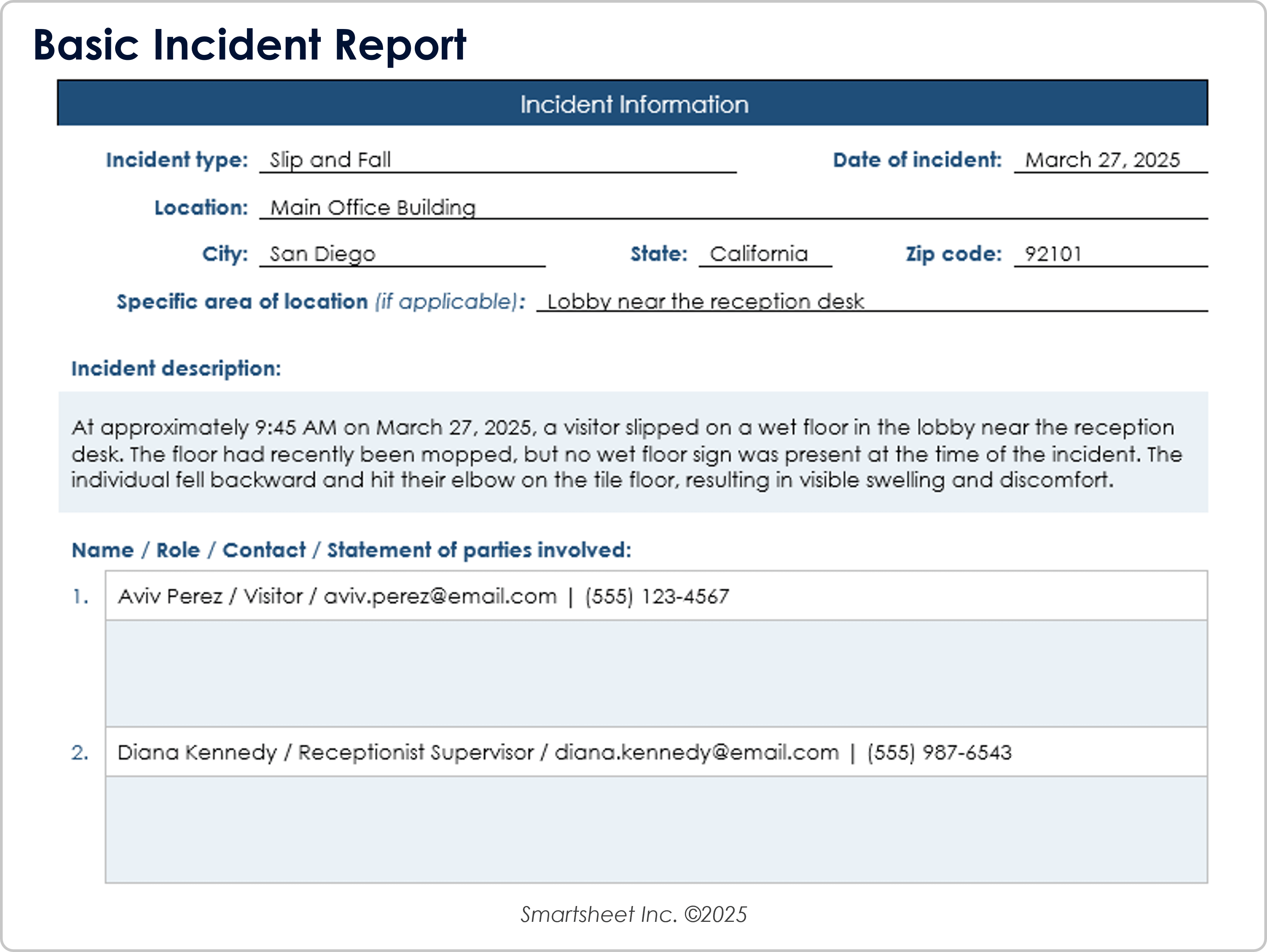
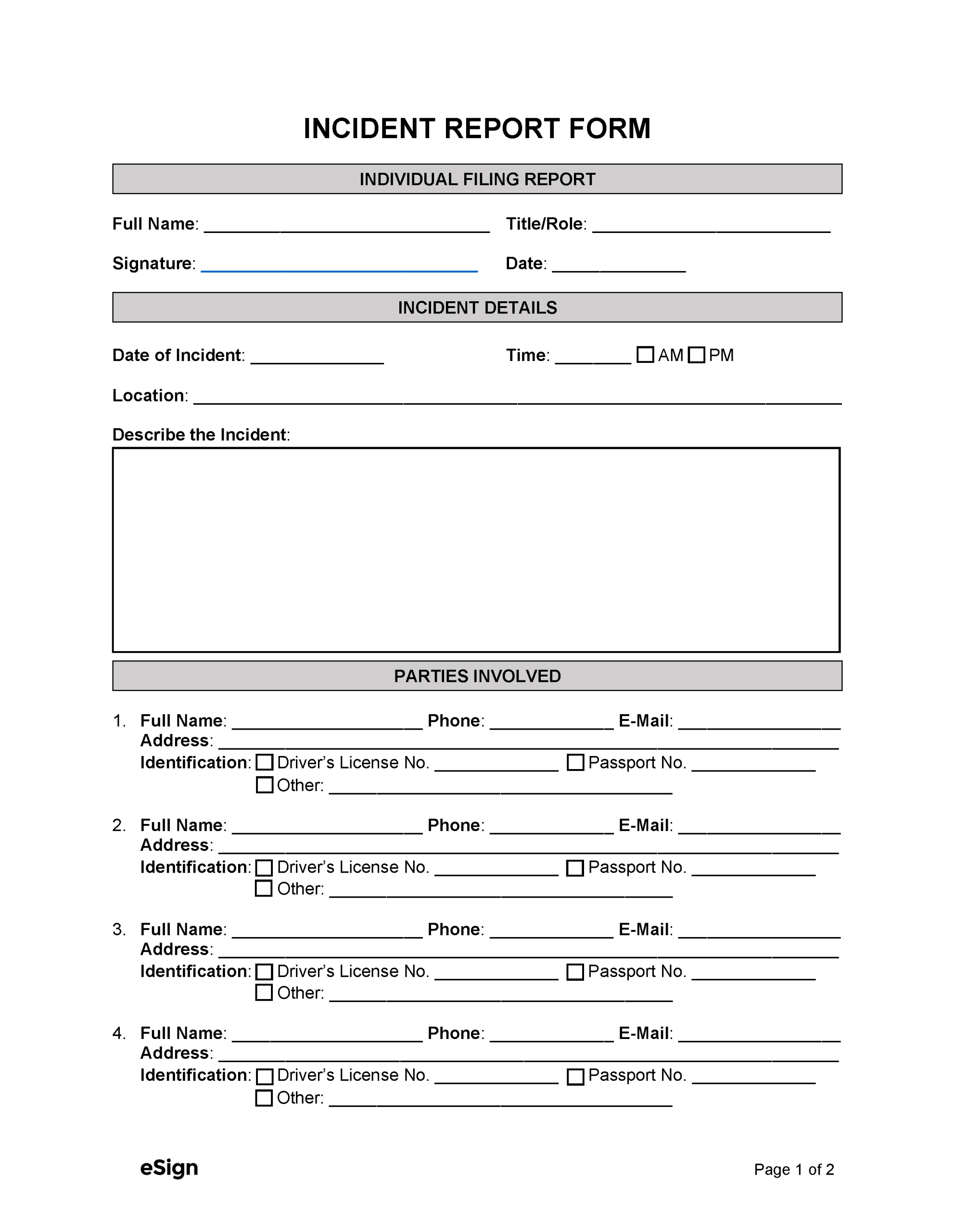
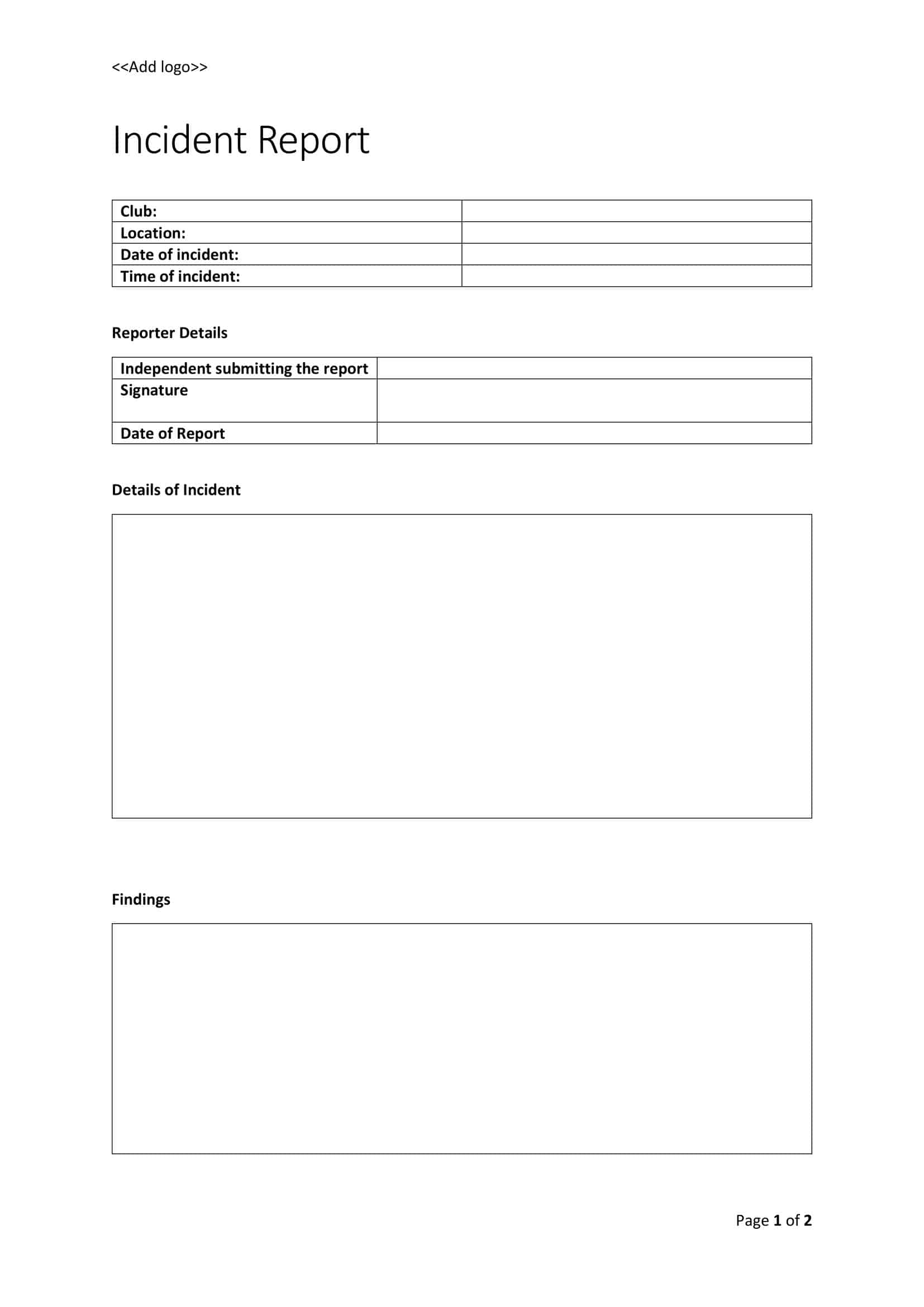
A comprehensive PDF incident report template divides complex information into logical, standardized sections. Understanding these core fields ensures that the reporting party gathers all mandatory data without overlooking critical evidence.
Incident Reporting Workflow:
- Header & Meta
- Incident ID & Type
- Reporting Party
- Event Details
- Date, Time, Location
- Detailed Chronology
- Impact & Injuries
- Affected Personnel / Equipment
- Severity Assessment
- Root Cause & Actions
- Contributing Factors
- Immediate Corrective Measures
- Sign-off & Lock
- Digital Signatures
- Archival & Distribution
1. Administrative Header and Metadata
The top section of the PDF template establishes basic tracking parameters:
- Incident Reference Number: A unique identification code used for filing and cross-referencing.
- Date and Time of Reporting: The exact timestamp when the form is opened and submitted.
- Report Creator Information: Full name, title, department, contact number, and email of the person filing the report.
- Incident Classification: A structured dropdown menu categorized by event type (e.g., Occupational Health & Safety, Environmental Spill, Cybersecurity Breach, Equipment Damage, Property Theft, Near Miss).
2. Event Details and Environmental Context
This section captures the contextual specifics of where and when the event transpired:
- Exact Date and Time of Incident: The actual moment the event occurred, distinct from the filing time.
- Physical or Digital Location: Precise details, such as Building B, 3rd Floor, West Maintenance Bay, or Cloud Server Cluster Alpha.
- Environmental Factors: Conditions present at the time, such as lighting levels, weather conditions, floor surface state, machine operating speeds, or network load.
3. Persons Involved and Witness Statements
Accurate identification of all individuals present is essential for investigation and follow-up:
- Affected Individuals: Names, employee IDs, job titles, contact information, and role in the incident (e.g., injured worker, machine operator, system admin).
- Witnesses: Full contact details and preliminary statements from neutral observers present during the event.
- Emergency Responders: Details of any external personnel called to the scene, including emergency medical services (EMS), fire departments, or law enforcement officers.
4. Descriptive Narrative and Root Cause Analysis
The narrative block forms the structural core of the report. Interactive PDF templates usually allocate expandable multi-line text fields for this section:
- Sequence of Events: A chronological account describing actions preceding, during, and immediately following the event.
- Direct and Root Causes: Identification of immediate triggers (e.g., liquid on floor, unpatched software vulnerability) alongside systemic failures (e.g., missed maintenance cycle, inadequate safety training).
5. Corrective Actions and Sign-Offs
- Immediate Measures Taken: Tactical actions performed on-site to stabilize the situation, such as applying first aid, locking out machinery, isolating affected network segments, or evacuating an area.
- Long-Term Preventive Measures: Recommended policy modifications, equipment repairs, or retrainings.
- Digital Signatures and Approvals: Formal sign-offs with electronic date stamps from the reporter, site supervisor, and health and safety manager.
Step-by-Step: How to Complete an Incident Report Template PDF
Completing an incident report PDF correctly requires a structured workflow to maintain factual accuracy and ensure software compatibility.
Fillable PDF Completion Process:
- Step 1: Open Form
- Use professional reader
- Verify fillable controls
- Step 2: Input Data
- Complete all required fields
- Stick to objective facts
- Step 3: Attach Evidence
- Embed high-res photos
- Add logs or schematics
- Step 4: Validate & Sign
- Review required fields
- Apply digital signature
- Export to read-only archive
Step 1: Open the Template in a Compatible PDF Reader
Avoid opening fillable PDF templates directly inside web browsers if you need to save filled data or execute cryptographic digital signatures. While modern browsers render PDFs, they occasionally drop interactive form fields or fail to save embedded signature metadata.
- Download and open the PDF using dedicated software such as Adobe Acrobat Reader, PDFelement, Foxit PDF Reader, or Kofax Power PDF.
- Verify that interactive form fields highlight properly across the document.
Step 2: Systematically Complete Required Fields
Fill out the document sequentially, taking care to complete every mandatory field:
- Select the Incident Category: Choose the appropriate option from the drop-down box to set filing workflows.
- Enter Precise Dates and Times: Standardize formatting (e.g.,
YYYY-MM-DDand 24-hour time14:30) to avoid ambiguity in international operations. - Complete Text Controls: Type detailed observations directly into designated text areas. If a field does not apply to the specific incident, enter "N/A" (Not Applicable) rather than leaving it blank, ensuring auditors know the field was not accidentally overlooked.
Step 3: Maintain Objective Language
When writing the incident description, rely exclusively on verifiable, observable facts. Exclude subjective opinions, emotional reactions, or unverified assumptions about fault.
- Incorrect (Subjective): "John carelessly slipped on the floor because the cleaning crew was lazy and left a huge mess without putting up a sign."
- Correct (Objective): "At 10:15 AM, John Doe stepped onto the linoleum floor outside Room 204 and fell forward. The floor surface was wet with liquid. No hazard warning sign was visible in the immediate area at the time of the fall."
Step 4: Attach Supporting Evidence and Photographs
Many dynamic PDF forms allow users to insert file attachments or embed digital photographs directly into image fields within the document.
- Take clear, well-lit photos of physical damage, environmental hazards, equipment settings, or personal protective equipment (PPE) status.
- Include relevant digital evidence such as system error logs, access badge scans, or equipment telemetry records as secondary pages or embedded attachments.
Step 5: Review, Execute Digital Signatures, and Archive
- Conduct a Final Review: Verify that all names, dates, contact details, and technical measurements are correct.
- Apply Digital Signature: Click the designated signature field. Use a certificate-based digital ID or secure electronic signature tool to sign the document.
- Flatten or Lock the PDF: If the software permits, export or save the file as a "Flattened PDF" or check "Lock Document After Signing." This converts interactive fields into standard visual elements, preventing post-submission modifications.
- Distribute and File: Send the finalized document via secure email or upload it to your organization's Document Management System (DMS) or Environmental Health and Safety (EHS) platform.
Industry-Specific Incident Report PDF Workflows
Different industries utilize PDF templates tailored to specific regulatory environments, data structures, and compliance frameworks.
| Industry Sector | Primary Focus Areas | Key Standards / Regulatory Compliance | Mandatory PDF Template Fields |
|---|---|---|---|
| Occupational Health & Safety (EHS) | Workplace injuries, near-misses, physical damage, chemical exposure | OSHA (USA), HSE (UK), ISO 45001 | Injury body map, treatment level (First Aid vs. Medical), PPE usage, machine ID |
| IT & Cybersecurity | System outages, data breaches, ransomware attacks, network downtime | ISO/IEC 27001, NIST SP 800-61, GDPR, HIPAA | Affected IP addresses, threat vector, data exposure scope, service recovery time (MTTR) |
| Healthcare & Clinical | Patient falls, medication errors, medical device malfunctions, sentinel events | Joint Commission standards, HIPAA, FDA MedWatch | Patient MRN/ID, dosage variance, attending staff IDs, clinical outcome |
| Corporate Facilities & Security | Trespassing, property theft, physical assault, vehicular accidents | Local ordinance standards, commercial insurance policies | Police report numbers, video footage timestamps, property value loss estimates |
Best Practices for PDF Incident Report File Management
Maintaining an efficient reporting workflow requires clear file management guidelines alongside filling out individual forms correctly.
Standardized Naming Conventions
Never save completed incident reports using default file names like Incident_Report_Final.pdf or Document1.pdf. Implement a predictable, searchable file naming structure across the enterprise:
[YYYYMMDD]_[INCIDENT-TYPE]_[LOCATION]_[REF-NUMBER].pdf
Example: 20260315_EHS_PlantB_INC-0482.pdf
Centralized Storage and Access Controls
Incident reports frequently contain Personal Identifiable Information (PII), protected medical details, or sensitive system vulnerability data.
- Store completed PDFs on encrypted, permission-controlled cloud storage or local enterprise servers.
- Limit file access to authorized roles, such as EHS officers, HR directors, legal counsel, and system administrators.
- Maintain automated daily backups of stored reports to satisfy mandatory record retention periods (which often range from 3 to 30 years depending on regulatory jurisdiction).
Common Errors When Using PDF Incident Report Templates
- Filling Forms in Unsupported Web Viewers: Standard browser PDF plugins often fail to save entry data inside dynamic form fields, resulting in blank files submitted to administrators. Always download and open files in dedicated PDF software.
- Delayed Filing: Completing a report days after an incident occurs degrades witness recall and increases risk exposure. Organizations should mandate filing within 24 hours of any event.
- Speculating on Liability: Indicating guilt or assigning blame within text fields creates legal liability during discovery processes in litigation. Keep statements strictly descriptive and factual.
- Incomplete Follow-Up Fields: Leaving corrective action sections blank defeats the preventative purpose of incident reporting. If long-term solutions are pending investigation, mark the field as "Under Investigation - Target Completion [Date]."
Regulatory and Legal Considerations
Disclaimer: The operational guidance below is provided for educational purposes. Incident reporting procedures must comply with the legal regulations of your specific jurisdiction and industry.
Failure to document and archive incident reports properly can lead to regulatory fines and severe legal liabilities. For example, under United States OSHA regulations (29 CFR 1904), covered employers must record specific work-related injuries and illnesses, notifying OSHA within 8 hours for fatalities and within 24 hours for inpatient hospitalizations, amputations, or loss of an eye. Standardized PDF incident reports provide the verifiable paper trail required to substantiate compliance during unannounced regulatory inspections.
Similarly, under data privacy laws such as the General Data Protection Regulation (GDPR) in the European Union or state-level regulations in the US, cybersecurity incident reports documenting personal data breaches must adhere to strict statutory notification timelines (often within 72 hours of discovery).
Frequently Asked Questions
Can I fill out an incident report PDF on a mobile device?
Yes, provided you open the file using a dedicated mobile PDF application (such as Adobe Acrobat Reader for iOS/Android, PDF Expert, or Xodo). Avoid editing PDFs directly within email preview screens or basic file managers, as field inputs may not save correctly.
How do I add a digital signature to a PDF incident report template?
Open the document in a compatible PDF software application, click on the designated interactive signature field, and select your digital ID certificate. If using an unsigned field, select the software's "Fill & Sign" tool, draw or import your signature, and save the document to apply the signature metadata.
What should I do if a fillable PDF form won't save my typed text?
This issue usually occurs when a PDF is opened in a web browser with restricted local storage permissions. To resolve this, download the PDF file onto your device's local disk drive, right-click the file, select "Open With," and choose a dedicated PDF reader application.
Is an electronic signature on a PDF incident report legally binding?
In most jurisdictions (including under the US ESIGN Act and the European eIDAS Regulation), electronic and digital signatures placed on administrative PDF documents carry the same legal weight as traditional wet ink signatures, provided the signing mechanism authenticates the signer's identity and prevents unauthorized post-signature edits.
What is the difference between an incident report and an accident report?
An accident report specifically documents unexpected events that resulted in immediate physical injury or property damage. An incident report is a broader operational term that encompasses accidents as well as "near-misses" (events that had the potential to cause injury or damage but did not) and non-physical events such as cybersecurity breaches or procedural non-compliance.
Next Steps for Organizations
To ensure your workplace uses PDF incident report templates efficiently:
- Download and Audit Current Templates: Ensure your organization’s PDF template features fillable form fields, digital signature zones, clear section headers, and up-to-date regulatory tracking categories.
- Establish Standard Operating Procedures (SOPs): Publish a clear operational policy defining who must complete an incident report, the mandatory timeframe for submission (e.g., within 24 hours), and the precise secure storage directory for finalized files.
- Equip Staff with Appropriate Readers: Ensure all corporate workstations and mobile devices have software installed that supports interactive PDF forms and digital signatures.
Image Gallery