How to Recover a Rhino File: A Complete Guide to Data Restoration
To recover a Rhino file, first check the Autosave folder defined in Rhino Options under the Files tab. If the software crashed, Rhino usually prompts you to recover the file upon restarting. You can also search for .3dm.bak files in yo...
To recover a Rhino file, first check the Autosave folder defined in Rhino Options under the Files tab. If the software crashed, Rhino usually prompts you to recover the file upon restarting. You can also search for .3dm.bak files in your project folder or use the Rescue3dm command to extract geometry from corrupted files.
Contents
Losing hours of intricate 3D modeling work in Rhinoceros (Rhino) due to a software crash, power outage, or accidental deletion can be devastating. Whether you are using Rhino 7, Rhino 8, or the latest 2026 iterations, the software includes several built-in safety nets designed to prevent permanent data loss. Understanding how these systems work—and where they store your data—is the difference between a minor setback and a total project failure.
Understanding Rhino’s Redundancy Systems
Rhino utilizes three primary methods to protect your work: Autosave files, Backup files, and the Recovery command. These systems operate differently and serve distinct purposes.
Autosave is a temporal safety net. It creates a copy of your work at specific intervals (default is every 20 minutes) so that if the program terminates unexpectedly, you can return to a very recent version of your geometry. Backup files (.bak), on the other hand, are created every time you manually save an existing file. Rhino renames the previous version of your file to a backup format before overwriting it with your new changes. Finally, the Rescue3dm command is a surgical tool used when a file is physically corrupted and refuses to open through standard means.
Before attempting recovery, it is crucial to stop writing new data to your drive. If you suspect a file was deleted, further activity on the hard drive could overwrite the sectors where your lost Rhino file still resides.
Step 1: Recovering from a Software Crash (Autosave)
If Rhino crashes, the first thing you should do is simply restart the application. Modern versions of Rhino are programmed to detect an "orphan" autosave file upon startup. A dialog box typically appears asking if you would like to recover the last autosaved version of your project.
If this prompt does not appear, you must manually locate the Autosave file.
Finding the Autosave Folder on Windows
On Windows, Rhino typically stores autosave files in a hidden directory. To find it:
- Open Rhino and go to Tools > Options.
- Navigate to the Files tab.
- Look for the Autosave section. This will show the file path where Rhino is currently saving temporary data.
- If Rhino is closed and you cannot check the options, navigate to:
C:\Users\[YourUsername]\AppData\Local\McNeel\Rhinoceros\8.0\AutoSave(Note: Replace "8.0" with your specific version).
Finding the Autosave Folder on macOS
On a Mac, the path is slightly different and often hidden within the Library:
- Open Finder, hold the Option key, and click Go > Library.
- Navigate to
Application Support > McNeel > Rhinoceros > [Version] > Autosave.
Pro Tip: Autosave files are often named RhinoAutosave.3dm or include the name of your original file with a string of numbers. Once you find the file, copy it to a new location (like your Desktop) and rename it immediately to prevent Rhino from overwriting it during your next session.
Step 2: Using the Backup (.3dm.bak) File
Every time you hit "Save" on a file that has been saved at least once before, Rhino creates a backup of the previous state of that file. This is immensely helpful if you accidentally deleted a complex NURBS structure and then saved the file before realizing your mistake.
- Navigate to the folder where your original project file is stored.
- Look for a file with the extension .3dm.bak.
- If you do not see extensions, look for a file type described as a "Rhino Backup File."
- Right-click the file and select Rename.
- Change the extension from
.3dm.bakto.3dm. - Rhino will warn you about changing file extensions; accept the change and open the file normally.
Step 3: Dealing with Corrupted Files (The Rescue3dm Command)
Sometimes a file exists and is visible, but Rhino throws an "Error reading file" message when you try to open it. This usually indicates that the file header or specific object data has been corrupted, often due to a crash during the save process or a failing storage drive.
Rhino includes a powerful diagnostic tool called Rescue3dm. This command attempts to bypass the corrupted parts of the file to recover whatever geometry is still readable.
How to use Rescue3dm:
- Open a blank, new Rhino session.
- Type
Rescue3dminto the command line and press Enter. - A file browser will open. Select the corrupted
.3dmfile. - Rhino will analyze the file and attempt to extract layers, meshes, and NURBS geometry.
- If successful, the recovered objects will appear in your new session. You should immediately save this as a new file.
Note that Rescue3dm may not recover "non-geometry" data like lighting setups, plugin-specific data, or complex material assignments, but it is often the only way to save the actual 3D model.
Step 4: System-Level Recovery (Windows File History & Mac Time Machine)
If Rhino’s internal tools fail, your operating system may have a background backup. In 2026, both Windows and macOS have robust, automated versioning systems that users often forget to check.
Windows File History
If you have "File History" enabled:
- Right-click the folder where your Rhino file was located.
- Select Restore previous versions.
- A list of dated snapshots will appear. Select a version from before the crash or deletion and click Restore.
macOS Time Machine
- Open the folder where the file lived.
- Click the Time Machine icon in the Menu Bar and select Enter Time Machine.
- Use the timeline on the right to scroll back to a point where the file existed and was healthy.
- Select the file and click Restore.
Comparison of Recovery Methods
The following table compares the effectiveness and use cases for each recovery method discussed:
| Method | Best For | Recovery Success Rate | Effort Level |
|---|---|---|---|
| Startup Prompt | Software crashes | High | Very Low |
| Autosave Folder | Manual recovery after crash | High | Medium |
| .3dm.bak Rename | User error (accidental save) | Very High | Low |
| Rescue3dm | Corrupted or unreadable files | Moderate | Medium |
| OS Snapshots | Accidental deletion/Disk failure | High | High |
| Cloud Versioning | Overwritten files (OneDrive/Dropbox) | High | Low |
Recovering Files from Cloud Storage
Many designers work directly out of folders synced to Dropbox, Google Drive, or OneDrive. These services provide an additional layer of protection through "Version History."
If you find your Rhino file is corrupted or you saved over it, do not rely solely on Rhino’s backup. Instead:
- Log into the web interface of your cloud provider.
- Right-click the file and look for Version History or Previous Versions.
- These services usually store every version of a file saved in the last 30 days. You can download a version from an hour ago and continue working immediately.
Preventative Measures for Future Projects
While knowing how to recover a file is essential, preventing the need for recovery is a mark of a professional workflow. In the high-stakes environment of 2026 design, relying on a single save file is a significant risk.
1. Enable Incremental Saving
Instead of just hitting Ctrl+S, get into the habit of using the IncrementalSave command. You can even map this to a shortcut. Incremental saving creates a new file (e.g., Project_001.3dm, Project_002.3dm) every time you save. This ensures that even if your current file becomes completely unreadable, you only lose the work done since your last incremental save.
2. Optimize Autosave Settings
Don't settle for the default settings. If you are working on a high-speed workstation, you can afford to have Rhino autosave more frequently.
- Go to Tools > Options > Files.
- Set Autosave every X minutes to 5 or 10 minutes.
- Ensure the box "Save before commands that take a long time" (like complex Booleans or Render starts) is checked.
3. Use Snapshots
Rhino's Snapshots panel allows you to save the state of your layers, materials, and object positions within a single file. While this won't save you from a file crash, it protects you from "design regrets" where you've moved too far in one direction and want to revert the state of your model without losing the geometry you've created since then.
Troubleshooting Common Recovery Issues
"Access Denied" when opening a recovered file
This often happens if Rhino thinks the file is still open by another user or another instance of the program. Ensure all instances of Rhino.exe are closed in the Task Manager. If the problem persists, copy the file to a different drive (e.g., from a network drive to your local Desktop) to reset the file permissions.
Missing Textures or Linked Blocks
When you recover an autosaved file, the file path has changed (it is now in a temp folder). Consequently, Rhino might not find your high-resolution textures or linked .3dm blocks. Once you save the recovered file to its original project folder, these links should automatically resolve.
FAQ
Does Rhino delete Autosave files? Yes, Rhino typically deletes the Autosave file when you close the program normally (without a crash) and choose to save your changes. This is to prevent your hard drive from filling up with temporary data. This is why it is vital to check the Autosave folder immediately after a crash occurs.
Where can I find the Rhino recovery file if I clicked "No" on the startup prompt?
If you accidentally clicked "No," the file may still be in your Windows %TEMP% folder or the designated Autosave directory. Search your computer for files ending in .3dm that were created or modified within the last hour.
Can I recover a Rhino file if my computer was formatted?
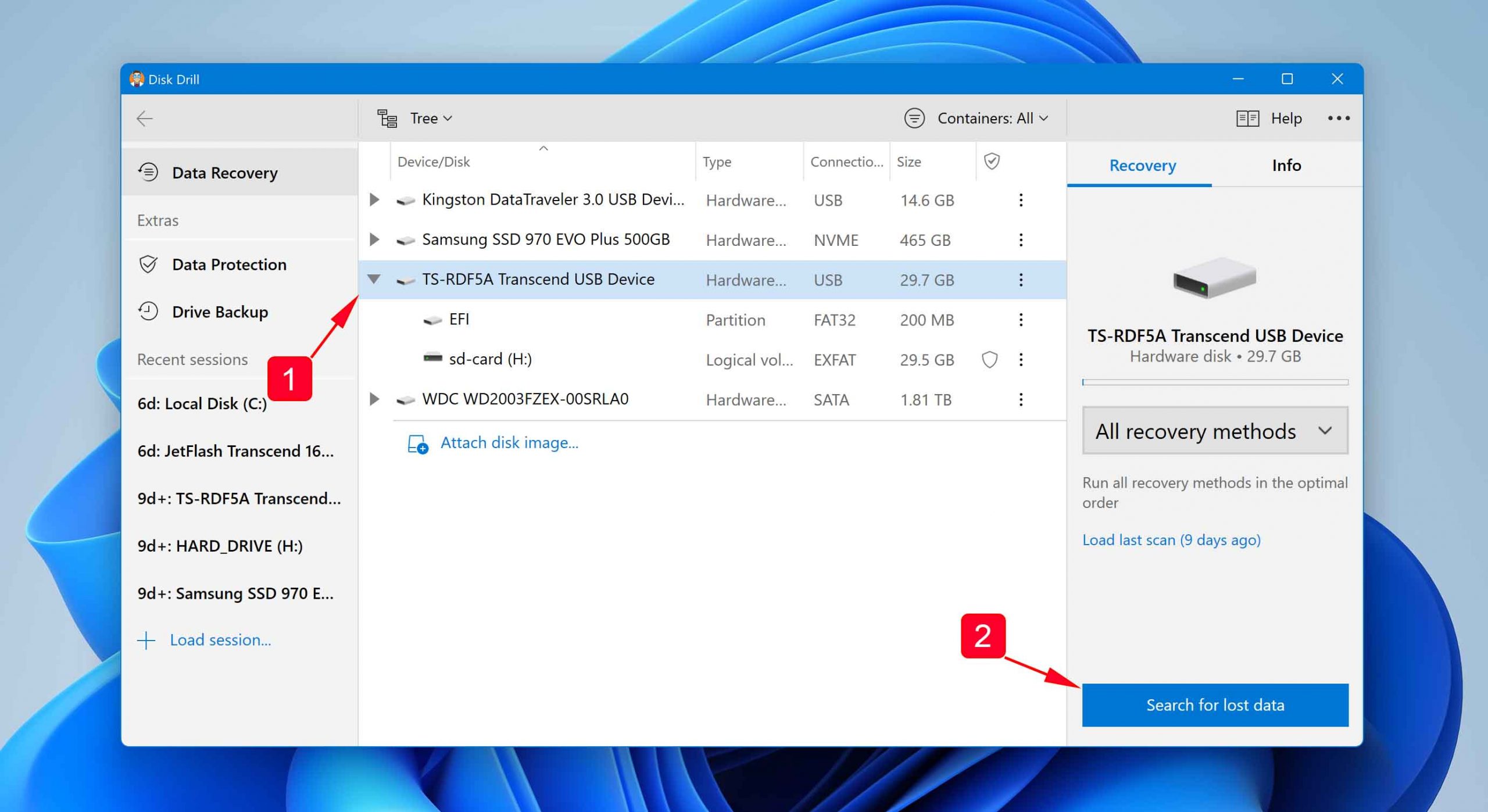
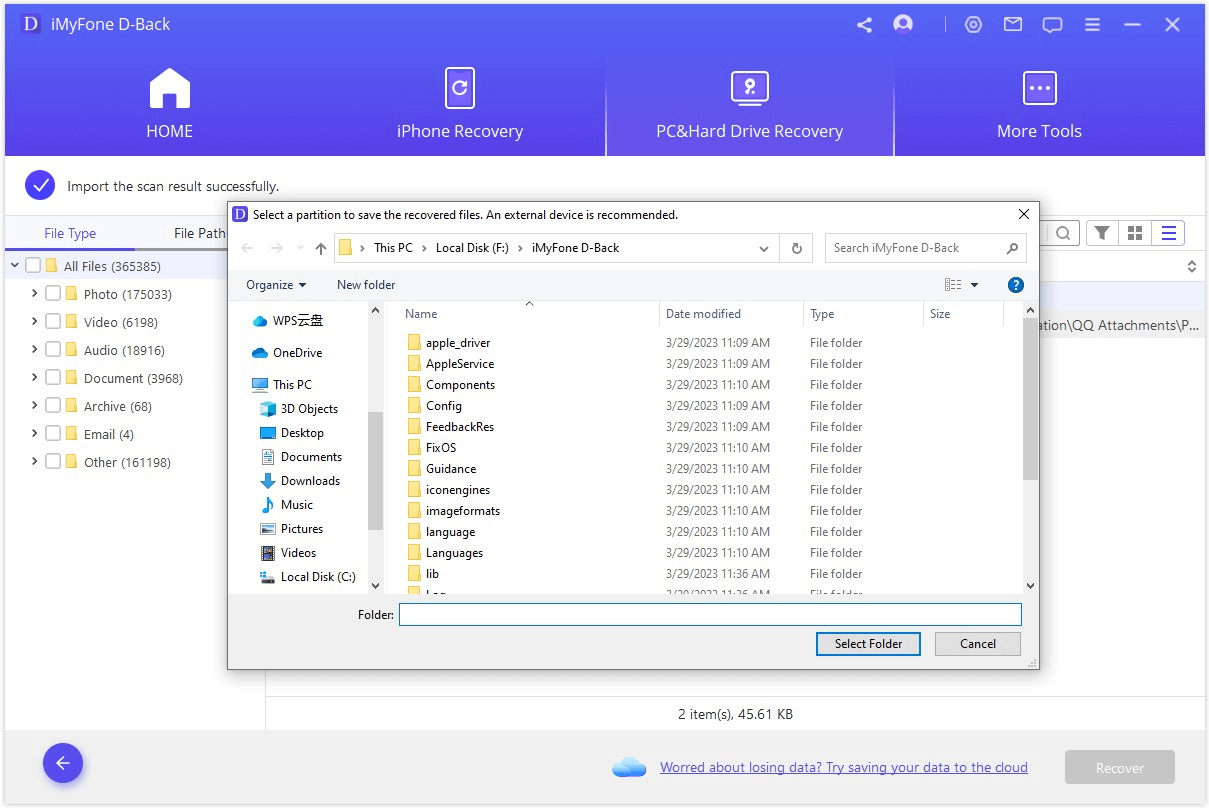
Recovery is significantly harder after a format. You would need specialized data recovery software like Recuva, Disk Drill, or PhotoRec. These tools scan the raw sectors of your drive to find file signatures matching the .3dm format. The success rate depends on how much the drive has been used since the format.
Why is my .3dm.bak file not appearing?
Rhino only creates a .3dm.bak file if the "Create backup files when saving" option is enabled in Tools > Options > Files. If this was unchecked, Rhino will overwrite the original file directly without creating a safety copy.
Does Rescue3dm work on Mac?
Yes, the Rescue3dm command is available on both Windows and macOS versions of Rhino. It functions identically, attempting to salvage geometry from the file's data structures.
Final Recommendation
If you are currently facing a lost file, start by checking the Autosave folder manually before doing anything else. If the file is not there, check for a .3dm.bak in your project directory. For those working in professional environments, the most robust "recovery" strategy is actually a preventative one: utilize IncrementalSave and ensure your project folder is synced to a cloud service with version history enabled. This triple-redundancy (Autosave, Incremental Save, and Cloud Versioning) virtually guarantees you will never lose more than a few minutes of work again.
Image Gallery