How to Send WhatsApp Group Link: A Complete Guide for Mobile and Desktop Users
Sharing a WhatsApp group link is a straightforward process that allows administrators and authorized participants to invite new members into a conversation seamlessly without needing to manually save individual phone numbers. Whether y...
Sharing a WhatsApp group link is a straightforward process that allows administrators and authorized participants to invite new members into a conversation seamlessly without needing to manually save individual phone numbers. Whether you are organizing a community project, setting up a corporate team chat, or connecting with friends, understanding how to generate and distribute these links across mobile apps and web platforms ensures smooth onboarding and secure member management.
Contents
To send a WhatsApp group link, open the target group chat, tap or click on the group name to access group info, select the "Invite via link" option, and choose whether to copy, share directly via text or social apps, or generate a QR code. Only group administrators can typically access or reset invite links, though admins can allow any member to add others depending on current application settings.
Understanding WhatsApp Group Links and Permissions
Before attempting to send a WhatsApp group link, it is crucial to understand the structural permissions that govern group invitations within the platform. WhatsApp maintains strict privacy and anti-spam protocols to protect users from unwanted solicitations, meaning that link-sharing capabilities are tied directly to administrative rights.
By default, only users who hold the role of a group administrator can view, share, and reset the invite link for a chat. However, group admins can modify group settings to allow any participant to add new members or share invite links. If you cannot find the invite option within your group settings, you likely lack administrative privileges, or the current admin has restricted member additions to protect the group's privacy.
Furthermore, group links remain active indefinitely until an administrator explicitly revokes or resets them. Resetting a link invalidates the previous URL instantly, ensuring that leaked or old links stop working immediately. This feature is vital for maintaining security when public links are shared widely and need to be deactivated after a specific intake window closes.
How to Send a WhatsApp Group Link on Mobile Devices
The vast majority of WhatsApp users manage their groups via mobile applications on Android and iOS devices. While the user interface layouts differ slightly between operating systems, the logical path to generating and sending a group link remains consistent.
Finding and Copying the Link on Android
To locate and share a group link using an Android device, follow these sequential steps:
- Open WhatsApp and navigate to the specific group chat you wish to share.
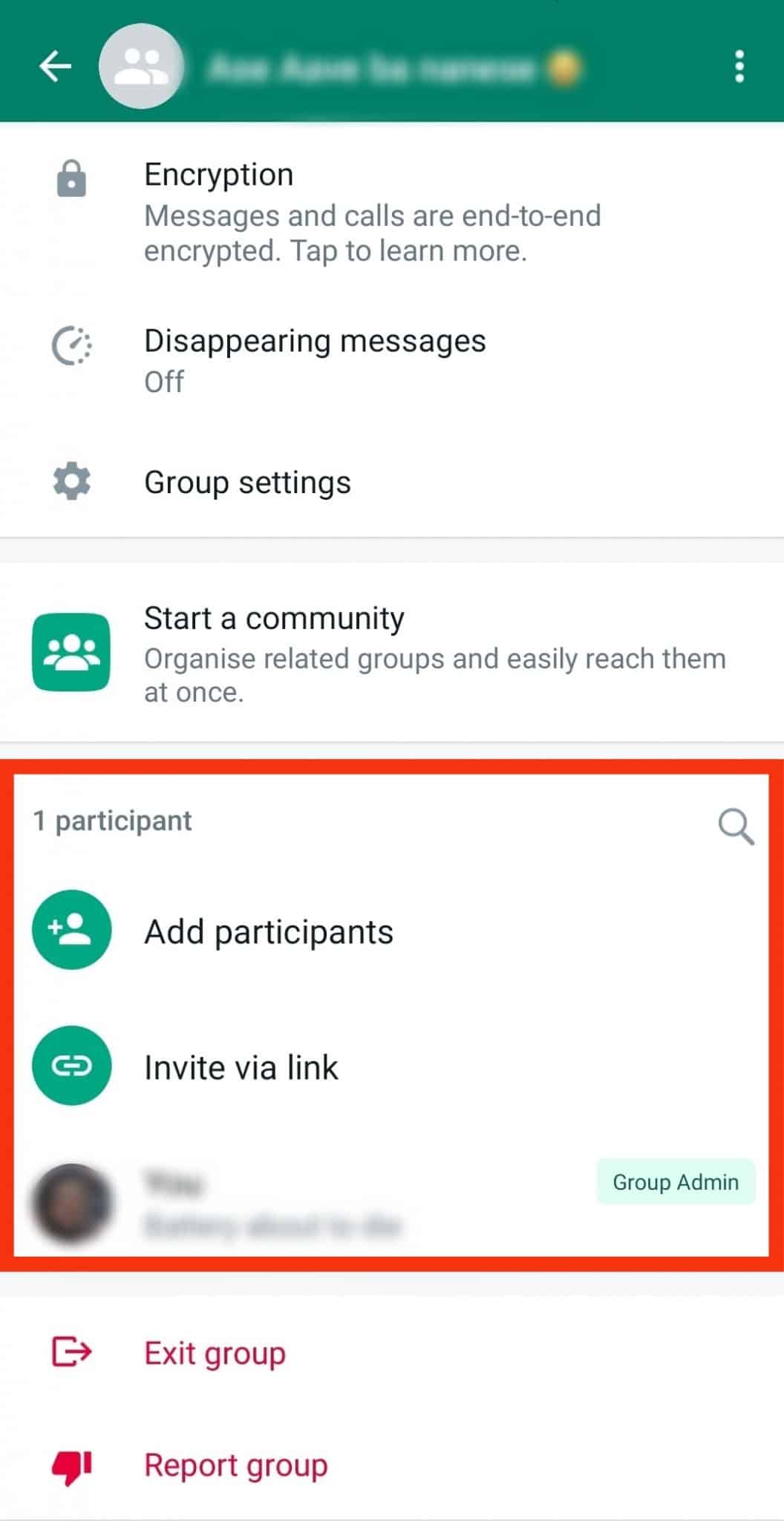
- Tap the group name at the top of the conversation screen to open the Group Info page.
- Scroll down past the participant list and tap on Invite via link.
- You will see several options: Send link via WhatsApp, Copy link, Share link through other installed applications (such as email or SMS), and QR code.
- Tap Copy link to save the URL to your clipboard, or select Send link via WhatsApp to pick a specific contact or external chat immediately.
Finding and Copying the Link on iPhone (iOS)
The process on an Apple iPhone mirrors the Android workflow with minor terminology variations inherent to iOS design standards:
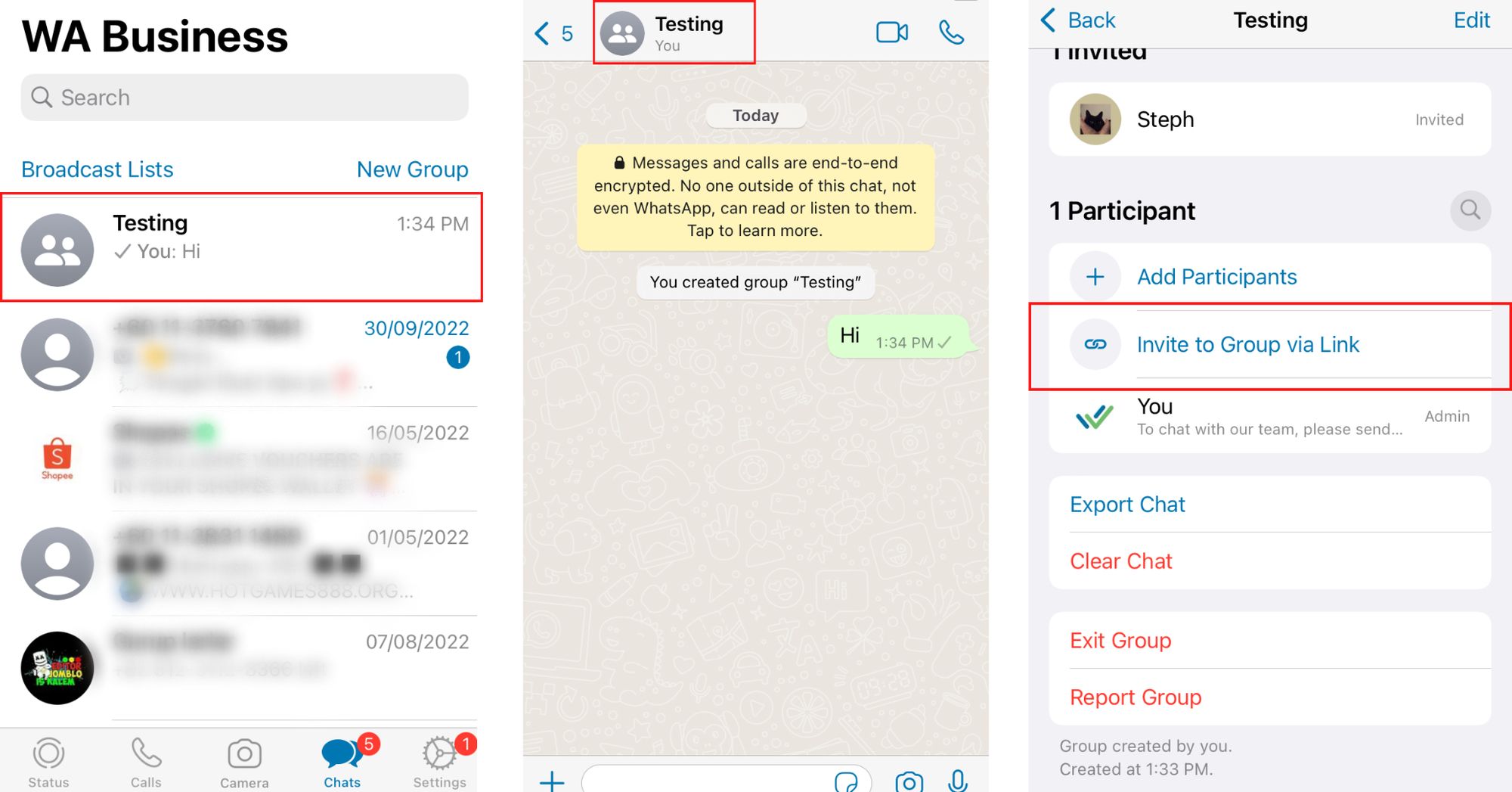
- Launch WhatsApp and tap the group chat tab to open the desired group.
- Tap the group name or profile picture at the top to access Group Info.
- Tap Invite to Group via Link.
- Choose Copy Link to save it to your clipboard, or tap Share Link to open the native iOS share sheet, allowing you to send the URL via iMessage, Apple Mail, or third-party social media apps.
How to Send a WhatsApp Group Link on WhatsApp Web and Desktop
When managing large communities or working from a computer, using WhatsApp Web or the native desktop application provides a convenient environment for distributing group links. A physical keyboard and mouse make it easier to paste links into professional emails, forums, or document templates.
To send a group link from a desktop or web browser:
- Open WhatsApp Desktop or navigate to web.whatsapp.com and log in by scanning the QR code with your mobile phone.
- Click on the target group chat from your chat list on the left side of the screen.
- Click on the group name at the top of the chat window to open the right-hand Group info panel.
- Scroll down and click on Invite via link.
- Select Copy link to place the URL onto your computer's clipboard, or choose Send link via email if your system has a default mail client configured.
- Open your destination application—such as Slack, Microsoft Teams, or an email composer—and press
Ctrl+V(Windows) orCmd+V(Mac) to paste and send the link.
| Method / Platform | Primary Action to Access | Direct Sharing Options | Best Use Case |
|---|---|---|---|
| Android Mobile | Group Info > Invite via link | WhatsApp, Copy, Share, QR Code | Quick mobile messaging and text sharing |
| iOS / iPhone | Group Info > Invite to Group via Link | iOS Share Sheet, Copy Link | Quick sharing via iMessage and Apple ecosystem |
| WhatsApp Desktop / Web | Group info panel > Invite via link | Copy link, Send via email | Professional communication, emails, and community management |
Advanced Sharing Methods: QR Codes and Deep Links
Beyond standard URL copying, WhatsApp offers alternative formats for sending group links that cater to specific physical or digital environments. Understanding these formats helps maximize reach and engagement.
Using QR Codes for In-Person Events
If you are hosting a workshop, conference, or classroom setting, sending a text-based URL may be inefficient. Instead, you can display or print a QR code that encodes your WhatsApp group link:
- Navigate to the Invite via link screen on your mobile device.
- Tap the QR code option instead of copying the text.
- Users in your physical presence can open their phone's camera app or a dedicated QR scanner to scan the code instantly, opening the join prompt without typing a single character.
- Alternatively, you can take a screenshot of the QR code and insert it into digital presentations, flyers, or posters.
Customizing Links for Marketing or Outreach
While WhatsApp does not natively allow you to customize the alphanumeric string of a group invite link directly inside the app, you can use URL shorteners or tracking redirects if you are managing public-facing campaigns. Always ensure that shortened links originate from reputable, secure redirection services so that prospective members trust the destination before clicking.
Managing Security and Revoking Group Links
Publicly distributing a group link carries inherent risks. Because anyone who clicks the link can enter the chat automatically without manual administrative approval, malicious actors or automated bots can occasionally infiltrate the space.
To safeguard your group:
- Monitor Participants: Regularly check the group participant list for unfamiliar phone numbers or suspicious profile names.
- Reset Links Promptly: If a group link is posted on an unmoderated public forum and attracts unwanted traffic, navigate back to Invite via link and select Reset link. This action immediately deprecates the old URL. Any future clicks on the old link will result in an error message stating that the link has been reset.
- Restrict Administrative Settings: Keep member-addition privileges restricted to administrators unless you operate an open, highly trusted community.
Troubleshooting Common Issues
Users attempting to send or use WhatsApp group links occasionally encounter roadblocks. Reviewing these common scenarios helps resolve technical friction quickly.
- Missing "Invite via Link" Option: If this button is missing, verify your permissions. If you are not a group admin, ask the primary creator of the group to retrieve the link or promote you to admin status.
- Link Says "Link Was Reset": This occurs when an administrator has generated a new URL, invalidating the older version. Request the active, updated link from the current administrator.
- Group is Full: WhatsApp enforces a strict upper limit on total participants per group chat (historically capped at 1,024 members). If the group reaches capacity, the invite link will display an error message to new users attempting to join, requiring the removal of inactive members before new invites can succeed.
Frequently Asked Questions
Can anyone send a WhatsApp group link?
By default, only group administrators can access, copy, and send the official group invite link. However, group administrators can adjust the group settings to allow regular participants to add new members or share the link.
What happens if I reset a WhatsApp group link?
Resetting a group link immediately invalidates the old URL. Anyone attempting to click the previous link in the future will receive an error notification stating that the link is no longer valid, protecting your group from ongoing unauthorized access.
Can I change the custom text inside a WhatsApp group link?
No, WhatsApp generates a standardized, secure URL format (chat.whatsapp.com/[ alphanumeric-code ]) that cannot be customized with custom words or brand names directly within the mobile or desktop application.
How do I stop people from joining via a shared link?
If unwanted individuals are entering your chat through an active link, you must immediately open the group info menu, select Reset link to break the old URL, and review your current participant list to remove unauthorized accounts.
Does a WhatsApp group link expire?
WhatsApp group invite links do not expire automatically over time. They remain active indefinitely until an administrator manually revokes, resets, or deletes the group entirely.
Conclusion
Sending a WhatsApp group link is an efficient way to expand communities, streamline project management, and connect groups of people across mobile and desktop environments. By locating the invite option within group settings, choosing the appropriate distribution channel—such as direct messaging, clipboard copying, or QR code generation—and actively managing permissions, administrators can maintain secure and well-organized digital spaces. Always remember to reset your links if they become public or attract unintended traffic to keep your conversations private and productive.
Image Gallery