How to Create a Google Sheets Spreadsheet: A Complete Step-by-Step Guide
Creating a spreadsheet in Google Sheets requires a Google account and access to the web-based interface via a browser or the dedicated mobile application. Users can initiate a new project by accessing the Google Sheets homepage, select...
Creating a spreadsheet in Google Sheets requires a Google account and access to the web-based interface via a browser or the dedicated mobile application. Users can initiate a new project by accessing the Google Sheets homepage, selecting a template, or using direct browser shortcuts to generate a blank, ready-to-use spreadsheet instantly.
Contents
Understanding the Ecosystem
Google Sheets is a cloud-native spreadsheet application that functions as part of the Google Workspace suite. Unlike traditional desktop-bound software that requires manual file saving to a local hard drive, Google Sheets operates on a real-time synchronization model. Every change made to a cell is automatically saved to Google Drive, ensuring that your data remains intact even in the event of a browser crash or power loss.
Because it is browser-based, there is no software installation required on Windows, macOS, or Linux systems. The application relies on the Google account infrastructure, which means your spreadsheets are portable, accessible from any device with an internet connection, and inherently collaborative.
Prerequisites for Access
Before creating your first spreadsheet, ensure the following requirements are met:
- Google Account: A standard personal Gmail account or a Google Workspace account (provided by an employer or educational institution).
- Internet Connectivity: While offline editing is supported via a browser extension (Google Docs Offline), an active connection is necessary to create a new file initially.
- Browser Requirements: Google Sheets is optimized for current versions of Chrome, Firefox, Microsoft Edge, and Safari.
Methods to Create a New Spreadsheet
There are several entry points for creating a spreadsheet, depending on your current workflow and where you are located within the Google ecosystem.
1. Via the Google Sheets Homepage
The most direct method for starting a new project is visiting the official Google Sheets hub.
- Navigate to sheets.google.com in your web browser.
- Sign in with your Google credentials if prompted.
- Click the large "+" (Blank) button located at the top of the "Start a new spreadsheet" gallery.
- Your new, untitled spreadsheet will load immediately.
2. Using the Browser Shortcut
For power users who prefer keyboard-based navigation, Google provides a specific URL shortcut that bypasses the hub entirely.
- Open your browser's address bar.
- Type
sheets.newand press Enter. - A blank spreadsheet will generate instantly, titled "Untitled spreadsheet."
3. Through Google Drive
If you are already managing files in your cloud storage, you can create a sheet directly within a specific folder.
- Navigate to drive.google.com.
- Open the folder where you want to save the new file.
- Click the "+ New" button in the top-left corner.
- Select "Google Sheets" from the dropdown menu. This will open a new, blank sheet saved automatically into that specific folder.
Comparative Features of Creation Methods
| Method | Best Use Case | Benefit |
|---|---|---|
| Sheets Homepage | When you need a template | Access to pre-made budgets, schedules, and invoices. |
sheets.new |
Speed and efficiency | Fastest way to start a document without navigating menus. |
| Google Drive | Organizing projects | Keeps files structured within specific folders immediately. |
| Mobile App | On-the-go access | Native experience optimized for touch screens and offline sync. |
Initial Setup and Customization
Once your spreadsheet is open, the initial task is to establish the document's identity.
Naming Your Document: Click on the text "Untitled spreadsheet" in the top-left corner of the header. Enter a descriptive title. This is vital for searchability within your Google Drive later.
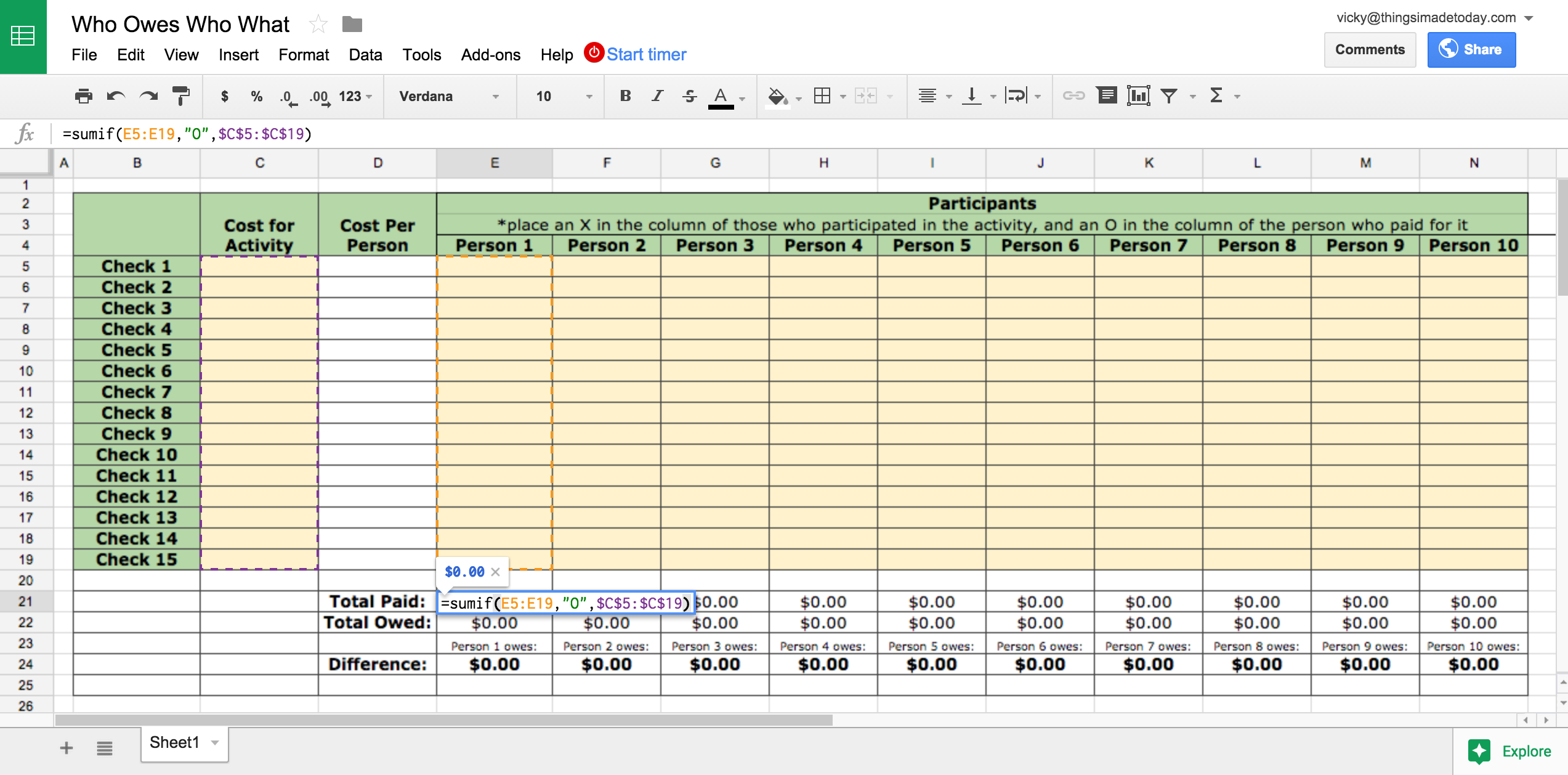
Understanding the Grid: The interface consists of cells organized by columns (labeled with letters A, B, C) and rows (labeled with numbers 1, 2, 3). Clicking a cell allows you to input data, including text, numbers, or formulas.
Data Entry Best Practices:
- Headers: Always use the first row to label your data (e.g., Date, Description, Amount). Use the "View" menu to select "Freeze" -> "1 row" to keep your headers visible as you scroll down.
- Data Types: Google Sheets automatically detects data types. If you type a date, the application will format it as such. You can manually force formatting by selecting a cell or range and navigating to Format > Number.
Collaboration and Sharing
One of the primary advantages of Google Sheets is the ability to work simultaneously with others. To share your document:
- Click the "Share" button in the top-right corner.
- Add the email addresses of the collaborators.
- Assign a permission level: "Viewer" (read-only), "Commenter" (can suggest changes), or "Editor" (full access).
- Click "Done". All participants can see changes in real-time, identified by colored cursors.
Common Troubleshooting and Limitations
While Google Sheets is robust, users may occasionally encounter issues related to synchronization or complex data handling.
- Offline Mode: If you anticipate working without internet access, ensure you have enabled "Offline" mode in your Google Drive settings. This allows you to create and edit files locally, which then sync to the cloud upon reconnection.
- File Size Limits: Google Sheets does not have a strict file size limit like desktop software, but there is a cell limit—a single spreadsheet can contain up to 10 million cells. If you exceed this, performance may degrade significantly.
- Formula Errors: If a cell displays
#REF!or#N/A, it usually indicates a broken reference to a deleted cell or an incorrect calculation range. Always check that your cell references correspond to active, populated data.
Frequently Asked Questions
Can I create a Google Sheets spreadsheet without a Gmail address? No. You must have a Google account to use Google Sheets. If you have a corporate email, your organization may use Google Workspace, which allows you to sign in with your professional credentials.
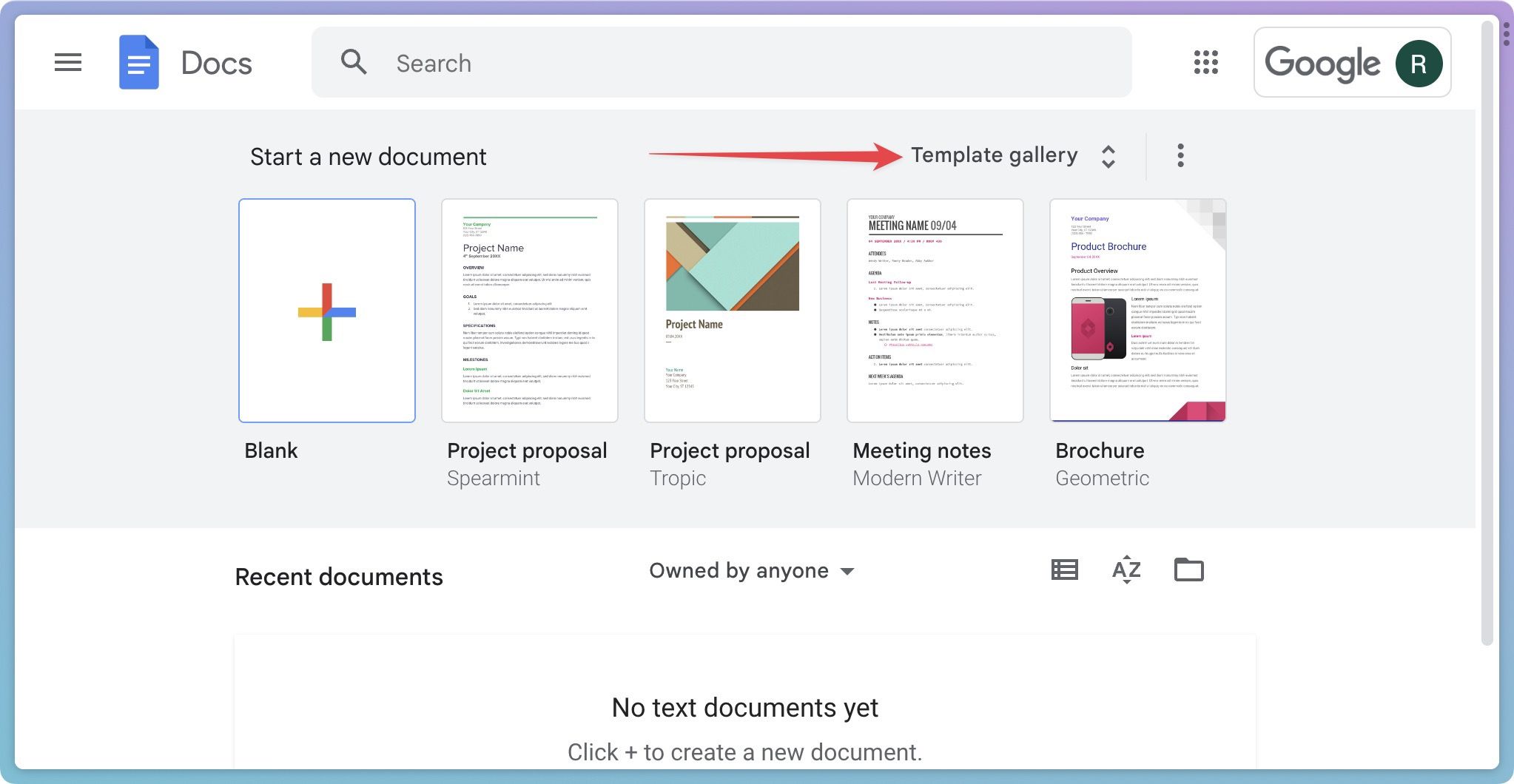
Are there templates available for common tasks? Yes. When you visit the Google Sheets homepage, the "Template Gallery" at the top provides pre-built structures for project tracking, invoices, attendance sheets, and monthly budgets. Clicking these creates a copy of the template ready for your input.
Is it possible to password-protect a specific sheet? While you cannot "lock" the file with a traditional password, you can protect specific ranges or sheets. Right-click the tab at the bottom of the screen, select "Protect sheet," and set permissions so only specific users can edit that area.
How do I convert an Excel (.xlsx) file into a Google Sheet? Upload the Excel file to your Google Drive, then double-click it. Google will open it in a preview mode; select "Open with Google Sheets" from the top menu to convert it into a native format.
Does Google Sheets charge for storage? Google provides 15GB of free storage across Gmail, Drive, and Photos. Standard Google Sheets files do not count toward this limit as of 2026. However, if you import large images or massive files into your Drive, you may eventually need to upgrade your storage plan via Google One.
Next Actions
To become proficient, start by creating a simple "To-Do" list or a household budget using the methods described above. Experiment with the "Insert" menu to add charts, images, and checkboxes to your sheet. As you grow more comfortable, explore the "Functions" feature by typing an equals sign (=) in a cell to begin performing automated calculations, such as =SUM(A1:A10) to total a list of expenses.
Image Gallery