Comprehensive Guide to Managing and Handling Outlook OST Files in 2026
To handle an Outlook OST file effectively, you must distinguish between an active cache and an orphaned file. For active accounts, you can manage the file by navigating to File > Account Settings > Data Files. If the file is corrupted,...
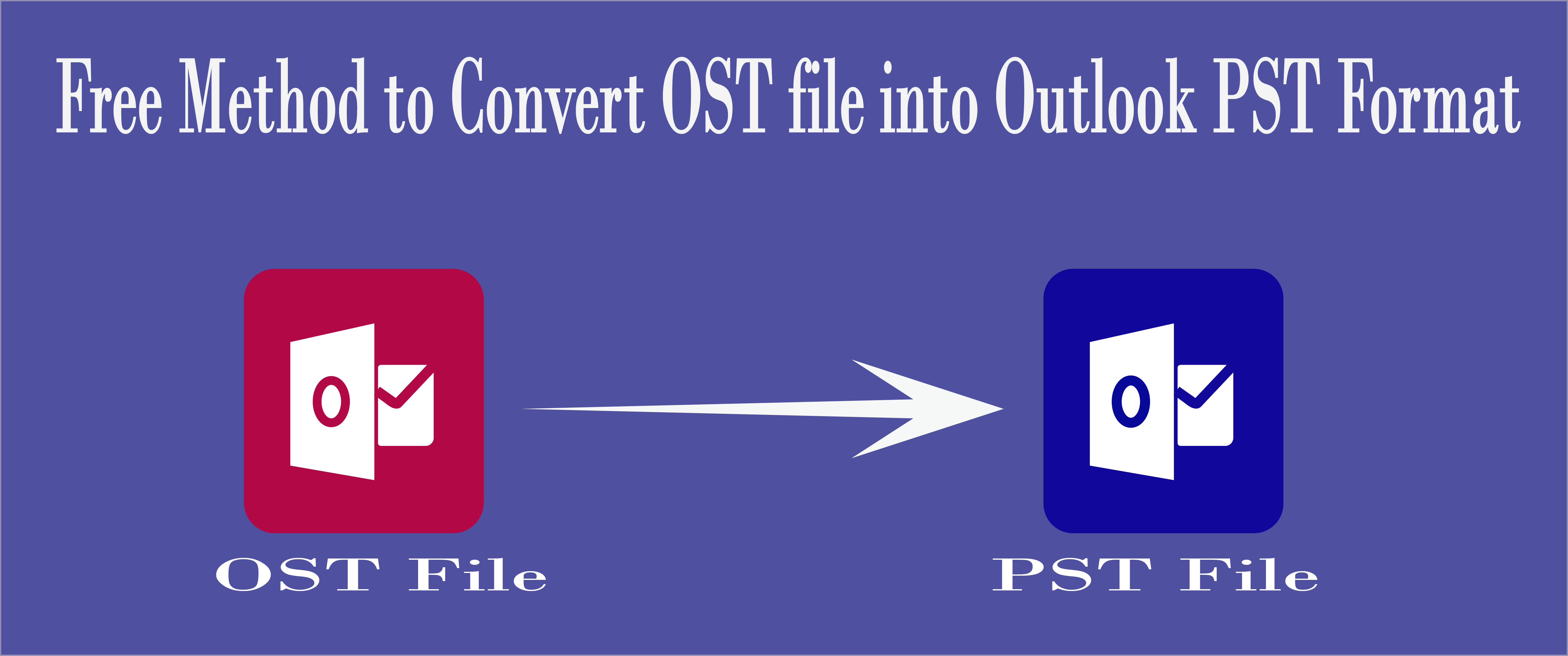
To handle an Outlook OST file effectively, you must distinguish between an active cache and an orphaned file. For active accounts, you can manage the file by navigating to File > Account Settings > Data Files. If the file is corrupted, the standard procedure is to delete the .ost file while Outlook is closed; the application will automatically recreate it and resync your data from the server upon restart. If the account is no longer accessible, you must use a third-party conversion tool to transform the OST into a PST file, as Outlook cannot open "orphaned" OST files directly.
Contents
Understanding the Role of the OST File
The Offline Storage Table (.ost) file is a local cache used by Microsoft Outlook to store a copy of your mailbox items from an Exchange, Office 365, or IMAP account. Unlike the older Personal Storage Table (.pst) format, which acts as a permanent standalone archive, the OST is designed to facilitate offline work. It allows you to read, draft, and organize emails without an active internet connection. Once a connection is re-established, Outlook synchronizes the changes between the local OST and the mail server.
In 2026, despite the proliferation of the "New Outlook" web-based client, millions of enterprise users continue to rely on the "Classic" Outlook desktop application for its robust offline capabilities. Handling these files correctly is critical for data integrity, especially when dealing with mailbox migrations, server transitions, or local hardware failures. Because the OST is cryptographically tied to the specific MAPI profile and the original mailbox on the server, it is not "portable" in the way a PST file is. You cannot simply copy an OST to another computer and expect Outlook to open it.
Locating Your OST File
Before you can troubleshoot or move an OST file, you must identify its physical location on your hard drive. By default, Windows hides the folders where these files reside, so you may need to enable "Hidden items" in File Explorer.
Default File Paths
In modern Windows environments, the standard location for OST files is:
C:\Users\[Username]\AppData\Local\Microsoft\Outlook
Finding the Path via Outlook Interface
If you can still open Outlook, the most accurate way to find the file is through the application itself:
- Open Outlook and click on the File tab in the top-left corner.
- Select Account Settings, then click Account Settings again from the dropdown menu.
- In the window that appears, switch to the Data Files tab.
- Select the account you are investigating and click Open File Location. This will launch a File Explorer window directly at the folder containing your OST.
Essential Handling: Recreating a Corrupted OST
One of the most common reasons to "handle" an OST file is when synchronization fails or the file becomes bloated and slow. Because the OST is merely a mirror of what is on the server, the safest and most effective repair method is not "fixing" the file, but replacing it entirely.
Step-by-Step Re-caching Process
- Close Outlook: Ensure that all related processes (including Teams, which sometimes hooks into Outlook data) are closed.
- Navigate to the OST Location: Use the file path identified in the previous section.
- Rename or Delete: Locate the .ost file associated with your email address. It is generally safer to rename it (e.g.,
user@example.com.ost.old) rather than deleting it immediately. - Restart Outlook: When you open Outlook, it will notice the missing file. Because your account configuration still exists in the profile, Outlook will automatically create a brand-new, empty .ost file and begin downloading your mail, calendar, and contacts from the server.
Note: This process requires a stable internet connection. If you have a 50GB mailbox, the initial sync may take several hours. During this time, Outlook performance may be degraded.
Advanced Handling: Moving the OST to a New Drive
As SSDs fill up, many users find that a massive OST file (often 50GB or more) consumes too much space on the primary C: drive. Microsoft does not make moving the OST file a simple "drag and drop" affair, as the path is hardcoded into the MAPI profile.
Method 1: Using the ForceOSTPath Registry Key
This is the most "official" way to redirect where Outlook creates new OST files.
- Press
Win + R, typeregedit, and hit Enter. - Navigate to:
HKEY_CURRENT_USER\Software\Microsoft\Office\16.0\Outlook(The version number16.0remains the standard for Outlook 2016, 2019, 2021, and the 2026 Microsoft 365 versions). - Right-click the Outlook folder, select New > Expandable String Value.
- Name it
ForceOSTPath. - Double-click it and enter the full path of the new folder where you want the OST to reside (e.g.,
D:\OutlookData). - After setting this, you must delete the old OST and let Outlook recreate it in the new location.
Method 2: Creating a Symbolic Link (Junction)
If you do not want to modify the Registry, you can trick Windows into thinking the file is still on the C: drive while it actually sits on a different partition.
- Move your OST file to the new location (e.g.,
E:\OfflineData\myaccount.ost). - Open Command Prompt as an Administrator.
- Use the
mklinkcommand:mklink "C:\Users\[User]\AppData\Local\Microsoft\Outlook\myaccount.ost" "E:\OfflineData\myaccount.ost"This creates a pointer that directs all Outlook read/write requests to the second drive.
Dealing with Orphaned OST Files
An "orphaned" OST occurs when the original email account is deleted, the server is decommissioned, or you have a backup of an OST but the original Windows profile is gone. Standard Outlook cannot open these files. If you try to use the "Open Outlook Data File" command on an OST, you will receive an error stating that the file is not a personal storage table.
To handle an orphaned OST, you have two primary options:
- Professional Conversion Software: Tools like Stellar Converter for OST or Kernel for OST are the industry standards in 2026. These applications scan the disconnected OST file and export the contents into a PST file, which can then be opened in any Outlook installation.
- Manual Export (If Account is Still Active): If you still have access to the account but want to "save" the OST data into a portable format, use the Import/Export wizard:
- Go to File > Open & Export > Import/Export.
- Select Export to a file and choose Outlook Data File (.pst).
- Select the folders you wish to backup and save the file to an external drive.
Comparison: OST vs. PST Files
Understanding the differences between these two formats is essential for determining how to handle them during data migrations or backups.
| Feature | OST (Offline Storage Table) | PST (Personal Storage Table) |
|---|---|---|
| Primary Purpose | Real-time cache for server-based mail. | Permanent archive and local storage. |
| Portability | Low; tied to a specific profile/server. | High; can be moved and opened anywhere. |
| Account Type | Exchange, Microsoft 365, IMAP. | POP3, Archives, Manual Backups. |
| Recreation | Can be deleted and recreated from server. | If lost/deleted, data is gone unless backed up. |
| Size Limit | Typically 50GB (expandable via Registry). | Typically 50GB (expandable via Registry). |
| Handling Method | Best handled by re-syncing or conversion. | Best handled by manual backup/importing. |
Troubleshooting Common OST Errors
"The file [path].ost is in use and cannot be accessed"
This usually happens because a background process is locking the file.
- Solution: Open Task Manager (
Ctrl + Shift + Esc) and kill any instances ofOutlook.exe,Teams.exe, orLync.exe. If the error persists, a third-party search indexer or antivirus might be scanning the file. A system restart is often the quickest resolution.
"Outlook is using an old copy of your Outlook Data File (.ost)"
This error indicates a mismatch between the server's Global Address List or UID and your local file.
- Solution: This is a classic case where you should delete the OST file and let Outlook rebuild it. Attempting to repair an OST with this error rarely provides a long-term fix.
Large File Performance Degradation
When an OST file exceeds 25GB, Outlook performance often stutters. In 2026, high-resolution attachments and long-term retention policies make large files common.
- Solution: Navigate to Account Settings > Change > More Settings > Advanced. Here, you can adjust the Sync Slider (Mail to keep offline). Moving the slider from "All" to "1 Year" or "6 Months" will significantly reduce the local OST size without deleting mail from the server.
Frequently Asked Questions
Can I rename an OST file to PST to open it?
No. While they are both database files, their internal structures and encryption methods differ significantly. Simply changing the file extension will result in an "Is not a valid data file" error when you try to open it in Outlook. You must use a conversion utility or the Export wizard.
What happens if I delete my OST file?
If the associated email account is still active on the server, deleting the OST is harmless. Outlook will create a new one the next time it starts and download your data. However, if the account has been deleted from the server (e.g., you left a job and the IT department disabled the account), deleting the OST will result in a permanent loss of the only local copy of that data.
Does the ScanPST.exe tool work on OST files?
Yes, the Inbox Repair Tool (ScanPST.exe) can be used to scan and repair some structural errors in OST files. However, it is less effective for OSTs than for PSTs. For OST issues, re-syncing (deleting and recreating) is preferred over using the repair tool, as re-syncing ensures the local data is perfectly aligned with the server.
Why is my OST file much larger than my mailbox?
The OST file includes the mailbox data plus internal indexes, "white space" from deleted items that haven't been compacted yet, and cached organizational data. If the file size is problematic, use the Compact Now button found in the Data File Properties window to reclaim unused space.
Can I share an OST file with another user?
No. OST files are encrypted with a key unique to the Windows user profile and the specific MAPI account. Sharing the raw file is not a supported or functional way to share mailbox access. Instead, use Outlook’s built-in Delegate Access or Shared Mailbox features.
Final Recommendation
When handling an OST file in 2026, the golden rule is: If it is broken and you have a server connection, delete it and start fresh. Only resort to complex repairs or third-party conversion tools if you have lost access to the mail server and the OST represents the final remaining copy of your professional or personal data. For long-term data safety, never treat the OST as your primary backup; always export critical folders to a PST or use a cloud-to-cloud backup solution.
Image Gallery