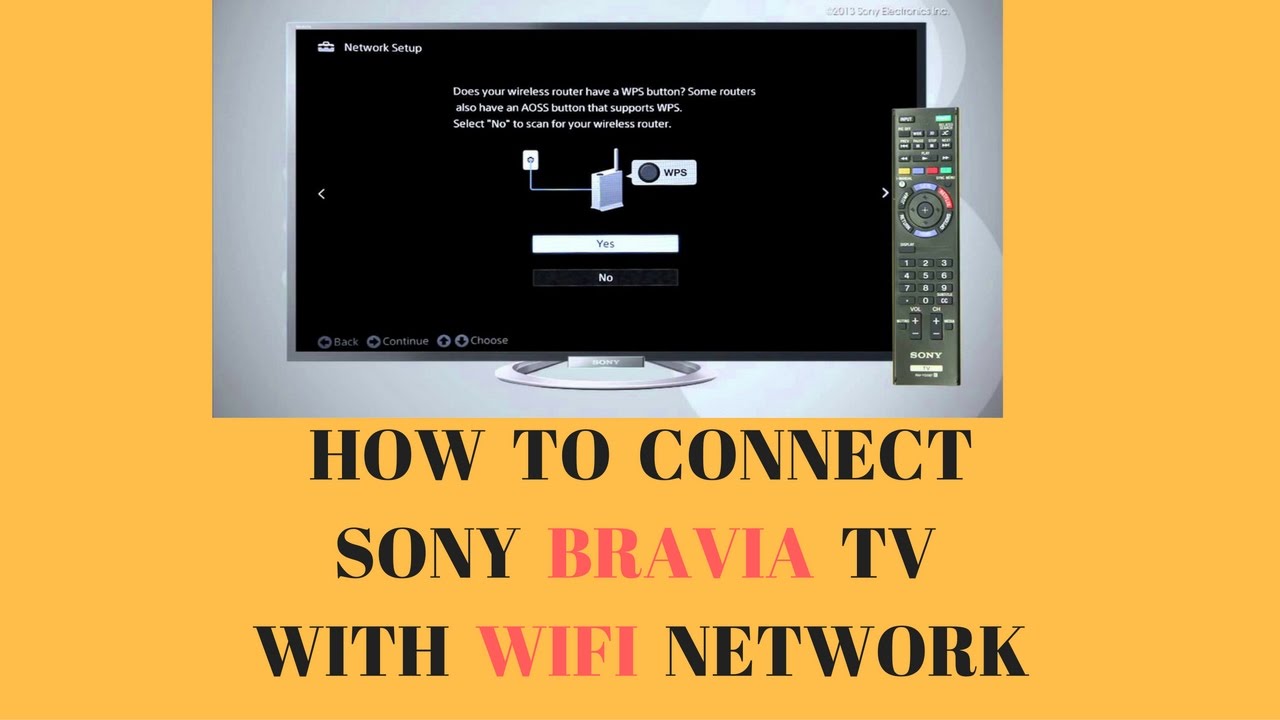
How to Connect a Sony TV to Wi-Fi Without a Remote
To connect your Sony TV to Wi-Fi without a remote, the most effective methods involve plugging a standard USB mouse or keyboard into the TV's USB port to navigate the settings menu, or using an Ethernet cable for a temporary wired conn...
To connect your Sony TV to Wi-Fi without a remote, the most effective methods involve plugging a standard USB mouse or keyboard into the TV's USB port to navigate the settings menu, or using an Ethernet cable for a temporary wired connection to enable smartphone-based remote apps.
Contents
Losing or breaking a Sony TV remote can feel like a significant hurdle, especially when you need to reconfigure network settings or move the device to a new location. Sony Bravia televisions, particularly those running Google TV or Android TV interfaces as of 2026, are highly sophisticated computers. Because they are built on flexible operating systems, they offer several hardware and software backdoors that allow users to regain control and access network menus without the original infrared (IR) or Bluetooth remote.
Whether you are dealing with a legacy model or a modern 4K OLED, the following strategies provide reliable pathways to re-establishing your wireless connection.
Preliminary Requirements and Preparation
Before attempting to navigate the interface without a remote, you must identify which operating system your Sony TV uses. Most Sony models released after 2015 run on Android TV, while models from 2021 through 2026 predominantly utilize the Google TV interface. Older, "non-smart" or basic smart Sony TVs use a proprietary Linux-based system.
Identifying Your Ports
Locate the I/O (Input/Output) panel on the back or side of your TV. For these methods to work, you will need to identify:
- USB Ports: Usually labeled USB 1, 2, or 3. These support Human Interface Devices (HID) like mice and keyboards.
- LAN/Ethernet Port: An RJ45 jack used for wired internet.
- Physical Buttons: Often tucked behind the right-side panel or underneath the center logo.
Method 1: Using a USB Mouse or Keyboard
The most straightforward way to bypass a missing remote on a Sony Smart TV is to utilize its built-in support for USB peripherals. Sony's operating system recognizes most standard plug-and-play USB mice and keyboards immediately upon connection.
Steps for USB Mouse Navigation
- Connect the Mouse: Plug a wired or wireless USB mouse into an available port on the TV. If using a wireless mouse, ensure the USB dongle is inserted firmly.
- Activate the Pointer: Move the mouse. A cursor should appear on the screen.
- Navigate to Settings: Click and drag to scroll through the home screen. Locate the Settings icon (usually a gear cog in the top-right corner).
- Enter Network Settings: Navigate to Network & Internet or Setup > Network.
- Select Wi-Fi: Click on your desired Wi-Fi network.
- Enter Password: When the on-screen keyboard appears, use the mouse to click each letter of your password. If you have a USB keyboard connected simultaneously, you can simply type the password.
- Confirm: Click Enter or Connect.
Using a mouse is often faster than using a remote because it allows for rapid scrolling and precise selection. If your TV has multiple USB ports, using a keyboard and mouse combo is the most efficient "remote-less" setup possible.
Method 2: The Ethernet "Bridge" to Mobile App Control
If you do not have a spare USB mouse, you can use a "bridge" method. Most remote apps, including the official Sony Bravia Connect (formerly Video & TV SideView) and the Google TV app, require the phone and the TV to be on the same network. Since your TV isn't on the Wi-Fi yet, you can use an Ethernet cable to get it online temporarily.
Step-by-Step Ethernet Setup
- Hardwire the TV: Connect an Ethernet cable from your router directly to the LAN port on the back of the Sony TV.
- Automatic Connection: Sony TVs are configured by default to prioritize a wired connection. The TV should automatically detect the internet without any user input.
- Download the App: On your smartphone, download the Google TV app (available on iOS and Android) or the Sony Bravia Connect app.
- Sync the Device: Ensure your phone is on the same Wi-Fi network that the router is providing to the TV via the cable. Open the app and select "Remote" or "Connect to Device."
- Navigate to Wi-Fi Settings: Use the virtual remote on your phone to navigate to Settings > Network & Internet > Wi-Fi.
- Configure Wireless: Select your Wi-Fi network and enter the credentials. Once the Wi-Fi is saved and connected, you can unplug the Ethernet cable, and the TV will remain connected via Wi-Fi.
Method 3: The Mobile Hotspot Trick (SSID Mimicry)
This is an "expert" workaround that is particularly useful if your TV was previously connected to a different Wi-Fi network (for example, if you moved houses or changed routers) and you no longer have that specific router.
Sony TVs remember the SSID (Network Name) and Password of previous connections. If you can replicate that exact environment, the TV will connect automatically.
- Identify Old Credentials: Recall the exact name and password of the Wi-Fi network the TV last successfully used.
- Set Up Hotspot: On a smartphone, go to settings and create a Mobile Hotspot.
- Rename Hotspot: Change the Hotspot's SSID to match the old network name exactly (case-sensitive).
- Match Password: Set the hotspot password to match the old network's password.
- Automatic Link: Within a minute, the Sony TV should detect the hotspot and connect to it automatically, thinking it is the old home network.
- Use a Remote App: Now that the TV is "online" via your hotspot, use a second smartphone (connected to the same hotspot) to run a remote app and navigate the TV settings to connect it to your new permanent Wi-Fi.
Method 4: Physical Buttons and Hardware Navigation
Modern Sony TVs have moved away from complex physical buttons, often featuring only a single "Power" button or a small directional joystick. However, these can still be used for basic navigation if you are patient.
- The Single Button Logic: On many Bravia models, a short press of the power button cycles through inputs or menu items, while a long press acts as an "Enter" or "Select" command.
- The Three-Button Array: Some models feature Power, Volume Up, and Volume Down. In many cases, pressing Volume Up and Down simultaneously can act as a trigger for a hidden menu, though this is less common in the 2026 model lineups.
While physical buttons are rarely sufficient to type in a 16-character Wi-Fi password, they can be used to trigger a WPS (Wi-Fi Protected Setup) connection if your router and TV both support it.
| Method | Ease of Use | Requirements | Best For |
|---|---|---|---|
| USB Mouse | High | Wired/Wireless Mouse | Most users; precise navigation. |
| Ethernet Cable | Medium | Router nearby + Cable | Users with a smartphone but no remote. |
| SSID Mimicry | High | Knowledge of old Wi-Fi credentials | People who moved or changed routers. |
| Physical Buttons | Low | Patience | Last resort; triggering WPS. |
| Universal Remote | High | Purchase of $10–$20 hardware | Permanent replacement solution. |
Method 5: Using a Universal Remote or IR Blaster
If software and peripheral workarounds fail, hardware replacement is the next logical step. In 2026, many smartphones no longer include built-in IR blasters, but dedicated universal remotes are more affordable than ever.
- Standard Universal Remotes: Most generic remotes found at big-box retailers include "Sony" codes that work instantly with Bravia TVs.
- Sony-Specific Replacements: You can purchase non-OEM Sony replacement remotes that do not require programming. They work via infrared right out of the box, allowing you to access the Home menu and Wi-Fi settings immediately.
Troubleshooting Connection Issues
Even after you regain control of the interface, you may encounter issues connecting to the network.
- Date and Time Errors: If your Sony TV connects to the Wi-Fi but says "Connected, No Internet," check the Date & Time settings. If the TV's internal clock is significantly different from the current time in 2026, security certificates will fail, blocking internet access. Set the time to "Use Network-Provided Time."
- 2.4GHz vs. 5GHz: Some older Sony models struggle with 5GHz bands if the signal is weak or if the router uses Wi-Fi 6E/7 protocols that the TV's older hardware cannot decode. Try connecting to a 2.4GHz band for better stability.
- IP Conflict: If the TV fails to obtain an IP address, restart both the router and the TV. To restart a Sony TV without a remote, unplug it from the wall for 60 seconds and plug it back in.
FAQ
Can I use the Sony Bravia Connect app if my TV isn't on Wi-Fi?
No, the app communicates with the TV over the local network. You must first get the TV on the network using an Ethernet cable or a USB mouse before the app can "see" the television.
Does every Sony TV support a USB mouse?
Almost all Sony Bravia models released in the last decade (Android TV and Google TV eras) support standard USB HID devices. Some very old "dumb" TVs or early-generation smart TVs may not support mouse cursors.
How do I type the Wi-Fi password with just a mouse?
When you click on the password entry field in the Sony network settings, an on-screen QWERTY keyboard will appear. You can click the individual keys with the mouse cursor to enter your password.
What if my TV is mounted and I can't reach the USB ports?
If the ports are inaccessible, the Ethernet method is your best option, as the LAN port is often positioned differently, or you may already have an Ethernet drop behind the TV. Otherwise, using the "SSID Mimicry" hotspot trick requires no physical access to the ports.
Can I use a game controller to navigate?
Yes, if you have a PS4, PS5, or Xbox controller, you can plug it into the USB port. The directional pad (D-pad) and "A" or "X" buttons usually work to navigate the Sony TV menus, similar to a remote.
Final Recommendation
For the fastest and most reliable solution, plug a USB mouse into your Sony TV. It provides immediate, intuitive control over the interface, allowing you to navigate to the Wi-Fi settings and enter your password in minutes. Once the connection is established, download the Google TV app or the Sony Bravia Connect app on your smartphone to serve as a permanent remote replacement until you can purchase a new hardware remote.
Image Gallery