How to Use a Controller in Brawl Stars: A Technical Analysis
Brawl Stars is natively designed as a touch-first mobile game, meaning the developer, Supercell, has not implemented direct, plug-and-play controller support within the application. Players attempting to use external gamepads must rely...
Brawl Stars is natively designed as a touch-first mobile game, meaning the developer, Supercell, has not implemented direct, plug-and-play controller support within the application. Players attempting to use external gamepads must rely on third-party peripheral mapping software or operating system accessibility features, which carry inherent risks of input latency, potential account flagging, or inconsistent control sensitivity.
Contents
Understanding the Technical Landscape
The primary challenge for players wanting to use a controller in Brawl Stars is the intentional design choice by the developers to prioritize touch-screen input. The game’s mechanics—specifically the twin-stick movement and aiming system—are mapped to specific coordinate-based triggers on a mobile display. Because the game engine does not recognize standard HID (Human Interface Device) controller inputs like a console game would, simple Bluetooth pairing is insufficient to move your character or fire your abilities.
When you connect a controller to a smartphone, your device recognizes it as a generic input device. However, without a translation layer, those signals do not correspond to the game's virtual joystick locations. Bridging this gap requires software that "maps" specific button presses or analog stick movements to exact coordinate points on your touch screen.
Prerequisites for Peripheral Integration
Before attempting to bridge your controller and the game, ensure your hardware meets the minimum requirements for a stable connection:
- Operating System: Android 12 or higher is recommended for better input peripheral management. iOS devices are significantly more restrictive due to Apple’s walled-garden approach to hardware interaction.
- Peripheral Compatibility: Use controllers that support standard Bluetooth HID protocols, such as Xbox Wireless Controllers or PlayStation DualShock/DualSense controllers.
- Firmware: Ensure both your smartphone and your controller are updated to their latest available firmware to minimize handshake errors during connection.
The Mechanism of Input Mapping
Since native support is absent, players often turn to "Keymapping" software. These tools function by creating an overlay on top of the game interface. When you press a button on your controller, the software sends a command to the operating system that mimics a tap or a drag at a pre-configured set of (X,Y) coordinates on your screen.
Steps for Configuration
- Pairing: Navigate to your phone’s Bluetooth settings and pair your controller. Confirm the device is "Connected" in your OS settings before opening any apps.
- Mapping Software Selection: Choose an established third-party mapping utility (often found on the Google Play Store). These applications are frequently used for mobile FPS and MOBA titles.
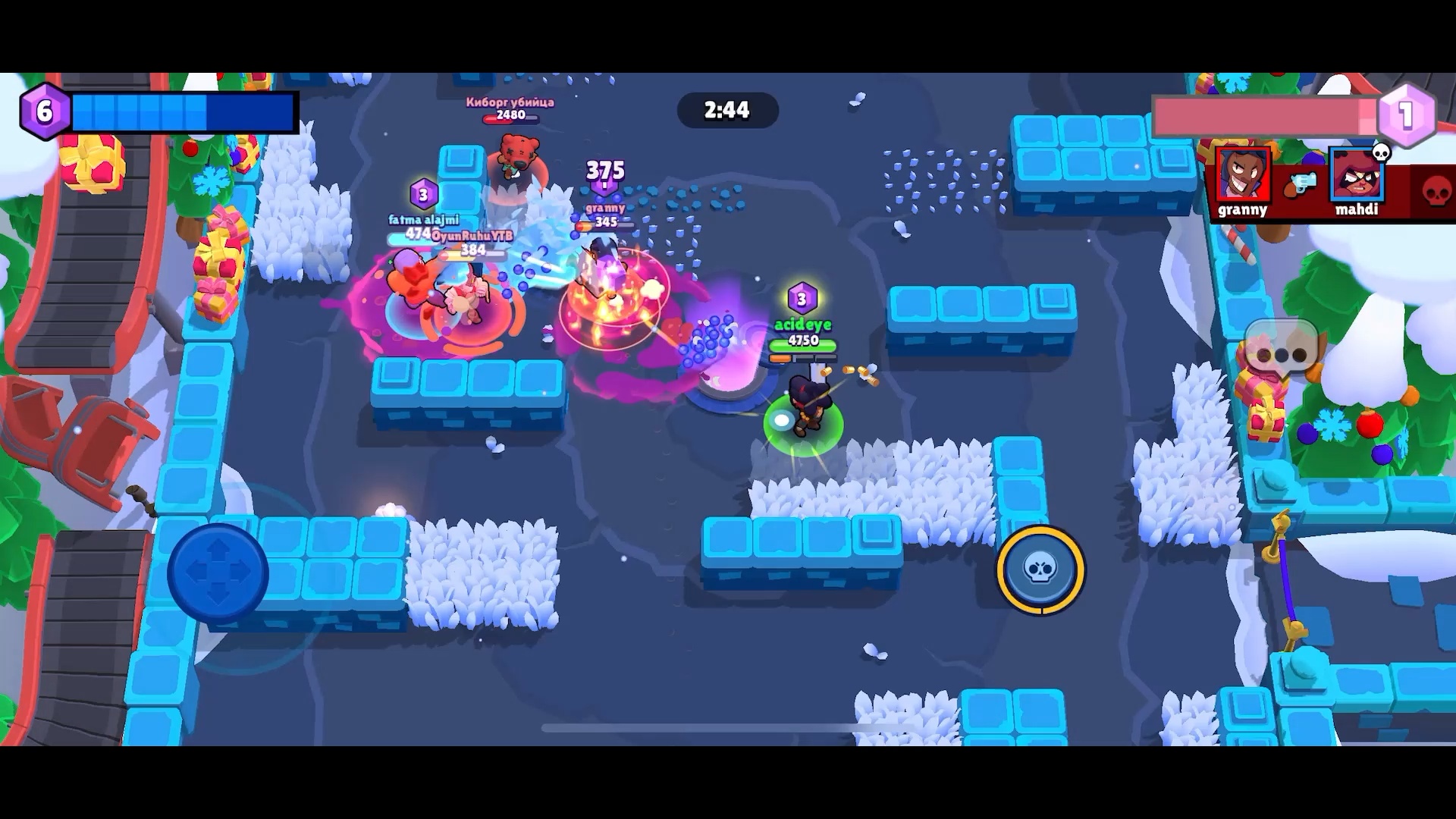
- Coordinate Calibration: Within the mapping software, open Brawl Stars. The app will provide a translucent interface where you can drag virtual button icons over the game's actual UI elements. For example, you must drag the "Left Stick" icon over the game's movement joystick and the "Right Stick" icon over the attack joystick.
- Sensitivity Adjustment: Fine-tune the "dead zones" of the analog sticks. Because the game is intended for touch, the sensitivity of a physical stick may feel "jumpy" if the mapping software's dead zone settings are not calibrated correctly to match the game's movement acceleration curves.
Risks and Considerations
It is critical to understand that using third-party mapping software falls into a legal and technical gray area. Supercell’s Terms of Service generally prohibit the use of unauthorized third-party software that interacts with the game client in a way that provides an unintended advantage or modifies the game's normal operation.
While many mapping apps are technically "overlay" tools rather than "game hacks," automated systems can occasionally mistake these overlays for prohibited macro software or unauthorized modifications. Players using these methods do so at their own risk; if the game’s security systems flag the overlay as an unauthorized modification, there is a risk of account suspension or permanent banning. Furthermore, because these tools act as an intermediary, they frequently introduce input latency (lag), which can be detrimental in a fast-paced game like Brawl Stars where split-second reaction times are required.
Comparative Analysis of Control Methods
| Feature | Touch Controls (Native) | Third-Party Controller Mapping |
|---|---|---|
| Responsiveness | Instant (Low Latency) | Variable (Potential Latency) |
| Setup Effort | None (Plug & Play) | High (Manual Calibration) |
| Reliability | Native Integration | Risk of software crashes |
| Account Safety | Safe | Potential risk of TOS violation |
| Precision | High (for aim-assist) | Dependent on mapping quality |
Troubleshooting Common Issues
If you have successfully mapped your controller but find the gameplay experience lacking, consider the following technical issues:
- Drift or "Ghosting": This occurs when the coordinate mapping is slightly off-center. Re-calibrate your software to ensure the center of the virtual joystick icon matches the exact center of the on-screen movement circle.
- Intermittent Connection: If the controller keeps disconnecting, check for battery levels or signal interference. If using an Android device, check "Developer Options" to see if there are any battery-saving restrictions throttling the mapper app's background activity.
- In-Game UI Obscuration: Mapping software often leaves UI elements on the screen. If you find these distracting, check the settings within the mapping app to reduce the transparency of their interface once your controls are locked in.
Frequently Asked Questions
Does Brawl Stars support controllers natively? No. Brawl Stars does not have built-in support for gamepads. The game is designed strictly for touch-screen input, and developers have not provided any roadmap or intent to introduce native controller compatibility.
Will using a controller get me banned? Using third-party mapping software to simulate touch controls is a violation of the spirit of Supercell’s terms regarding unauthorized software. While many users utilize these tools, you are technically utilizing an unapproved interface, and the game’s anti-cheat systems may flag your account. Use this method at your own discretion.
Is it easier to play with a controller? For most players, it is not easier. The game’s aim-assist system is specifically tuned for touch-screen drag-and-release motions. A physical controller often struggles to mimic the "flick" motion required for quick-fire attacks, leading to slower reaction times and less precise skill-shot placement compared to experienced touch-screen users.
Can I use a controller on iOS? Using a controller on iOS via mapping software is significantly harder than on Android due to strict operating system limitations. Apple does not allow applications to overlay or intercept touch inputs in the same manner as Android, making a viable, safe, and functional controller setup nearly impossible for the average user without complex workarounds that involve physical hardware adapters or jailbreaking, which are not recommended.
Why does the movement feel "stiff" when using a mapper? This is typically due to a lack of "acceleration curves." Touch input allows for varying degrees of pressure and distance from the center of the joystick. Most mappers translate an analog stick movement as a binary (either on or off) or a fixed-velocity input. This lack of finesse can make character movement feel robotic or "stiff" during high-intensity engagements.
Recommendation
If your goal is to improve your performance in Brawl Stars, the most effective path is to master the native touch controls rather than attempting to force a controller-based input. The game’s mechanics—especially auto-aim and manual aiming arcs—are optimized specifically for the tactile feedback of a glass screen. If you find the phone screen too small or your fingers obstructing your view, consider using a high-quality stylus or adjusting the UI layout settings within the game to better fit your hand size and grip style. Only pursue third-party mapping solutions if you are fully aware of the potential for account security risks and are prepared for a sub-optimal, high-latency user experience compared to native play.
Image Gallery