How to Get the One UI Home APK Safely and Effectively
Obtaining the One UI Home APK involves downloading the official launcher package file designed for Samsung Galaxy devices, typically from reputable repositories like APKMirror. This process is primarily used by enthusiasts to test newe...
Obtaining the One UI Home APK involves downloading the official launcher package file designed for Samsung Galaxy devices, typically from reputable repositories like APKMirror. This process is primarily used by enthusiasts to test newer versions of the interface before they reach their specific device via official over-the-air firmware updates or to resolve software-related launcher glitches.
Contents
Understanding the One UI Home Launcher
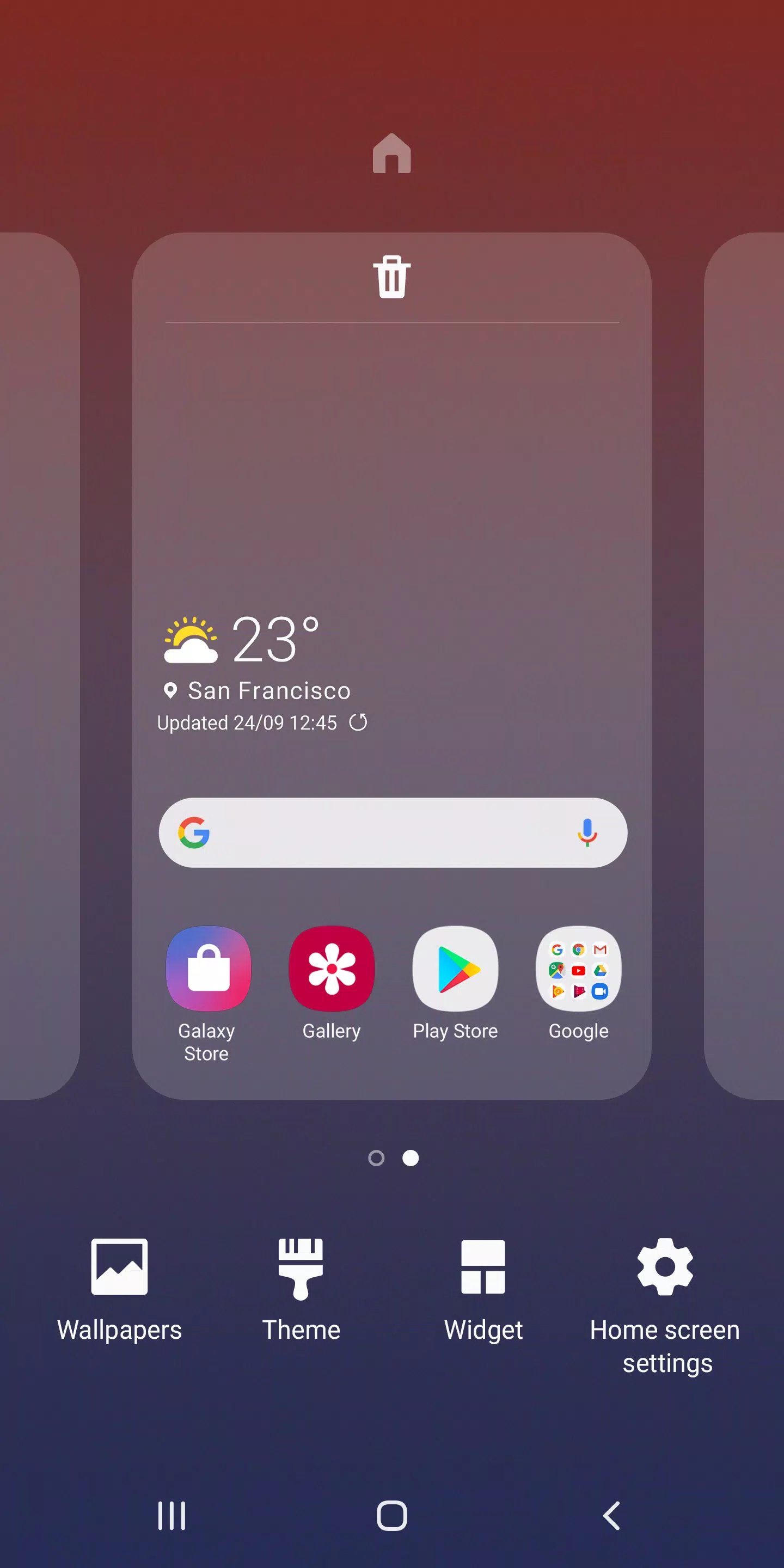
One UI Home is the proprietary home screen launcher developed by Samsung. It manages the app drawer, home screen layout, widgets, and the overall navigation experience on Galaxy smartphones and tablets. Unlike third-party launchers available on the Google Play Store, One UI Home is deeply integrated into the Samsung ecosystem, relying on system-level permissions and frameworks that are exclusive to Samsung’s One UI software overlay.
When users search for the "One UI Home APK," they are essentially looking for the installer file for this system application. Because this is a core system component, it is not distributed as a standalone app on the Google Play Store. Instead, Samsung updates it alongside major Android version upgrades or through the Galaxy Store. Manually installing an APK bypasses these standard update channels, offering a method to "sideload" the software.
Prerequisites and Compatibility Requirements
Before attempting to install a One UI Home APK, you must verify several technical factors. Failure to meet these requirements can lead to "App not installed" errors, persistent UI crashes, or the total failure of the home screen to render.
Hardware and Software Dependencies
- Samsung Device Only: The One UI Home APK contains proprietary code that calls upon Samsung’s framework (Knox, Bixby integration, etc.). It will not function on non-Samsung Android devices.
- Android Version Matching: Each version of One UI Home is compiled against a specific Android API level. For example, a version of One UI Home designed for Android 15 (One UI 7) may not function correctly on a device running Android 14 (One UI 6). You must match the APK version to your device’s current operating system.
- Signature Verification: Android security protocols require that an APK update must be signed by the same developer key as the version currently installed. If the APK you downloaded is not signed by Samsung, or if there is a conflict in the package signature, the installation will be blocked by the Android Package Installer.
Risks of Sideloading System Apps
Sideloading—the process of installing software from sources outside of the official Google Play Store or Galaxy Store—carries inherent risks. While One UI Home is a system application, acquiring it from unverified, third-party hosting sites can expose your device to malicious payloads.
- Malware Risks: Sites that host pirated or modified APKs may inject malicious code, tracking scripts, or ad-ware into the package. Only use trusted, community-vetted repositories.
- System Instability: Since One UI Home manages the fundamental user interface, a corrupted or incompatible APK can render your phone unusable, necessitating a factory reset.
- Security Patch Mismatches: Manually updating core components can occasionally interfere with the integrity of system-wide security patches, potentially triggering a warning from the Knox security platform.
Step-by-Step Procedure for Manual Installation
If you have verified your compatibility and have a legitimate reason to proceed, follow these steps to install the APK safely.
1. Enable Installation from Unknown Sources
By default, Android blocks the installation of apps from unknown sources.
- Navigate to Settings > Security and Privacy.
- Select Install unknown apps.
- Locate the browser or file manager you are using to download the APK (e.g., Chrome or My Files).
- Toggle the Allow from this source switch to the On position.
2. Sourcing the APK
The most reliable source for APK files is APKMirror. This platform verifies the cryptographic signatures of APKs to ensure they are official, untampered files released by the original developer (in this case, Samsung Electronics). Avoid sites that offer "modded" launchers, as these often contain unauthorized code changes.
3. Installing the Package
Once downloaded, locate the file in your My Files app or the browser’s Downloads folder. Tap the APK file. A prompt will appear asking if you want to update the existing application. Tap Install. After the progress bar completes, the system will automatically overwrite the previous version with the new one.
4. Post-Installation Troubleshooting
If the home screen fails to load or flickers after installation, follow these steps:
- Clear Cache: Go to Settings > Apps > One UI Home > Storage and tap Clear Cache.
- Revert to Stock: If the issue persists, go to the same App Info screen and tap the three-dot menu in the top right corner, then select Uninstall updates. This reverts the launcher to the factory-installed version.
Comparison of Installation Methods
| Method | Source | Safety | Requirement |
|---|---|---|---|
| Galaxy Store | Official Samsung | High | Default setup |
| Firmware Update | Official OTA | High | System-wide update |
| APK Sideloading | Third-party Repository | Moderate | Manual intervention |
| Third-Party Launchers | Google Play Store | Variable | Preferences may vary |
Frequently Asked Questions
Will installing a newer One UI Home APK give me features from the latest Samsung phone?
Not necessarily. While the launcher provides the visual interface and grid layouts, many "new features"—such as specific AI editing tools or advanced camera widgets—depend on system-level services and hardware drivers that are not contained within the Home APK.
Can I install One UI Home on a non-Samsung phone?
No. Because the launcher is tightly coupled with Samsung’s proprietary libraries and frameworks (such as the Samsung Account and Bixby services), it will crash immediately upon opening on non-Samsung devices.
Does sideloading the APK void my warranty?
Generally, no. Installing a signed APK from an official source does not modify the bootloader or trip the Knox security bit. However, if your device experiences system damage due to a corrupted file, technical support may require you to perform a factory reset, which could lead to data loss.
Is there a way to verify the file is safe?
Yes. Check the cryptographic signature (MD5 or SHA-256) provided on the hosting site against the developer's known signature. Reputable sites like APKMirror handle this verification for you; if a file is not signed by Samsung, they typically label it as such or refuse to host it.
Why does my phone say "App not installed"?
This is usually caused by a signature mismatch. It occurs if the APK you are trying to install was not signed by Samsung (e.g., a modified file) or if the version you are trying to install is older than the one currently on your device.
Recommendation
If your goal is to access the latest interface features, the most stable and recommended path is to wait for the official firmware update via Settings > Software update. Sideloading the One UI Home APK should be reserved for advanced users who understand the risks of software instability. If you do proceed, always use a reputable, signature-verified repository and ensure you have a backup of your home screen layout before initiating the update.
Image Gallery