How Timon's Voice Works in Disney Dreamlight Valley: Voice Actor, Audio Mechanics, and Settings Guide
In Disney Dreamlight Valley, Timon’s voice operates through a selective audio system combining dynamic sound barks, localized greeting lines, contextual emotional cues, and specialized companion audio triggers. Recorded by veteran voic...
In Disney Dreamlight Valley, Timon’s voice operates through a selective audio system combining dynamic sound barks, localized greeting lines, contextual emotional cues, and specialized companion audio triggers. Recorded by veteran voice actor Bruce Lanoil, Timon’s audio uses targeted voice clips paired with text-based dialogue rather than fully voiced quest cutscenes to maintain game performance across platforms.
Contents
The Voice Actor Behind Timon: Character Casting and Legacy
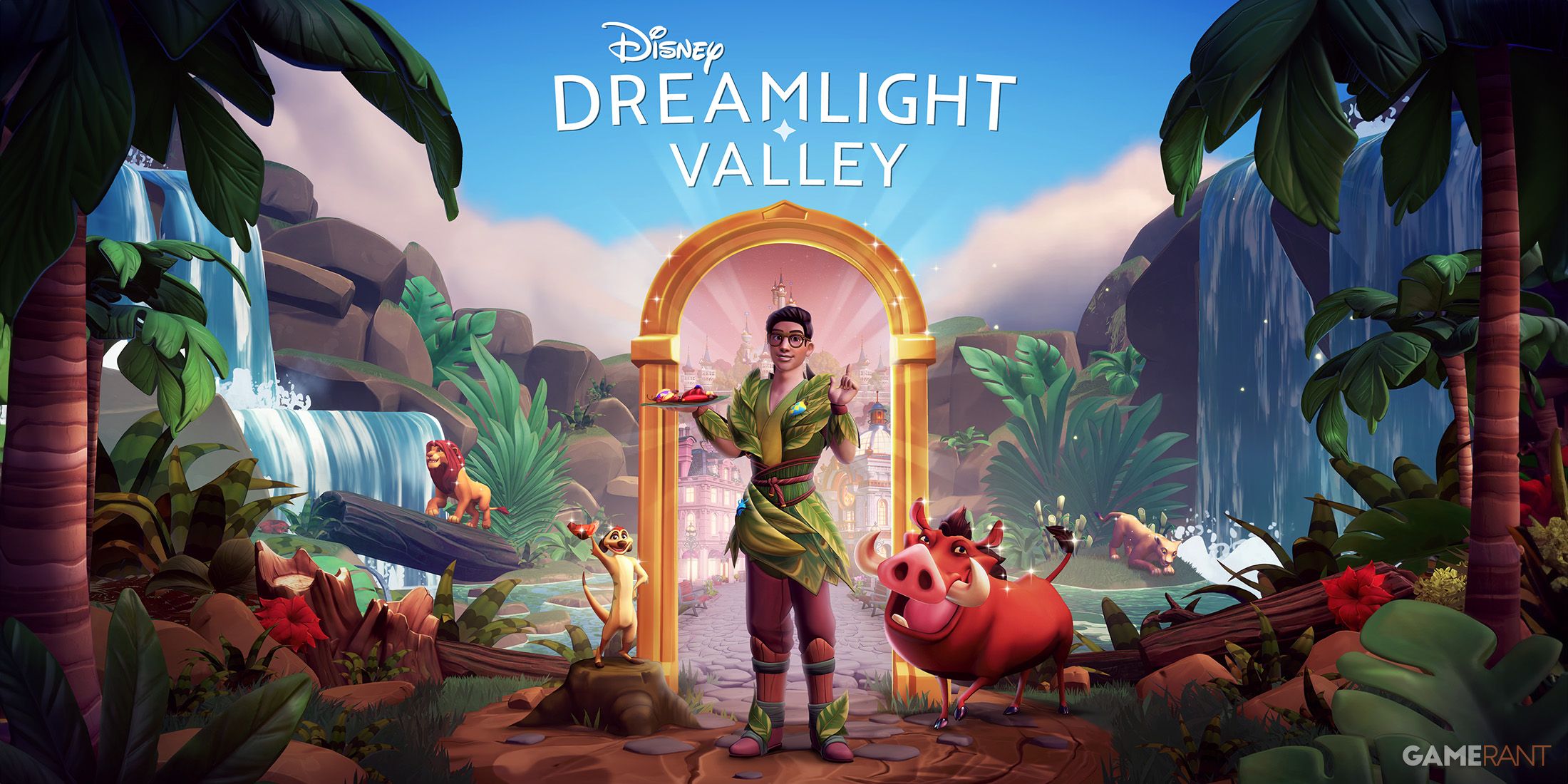
Timon was officially introduced to Disney Dreamlight Valley alongside his trusted warthog companion, Pumbaa, in the Jungle Getaway update. To bring the iconic meerkat to life, developer Gameloft enlisted veteran voice actor Bruce Lanoil, who has portrayed Timon across numerous Disney interactive projects, television series, and live events for over two decades.
While Nathan Lane originally voiced Timon in Disney’s 1994 animated classic The Lion King, Disney frequently utilizes specialized voice match talent for video games and extended media universe appearances. Bruce Lanoil’s performance in Disney Dreamlight Valley mirrors the fast-talking, energetic, and slightly sarcastic vocal cadence established in the original film.
Voice Acting Continuity in Disney Media:
- Nathan Lane (Original 1994 Film)
- Bruce Lanoil (Games / Animation / Dreamlight Valley)
Lanoil’s vocal recording sessions for Gameloft required capturing hundreds of distinct sound bites, including:
- Signature catchphrases (such as "Hakuna Matata!" and bug-related humor)
- Short localized exclamations for multi-language release builds
- Context-specific grunts, chuckles, gasps, and sighs tied to dialogue emotion tags
- Dynamic ambient calls used when roaming the Valley or interacting with Pumbaa
By using an experienced voice actor familiar with the character's traditional pitch and comedic timing, Gameloft preserves audio consistency while integrating Timon into the ongoing storyline of the Valley.
How Gameloft Implements Audio in Disney Dreamlight Valley
To understand how Timon’s voice works, it helps to examine the underlying audio architecture of Disney Dreamlight Valley. Unlike cinematic story-driven single-player games that feature 100% full voice acting for every written dialogue string, Disney Dreamlight Valley uses a hybrid voice bark system.
The Hybrid Voice Bark System
Because Disney Dreamlight Valley features tens of thousands of lines of evolving dialogue across dozens of Disney and Pixar characters, fully voicing every quest line in multiple localized languages would create massive file installation sizes and balloon memory usage on handheld consoles like the Nintendo Switch.
Instead, the audio engine utilizes targeted voice triggers:
- Primary Greeting Barks: When you walk up to Timon and initiate a conversation, the game plays a fully voiced phrase or iconic sound bite (e.g., "Hey kid!", "Need some advice?").
- Text-Box Reaction Cues: As you step through individual text boxes during quests, the voice engine fires short emotional snippets—a sharp gasp, an authoritative whistle, or a brief chuckle—that match the tone of the written response.
- Farewell Audio Stings: Closing a dialogue window triggers a short farewell line before returning control to the player avatar.
This hybrid approach gives the illusion of a fully vocalized character while keeping background audio lightweight and customizable across different operational platforms.
Key Audio Triggers and Voice Mechanics for Timon
Timon’s audio behaviors switch dynamically based on player proximity, active quest steps, buddy assignments, and environmental context.
1. Proximity and Greeting Triggers
When your character moves within a designated radius of Timon inside the Valley or the Lion King Realm, his audio system checks his current state. If he is idling or walking, he will periodically broadcast ambient line triggers. Interacting directly with him instantly interrupts ambient loops to prioritize a high-priority greeting bark.
2. The Companion (Hangout) Audio System
When you assign Timon a Valley Role (such as Foraging, Mining, or Fishing) and ask him to "hang out," his sound engine shifts into companion mode:
- Resource Spawning: When Timon duplicates a gathered item (e.g., throwing extra wild berries or oregano), a triumphant voice line or energetic laughter plays.
- Movement Loops: While running behind the player character, footstep Audio (SFX) is accompanied by subtle, low-volume panting or small vocalizations to make movement feel natural.
- Stamina & Idle Reminders: If your avatar stands still for several seconds while hanging out with Timon, his AI triggers idle animations accompanied by vocal complaints or humor about lounging in the shade.
3. Realm and NPC-to-NPC Dialogues
Timon features specialized audio interactions when positioned near Pumbaa or Simba. When two compatible characters path into proximity with one another, the game triggers localized spatial dialogue. During these conversations, Timon uses character-to-character voice barks while text bubbles appear over their heads.
- Player Proximity Detected: Trigger Greeting Bark ("Hakuna Matata!")
- Open Quest Menu: Play Vocal Reaction (Gasp/Laughter) per Text Page
- Assign Hangout Role: Enable Resource Duplication SFX & Idle Barks
Audio Breakdown: Timon's Voice Output Types
The table below outlines how Timon's audio files are categorized in the game engine and how frequently each voice element triggers during standard gameplay:
| Interaction Type | Audio Trigger Condition | Voice Output Type | Audio Frequency |
|---|---|---|---|
| Initial Interaction | Player presses the talk button near Timon | Full spoken greeting line | Every conversation start |
| Quest Text Navigation | Advancing through text dialogue windows | Short emotional vocalization (grunt, chuckle, sigh) | Per dialogue box step |
| Valley Exploration | Player walks past Timon in the open world | Spatial ambient bark ("Watch the step!") | Moderate (Cool-down timer applied) |
| Hangout Bonus | Extra resource harvested during buddy tasks | Triumphant shout or cheerful laugh | On resource duplicate event |
| NPC-to-NPC Chat | Timon approaches Pumbaa or Simba | Dual-character vocal stings with text bubbles | Periodic when characters meet |
| Dialogue Farewell | Exiting conversation window | Short spoken goodbye line | Every conversation end |
Customizing Audio and Voice Volume Settings
If Timon’s voice lines feel too quiet relative to background music, or if you prefer to adjust how vocal barks trigger during long gaming sessions, Disney Dreamlight Valley provides dedicated audio sliders within the settings menu.
How to Adjust Voice Audio Sliders
Open the main menu by pressing the Pause / Start button.
Navigate to the Settings tab at the top right of the screen.
Select Audio from the left-hand sidebar menu.
Locate the Voice Volume slider.
Pause Menu
Settings
Audio
Voice Volume Slider
- Voice Volume: Controls the master playback level for all character voice barks, including Timon’s greetings, laughs, and emotional cues.
- Sound Effects (SFX) Volume: Controls companion interaction sounds, such as Timon’s footstep audio and resource duplication chimes.
- Music Volume: Controls the background realm and valley soundtrack. Lowering background music slightly can make Timon’s voice lines sound clearer during quest dialogue.
Troubleshooting Timon Voice Glitches and Missing Lines
Occasionally, players may encounter issues where Timon’s voice fails to play, sounds muffled, or gets stuck in a repetitive audio loop. Because the game relies on dynamic audio streaming, these issues can usually be resolved using standard audio troubleshooting steps.
1. Timon is Completely Muted During Dialogue
If Timon moves his mouth and displays text bubbles but plays zero voice barks or emotional cues:
- Check the Streamer Mode Setting: In Settings > Audio, ensure that any options suppressing external audio are toggled off.
- Reset Audio Sliders: Move the Voice Volume slider down to zero, apply changes, and then move it back to 100%. This forces the audio engine to re-initialize character sound banks.
- Restart the Game Client: Completely close Disney Dreamlight Valley to flush cached audio memory files.
2. Repeated or Stacking Voice Barks
If Timon repeats the same greeting line multiple times rapidly when moving near your character:
- Fast Travel Reset: Fast travel to another biome or enter a house, then return to Timon’s location. This clears his current AI pathing loop and resets his proximity sound triggers.
- Unfollow / Re-follow: If Timon is currently hanging out with you, talk to him, select "Let's head out for now" to break the companion link, wait five seconds, and ask him to hang out again.
3. Audio Channels and Spatial Sound Issues
If Timon's voice sounds far away even when standing right next to him:
- Check your system's hardware output settings (Windows, PlayStation, Xbox, or Switch). Ensure your platform sound output matches your physical setup (e.g., set output to Stereo if you are using TV speakers or headphones rather than a 5.1/7.1 Surround System). Incorrect surround settings often route voice barks to non-existent center speakers.
Frequently Asked Questions
Did Nathan Lane voice Timon in Disney Dreamlight Valley?
No. While Nathan Lane voiced Timon in the original 1994 animated film, the character is voiced in Disney Dreamlight Valley by Bruce Lanoil, who has voiced Timon across numerous Disney games and television projects.
Why doesn't Timon speak every line of text during quests?
Disney Dreamlight Valley uses a hybrid audio bark system rather than full voice acting for every line of written dialogue. This design choice optimizes installation file sizes, reduces console memory load, and streamlines multi-language translation management.
How do I unlock Timon to hear his voice lines?
Timon is unlocked by travelling to The Lion King Realm inside the Dream Castle via the Jungle Getaway content update, completing his initial realm quests alongside Pumbaa, and welcoming them both to live in your Valley.
Can I turn off character voices like Timon's without muting the rest of the game?
Yes. You can isolate character voice barks by navigating to Settings > Audio and lowering the Voice Volume slider to zero while keeping the Music and Sound Effects sliders turned up.
Why does Timon make noise when I harvest crops or dig up items?
When Timon is assigned as a companion (using Valley Roles such as Foraging or Mining) and actively hanging out with you, his audio program triggers custom success lines and laughs whenever he duplicates resources for your inventory.
Recommended Next Steps
To get the most out of your audio experience with Timon in Disney Dreamlight Valley:
- Optimize Audio Levels: Go to Settings > Audio and set your Voice Volume to 100% while reducing Music Volume to roughly 70–80% to ensure character barks remain distinct during gameplay.
- Assign a Matching Companion Role: Pair Timon with a role that fits his personality—such as Foraging for bugs and wild plants—to trigger his unique buddy voice lines frequently.
- Verify Platform Audio Output: Ensure your console or PC audio settings match your physical speaker configuration so spatial dialogue triggers correctly when exploring biomes together.
Image Gallery