Comprehensive Apple iOS iPhone Update Overview: A Guide for 2026
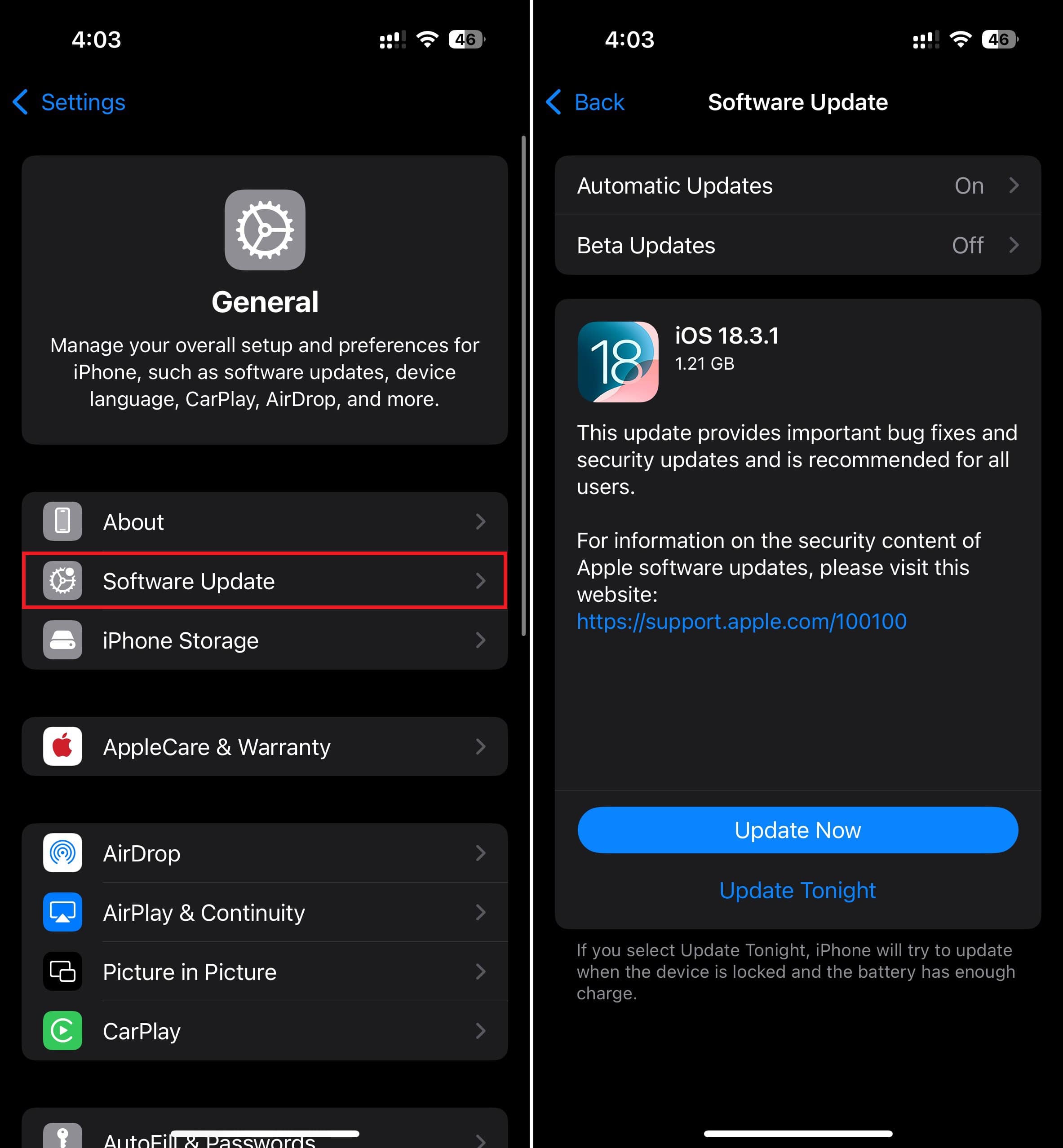
An Apple iOS iPhone update is a software enhancement released by Apple to improve device security, fix bugs, and introduce new features. To update, navigate to Settings > General > Software Update on your iPhone. Ensure your device is...
An Apple iOS iPhone update is a software enhancement released by Apple to improve device security, fix bugs, and introduce new features. To update, navigate to Settings > General > Software Update on your iPhone. Ensure your device is connected to Wi-Fi, has at least 50% battery, and possesses sufficient available storage space.
Contents
The ecosystem of the iPhone is built upon the foundation of iOS, a mobile operating system known for its longevity, security, and frequent iterative improvements. As we navigate through 2026, the importance of understanding the iOS update lifecycle has never been greater. Whether you are using a legacy device or the latest hardware, keeping your software current is the single most effective way to protect your personal data and ensure your device remains compatible with modern applications. This overview provides a deep dive into the mechanics, requirements, and troubleshooting steps for maintaining a healthy iPhone software environment.
The Architecture of iOS Updates: Types and Frequency
Apple categorizes its software releases into three distinct tiers. Understanding these allows users to prioritize which updates require immediate attention and which can be scheduled for a more convenient time.
Major Version Releases
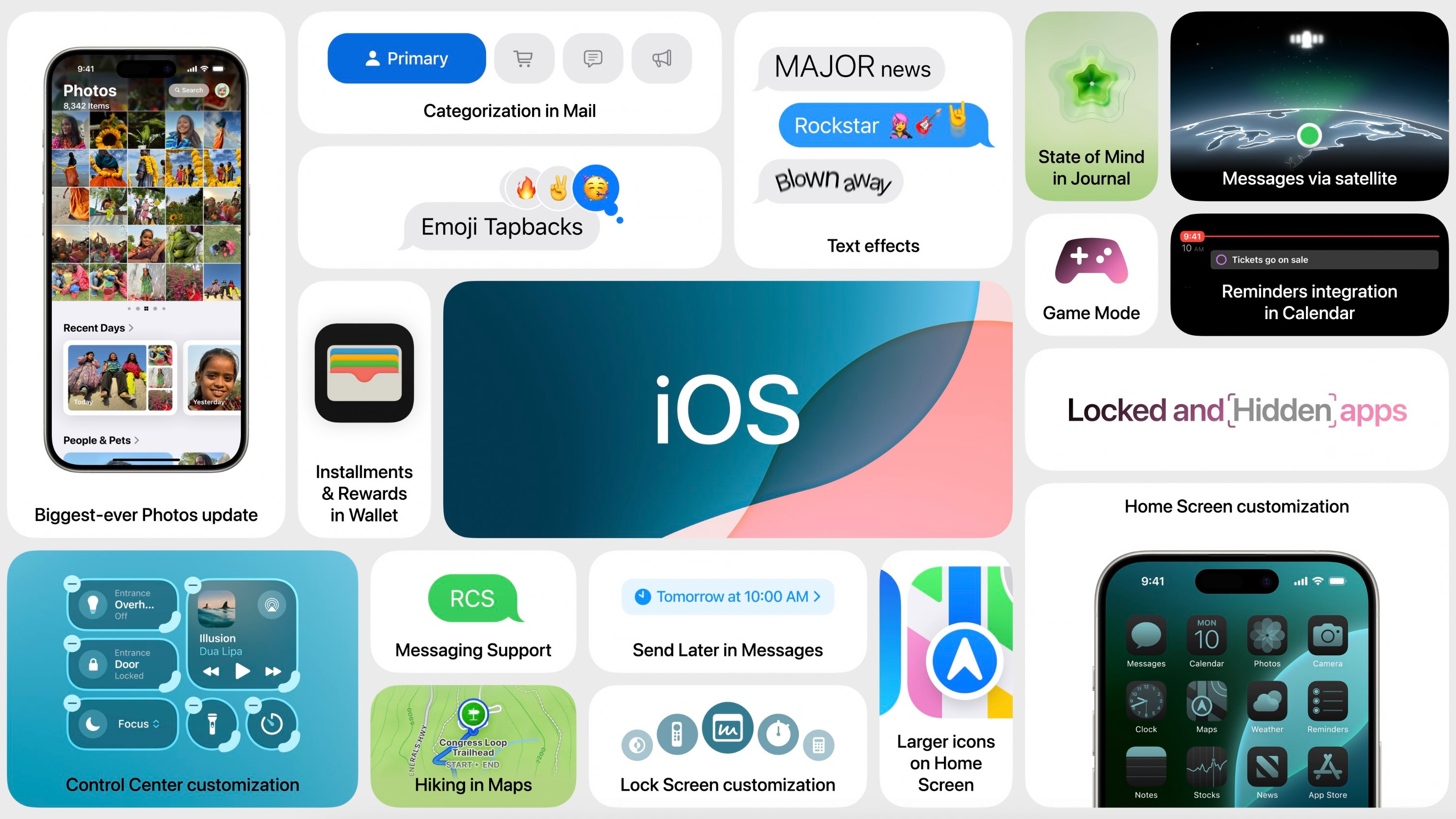
Major updates (e.g., transitioning from iOS 18 to iOS 19) typically arrive every September. these releases introduce significant user interface (UI) overhauls, new system-level features, and updated APIs for developers. Because these files are large—often ranging from 4GB to 6GB—they require substantial free space and a stable high-speed internet connection.
Minor and Point Releases
Point releases (e.g., iOS 19.1 or 19.2) occur throughout the year. These generally focus on refining features introduced in the major release, improving battery life, and addressing widespread bugs reported by the user community. While less transformative than major versions, they are critical for maintaining the operational stability of the device.
Rapid Security Responses and Supplemental Updates
Introduced to provide faster protection against active exploits, Rapid Security Responses (RSR) are small, targeted updates that can be applied without a full system reboot in some cases. These are essential for mitigating "zero-day" vulnerabilities that hackers may be using in the wild. Apple also occasionally issues supplemental updates to fix specific, urgent issues that cannot wait for a scheduled point release.
Prerequisites and Preparation for a Successful Update
Before initiating an update, specific hardware and software conditions must be met. Neglecting these prerequisites is the primary cause of "bricked" devices or failed installations.
- Backup Your Data: While iOS updates are generally safe, the risk of data loss exists. Use iCloud Backup (Settings > [Your Name] > iCloud > iCloud Backup) or connect your iPhone to a computer to create a local backup via the Finder or the Apple Devices app.
- Storage Verification: Major updates require significant overhead. If your iPhone is nearly full, the update may fail or refuse to download. Aim for at least 10GB of free space before a major version jump.
- Power Requirements: Apple prevents updates if the battery is below 50% unless the device is connected to a charger. It is best practice to keep the iPhone plugged into a power source throughout the entire installation process.
- Network Stability: Updates should always be performed over a private, secure Wi-Fi network. Public Wi-Fi is often too slow or unstable, and cellular data updates (while possible on 5G) may incur significant costs or be throttled by carriers.
Methods for Updating Your iPhone
Users have multiple avenues to keep their devices current. Each method has specific advantages depending on the user's technical comfort level and available equipment.
Over-the-Air (OTA) Updates
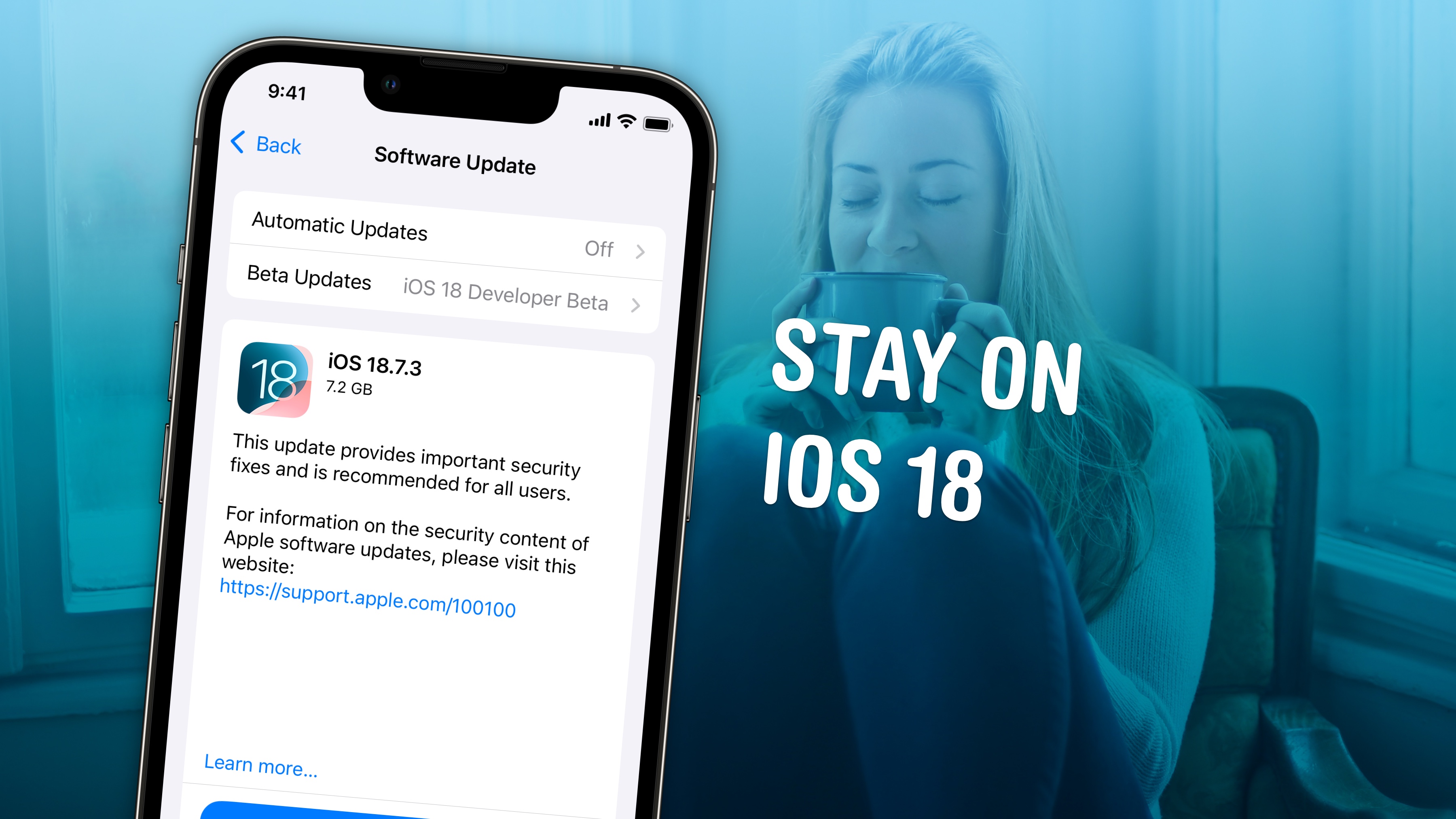
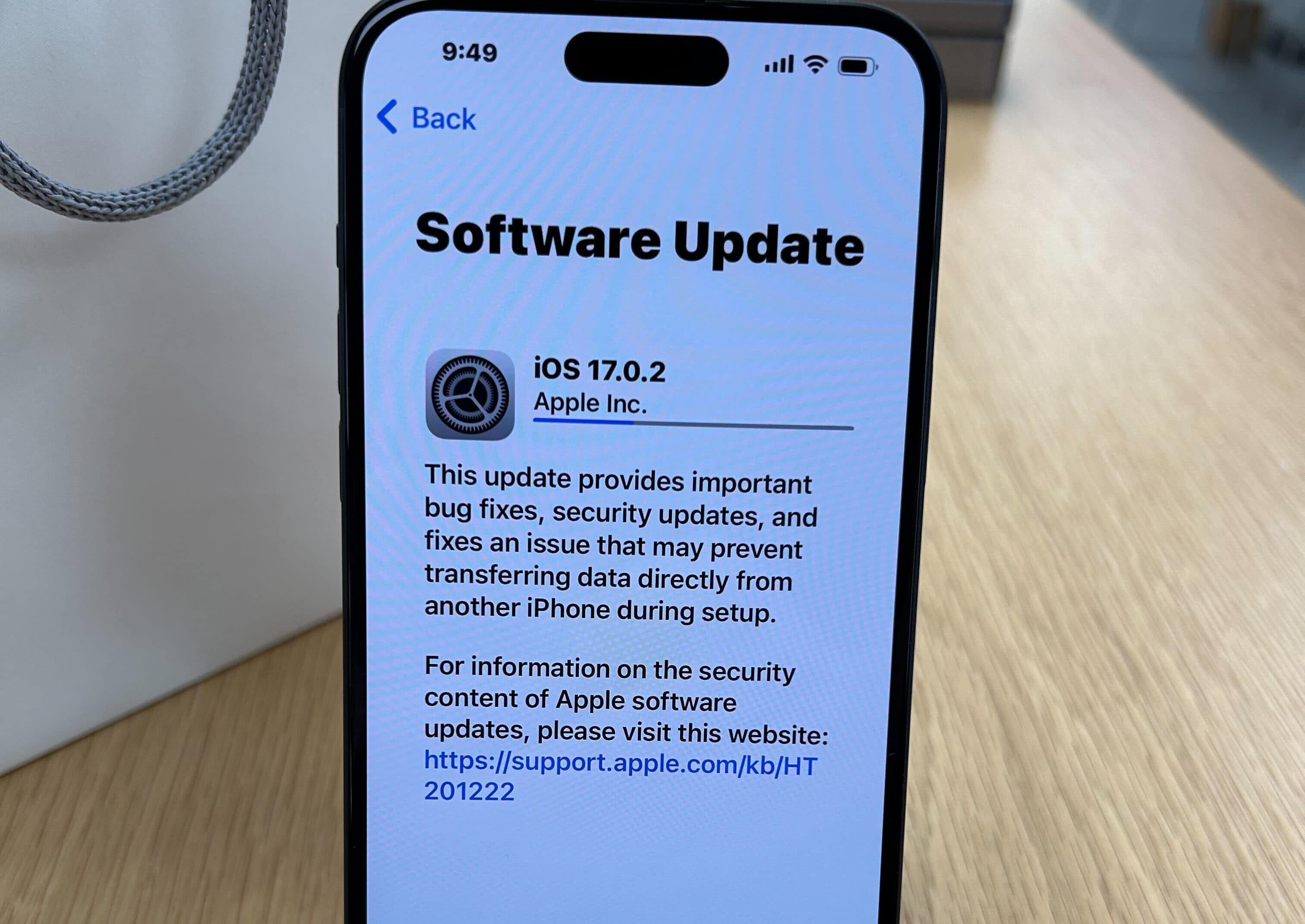
The most common method is the wireless "Over-the-Air" update.
- Navigate to Settings.
- Tap General.
- Select Software Update.
- If an update is available, tap Download and Install.
This method uses "delta" updates, meaning the iPhone only downloads the specific files that have changed, rather than the entire operating system. This saves time and bandwidth.
Updating via Computer (Mac or Windows)
For users experiencing software glitches or those who prefer a "clean" installation, using a computer is superior.
- On macOS (Catalina or later): Connect the iPhone via USB, open Finder, and select the device in the sidebar. Click Check for Update.
- On Windows or older macOS: Use the Apple Devices app or iTunes. Updating through a computer downloads the full IPSW (iPhone Software) file. This process can resolve deep-seated system errors that a standard OTA update might bypass.
Automatic Updates
iOS allows users to automate the process. By enabling Automatic Updates in the Software Update menu, the iPhone will download and install updates overnight while the device is charging and connected to Wi-Fi. Users can choose to toggle "Download iOS Updates" and "Install iOS Updates" separately, providing a layer of control over when the final reboot occurs.
Comparison of Update Methods
| Feature | Over-the-Air (OTA) | Computer (Mac/PC) | Automatic Updates |
|---|---|---|---|
| Effort Level | Low | Medium | Lowest |
| Download Size | Smaller (Delta) | Large (Full Image) | Smaller (Delta) |
| Best For | Routine updates | Fixing bugs/Clean install | Hands-off maintenance |
| Risk of Failure | Low (if Wi-Fi is stable) | Very Low | Low |
| Required Equipment | iPhone only | USB Cable + Computer | iPhone + Charger |
Troubleshooting Common Update Failures
Even with a streamlined process, errors can occur. Most issues stem from network interruptions, server congestion, or storage limitations.
"Unable to Check for Update" or "Unable to Verify Update"
This usually indicates a network issue or a problem with Apple’s servers. During the first 24 hours of a major iOS release, millions of users attempt to download the file simultaneously, which can lead to server timeouts.
- Solution: Toggle Airplane Mode on and off, restart your router, or wait a few hours for server traffic to subside.
The iPhone is Stuck on the Apple Logo or Progress Bar
If the update has not moved for over an hour, the installation may have hung.
- Solution: Perform a Force Restart. Quickly press and release the Volume Up button, then the Volume Down button, and finally press and hold the Side button until the Apple logo appears. If this fails, the device may need to be put into Recovery Mode and updated via a computer.
"Not Enough Space for Update"
If the iPhone cannot clear enough temporary cache to fit the update, it will prompt you to temporarily delete apps.
- Solution: Accept the prompt to temporarily remove apps (they will be reinstalled automatically after the update), or manually delete large videos and "Other" system data.
Why Updates Matter: Security and Longevity
The primary driver for iOS updates is the patch management of security vulnerabilities. Apple regularly reports on "Common Vulnerabilities and Exposures" (CVEs) that are fixed in each version. Many of these patches address "Kernel" level flaws that could allow an attacker to gain deep access to the device's hardware.
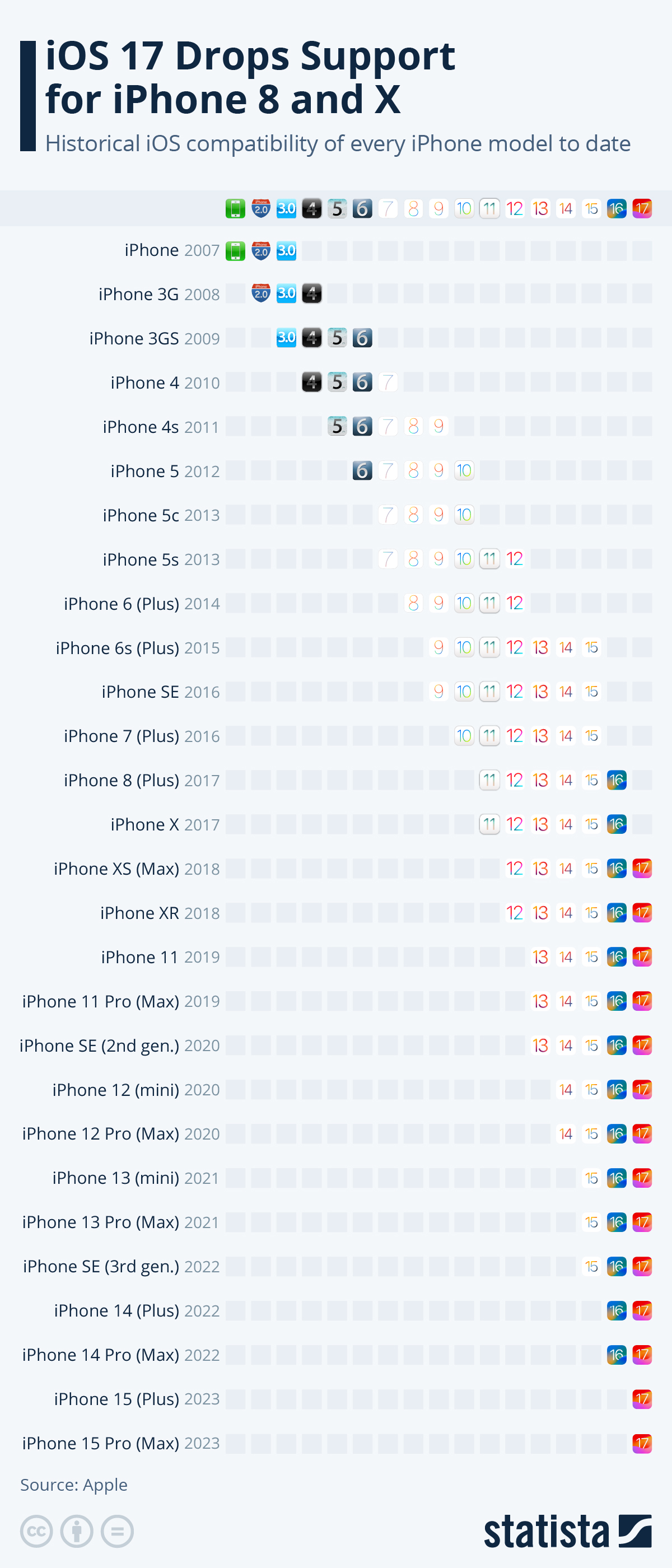
Beyond security, updates ensure that your device remains compatible with the latest apps. As developers update their software to use new iOS features, they eventually drop support for older versions of the operating system. Regularly updating extends the functional life of your iPhone, ensuring that apps like mobile banking, navigation, and social media continue to run smoothly.
For more detailed technical documentation on security patches, users can visit the Apple Security Releases page. Additionally, information regarding hardware compatibility for the latest software versions is available via official Apple Support.
Frequently Asked Questions
Can I downgrade to a previous version of iOS?
Generally, no. Apple "signs" specific versions of iOS. Once a new version has been out for a short period (usually one to two weeks), Apple stops signing the older version. This means that if you encounter bugs in a new update, you cannot easily go back. This policy is enforced to ensure all users remain on the most secure version of the software.
Will updating my iPhone slow it down?
While older hardware may occasionally struggle with the increased processing demands of new features, Apple optimizes modern iOS versions to maintain performance across all supported devices. Often, a slow iPhone is caused by a nearly full storage drive or a degraded battery rather than the software update itself.
Does an iOS update delete my photos or messages?
A standard update is designed to preserve all user data and settings. However, because the update process modifies core system files, there is a non-zero risk of corruption. This is why maintaining a current iCloud or local backup is essential before clicking "Install."
How long does an iPhone update take?
A minor point release may take 10–20 minutes, while a major version upgrade can take 30–60 minutes depending on your internet speed and the processing power of your specific iPhone model. The "Preparing Update" phase is often the longest part of the process, as the device verifies the integrity of the downloaded files.
Why is my iPhone not showing the latest update?
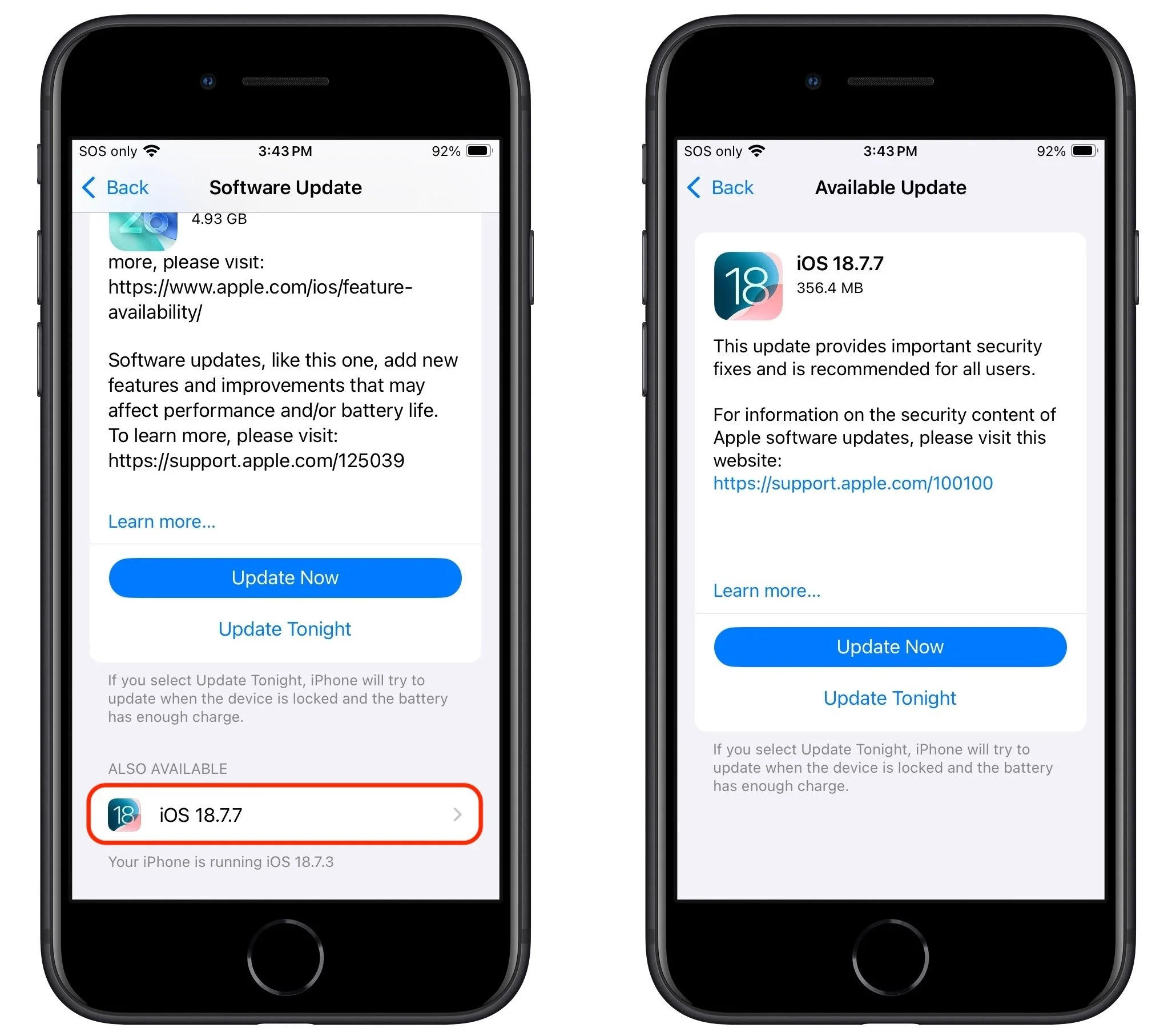
If your iPhone says it is up to date but you know a newer version exists, your device may have reached its "end of life" for software support. Apple typically supports iPhones for 5–7 years. To check if your model is compatible, verify the hardware requirements on the official Apple website for the specific iOS version in question.
Practical Recommendation
To maintain peak performance and security in 2026, enable Automatic Updates for "Security Responses & System Files" immediately. For major version changes (e.g., the jump to iOS 20 later this year), wait 48 hours after the initial release to avoid server congestion and to ensure no critical "day-one" bugs are reported by the early-adopter community. Always perform a full backup before initiating any software transition to safeguard your digital life.
Image Gallery