How to Use the SQLite Database: A Complete Technical Guide
Using an SQLite database involves interacting with a single, cross-platform file through the SQLite command-line interface or a programming library. By executing standard SQL commands, you can create tables, insert records, and perform...
Using an SQLite database involves interacting with a single, cross-platform file through the SQLite command-line interface or a programming library. By executing standard SQL commands, you can create tables, insert records, and perform complex queries without managing a dedicated server process, making it the premier choice for local storage, mobile apps, and edge computing.
Contents
SQLite remains the most widely deployed database engine in the world as of 2026. Unlike traditional database management systems like PostgreSQL or SQL Server, SQLite is "serverless." This does not mean it lacks a database engine; rather, it means the database engine runs as part of the application that accesses it. The entire database—tables, indexes, triggers, and data—is stored in a single disk file. This architectural simplicity is why SQLite is used in everything from high-end smartphones to enterprise-grade web browsers and IoT devices.
Understanding the SQLite Architecture
Before executing your first command, it is essential to understand why SQLite operates differently than other relational databases. In a client-server model, the application communicates with a separate process (the server) over a network or local socket. The server then manages the file system. In SQLite, the library reads and writes directly from the database file on the disk.
This design provides several distinct advantages. It eliminates the need for installation, configuration, or administrative overhead. If you can move a file, you can move the entire database. Furthermore, SQLite is transactional, adhering to ACID (Atomicity, Consistency, Isolation, Durability) properties, which ensures that even in the event of a system crash or power failure, your data remains uncorrupted. In 2026, SQLite's role has expanded significantly in "Local-First" software development, where data is primarily stored on the user's device and synchronized with the cloud asynchronously.
Setting Up the SQLite Environment
To begin using SQLite, you need the SQLite command-line interface (CLI) or a compatible environment. Most macOS and Linux distributions come with SQLite pre-installed. You can verify this by opening your terminal and typing sqlite3. If it is not installed, you can download the precompiled binaries from the official SQLite website.
On Windows, installation involves downloading the "tools" ZIP file, extracting the sqlite3.exe file, and adding the folder path to your system’s Environment Variables. This allows you to call the database engine from any command prompt. For developers working within specific ecosystems, SQLite is typically available as a standard library. For instance, Python has included the sqlite3 module since version 2.5, requiring no additional installation to start building database-driven applications.
Creating and Opening a Database
The first step in using SQLite is creating the database file. In the CLI, this is accomplished by passing the desired filename as an argument. For example, typing sqlite3 enterprise.db will either open the existing file named "enterprise.db" or create a new one if it does not exist.
Once the CLI is active, you are presented with the sqlite> prompt. It is important to distinguish between two types of commands in this environment:
- Dot Commands: These start with a period (e.g., .headers on) and are specific to the SQLite CLI tool for formatting and configuration.
- SQL Statements: These are standard Structured Query Language commands (e.g., SELECT * FROM users;) and must always end with a semicolon.
Defining Data Structures with Tables
SQLite uses a manifest typing system, which is more flexible than the rigid typing found in other databases. While you define data types during table creation, SQLite will not necessarily prevent you from storing a string in an integer column, though it is best practice to adhere to your defined schema.
To create a table, you use the CREATE TABLE statement. Consider a scenario for a 2026 inventory system:
CREATE TABLE products ( id INTEGER PRIMARY KEY AUTOINCREMENT, name TEXT NOT NULL, price REAL DEFAULT 0.0, stock_count INTEGER );
In this example, INTEGER PRIMARY KEY AUTOINCREMENT ensures that every entry has a unique identifier that increases automatically. The TEXT type handles strings, and REAL handles floating-point numbers. Defining these constraints early prevents data integrity issues as the application scales.
Managing Data: The CRUD Workflow
CRUD stands for Create, Read, Update, and Delete. These four operations represent the vast majority of interactions you will have with an SQLite database.
Inserting Data (Create)
To add information, use the INSERT INTO command. It is vital to specify the columns you are populating to avoid errors if the table schema changes later. INSERT INTO products (name, price, stock_count) VALUES ('Quantum Processor', 499.99, 50);
Querying Data (Read)
The SELECT statement is used to retrieve data. To make the output readable in the CLI, use the dot commands .mode box or .mode column followed by .headers on. SELECT name, price FROM products WHERE stock_count > 10;
Modifying Data (Update)
When updating records, the WHERE clause is critical. Omitting it will update every single row in the table, which is a common and costly mistake. UPDATE products SET stock_count = 45 WHERE id = 1;
Removing Data (Delete)
Similar to updates, deletions should be targeted using specific identifiers. DELETE FROM products WHERE id = 1;
Advanced Optimization and Performance
As your database grows, performance can degrade if not properly managed. SQLite provides several mechanisms to maintain high-speed operations even with millions of records.
Indexing for Speed
An index is a data structure that allows the database to find rows more quickly. Without an index, SQLite must perform a "full table scan," checking every row to see if it matches your query. CREATE INDEX idx_product_name ON products(name); While indexes speed up read operations, they slightly slow down write operations because the index itself must be updated. Therefore, you should only index columns that are frequently used in WHERE clauses or JOIN operations.
Write-Ahead Logging (WAL) Mode
By default, SQLite uses a rollback journal for atomicity. However, in 2026, most high-performance applications switch to WAL mode. This allows multiple readers to access the database simultaneously while a write operation is in progress, significantly improving concurrency. You can enable this by running: PRAGMA journal_mode=WAL;
Database Maintenance with VACUUM
When data is deleted or updated in SQLite, the file size on the disk does not automatically shrink. Instead, the deleted space is marked as "free" for future use. To reclaim this disk space and defragment the database file, you should periodically run the VACUUM command.
SQLite Feature Comparison
To help determine if SQLite is the right fit for your 2026 project, consider the following comparison against client-server alternatives.
| Feature | SQLite | PostgreSQL / MySQL |
|---|---|---|
| Setup | Zero Configuration | Requires Server Installation |
| Storage | Single Cross-platform File | Complex Data Directory |
| Concurrency | Limited (Better with WAL) | High (Multiple Users) |
| Portability | Excellent (Copy and Paste) | Low (Requires Export/Import) |
| Maximum Size | 281 Terabytes | Practically Unlimited |
| Best Use Case | Apps, Edge, Prototyping | Large-scale Web Services |
Common Tools for Graphical Management
While the CLI is powerful, many users prefer a Graphical User Interface (GUI) to visualize their data.
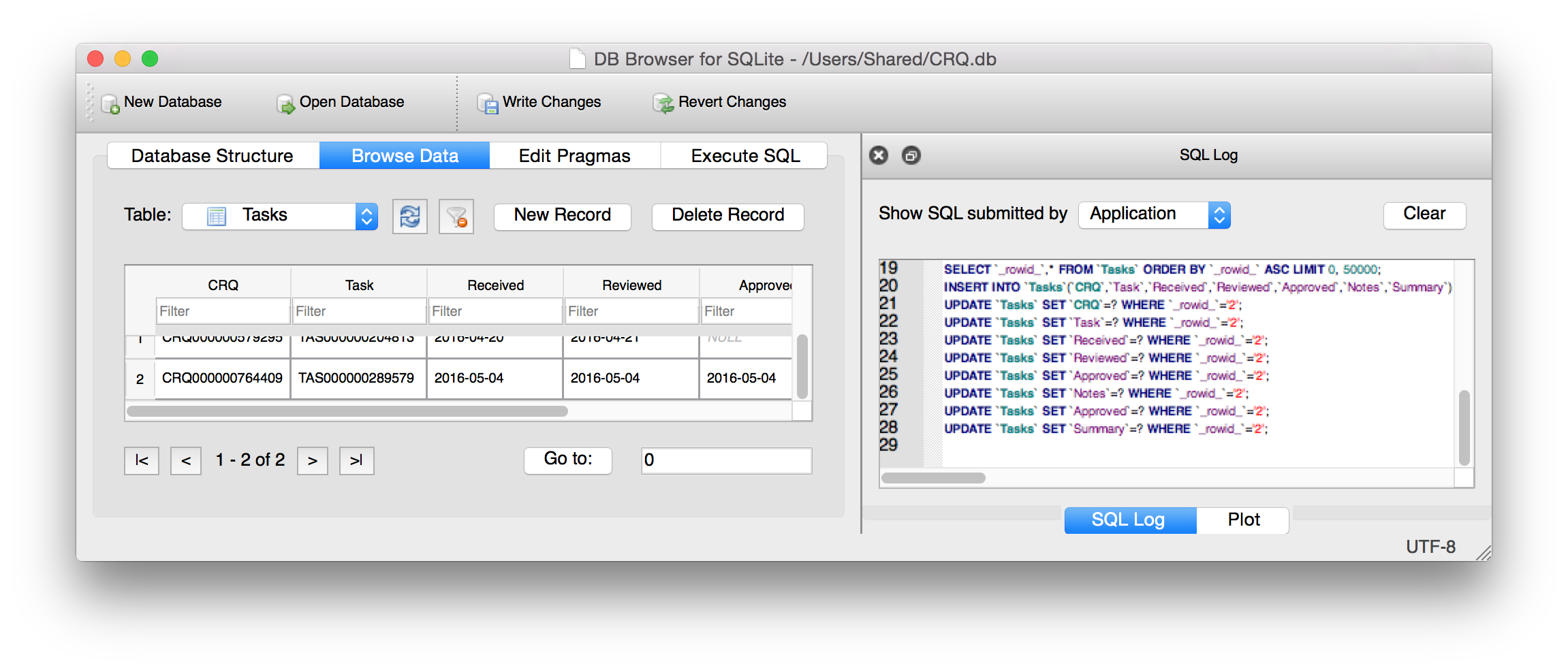
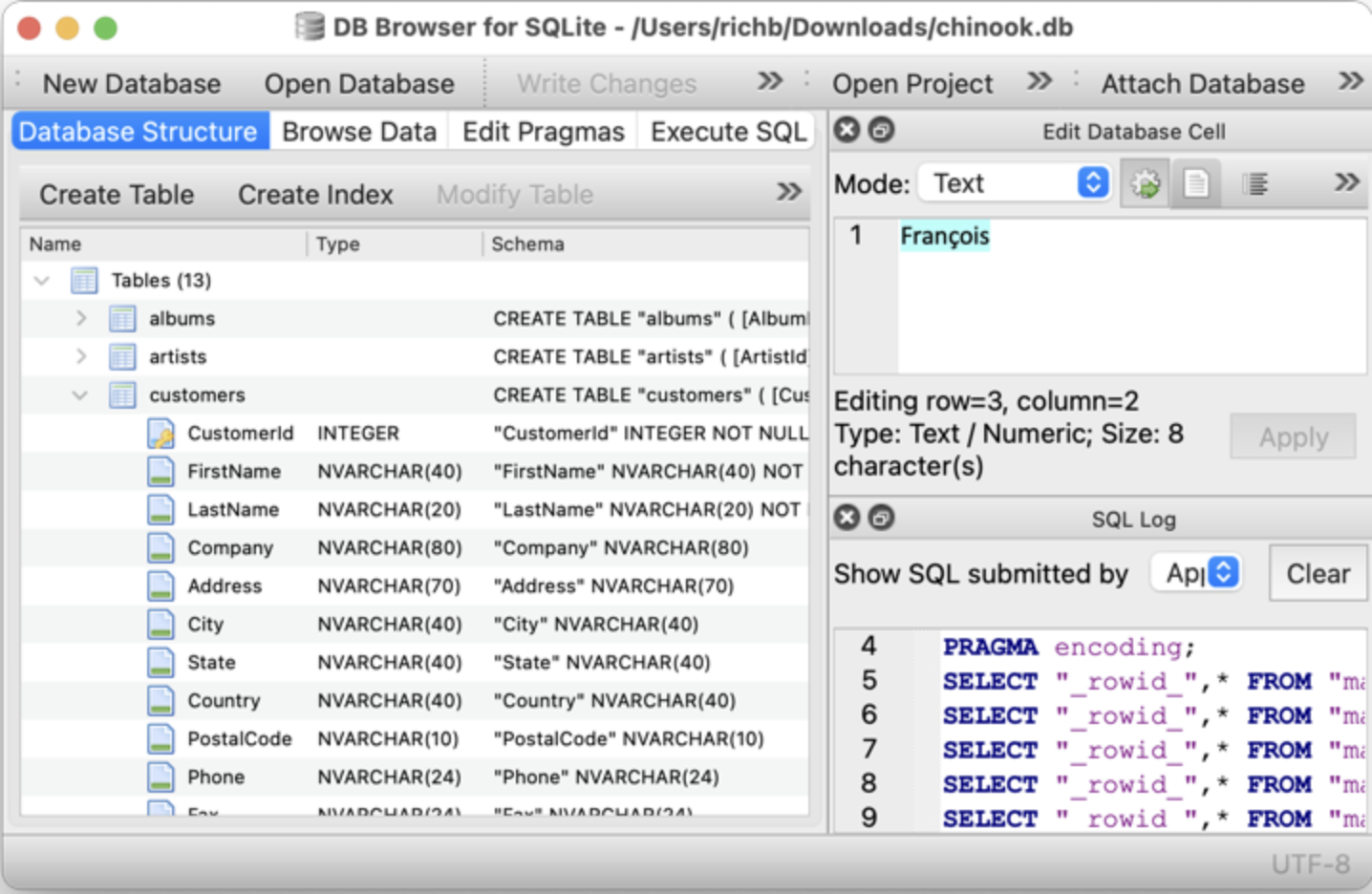
- DB Browser for SQLite: This is an open-source, high-quality tool used to create, design, and edit database files compatible with SQLite. It is ideal for users who want to manage their data without typing complex SQL commands.
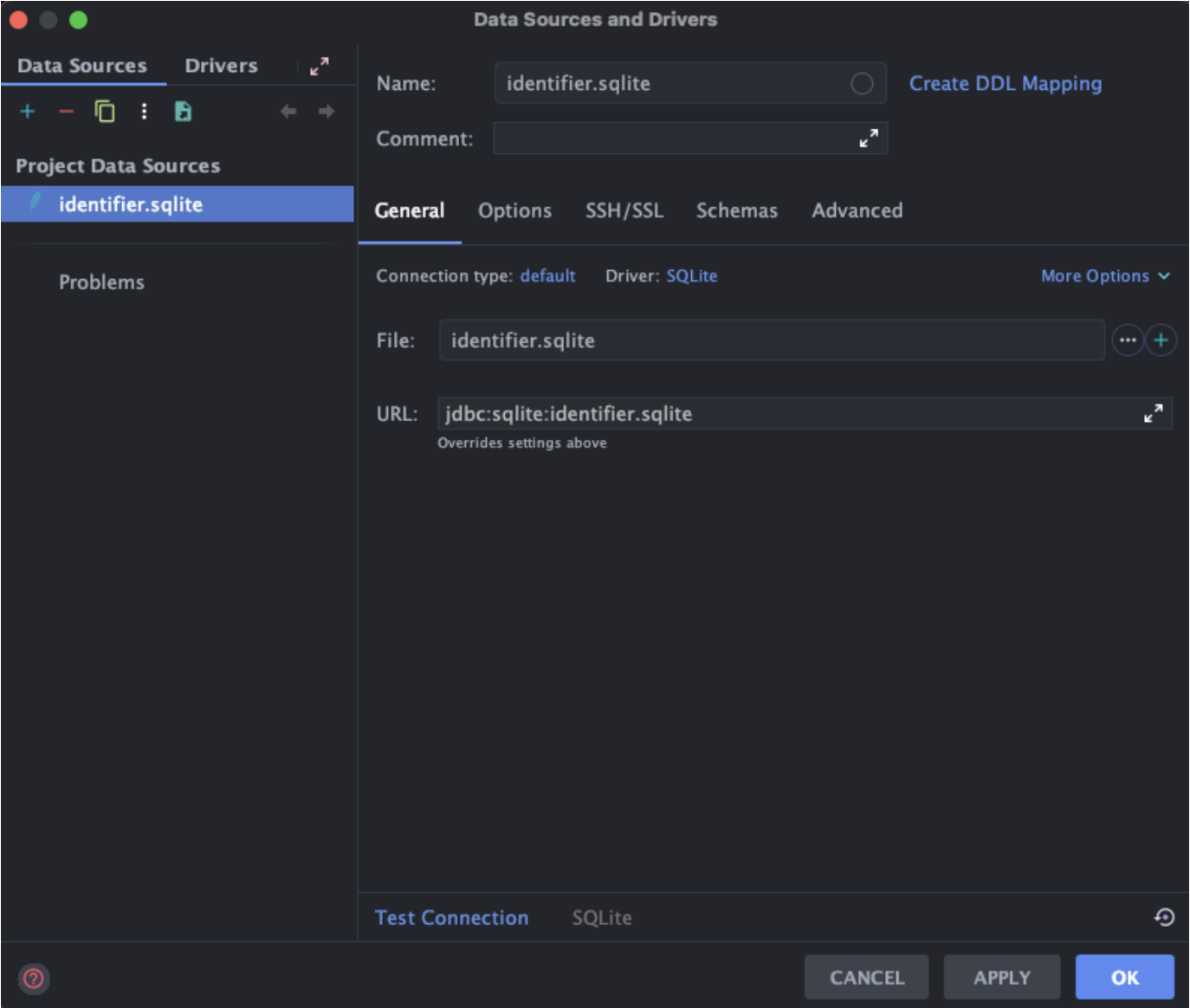
- DBeaver: A universal database tool for developers that supports SQLite along with dozens of other database engines. It provides advanced features like ER diagrams and data transfer wizards.
- SQLiteStudio: A portable, intuitive tool that provides a clean interface for managing SQLite databases and is particularly fast when handling large schemas.
Troubleshooting Common Issues
When using SQLite, you may encounter specific errors related to its file-based nature. One of the most frequent is the "database is locked" error. This occurs when one process is attempting to write to the file while another process has an open transaction. To resolve this, ensure that all database connections are properly closed when not in use and consider increasing the busy_timeout value.
Another common hurdle is understanding SQLite’s data types. Since SQLite uses dynamic typing, it may not throw an error if you insert a string into a numeric column. However, this can lead to unexpected results during mathematical calculations. Always use strict table definitions if you are working in an environment where data consistency is paramount.
Frequently Asked Questions
Can multiple users access an SQLite database at the same time?
SQLite supports multiple simultaneous readers, but only one writer at a time can modify the database. While WAL (Write-Ahead Logging) mode improves this by allowing readers and a writer to operate concurrently, SQLite is not intended for high-concurrency web environments with hundreds of simultaneous users. It is best suited for scenarios where the application is the primary user of the data.
Where is the SQLite database file stored?
The file is stored wherever you choose to create it on your local file system. It typically has a .db, .sqlite, or .sqlite3 extension. Because it is a single file, you can move it between Windows, macOS, Linux, and mobile operating systems without needing to convert the data format.
Is SQLite powerful enough for "Big Data"?
SQLite can handle databases up to 281 terabytes in size. However, its performance is limited by the host machine’s disk I/O and CPU. While it is incredibly efficient for datasets in the gigabyte range, it lacks the distributed processing power of tools like Hadoop or specialized enterprise databases for massive, multi-petabyte analysis.
How do I back up an SQLite database?
Because the entire database is one file, a simple file copy is often sufficient for a backup. However, if the database is actively being written to, a standard file copy might result in a corrupted backup. The safest way to back up a live database is to use the .backup command within the SQLite CLI, which ensures the copy is transactionally consistent.
Does SQLite support encryption?
The standard version of SQLite does not include built-in encryption. However, extensions like SEE (SQLite Encryption Extension), SQLCipher, and SQLiteCloud provide robust AES encryption. Many modern development frameworks incorporate these extensions to protect sensitive user data at rest.
Practical Recommendation
For anyone starting with SQLite in 2026, the best approach is to begin with the DB Browser for SQLite to visualize your data structures while simultaneously learning the SQL syntax in the command line. For production environments, always enable PRAGMA journal_mode=WAL; and PRAGMA synchronous=NORMAL; to maximize performance and reliability. If your application grows to the point where multiple servers need to write to the same database simultaneously, only then should you consider migrating to a client-server system like PostgreSQL.
Image Gallery