Fixing the "Android System Has Stopped" Error: Causes, Solutions, and Prevention
The "Android System has stopped" or "Process system isn't responding" error occurs when a critical operating system component, such as System UI, Google Play Services, or Android System WebView, suffers a fatal runtime crash. This erro...
The "Android System has stopped" or "Process system isn't responding" error occurs when a critical operating system component, such as System UI, Google Play Services, or Android System WebView, suffers a fatal runtime crash. This error causes significant user frustration because it can freeze the touch interface, trigger continuous popup loops, and completely interrupt essential smartphone operations like calling, navigation, and messaging.
Contents
When your Android device displays a system process failure, it indicates that the core software framework driving the user interface and application background communication has destabilized. Unlike a standard application crash—where a third-party app simply closes back to the home screen—a system-level crash directly compromises the OS environment itself.
Why the "Android System Has Stopped" Error Is Uniquely Frustrating
A system-level error on an Android smartphone disrupts the foundational layer of device operations. Understanding why this failure feels so catastrophic helps illuminate the underlying technical chaos occurring within the operating system.
1. Interruption of Core Device Functions
When a standard application (such as a social media client or casual game) crashes, the Android operating system isolates the process, terminates it, and returns you to the launcher screen. However, when the Android System process crashes, the core framework managing your phone's hardware abstraction, display rendering, and input processing fails. You may lose the ability to tap buttons, receive incoming phone calls, toggle quick settings, or navigate back to the home screen.
2. The Persistent Popup Loop
One of the most irritating aspects of this error is its ability to lock the screen in an infinite dialog loop. When the system process fails, Android automatically attempts to restart the process. If the underlying cause—such as a corrupted system file or memory allocation fault—persists, the crash recurs immediately. The error window reappears every fraction of a second, preventing you from navigating into device settings to fix the problem.
3. Vague Diagnostic Information
The default system popup generally presents only two options: "Wait" or "Close App" (or "OK"). It provides no error codes, stack traces, or explicit details identifying which specific background component failed. For the user, this transforms a technical software fault into a guessing game involving cache clearing, software updates, or complete data resets.
Core Technical Causes of Android System Failures
Android relies on a layered architecture consisting of the Linux kernel, native libraries, the Android Runtime (ART), application frameworks, and system apps. A breakdown at any of these levels can manifest as a system crash.
- Application Layer
- User Apps, System Apps, System UI
- Application Framework
- Activity Manager, Window Manager, Package Manager
- Android Runtime
- ART Core Libraries
- Linux Kernel
- Hardware Drivers, Memory, Security
Corrupted Android System WebView
Android System WebView is a pre-installed system component powered by Chrome that allows Android applications to display web content directly inside their interfaces without launching a full browser. If an update to WebView contains a memory leak, syntax bug, or corruption during installation, any app calling upon WebView can trigger a cascade failure across the system framework.
Low Memory Killer (LMK) and RAM Exhaustion
Android manages active applications using a background process monitor called the Low Memory Killer (LMK). When system RAM drops to dangerously low levels, the OS forcefully terminates background processes to free up memory for active foreground tasks. If RAM pressure is severe enough due to memory leaks or excessive background processing, the LMK may inadvertently interrupt or starve critical system-level tasks, triggering the system crash prompt.
Stale or Corrupted System Cache
During daily use and firmware updates, Android stores compiled system code and temporary execution files in system cache partitions and the ART cache. If an over-the-air (OTA) OS update modifies underlying system libraries while old execution files remain cached, the system engine may attempt to execute incompatible code paths, leading to fatal runtime crashes.
Misbehaving Third-Party Applications
Apps that request high-level accessibility permissions, overlay permissions ("Draw over other apps"), or deep background synchronization can interfere with the native System UI manager. If a third-party app leaks screen space or fails to drop a system overlay correctly, it can force the primary interface process to crash.
Storage Partition Degradation and Low Internal Space
When an Android device's solid-state flash memory reaches 90% or higher capacity, the operating system struggles to execute virtual memory paging and temporary read/write cycles. Solid-state storage requires free block space to perform trash collection and wear leveling. Insufficient space causes high input/output (I/O) latency, which causes system services to time out and report a non-responsive state.
Comprehensive Android System Error Matrix
Use this reference matrix to identify the likely root cause of your specific error behavior and select the appropriate resolution protocol.
| Error Variant / Symptom | Primary Root Cause | Data Loss Risk | Primary Recommended Solution |
|---|---|---|---|
| "Android System has stopped" (Recurring loop) | Corrupted System WebView or Google Play Services | None | Boot in Safe Mode, then update/clear data for System WebView |
| "Process system isn't responding" | Extreme RAM congestion or storage exhaustion | None | Force restart device and free up at least 10% storage capacity |
| "System UI has stopped" | Incompatible custom theme, launcher, or overlay app | None | Reset App Preferences and clear System UI cache |
| System crash immediately following an OTA update | Incompatible ART cache or broken system partition update | Low | Wipe System Cache Partition via Recovery Mode |
| System crash during app launch | Application calling broken system APIs or damaged cache | None | Update app and clear specific app cache/data |
| Persistent crash after all troubleshooting steps | Deep OS file corruption or flash memory hardware degradation | High | Perform Factory Data Reset or reflash stock firmware |
Step-by-Step Troubleshooting Protocols
Follow these structured troubleshooting steps in sequential order, moving from the simplest non-destructive fixes to more advanced system repair techniques.
Protocol 1: Perform a Forced Hardware Restart
A standard software reboot might not succeed if the system interface is completely non-responsive. Executing a forced hardware power cycle cuts power directly to the processor buffer, clearing volatile RAM completely.
- Press and hold the Power Button and Volume Down Button simultaneously.
- Maintain pressure on both buttons for 10 to 15 seconds.
- Release the buttons once the screen turns off and the manufacturer logo appears.
- Allow the operating system to complete a clean boot cycle.
Protocol 2: Clear Data for Android System WebView and Google Play Services
Because system framework errors frequently trace back to background web rendering engines and framework services, clearing their temporary operational state often resolves persistent crashes.
- Open device Settings.
- Select Apps (or Applications & Notifications).
- Tap the three-dot menu icon in the upper-right corner and select Show system apps.
- Scroll down and select Android System WebView.
- Tap Storage & Cache.
- Select Clear Cache, then select Clear Storage (or Clear Data).
- Return to the system app list, locate Google Play Services, and repeat the cache and data clearance process.
- Restart your phone.
- Settings
- Apps
- Show System Apps
- Android System WebView
- Storage
- Clear Cache & Data
- Storage
- Google Play Services
- Storage
- Clear Cache & Data
- Storage
- Android System WebView
- Show System Apps
- Apps
Protocol 3: Free Up Internal Storage Space
To ensure the Android OS has adequate room for swap memory operations and process creation, maintain at least 10% to 15% free space on your internal storage volume.
- Navigate to Settings > Storage.
- Review the breakdown of occupied space across Images, Videos, Apps, and System.
- Remove large unused applications, temporary offline media downloads, and duplicate video files.
- Use the built-in storage cleaner or official tools like Files by Google to safely purge cached data.
Protocol 4: Reset App Preferences
If a third-party app or user setting changed default application handoffs, background execution privileges, or notification permissions in a way that breaks system calls, resetting app preferences restores default system routing without deleting personal personal files.
- Open Settings.
- Select Apps or System.
- Select Reset app preferences (often found under the three-dot options menu).
- Confirm your selection in the prompt window.
- Reboot the device.
Protocol 5: Boot into Safe Mode to Isolate Software Conflicts
Safe Mode disables all third-party applications, running only the pre-installed core software that shipped with your device. If the error disappears in Safe Mode, a third-party app is causing the crash.
How to enter Safe Mode on most modern Android devices:
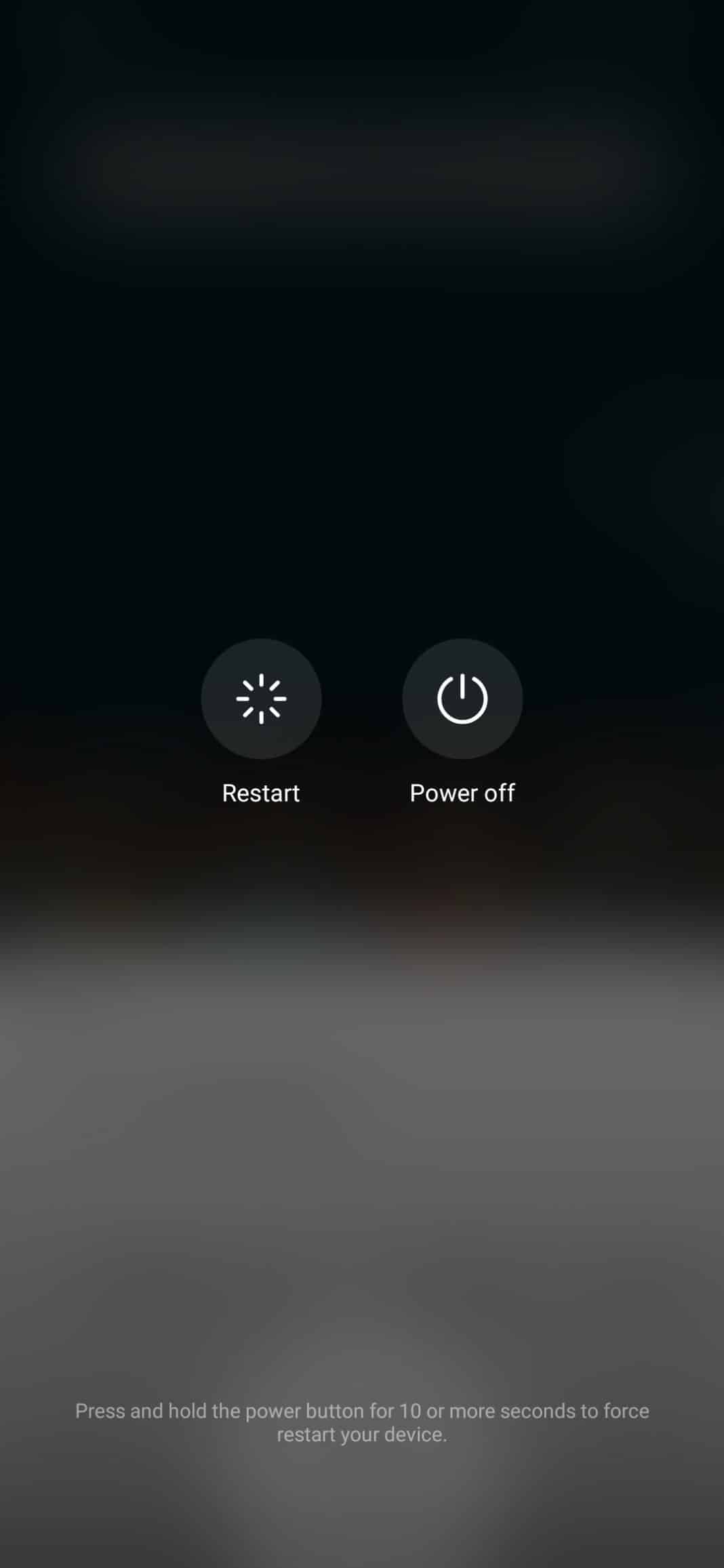
- Press and hold the physical Power Button until the power menu appears on the display.
- Tap and hold the Power Off icon on the screen until the "Reboot to safe mode" prompt appears.
- Tap OK or confirm the reboot into Safe Mode.
- Observe device behavior. If the crash ceases, systematically uninstall recently updated or downloaded third-party applications (especially custom launchers, VPNs, screen overlays, and battery optimizers).
- To exit Safe Mode, simply restart your device normally.
Advanced OS Recovery Procedures
If standard troubleshooting protocols fail to resolve the issue, the underlying system failure may stem from damaged system files or persistent cache issues within the dedicated recovery partition.
Protocol 6: Wipe System Cache Partition (via Android Recovery)
Wiping the cache partition clears out legacy installation binaries and system-level execution scripts without deleting user data, photos, accounts, or messages.
Note: Access methods to Android Recovery vary by hardware manufacturer (Samsung, Google, Motorola, Xiaomi). Most devices require connecting the phone to a computer via USB cable while initiating key combinations.
- Power off the device completely.
- Connect the phone to a powered-on computer via USB-C cable (required for many modern devices).
- Press and hold the Power Button and Volume Up Button simultaneously.
- Release all buttons when the manufacturer logo or Android Recovery screen appears.
- Use the physical Volume Up/Down keys to navigate through the text-based recovery menu.
- Highlight Wipe Cache Partition (or Repair Apps on certain newer OEM skins).
- Press the Power Button to select the option.
- Confirm the action by selecting Yes.
- Once the process completes, select Reboot system now.
Protocol 7: Perform a Factory Data Reset (Final Option)
When deep core system files are corrupted beyond repair, returning the operating system to its initial factory state is necessary.
Caution: A Factory Data Reset erases all internal storage contents, including contacts, app data, photos, downloads, and custom preferences. Ensure all critical data is backed up to a secure cloud platform or external storage media before proceeding.
- Navigate to Settings > System > Reset options.
- Select Erase all data (factory reset).
- Review the items to be deleted, enter your device security PIN or pattern, and confirm the reset.
- Keep the device powered on until the factory initialization process finishes completely.
Long-Term Preventive Measures
To minimize the likelihood of encountering the "Android System has stopped" error in the future, follow these system maintenance habits:
- Avoid Sideloading Unverified APKs: Installing applications from unverified third-party sources can introduce code compiled for incompatible Android SDK versions, triggering framework conflicts.
- Maintain Storage Buffer: Keep at least 15% of your total device storage free to prevent memory paging failures and file indexing timeouts.
- Keep System Apps Updated: Ensure Android System WebView, Google Play Services, and Google Play Store remain set to automatic updates via the Play Store.
- Avoid Aggressive Cleaner Apps: Refrain from using third-party "RAM Cleaners," "Task Killers," or "Phone Boosters." These tools force-close necessary system processes, causing the Android OS to immediately restart them, which increases CPU strain, memory fragmentation, and interface instability.
- Perform Clean OS Upgrades: When installing major annual Android updates, restart your phone again approximately 30 minutes after the installation finishes to allow background compilation (dexopt) tasks to complete cleanly.
Frequently Asked Questions (FAQ)
Is "Android System has stopped" the same as "System UI isn't responding"?
No, though they produce similar frustrations. "System UI" specifically refers to the graphical user interface framework—such as your status bar, navigation bar, lock screen, and quick settings shade. "Android System" encompasses broader framework processes, including background services, system utilities, and hardware integrations. However, the troubleshooting steps for both errors are virtually identical.
Will clearing data on Android System WebView delete my personal files?
No. Clearing data on Android System WebView deletes only temporary cached web data and local configuration settings stored by the internal browser component. It does not delete your photos, documents, personal messages, or system backups.
Why does the system error keep popping up continuously every second?
This persistent loop occurs when a core process crashes, and Android's automated safety daemon attempts to immediately restart it. If the underlying cause remains unaddressed (such as a corrupted memory buffer), the process crashes instantly upon rebooting, creating a continuous popup cycle. Booting into Safe Mode breaks this loop, allowing you to perform troubleshooting.
What should I do if the error prevents me from opening the Settings menu?
If the recurring error blocks access to the touch screen, force-restart your device using the hardware button combination (Power + Volume Down). If the error persists upon boot, force the device directly into Safe Mode or Recovery Mode using physical button inputs while powering on.
Can an infected or damaged SD card cause Android system process crashes?
Yes. If your Android phone has a micro SD card configured as adoptable/internal storage or continuously indexed by the system media scanner, damaged file sectors on the card can cause the system process to wait indefinitely for input/output responses. This leads to system timeouts and triggers the crash dialog. Remove the SD card to test if stability improves.
Final Recommendation
When faced with the frustrating "Android System has stopped" error, avoid jump-starting straight to a complete device wipe. Start by performing a hardware force restart and clearing the cache and data for Android System WebView and Google Play Services. In over 80% of software-related incidents, refreshing these two critical rendering components resolves the issue completely. If the problem persists, use Safe Mode to isolate misbehaving apps or use Recovery Mode to clear the cache partition before taking the final step of a full factory data reset.
Image Gallery