Comprehensive Guide to Creating and Using a Free iCloud Email Account
Anyone with an Apple ID can access a free iCloud email account, which includes 5GB of cloud storage shared across Mail, Photos, and Drive. To activate it, you must toggle the "iCloud Mail" option in your device settings or sign up via...
Anyone with an Apple ID can access a free iCloud email account, which includes 5GB of cloud storage shared across Mail, Photos, and Drive. To activate it, you must toggle the "iCloud Mail" option in your device settings or sign up via iCloud.com, providing a seamless, ad-free communication experience within the Apple ecosystem.
Contents
What is iCloud Mail and Is It Truly Free?
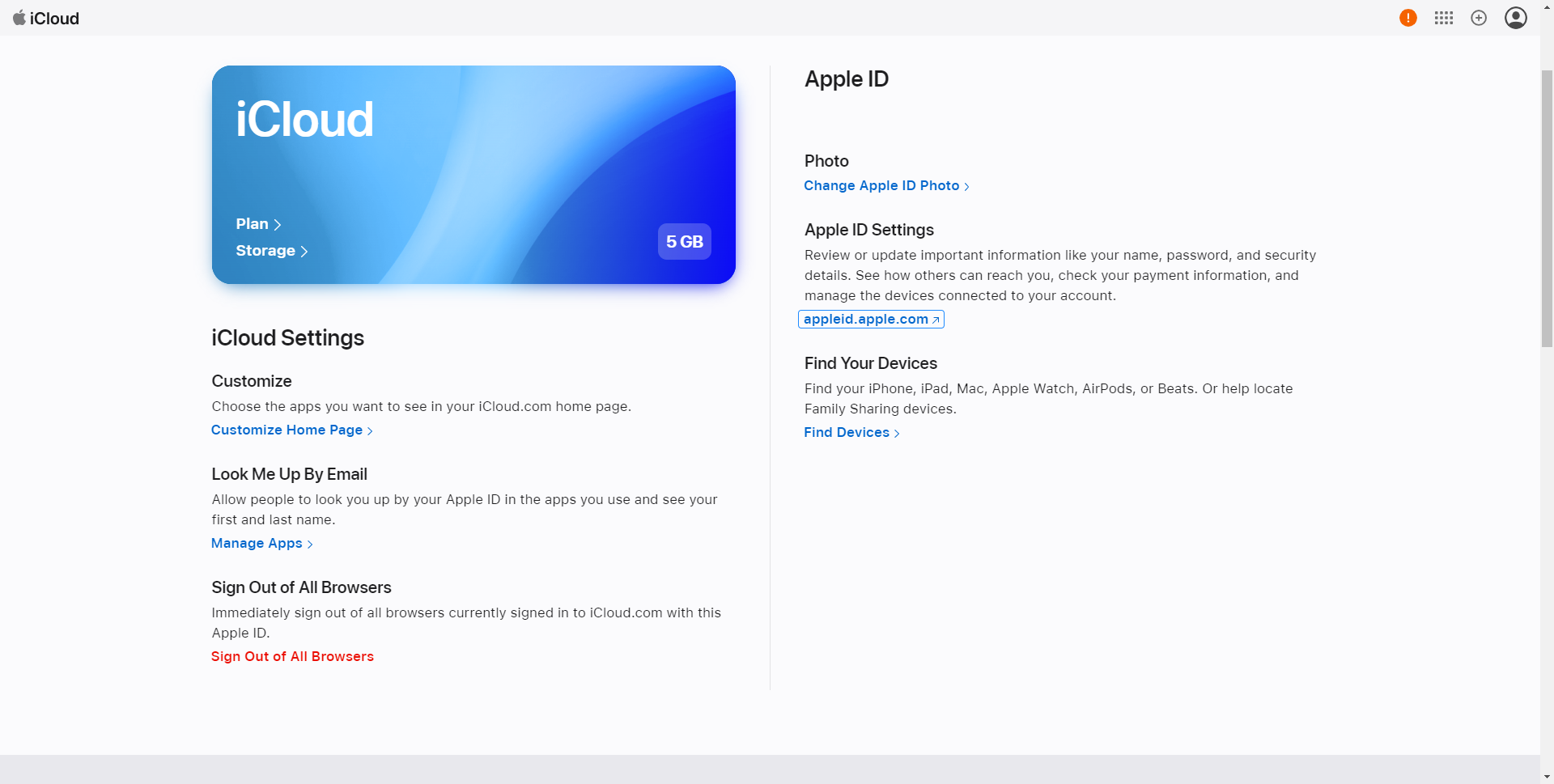
iCloud Mail is a professional, secure email service provided by Apple. Unlike many competitors that monetize user data to serve targeted advertisements, Apple’s model for the free tier focuses on ecosystem integration. As of 2026, the service remains free for any user who creates an Apple ID. The "free" aspect, however, comes with a specific caveat: storage capacity. Every new account is granted 5GB of complimentary storage.
This 5GB limit is not exclusive to your inbox. It is a unified pool shared among iCloud Photos, iCloud Drive, device backups, and your email attachments. For users who receive a high volume of high-resolution images or large documents via email, this 5GB can fill up quickly. If you exceed this limit, your email service will effectively "freeze"—you will be unable to send or receive new messages until storage is cleared or a subscription to iCloud+ is purchased.
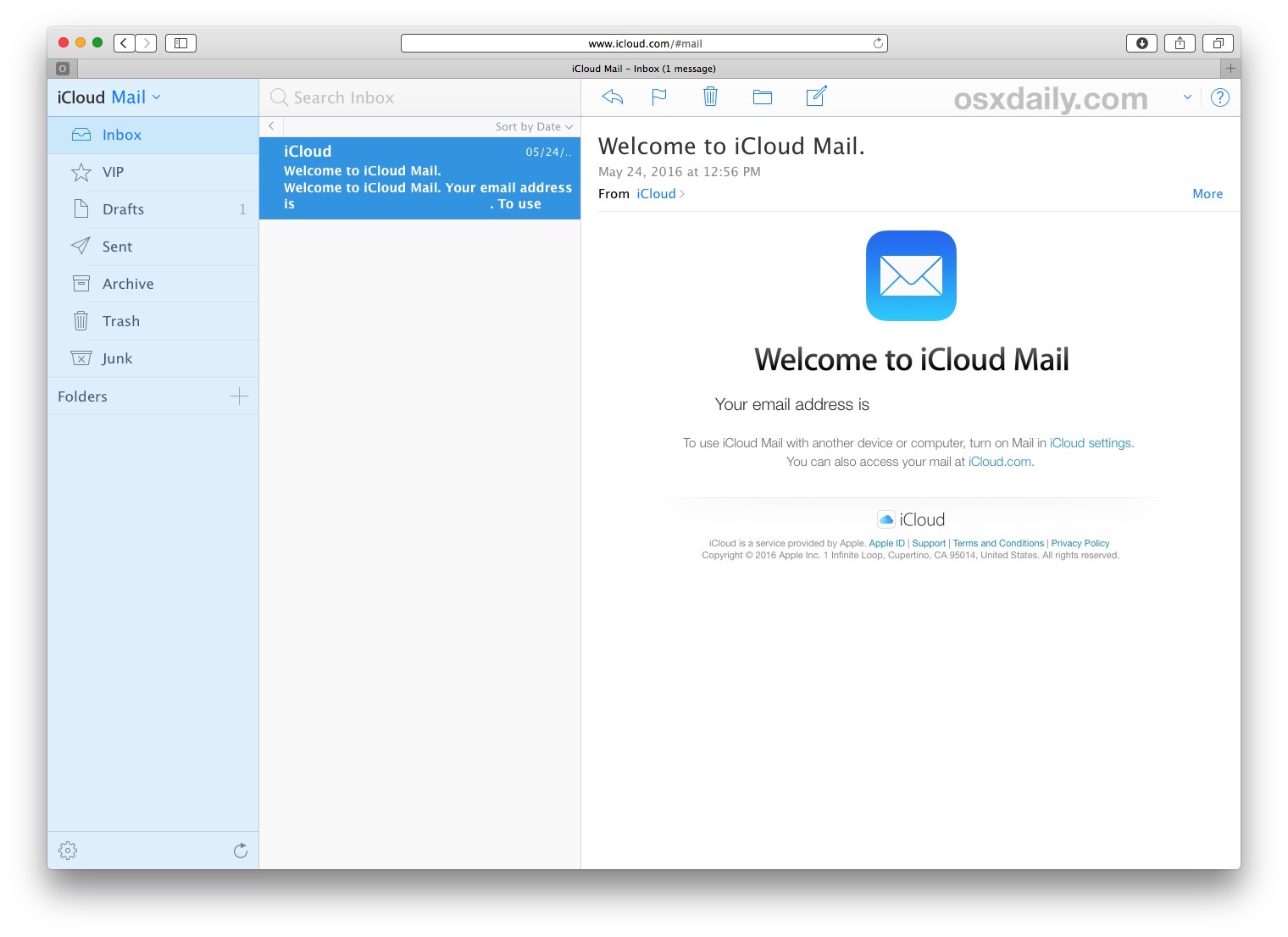
Despite the storage limitations, the free version of iCloud Mail provides premium-tier features. Users receive a clean, ad-free interface on the web and in the native Mail app. You also benefit from robust server-side spam filtering and end-to-end encryption for synchronized data. For those seeking a minimalist, reliable email provider that integrates perfectly with iPhone, iPad, and Mac, the free iCloud tier remains one of the most stable options on the market.
Prerequisites for Getting an iCloud Email
Before you can claim your @icloud.com address, you must meet a few basic requirements. The primary prerequisite is an Apple ID. If you have ever purchased an app, used an iPhone, or signed into an Apple Music account, you likely already have one. However, having an Apple ID is not the same as having an iCloud email address; many users create an Apple ID using a third-party address like @gmail.com or @outlook.com. To get the "free" iCloud email, you must specifically generate a new address within the iCloud settings.
Hardware-wise, while you can manage an iCloud account via a web browser on Windows or Android, the initial creation of an @icloud.com address usually requires an Apple device (iPhone, iPad, or Mac). This is a security measure to prevent bulk bot registrations. Once the address is created and linked to your Apple ID, it can be used on any platform using standard IMAP/SMTP protocols or the iCloud web portal.
Finally, ensure your device is running a relatively modern operating system. For the best experience in 2026, your device should be compatible with the latest security standards required by Apple’s servers. This ensures that features like two-factor authentication (2FA) and "Hide My Email" (if you later decide to upgrade) function correctly.
Step-by-Step Guide: How to Create a Free @icloud.com Address
The process of activating your free email varies slightly depending on the device you are using. If you are setting up a new Apple ID for the first time, you will be prompted to create an email address during the initial setup. If you already have an Apple ID and want to add an iCloud email to it, follow these steps:
On an iPhone or iPad
- Open the Settings app.
- Tap your Name/Apple ID at the very top of the menu.
- Select iCloud.
- Scroll down to find iCloud Mail (or "Mail" under the "Apps Using iCloud" section).
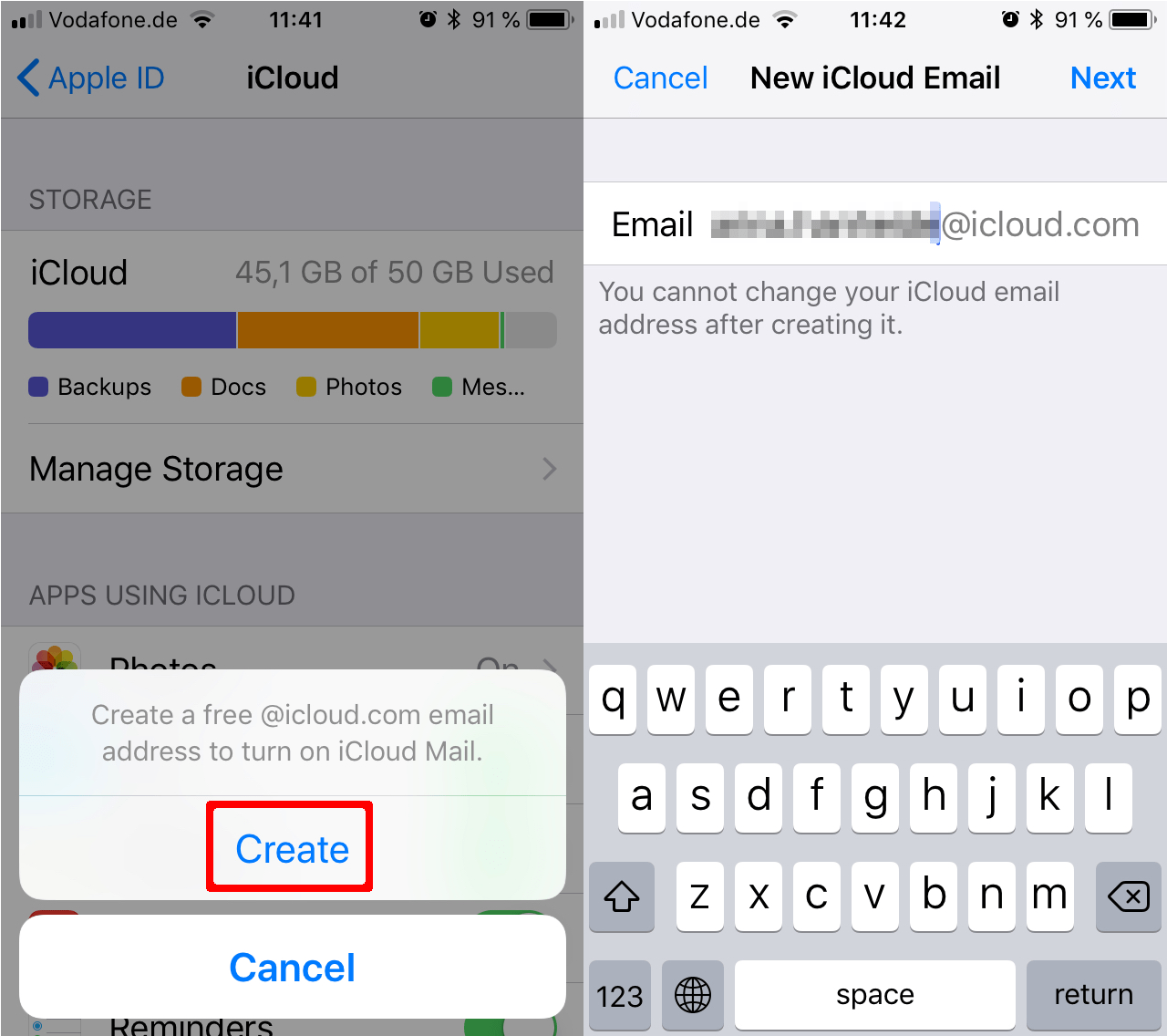
- Toggle the switch to On.
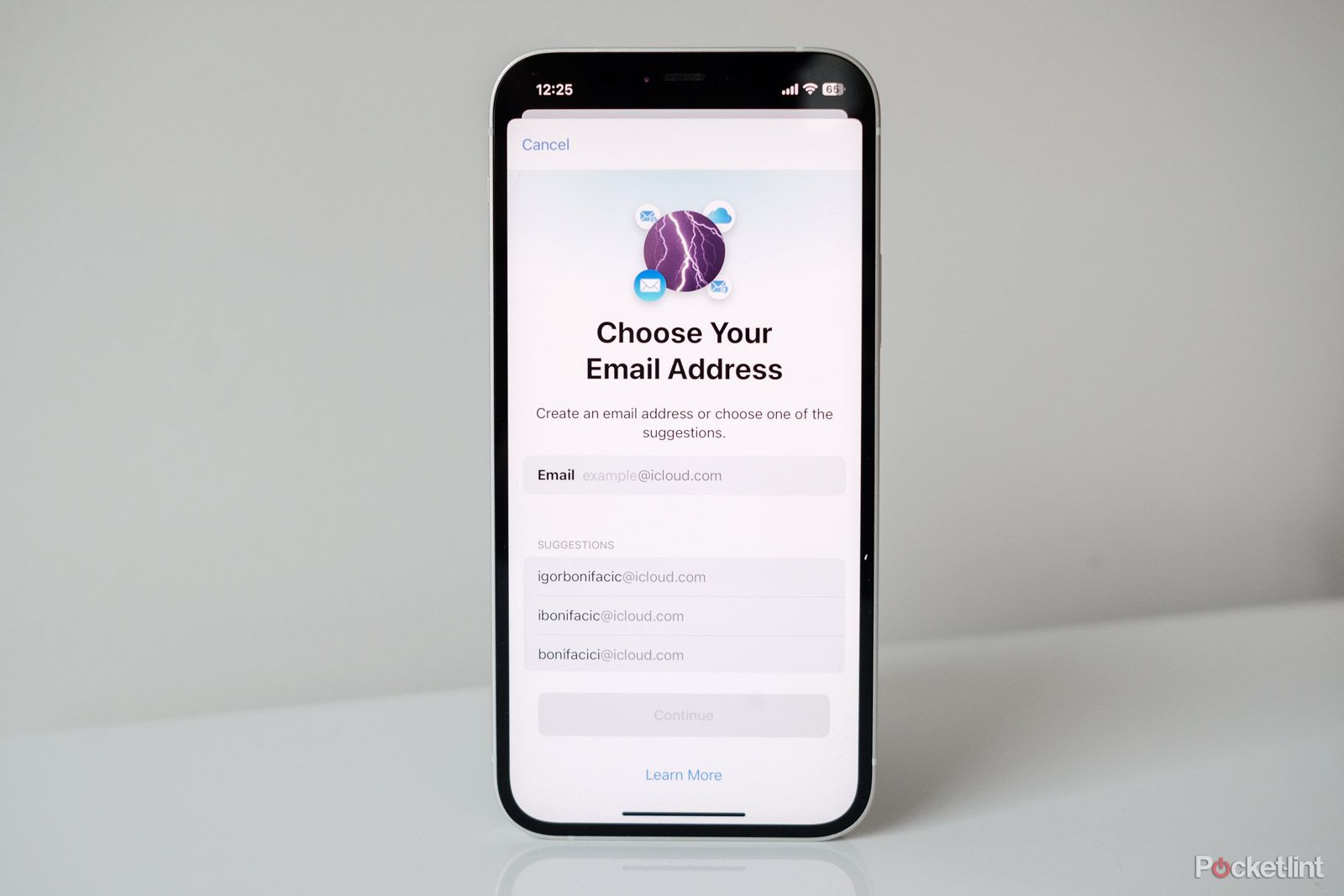
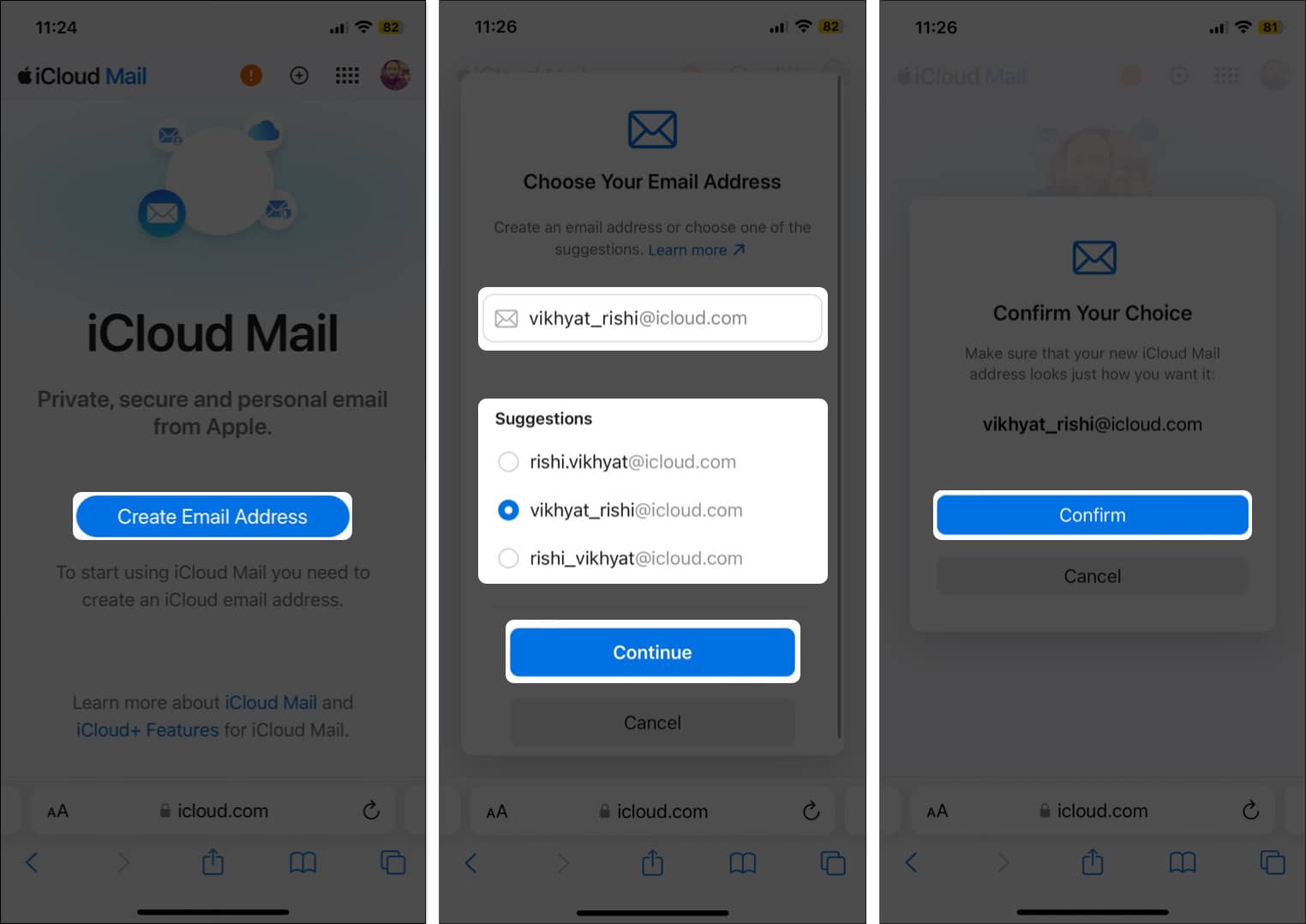
- A prompt will appear asking you to choose your new address. Enter your desired username. If it is available, it will be reserved for you instantly. Follow the on-screen instructions to confirm.
On a Mac
- Click the Apple Menu () and select System Settings.
- Click your Name (Apple ID) in the sidebar.
- Click iCloud on the right-hand side.
- Locate iCloud Mail and ensure it is turned on.
- If you haven't created an address yet, you will be prompted to "Create" one. Enter your preferred handle and verify the setup.
Via the Web (For those without an Apple device)
If you do not own an Apple device, you can attempt to create a "Web-only" Apple ID at icloud.com. This provides 1GB of free storage instead of the standard 5GB and allows access to Pages, Numbers, and Mail. However, Apple frequently updates its web-only policies, and for a full-featured @icloud.com experience, registering through a physical Apple device remains the most reliable method.
Key Features of the Free iCloud Email Tier
Choosing iCloud Mail over other free providers offers several technical and privacy advantages. Apple's focus on privacy means that the contents of your emails are not scanned for advertising purposes, a common practice among some of the world's largest free email providers.
Ecosystem Integration: The most significant feature is the deep integration with the Apple ecosystem. Your free iCloud email automatically syncs your VIP contacts, custom folders, and "Smart Mailboxes" across your iPhone, iPad, Mac, and Apple Watch. When you receive an invitation in iCloud Mail, it can automatically populate your Calendar and Reminders.
Security: iCloud Mail uses 2FA as a standard, ensuring that even if someone discovers your password, they cannot access your inbox without a physical device you own. Additionally, Apple employs sophisticated "intelligent tracking prevention" in its Mail app, which prevents senders from using invisible pixels to track when and where you open an email.
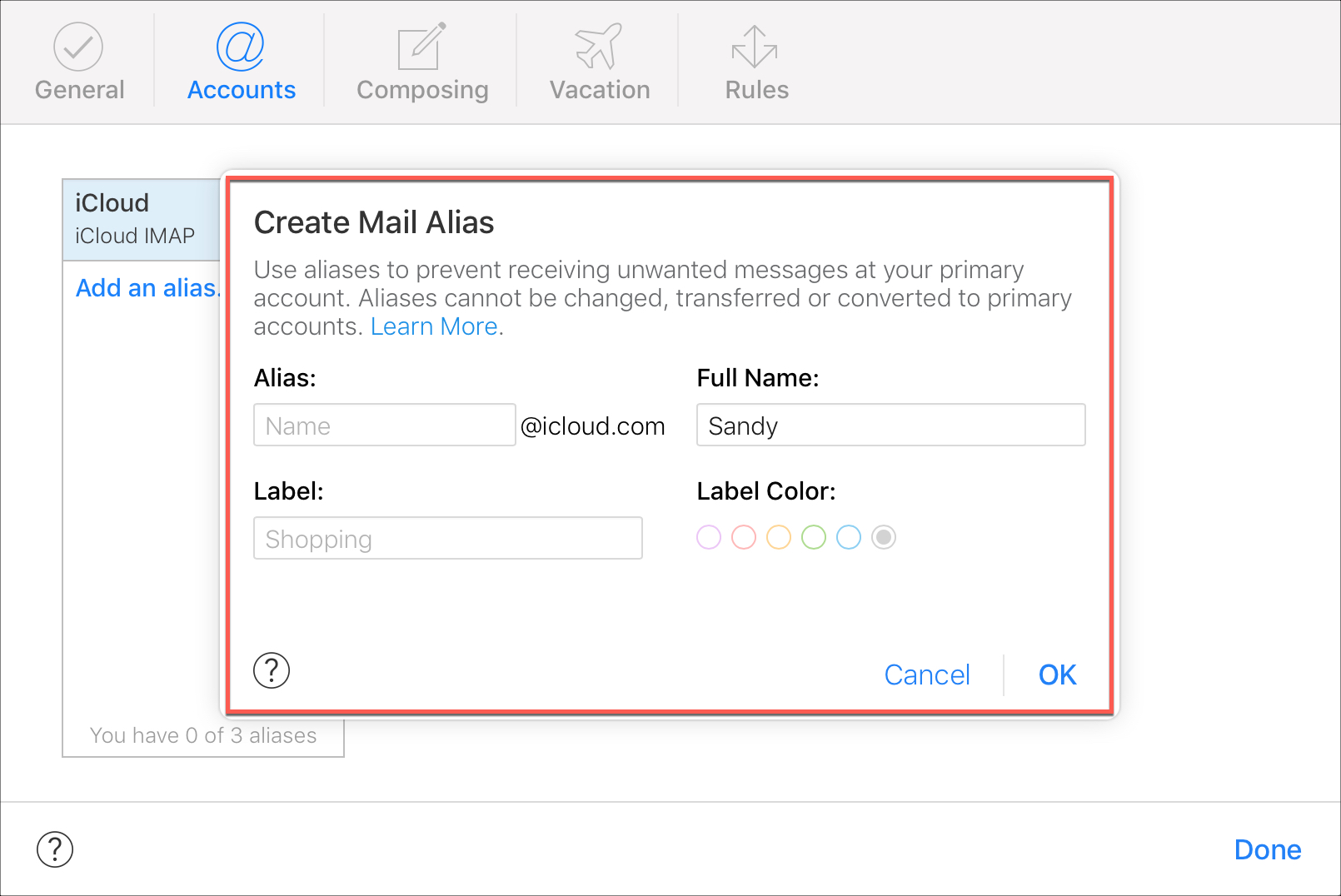
Aliases: Even on the free tier, users can create up to three email aliases. An alias is a "nickname" for your main email address that allows you to send and receive mail without revealing your primary handle. This is an excellent tool for managing spam or organizing different parts of your life (e.g., one for shopping, one for personal use) within a single inbox.
Storage Management: Staying Within the 5GB Free Limit
The 5GB free limit is the biggest hurdle for long-term iCloud Mail users. To keep your account functional without paying for a subscription, you must be proactive about storage management.
One of the most effective ways to save space is by managing large attachments. iCloud Mail includes a feature called "Mail Drop." While Mail Drop allows you to send files up to 5GB in size, these files do not count against your iCloud storage because they are stored temporarily (for 30 days) on a separate server. However, if you receive large files from non-Apple users, they will sit in your inbox and consume your 5GB quota.
Regular maintenance is essential. You should periodically search for emails with large attachments and delete them or move the attachments to local storage on your computer. Additionally, check your Sent and Trash folders. Deleted emails still occupy space until the Trash is emptied. In the Mail app, you can set the Trash to empty automatically every week or month to ensure you aren't "hoarding" digital weight that could block incoming messages.
Comparison Table: iCloud Mail Free vs. Competitors
To understand where iCloud Mail fits in the 2026 landscape, it is helpful to compare it to other major free providers.
| Feature | iCloud Mail (Free) | Gmail (Free) | Outlook (Free) | Proton Mail (Free) |
|---|---|---|---|---|
| Storage Capacity | 5GB (Shared) | 15GB (Shared) | 15GB (Email only) | 500MB - 1GB |
| Ad-Supported? | No | Yes (Inbox ads) | Yes (Inbox ads) | No |
| Email Aliases | 3 Aliases | Limited (using +) | 10 Aliases | Limited |
| Max Attachment | 5GB (Mail Drop) | 25MB | 20MB | 25MB |
| Privacy Focus | High | Medium | Medium | Very High |
| Best For | Apple Users | Google Ecosystem | Corporate/Windows | Privacy Enthusiasts |
Accessing iCloud Mail on Non-Apple Devices
While iCloud Mail is designed for Apple hardware, it is built on the universal IMAP standard, meaning you can access your free account on virtually any device. This is crucial for users who use an iPhone for personal use but a Windows PC for work, or those who switch to Android.
To set up iCloud Mail on a third-party app (like Outlook for Windows or the Gmail app on Android), you cannot simply use your Apple ID password. For security reasons, Apple requires the use of App-Specific Passwords.
To generate one:
- Go to appleid.apple.com and sign in.
- Navigate to the Sign-In and Security section.
- Select App-Specific Passwords and click the plus sign.
- Label the password (e.g., "Windows Mail") and copy the unique code generated.
Use this code instead of your primary password when adding the account to your non-Apple device. The incoming server (IMAP) is imap.mail.me.com (using SSL on port 993), and the outgoing server (SMTP) is smtp.mail.me.com (using TLS on port 587).
Security Best Practices for Your Free Account
Because your iCloud email is tied to your Apple ID—which controls your device backups, find-my-location services, and App Store purchases—securing it is paramount. A free account is just as vulnerable as a paid one if not properly managed.
First, always keep Two-Factor Authentication active. In 2026, this is generally mandatory for new accounts, but older accounts should verify this in settings. Second, be wary of "Phishing" attempts. Because iCloud is a popular service, scammers often send fake "Storage Full" or "Account Locked" emails designed to steal your credentials. Apple will never ask for your password via email. Always check the sender's address and, if in doubt, navigate directly to icloud.com rather than clicking links in an email.
Finally, utilize the "Hide My Email" feature if you ever decide to move to the iCloud+ tier, but even on the free tier, use your aliases wisely. If you are signing up for a website you don't fully trust, use one of your three free aliases. If that alias starts receiving too much spam, you can simply delete it and create a new one without losing your primary email identity.
Frequently Asked Questions
Can I get more than 5GB for free?
No, Apple currently strictly limits the free tier to 5GB. To get more storage, you must upgrade to a paid iCloud+ plan. However, you can maximize the 5GB by offloading photos to a physical hard drive or using Google Photos (which offers its own free tier) to handle image storage, leaving the 5GB of iCloud exclusively for your email.
Will I lose my email address if I stop using Apple devices?
No. Your @icloud.com email address belongs to your Apple ID permanently. As long as you log in occasionally to keep the account active, you can continue to use the email via a web browser or third-party email clients on any operating system, even if you no longer own an iPhone or Mac.
What happens to my emails if I run out of storage?
When your 5GB of storage is full, any new emails sent to you will be "bounced" back to the sender with a notification that your mailbox is full. You will not be able to send emails either. Once you delete enough data to fall below the 5GB threshold, your account will resume normal operation, but you will not be able to recover the emails that were bounced while the storage was full.
Can I use a custom domain with a free iCloud account?
No. The ability to use a custom email domain (e.g., name@yourcompany.com) is a premium feature reserved for iCloud+ subscribers. The free tier only allows for @icloud.com, @me.com, or @mac.com addresses (depending on when the account was originally created).
Is iCloud Mail better than Gmail?
It depends on your priorities. Gmail offers more free storage (15GB vs 5GB), but it includes advertisements and scans data for marketing profiles. iCloud Mail offers a cleaner, ad-free experience and better privacy, but requires more diligent storage management due to the smaller 5GB limit.
Practical Recommendation
If you are already an Apple user, activating your free iCloud email is a logical step to streamline your digital life. It provides a professional, ad-free communication channel that works natively with your devices. To ensure the best experience, use iCloud Mail for your most important personal correspondence and avoid using it as a "catch-all" for newsletters or large file transfers, which can quickly exhaust the 5GB storage limit. For those who need more than 5GB, the entry-level iCloud+ plans are generally affordable, but with smart management—such as using Mail Drop for large files and regularly clearing the Trash—the free tier is more than sufficient for the average user.
Image Gallery