Mastering Google Search Refinement: Advanced Techniques for Precision Results
Refining Google searches involves using a combination of specialized syntax, known as search operators, and built-in interface tools to narrow down millions of potential results to the most relevant information. By applying Boolean log...
Refining Google searches involves using a combination of specialized syntax, known as search operators, and built-in interface tools to narrow down millions of potential results to the most relevant information. By applying Boolean logic, filetype filters, and proximity parameters, users can bypass algorithmic noise and locate specific data, documents, or mentions that standard queries often overlook.
Contents
The volume of information indexed by Google continues to expand exponentially. In 2026, while artificial intelligence and generative summaries have streamlined simple inquiries, the need for manual refinement remains critical for researchers, developers, and professionals who require primary sources or specific datasets. Mastery of search refinement transforms Google from a simple answer engine into a powerful surgical tool for data retrieval.
The Logic of Search Refinement
To refine a search effectively, one must understand that Google’s primary algorithm prioritizes semantic intent—what it thinks you mean—over literal strings. While this is helpful for general questions, it can be a hindrance when you need an exact match or an obscure piece of technical documentation. Refinement is essentially the process of overriding the algorithm's assumptions to force a more literal or constrained interpretation of your query.
Effective refinement is built on three pillars:
- Selection: Identifying the most unique keywords associated with your topic.
- Exclusion: Removing irrelevant categories of information that share similar terminology.
- Constraint: Limiting the search to specific domains, timeframes, or file formats.
Essential Search Operators for Immediate Precision
Search operators are symbols or words added to a query to further specify the search. These are the most effective tools for narrowing down results without navigating deep into settings menus.
Exact Match Queries
Using quotation marks (" ") around a word or phrase instructs Google to search for that exact sequence of characters. This is indispensable when searching for specific quotes, error codes, or technical terms that Google might otherwise "correct" or synonymize. For example, searching for “refining google searches” ensures that the results contain that specific phrase rather than a collection of articles about "improving" or "polishing" web search techniques.
Exclusion Tactics
The minus sign (-) is perhaps the most powerful tool for cleaning up a cluttered search result page. By placing a minus sign directly before a word (with no space), you tell Google to omit any page containing that term. If you are researching "Jaguar" but want to exclude the automotive brand to focus on the animal, your query should be jaguar -car -auto.
Site and Domain Constraints
The site: operator limits your search to a specific website or a top-level domain (TLD). This is particularly useful for finding information within massive databases that have poor internal search functions.
- site:gov "climate change" – Searches only government websites for that phrase.
- site:nytimes.com "interest rates" – Searches only the New York Times archives.
Filetype Filtering
When you are looking for specific documents rather than web pages, the filetype: operator is essential. This allows you to target PDFs, spreadsheets (XLSX), or presentations (PPTX). A query like “quarterly earnings” filetype:pdf will return only PDF documents, bypassing news articles and blog posts about earnings.
Advanced Refinement Logic and Proximity
For more complex inquiries, simple operators may not be enough. Advanced users employ Boolean logic and proximity operators to define the relationship between search terms.
The OR and AND Logic
By default, Google treats a space between words as an AND operator, meaning it looks for pages containing all your keywords. However, using the OR operator (must be capitalized) allows you to search for pages that contain either one term or another. This is useful when a subject is known by multiple names, such as “renewable energy” OR “green energy”.
Proximity Searches with AROUND(n)
If you need to find two terms that appear close to each other but not necessarily as a fixed phrase, the AROUND(n) operator is the solution. The "n" represents the maximum number of words allowed between the two terms. For instance, “Tesla” AROUND(3) “battery” would find pages where these two words appear within three words of each other, suggesting a strong contextual link.
Wildcard Placeholders
The asterisk (*) acts as a wildcard that can represent any word or group of words. This is useful when you are trying to find a specific phrase but have forgotten a word, or when you want to find all variations of a phrase. A query like “the best * in the world” will return a variety of lists and superlatives.
Utilizing Built-in Interface Tools
While operators are efficient, Google’s native interface provides visual tools that can further refine your search experience.
The Tools Menu
Located just below the search bar, the Tools button opens a secondary menu that allows for time-based filtering. You can restrict results to the past hour, 24 hours, week, month, or a custom date range. This is vital for news-sensitive topics or when looking for historical data that might be buried by more recent, but less relevant, updates.
Verbatim Mode
Google’s modern AI often attempts to include results that are "related" to your keywords even if they don't contain the exact terms. To stop this behavior, go to Tools > All results and select Verbatim. This forces Google to search for the exact keywords you typed, honoring the literal string without synonym expansions or spelling corrections.
Advanced Search Page
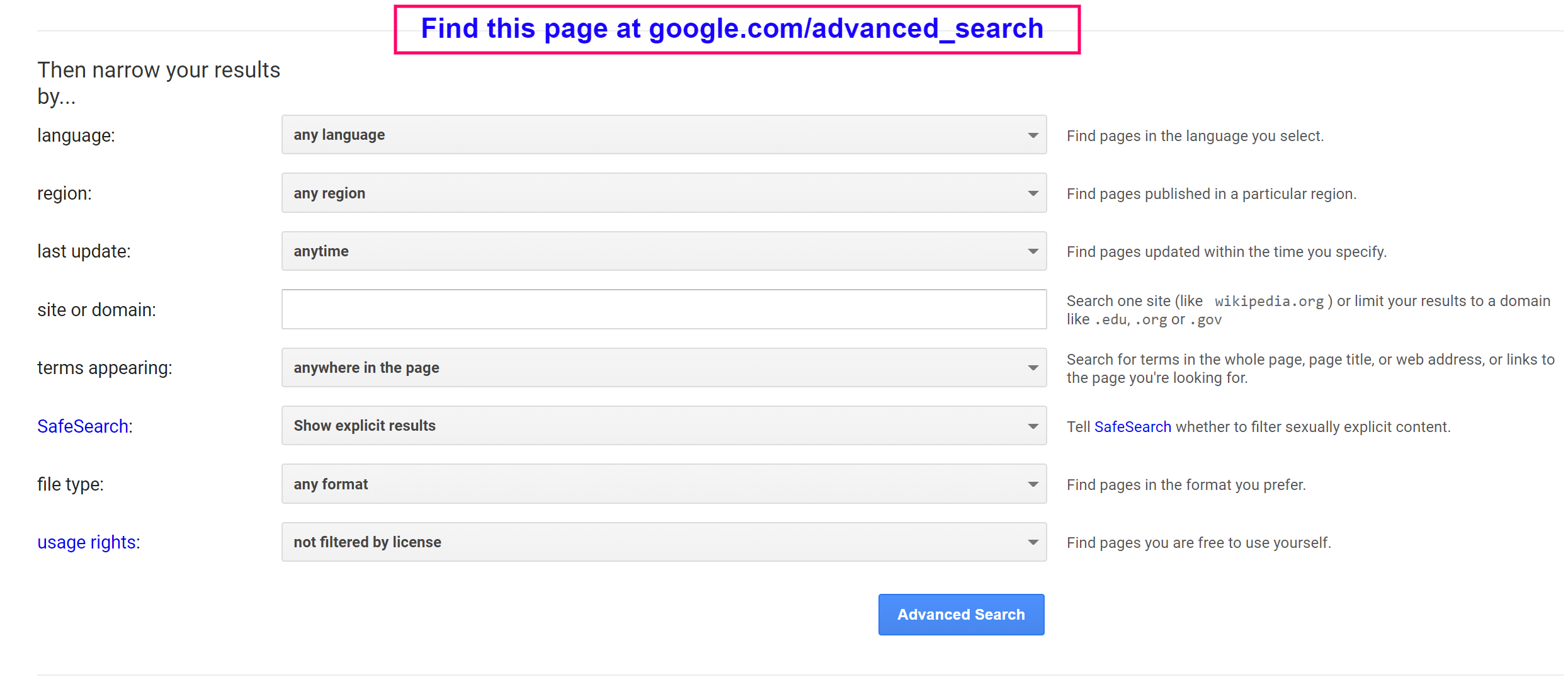
Though Google has tucked it away over the years, the Advanced Search page provides a user-friendly interface for building complex queries without having to remember the syntax of every operator. It includes fields for "all these words," "this exact word or phrase," and "any of these words," as well as filters for language, region, and usage rights.
Comparison of Common Refinement Operators
The following table summarizes the most effective operators used in 2026 for refining search results.
| Operator | Purpose | Example Query |
|---|---|---|
| " " | Exact phrase match | "artificial intelligence ethics" |
| - | Exclude a specific term | mercury -planet |
| site: | Limit to a specific domain | site:edu "research paper" |
| filetype: | Search for specific file formats | annual report filetype:xlsx |
| OR | Search for multiple alternative terms | hybrid OR electric OR hydrogen |
| AROUND(n) | Find words near each other | Biden AROUND(5) "foreign policy" |
| intitle: | Search for words in the page title | intitle:"breaking news" |
| inurl: | Search for words in the website URL | inurl:admin |
Navigating the AI-Integrated Search Environment
In 2026, Google’s Search Generative Experience (SGE) and Gemini integrations often provide a synthesized answer at the top of the page. While convenient, these summaries are interpretations. To refine these AI-driven results:
- Use the "Follow-up" bar: Instead of starting a new search, use the follow-up prompt to narrow the AI's focus (e.g., "now exclude commercial results").
- Request Sources: Explicitly ask the search engine to "provide primary sources only" or "list the specific URLs used for this summary."
- Switch to Web-only: If the AI summary is distracting or biased, many power users prefer the "Web" tab (when available) to return to a classic list of links where manual refinement operators carry more weight.
Common Mistakes in Search Refinement
Despite the simplicity of many operators, users often encounter issues due to syntax errors.
- Spaces after Operators: One of the most common errors is placing a space between the operator (like
site:or-) and the keyword. For the exclusion to work, it must be-keyword, not- keyword. - Over-Refining: Using too many operators simultaneously can lead to a "no results found" page. It is better to start broad and add constraints one at a time.
- Ignoring Case Sensitivity: While general keywords are not case-sensitive, Boolean operators like OR and AND must be capitalized to be recognized as logic commands rather than standard words.
- Deprecated Operators: Operators like
link:and+(replaced by quotes) no longer work as they once did. Relying on outdated documentation can lead to ineffective queries.
Frequently Asked Questions
How do I search for a specific price range?
To search for products within a specific price range, use two periods between two numbers. For example, searching for “laptop $500..$800” will show results for laptops within that specific price bracket. This works for dates and other numerical measurements as well.
Can I combine multiple operators in a single search?
Yes, you can combine as many operators as you need. A complex query might look like: site:nasa.gov "mars rover" -site:archives.nasa.gov filetype:pdf. This search looks for PDFs about the Mars Rover on NASA's main site while excluding their archives subdomain.
Why are my excluded terms still appearing in results?
This usually happens because the excluded term is part of a phrase Google considers essential to the search intent, or because there is a space between the minus sign and the word. Additionally, some "sponsored" results may bypass certain exclusion filters. Ensure you are using the -keyword format correctly and check if the results are organic or paid.
What is the difference between intitle: and intext:?
The intitle: operator restricts results to pages where your keyword appears in the meta title (the text shown in the browser tab). The intext: operator forces Google to find the word in the body of the page. Using intitle: is much more restrictive and often leads to higher-quality, more relevant results for specific topics.
How do I find social media mentions specifically?
You can use the @ symbol to search social media platforms, or more effectively, combine the site operator with the platform name, such as site:reddit.com "keyword" or site:twitter.com "keyword". This allows you to leverage Google's indexing speed on platforms that sometimes have slower internal search engines.
Practical Recommendation for Power Users
For the most consistent results, adopt a "broad-to-narrow" workflow. Begin with your core keywords. If the results are too noisy, identify the most common irrelevant term and exclude it using the minus sign. If you are looking for a professional resource, append a site:edu or filetype:pdf constraint. Finally, if you find yourself overwhelmed by AI-generated summaries, toggle to the "Verbatim" tool to regain control over the literal search parameters.
Image Gallery