Photo Size Examples for Print and Social Media: A Technical Guide
Achieving the correct photo size requires balancing pixel dimensions, aspect ratios, and resolution requirements to ensure images appear sharp on screens and crisp in print. For digital platforms, the primary concern is pixel-based res...
Achieving the correct photo size requires balancing pixel dimensions, aspect ratios, and resolution requirements to ensure images appear sharp on screens and crisp in print. For digital platforms, the primary concern is pixel-based resolution and compression, while print media demands a high dots-per-inch (DPI) density to maintain physical quality.
Contents
Understanding the Difference Between Digital and Print Requirements
The core technical divide in image preparation lies in how a device or printer interprets the image data. Digital displays operate on pixel dimensions (e.g., 1080 x 1920 pixels). If a file contains more pixels than the screen can display, the image may be downsampled by the platform, potentially causing blurring or compression artifacts. Conversely, if a file has too few pixels, the image will appear pixelated or "blocky."
Print media, however, relies on physical dimensions (inches or centimeters) paired with resolution (measured in DPI or PPI). While a screen typically renders at 72 to 96 PPI, professional print standards require 300 DPI to avoid visible graininess. Failing to account for this mathematical gap is the most common cause of poor output quality in professional and marketing photography.
Social Media Image Specifications
Social media platforms frequently update their interface designs, which dictates how they crop or display uploaded content. In 2026, the following standards are critical for maintaining visual integrity across major networks:
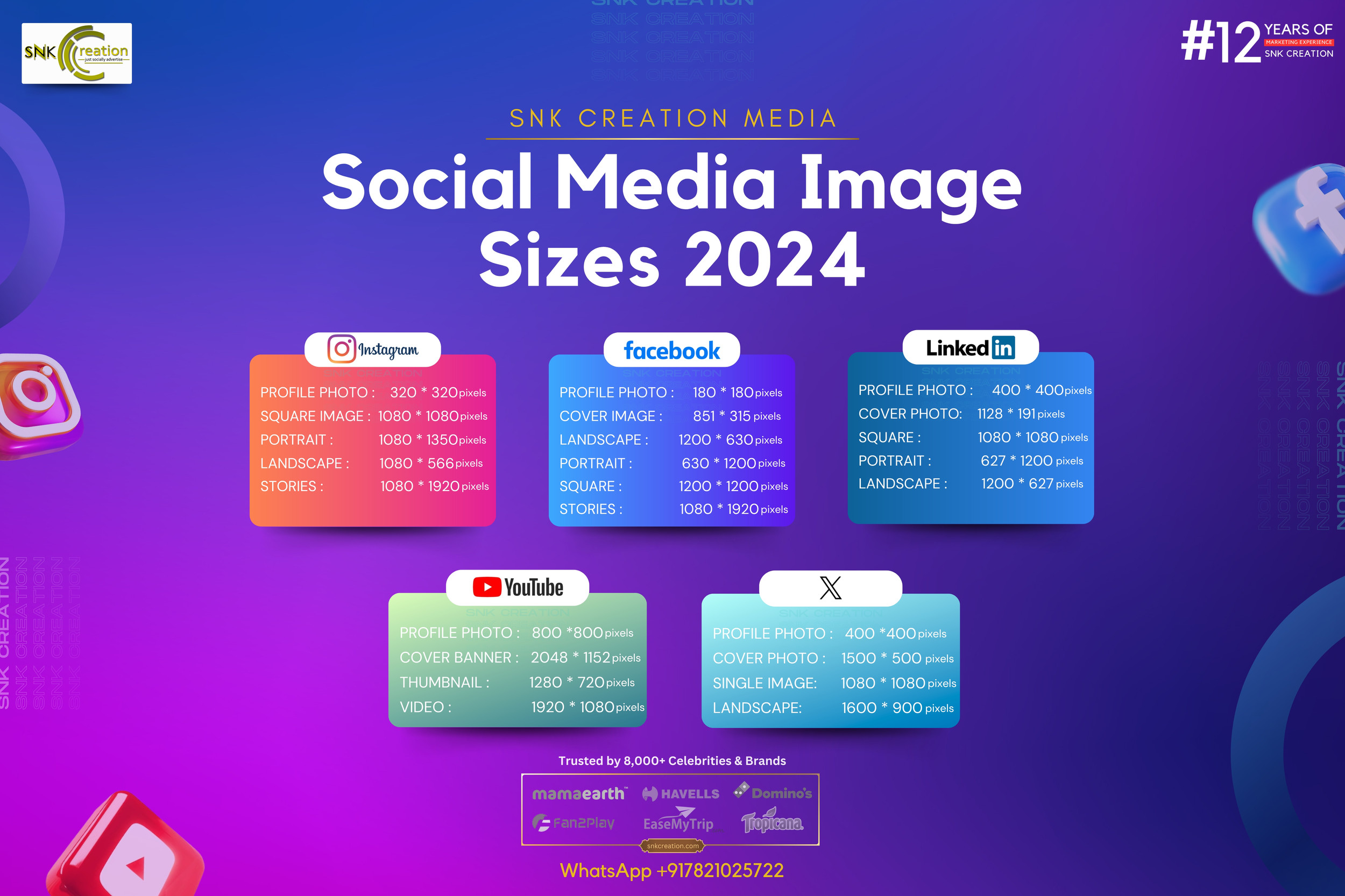
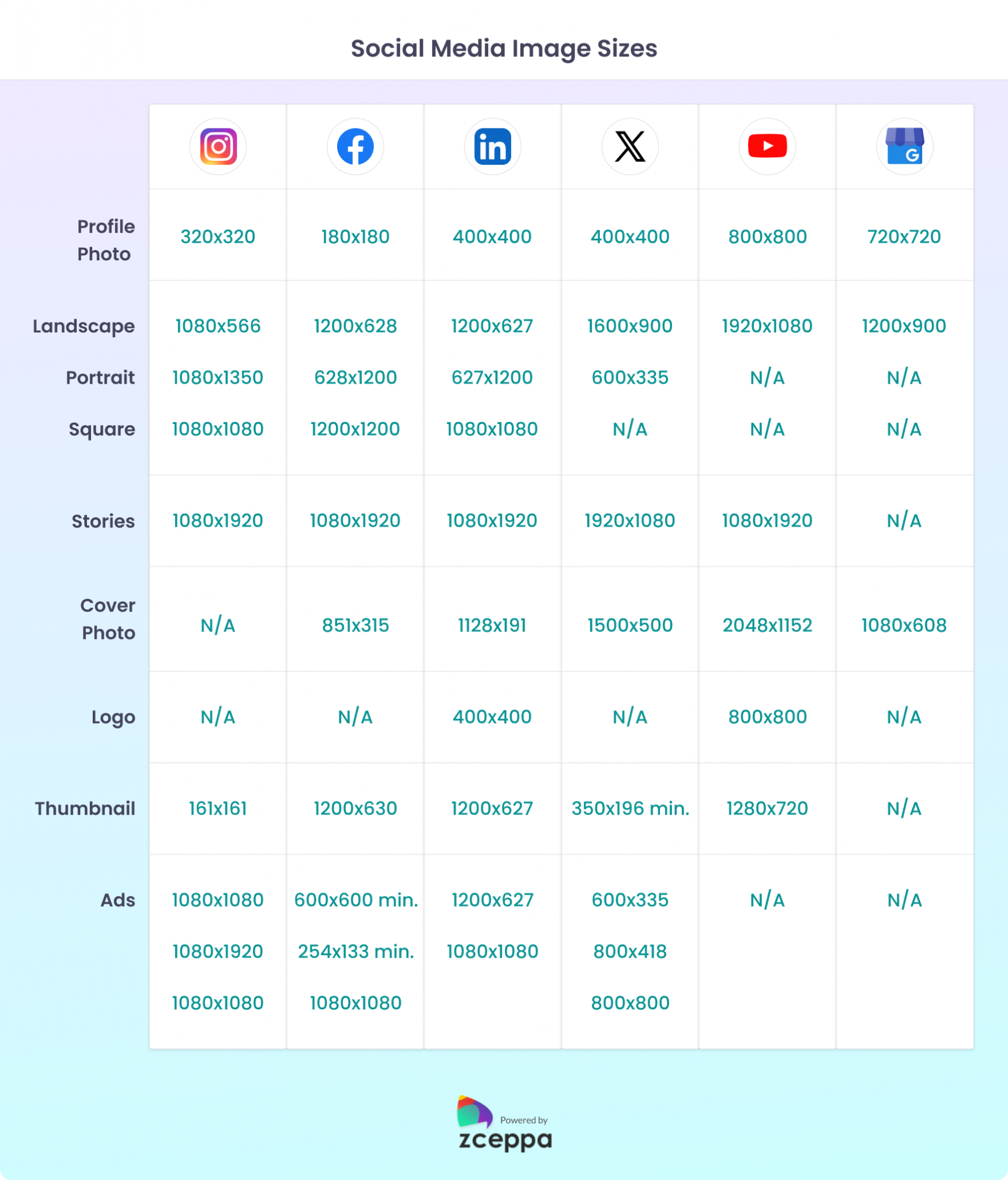
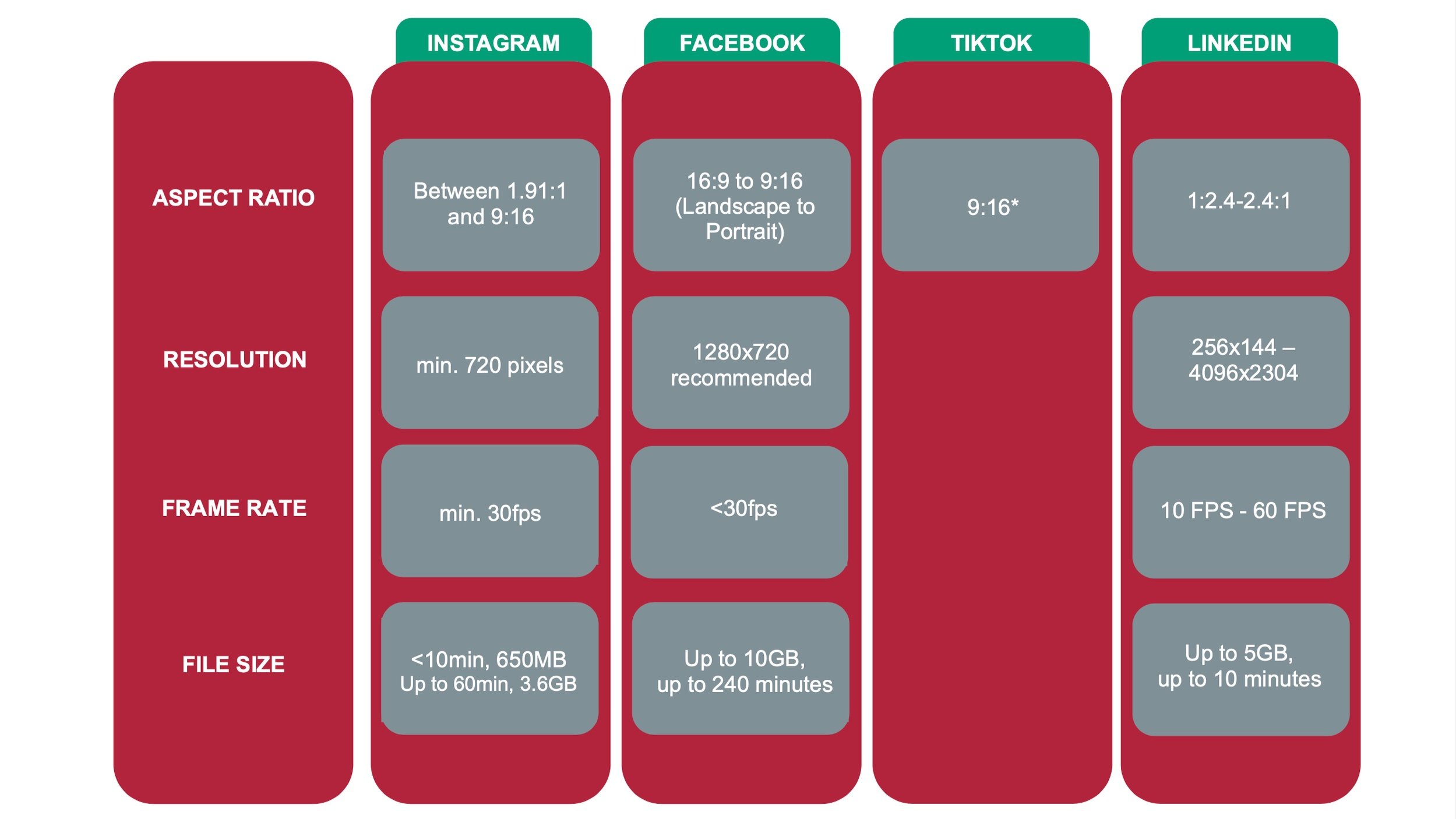
- Instagram: For Feed posts, a 4:5 aspect ratio (1080 x 1350 pixels) is recommended to maximize screen real estate. For Stories and Reels, a 9:16 aspect ratio (1080 x 1920 pixels) is the industry standard to ensure full-screen coverage without unwanted borders.
- LinkedIn: Profile headers are best displayed at 1584 x 396 pixels. Because the interface crops this image differently on mobile versus desktop, it is essential to keep key text and logos within the center "safe zone" to avoid being cut off.
- X (formerly Twitter): Profile photos should be 400 x 400 pixels. Shared images perform best at 1600 x 900 pixels, which provides a 16:9 aspect ratio that prevents the automatic cropping often seen with square images in the main feed.
Print Media Size Examples and Resolution
When preparing files for physical production, the file must be created with the final output size in mind. You cannot effectively "upscale" a low-resolution web image to print quality; the printer requires more data than the original file contains.
For high-quality printing, use the following calculation: Physical Size (inches) × 300 DPI = Required Pixel Dimensions.
For example, to print an 8 x 10-inch photograph:
- Width: 8 inches × 300 DPI = 2400 pixels
- Height: 10 inches × 300 DPI = 3000 pixels
Standard print sizes include:
- Standard Photo Prints: 4 x 6 inches (1200 x 1800 pixels at 300 DPI).
- Flyers and Brochures: A standard US Letter (8.5 x 11 inches) requires 2550 x 3300 pixels for full-bleed high-quality printing.
- Large Format (Posters): While these may be viewed from a distance, allowing for a lower DPI (typically 150), they require massive file sizes, often exceeding 10,000 pixels on the long edge.
Technical Comparison: Digital vs. Print
| Format | Measurement Unit | Standard Resolution | Common Aspect Ratio |
|---|---|---|---|
| Instagram Feed | Pixels | 72–96 PPI | 4:5 |
| Instagram Stories | Pixels | 72–96 PPI | 9:16 |
| Business Card | Inches | 300 DPI | 3.5:2 |
| US Letter Print | Inches | 300 DPI | 8.5:11 |
| Professional Poster | Inches | 150–300 DPI | Variable |
File Formats and Compression
Choosing the correct file format is as important as the dimensions themselves.
JPEG is the standard for web and social media. It utilizes "lossy" compression, which reduces file size by discarding redundant data. While excellent for quick loading times on mobile devices, repeated saving of a JPEG file introduces "artifacts"—visual noise that degrades image quality over time.
TIFF and PNG are preferred for print. TIFF files support high-bit depth and lossless compression, making them the standard for archival prints and professional publishing. PNG files are ideal for web graphics that require transparency (like logos), though they are generally not used for photographic print workflows due to their inability to store embedded CMYK color profiles efficiently.
Managing Color Spaces
Digital screens display colors using the RGB (Red, Green, Blue) color model. Printers, however, use the CMYK (Cyan, Magenta, Yellow, Key/Black) ink process.
A common mistake is sending an RGB file to a printer. The conversion process can lead to dull or shifted colors because the printer cannot reproduce the vibrant "neon" spectrums available on an OLED screen. Always ensure your print-bound files are converted to a CMYK profile (such as FOGRA39 or GRACoL) before final export to confirm how the colors will appear on paper.
Troubleshooting Common Quality Issues
If your image looks blurry after uploading to social media, check the original file's dimensions. Many platforms automatically compress images that exceed their maximum file size (often 5MB to 10MB) or pixel width (typically 2048 or 4096 pixels). Resizing the image to match the platform's native requirements before uploading gives you control over the compression, rather than letting an algorithm decide for you.
For print, if you receive a warning that your file has "low resolution," it means the physical size of the image is larger than the number of pixels available to support 300 DPI. You must either reduce the print size or use a more comprehensive source file. Scaling up a low-resolution file in image editing software will not add detail; it will only stretch existing pixels, resulting in a blurry print.
Frequently Asked Questions
What is the best resolution for printing photos? The industry standard is 300 DPI (dots per inch). This density ensures that, at a standard viewing distance, the human eye cannot discern individual pixels, resulting in a smooth, photographic quality.
Why does my photo look different on Instagram than on my phone? Instagram applies its own compression algorithms to every image uploaded. To minimize this, upload images at the platform's native width (1080 pixels) to avoid the app performing a "downsampling" process, which often introduces blur.
Can I use a 72 DPI image for print? Technically, yes, but it will appear pixelated. A 72 DPI image intended for a monitor is roughly four times smaller than what is required for a crisp print. If you must print a 72 DPI image, the physical print must be kept very small (typically under 2 inches) to maintain the appearance of sharpness.
What is a "bleed" in print design? Bleed refers to printing that goes beyond the edge of where the sheet will be trimmed. If your photo is intended to reach the very edge of a page, you must add an extra 0.125 inches on all sides to account for potential variations in the paper-cutting process.
Should I use JPEG or PNG for professional printing? Neither is ideal. Professional printing workflows prefer TIFF or high-quality PDF files. These formats support the color depth and ICC color profiles necessary for professional-grade printing equipment to render accurate skin tones and gradients.
Final Next Steps
For digital projects, confirm the target platform's latest sizing guidelines via their official help center to account for 2026 interface updates. For print projects, contact your specific print service provider to request their "submission specifications" or "prepress guide." These documents often contain specific bleed requirements and ICC color profile suggestions unique to their machinery, ensuring your final output matches your design intent.
Image Gallery