Understanding Windows Event Log Types: A Technical Reference Guide
Windows Event Logs are specialized databases that record significant hardware, software, and system notifications on a Windows operating system. These logs serve as a chronological audit trail, categorizing events into distinct types—s...
Windows Event Logs are specialized databases that record significant hardware, software, and system notifications on a Windows operating system. These logs serve as a chronological audit trail, categorizing events into distinct types—such as System, Security, and Application—and severity levels like Error or Warning, to help administrators diagnose failures and monitor security.
Contents
The Windows Event Log architecture is a cornerstone of system administration, providing the telemetry necessary for troubleshooting, forensic analysis, and performance monitoring. As of 2026, even with the rise of cloud-native observability tools, the local Windows Event Log remains the primary source of truth for what is happening within a Windows-based environment. Understanding the nuances between log categories and event severities is essential for any professional managing Windows Server or client workstations.
The Structural Hierarchy of Windows Logs
To understand Windows event log types, one must first distinguish between the Log Channel (where the event is stored) and the Event Level (the severity of the record). Modern Windows systems use the XML-based .evtx format, which allows for rich metadata and structured querying, replacing the legacy .evt format used in earlier versions of the OS.
Windows Logs (The Primary Categories)
The "Windows Logs" folder in the Event Viewer contains the five classic log files that have existed since the early NT days, though they have evolved significantly in their underlying structure.
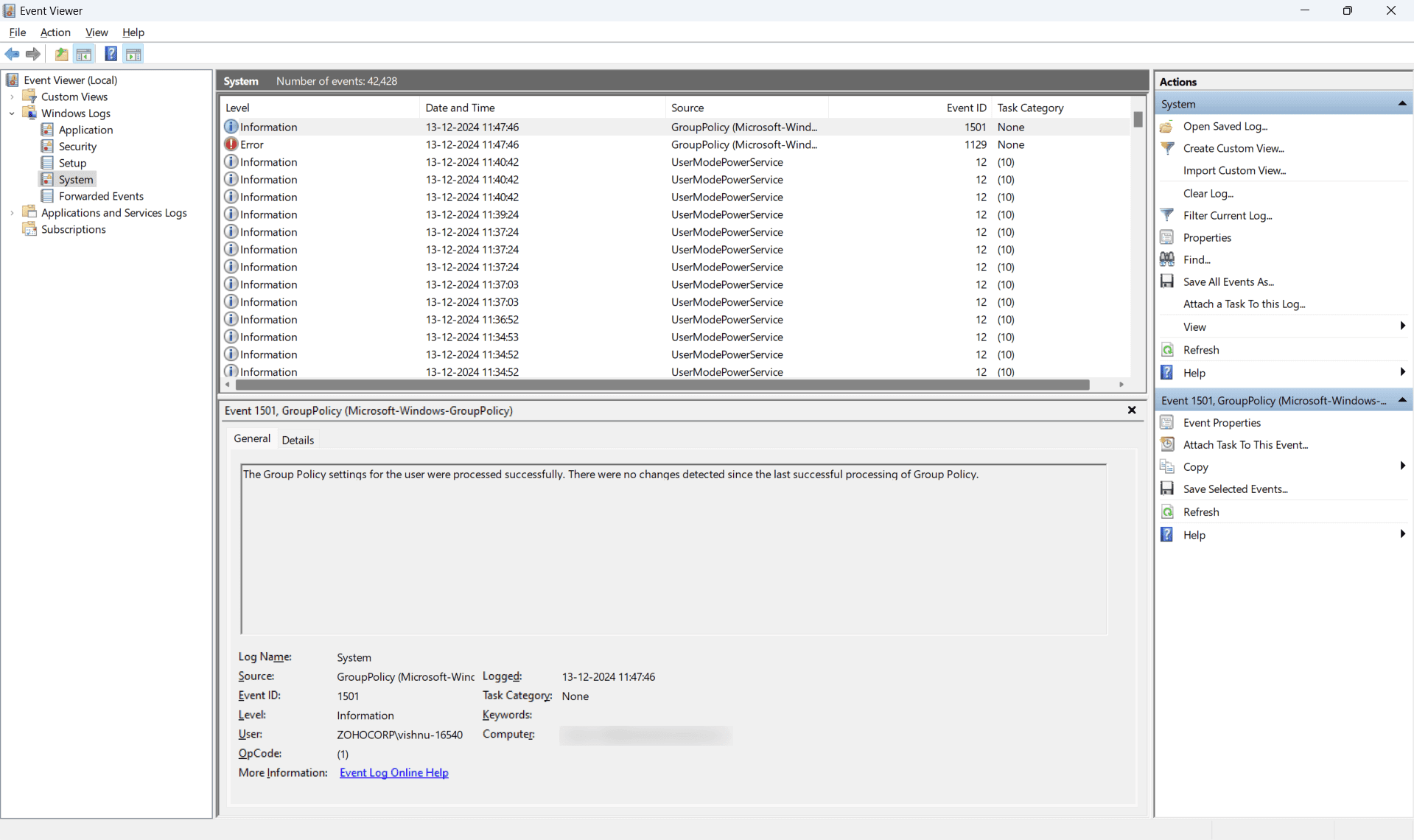
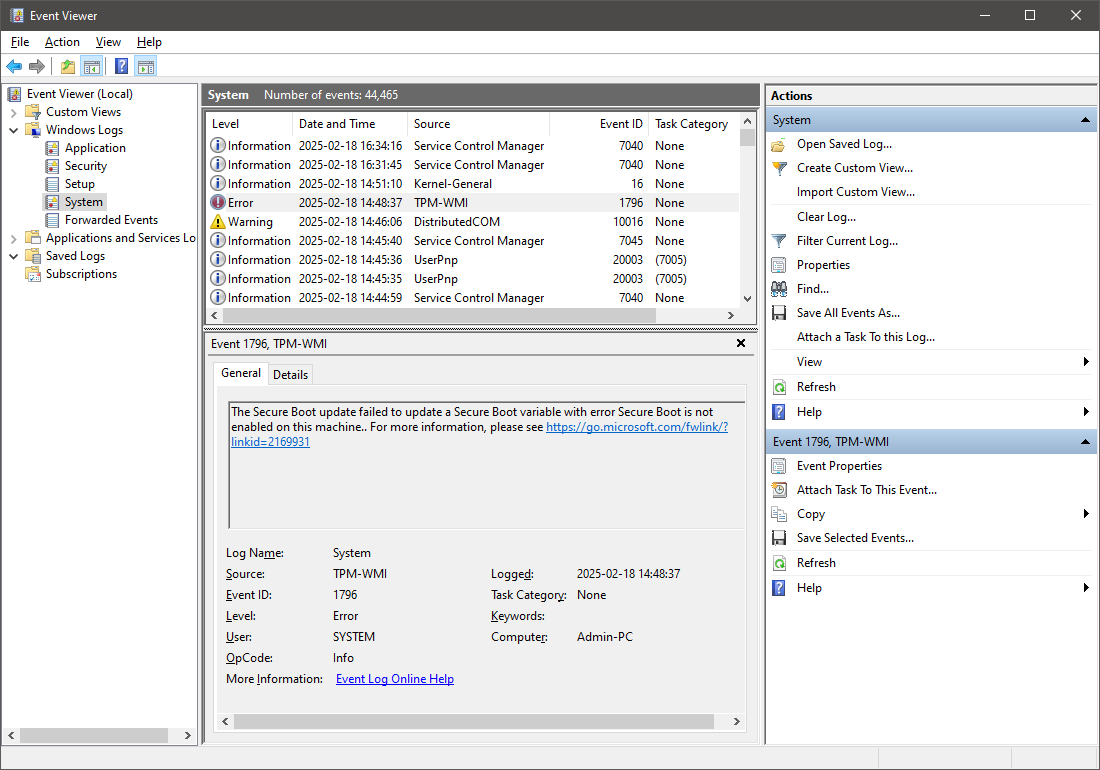
- System Logs: The System log records events logged by Windows system components. For example, the failure of a driver or other system component to load during startup is recorded in the System log. This is the first place an administrator should look if the operating system itself is behaving unexpectedly, such as encountering a Blue Screen of Death (BSOD) or a service failing to start.
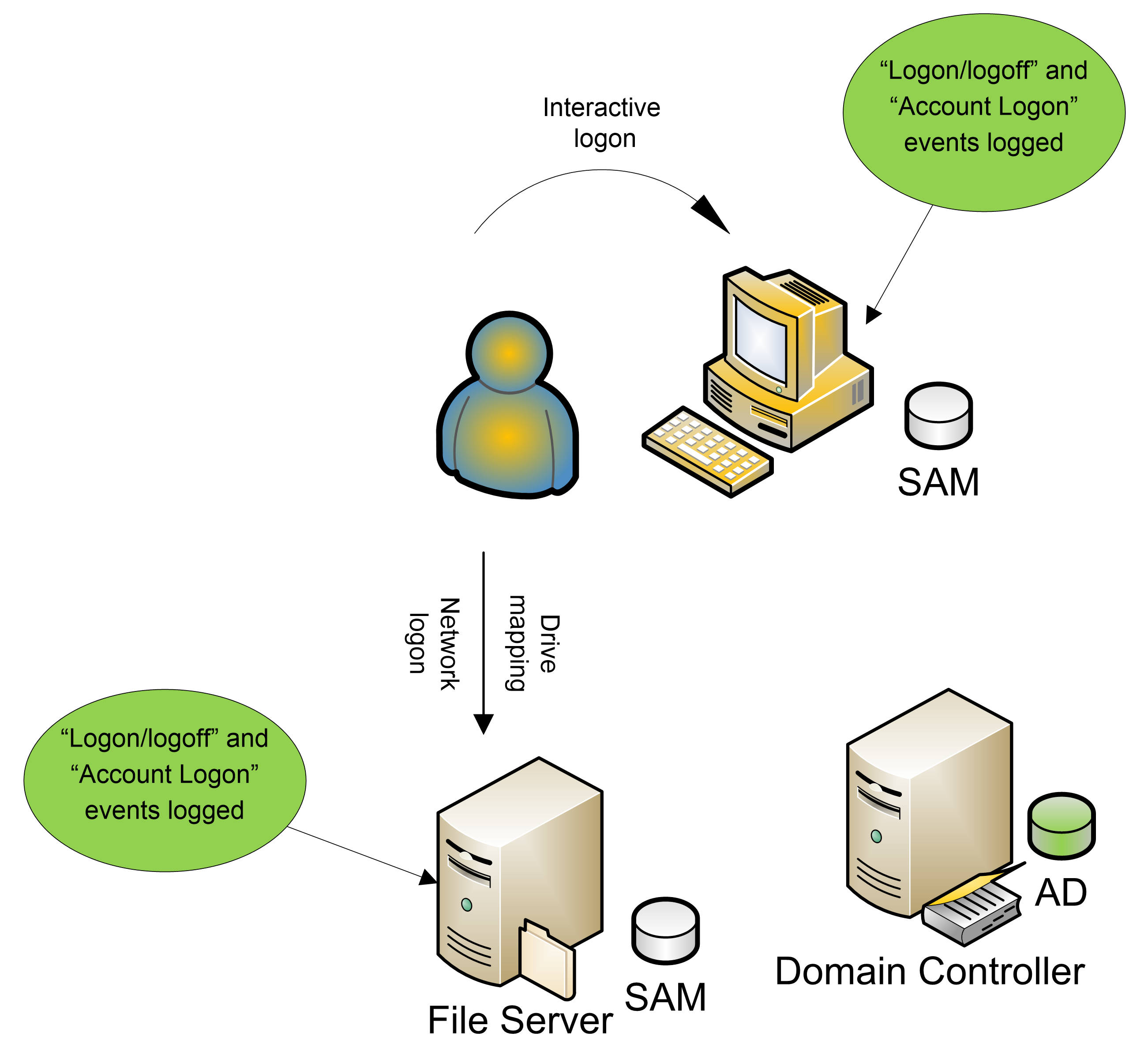
- Security Logs: This log records events such as valid and invalid logon attempts, as well as events related to resource use, such as creating, opening, or deleting files. The Security log is unique because it is governed by Audit Policies. If auditing is not enabled via Group Policy, the Security log may remain empty or show only basic activity. It is the primary resource for detecting unauthorized access or lateral movement within a network.
- Application Logs: The Application log contains events logged by programs. For example, a database program might record a file error in the Application log. Developers use this channel to report non-critical errors or status updates that do not impact the entire operating system but affect the specific software's functionality.
- Setup Logs: This log captures events related to the installation of Windows and its updates. When a Windows Update fails or a new feature is added to the OS, the Setup log provides the granular details needed to identify which specific package or prerequisite caused the interruption.
- Forwarded Events: This log is used to store events collected from remote computers. Through Event Subscription services, a central server can "pull" or "push" logs from hundreds of workstations into this single container, facilitating centralized monitoring without the need for a full SIEM (Security Information and Event Management) suite.
Applications and Services Logs
Beyond the standard Windows logs, there is a secondary tier called Applications and Services Logs. These are more granular and are categorized by individual providers (e.g., Microsoft, Hardware Events, or specific third-party applications). These logs include:
- Administrative: Events intended for end-users or administrators that indicate a problem and provide a clear solution.
- Operational: Events used for analyzing and diagnosing a problem or occurrence. They are used to trigger tools or tasks based on the event.
- Analytic: Events published in high volume. They describe program operation and indicate problems that cannot be helped by user intervention.
- Debug: Events used primarily by developers to diagnose low-level issues within code execution.
Distinguishing Event Levels and Severities
Every event within a log is assigned a Level, which dictates its priority. Misinterpreting these levels often leads to "alert fatigue," where administrators ignore critical warnings because they are buried among thousands of informational entries.
| Event Level | Icon Color | Technical Significance | Recommended Action |
|---|---|---|---|
| Critical | Red (White X) | Indicates a failure from which the application or component cannot automatically recover. | Immediate investigation; often associated with system crashes or hardware failure. |
| Error | Red (Exclamation) | Indicates a significant problem, such as loss of data or loss of functionality. | High priority; investigate to prevent service outages. |
| Warning | Yellow | An event that is not necessarily significant but may indicate a possible future problem. | Monitor; often indicates low disk space or a retried network connection. |
| Information | Blue (i) | Describes the successful operation of an application, driver, or service. | Routine review; useful for establishing a baseline of "normal" behavior. |
| Verbose | Gray/None | Provides detailed progress or state messages. | Only enabled during active debugging sessions due to high volume. |
Anatomy of a Windows Event Record
When you open an event, you are presented with several fields that provide context. Understanding these fields is vital for programmatic log analysis using tools like PowerShell.
- Event ID: A numerical value that maps to a specific message string. For example, Event ID 4624 always represents a successful logon in the Security log.
- Source: The software or component that logged the event.
- Task Category: Used to categorize events within a source (e.g., "Logon" or "Logoff" for the Security source).
- User: The specific user account context under which the event occurred. On many system events, this will appear as
SYSTEM. - Computer: The hostname of the machine where the event took place.
- OpCode: A numeric value that identifies the activity or a point within an activity that the application was performing when it raised the event.
Accessing and Managing Logs in 2026
In the current landscape of 2026, administrators have multiple ways to interact with event logs depending on the scale of their environment.
1. The Event Viewer (GUI)
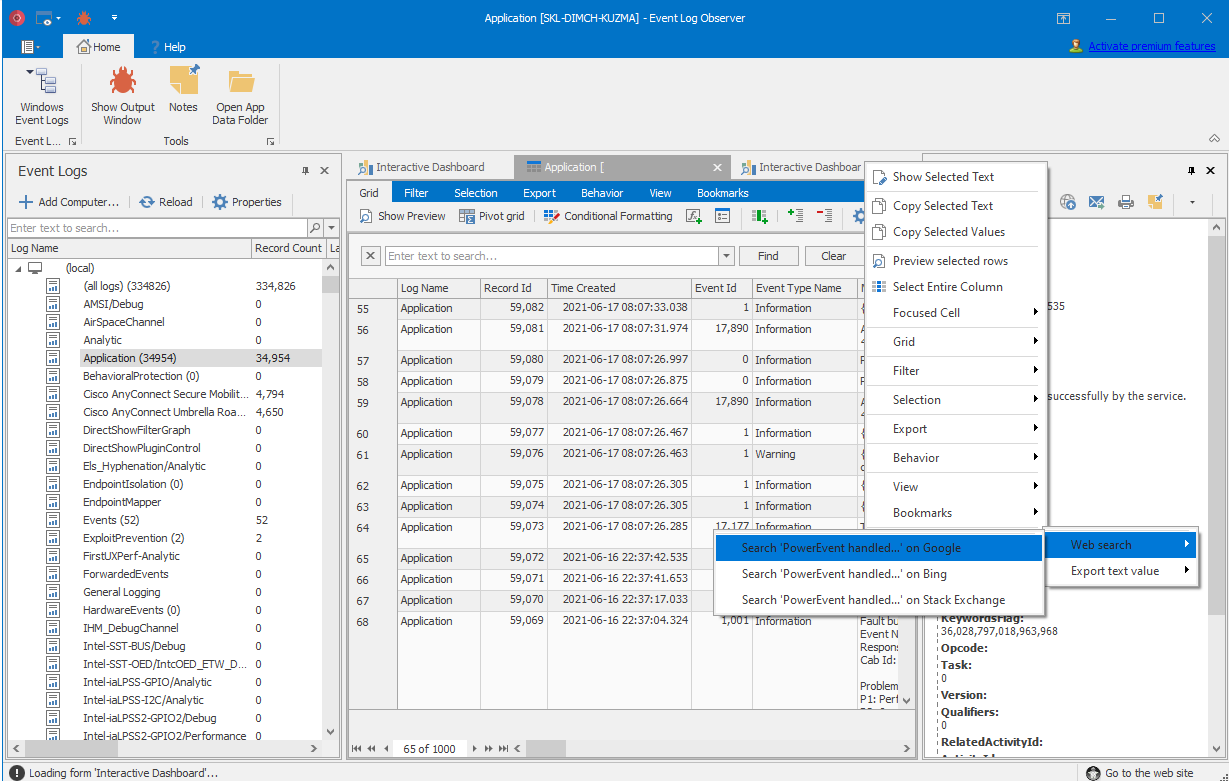
The traditional Event Viewer (eventvwr.msc) remains the standard for manual inspection. It allows users to create Custom Views, which filter logs across multiple categories. For instance, a "Critical Errors" view can be configured to show only Level 1 and 2 events from both the System and Application logs.
2. PowerShell (Automation)
For modern devops and automation, PowerShell is the preferred method. The Get-WinEvent cmdlet is the industry standard for querying logs. Unlike the legacy Get-EventLog, Get-WinEvent can query both classic logs and the newer Applications and Services logs.
Example command to find the last 5 errors in the System log:
Get-WinEvent -LogName System -MaxEvents 5 | Where-Object {$_.LevelDisplayName -eq "Error"}
3. Log Forwarding and SIEM
In enterprise environments, logs are rarely viewed on the local machine. Instead, Windows Event Forwarding (WEF) is used to send logs to a Windows Event Collector (WEC). From there, data is often ingested into platforms like Microsoft Sentinel or Splunk for long-term retention and correlation.
Essential Event IDs for Security Monitoring
Monitoring every event is impossible. Instead, focus on these critical IDs within the Security and System logs:
- 4624 (Security): Successful logon. Monitor this to track who is accessing your systems.
- 4625 (Security): Failed logon. A high volume of these often indicates a brute-force attack.
- 4720 (Security): A user account was created. Unauthorized account creation is a major red flag.
- 41 (System): The system has rebooted without cleanly shutting down first. This is crucial for identifying power issues or kernel crashes.
- 1074 (System): Indicates who initiated a shutdown or restart and why.
Best Practices for Log Management
To ensure your logs remain useful and do not consume excessive disk space, follow these operational guidelines:
- Define Retention Policies: By default, logs often overwrite themselves when they reach a certain size (e.g., 20MB). In a regulated environment, you should increase this size or enable "Archive logs when full."
- Enable Advanced Auditing: The default Security log is sparse. Use Group Policy to enable "Advanced Audit Policy Configuration" to track specific actions like sensitive privilege use or file system changes.
- Use Filtered Views: Do not scroll through the "Information" events. Always filter by "Critical" and "Error" first when performing a post-mortem on a system failure.
- Monitor Log Service Health: If the "Windows Event Log" service stops, your system is essentially blind. Use external monitoring tools to ensure this service is always running.
Frequently Asked Questions
What is the difference between an Event ID and a Task Category?
An Event ID is a unique number that identifies a specific type of occurrence (e.g., ID 7036 for service status changes). A Task Category is a broader grouping used by the event provider to organize these IDs. For example, multiple different Event IDs might all fall under the "Logon" task category.
Can I delete Windows Event Logs to save space?
Yes, you can clear logs through the Event Viewer or via PowerShell (Clear-EventLog). However, this is generally discouraged unless you have already backed them up or are clearing them as part of a fresh system deployment. Clearing logs is often a tactic used by attackers to hide their tracks.
Why is my Security log empty?
The Security log is controlled by the system's Audit Policy. If no auditing is configured, Windows will not record security events. You can enable auditing by navigating to Local Group Policy Editor > Computer Configuration > Windows Settings > Security Settings > Local Policies > Audit Policy.
How long are events stored in the log?
Retention is based on file size, not time. Once a log file (e.g., System.evtx) reaches its maximum size limit, the oldest events are overwritten by new ones unless the "Archive" setting is enabled. You can adjust these limits in the properties of each log.
What does "Event ID 0" mean?
Event ID 0 is often a "catch-all" or a placeholder used when a software developer has not assigned a specific ID to an error message. It usually indicates that the application's message file could not be found or the event was logged incorrectly by the third-party provider.
Next Steps for Administrators
After mastering the types of Windows event logs, the next step is to implement a centralized logging strategy. Start by configuring a Windows Event Forwarder to aggregate logs from your most critical servers. This ensures that even if a system's local disk is wiped or a server is taken offline, the forensic evidence of what occurred remains accessible on your collection server. For further technical specifications on log schemas, refer to the official Microsoft Event Schema documentation.
Image Gallery