What Is the Apple Account Balance? A Complete Guide to Managing Your Digital Funds
The Apple Account balance is the prepaid digital store credit directly tied to your individual Apple Account. Created through redeemed Apple Gift Cards, direct payment top-ups, or trade-in credits, this balance allows you to pay for ap...
The Apple Account balance is the prepaid digital store credit directly tied to your individual Apple Account. Created through redeemed Apple Gift Cards, direct payment top-ups, or trade-in credits, this balance allows you to pay for apps, subscriptions, digital content, and—in supported countries—physical hardware at Apple Stores and Apple online.
Contents
Understanding the Apple Account Balance
The Apple Account balance serves as a centralized digital wallet for purchasing within the Apple ecosystem. Formerly known as your Apple ID balance or iTunes credit, Apple streamlined the naming convention alongside system-level updates to unify account management across iOS, iPadOS, macOS, and web platforms.
When money is loaded onto your account, it acts as a non-expiry store credit denominated in your local account currency. Unlike general-purpose mobile wallets or debit accounts, the Apple Account balance is specifically designed to settle transactions conducted through official Apple retail channels and software storefronts.
Every Apple Account maintains its own isolated balance. Funds cannot be pooled across different family accounts, nor can they be converted into physical cash, except where explicitly mandated by local consumer protection statutes. Understanding how this balance functions helps users manage digital subscriptions, control personal or family spending, and optimize hardware purchases.
What You Can Buy with Your Apple Account Balance
The utility of your Apple Account balance depends primarily on your geographic region and the unified nature of Apple's storefront systems in your country. In regions with unified gift card systems—such as the United States, Canada, the United Kingdom, Australia, and Japan—your balance covers both digital services and physical retail purchases.
Digital Content and Subscriptions
Your account balance can automatically fund virtually all digital purchases within the Apple ecosystem, including:
- App Store Purchases: Paid apps, games, in-app purchases, and expanding virtual subscriptions for iOS, iPadOS, macOS, watchOS, and visionOS.
- First-Party Subscriptions: Recurring payments for Apple Music, iCloud+, Apple TV+, Apple Arcade, Apple Fitness+, and Apple One bundles.
- Third-Party Subscriptions: Streaming services and software utilities billed directly through App Store subscription management.
- Digital Media: Movies, television shows, audiobooks, and e-books purchased through the Apple TV app or Apple Books.
Physical Products and Accessories
In countries supporting unified Apple Gift Cards, your Apple Account balance functions like cash when purchasing hardware. You can apply the balance toward:
- iPhones, iPads, Mac computers, Apple Watches, and Apple Vision Pro displays.
- First-party accessories such as MagSafe chargers, Magic Keyboards, AirPods, and Beats headphones.
- Third-party products sold directly through the official online Apple Store or Apple Store mobile app.
Restrictions on Balance Usage
Despite its flexibility, certain purchases cannot be completed using an Apple Account balance:
- Gifting to Others: You cannot use your existing account balance to send digital gift cards or transfer money to another user's Apple Account.
- Family Sharing Allowances: Members of an Apple Family Sharing group cannot draw from the group organizer's Apple Account balance. Purchases made by family members default to their own individual account balances first; if their balance is zero, the transaction charges the Family Organizer’s linked credit or debit card directly.
- Unsupported Regions: In select international markets where unified Apple Gift Cards are not available, account balances remain strictly limited to digital content from the App Store and iTunes storefronts.
How to Check Your Apple Account Balance
Checking your available funds takes only a few steps on any device logged into your Apple Account.
- Access Method
- iOS / iPadOS
- App Store Profile
- Apple Wallet App
- macOS
- App Store Account
- System Settings
- iOS / iPadOS
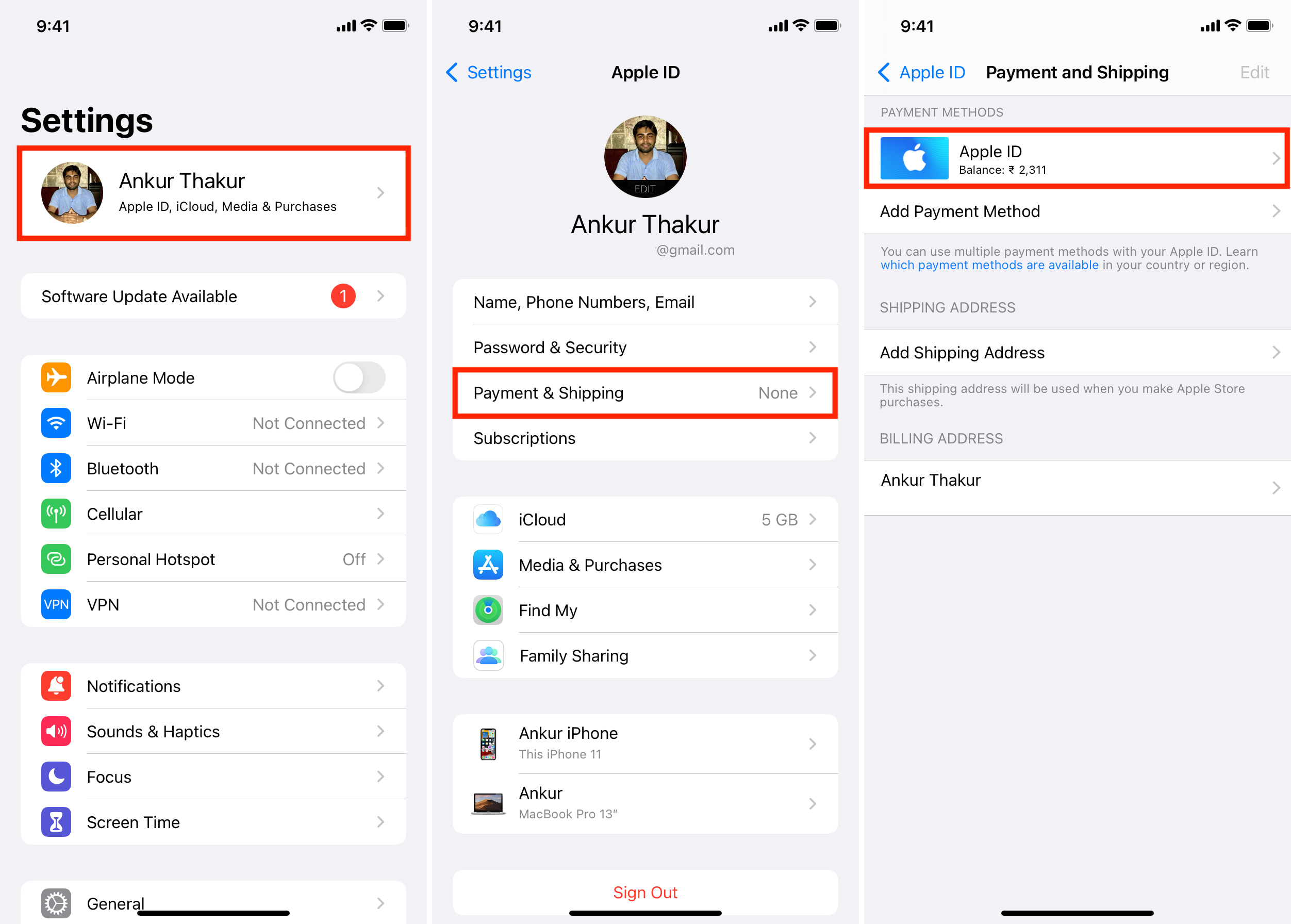
On iPhone or iPad
- Open the App Store app.
- Tap your profile icon or photo in the top right corner.
- If you have an active balance, the total amount appears directly under your account name and email address.
- Alternatively, open the Wallet app, select your Apple Account card, and view your live balance on screen.
On Mac
- Open the App Store app on macOS.
- Click your name or profile picture in the bottom-left corner of the window.
- If you have available credit, your balance displays underneath your profile heading.
On PC or Web Browser
- Navigate to the official Apple Account Management page.
- Sign in using your Apple Account credentials and complete two-factor authentication.
- Navigate to the Payment Methods or Account Balance section to view your current remaining funds.
How to Add Money to Your Apple Account Balance
Adding funds to your account provides a convenient way to budget for software subscriptions or save toward future hardware purchases without entering payment credentials for every micro-transaction.
1. Redeeming Apple Gift Cards
The most common way to build an account balance is by redeeming an official Apple Gift Card. You can claim digital or physical cards through the App Store:
- Open the App Store, tap your profile icon, and select Redeem Gift Card or Code.
- Use your device camera to scan the code automatically or type the 16-digit alphanumeric code printed on the card back or included in your digital receipt email.
- Upon validation, the full monetary value transfers instantly to your active account balance.
2. Adding Funds via Apple Wallet or Direct Payment
You can transfer funds directly from a debit card, credit card, or linked bank account into your Apple Account balance using your mobile device:
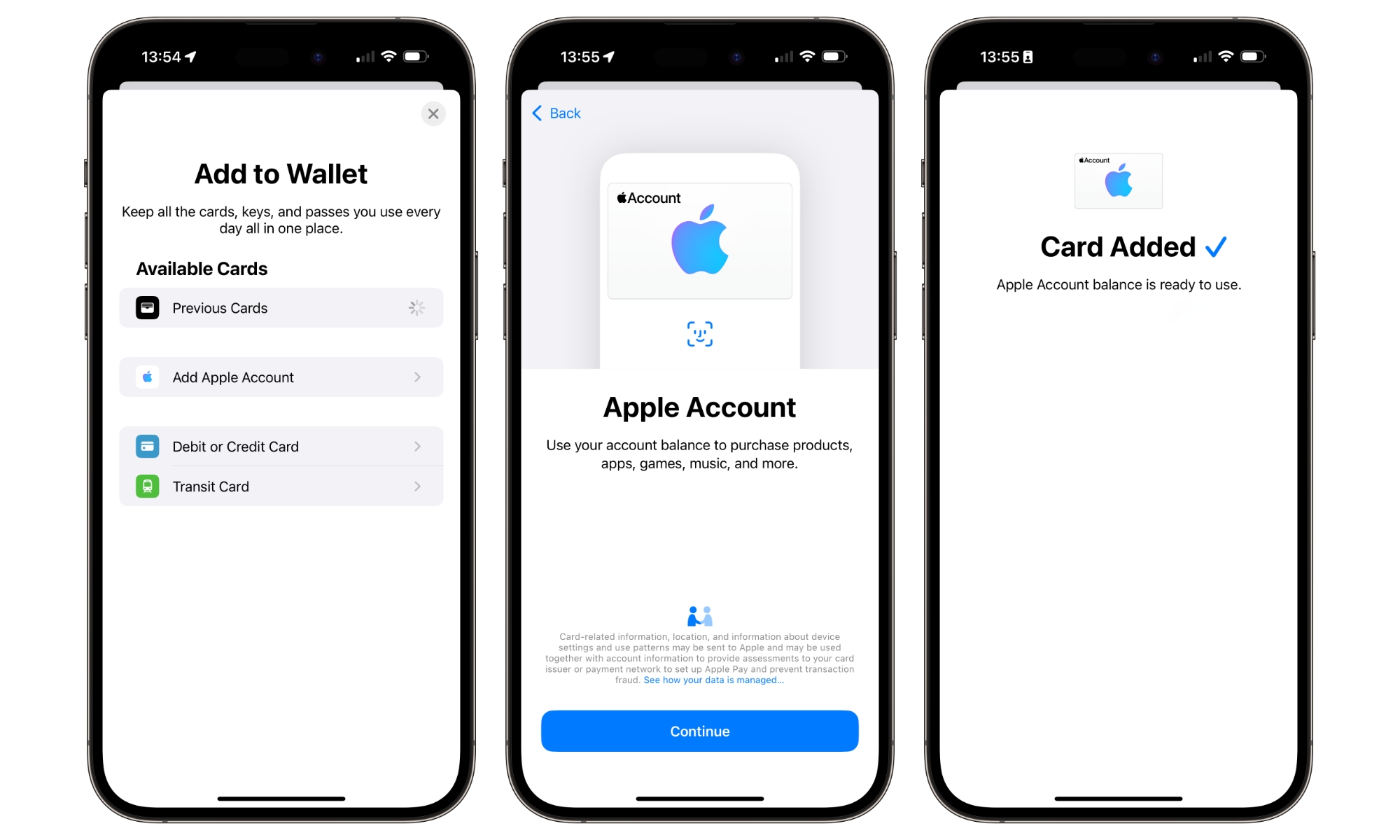
- Open the Wallet app on your iPhone.
- Tap the Apple Account card.
- Tap Add Money, select or enter your desired dollar amount, and confirm the transaction using Face ID, Touch ID, or your passcode.
3. Setting Up Auto-Reload
If you rely on your balance for essential monthly payments like iCloud+ storage or Apple Music, you can configure automatic reload settings:
- Within the Wallet app or App Store balance settings, choose Set Up Auto-Reload.
- Select a recurring frequency (such as monthly or weekly) or set a minimum balance threshold that automatically triggers a top-up from your default primary payment card.
4. Applying Apple Trade-In Value
When trading in eligible devices through Apple, you can elect to receive your trade-in compensation as store credit applied directly to your Apple Account balance rather than receiving an instant hardware discount or pre-paid instant refund.
Comparing Apple Payment Systems
Apple offers several distinct payment features that sound similar but serve entirely different functions. The table below outlines how the Apple Account balance compares with Apple Pay and Apple Card.
| Feature / Aspect | Apple Account Balance | Apple Pay | Apple Card |
|---|---|---|---|
| Primary Nature | Prepaid digital store credit tied to an Apple Account | Contactless payment gateway/wallet platform | Credit card issued by Goldman Sachs (US only) |
| Funding Source | Gift cards, direct debit top-ups, trade-in credits | Linked external debit cards, credit cards, or bank accounts | Revolving credit line |
| Where Accepted | Apple Stores, Apple.com, App Store, Apple Subscriptions | Any merchant accepting contactless or online Apple Pay | Anywhere Mastercard is accepted globally |
| Physical Hardware Purchases | Supported (in unified regions) | Supported | Supported (includes 3% Daily Cash back) |
| Auto-Billing Support | Automatically used first for subscriptions | Serves as secondary/backup payment method | Functions like a traditional credit card |
| Peer-to-Peer Transfers | Not supported | Supported via Apple Cash (US only) | Daily Cash can be sent via Apple Cash |
The Default Payment Hierarchy
Understanding how Apple processes billing prevents unexpected charges to your credit card or bank account. When you purchase an app, subscribe to a service, or rent a movie, Apple follows a strict payment hierarchy:
- Apple Account Balance: Apple always attempts to exhaust your active account balance first.
- Primary Payment Method: If your account balance is zero or insufficient to cover the total transaction cost, Apple bills the remaining amount to your default credit or debit card registered on file.
- Backup Payment Methods: If the primary card is declined, Apple attempts to charge secondary payment cards listed in your account settings in descending order.
Important Exception: If your account balance is less than the full price of a digital item, Apple charges your balance completely and bills the remaining portion to your secondary payment card. However, for certain recurring auto-renewing subscriptions, Apple requires a valid credit or debit card on file as a backup, even if your account balance is currently sufficient to cover the recurring charge.
Limitations, Expirations, and Regional Rules
While the Apple Account balance is flexible, several operational rules govern its use:
- Non-Transferability: Balances are locked to the specific Apple Account into which they were redeemed. You cannot transfer credit between two personal Apple Accounts or share funds with family members.
- Regional Locking: Your account balance is bound strictly to the currency and storefront region of your Apple Account. If you redeem a gift card purchased in US Dollars, those funds reside in a US-registered Apple Account. If you relocate to a new country and change your Apple Account country or region settings, your existing balance must be reduced to zero before Apple allows the regional migration.
- No Expiration: Funds added to an Apple Account balance do not expire over time.
- Cash Cash-Out Restrictions: Under standard terms of service, balances cannot be redeemed for cash or refunded. However, specific state laws (such as those in California, Massachusetts, and Rhode Island) mandate that gift card balances below small designated thresholds (typically $5 or $10) can be cashed out upon request through official Apple Support channels.
Troubleshooting Common Balance Issues
Balance Not Updating After Redeeming a Card
If you redeemed a card or added funds but your total does not update immediately:
- Force close the App Store or Wallet app and reopen it.
- Sign out of your Apple Account in your device settings, restart the device, and sign back in.
- Check the official Apple System Status Page to verify that App Store or Account services are not experiencing temporary server downtime.
Purchases Charging a Credit Card Instead of Balance
If Apple bills your personal credit card despite an active balance, verify the following:
- Tax and Overshoot Costs: If the cost of the item plus applicable sales tax exceeds your exact balance, the entire purchase—or the remaining portion—will be billed to your primary card.
- Gifting Transactions: Buying digital content as a gift for another user bypasses your stored balance and charges your linked credit card directly.
- Subscription Authorization Holds: Some multi-user or family subscriptions require a verified credit card on file regardless of stored balance.
Practical Recommendations
To maintain smooth management of your digital expenses:
- Audit Recurring Subscriptions Regularly: If you rely on your Apple Account balance for monthly services like iCloud+ or Apple Music, maintain a small buffer or set up auto-reload to avoid service interruptions.
- Consolidate Before Changing Regions: If you plan to move internationally, spend down your remaining balance on digital media or smaller app purchases beforehand, as Apple's system requires a zero-balance state before changing storefront regions.
- Keep Physical Cards as Receipts: Retain physical gift card shells or digital confirmation emails until you verify that the funds appear correctly in your balance.
Frequently Asked Questions
Can I transfer my Apple Account balance to another Apple ID?
No. Apple Account balances are strictly non-transferable. Once a gift card or cash top-up is redeemed to a specific account, those funds remain permanently linked to that individual account.
Does the Apple Account balance expire?
No. Funds added to your Apple Account balance do not carry an expiration date. Your balance remains available indefinitely until you spend it.
Why can't I use my balance to buy an Apple Gift Card for a friend?
Apple explicitly restricts users from purchasing new gift cards using existing account balances to prevent fraud and money-laundering loops. Gift card purchases require an external payment source, such as a credit card or debit card.
What happens to my balance if I join a Family Sharing group?
Your personal balance remains tied exclusively to your account. When you make a purchase, Apple uses your personal account balance first. If your balance is empty, the charge falls back to the Family Organizer's payment card. Other family members cannot spend your balance.
Can I spend my Apple Account balance in physical Apple Store retail locations?
Yes, provided you reside in a country that uses unified Apple Gift Cards (such as the US, Canada, UK, Australia, and Japan). You can add your Apple Account card to the iOS Wallet app and present it at checkout in physical stores or select your balance during online checkout at Apple.com.
Image Gallery