How to Personalize Outlook Email for Better Outreach: Strategies for Improved Engagement
Personalizing Outlook email for better outreach involves moving beyond mass-messaging templates to leverage built-in features like Mail Merge, Quick Parts, and professional add-ins. By systematically integrating recipient-specific data...
Personalizing Outlook email for better outreach involves moving beyond mass-messaging templates to leverage built-in features like Mail Merge, Quick Parts, and professional add-ins. By systematically integrating recipient-specific data and dynamic content into your communication flow, you increase the relevance of your outreach, ultimately improving open rates, response engagement, and overall deliverability.
Contents
The Foundation of Effective Email Personalization
Personalization in email outreach is not merely about inserting a recipient’s first name into a subject line. In the context of modern professional communication, true personalization is the practice of tailoring the content, tone, and delivery timing of an email to match the specific needs, pain points, and professional context of the recipient.
When using Microsoft Outlook, personalization acts as a bridge between cold outreach and meaningful connection. Generic emails are frequently filtered as spam or ignored by busy professionals. By contrast, personalized emails that demonstrate research—such as referencing a recent company achievement or addressing a specific technical challenge—significantly increase the likelihood of a reply. Before technical implementation, you must ensure your data is clean. Personalization efforts fail when merge fields populate with incorrect information, such as incorrect titles or misspelled company names.
Leveraging Mail Merge for Scalable Personalization
Mail Merge remains the most robust native feature for sending personalized emails to a segmented list of recipients within Outlook. This process connects your Outlook client to a structured data source, typically an Excel spreadsheet, to populate fields dynamically.
Preparing Your Data Source
Before initiating a merge, ensure your Excel file is formatted correctly:
- Header Row: Ensure the first row contains clear labels like "First_Name," "Company," and "Relevant_Achievement."
- Data Consistency: Check for leading or trailing spaces, which can break formatting in the final email.
- Closing the Source: Always save and close the Excel file before starting the Mail Merge in Word, as Outlook requires an exclusive lock on the file during the process.
Executing the Merge
- Open Microsoft Word and draft your message.
- Select the Mailings tab, click Start Mail Merge, and choose E-mail Messages.
- Click Select Recipients to browse and link your Excel file.
- Use the Insert Merge Field button to place your data points (e.g., <>) exactly where you want them in your draft.
- Finish the process by clicking Finish & Merge and selecting Send Email Messages.
Using Quick Parts and AutoText for Dynamic Templates
While Mail Merge handles large-scale outreach, Quick Parts are essential for high-frequency, smaller-batch personalization. This feature allows you to save blocks of content—such as specific value propositions, case study links, or professional bios—that can be inserted into any new email with a few keystrokes.
Unlike standard templates, which replace your entire email, Quick Parts allow you to mix and match modular content. If you are reaching out to different personas—such as CTOs versus Marketing Managers—you can maintain specific, saved blocks of technical or strategic language for each. This ensures your emails are personalized yet remain efficient to produce. To set this up, highlight your written content in a new message, navigate to the Insert tab, click Quick Parts, and select Save Selection to Quick Part Gallery.
Strategic Implementation of Dynamic Content
Beyond simple text, personalization can be extended through technical formatting and strategic scheduling.
| Strategy | Technical Requirement | Impact |
|---|---|---|
| Field Mapping | Correct column headers in Excel | Eliminates "Dear [First_Name]" errors |
| Conditional Content | Mail Merge "Rules" (If...Then...Else) | Tailors paragraphs based on industry |
| Strategic Timing | Outlook "Delay Delivery" | Matches recipient time zones |
| Digital Signatures | Outlook Signature Settings | Increases perceived authority |
The use of Rules in Mail Merge allows you to create branching paths in your email. For instance, you can program the email to include a specific paragraph for clients in the "Tech" sector while swapping it for a different paragraph for clients in "Manufacturing." This level of sophistication provides a bespoke experience that generic automation cannot match.
Common Pitfalls and Troubleshooting
Even with careful planning, technical and human errors can compromise outreach efforts.
- The Blank Field Syndrome: If your source data has a missing cell, the email will look broken (e.g., "Dear ,"). Always review your source data for completeness before finalizing the merge.
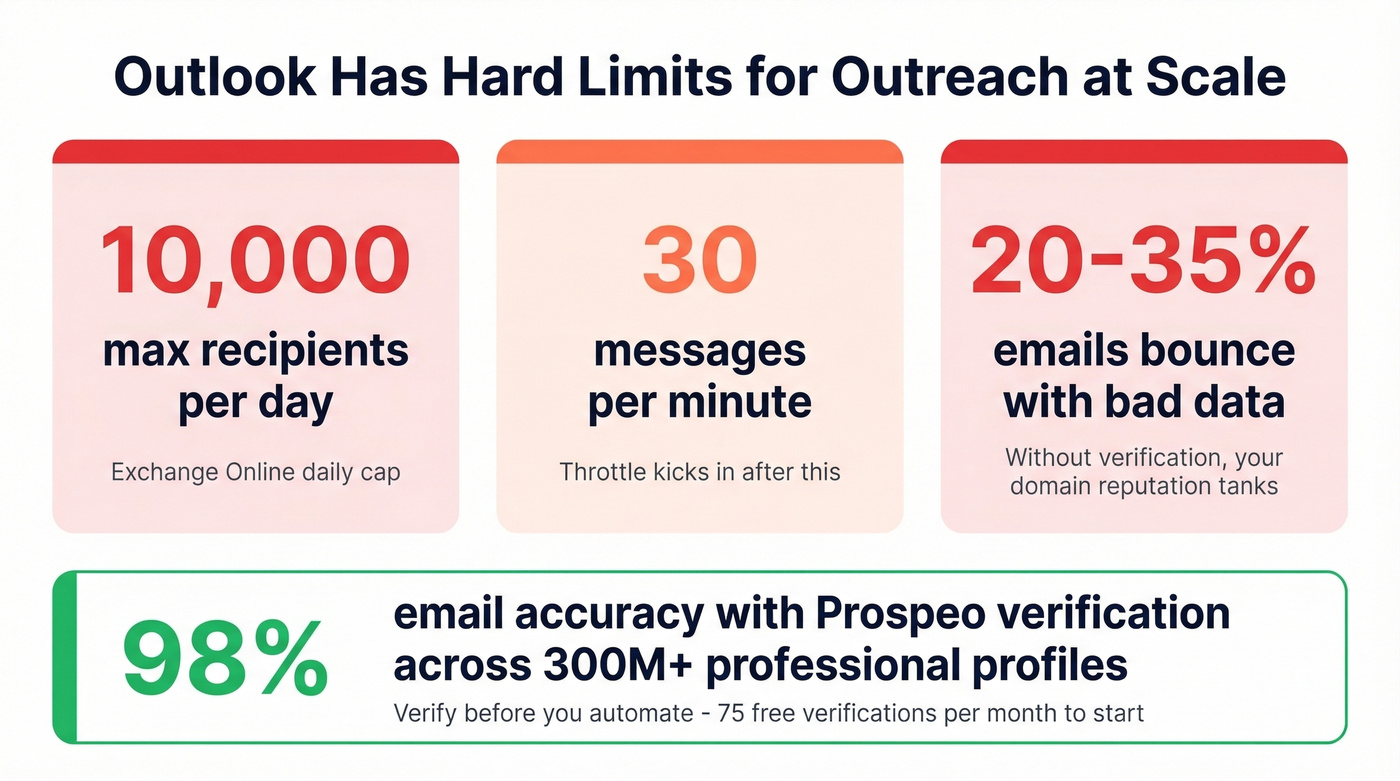
- Triggering Spam Filters: Sending a high volume of emails simultaneously via Mail Merge can trigger ISP throttling. If you are sending more than a few hundred emails, consider integrating professional engagement platforms that manage SMTP relay and warm-up protocols.
- Formatting Strip-down: When pasting content from other applications into Outlook, hidden metadata can corrupt your formatting. Always paste as "Keep Text Only" and then re-apply your desired fonts and styles to ensure the email renders correctly across various devices and dark-mode settings.
Enhancing Outreach with Add-ins and Integrations
In 2026, the Outlook ecosystem supports numerous third-party add-ins that can automate the research phase of personalization. These tools often integrate directly into the Outlook ribbon, allowing you to pull a recipient’s recent LinkedIn activity or company news reports directly into your drafting pane.
Before utilizing these add-ins, evaluate their security and privacy policies to ensure compliance with your organization’s data governance standards. The most effective add-ins are those that provide "contextual prompts"—alerts that suggest when to follow up based on the recipient's past engagement with your emails, such as clicking a link or downloading a document.
Frequently Asked Questions (FAQ)
1. Can I use Outlook Mail Merge to send attachments? Standard Microsoft Word-Outlook Mail Merge does not support attachments. To send attachments to a list, you must use a third-party add-in or a dedicated outreach platform that integrates with the Microsoft Graph API.
2. How do I prevent personalized emails from going to the Junk folder? Personalization helps, but authentication is key. Ensure your organization has correctly configured SPF, DKIM, and DMARC records. Avoid using excessive links or promotional buzzwords that are known to trigger spam filters.
3. Is it better to send outreach from a shared mailbox or a personal account? Personal outreach should almost always come from a verified individual account. Recipients are significantly more likely to engage with a person than a generic corporate alias like "info@" or "sales@."
4. How can I track whether my personalized emails were opened? Outlook does not provide built-in read receipt tracking for external recipients that is reliable or privacy-compliant. Use a professional sales engagement tool that provides tracking pixels; ensure you disclose this tracking if required by your local privacy regulations (e.g., GDPR or CCPA).
Recommendation for Next Steps
To begin improving your outreach today, perform an audit of your current template library. Identify the top three personas you contact most frequently and draft one unique, "Quick Part" block for each that highlights a specific, relevant challenge they face. Start by running a manual, highly personalized campaign to 20 prospects using these blocks. Analyze the response rate compared to your historical averages before scaling to a larger Mail Merge operation.
Image Gallery