How to Create and Use an E-Signature in Microsoft Word
To add an e-signature in Microsoft Word, you can use the built-in Signature Line feature under the Insert tab, upload a scanned image of your handwritten signature, or utilize a dedicated third-party add-in like DocuSign or Adobe Sign....
To add an e-signature in Microsoft Word, you can use the built-in Signature Line feature under the Insert tab, upload a scanned image of your handwritten signature, or utilize a dedicated third-party add-in like DocuSign or Adobe Sign. While an image is sufficient for informal documents, a digital signature provide higher security and legal non-repudiation for formal contracts.
Contents
Understanding Electronic Signatures in Microsoft Word
As we navigate the professional landscape of 2026, the distinction between a simple "electronic signature" and a "digital signature" remains a critical point of technical clarity. In Microsoft Word, these terms are often used interchangeably by users, but they represent different levels of security and legal weight.
An electronic signature (e-signature) is a broad category. It can be as simple as your typed name, a scanned image of your handwritten signature, or a mark made on a touch screen. Its primary purpose is to indicate intent to sign. However, an electronic signature on its own does not necessarily prove the identity of the signer or that the document hasn't been altered after signing.
A digital signature, on the other hand, is a more secure type of e-signature. It uses a certificate-based digital ID to provide proof of identity and document integrity. When you apply a digital signature in Word, it creates a "hash" of the document. If even a single character is changed after the signature is applied, the signature becomes invalid. For businesses operating in regulated industries, digital signatures are the gold standard for compliance with frameworks like eIDAS in Europe or the ESIGN Act in the United States.
Method 1: Using the Microsoft Signature Line
The Microsoft Signature Line is the most structured way to add a signature placeholder to a document. It acts as a visual cue for where the signature should go and can be used for both printed and digital-only documents.
How to Insert a Signature Line
- Place your cursor: Click in the document where you want the signature line to appear.
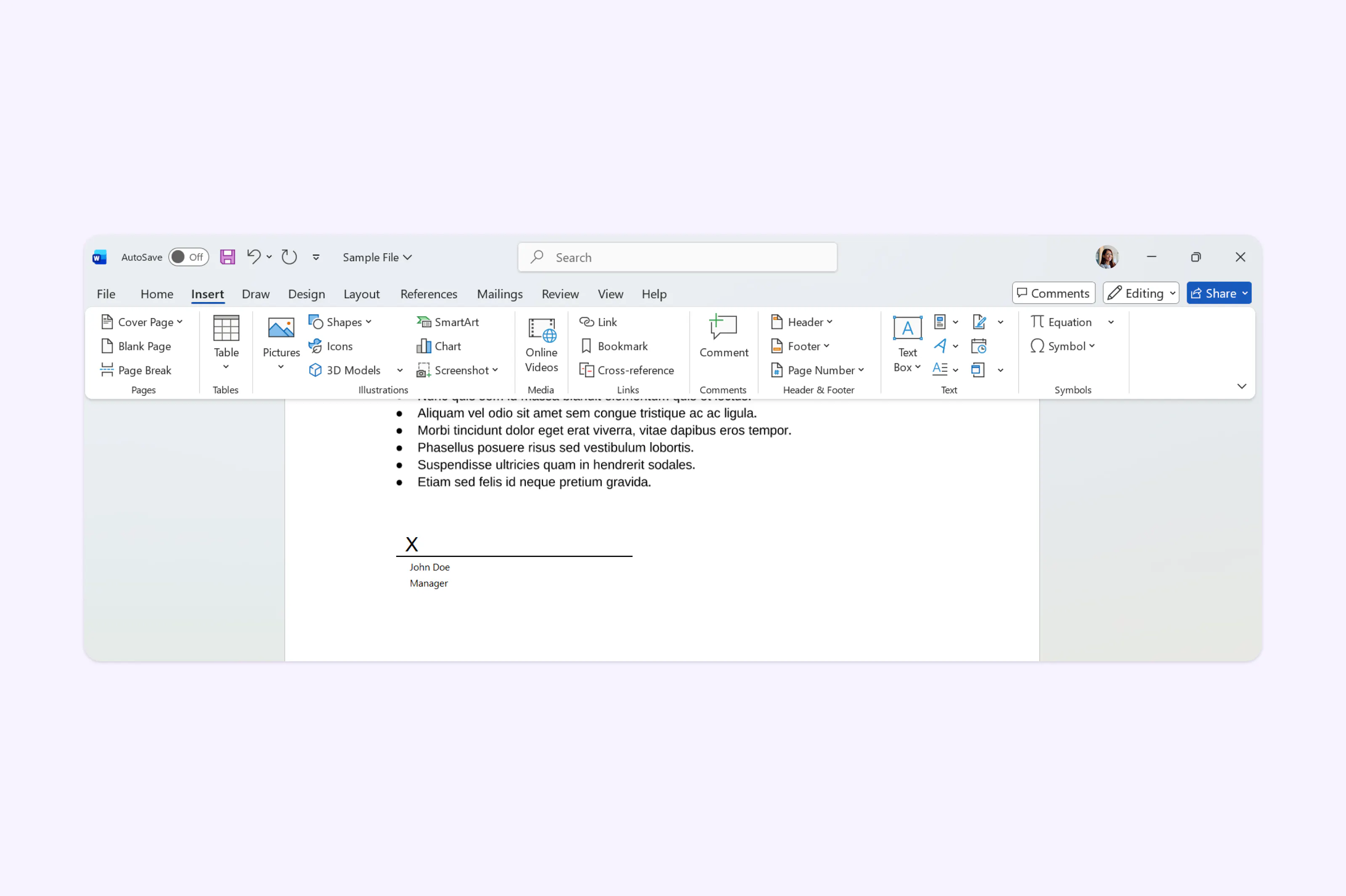
- Navigate to the Insert Tab: On the top ribbon, find the Text group and click Signature Line. In most versions of Word 2026, this is represented by a small icon showing a pen over a piece of paper.
- Configure Signature Setup: A dialog box will appear. Here, you enter the "Suggested signer" (e.g., John Doe), their title (e.g., Creative Director), and their email address.
- Instructions for the Signer: You can add specific instructions, such as "Please verify the contract terms before signing."
- Finalize: Click OK. A line with a large "X" will appear in your document.
Signing the Signature Line
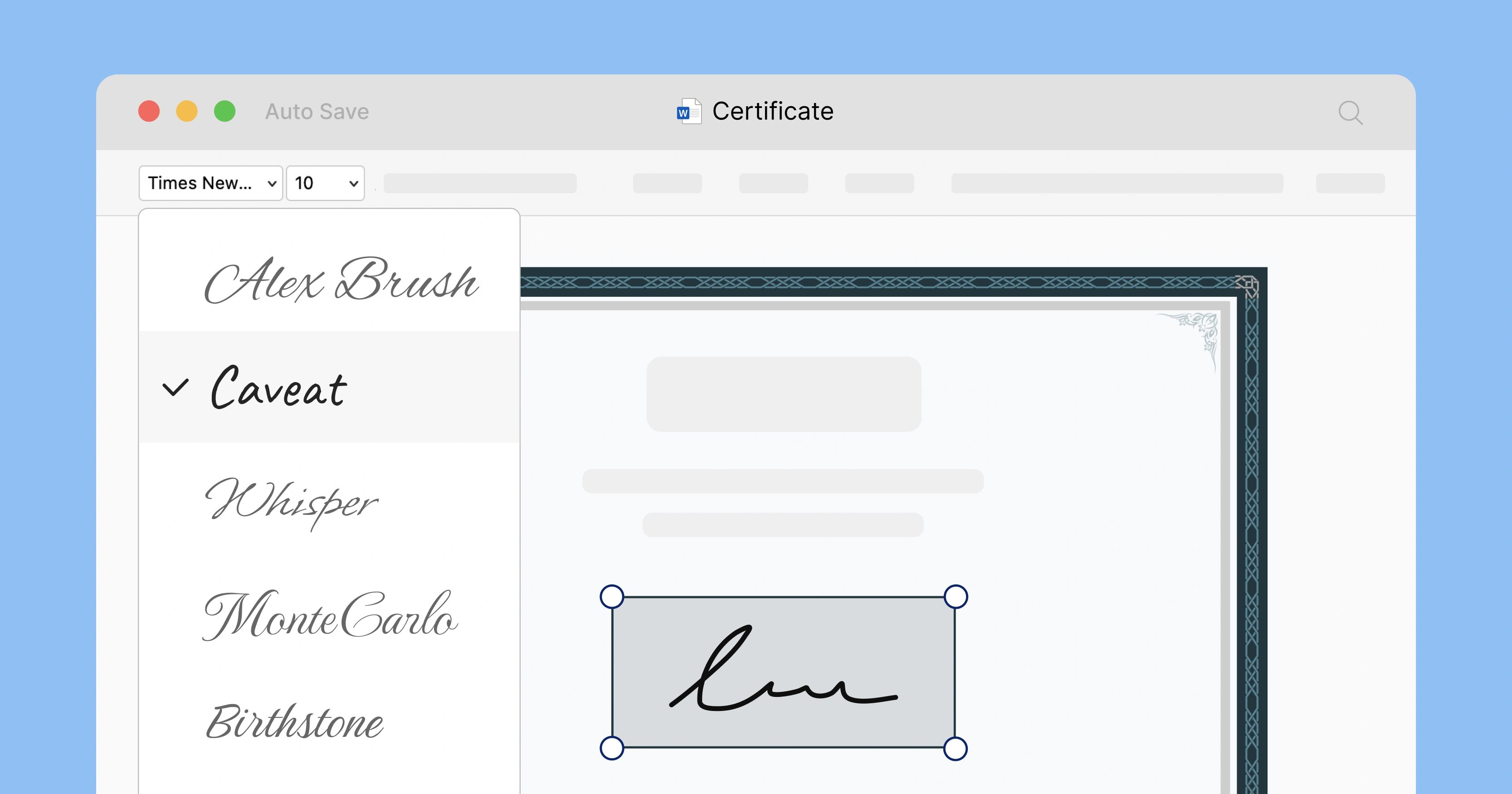
Once the line is in place, you or the recipient can sign it by double-clicking the signature box. You can then type your name, select an image of your signature, or write your signature using a digital pen or touch screen. In 2026, Microsoft's integration with stylus hardware allows for pressure-sensitive ink, making these signatures look nearly identical to physical ink on paper.
Method 2: Inserting a Scanned Image Signature
For many users, the most natural-looking e-signature in Microsoft Word is a scanned version of their actual handwriting. This method is aesthetically pleasing and is widely accepted for internal memos, letters, and informal agreements.
Preparing Your Signature Image
To achieve a professional look, you should not simply take a photo of your signature with a smartphone and paste it into Word. High-contrast images work best.
- Sign a piece of blank white paper using a black felt-tip pen.
- Scan the document or use a high-quality mobile scanning app.
- Save the file in a transparent format, such as .png. This prevents a white "box" from appearing over your document's text or lines.
Inserting and Formatting
- Go to Insert > Pictures > This Device and select your signature file.
- Resize and Crop: Use the "Picture Format" tab to crop out any excess white space around the signature.
- Adjust Layout Options: Click the "Layout Options" icon that appears next to the image and select Behind Text or In Front of Text. This allows you to move the signature freely and place it exactly on a signature line without disrupting the paragraph spacing.
- Refine the Appearance: If the signature looks gray or faded, use the Corrections tool under the Picture Format tab to increase the contrast and brightness until the "ink" is sharp and the "paper" background is invisible.
Using AutoText for Repetitive Signing
If you frequently sign documents, you can save your signature image and typed details as an AutoText entry.
- Select the signature image and the typed text below it.
- Go to Insert > Quick Parts > Save Selection to Quick Part Gallery.
- Name it "MySignature."
- In the future, simply type "MySignature" and press Enter, and Word will automatically insert your formatted signature block.
Method 3: Using Third-Party Add-ins (DocuSign, Adobe Sign, PandaDoc)
For high-stakes legal documents, such as real estate contracts or employment agreements, Microsoft’s native tools may lack the audit trail and identity verification required. Third-party integrations are the most robust solution for "e signature microsoft word" workflows in enterprise environments.
Benefits of Using Add-ins
- Audit Trails: These services track the IP address, timestamp, and email verification of every signer.
- Security: Documents are stored in encrypted clouds, not just as local Word files.
- Workflow Automation: You can set a signing order (e.g., Manager signs first, then the Client).
- Legal Compliance: Most major platforms are pre-certified for global legal standards.
How to Enable Add-ins in 2026
- Open Word and go to the Home tab or Insert tab.
- Click on Get Add-ins (sometimes labeled "Store").
- Search for "DocuSign" or "Adobe Sign."
- Click Add. The service will now appear as a dedicated tab or a sidebar panel in Word.
- Log in to your account, and you can "Send for Signature" directly from the Word interface without ever exporting the file to a PDF.
Comparison of E-Signature Methods in Word
The following table compares the three primary methods to help you determine which is appropriate for your current task.
| Feature | Signature Line | Scanned Image | Third-Party Add-in |
|---|---|---|---|
| Setup Speed | Fast | Medium (Initial setup) | Slow (Requires account) |
| Visual Quality | Professional/Standard | High (Personalized) | Professional/Standard |
| Security Level | Low to Medium | Low | High |
| Legal Audit Trail | No | No | Yes |
| Cost | Included with Office | Free | Subscription required |
| Best Use Case | Official Internal Docs | Letters & Memos | Legal Contracts |
Legal Validity and Best Practices in 2026
While technology has advanced, the legal requirements for a binding signature remain grounded in "intent." To ensure your e-signature in Microsoft Word holds up in a legal or professional dispute, follow these best practices:
- Convert to PDF after signing: Never send a signed document as a
.docxfile. Word documents are too easily edited. Once signed, go to File > Export > Create PDF/XPS. This "flattens" the document and makes unauthorized changes more difficult. - Maintain a Master Copy: Keep the original signed document in a secure, backed-up location.
- Identity Verification: For external contracts, ensure you have some form of communication (like an email chain) that links the signer’s identity to the document they are returning.
- Avoid "Over-Signing": Don't use a highly secure digital signature for a simple internal holiday request; it adds unnecessary friction. Match the method to the risk level of the document.
Troubleshooting Common Issues
Why can't I see the "Signature Line" option?
This often happens if the document is opened in Compatibility Mode (using an older .doc format). Save the file as a modern .docx file to enable all signature features. Additionally, check if the document is marked as "Final" or is "Read-Only," as this will disable editing features.
My signature image looks blurry when I convert to PDF.
This is usually a resolution issue. Ensure your original signature scan is at least 300 DPI. When saving the Word document as a PDF, check the "Options" to ensure you are not using "Minimum Size" optimization, which compresses images and reduces clarity.
The signature line is "X-ed" out or shows an error.
This occurs if the digital certificate used to sign the document has expired or if the document was altered after the signature was applied. In 2026, Word automatically checks the validity of digital certificates against online Certificate Authorities (CAs). If you see a warning, do not trust the document's integrity.
Frequently Asked Questions
Can I e-sign a Word document on a mobile device?
Yes. The Microsoft 365 mobile app for iOS and Android includes a "Sign PDF" feature. While you cannot always insert a native Microsoft Signature Line on the mobile app, you can easily draw a signature on a document or use the "Insert Picture" function to add a saved signature image.
Is a typed name in Word legally binding?
In many jurisdictions, yes, provided the intent to sign can be proven. However, it is the weakest form of signature and is easily challenged in court. It is always better to use a signature line or a digital signature to provide more evidence of the signer's intent.
Do I need a digital certificate to use a signature line?
You can create a signature line without a certificate, but it will only be a visual representation. To "digitally sign" that line in a way that provides encryption and security, you will need a digital ID from a provider like IdenTrust, DigiCert, or GlobalSign.
How do I remove a signature from a Word document?
To remove a signature, right-click the signature line and select Remove Signature. If the document is a PDF, you generally cannot remove the signature without the original source file or authorized editing software.
Can multiple people sign the same Word document?
Yes. You can insert multiple signature lines. However, be aware that if you are using digital signatures (certificate-based), the second person signing may "break" the first person's signature if the document's metadata changes significantly. Using a third-party add-in is the best way to handle multiple signers.
Practical Recommendation
If you are looking for the fastest and most professional way to handle a standard business document in 2026, use the Microsoft Signature Line combined with a high-resolution PNG image of your handwritten signature. This provides a clear, formatted area for your signature while maintaining a personal touch. For any document involving significant financial or legal liability, bypass Word’s internal tools and use an integrated service like DocuSign, which provides the necessary legal protections and audit logs to protect all parties involved.
Image Gallery