How to Find Your Windows Version: A Complete Guide for 2026
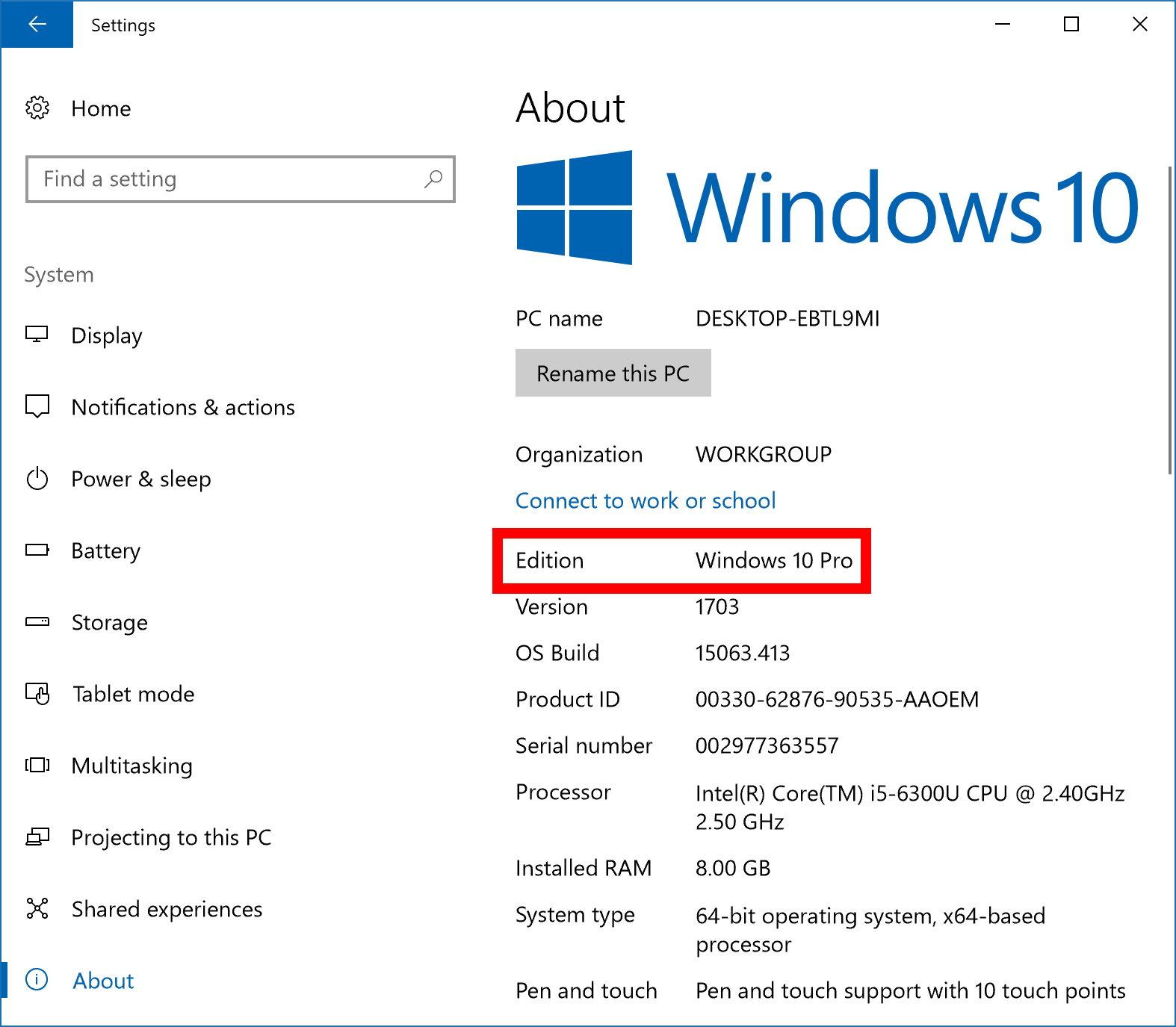
To find your Windows version, press the Windows logo key + R, type winver in the Open box, and select OK. Alternatively, go to Start > Settings > System > About. These methods display your specific Windows edition, version number, and...
To find your Windows version, press the Windows logo key + R, type winver in the Open box, and select OK. Alternatively, go to Start > Settings > System > About. These methods display your specific Windows edition, version number, and OS build to ensure software compatibility and security.
Contents
Identifying the exact version of your operating system is a fundamental task for any computer user. As we move through 2026, the Windows ecosystem has become more nuanced, with frequent "Moment" updates and specific builds tailored for different hardware architectures, including traditional x64 and the increasingly dominant ARM64 processors. Whether you are troubleshooting a software bug, verifying if your system meets the requirements for a new AI-integrated application, or checking your security patch level, knowing where to find this information is essential.
Why Knowing Your Windows Version is Essential in 2026
The landscape of Windows has shifted toward a "Windows as a Service" model. This means that instead of major releases every few years, Microsoft delivers continuous feature updates. By 2026, Windows 11 has matured significantly, and several versions of Windows 10 remain in use within Enterprise Long-Term Servicing Channels (LTSC) or through Extended Security Updates (ESU).
There are four primary reasons to verify your version:
- Software Compatibility: Many modern applications, especially those leveraging NPU (Neural Processing Unit) hardware, require a specific minimum OS build to function.
- Security Compliance: Knowing your version helps you determine if your system is still receiving monthly cumulative updates or if it has reached "End of Servicing."
- Hardware Optimization: With the rise of Copilot+ PCs and ARM-based architecture, identifying whether you are running an x64 or ARM64 version of Windows determines which drivers and emulators you need.
- Troubleshooting: Technical support teams often require the exact OS Build number (e.g., 22631.xxxx) to diagnose issues related to specific patches.
Method 1: Using the 'Winver' Command (The Fastest Way)
The most direct and universal method to find your Windows version across all modern iterations of the OS is the "winver" command. This tool provides a concise summary of your operating system without navigating through deep settings menus.
Steps to Run Winver:
- On your keyboard, press the Windows Key + R. This opens the Run dialog box.
- In the text field, type
winverand press Enter or click OK. - A small window titled "About Windows" will appear.
What the Winver Box Tells You:
- The OS Logo: Visually confirms if you are on Windows 11 or Windows 10.
- Version Number: This usually follows a year/half-year format (e.g., 24H2 or 25H2).
- OS Build: This is a more granular number (e.g., 26100.1150) that indicates exactly which cumulative updates have been applied.
- User Licensing: It displays the email address or organization to which the software is licensed.
Method 2: Checking via System Settings (Best for General Users)
The Settings app provides a more comprehensive look at your system, including hardware specifications that are often relevant when discussing the OS version. In 2026, the Windows 11 interface remains the standard for this method.
How to Access System About:
- Click the Start button and select the Settings (gear) icon. Alternatively, press Windows Key + I.
- On the left-hand sidebar, ensure System is selected.
- Scroll down to the bottom of the right-hand pane and click About.
Navigating the "About" Page:
Once you are on the About page, the information is divided into two main sections:
- Device Specifications: Here you will find your System type. This is critical in 2026 to distinguish between a 64-bit operating system, x64-based processor and a 64-bit operating system, ARM-based processor. It also lists your installed RAM and processor type.
- Windows Specifications: This section lists your Edition (Home, Pro, Enterprise, or Education), the Version (e.g., 25H2), the Date installed, and the OS build.
The "About" page also includes a "Copy" button for both sections. This is extremely helpful if you need to paste your system details into a support ticket or a community forum for help.
Method 3: Using System Information (For Technical Depth)
If you need more than just the version number—such as BIOS mode, motherboard manufacturer, or virtualization status—the System Information tool (msinfo32) is the most powerful built-in utility.
How to Open System Information:
- Press the Windows Key.
- Type
System Informationormsinfo32into the search bar and press Enter.
Analyzing the Data:
The "System Summary" (the default view) provides a wealth of information:
- OS Name: (e.g., Microsoft Windows 11 Pro)
- Version: Displays the version and the build number together.
- System Model: Useful for finding specific drivers for your laptop or desktop.
- BIOS Version/Date: Essential for checking if your firmware supports current OS security features like Secure Boot or TPM 2.0.
Method 4: Finding Windows Version via Command Line (Power Users)
For administrators or users who prefer a text-based interface, the Command Prompt (CMD) and PowerShell offer several ways to retrieve version data. This is particularly useful when accessing a computer remotely or writing scripts for automated deployment.
Using Command Prompt:
- Open the search bar, type
cmd, and press Enter. - Type
verand press Enter.- This returns a simple line like:
Microsoft Windows [Version 10.0.22631.3593].
- This returns a simple line like:
- For more detail, type
systeminfoand press Enter.- This command takes a few seconds to load but provides the "Original Install Date," "Boot Time," and "Hotfix(es)" installed.
Using PowerShell:
PowerShell provides the most precise way to query the registry for version data.
- Right-click the Start button and select Windows Terminal or PowerShell.
- Type the following command:
Get-ComputerInfo | select OsName, OsVersion, OsBuildNumber - This will return a clean table with exactly the info you need.
Comparing Identification Methods
To help you choose the right tool for your specific needs, the following table compares the depth of information provided by each method.
| Method | Primary Data Provided | Best Use Case | Technical Level |
|---|---|---|---|
| Winver | Edition, Version, Build | Quick verification | Beginner |
| Settings > About | OS + Basic Hardware (RAM, CPU) | General troubleshooting | Beginner |
| msinfo32 | OS, Hardware, BIOS, Drivers | Deep technical diagnosis | Advanced |
| Command Prompt | Version string, System info | Scripting and remote access | Intermediate |
| PowerShell | Specific object-based OS data | Automation and Admin tasks | Advanced |
Understanding the Terminology: Edition vs. Version vs. Build
It is easy to get confused by the different labels Microsoft uses. As of 2026, here is what each term specifically refers to:
Windows Edition
The Edition identifies the feature set included with your license.
- Home: Designed for personal use; lacks advanced features like BitLocker encryption or Remote Desktop hosting.
- Pro: Includes security and management features required for small businesses and power users.
- Enterprise: Contains advanced security and deployment tools for large organizations.
- Education: A variant of Enterprise tailored for schools and universities.
Windows Version
The Version indicates the major feature update cycle. Since the transition to Windows 11, Microsoft has moved toward a yearly cadence. For example, "24H2" means the update was released in the second half of 2024. This version determines which major features are available on your desktop.
OS Build
The Build number is the most specific. While thousands of users may have "Version 24H2," their Build numbers might differ based on whether they have installed the latest Tuesday patches. In 2026, many security vulnerabilities are addressed at the build level, making this the most important number for security audits.
System Type (Architecture)
In the 2026 hardware market, knowing your system type is more important than ever.
- x64: The standard 64-bit architecture for Intel and AMD processors.
- ARM64: The architecture used by power-efficient processors (like those found in many new Surface devices and Copilot+ PCs). Running the wrong driver on an ARM64 system can lead to significant performance degradation or system crashes.
Troubleshooting: Why Can’t I Find My Version?
Occasionally, users encounter issues where the "About" page is blank or the winver command fails to run. This is usually indicative of a corrupted system file or a restricted user environment.
- Corrupted Settings App: If the Settings app crashes, try the
winverormsinfo32methods. These are independent of the modern UI framework. - S Mode: If you are using "Windows 11 in S Mode," you can only run apps from the Microsoft Store. However,
winverand Settings will still work to show you that you are in S Mode. - Organization Restrictions: If your computer is managed by an employer, they may have disabled certain parts of the Settings menu. In this case, use the Command Prompt or contact your IT helpdesk.
Frequently Asked Questions
How do I know if I am running 32-bit or 64-bit Windows?
Go to Settings > System > About. Look under Device specifications for System type. By 2026, almost all active Windows 11 installations are 64-bit, as Windows 11 dropped support for 32-bit (x86) CPUs entirely.
Will checking my version tell me if I can upgrade to Windows 12?
While the version check shows your current status, it doesn't explicitly state future eligibility. To check for future upgrades, you should use the PC Health Check app or look for a notice in the Windows Update section of your Settings.
Does the Windows version affect my gaming performance?
Yes. Certain versions of Windows introduce new technologies like DirectStorage or optimizations for Auto HDR. Keeping your version updated to the latest "H2" release ensures you have the latest graphics stack and kernel optimizations for modern gaming hardware.
How long is my current Windows version supported?
Generally, Home and Pro editions of a specific version (like 24H2) are supported for 24 months from the release date. Enterprise and Education editions often receive 36 months of support. You can check the official Microsoft Lifecycle Policy for specific dates related to your build.
Can I find the version if the computer won't boot?
If the OS won't load, you can find the version using a Windows Recovery environment. Open a Command Prompt from the recovery media and type offline version commands, or check the file properties of explorer.exe in the Windows folder using a different PC or a Linux Live USB.
Final Recommendations
Knowing where to find your Windows version is a simple but powerful skill. For 90% of situations, the winver command is the best tool for a quick check. However, as hardware becomes more diverse in 2026, get into the habit of checking the Settings > System > About page to verify whether you are running on an ARM64 or x64 architecture, as this will dictate your software choices moving forward. Always ensure your OS build is current by checking for updates after identifying your version to maintain peak security and performance.
Image Gallery