Connecting Your Smartphone to Wi-Fi: A Comprehensive Setup and Troubleshooting Guide
Connecting your phone to a Wi-Fi network allows you to access high-speed internet, stream media, download large applications, and bypass cellular data limits. The process involves identifying your wireless network, verifying security c...
Connecting your phone to a Wi-Fi network allows you to access high-speed internet, stream media, download large applications, and bypass cellular data limits. The process involves identifying your wireless network, verifying security credentials, configuring settings on iOS or Android devices, and troubleshooting common connectivity roadblocks.
Contents
Introduction to Wireless Connectivity on Mobile Devices
Establishing a reliable internet connection on a smartphone is essential for daily digital activities, ranging from navigation and messaging to cloud syncing and software updates. While cellular networks provide wide coverage, home and office Wi-Fi networks offer faster throughput, lower latency, and unlimited data allowances.
To bridge your smartphone and a wireless router, your device utilizes built-in IEEE 802.11 standards—such as Wi-Fi 5 (802.11ac), Wi-Fi 6 (802.11ax), or Wi-Fi 7 (802.11be)—to communicate via radio frequencies. Understanding the underlying procedure ensures secure data transmission and prevents unauthorized access to your home network.
Prerequisites and Preparation
Before attempting to connect your phone to a Wi-Fi network, verify that you have gathered the necessary hardware credentials and system requirements. Incomplete preparation frequently leads to connection timeouts, incorrect password errors, or authentication loops.
- Network Name (SSID): Locate the exact Service Set Identifier of your router. This is the public name broadcast by the access point.
- Security Key (Password): Retrieve the pre-shared key, WPA2/WPA3 passphrase, or admin password printed on the back of your router or stored in a secure password manager.
- Operating System Updates: Ensure your smartphone is running a supported operating system version to maintain compatibility with modern security protocols like WPA3-Personal.
- Hardware Functionality: Verify that your phone's internal Wi-Fi radio is toggled on and that Airplane Mode is disabled.
Step-by-Step Connection Guide for Android Devices
Android operating systems feature flexible network management tools. While user interfaces vary slightly depending on the manufacturer (such as Samsung, Google Pixel, or Motorola), the core sequence remains consistent.
- Open Settings: Tap the gear icon in your app drawer or swipe down from the top of the screen to open the Quick Settings panel, then tap the settings gear.
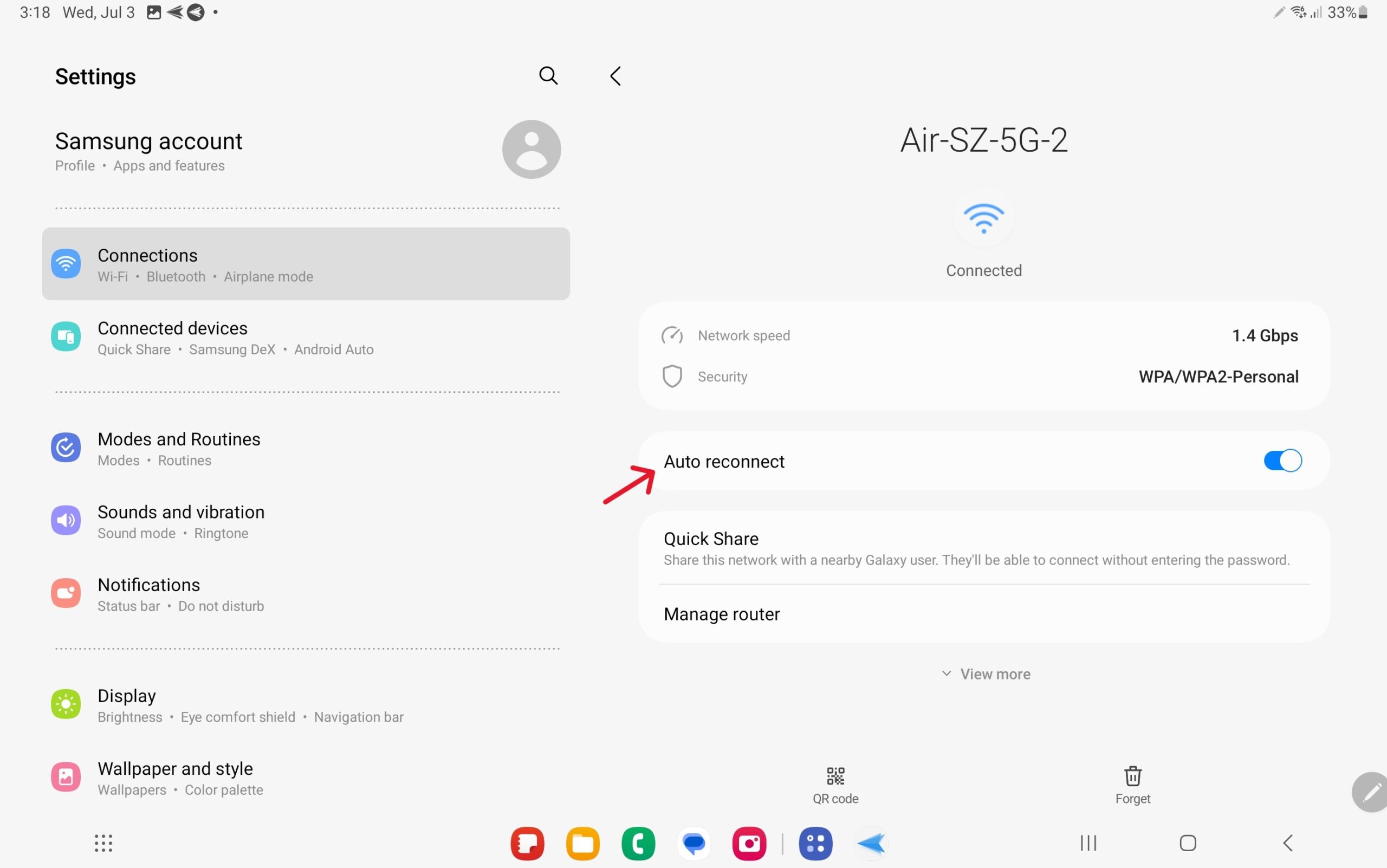
- Navigate to Network Settings: Select Network & internet or Connections, then tap Wi-Fi.
- Enable Wi-Fi: Toggle the master switch to the "On" position. The device will automatically scan for nearby broadcast SSIDs.
- Select Your Network: Tap the name of your target network from the list of available connections. If your network is hidden, select Add network and manually type the SSID and security type.
- Enter Credentials: Type the network password into the authentication prompt. Tap Connect or Save.
- Verify Status: Look for the signal strength indicator icon in the status bar and confirm that the settings menu displays "Connected" beneath the network name.
Step-by-Step Connection Guide for iOS Devices
Apple's iOS platform integrates tightly with wireless infrastructure, offering features like Wi-Fi password sharing and automatic iCloud keychain synchronization.
- Open the Settings App: Tap the gray gear icon on your home screen.
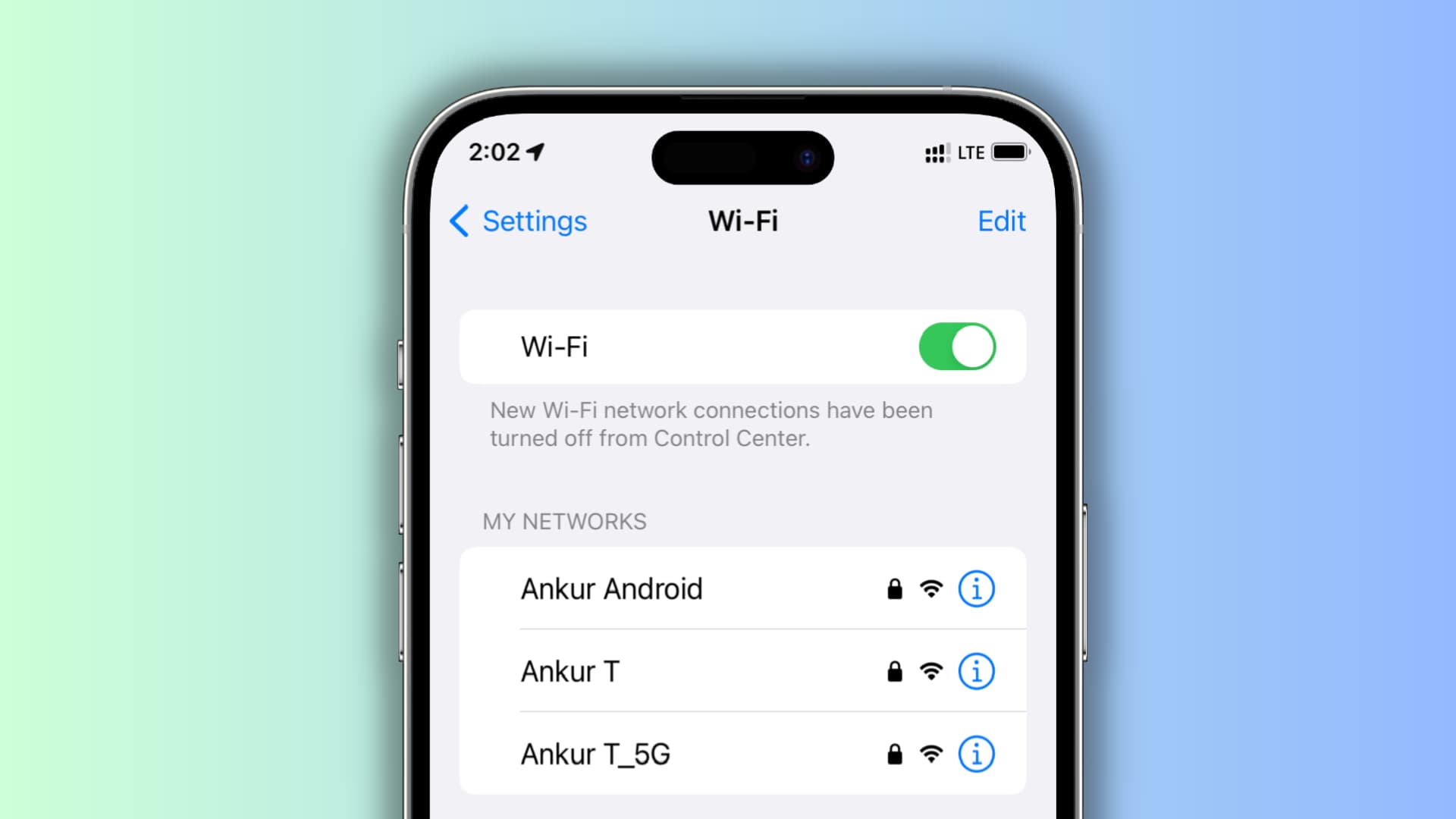
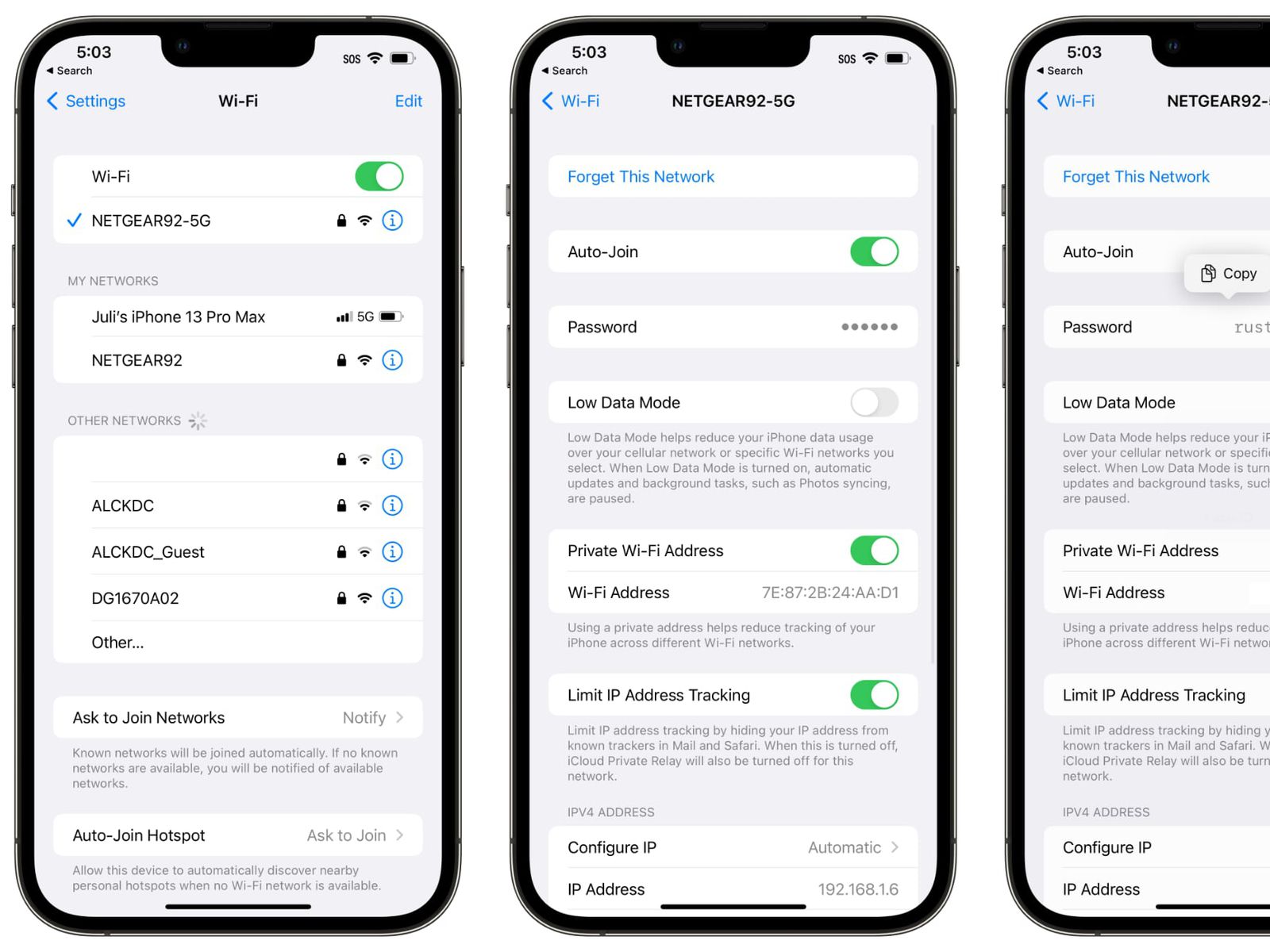
- Select Wi-Fi: Tap the Wi-Fi menu option. Ensure the toggle switch at the top is green (On).
- Choose a Network: Under the "My Networks" or "Other Networks" section, tap the name of the router you wish to join.
- Authenticate: Enter the secure network password when prompted in the pop-up dialog box. Tap Join in the upper-right corner.
- Confirm Connection: A checkmark will appear next to the network name, and a Wi-Fi arc icon will populate the top-left status bar.
Comparison of Wi-Fi Security Protocols
Choosing the correct security protocol on your router and verifying your phone's compatibility ensures your data remains protected from interception.
| Protocol | Encryption Standard | Security Level | Common Vulnerabilities |
|---|---|---|---|
| WPA3-Personal | SAE (Simultaneous Authentication of Equals) | Highest | Highly resistant to offline dictionary attacks. |
| WPA2-Personal | AES (Advanced Encryption Standard) | Moderate to High | Vulnerable if weak passwords are used; susceptible to KRACK attacks if unpatched. |
| WEP | RC4 | Obsolete / Insecure | Easily cracked within minutes using basic packet-capture tools. |
| Open / None | None | Unsecure | Traffic is unencrypted; susceptible to man-in-the-middle sniffing. |
Troubleshooting Common Connection Failures
When a smartphone fails to connect to a wireless network, methodical troubleshooting isolates the root cause. Address these common issues systematically:
Incorrect Password Errors
Authentication failures usually stem from typographical errors. Double-check uppercase and lowercase letters, special characters, and numbers. If you share a network managed by someone else, verify the current passphrase directly with the network administrator or inspect the router configuration page.
IP Address Configuration Conflicts
If your phone displays errors such as "IP Configuration Failure" or "Obtaining IP Address..." indefinitely, your device cannot communicate with the router's DHCP (Dynamic Host Configuration Protocol) server.
- Toggle your phone's Wi-Fi off and back on to force a new DHCP request.
- Restart your wireless router by unplugging its power cord for 30 seconds, allowing the internal DHCP lease table to reset.
Signal Interference and Range Limitations
Physical barriers such as concrete walls, heavy appliances, and metal framing degrade wireless signals. Additionally, interference from neighboring routers operating on congested channels (particularly on the 2.4 GHz band) can drop connection packets. Move closer to the router or switch your device to the 5 GHz or 6 GHz band if supported by your hardware.
Frequently Asked Questions
Why does my phone keep disconnecting from Wi-Fi?
Frequent disconnections are often caused by weak signal strength, router firmware bugs, or aggressive battery-saving features on your smartphone. Try disabling random MAC address rotation for your home network, forgetting the network and reconnecting fresh, or updating your router's firmware.
How do I connect my phone to a hidden Wi-Fi network?
If a network does not broadcast its SSID for privacy, you must enter the details manually. Navigate to your phone's Wi-Fi settings, select "Add Network" or "Other Network," type the exact SSID, choose the correct security type (such as WPA2/WPA3), enter the password, and save.
Can I connect my phone to Wi-Fi without a password?
You can connect without typing a password if the router supports WPS (Wi-Fi Protected Setup) via a push-button method, or if another connected Apple or Android device shares the credentials with you directly via proximity prompts. Otherwise, open networks require no password but pose significant security risks.
What should I do if my phone says "Connected without internet"?
This error indicates that your phone has successfully established a local radio link with the router, but the router itself cannot reach the wider internet. Restart both your modem and router. If the issue persists, contact your Internet Service Provider (ISP) to check for local service outages or broadband line faults.
Is it safe to use public Wi-Fi networks on my phone?
Public Wi-Fi networks in cafes, airports, and hotels are frequently unencrypted, allowing malicious actors to intercept unencrypted web traffic. Avoid accessing sensitive financial accounts or logging into private portals on public networks unless you utilize a trusted Virtual Private Network (VPN) to encrypt your traffic.
Next Actions
Once your phone successfully connects to Wi-Fi, verify your internet speed using a reputable diagnostic tool to ensure optimal performance. If you experience persistent hardware failures, consult your phone manufacturer's support documentation or contact your internet service provider for network-level diagnostics.
Image Gallery