How iPhone Credit Card Autofill Simplifies Online Payments
iPhone credit card autofill simplifies online checkout by automatically populating stored payment details into web forms across Safari and supported applications. Secured by iCloud Keychain and protected by Face ID or Touch ID authenti...
iPhone credit card autofill simplifies online checkout by automatically populating stored payment details into web forms across Safari and supported applications. Secured by iCloud Keychain and protected by Face ID or Touch ID authentication, it eliminates manual card entry, minimizes typing errors, and significantly accelerates mobile transactions while maintaining robust end-to-end encryption.
Contents
The Technology Behind iOS Credit Card AutoFill
Mobile commerce relies on friction-free interactions to minimize cart abandonment and reduce transaction times. On iOS, credit card autofill functions through a deeply integrated synergy between Safari’s web parsing engines, Apple's camera vision frameworks, and iCloud Keychain.
When a user navigates to a checkout page, Safari analyzes the webpage's Document Object Model (DOM) to identify payment fields. It searches for standard HTML attributes—such as autocomplete="cc-number", autocomplete="cc-exp", or standard field identifiers like "cardnumber" and "expdate". When these tags are detected, the system prompts the user to insert saved card information.
- Web Form Detected
- Safari HTML Parser Identification
- Biometric Challenge (Face ID / Touch ID / Passcode)
- iCloud Keychain Decrypts Card Credentials
- Form Fields Automatically Populated
The underlying data storage is anchored within iCloud Keychain. Card numbers, cardholder names, and expiration dates are protected using 256-bit AES encryption both in transit and at rest. The primary cryptographic keys required to decrypt this payment information are derived from the user’s device passcode combined with hardware-specific secrets stored inside the Secure Enclave—a isolated hardware-based key manager built into Apple silicon. Consequently, even if cloud data were intercepted, it remains unreadable without authenticated local device access.
Furthermore, iOS incorporates Optical Character Recognition (OCR) directly within the camera application and Safari setup interfaces. Users do not need to manually enter sixteen-digit Primary Account Numbers (PANs). By framing a physical payment card within the camera viewport, the OS extracts the embossed or printed digits, cardholder name, and expiration date in real time, executing the parsing locally on the device's Neural Engine without transmitting image data to external servers.
Setting Up and Configuring Credit Card AutoFill on iPhone
Configuring credit card autofill requires a one-time setup within the iOS system architecture. Once configured, payment details synchronize seamlessly across all personal devices logged into the same Apple Account with iCloud Keychain enabled.
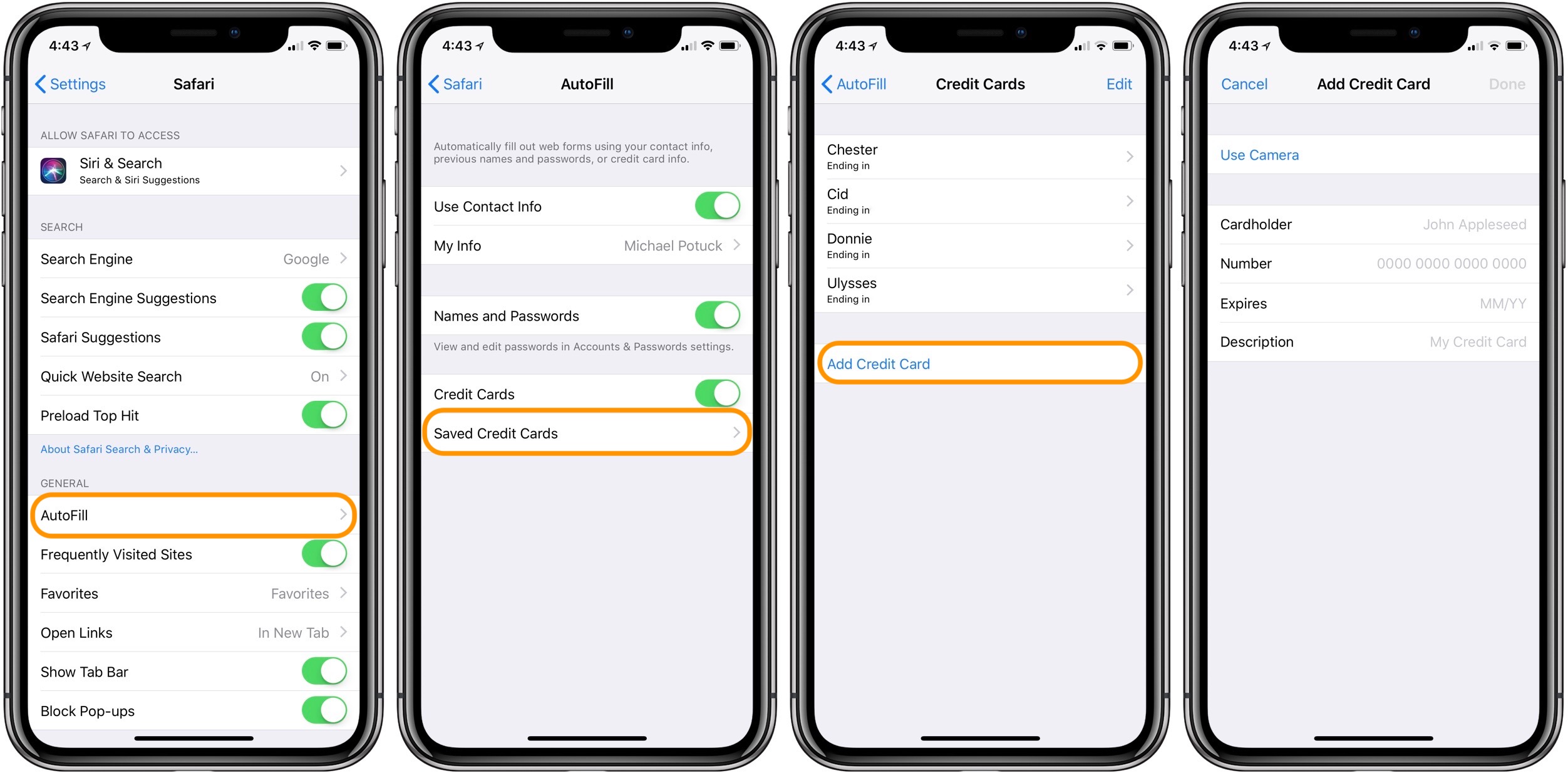
Step 1: Enable AutoFill in Safari Settings
- Open the Settings app on your iPhone.
- Scroll down and tap Safari.
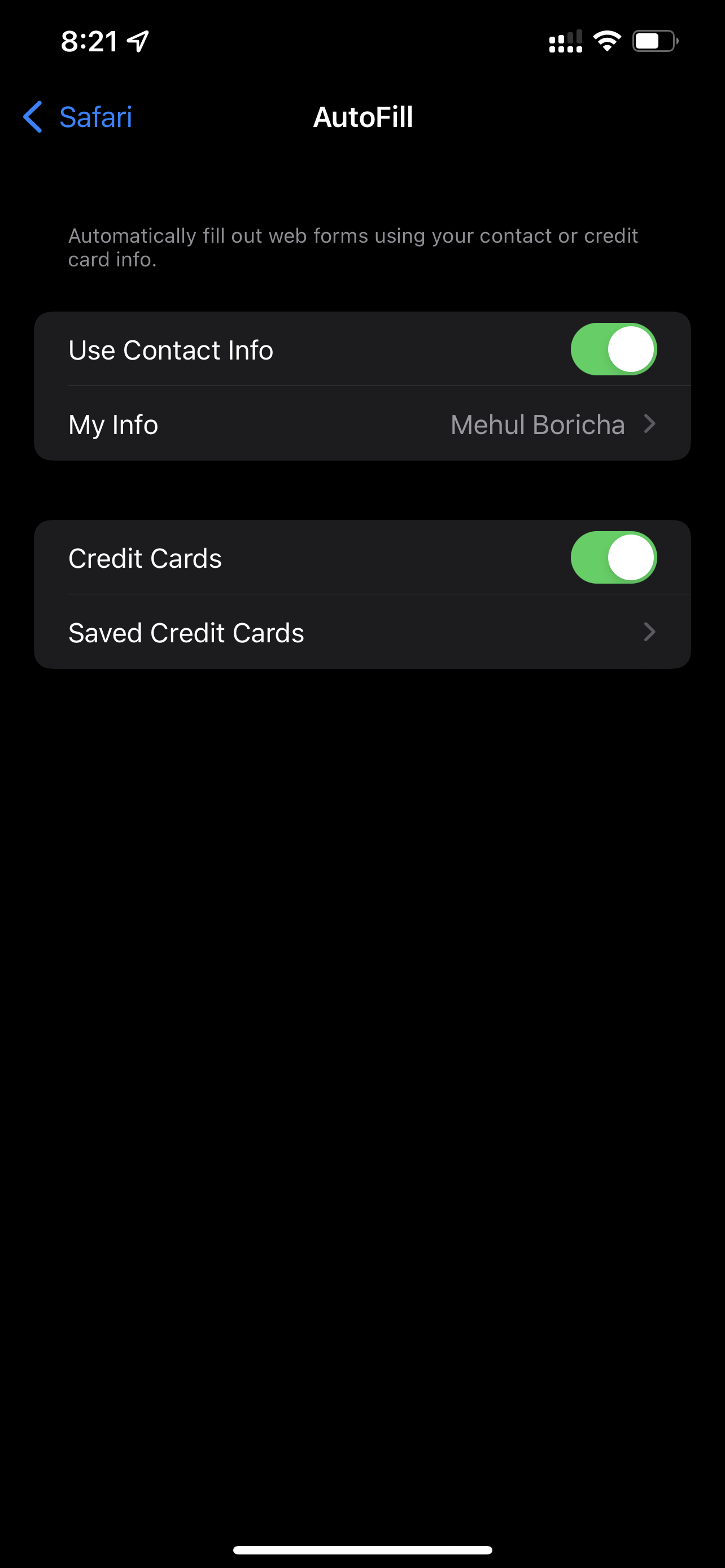
- Under the General section, tap AutoFill.
- Toggle the switch for Credit Cards to the On position.
Step 2: Add Payment Cards to Saved Records
Payment cards can be added manually or scanned using the device camera:
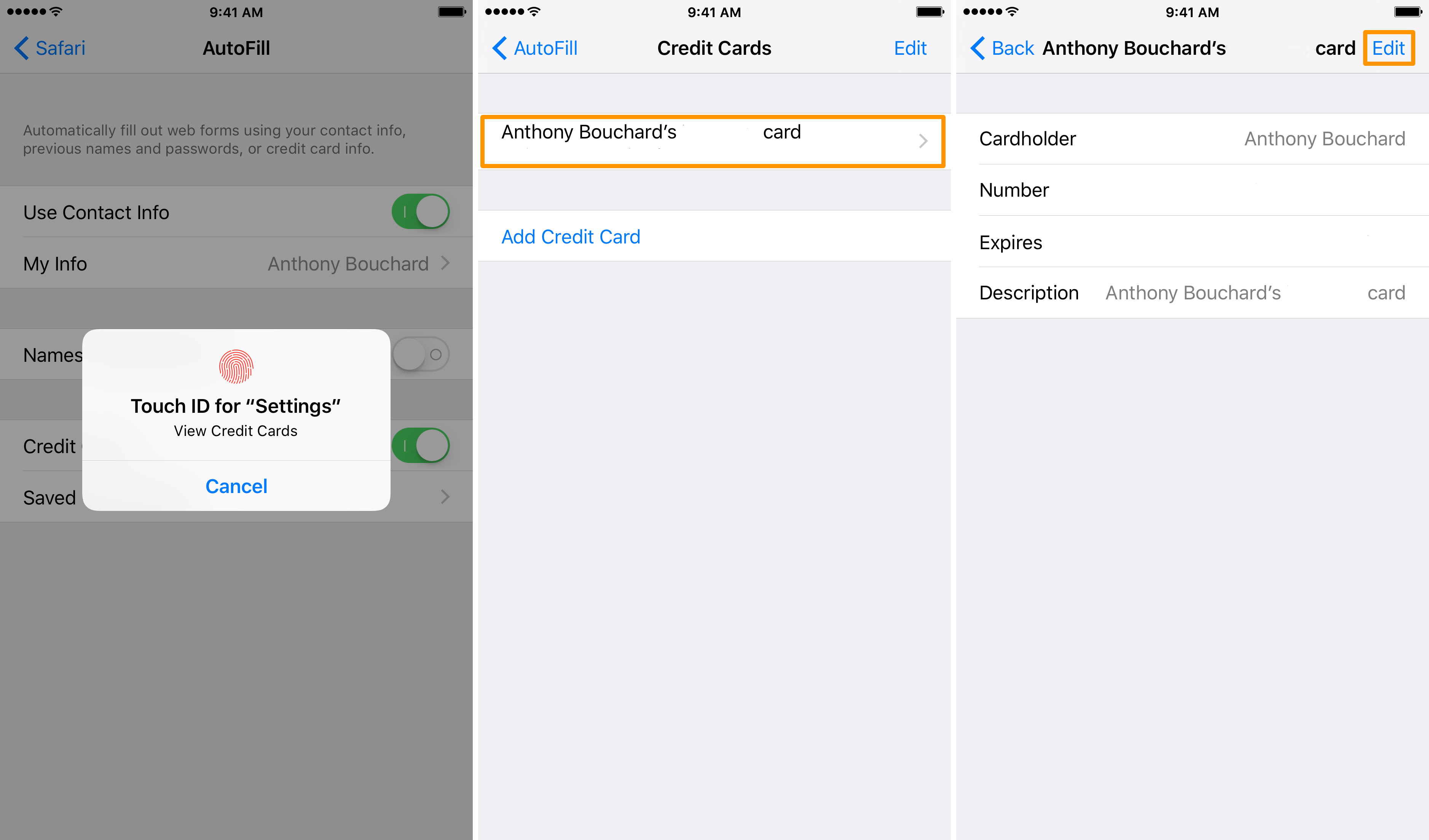
- Navigate to Settings > Safari > AutoFill > Saved Credit Cards.
- Authenticate using Face ID, Touch ID, or your device passcode.
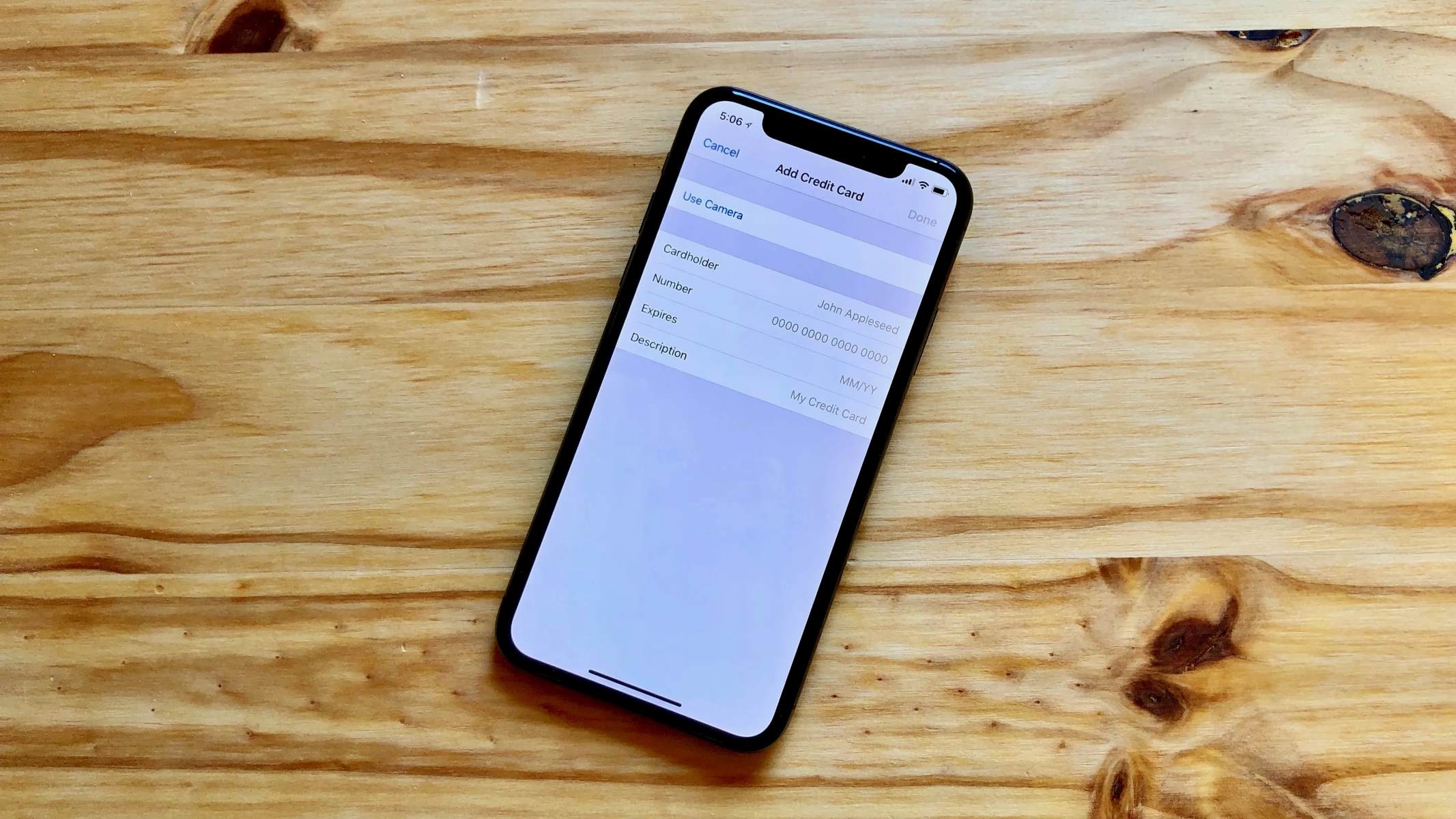
- Select Add Credit Card.
- Tap Use Camera to automatically capture the card details, or fill out the fields (Name, Number, Expires, and Description) manually.
- Tap Done in the top right corner to store the record.
Step 3: Verify iCloud Keychain Synchronization
To ensure payment cards remain available across iPad and Mac hardware:
- Open Settings and select your Apple Account banner at the top.
- Tap iCloud, then select Passwords and Keychain (or Saved to iCloud depending on your iOS version).
- Verify that Sync this iPhone is toggled On.
Once enabled, whenever Safari detects a credit or debit card form, a pop-up bar appears above the iOS QuickType keyboard displaying the card's descriptive label or the last four digits of the account number. Authenticating via Face ID or Touch ID immediately populates the fields.
Security Architecture and Privacy Considerations
Storing payment credentials on a mobile device presents legitimate security questions for consumers and enterprise security policy managers alike. The iOS autofill model mitigates risk through structural hardware isolation, local biometric verification, and zero-knowledge data design.
- iCloud Cloud Storage
- Encrypted Payload: AES-256 Data Blob
- Encrypted Sync with iPhone Hardware
- iPhone Hardware
- Secure Enclave (Hardware Key Storage)
- iCloud Keychain Engine (Local Decryption on Demand)
- Biometric Sensor (Face ID / Touch ID) - Unlocks Data
Encryption and Key Protection
Payment card data stored in iCloud Keychain is encrypted end-to-end. Apple retains no cryptographic keys capable of decrypting the stored credit card numbers. Decryption occurs strictly on-device after the user provides local authentication.
Biometric Gatekeeping
Even if an iPhone remains unlocked in a public environment, Safari will not complete a credit card autofill action without secondary authentication. The user must actively pass a Face ID scan, Touch ID touch, or re-enter the device system passcode before data fills into the active webpage.
Handling of CVV/CVC Codes
For security compliance and alignment with Payment Card Industry Data Security Standard (PCI-DSS) guidelines, Safari AutoFill intentionally does not store Card Verification Value (CVV/CVC) security codes. When autofill completes the card number and expiration date on a merchant site, the system typically leaves the 3-digit or 4-digit security code field blank. The user must manually enter the CVV code printed on the physical card. This intentional limitation ensures that a compromised autofill database cannot yield fully actionable transaction data for unauthorized card-not-present (CNP) purchases.
Phishing Defense and Domain Isolation
Safari binds autofill operations to specific web domains. If an attacker creates a fake checkout page under a spoofed domain (e.g., paym3nt-yourbank.com), Safari recognizes that the domain does not match legitimate merchant records and will refuse to offer stored card autofill prompts automatically, interrupting potential credential harvesting attacks.
Safari AutoFill vs. Alternative Payment Methods
Understanding how Safari Credit Card AutoFill compares to alternative payment mechanisms helps users choose the appropriate checkout path based on security, speed, and platform flexibility.
| Feature / Metric | Safari Credit Card AutoFill | Apple Pay | Third-Party Password Managers (e.g., 1Password) | Manual Card Entry |
|---|---|---|---|---|
| Primary Mechanism | Form-filling via stored PAN | Tokenized Device Account Number (DAN) | Browser extension form-fill | Manual keypad typing |
| Transaction Speed | High (5–10 seconds) | Instant (1–3 seconds) | Moderate (5–12 seconds) | Slow (30–60+ seconds) |
| CVV Auto-completion | No (Manual entry required) | Not needed (Tokenized) | Optional (User selectable) | Manual entry required |
| Hardware Tokenization | No | Yes (Merchant never sees actual PAN) | No | No |
| Merchant Compatibility | Universal (Any HTML web form) | Selective (Requires Apple Pay API support) | Universal (Web and App fields) | Universal |
| Cross-Platform Sync | Apple ecosystem only (iOS/macOS) | Apple ecosystem + select web browsers | Cross-platform (Windows, Android, iOS, Web) | None |
| Biometric Requirement | Mandatory per transaction | Mandatory per transaction | Mandatory based on app timeout | None |
AutoFill vs. Apple Pay
While both technologies streamline checkout, their underlying architecture differs fundamentally:
- Apple Pay uses dynamic tokenization. It creates a Device Account Number (DAN) and a one-time dynamic security code for each transaction. The merchant never receives or processes the actual primary credit card number.
- Safari AutoFill acts as a automated typing assistant. It fills the exact, original 16-digit credit card number and expiration date directly into the merchant's input fields. The merchant processes the transaction as a standard card-not-present online entry.
Where Apple Pay is supported, it offers superior cryptographic security. However, when shopping on merchant websites that lack Apple Pay integration, Safari AutoFill serves as the primary acceleration layer.
Troubleshooting Common AutoFill Issues on iOS
Despite seamless OS integration, configuration mismatches or non-standard website coding can disrupt autofill behavior.
- AutoFill Prompt Fails to Appear
- Check System Settings
- Safari > AutoFill > Credit Cards
- Passwords & Keychain Sync Enabled
- Passcode / Face ID Working
- Inspect Web Page/Browser
- Private Browsing Active?
- Non-standard HTML Form Tags
- Third-Party iOS Browser Limit
- Check System Settings
1. AutoFill Prompt Does Not Appear on Checkout
- Private Browsing Mode: Safari automatically disables AutoFill prompts while browsing in Private Browsing mode to protect privacy and prevent session linking. Switch to a standard browsing tab to resume autofill capabilities.
- Non-Standard Web Forms: Custom-built payment forms using non-standard HTML frames (iFrames) or custom JavaScript keypads may obscure fields from Safari's parser. In these scenarios, card details must be entered manually or copied directly from Settings > Passwords or a password manager.
- Disabled Settings: Re-verify that Settings > Safari > AutoFill > Credit Cards is toggled on. If device restrictions or Mobile Device Management (MDM) profiles are active on enterprise-managed iPhones, administrators may have locked credit card autofill privileges.
2. Expired or Outdated Card Prompts
When a financial institution issues a replacement card with a new expiration date or security code, Safari does not update saved records automatically unless the card issuer supports native Apple Wallet pass updating.
- To clear outdated payment details, navigate to Settings > Safari > AutoFill > Saved Credit Cards.
- Authenticate with Face ID, tap Edit in the top right corner, select the outdated card, and tap Delete.
- Add the replacement card using the camera scanner or manual entry fields.
3. AutoFill in Third-Party Browsers (Chrome, Firefox, Edge on iOS)
Under iOS architecture, third-party web browsers operating on the platform (such as Google Chrome or Microsoft Edge) do not access Safari's native credit card storage directly due to application sandboxing.
- Chrome on iOS synchronizes credit cards through the user's Google Account, independent of Safari’s settings.
- To manage autofill inside Chrome for iOS, open Chrome > Settings > Payment Methods to enable or update stored cards within Google's credential system.
Best Practices for Managing Mobile Payment Credentials
To maintain performance, accuracy, and operational security while utilizing iOS credit card autofill, observe the following standard practices:
- Maintain Clear Card Labels: When adding multiple cards from the same issuing bank, assign custom descriptive labels (e.g., "Business Sapphire" vs. "Personal Freedom") inside the Saved Credit Cards menu to instantly distinguish accounts during pop-up prompts.
- Require Immediate Passcode Locks: Configure your device to lock immediately upon screen sleep (Settings > Display & Brightness > Auto-Lock set to short intervals). This prevents unauthorized access windows if an unlocked device leaves your possession.
- Audit Saved Cards Regularly: Periodically review stored cards to delete canceled accounts, expired cards, or single-use commercial cards, reducing clutter during checkout selection.
- Leverage Issuer Virtual Card Numbers: Many major credit card issuers provide virtual card numbers for online shopping. When storing cards in AutoFill, using virtual account numbers adds a layer of isolation between your primary account and web merchants.
Frequently Asked Questions
Does Safari Credit Card AutoFill store my card's CVV security code?
No. To comply with security standard requirements and minimize unauthorized purchase risks, Safari does not store or auto-populate the 3-digit or 4-digit CVV/CVC code found on the back or front of payment cards. You must manually type this code during checkout.
Is Credit Card AutoFill the same as using Apple Pay?
No. Safari AutoFill places your actual 16-digit credit card number directly into a merchant's standard payment form fields. Apple Pay replaces your real credit card number with a encrypted dynamic token (Device Account Number) so the merchant never receives your actual payment details.
What happens if someone steals my unlocked iPhone—can they use AutoFill?
No. Safari explicitly requires biometric confirmation (Face ID or Touch ID) or your device passcode immediately before filling credit card credentials into any web form. An unlocked screen alone is insufficient to access or populate stored card information.
Why does AutoFill fail to pop up on certain online store pages?
AutoFill relies on Safari recognizing standard HTML elements corresponding to credit card fields. If a merchant website builds custom payment inputs using non-standard code, canvas elements, or restrictive iframe architectures, Safari may fail to detect the input fields.
Can I share stored credit cards with family members via Family Sharing?
No. Credit card records stored in Safari AutoFill and iCloud Keychain are strictly private to individual Apple Accounts. While Apple's Shared Passwords features permit sharing login credentials with designated trusted contacts, payment card credentials cannot be shared across family accounts for security reasons.
Practical Next Actions
To streamline your mobile shopping experience while maximizing protection on your iPhone:
- Audit your current setup: Go to Settings > Safari > AutoFill > Saved Credit Cards and verify that all stored payment cards display current expiration dates and correct billing details.
- Enable iCloud Keychain: Ensure that Passwords and Keychain synchronization is turned on under your Apple Account settings to keep payment data aligned across your Apple hardware.
- Prefer Apple Pay when available: For maximum transaction privacy, use Apple Pay on supported merchant sites, reserving Safari Credit Card AutoFill for websites that only accept traditional web form credit card inputs.
Image Gallery