How to Auto Tap on iPhone: A Complete Guide to iOS Automation in 2026
To auto tap on an iPhone, you must utilize the Switch Control feature found within the iOS Accessibility settings. By creating a "Recipe" with a custom gesture, you can record a sequence of taps that the system will replay automaticall...
To auto tap on an iPhone, you must utilize the Switch Control feature found within the iOS Accessibility settings. By creating a "Recipe" with a custom gesture, you can record a sequence of taps that the system will replay automatically whenever you trigger the switch, effectively bypassing the need for manual input.
Contents
While the Apple ecosystem is known for its "walled garden" security, which prevents third-party apps from overlaying or controlling other applications, the built-in accessibility suite provides powerful tools for automation. Whether you are looking to automate repetitive tasks in mobile games, streamline data entry, or assist with motor impairments, understanding how to configure these native tools is essential. In 2026, iOS continues to refine these features, making them more responsive while maintaining strict user privacy and system integrity.
Understanding the iOS Automation Landscape
Unlike Android, which allows for various "Auto Clicker" apps in the Google Play Store, iOS does not permit apps to control the screen of other apps. This is a fundamental security feature designed to prevent malicious software from hijacking your device or capturing sensitive keystrokes. Therefore, any legitimate method to "auto tap" on an iPhone relies on one of two paths: Apple's native Accessibility features or external hardware peripherals.
Switch Control vs. AssistiveTouch
Most users confuse these two features. AssistiveTouch is primarily a floating menu that provides quick access to system functions (like the Home button or Control Center). While it allows for custom gestures, it is not designed for continuous looping.
Switch Control, conversely, is a comprehensive accessibility interface designed for users with limited mobility. It allows the entire screen—or an external Bluetooth device—to act as a "switch." When paired with "Recipes," Switch Control can execute complex, multi-tap sequences with a single trigger. This is the primary method for creating an auto-tap effect on an iPhone.
How to Set Up an Auto Tapper via Switch Control
Setting up an auto-tapper is a multi-stage process. You must first define what acts as the "trigger" (the Switch) and then define what "action" (the Recipe) occurs when that trigger is activated.
Step 1: Define Your Switch
The "Switch" is the input method. For most users, the simplest switch is a "Full Screen" tap.
- Open the Settings app on your iPhone.
- Navigate to Accessibility.
- Select Switch Control.
- Tap on Switches, then select Add New Switch....
- Choose Screen, then select Full Screen.
- Under the "Action" menu, select Tap. This tells the iPhone that whenever you tap the screen while Switch Control is active, it should register as a command.
Step 2: Create the Auto-Tap Recipe
The Recipe is the actual recording of where and how fast you want the phone to tap.
- Go back to the main Switch Control menu and tap on Recipes.
- Select Create New Recipe.
- Name it something descriptive, such as "Game Auto Clicker" or "Fast Tap."
- Tap on Assign a Switch, then select the Full Screen switch you created in Step 1.
- Select Custom Gesture.
- You will now see a grey recording screen. Tap the screen exactly where you want the auto-taps to occur. If you need a rapid-fire effect in one spot, tap that spot repeatedly until the recording bar at the bottom is full.
- Tap Save in the top right corner.
- Crucial Step: Go back to the "Recipes" menu and tap Launch Recipe. Select the recipe you just created. If you skip this, Switch Control will use its default behavior instead of your custom taps.
Step 3: Configure the Accessibility Shortcut
To avoid having Switch Control active all the time (which makes normal phone use difficult), you need a quick way to toggle it on and off.
- Go to Settings > Accessibility.
- Scroll to the very bottom and select Accessibility Shortcut.
- Tap Switch Control so a checkmark appears next to it.
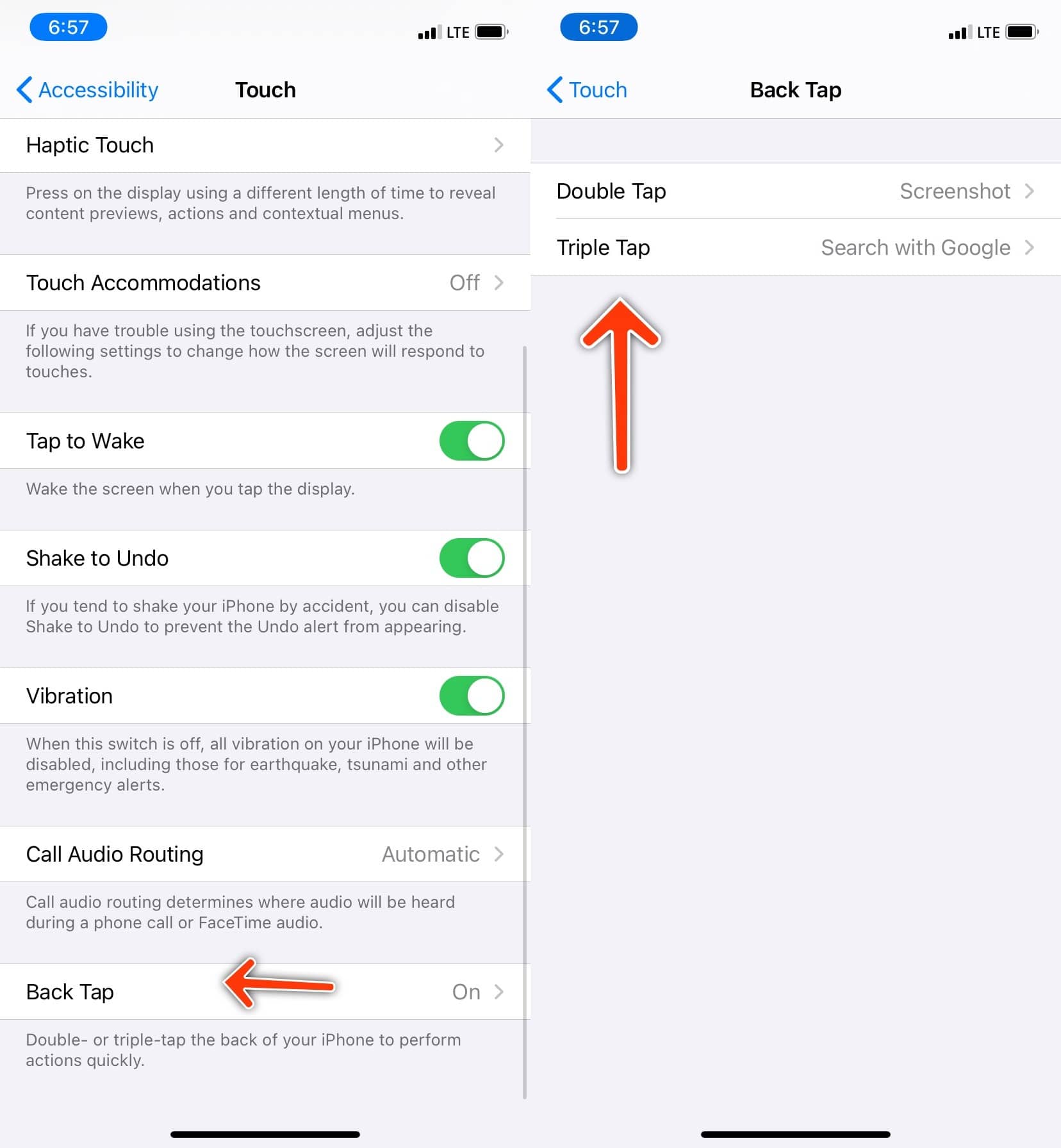
- Now, you can triple-click the Side Button (or Home button on older models) to turn the auto-tapper on or off instantly.
Executing and Looping the Auto-Tap
Once configured, open the app or game where you want to use the auto-tapper. Triple-click the Side Button to activate Switch Control.
The way iOS handles these gestures is through a "queue" system. If your recorded recipe has 5 taps, and you tap the screen 10 times with your finger, the iPhone will "buffer" those inputs and play your 5-tap recipe 10 times in a row. This allows you to "stack" hundreds of taps by tapping the screen for a few seconds, then letting the phone run autonomously while the queue finishes.
| Feature | Switch Control (Recipe) | AssistiveTouch (Gesture) | Physical Auto-Tapper |
|---|---|---|---|
| Setup Difficulty | Moderate | Easy | Easy |
| Automation Level | Semi-Automatic (Requires Queueing) | Manual Trigger | Fully Automatic |
| Cost | Free (Built-in) | Free (Built-in) | $20 - $50 |
| Looping | Yes (via input buffering) | No | Yes (Infinite) |
| Risk of Ban | Low (System level) | Very Low | Minimal |
Using AssistiveTouch for Simple Gestures
If you do not need a repetitive loop but rather a complex gesture (like a specific swipe or a triple-tap) that is hard to perform manually, AssistiveTouch is a better alternative.
- Navigate to Settings > Accessibility > Touch > AssistiveTouch.
- Toggle AssistiveTouch to ON.
- Select Create New Gesture.
- Record your motion and save it.
- In the AssistiveTouch floating menu, you can now select Custom and choose your gesture. A "ghost" circle will appear on your screen; tapping it will execute the recorded motion exactly where you performed it during setup.
Hardware Solutions: Physical Auto Tappers
For users who require 24/7 automated clicking—often for "idle" games or social media engagement—software limitations in iOS can be frustrating. Because Switch Control requires the user to "queue" taps, it is not truly "set it and forget it" for hours at a time.
Physical auto-tappers are small electronic devices with capacitive "tapping heads" that stick to your iPhone screen. These devices use an electric pulse to simulate a human finger touch.
- Pros: They do not rely on iOS software, meaning they can run indefinitely without the "queue" running out. They are undetectable by app developers because they simulate physical touch.
- Cons: They require a power source (USB) and physical space on the screen.
In 2026, many of these devices have become highly sophisticated, offering variable clicking speeds and "randomized" intervals to further mimic human behavior and avoid anti-cheat detection in mobile gaming.
Ethical and Technical Considerations
While auto-tapping is a powerful tool, it is important to understand the environment in which you are using it.
Gaming Integrity and Bans
Most competitive online games (such as those by developers like Supercell or Hoyoverse) have terms of service that strictly prohibit the use of automation. While Switch Control is a system-level accessibility feature and harder to detect than a third-party hack, extremely repetitive and inhumanly fast tapping patterns can trigger server-side flags. Always use auto-tappers with "randomized" patterns if possible, and avoid using them in ranked or competitive modes where you might face account suspension.
Screen Health and Battery Life
Running an auto-tapper requires the screen to remain on and active. For iPhones with OLED displays (iPhone X and newer), leaving a static image on the screen for hours with an active auto-tapper can contribute to burn-in or image persistence. Additionally, the constant processing of Switch Control and screen refreshes will drain your battery significantly faster. It is recommended to lower your brightness to the minimum setting and keep the device plugged into a charger during long sessions.
Troubleshooting Common Issues
Switch Control "Stuck" on Screen
If you activate Switch Control and find you cannot interact with your phone normally to turn it off, do not panic. The triple-click shortcut is designed to override current processes. Triple-click the side button firmly. If the device is unresponsive, a force restart is usually necessary:
- Press and quickly release the Volume Up button.
- Press and quickly release the Volume Down button.
- Press and hold the Side Button until the Apple logo appears.
Gestures Not Aligning
If the taps are hitting the wrong part of the screen, it is likely due to the orientation of your phone when you recorded the recipe. iOS records gestures based on the screen's orientation (Portrait vs. Landscape). Ensure you record your recipe in the same orientation that the target app uses.
Frequently Asked Questions
Can I download an Auto Clicker app from the App Store?
As of 2026, there are no functional "Auto Clicker" apps on the iOS App Store that can click inside other apps. Any app claiming to do so is likely a "web-only" clicker (which only works within its own built-in browser) or a scam. Apple's sandboxing rules remain a core part of iOS security.
Does auto-tapping work while the screen is locked?
No. For security and power management, iOS suspends all screen-based accessibility gestures the moment the device is locked. The screen must remain on and the target app must be in the foreground for the auto-tapper to function.
Is it possible to auto-tap in the background?
No. iOS is designed to prioritize the foreground application. You cannot have an auto-tapper clicking in a game while you are browsing Safari or checking emails. Automation on iOS is "active," meaning it controls what is currently visible on the screen.
Will using Switch Control slow down my iPhone?
Switch Control consumes a small amount of CPU and RAM to monitor for inputs and play back gestures. While you won't notice a slowdown in general navigation, high-performance games might see a slight dip in frame rate if the auto-tapping frequency is set extremely high.
Final Recommendation
For the vast majority of users, Switch Control is the most effective and safest way to auto-tap on an iPhone. It requires no additional hardware and leverages Apple's own accessibility infrastructure. To get the best results, record a recipe with a generous number of taps (20-30) in a single recording. This makes it easier to "buffer" a long period of automation by only tapping the screen a few times yourself. If you find the setup process for Switch Control too cumbersome, consider a physical capacitive auto-tapper for a hardware-based, "plug-and-play" solution.
Image Gallery