How to View a Zip File on iPhone Step by Step
Viewing and extracting ZIP files on an iPhone is a simple process that does not require installing extra software for most standard archives. Thanks to the native Apple Files app, iOS includes built-in support to uncompress, preview, a...
Viewing and extracting ZIP files on an iPhone is a simple process that does not require installing extra software for most standard archives. Thanks to the native Apple Files app, iOS includes built-in support to uncompress, preview, and save files from ZIP archives with just a few taps.
Contents
Prerequisites for Opening Compressed Files on iOS
Before attempting to open a compressed folder on your iPhone, ensuring your device meets basic setup requirements will streamline the process. Apple integrated native compression and extraction support directly into the operating system starting with iOS 13. If your device runs any modern version of iOS, you already have all the built-in software required to handle standard .zip files.
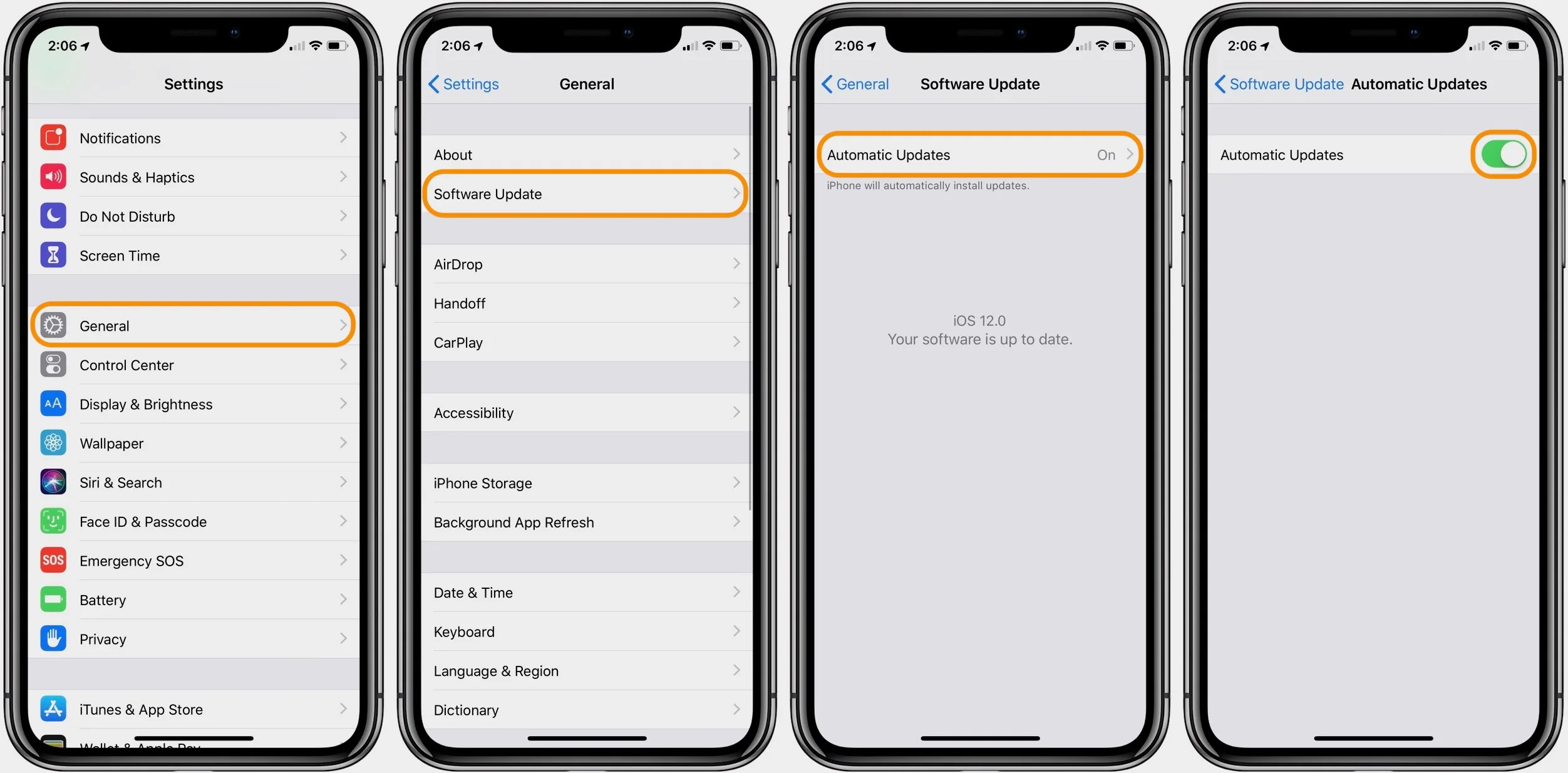
To check your current software version:
- Open the Settings app on your iPhone.
- Tap General, then select About.
- Locate iOS Version. If your iPhone is running iOS 13 or later, native unzipping is fully enabled.
Beyond software requirements, you must know where your ZIP file is stored. Files downloaded through mobile web browsers like Safari automatically save to a designated folder within the native Files app—typically under iCloud Drive or On My iPhone. If the archive arrived as an attachment in Mail, Messages, or a third-party app like WhatsApp, you will need to open or save the file into the Files manager before extracting its contents.
Method 1: How to View and Extract a ZIP File Using the Apple Files App
The native Files app is the fastest, safest, and most efficient method to open standard .zip archives. It creates an uncompressed folder right alongside the original archive without overwriting your original data.
Step 1: Locate the ZIP File in the Files App
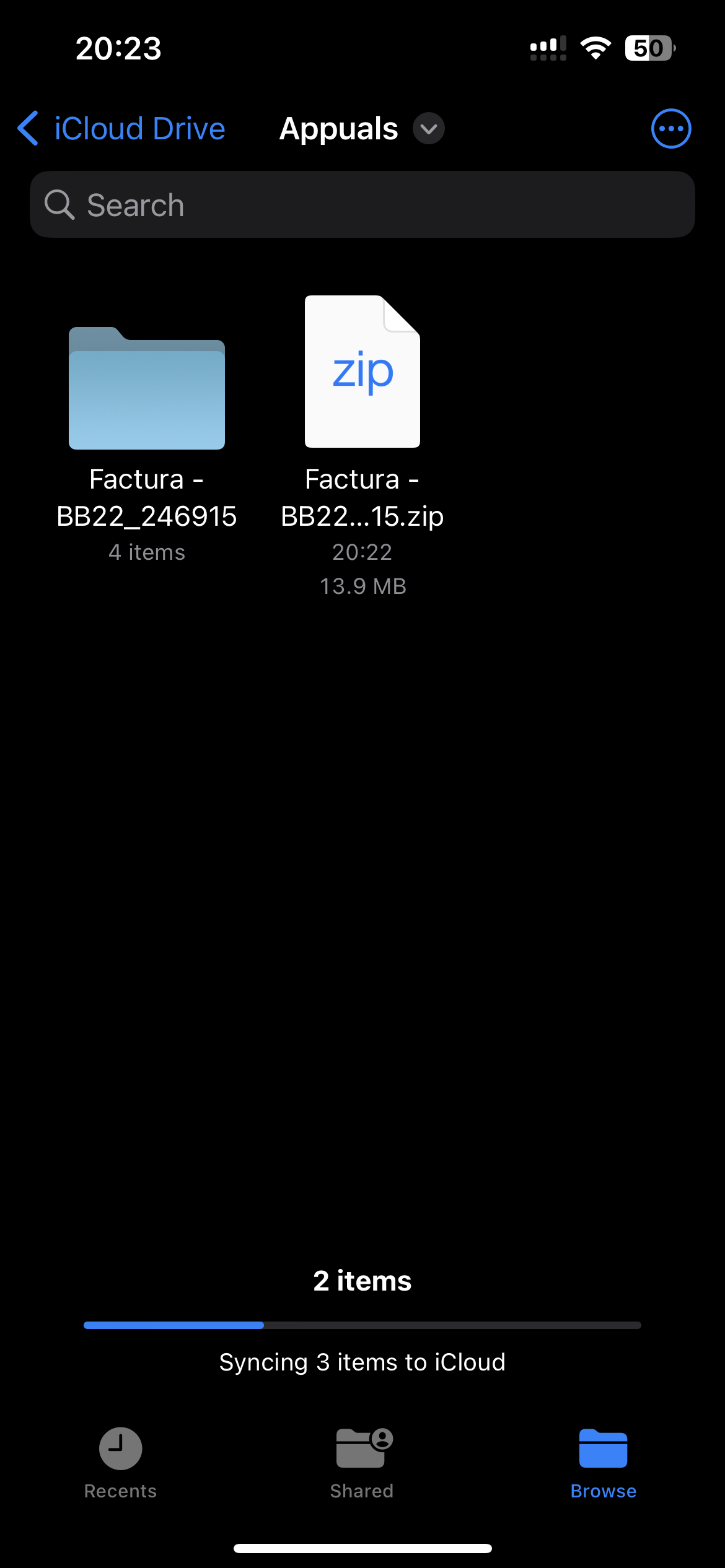
Open the Files app on your iPhone. If you downloaded the file from Safari, tap the Browse tab at the bottom right corner of the screen, select On My iPhone (or iCloud Drive), and open the Downloads folder.
Files App > Browse > Downloads > target_file.zip
If the file resides in a secondary cloud service connected to your iPhone, such as Google Drive or Dropbox, ensure that cloud service is toggled on inside the Locations menu of the Files app.
Step 2: Tap the ZIP File to Extract
To decompress the archive, simply tap the .zip icon once.
iOS will automatically run an in-memory extraction process. A new, standard blue iOS folder carrying the exact same name as the archive will instantly appear in the same directory. The original compressed .zip file remains intact alongside the new folder, allowing you to retain the compressed original if needed.
Step 3: Open the Extracted Folder and View Contents
Tap the newly created folder to inspect its contents. Inside, you can view documents, photos, audio tracks, or videos.
Apple's built-in Quick Look engine allows you to view common formats—such as PDF documents, Microsoft Office files, PNG images, JPEG images, and MP4 videos—directly inside the Files app without opening third-party software.
Step 4: Preview Contents Without Extracting (Quick Look Shortcut)
If you only want to view what is inside a ZIP file without decompressing the entire folder to your local storage:
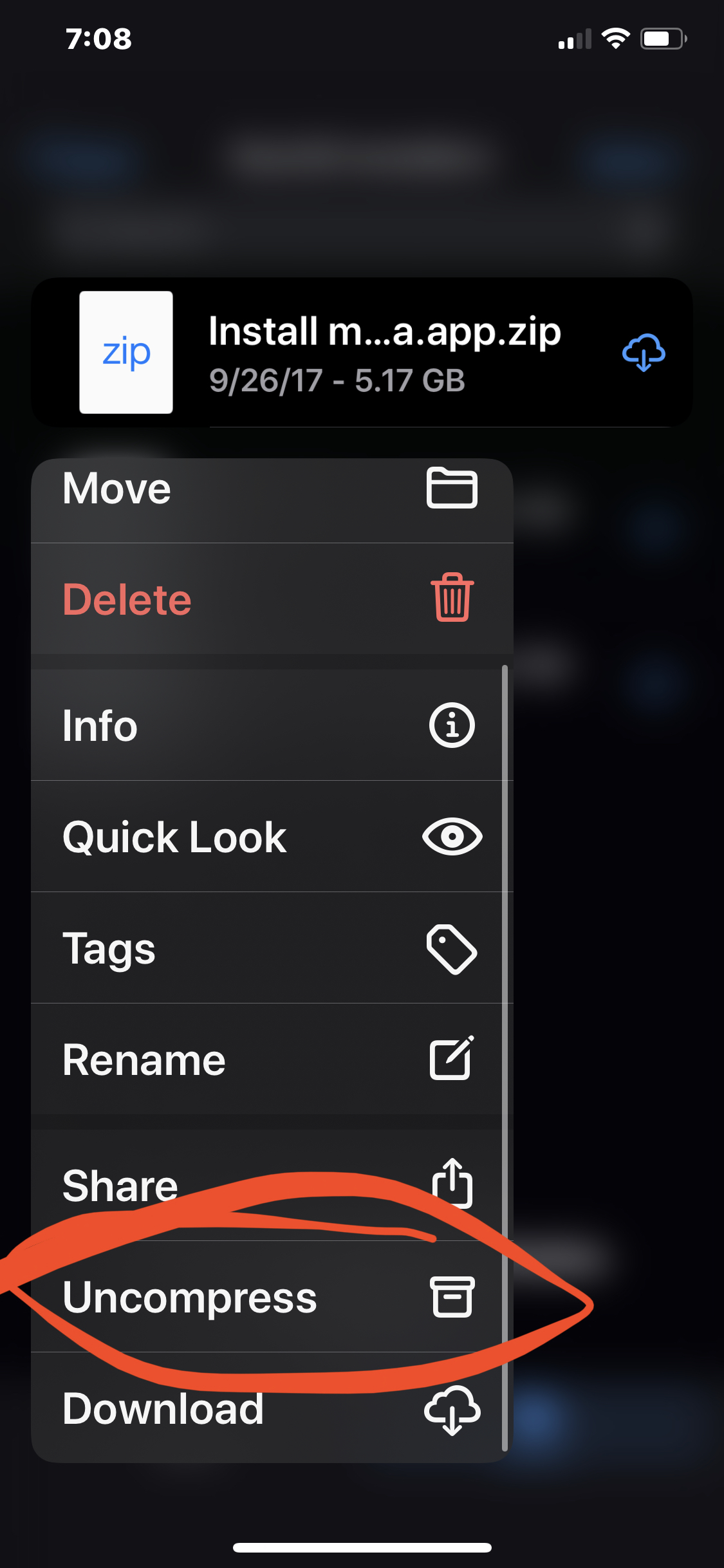
- Touch and hold (long-press) the
.zipfile until the contextual menu appears. - Select Quick Look from the popup menu.
- A preview window will display the contents of the archive, allowing you to swipe through stored items or tap Preview Content to inspect individual documents.
Method 2: Opening ZIP Attachments Received in Mail or Messaging Apps
When someone emails or messages you a compressed file, the file must be routed through the iOS sharing subsystem before native extraction can take place.
Extracting ZIP Files in Apple Mail
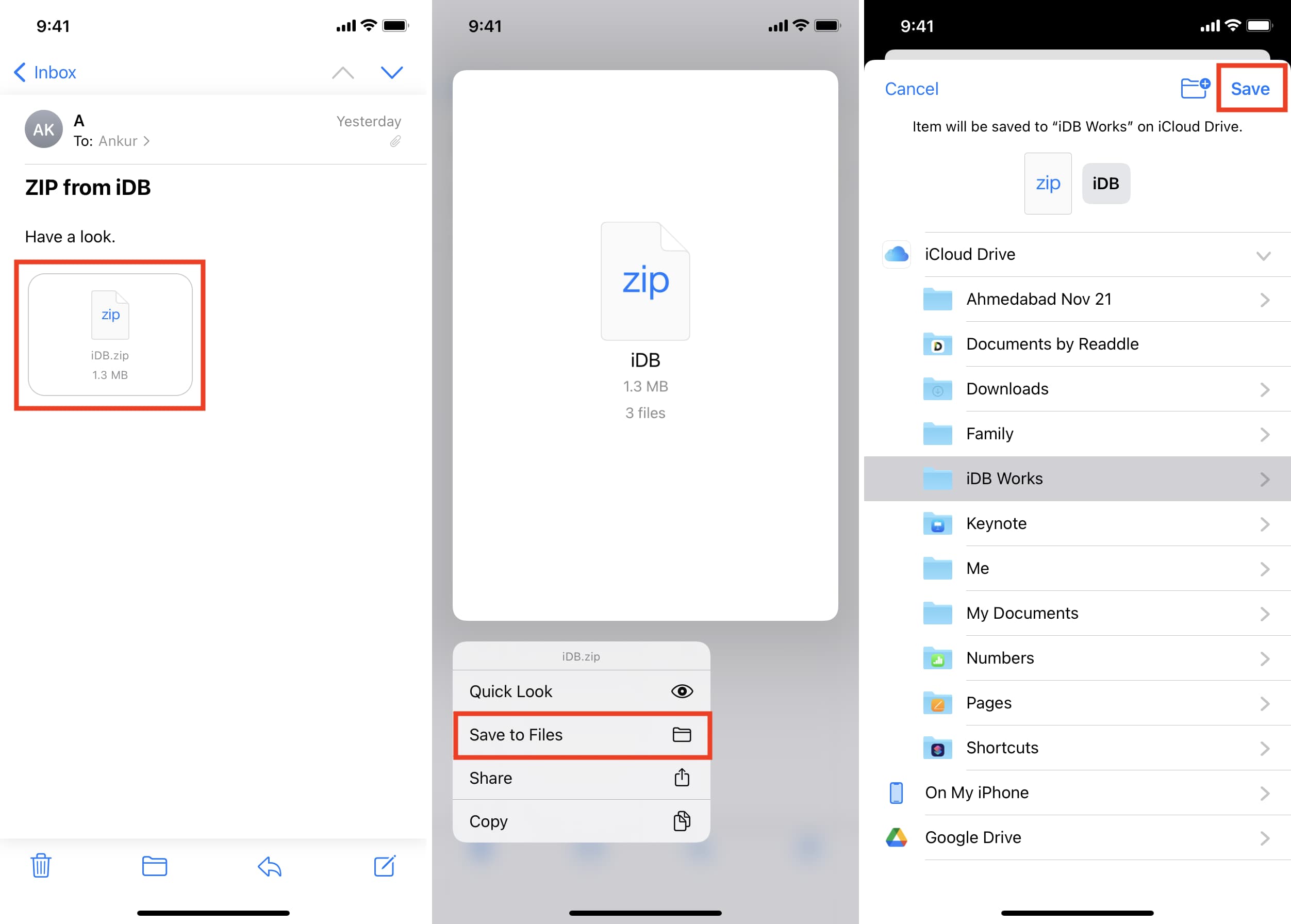
- Open the Mail application and navigate to the email containing the attachment.
- Tap the attached
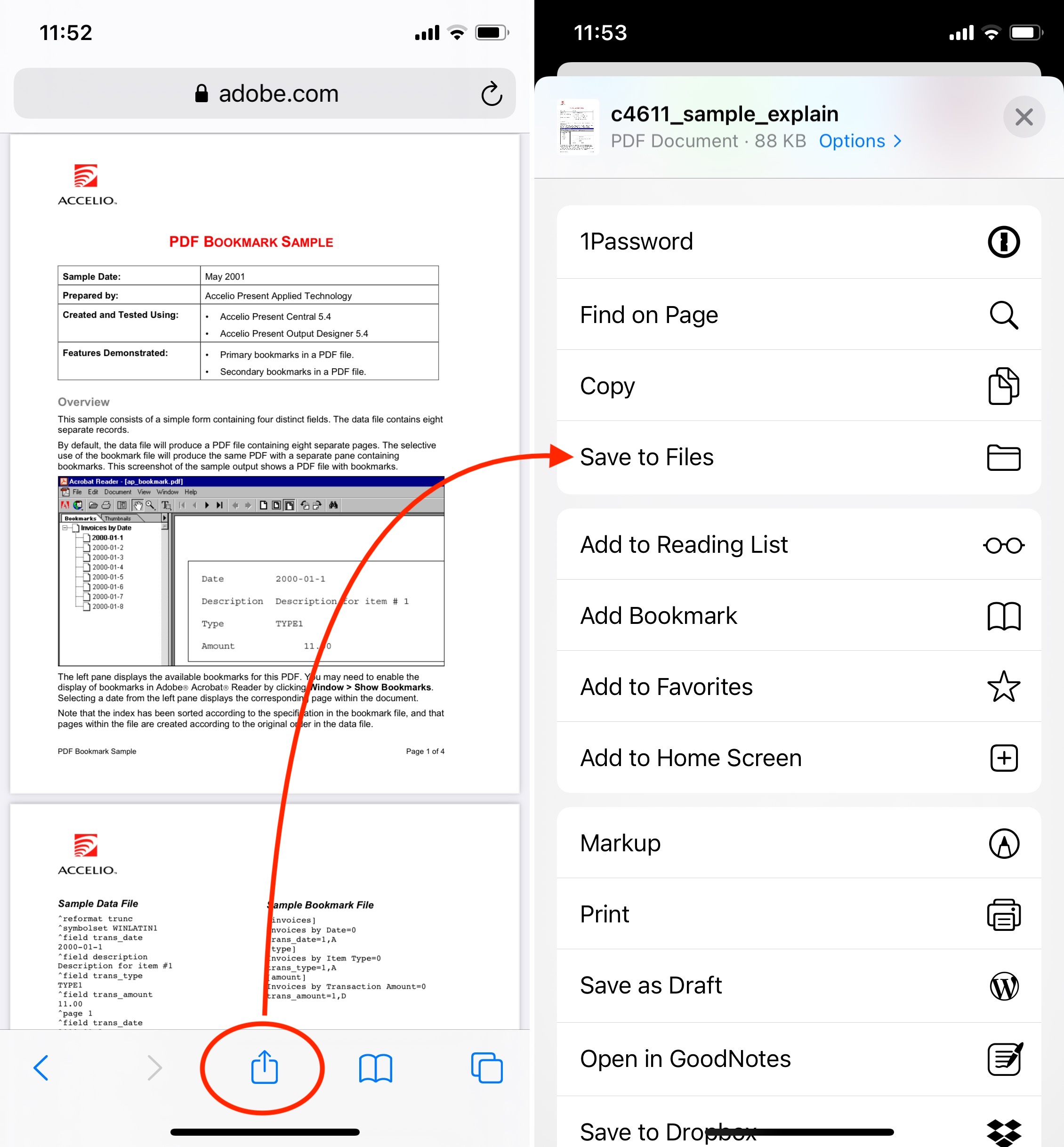
.zipfile to load its details. - Tap the Share button (an icon showing a square with an upward-pointing arrow) located at the top right or bottom corner of the screen.
- Scroll down the menu actions and select Save to Files.
- Choose your target destination directory (e.g., On My iPhone > Downloads) and tap Save in the top-right corner.
- Open your Files app, navigate to that destination, and tap the archive to extract it.
Extracting ZIP Files in Third-Party Messaging Apps
If you receive a ZIP file in an app like WhatsApp, Telegram, or Gmail:
- Tap the file attachment inside the chat window or message pane.
- Tap the system Share sheet icon.
- Select Save to Files from the popup list.
- Choose the folder where you want to store the archive and tap Save.
- Switch to the Files app, open the chosen folder, and tap the archive file to uncompress it.
Method 3: Using Third-Party Apps for Password-Protected or Complex Archives
While the native Files app handles standard .zip files effortlessly, it has native limitations. The default iOS file manager cannot extract password-protected ZIP files, multi-part split archives, or alternative compression formats such as .rar, .7z, or .tar.gz.
When dealing with encrypted or non-standard compressed files, dedicated third-party utilities available on the Apple App Store—such as iZip, Unzip, or WinZip—provide full decompression support.
Step-by-Step: Opening Password-Protected ZIPs with iZip
- Download and install iZip (or an equivalent archiver) from the iOS App Store.
- Open the Files app and locate the encrypted ZIP file.
- Long-press the encrypted
.zipfile and select Share. - Tap iZip from your app options (if not listed, tap More at the end of the app icons row and select it).
- The device will automatically switch to the iZip application and display a prompt asking if you would like to extract all files. Tap OK.
- When prompted, enter the password required to unlock the archive and tap OK.
- The app will decrypt and extract the files into an accessible folder within the app directory.
How to Create a ZIP File on Your iPhone
Knowing how to compress files into a .zip archive on your iPhone is equally useful when sending large documents or multiple images over email.
Files App > Select Items > More Menu (...) > Compress
- Open the Files app and navigate to the folder containing the items you want to package.
- If compressing a single item or folder, long-press the file or folder and tap Compress.
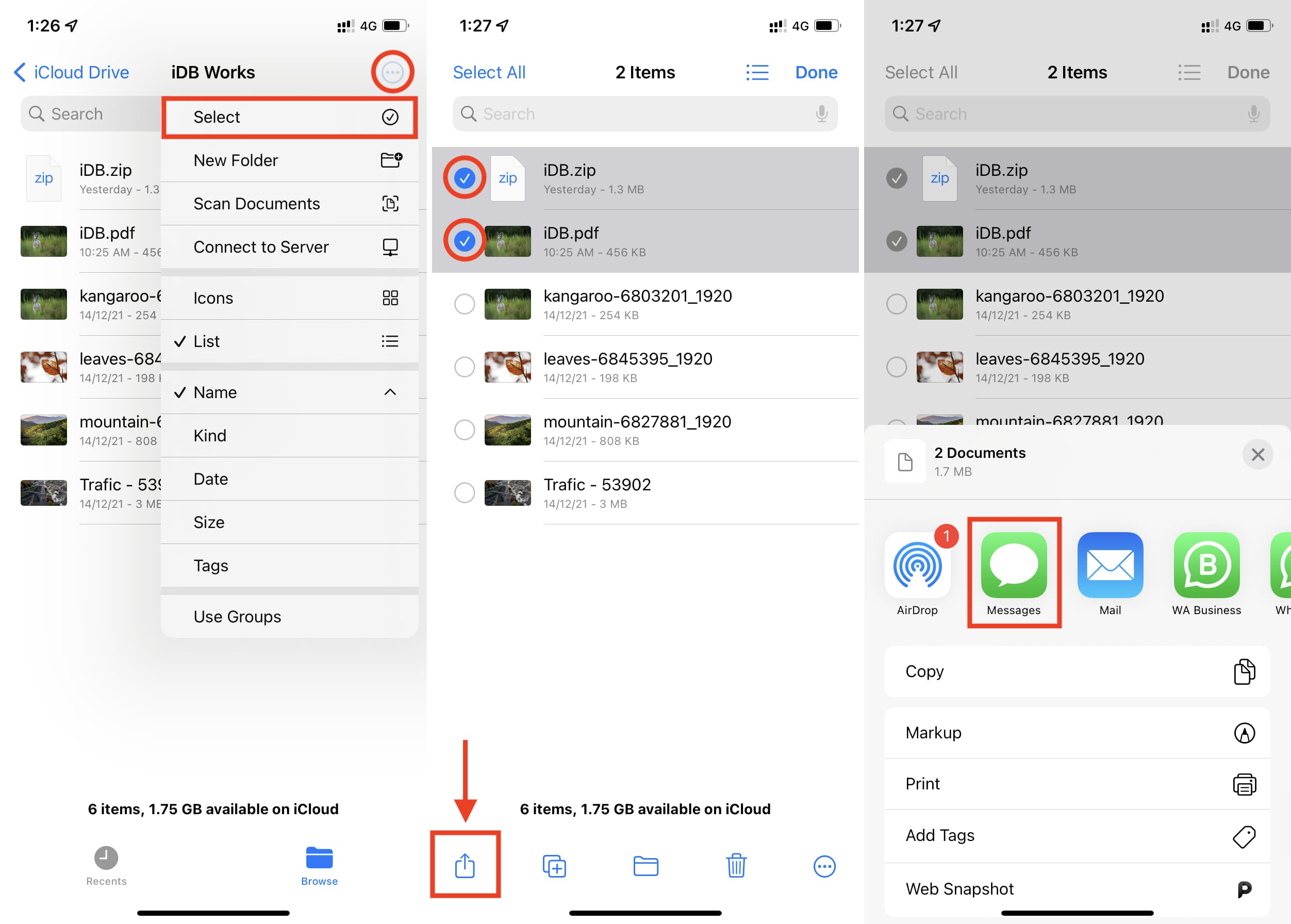
- If compressing multiple items simultaneously:
- Tap the More options button (three dots inside a circle) in the top-right corner.
- Tap Select, then tap each file or photo you wish to include.
- Tap the three-dot menu at the bottom-right corner of the screen.
- Select Compress.
- iOS will create a single file named
Archive.zip(or[Original Name].zip) in the same directory, ready for sharing.
Feature Comparison: Native Files App vs. Third-Party Archiving Apps
| Feature / Capabilities | Native Apple Files App | Third-Party Archiving Apps (e.g., iZip, Unzip) |
|---|---|---|
Standard .zip Extraction |
Yes (Built-in) | Yes |
Standard .zip Creation |
Yes (Built-in) | Yes |
| Password-Protected Encryption Support | No (Fails or throws error) | Yes (Prompts for decryption key) |
Alternative Formats (.rar, .7z, .tar) |
Limited / No | Yes (Full support for most formats) |
| Multi-Part / Split Archives | No | Yes |
| Direct File Preview (Quick Look) | Yes | Yes |
| Cost | Free (Preinstalled) | Free with Ads / Optional In-App Purchases |
| System Security & Privacy | High (Runs natively on iOS) | Varies by app developer |
Troubleshooting Common Issues When Opening ZIP Files
Error: "Format Not Supported" or Unresponsive Tap
If tapping a ZIP file in the Files app does nothing or throws an unsupported format message, the file likely uses an advanced compression algorithm (such as AES-256 encryption or BZ2 compression) that native iOS cannot process. Transfer the file into a third-party decompression utility like iZip to open it.
Corrupted or Incomplete File Downloads
If an archive displays an error indicating that the file is invalid or damaged, the download process was likely interrupted. Decompressing requires every byte of data to be intact. Delete the broken file from your Downloads folder, ensure a stable internet connection, and re-download the file from its source.
Insufficient iPhone Local Storage Space
Unzipping an archive creates duplicate uncompressed files alongside the original package. For instance, extracting a 2 GB ZIP archive requires at least 2 GB of free storage space for the extracted contents, plus room for system overhead.
If storage is full:
- Go to Settings > General > iPhone Storage to review available space.
- Clear unnecessary local media or offload unused apps.
- Alternatively, move the
.ziparchive to iCloud Drive within the Files app to execute the extraction on cloud storage rather than local device storage.
Frequently Asked Questions
Can I view a ZIP file on an iPhone without downloading an app?
Yes. Modern versions of iOS include native ZIP file extraction within the pre-installed Apple Files app. Tapping any standard .zip file automatically uncompresses its contents into a standard folder without requiring third-party software downloads.
Why won't my iPhone open a ZIP file?
Your iPhone may fail to open a ZIP file if the archive is encrypted with a password, utilizes non-standard compression (like RAR or 7z), is damaged from an incomplete download, or if your device lacks sufficient free storage space to extract the file contents.
Where do downloaded ZIP files go on an iPhone?
When you download a ZIP file using Safari, it is saved automatically to the Downloads folder inside the Files app. By default, this directory is located under either On My iPhone > Downloads or iCloud Drive > Downloads.
How do I open a password-protected ZIP file on iOS?
The built-in Files app cannot open password-protected ZIP files. You must transfer the archive to a specialized archiver app from the App Store—such as iZip or Unzip—and enter the correct password when prompted during the extraction phase.
Does unzipping a file delete the original ZIP archive on my iPhone?
No. Extracting a ZIP file using the Apple Files app creates a new uncompressed folder containing your files while retaining the original .zip archive file in its current location. You can safely delete the compressed original afterward to save disk space.
Summary Action Plan
To quickly view a ZIP file on your iPhone right now:
- Open the native Files app and navigate to Browse > Downloads.
- Tap the
.zipfile once to auto-extract its contents into a standard folder. - Open the newly created folder to view, edit, or share your extracted documents.
- If the file requests a password or carries a
.rarextension, download iZip from the App Store and route the file into that application via the iOS Share sheet.
Image Gallery