Does the Spectrum Router Support WPS? Full Setup & Security Guide
No, current Spectrum Advanced Wi-Fi routers (including Wi-Fi 6, 6E, and Wi-Fi 7 models) do not support Wi-Fi Protected Setup (WPS). Spectrum deactivated WPS functionality across its modern gateway lineup and removed physical WPS push b...
No, current Spectrum Advanced Wi-Fi routers (including Wi-Fi 6, 6E, and Wi-Fi 7 models) do not support Wi-Fi Protected Setup (WPS). Spectrum deactivated WPS functionality across its modern gateway lineup and removed physical WPS push buttons from its router hardware. While older, legacy Spectrum routers manufactured prior to the Wi-Fi 6 rollout included physical WPS buttons, standard firmware updates disabled WPS to prevent major security vulnerabilities. Today, connecting wireless hardware to a Spectrum router requires standard network credentials, QR code onboarding, or temporary 2.4 GHz band isolation via the My Spectrum mobile application.
Contents
Understanding WPS and Current Spectrum Router Capabilities
Wi-Fi Protected Setup (WPS) was introduced by the Wi-Fi Alliance in 2006 to simplify wireless network connections for devices lacking full displays or keyboards, such as printers, smart plugs, security cameras, and range extenders. The protocol allowed users to connect clients using an eight-digit Personal Identification Number (PIN) or by pressing a dedicated Push-Button Configuration (PBC) button on both the router and the client device.
However, as network speeds and security standard requirements evolved, internet service providers (ISPs)—including Spectrum (Charter Communications)—re-evaluated the inclusion of WPS in residential equipment. Current Spectrum Advanced Wi-Fi routers operate on a locked-down firmware architecture managed primarily through cloud services rather than a traditional local web administration GUI (such as 192.168.1.1 or 192.168.0.1).
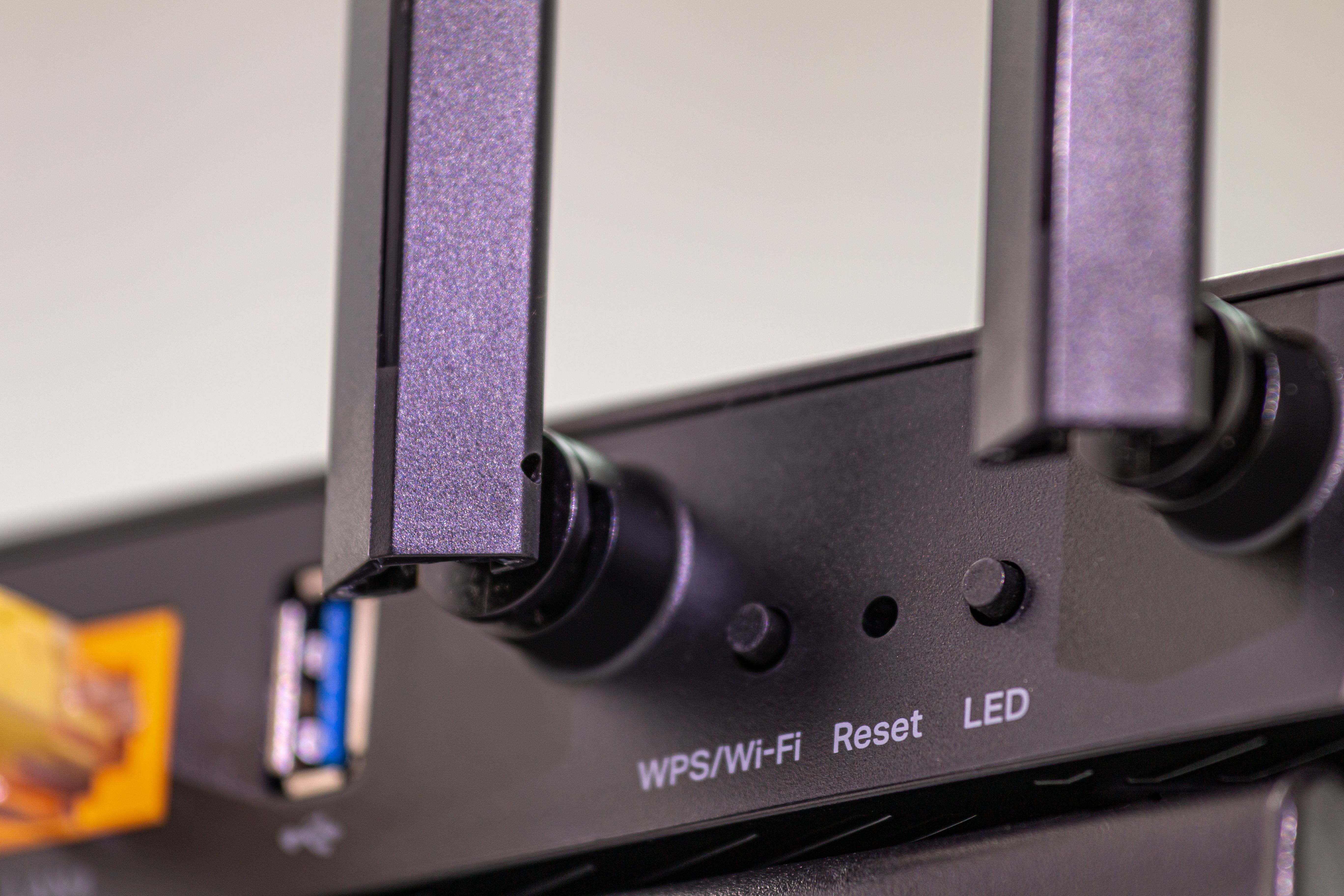
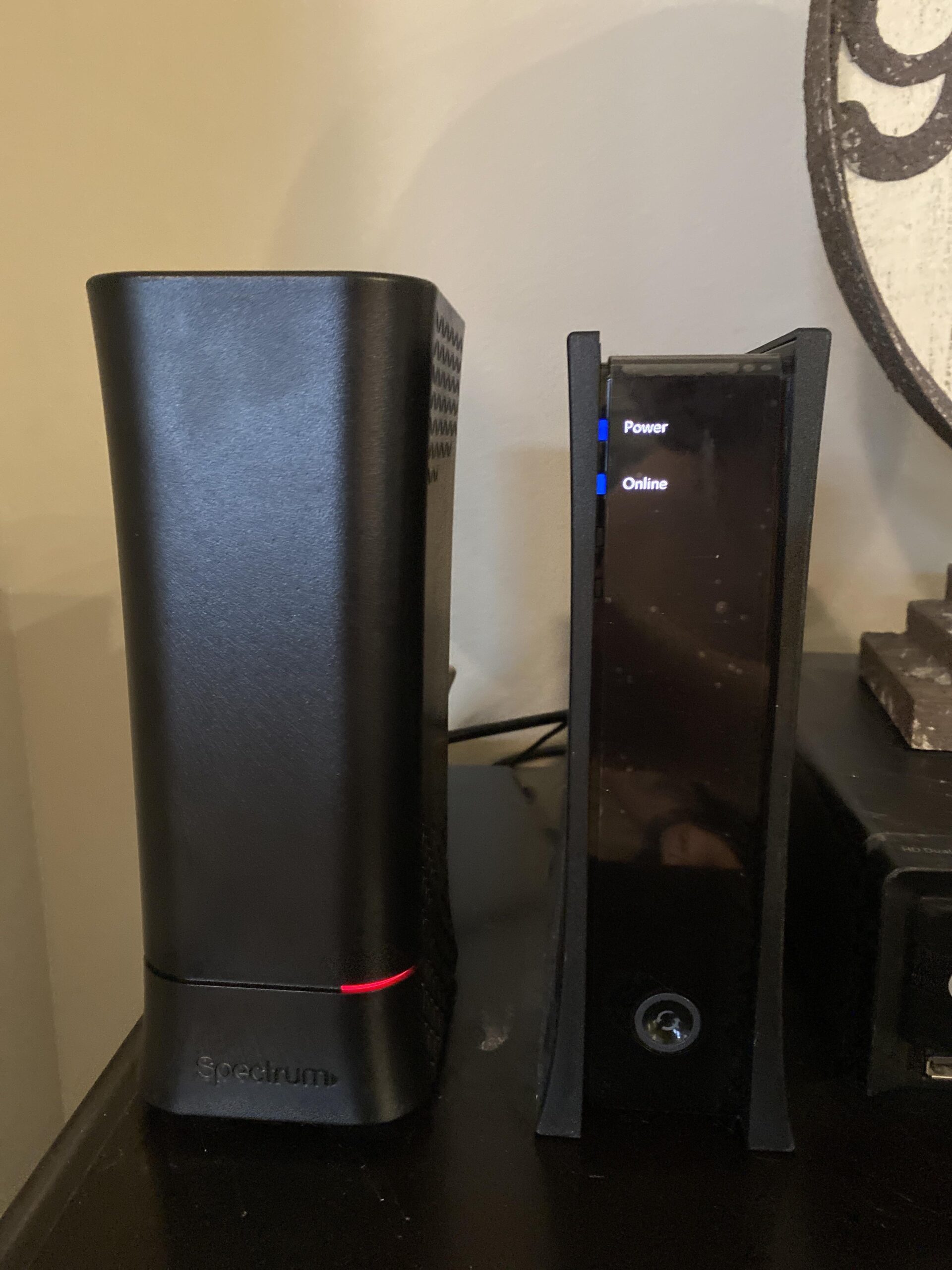
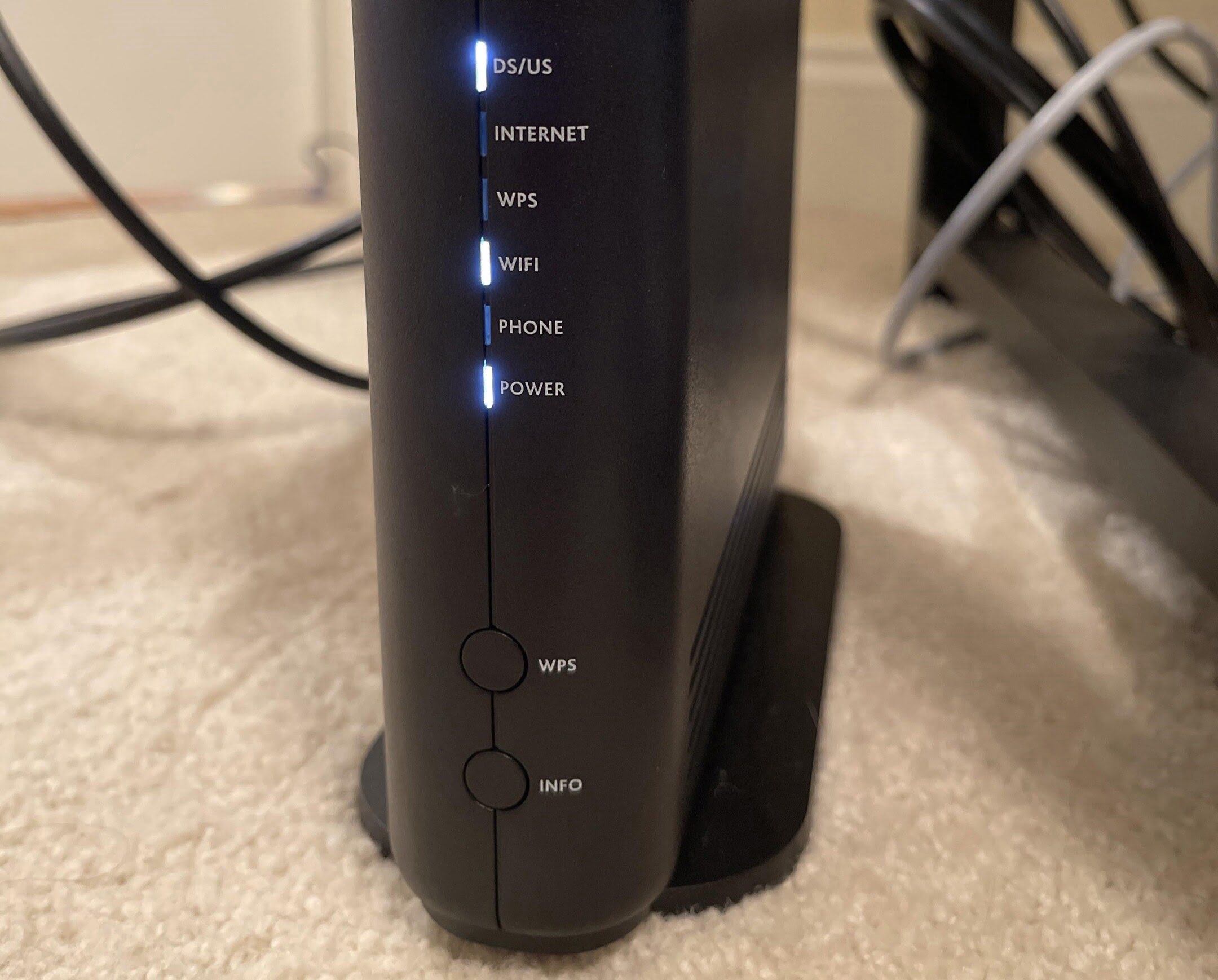
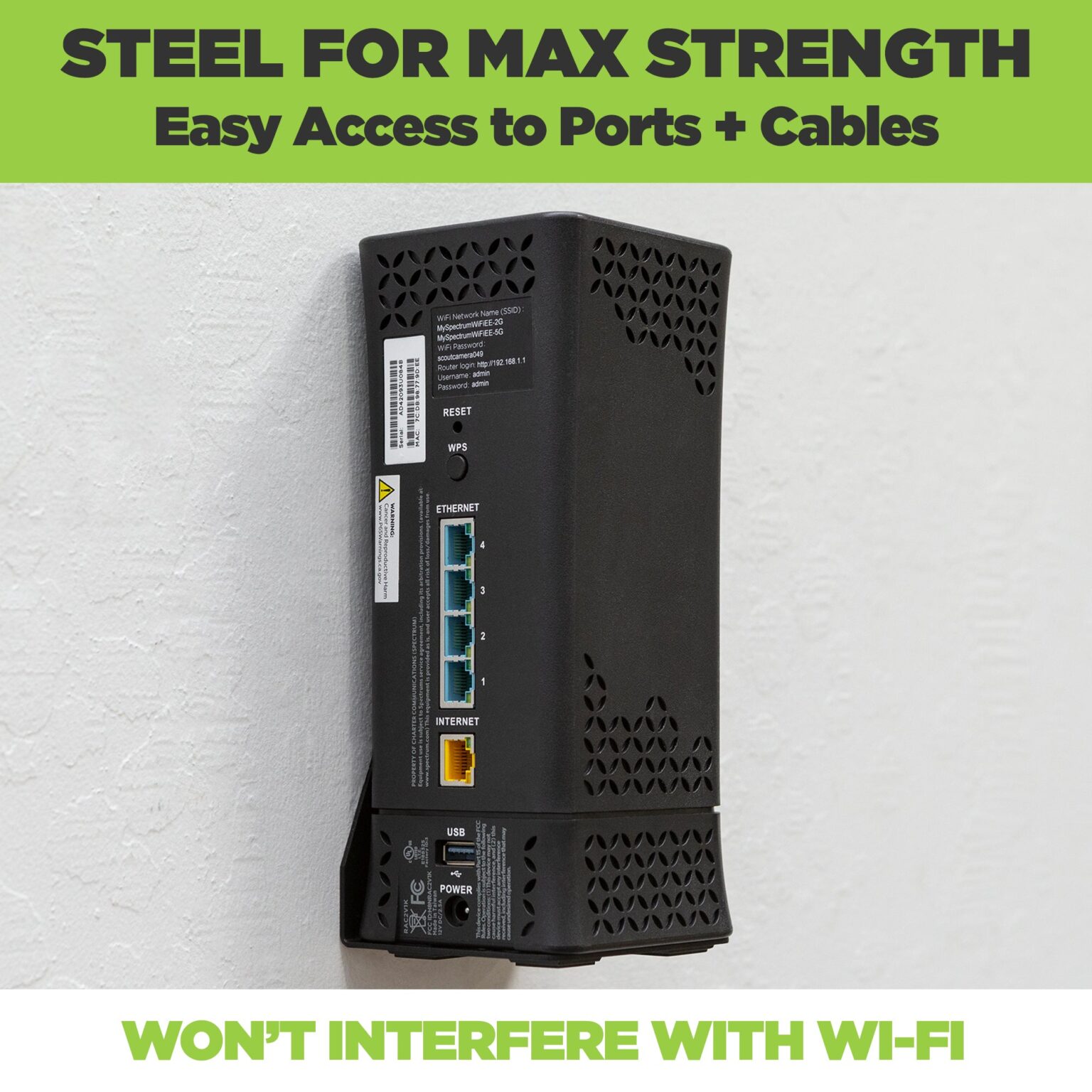
On modern Spectrum hardware (such as the SAX1V1K, SAX1V1R, SAX2V1S, and related Wi-Fi 6/6E model variants), physical WPS buttons are completely omitted. If you examine the outer casing of a current Spectrum router, you will find an indicator LED, an Ethernet WAN/LAN layout, a power port, and a recessed Reset button, but no button displaying the double-arrow WPS icon. Furthermore, the administrative dashboard accessible through the My Spectrum app contains no toggle to enable soft WPS or send a push-button request to client hardware.
Why Spectrum Disabled WPS on Modern Routers
The decision by Spectrum and other major telecommunication providers to retire WPS is rooted in fundamental cryptographic weaknesses, evolving security standards, and operational efficiency.
1. Severe Vulnerabilities in WPS PIN Authentication
The primary driver behind the phase-out of WPS is its inherent architectural vulnerability to brute-force attacks. The original WPS specification requires routers to process an 8-digit PIN in two separate halves (the first 4 digits and the remaining 4 digits). Because the final digit acts as a checksum, an attacker needs to test at most $10^4 + 10^3 = 11,000$ total combinations to breach the router.
Automated penetration tools (such as Reaver and Bully) can force a WPS PIN within a few hours. Once the PIN is discovered, the router hands over the WPA2/WPA3 pre-shared key (the actual Wi-Fi password) in plain text.
2. Offline Brute-Force Attacks (Pixie Dust Attack)
In 2014, security researcher Dominique Bongard discovered the "Pixie Dust" attack vector affecting the random number generators (PRNGs) of chipset vendors used in consumer routers. This flaw allowed unauthorized devices within physical radio range to calculate the WPS PIN offline in seconds without sending thousands of probes to the router, bypassing lockout mechanisms designed to rate-limit PIN attempts.
3. Transition to WPA3 Security Standards
Modern Wi-Fi standards, particularly WPA3 (Wi-Fi Protected Access 3), mandate stricter authentication frameworks. The Wi-Fi Alliance explicitly forbids the implementation of traditional WPS PIN authentication on WPA3-certified networks due to incompatibility with WPA3's Simultaneous Authentication of Equals (SAE) handshake protocol. To maintain compliance with WPA3 mixed-mode operations, Spectrum removed WPS capabilities entirely.
4. Reduced Technical Support Escalations
From an operational perspective, physical push-button setup frequently fails when multiple wireless clients request pairing simultaneously, leading to unencrypted association states or temporary lockouts. By standardizing setup through the My Spectrum App, Spectrum reduced customer service inquiries regarding broken WPS pairing sessions.
Spectrum Router Hardware & WPS Support Comparison
The table below breaks down Spectrum router generations, their WPS hardware status, administrative accessibility, and supported alternative connection options:
| Router Generation / Model Series | Wi-Fi Standard | Physical WPS Button Present? | WPS Functionality Active? | Management Interface | Alternative Connection Method |
|---|---|---|---|---|---|
| Spectrum Advanced Wi-Fi 6 / 6E (SAX1V1K, SAX1V1R, SAX2V1S) | Wi-Fi 6 / Wi-Fi 6E (802.11ax) | No | No (Disabled by Firmware) | My Spectrum App / Cloud Portal | WPA2/WPA3 Key, App QR Code, 2.4 GHz Mode |
| Spectrum Wave 2 Routers (RAC2V1K, RAC2V1A, RAC2V1S) | Wi-Fi 5 (802.11ac) | Yes (Legacy Units) | No (Deactivated via Updates) | Legacy Web GUI / Spectrum App | Manual WPA2 Pre-Shared Key Entry |
| Arris / Sagemcom Leased Units (DG1670, FAST 5260) | Wi-Fi 5 (802.11ac) | Yes | Deprecated (PIN Disabled) | Local IP Web Interface | Manual Key Entry, Device AP Provisioning |
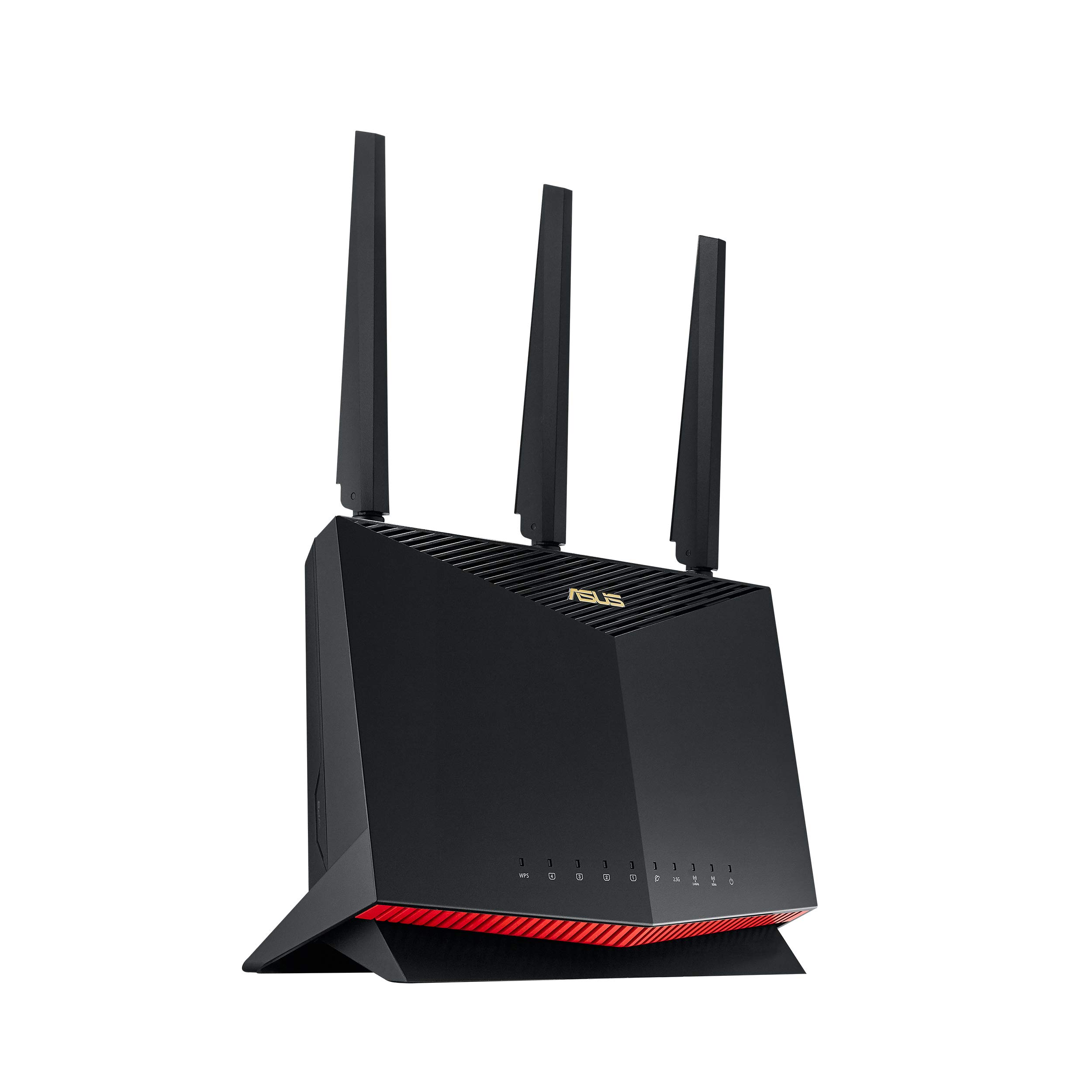
| User-Owned Retail Routers (TP-Link, Netgear, Asus, Linksys) | Wi-Fi 5 / 6 / 6E / 7 | Yes (Varies by Model) | Optional (User-Controlled) | Local Web GUI / Brand App | WPS Push-Button (PBC), PIN, App Onboarding |
How to Connect Smart Devices and Printers Without WPS
Many smart home accessories, wireless printers (from manufacturers like HP, Canon, Epson, and Brother), and Internet of Things (IoT) gadgets include setup manuals instructing users to press the WPS button on their router. Because Spectrum routers lack this functionality, you must use alternative connection methods depending on the capabilities of your client device.
[ Client Device Setup Request ] | Does the device have a screen/GUI? / \ YES NO / \ [ Enter SSID & Password ] [ Use Manufacturer App ] | Is it 2.4 GHz-Only? / \ YES NO / \ [ Enable 2.4 GHz Mode ] [ Connect directly via ] [ in My Spectrum App ] [ Bluetooth or Device AP ]
Method 1: Connecting Printers with a Built-in Display
If your wireless printer features a touchscreen or button navigation display, bypass WPS entirely:
- On the printer display, navigate to Settings or Network / Wireless Settings.
- Select Setup Wizard or Wireless Setup Wizard.
- Allow the printer to scan for broadcasted SSIDs. Select your Spectrum Wi-Fi network name from the list.
- Input your wireless password using the on-screen keypad. Note that Spectrum network passwords are case-sensitive.
- Confirm the connection. The printer will establish an IP address lease via DHCP.
Method 2: Connecting Headless Smart Home Devices (Printers, Plugs, Cameras)
For devices lacking a display screen or physical keypad (such as smart plugs, smart bulbs, or entry-level printers), the manufacturer provides a smartphone companion application to transmit credentials.
- Download the manufacturer's mobile app (e.g., HP Smart, Epson iPrint, Smart Life, Tuya, or Ring) on your iOS or Android smartphone.
- Put the client device into Access Point (AP) Mode or Pairing Mode. This is typically accomplished by holding down the device's Power or Wi-Fi button until a light flashes rapidly.
- Open your smartphone’s Wi-Fi settings and connect directly to the temporary setup network broadcasted by the client device (e.g.,
HP-Setup-xx-DeskjetorSmartLife-XXXX). - Return to the manufacturer app. The app will detect the device and prompt you to select your home network.
- Choose your Spectrum network SSID and type in your Spectrum network password.
- The app will push the network credentials to the device via the temporary direct Wi-Fi bridge, after which the device will join the Spectrum network.
Method 3: Utilizing "Add Device" / 2.4 GHz Mode in the My Spectrum App
Spectrum routers use single SSID Band Steering, merging the 2.4 GHz and 5 GHz frequency bands under one network name. Some legacy 2.4 GHz-only IoT devices fail to connect because the smartphone running the setup process automatically attaches to the 5 GHz band.
Spectrum resolved this limitation by introducing a device setup feature within the management application:
- Open the My Spectrum App on your mobile device.
- Navigate to the Services tab and tap Wi-Fi.
- Tap Advanced Settings.
- Select Add Device or Reserve IP Address / Band Assist (wording may vary slightly by app version).
- Enabling this feature forces the router to prioritize 2.4 GHz connectivity for legacy device provisioning for a 30-minute window, allowing your phone and the smart device to handshake on the same band without requiring WPS.
Alternative Solutions for Environments Requiring WPS
If you own critical hardware—such as an older legacy industrial scanner, an older network bridge, or an un-updated wireless print server—that strictly relies on WPS push-button configuration and offers no manual password input or mobile app fallback, you have three primary workarounds:
Option 1: Install a Third-Party Wi-Fi Access Point or Extender with WPS
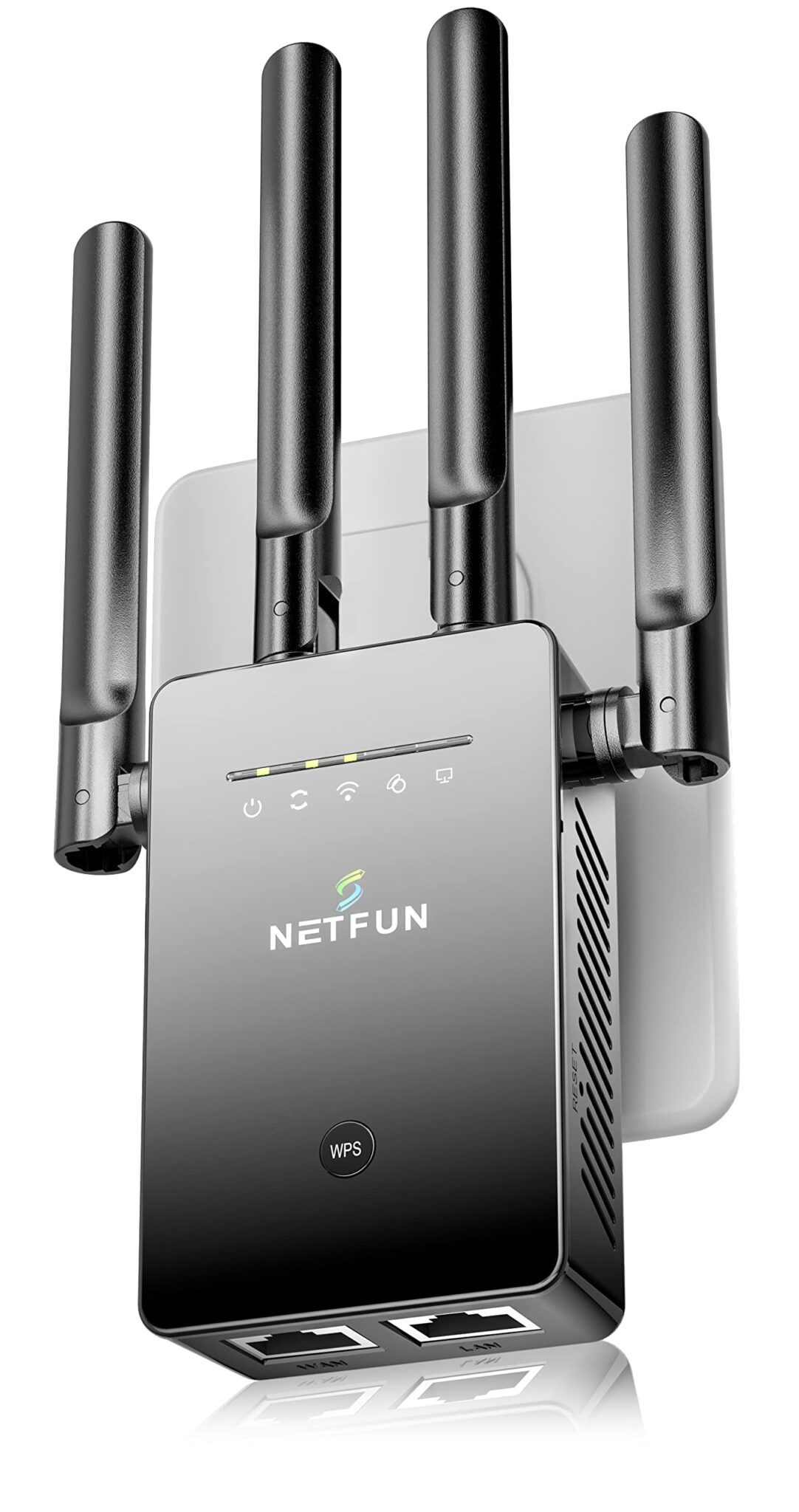
You can connect an inexpensive Wi-Fi range extender or secondary Access Point (AP) that supports physical WPS directly to the Spectrum router via an Ethernet cable or over the air.
[ Spectrum Gateway ] --(Ethernet Cable)--> [ Third-Party AP/Extender ] --(WPS Pairing)--> [ Legacy Device ]
- Purchase a standard retail extender or access point (e.g., TP-Link, Netgear) featuring a physical WPS button.
- Connect the secondary access point to one of the Ethernet LAN ports on the back of the Spectrum router.
- Use the physical WPS button on the secondary access point to pair your legacy client device.
- The legacy device will transmit data through the access point back to the Spectrum main router network seamlessly.
Option 2: Replace the Spectrum Router with a Retail Router
Spectrum charges a monthly lease fee (typically around $7/month) for standalone Wi-Fi router service, whereas the underlying Spectrum cable modem is supplied at no extra rental charge. You can return the Spectrum Advanced Wi-Fi router to a local Spectrum store and install your own retail wireless router or mesh system (such as an Asus RT-series, Netgear Nighthawk, or TP-Link Archer).
Retail routers allow you to:
- Enable or disable physical WPS push-button configuration at your discretion.
- Access traditional web admin portals (
192.168.1.1). - Manually separate the 2.4 GHz and 5 GHz radio bands into unique network names (SSIDs).
- Configure custom DNS settings, port forwarding, and static IP blocks without cloud restrictions.
Option 3: Connect via USB or Ethernet Wired Connections
For desktop computers or printers located near the Spectrum router, eliminate wireless configuration altogether by utilizing a direct physical connection:
- Printers: Connect a standard USB-A to USB-B printer cable between your printer and your primary computer, or run a short Cat6 Ethernet cable from the printer’s RJ45 port directly to a LAN port on the Spectrum router.
- Smart Home Hubs: Select smart home gateways (such as Philips Hue, Samsung SmartThings, or Ethernet-capable security base stations) that plug directly into the router's Ethernet ports, avoiding Wi-Fi pairing steps.
Troubleshooting Device Provisioning on Spectrum Advanced Wi-Fi
When attempting to add client hardware to a Spectrum router without WPS, you may encounter connectivity failures. Use the following steps to resolve common authentication and connection issues:
1. Verification of Encryption Mode (WPA2 vs. WPA3)
Modern Spectrum routers broadcast using WPA2/WPA3 Mixed Mode by default. Older wireless client cards (manufactured before 2018) may fail to interpret the WPA3 beacon frame, causing the device to report an incorrect password error even when the key is entered accurately.
- Fix: Check if your client device has pending firmware updates. If the device cannot process WPA3 mixed beacons, use a secondary 2.4 GHz access point set strictly to WPA2-Personal (AES) security.
2. Disabling Special Characters in Wi-Fi Passwords
Some legacy printers and low-cost IoT microcontrollers fail to parse special ASCII characters (such as !, @, #, $, or %) during manual WPA2 key entry.
- Fix: Change your network password inside the My Spectrum App to an alphanumeric string consisting strictly of uppercase letters, lowercase letters, and standard digits ($0-9$).
3. Resolving Band Steering Collisions
Because Spectrum routers consolidate 2.4 GHz and 5 GHz networks under one name, single-band smart devices often fail to pair if your setup smartphone is locked onto the 5 GHz band during app-based setup.
- Fix: Walk away from the router until your smartphone drops the 5 GHz signal and switches to the longer-range 2.4 GHz radio before initiating the device pairing wizard, or use the app's temporary device pairing mode.
4. Router Soft Reboot Procedure
If the Spectrum router stops handing out DHCP IP addresses to newly authorized devices:
- Unplug the power cable from the back of the Spectrum router.
- Wait 30 full seconds to ensure all onboard capacitors discharge.
- Reattach the power cable and allow the front LED status indicator to turn solid blue (indicating active internet connectivity).
- Retry the manual pairing process on your client device.
Frequently Asked Questions
Does pressing the Reset button on a Spectrum router activate WPS?
No. The small recessed button on the back of modern Spectrum routers is exclusively for performing a hardware reboot or factory reset. Holding this button down for 10 seconds restores the router to factory default settings, erasing custom SSIDs and passwords. It does not initiate a WPS pairing session.
Can I enable WPS by logging into 192.168.1.1 on a Spectrum router?
No. Modern Spectrum Advanced Wi-Fi routers do not host an accessible local web administration page at 192.168.1.1 or 192.168.0.1. Attempting to visit those internal IP addresses redirects to an informational page directing users to manage their network via the My Spectrum app, which does not contain WPS controls.
Why does my HP or Canon printer manual tell me to use WPS?
Printer user manuals often list WPS push-button setup as the primary option because it was the universal standard for non-screen hardware for over a decade. Manufacturer manuals are written generically and do not account for individual ISP equipment policies. You should use the printer's manual setup wizard or the manufacturer's mobile app setup alternative instead.
Can I use a WPS pin code found on a label on my Spectrum router?
No. Older routers occasionally listed an 8-digit WPS PIN on the serial number label on the bottom of the device. On modern Spectrum equipment, any PIN printed on the label is strictly for internal manufacturer barcode tracking or initial router onboarding—it cannot be used as a Wi-Fi Protected Setup PIN.
Is it safe to use WPS if I install my own retail router?
While WPS Push-Button Configuration (PBC) is safer than PIN-based WPS, leaving WPS permanently enabled still presents security risks. Attackers within range can potentially exploit implementation bugs in WPS stacks. If you deploy a retail router to gain WPS functionality, it is recommended to enable WPS only long enough to pair your specific device, then turn off WPS in the router's web settings.
Summary & Recommended Next Actions
While Spectrum routers do not support WPS, you can easily connect all modern and legacy hardware using alternative authentication channels.
If you are setting up a wireless device on a Spectrum network:
- For devices with screens: Use the built-in network menu to select your network name and type in your password manually.
- For headless smart home devices: Download the device manufacturer's app and complete the setup over Bluetooth or temporary direct access point provisioning.
- For 2.4 GHz connection conflicts: Use the Add Device tool within the My Spectrum App to temporarily optimize network settings for legacy hardware.
- For hard-locked WPS hardware: Connect a third-party wireless access point with a physical WPS button to your Spectrum router, or replace the leased Spectrum router with a feature-rich retail router.
Image Gallery