JCP Kiosk Associate Guide (2026): Login, Paystubs, Schedules, and Troubleshooting
Note: This comprehensive technical guide pertains specifically to the internal JCPenney Associate Kiosk—the Employee Self-Service (ESS) web platform used by active and former retail staff. This guide does not refer to customer-facing s...
Note: This comprehensive technical guide pertains specifically to the internal JCPenney Associate Kiosk—the Employee Self-Service (ESS) web platform used by active and former retail staff. This guide does not refer to customer-facing store ordering kiosks or price scanners.
Contents
Managing employment records, viewing pay statements, checking work schedules, and updating tax declarations requires secure, direct access to the JCPenney Employee Self-Service portal. Known widely across retail operations as the JCP Kiosk or JCPenney Associate Kiosk, this enterprise system connects staff to HR systems, payroll management platforms, and workforce administration tools.
Navigating enterprise human resource management systems can present challenges due to role-based access limits, strict security protocols, and specific browser prerequisites. This guide covers technical architecture, step-by-step remote and store-level login procedures, feature availability across networks, and solutions for common authentication errors.
Technical Architecture and Core Capabilities of the JCP Kiosk
The JCPenney Associate Kiosk serves as the primary digital interface between store-level staff, distribution center teams, administrative personnel, and corporate HR systems. Built on enterprise-grade Identity and Access Management (IAM) frameworks and integrated with cloud payroll engines, the platform operates under strict data governance protocols to secure employee Personally Identifiable Information (PII).
Key Workforce Management Features
The platform groups essential HR functionalities into distinct administrative modules:
- ePayroll and Compensation Records: Associates can inspect weekly itemized earnings, track overtime allocations, review gross and net pay calculations, and monitor direct deposit routing across multiple financial accounts.
- Tax Document Management: The system offers year-round access to IRS Form W-2 statement downloads, W-4 withholding allowance adjustments, and state tax registration updates.
- Workforce Scheduling Integration: Associates can access real-time work schedules, track shift assignments, view historical attendance records, and review timecard log accuracy prior to payroll locking windows.
- Benefits and Perks Administration: Eligible team members can manage annual open enrollment for health, dental, and vision insurance, adjust 401(k) retirement savings contributions, and review employee merchandise discount credentials.
- Corporate Policy and Training Archives: Direct links connect staff to corporate policy documentation, safety protocols, and assigned learning management modules.
Step-by-Step Access Protocols for Remote and In-Store Logins
Accessing the JCP Associate Kiosk varies depending on whether you log in from an internal store network or an external personal device. Security frameworks restrict sensitive features—such as timecard editing—to internal corporate IP addresses to satisfy Fair Labor Standards Act (FLSA) compliance guidelines.
Remote Access via Personal Devices (Off-Network)
Active associates can access non-timekeeping features from personal smartphones, tablets, or home computer hardware using standard secure connections.
- Launch a Compatible Web Browser: Open an updated web browser supporting TLS 1.3 encryption (such as Google Chrome, Mozilla Firefox, Microsoft Edge, or Apple Safari).
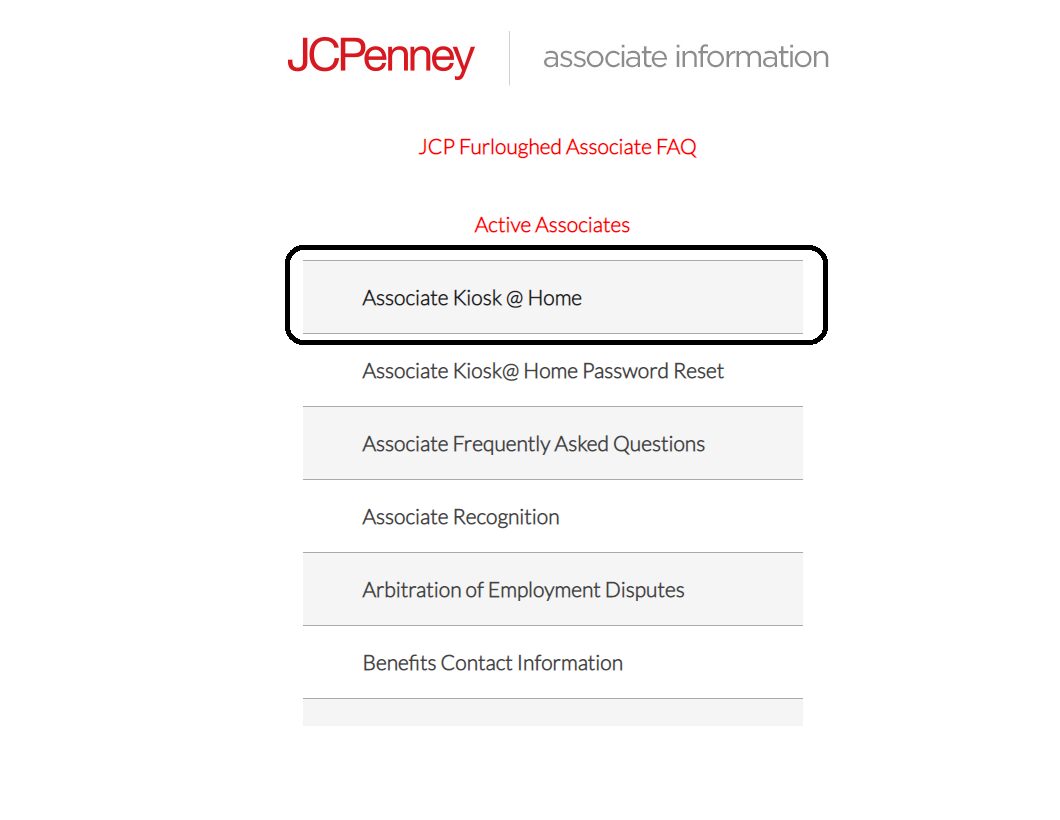
- Navigate to the Portal: Access the official JCPenney Associate Kiosk address or proceed through the official JCPenney employment portal pathway.
- Enter Identification Credentials: Input your assigned 9-digit Associate ID number. This primary key is issued during onboarding and listed on standard earnings statements.
- Provide Account Password: Enter your network-registered password. Initial login attempts require the default security formula assigned during HR intake, followed by an immediate mandatory password reset.
- Complete Multi-Factor Authentication (MFA): Confirm identity using the secondary authentication channel registered to your account, such as an SMS verification code, push notification via an authenticator app, or email verification prompt.
Terminal Access via In-Store Workstations (On-Network)
In-store kiosks located in breakrooms, manager offices, or customer service hubs offer complete system access without extra remote security layers.
- Access dedicated Store Workstations: Log into an authorized on-network computer terminal at your assigned store or distribution center.
- Open Store Intranet Links: Select the JCP Associate Kiosk shortcut on the corporate desktop environment or internal browser landing page.
- Input Network Credentials: Log in using your Associate ID and active network password. Off-site Multi-Factor Authentication prompts are bypassed because the local hardware operates inside the enterprise firewall.
System Access Matrix: Remote Capabilities vs. On-Network Features
Because labor laws mandate that non-exempt staff perform work activities while on the clock, feature availability differs between off-site access and internal store workstations.
| Administrative Feature | Remote Access (Home/Mobile) | In-Store Terminal (On-Network) | Authorization Level Required |
|---|---|---|---|
| Paystub & Earnings History | Fully Available | Fully Available | Standard Associate Credentials + MFA |
| W-2 Form Downloading | Fully Available | Fully Available | Standard Associate Credentials + MFA |
| Work Schedule Inspection | Fully Available | Fully Available | Standard Associate Credentials |
| Timecard Punch Edits | Blocked (FLSA Restricted) | Fully Available | Store Manager Approval Required |
| Interactive Training Modules | Blocked (Paid Labor Rule) | Fully Available | Active Shift Clock-In Required |
| Benefits & 401(k) Selection | Fully Available | Fully Available | Active Eligible Status |
| Direct Deposit Banking Edits | Restricted / Extra Verification | Fully Available | High-Security Verification Protocol |
| Personal Profile Information | Read/Update Limited | Fully Available | Standard Associate Credentials |
Troubleshooting Common Login Errors and Access Failures
System outages, credential issues, or local device conflicts can disrupt access to the employee dashboard. Understanding error codes and system policies speeds up technical resolution.
Security Advisory: Repeatedly entering incorrect passwords will temporarily lock user accounts across all corporate networks. System safeguards trigger account lockouts after five consecutive failed access attempts to prevent automated brute-force entries.
Primary Errors and Resolution Procedures
1. Invalid ID or Password Lockouts
If the platform returns an "Invalid Credentials" message, verify that caps lock is turned off and ensure your 9-digit Associate ID is typed without hyphens or spaces. If your account locks, wait 30 minutes for automated unlock protocols to cycle, or use the "Reset Password" link on the primary login page. Password updates require answering your pre-established security questions or verifying an identity token sent to your registered personal mobile device.
2. Multi-Factor Authentication Timeout Errors
If MFA security codes fail to arrive or trigger a verification timeout, confirm your mobile carrier allows automated short-code text notifications. Alternatively, clear your web browser's cache and cookies, disable aggressive ad-blocking extensions, and request a fresh verification token.
3. Restricted Access and Session Timeouts
Remote portal sessions automatically terminate after 15 minutes of inactivity to safeguard financial data from unauthorized viewing. If your connection drops unexpectedly during session navigation, open a clean, private, or incognito browser window to clear stale session tokens and re-authenticate.
4. Browser Compatibility and Script Failures
Legacy browser versions may block necessary JavaScript libraries used for modern security tokens and PDF earnings statement displays. Verify that pop-up blockers are temporarily disabled for the domain, as tax forms and weekly earnings statements render in secondary pop-up windows.
Post-Employment Access Rules: W-2 Forms and Legacy Records
Former employees retain access to historical tax documents and final pay statements through dedicated former associate access protocols.
Retrieving Tax Statements After Leaving JCPenney
- Access the Former Associate Portal: Separated staff should open the dedicated former associate access link hosted on the primary JCPenney HR platform.
- Verify Personal Identification: Enter your 9-digit Associate ID along with your Social Security Number (SSN) and birth date to confirm identity.
- Review Delivery Preferences: Former associates can download digital copies of W-2 tax forms directly through the portal. If you prefer physical mail, confirm that your home mailing address is updated before annual end-of-year tax processing cutoffs.
- Legacy Helpdesk Support: If your Associate ID is archived or unrecognized by the self-service portal, contact the JCPenney Shared Services HR Call Center for direct assistance with historical earnings verifications and manual tax statement reissuances.
Frequently Asked Questions
How do I check my weekly pay stub from home using the JCP Kiosk?
Log into the official JCPenney Associate Kiosk portal from any secure web browser using your 9-digit Associate ID, password, and registered Multi-Factor Authentication method. Navigate directly to the "ePayroll" or "Pay Statements" tab on your user dashboard to view, download, or print itemized earnings statements.
What should I do if I am locked out of my JCP Associate account?
If your account locks after multiple failed login attempts, wait 30 minutes for the automated security timer to clear. After the timeout period, select the "Forgot Password" link on the login page, verify your identity using standard security prompts or mobile MFA verification, and generate a new corporate password.
Can former JCPenney associates retrieve W-2 forms through the portal?
Yes, former associates can retrieve W-2 tax forms by accessing the Former Associate portal route on the HR landing page. You must provide your 9-digit Associate ID, registered security details, and SSN to access historical tax documents securely.
Why can't I edit my timecard or complete training modules from my home computer?
Timecard edits and interactive training modules are legally restricted to internal store networks under the Fair Labor Standards Act (FLSA). Because these tasks count as paid work time, they must be completed on-site while clocked in on an authorized corporate terminal.
How do I update my direct deposit routing details on the system?
Direct deposit updates can be completed through the "Payroll Preferences" section of the Associate Kiosk. For security, modifying banking information from a remote personal device may require secondary identity verification or manual sign-off on an internal store computer.
Who should I contact if the JCP Kiosk portal is down for scheduled maintenance?
If the portal is unavailable due to scheduled enterprise IT updates, wait for the posted service window to complete. For urgent schedule or payroll questions during extended system outages, contact your store's General Manager, Assistant Store Manager, or local HR Representative directly.
Technical Support Contact Directory
When automated password resets and browser troubleshooting fail to clear system access blocks, contact enterprise support channels directly:
- JCPenney Shared Services HR Line: Reach out to the corporate HR helpdesk for help with account locks, legacy W-2 retrievals, or unresolved payroll errors.
- Store Management Support: For immediate shift changes, timecard corrections, or local workstation access issues, report directly to your store's operations manager.
Image Gallery