How to Work with Google Assistant: A Complete Guide to Mastering Your Virtual AI
Working with Google Assistant involves using voice or text commands to manage tasks, control smart devices, and retrieve information across Android, iOS, and smart home hardware. By linking your Google Account and configuring "Hey Goog...
Working with Google Assistant involves using voice or text commands to manage tasks, control smart devices, and retrieve information across Android, iOS, and smart home hardware. By linking your Google Account and configuring "Hey Google" detection, you can automate daily routines, bridge third-party apps, and leverage integrated generative AI for complex problem-solving and personalized scheduling.
Contents
Google Assistant has evolved from a simple voice-command tool into a sophisticated, AI-driven personal orchestrator. By 2026, the integration of advanced large language models—specifically the Gemini architecture—has made the Assistant more conversational and context-aware than ever before. To truly work with Google Assistant effectively, you must understand its ecosystem, which spans from your smartphone to your kitchen appliances and even your vehicle.
Essential Prerequisites and System Requirements
Before you can leverage the full power of Google Assistant, you must ensure your hardware and software meet the necessary standards. While Google Assistant is most native to the Android ecosystem, its reach is platform-agnostic to a significant degree.
- Google Account: A standard Google Account is mandatory. For those using Workspace accounts (business or education), some "Personal Results" features may be restricted by your administrator.
- The Google App: On Android, this is pre-installed. On iOS devices, you must download the Google Assistant app from the Apple App Store.
- Internet Connectivity: Most processing occurs in the cloud. A stable Wi-Fi or 5G connection is required for real-time responses, although some basic on-device processing is available for offline commands like setting alarms or opening apps.
- Hardware Compatibility:
- Mobile: Android 7.0+ or iOS 15.0+.
- Smart Speakers/Displays: Google Nest, Home, or third-party speakers with "Built-in Assistant."
- Wearables: Wear OS devices or headphones with Assistant integration.
- Automotive: Android Auto-compatible head units or vehicles with Google Built-in.
Initial Setup and Configuration
Setting up Google Assistant is the foundation of a seamless experience. The process involves training the AI to recognize your specific voice and granting it the permissions necessary to access your calendar, contacts, and location.
Enabling "Hey Google" and Voice Match
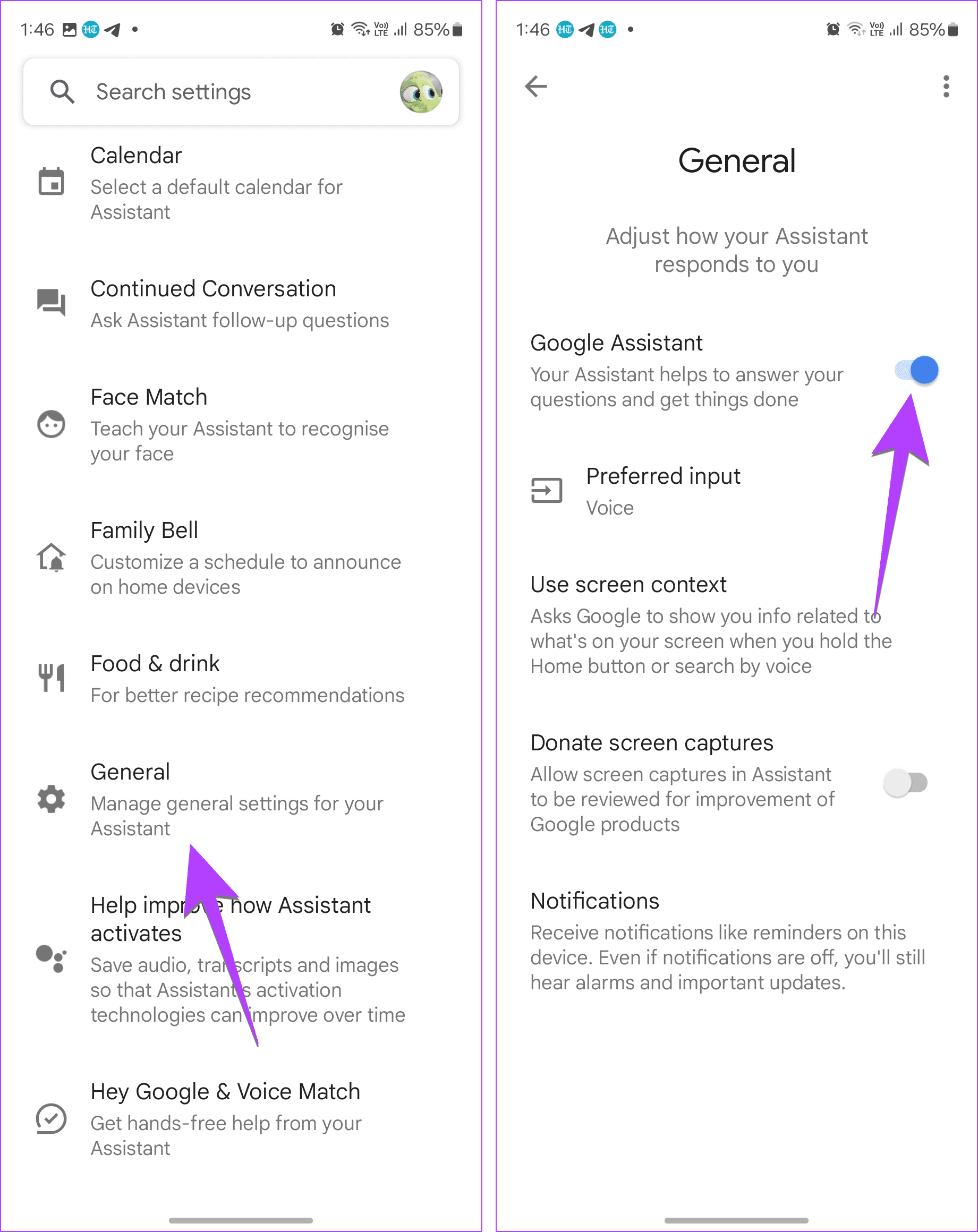
Voice Match is a critical security and personalization feature. It ensures that when you ask about "my calendar," the Assistant doesn't read out your spouse's or roommate's appointments. To set this up, navigate to the Assistant settings in the Google app and select Voice Match. You will be prompted to repeat several phrases so the system can create a unique vocal profile. This profile is encrypted and stored on your device to protect your privacy.
Personal Results and Permissions
To work effectively, Google Assistant needs to be more than a search engine; it needs to be an assistant. Enabling Personal Results allows the Assistant to access your Gmail for flight info, your Calendar for meetings, and your Photos for specific memory requests. You can toggle these permissions individually within the "Personalization" menu of the Assistant settings.
Navigating Core Functionality
Once configured, you can interact with the Assistant through voice, typing, or screen gestures. In 2026, the Assistant's ability to handle "multi-intent" queries—asking for two or three things in one sentence—is a primary workflow advantage.
Productivity and Organization
The most common way to work with Google Assistant is through task management. Commands like "Remind me to call the architect when I get to the office" utilize geofencing. The Assistant tracks your GPS location and triggers the notification only when you arrive at the specified destination.
You can also manage complex scheduling:
- "Reschedule my 2 PM meeting to 4 PM and notify the attendees."
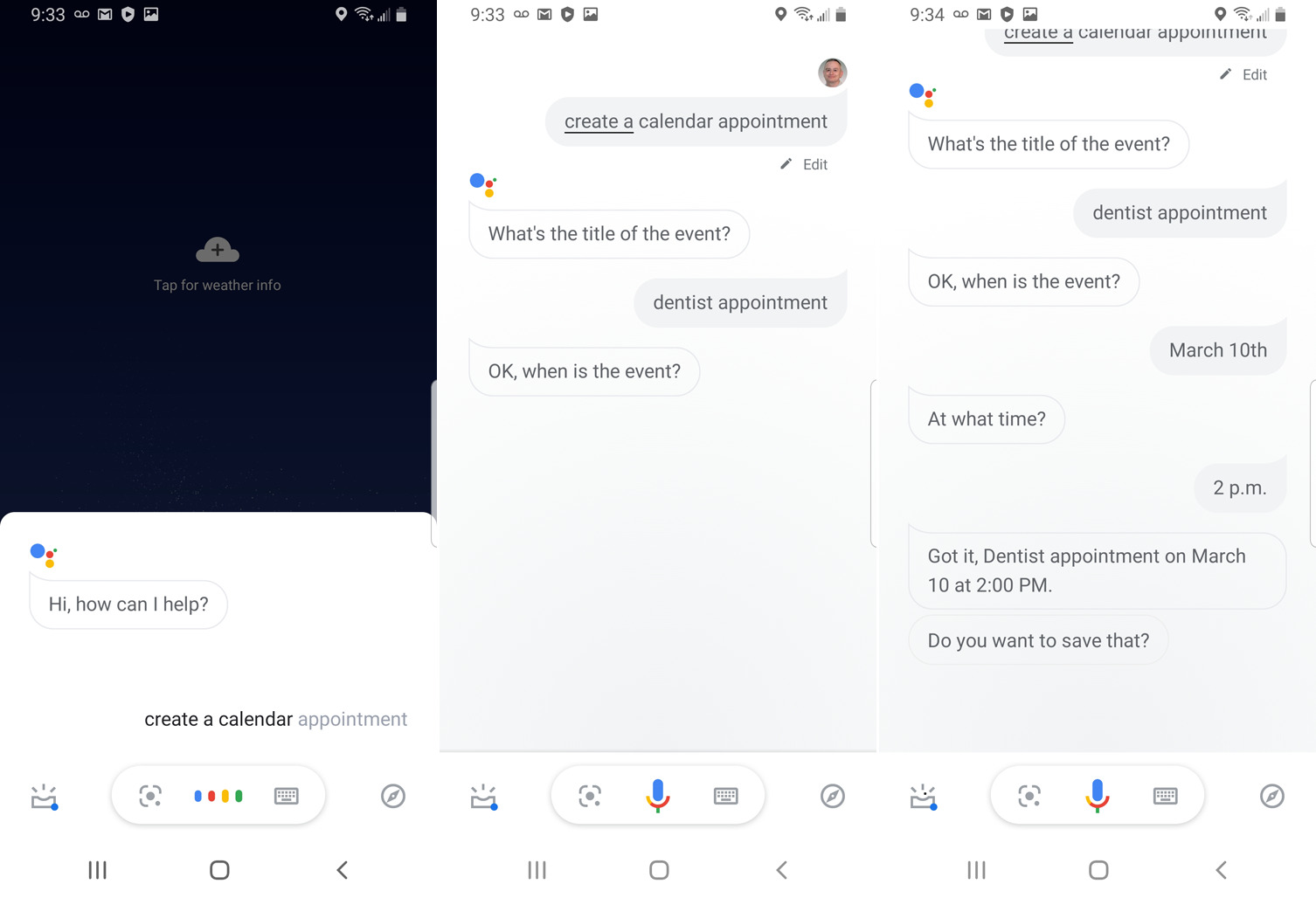
- "Create a shopping list named 'Renovation' and add 'LED recessed lights' to it."
Information Retrieval and Translation
Beyond simple web searches, the Assistant functions as a real-time interpreter. The Interpreter Mode can translate conversations between over 30 languages in real-time, displaying the text on smart displays or reading it aloud on mobile devices. This is particularly useful for international business or travel.
Advanced Automation with Routines
The true power of "working" with the Assistant lies in Routines. Instead of issuing individual commands, a Routine allows you to trigger a sequence of actions with a single phrase or at a specific time of day.
Creating a Custom Routine
To build a Routine, open the Google Home app or Assistant settings and select Routines. You can choose a starter (the trigger) and an action. For example, a "Work Day" routine could be triggered by your morning alarm.
- Trigger: 7:30 AM on weekdays.
- Action 1: Tell me the weather and my commute time to the city.
- Action 2: Read my first three calendar appointments.
- Action 3: Start the coffee maker (via a smart plug).
- Action 4: Play a curated news briefing or professional development podcast.
Presence Sensing
In 2026, Routines often utilize Presence Sensing. By using the sensors in your Nest thermostats, speakers, and your phone's location, Google Assistant can determine if the house is empty. It can then automatically turn off lights, lower the heat, and enable security cameras without you saying a word.
Comparative Capabilities: Standard vs. AI-Enhanced Assistant
As Google transitioned many features to the Gemini-powered back end, the way users interact with the Assistant changed. Below is a comparison of how different tasks are handled in the current 2026 landscape.
| Feature | Standard Assistant Logic | AI-Enhanced (Gemini) Logic |
|---|---|---|
| Context Awareness | Limited to the current command. | Remembers previous parts of the conversation. |
| Email Management | Can read or send simple texts. | Can summarize long email threads and draft replies. |
| Smart Home | Requires exact device names. | Understands vague requests like "make it cozy." |
| Media Playback | Plays specific songs or artists. | Curates playlists based on your mood or activity description. |
| Complex Planning | Provides links to travel sites. | Builds a full 3-day itinerary based on your preferences. |
Integrating with the Smart Home (Matter and Thread)
Working with Google Assistant often involves managing a "Smart Home." By 2026, the Matter protocol has become the industry standard, ensuring that devices from Apple, Amazon, and Google all work together seamlessly.
To add a device, you generally use the Google Home app. Because of Matter and Thread (a low-power mesh networking protocol), most new devices are discovered automatically as soon as they are powered on. You can group devices into "Rooms" (e.g., Kitchen, Office) to control them collectively. Commands like "Turn off the upstairs lights" or "Is the garage door open?" provide centralized control that saves significant time.
For more technical information on connectivity standards, the Connectivity Standards Alliance provides documentation on how these devices interact with controllers like Google Assistant.
Privacy, Security, and Data Management
Privacy is a frequent concern when working with a "perpetually listening" AI. Google has implemented several layers of control to mitigate these risks.
- Physical Mute Switches: Most Nest speakers and displays have a physical switch that disconnects the microphone electronically.
- Voice History Deletion: You can set your Google Account to automatically delete your voice recordings every 3, 18, or 36 months. You can also say, "Hey Google, delete everything I said today."
- On-Device Processing: Many common commands are processed locally on the device's "Tensor" or "AI-edge" chips, meaning the audio never reaches Google's servers.
- Guest Mode: By saying "Hey Google, turn on Guest Mode," your interactions won't be saved to your account or used to personalize your experience until you turn the mode off.
Detailed privacy policies and data management tools can be found at the Google Safety Center.
Troubleshooting Common Issues
Even the most advanced AI can encounter hurdles. If Google Assistant isn't responding or is performing incorrectly, follow these diagnostic steps:
- Check the "Mic" Status: Ensure the hardware mute switch isn't engaged and that the app has microphone permissions in your phone's OS settings.
- Verify Connectivity: Assistant requires a robust data connection. If your Wi-Fi is spotty, the "Think" time will increase significantly.
- Retrain Voice Match: If the Assistant stops responding to "Hey Google," your voice profile may need an update. This often happens if you have a cold or if the acoustic environment of your room has changed.
- Clear Cache: On Android, clearing the cache of the Google app can resolve "glitchy" behavior where the Assistant UI pops up but doesn't listen.
- Language Settings: Ensure your primary language is set correctly. If you are speaking English but the Assistant is set to Spanish, it will fail to parse your intent.
Frequently Asked Questions
Can I change the Google Assistant's name or wake word?
As of 2026, "Hey Google" remains the primary wake word. While you cannot give the Assistant a custom name (like "Jarvis"), you can change the Assistant's voice. There are various options ranging in pitch, accent, and gender, accessible via the "Assistant Voice & Sounds" menu.
Does Google Assistant work with third-party apps like Spotify or WhatsApp?
Yes. Google Assistant has deep integration with thousands of third-party apps. You can set Spotify as your default music provider or ask the Assistant to "Send a WhatsApp message to Sarah." Developers use "App Actions" to allow the Assistant to trigger specific functions within their software.
Is Google Assistant free to use?
The core Google Assistant service is free. However, using it may involve costs from third-party services (like a Netflix or Spotify subscription) or cellular data charges from your mobile provider. Some advanced "Gemini-tier" AI features might be bundled with Google One premium subscriptions.
Can I use Google Assistant on my computer?
Google Assistant is not natively available as a standalone desktop app for Windows or macOS. However, it is deeply integrated into ChromeOS (Chromebooks). On other PCs, you can access similar functionality through the Google Chrome browser or by using the Google Gemini web interface, which shares much of the Assistant’s intelligence.
How do I stop Google Assistant from accidental activations?
If your phone triggers too often in your pocket, you can adjust the "Hey Google" sensitivity in settings. Lowering the sensitivity requires a clearer, more deliberate command to trigger the AI. You can also disable "Lock Screen" access so the Assistant only responds when the device is unlocked.
Final Recommendations for New Users
To get the most out of working with Google Assistant, start small. Begin by using it for simple timers and weather reports, then gradually integrate your calendar and smart home devices. The most successful users are those who treat the Assistant as a structured tool—using clear, concise language and taking the time to build Routines for their most repetitive daily tasks. As you become more comfortable, explore the "Explore" tab within the Assistant app to discover new "Actions" and integrations that are updated weekly by third-party developers.
Image Gallery