The Rise of Free Speech to Text Software for Mac: On-Device AI and Accessibility
The rise of free speech to text software for Mac reflects a dramatic shift in personal computing, driven by Apple Silicon’s Neural Engine and open-source machine learning models. Mac users can now transform spoken audio into precise, r...
The rise of free speech to text software for Mac reflects a dramatic shift in personal computing, driven by Apple Silicon’s Neural Engine and open-source machine learning models. Mac users can now transform spoken audio into precise, real-time text completely offline, securing user privacy while eliminating monthly software subscriptions.
Contents
The Technological Evolution of Speech Recognition on macOS
For decades, voice dictation on desktop operating systems was constrained by limited processing power and brittle, rule-based audio analysis. Early voice recognition engines required lengthy user training sessions to recognize individual speech patterns, accents, and cadence. Even then, background noise or minor inflections frequently caused severe transcription errors.
The transition from cloud-dependent server processing to high-performance, local artificial intelligence fundamentally altered this dynamic. Historically, software had to stream recorded user audio across the internet to enterprise servers, where cloud compute clusters processed the signal and returned text. This model introduced noticeable latency, required an uninterrupted internet connection, and raised critical data privacy concerns for sensitive documents, legal notes, and medical records.
Traditional Cloud Model:
- User Voice
- Network / Internet
- External Server
- Latency / Privacy Risk
- Text Output
Modern On-Device macOS Model:
- User Voice
- Apple Silicon Unified Memory
- Neural Engine / Core ML
- Text Output
With the introduction of Apple Silicon architecture—starting with the M1 chip and continuing through modern processors—Mac hardware integrated dedicated matrix-math accelerators known as the Neural Engine. By pairing unified memory architecture with optimized machine learning frameworks like Core ML, modern Macs execute complex automatic speech recognition (ASR) neural networks directly on the physical device. This architectural hardware shift allowed open-source models to run locally at high speeds without consuming excessive battery or overloading the central processor.
Native Apple Dictation vs. Modern Open-Source Speech Models
Mac users seeking free speech-to-text tools have two main technological categories: native macOS system capabilities and third-party software built upon open-source neural networks.
Apple Built-in Dictation and Voice Control
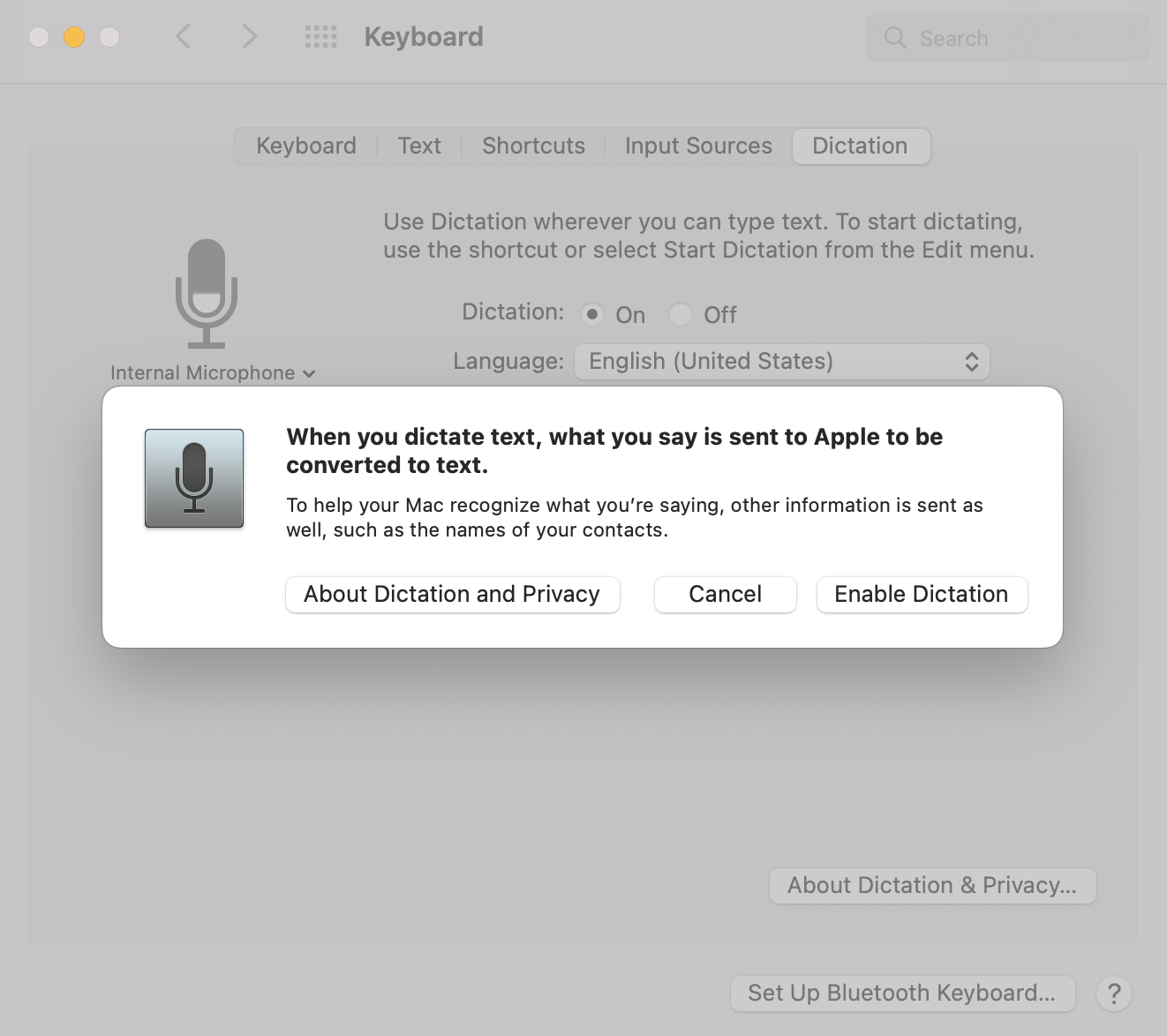
Apple provides built-in speech-to-text functionality directly within macOS through System Dictation and Voice Control. Dictation allows users to insert text into any active text field by pressing a customizable shortcut key (such as double-pressing the Fn key or Globe key).
- On-Device Processing: Modern versions of macOS download voice models locally, enabling offline dictation for supported languages.
- System Integration: Because it functions at the operating system level, native dictation works across virtually all application fields, including text editors, email clients, web browsers, and command-line terminals.
- Punctuation and Formatting: Apple Dictation automatically inserts basic punctuation marks like commas, periods, and question marks based on natural pauses and voice pitch inflections.
Open-Source Models and OpenAI’s Whisper Architecture
While native Dictation excels at quick typing tasks, the release of OpenAI's open-source Whisper model revolutionized offline transcription accuracy. Whisper was trained on hundreds of thousands of hours of diverse multilingual and multitask audio data, making it exceptionally resilient to background noise, technical jargon, foreign accents, and overlapping speech.
Independent developers quickly adapted Whisper specifically for macOS using C/C++ ports like whisper.cpp, which leverage Apple's Metal API and Core ML acceleration. This allows third-party desktop utilities to process pre-recorded audio files or live microphone feeds locally on Mac hardware with human-level accuracy—completely free of charge.
Core Advantages of Modern Free Mac Speech-to-Text Solutions
The adoption of localized speech-to-text utilities offers significant operational, security, and economic advantages for writers, students, researchers, and developers.
Complete Data Privacy and Zero Latency
When speech recognition occurs entirely on-device, sensitive audio data never leaves the computer's storage drive. This guarantees compliance with strict data protection standards, including HIPAA for healthcare notes and GDPR for European user privacy. Additionally, processing audio locally eliminates network round-trip delays, offering near-instantaneous text rendering as speech occurs.
Unlimited Offline Capability
Traditional web-based speech tools fail when internet connectivity drops or becomes unstable. On-device Mac tools operate without any active Wi-Fi or cellular network connection, making them ideal for dictating while traveling, working in high-security air-gapped environments, or studying in areas with unreliable internet coverage.
Financial Sustainability
Enterprise speech recognition services historically charged monthly subscription fees or per-minute API fees. Free, locally executed solutions leverage the Mac's existing graphics and neural hardware, giving users access to unlimited transcription time without ongoing financial costs.
Comparison of Top Free Speech to Text Options for Mac
The table below compares the primary free speech-to-text tools available on macOS, highlighting their primary engine, offline support, best application scenarios, and key limitations.
| Application / Feature | Primary Engine | Offline Support | Primary Best Use Case | Operational Limitations |
|---|---|---|---|---|
| Apple Native Dictation | Apple Neural Engine / Core ML | Yes (supported languages) | Quick hands-free typing in any application | Time limits on continuous recording in older macOS versions; limited transcript export options |
| MacWhisper (Free Tier) | OpenAI Whisper (whisper.cpp) |
Yes | Transcribing recorded audio files (podcasts, lectures) | Free version limits users to Small/Tiny models; Medium/Large models require paid upgrade |
| Buzz | OpenAI Whisper / Whisper.cpp | Yes | Open-source file transcription and live microphone capture | Interface is minimal; requires basic familiarity with model selection |
| Superwhisper (Free Tier) | Whisper / Core ML | Yes | Inline dictation replaceing native key shortcuts | Advanced customized modes and larger models are gated behind premium tiers |
| Google Docs Voice Typing | Google Cloud Speech API | No | In-browser document drafting | Requires Google Chrome browser and an active, continuous internet connection |
| Voice Control (macOS) | Apple Accessibility Engine | Yes | Complete hands-free Mac navigation and dictation | Higher system resource usage; designed primarily for full accessibility navigation |
Technical Setup Guide: Configuring Free Speech to Text on macOS
Setting up high-performance speech recognition on macOS requires minimal configuration. The following sections walk through enabling native system dictation and deploying an open-source Whisper application.
Method 1: Enabling and Optimizing Native macOS Dictation
- Open System Settings on your Mac.
- Scroll down the left sidebar and select Keyboard.
- Locate the Dictation section on the right pane.
- Toggle the switch to On. If prompted, confirm enabling speech recognition.
- Select your preferred Language settings. Click Add Language to download offline language packs.
- Set a convenient Shortcut (e.g., Press Globe Key Twice or Press Right Command Key Twice).
- Ensure Auto-Punctuation is enabled to allow automatic insertion of periods and commas while speaking.
- System Settings
- Keyboard
- Dictation (ON)
- Download Offline Language Packs
- Assign Global Hotkey
- Enable Auto-Punctuation
- Dictation (ON)
- Keyboard
Method 2: Installing Local Whisper-Based Applications (e.g., MacWhisper or Buzz)
To transcribe longer pre-recorded audio files like interviews, lectures, or voice memos using open-source models:
- Download a trusted free GUI wrapper built for macOS, such as the standard free version of MacWhisper or the open-source utility Buzz.
- Move the application into your Mac's
/Applicationsfolder and launch it. - Upon first launch, the application will prompt you to download a speech recognition model file (such as Whisper Tiny, Base, or Small).
- Select the Base or Small model. The Base model takes under 150 MB of disk space and offers fast speed with minimal RAM consumption, whereas the Small model (~500 MB) offers higher precision for foreign accents.
- Drag and drop any compatible audio file (
.mp3,.m4a,.wav, or.mp4) directly into the window to generate an instantaneous, time-coded transcript.
Hardware Requirements and Model Trade-offs
When choosing an open-source speech-to-text setup on macOS, hardware capabilities dictate which model size provides the optimal balance of speed and accuracy.
Accuracy & Resource Demand Scale
| Model Size | RAM Usage | Accuracy | Speed |
|---|---|---|---|
| Tiny | ~390 MB | Basic | Fastest |
| Base | ~500 MB | Good | Very Fast |
| Small | ~1.0 GB | High | Moderate |
| Medium | ~2.6 GB | Very High | Slower |
| Large | ~4.7 GB | Maximum | Slowest |
Apple Silicon vs. Intel Macs
- Apple Silicon (M1/M2/M3/M4 Series): Uses unified memory and the Neural Engine. These systems process transcription models up to 4x to 10x faster than real-time playback while keeping thermal output extremely low.
- Intel-based Macs: Rely strictly on legacy x86 CPU instructions or dedicated AMD GPUs. While open-source tools still function on Intel Macs, transcription speeds are noticeably slower, fan noise may increase, and battery consumption rises during long processing tasks.
RAM and Storage Management
Smaller models like Tiny or Base run smoothly on base-configuration Macs equipped with 8 GB of RAM. Larger, highly nuanced models require 16 GB or more of unified memory to operate without causing swap memory usage on the solid-state drive.
Troubleshooting Common Dictation Issues on macOS
Despite major technological improvements, users may occasionally encounter issues with audio capture or transcription output.
System Permissions and Microphone Access
If dictation or third-party utilities fail to pick up sound, verification of privacy settings is necessary:
- Go to System Settings > Privacy & Security > Microphone.
- Ensure that the toggle next to your specific transcription app or system utility is turned ON.
- If using an external USB microphone or audio interface, navigate to System Settings > Sound > Input and confirm that the correct input device is selected and active.
Resolving Audio Gain and Background Noise
While modern neural models tolerate ambient noise well, severe background noise can still corrupt transcription output or cause the software to hallucinate repetitive words. Using a directional head-mounted microphone or setting proper input gain levels in Sound Settings prevents signal clipping and improves final output clarity.
Frequently Asked Questions
Is Apple's built-in Dictation feature completely free to use?
Yes. Native Dictation is built directly into macOS at no extra charge. On modern versions of macOS, downloading local language packs enables offline, unlimited dictation without requiring any software licenses or internet connections.
How do offline speech-to-text utilities protect user privacy?
Offline utilities process all audio streams and recordings locally on your Mac's CPU, GPU, and Neural Engine. Because no network connections are established during processing, your voice data, transcripts, and personal information are never transmitted to external servers or cloud providers.
Can free speech-to-text tools transcribe pre-recorded audio files on Mac?
Yes. While native Apple Dictation focuses primarily on real-time microphone typing, free tools like Buzz, MacWhisper (Free Tier), and open-source whisper.cpp scripts accept uploaded audio and video files (.mp3, .wav, .mp4, .m4a) to create complete offline transcripts.
What is the difference between Apple Dictation and Apple Voice Control?
Apple Dictation is designed specifically for hands-free typing inside text boxes across macOS. Voice Control is a comprehensive accessibility feature designed to operate the entire Mac operating system using voice commands, allowing users to click buttons, open applications, navigate menus, and edit documents completely hands-free.
Do I need an Apple Silicon Mac to run local Whisper models?
No. Open-source Whisper applications work on both Intel-based and Apple Silicon Macs. However, Apple Silicon processors perform transcription tasks significantly faster and consume far less energy thanks to integrated Neural Engine hardware and unified memory architecture.
Actionable Next Steps
To build an efficient, privacy-focused voice workflow on macOS, begin by testing your Mac's native capabilities before moving to dedicated open-source applications:
- Activate Native Dictation: Turn on Dictation in System Settings > Keyboard, assign a comfortable hotkey, and practice dictating short emails or document drafts.
- Evaluate Open-Source Tools: If you frequently work with long audio recordings, podcasts, or meeting notes, download a free local Whisper client like Buzz or the free tier of MacWhisper.
- Optimize Hardware Settings: Download the Base or Small model package first to establish a baseline for speed and accuracy on your specific Mac hardware configuration before attempting to process larger, more resource-intensive models.
Image Gallery