Ultimate Guide to Running Ubuntu for USB in 2026: Complete Installation and Performance Optimization
Installing Ubuntu Linux on a portable USB drive creates a powerful, self-contained computing environment that travels directly in your pocket. Whether you need a secure operating system for digital forensics, a portable workstation for...
Installing Ubuntu Linux on a portable USB drive creates a powerful, self-contained computing environment that travels directly in your pocket. Whether you need a secure operating system for digital forensics, a portable workstation for remote development, or a reliable recovery tool for broken systems, running Ubuntu from external media has become exceptionally fast and stable. The hardware landscape in 2026 demands high-speed interfaces like USB 3.2 Gen 2 and USB4 to deliver performance that rivals traditional internal solid-state drives. This guide explores the technical methodologies, configuration choices, and performance optimizations required to build and run a blazing-fast persistent Ubuntu USB drive.
Contents
Understanding Portable Linux Architecture: Live USB vs. Fully Persistent Installation
Before writing any image to your flash drive, you must understand the fundamental architectural differences between a standard Live USB and a fully installed persistent system. A standard Live USB loads the operating system into your computer's RAM, which means any files created, system updates applied, or configuration changes made disappear the moment you shut down the machine. While great for troubleshooting, it lacks practical utility for daily work.
A fully persistent installation, conversely, treats your USB drive exactly like an internal hard drive. The Linux kernel, system packages, and personal home directory are written directly to the external storage blocks. Modern versions of Ubuntu support advanced file systems that manage wear leveling, ensuring your flash storage survives repeated read and write cycles.
Important Architecture Distinction: When deploying Ubuntu for USB use cases, choose between a standard Live system with a dedicated Casper persistence partition or a native installation directly to the USB drive. Native installations offer superior stability, full kernel update capabilities, and isolated bootloaders, whereas Casper-based setups rely on overlay file systems that can occasionally corrupt during sudden power loss.
Essential Hardware Requirements for Optimal 2026 Performance
Running a modern operating system off flash memory requires careful hardware selection. Cheap promotional thumb drives will bottleneck system operations, resulting in frustrating stuttering, long boot times, and sluggish application launches. To achieve a seamless user experience, you must prioritize specific hardware specifications.
- Interface Standard: Utilize a USB drive that supports USB 3.2 Gen 2 (10 Gbps) or USB4 protocols. Connecting to a legacy USB 2.0 port will throttle read and write speeds, rendering the system practically unusable.
- Storage Controller: Look for portable SSDs disguised as flash drives or high-end thumb drives featuring built-in DRAM cache and advanced garbage collection controllers (such as Phison chips).
- Capacity Minimums: While a base installation fits within 16GB, modern development tools, browser caches, and system logs require a minimum of 64GB to 128GB to prevent storage exhaustion.
- Host Port Compatibility: Always plug your Ubuntu USB drive into a high-bandwidth port on your host computer, preferably color-coded blue (USB 3.0+) or marked with a lightning symbol for Thunderbolt/USB4 compatibility.
Step-by-Step Guide: Creating Your Portable Ubuntu USB Drive
Building a reliable persistent Ubuntu environment requires precise execution. Follow this structured methodology to prepare your drive without risking data loss on your primary machine.
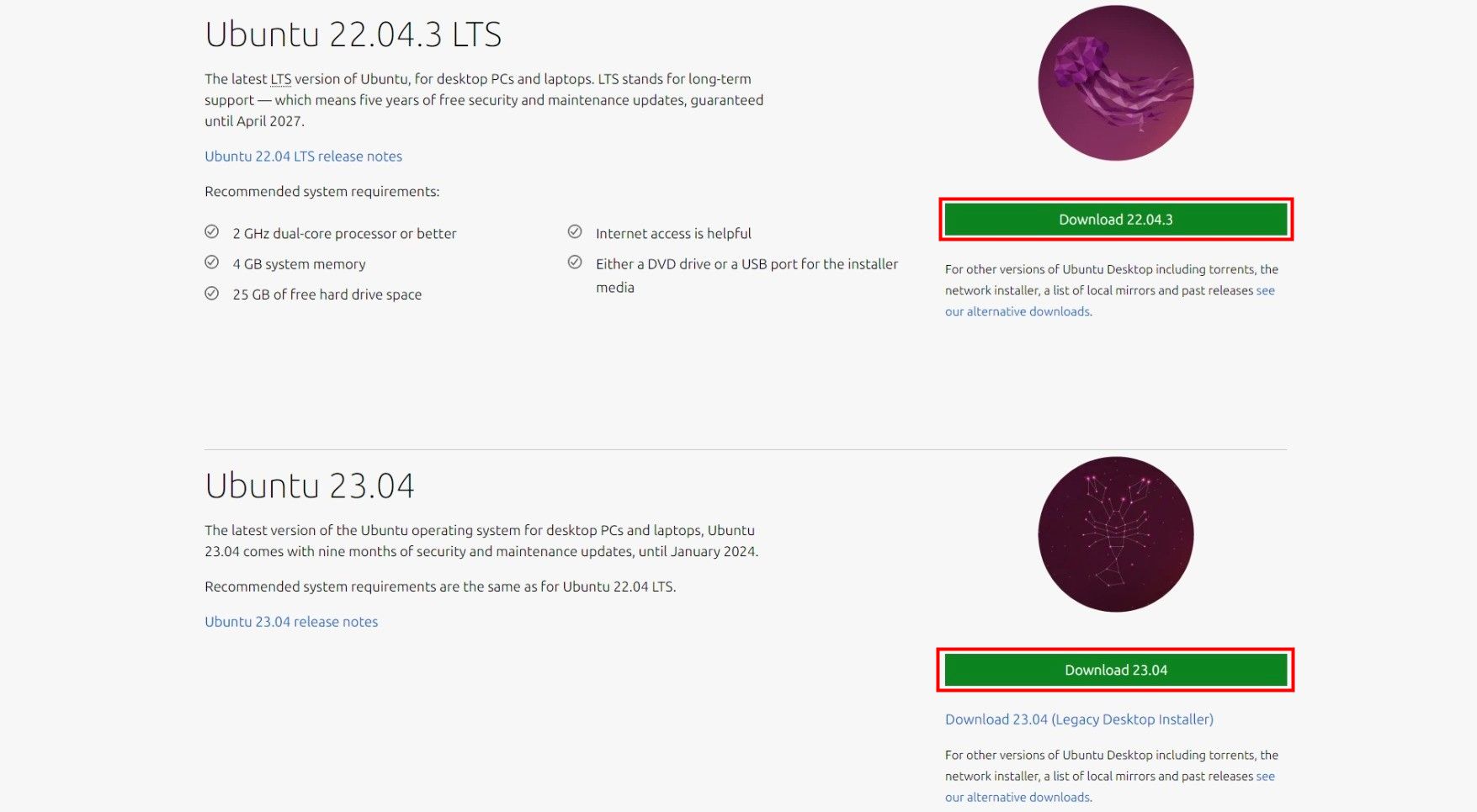
- Download the Official ISO: Acquire the latest Ubuntu Long Term Support (LTS) image directly from the official Canonical releases page, verifying the cryptographic SHA-256 checksum to ensure file integrity.
- Select a Flashing Utility: Install a reputable imaging tool such as Ventoy, Rufus (for Windows), or the Raspberry Pi Imager/Startup Disk Creator (for Linux). Ventoy is highly recommended because it allows you to boot multiple ISO files and easily configure persistent storage injection plugins.
- Configure Partition Layout: If performing a direct native installation, insert both your installer USB and your target portable USB drive. Boot into the installer, select "Something else" for partition formatting, and target your portable drive exclusively.
- Partition Scheme Best Practices: Create an EFI System Partition (ESP) of 512MB formatted as FAT32, followed by a root partition formatted as EXT4. Avoid creating a swap partition on high-speed USB flash drives, as excessive write operations will rapidly degrade flash memory cells; use a zRAM swap configuration inside Ubuntu instead.
- Bootloader Placement: Ensure the GRUB bootloader is installed directly to the EFI partition of the portable USB drive, not your host machine's internal drive, to guarantee true hardware independence.
Comparative Analysis: Storage Media Performance for Portable Linux
Choosing the right physical medium dictates how responsive your portable operating system will feel across different host machines.
| Storage Medium Type | Average Read Speed | Average Write Speed | Persistence Stability | Ideal Use Case |
|---|---|---|---|---|
| Generic USB 2.0 Flash Drive | 20 - 35 MB/s | 5 - 15 MB/s | Low (High Failure Rate) | Basic Emergency BIOS Flashing Only |
| Standard USB 3.2 Gen 1 Drive | 100 - 150 MB/s | 30 - 60 MB/s | Moderate | Light Document Editing and Web Browsing |
| High-Performance USB 3.2 Gen 2 Drive | 400 - 600 MB/s | 300 - 450 MB/s | High | Full Development Workstations and Utilities |
| External Portable NVMe SSD (USB4) | 1,050 - 2,000 MB/s | 1,000 - 1,800 MB/s | Excellent | Seamless Daily Driver Operating System |
Tuning and Optimizing Ubuntu for USB Environments
Because USB flash media operates differently than internal NVMe drives, tweaking system parameters can drastically improve performance and extend the lifespan of your hardware.
Disabling Unnecessary Write Operations
Reduce unnecessary disk writes by mounting temporary directories in RAM. Open your terminal and edit the /etc/fstab file to mount /tmp and /var/log using tmpfs. This minimizes the physical wear on your flash memory blocks caused by constant background logging and cache generation.
Adjusting Swappiness and Journaling
Standard EXT4 file systems utilize heavy journaling, which writes metadata changes constantly. While important for data safety, it wears out flash memory. Consider disabling access time updates by adding the noatime mount option to your root partition in /etc/fstab. Furthermore, lower the kernel swappiness value by adding vm.swappiness=10 to /etc/sysctl.conf to prevent the system from aggressively paging memory to the external drive.
Frequently Asked Questions About Ubuntu USB Setups
Can I run my Ubuntu USB drive on both Intel/AMD PCs and Apple Silicon Macs?
Standard Ubuntu desktop ISOs are compiled for x86_64 architecture and will not natively boot on Apple Silicon (M1/M2/M3/M4) hardware due to proprietary ARM boot architecture. For Intel/AMD systems, however, the drive is completely hardware-agnostic and will adapt to different GPUs and CPUs automatically.
Why is my Ubuntu USB running extremely slow during updates?
Flash drives suffer from high random write latency compared to internal SSDs. When apt downloads and unpacks hundreds of packages simultaneously, the I/O queue becomes saturated, causing the system to lock up temporarily. Using a portable NVMe SSD instead of a traditional thumb drive instantly resolves this bottleneck.
How do I update the Linux kernel on a persistent USB installation?
You can update kernels normally using standard terminal commands (sudo apt update && sudo apt upgrade), provided you installed GRUB directly to the USB drive's EFI partition. Always verify that your bootloader points to the external drive's UUID before rebooting after a major kernel release.
Will Secure Boot block my Ubuntu USB from booting?
Ubuntu is fully signed with keys trusted by most modern UEFI firmware implementations. However, if you have third-party kernel modules (like proprietary NVIDIA drivers) installed, you may need to enroll mokutil keys during first boot or temporarily disable Secure Boot in your motherboard's BIOS settings.
Can I share files between my host Windows system and my Ubuntu USB?
Yes. Modern Ubuntu installations can read and write to NTFS and exFAT partitions natively. You can easily access your host machine's internal storage from within Ubuntu, provided BitLocker encryption is disabled on those Windows partitions.
Start Building Your Portable Linux Environment Today
Deploying Ubuntu for USB gives you absolute control over your computing environment, ensuring your personalized tools, configurations, and privacy settings follow you anywhere in the world. By selecting high-performance portable NVMe storage, configuring proper mount options, and following secure partitioning standards, you can achieve enterprise-grade reliability right from your pocket.
Ready to create your portable workstation? Download the latest Ubuntu LTS image today, grab a high-speed USB 3.2 or USB4 drive, and follow the installation steps outlined above to experience uncompromising mobile freedom.
Image Gallery