Best Virus Removal Strategies and Software for 2026
Effective virus removal in 2026 requires a multi-layered approach that combines automated behavioral analysis, cloud-based scanning, and manual remediation techniques. To successfully clean an infected system, users must identify the t...
Effective virus removal in 2026 requires a multi-layered approach that combines automated behavioral analysis, cloud-based scanning, and manual remediation techniques. To successfully clean an infected system, users must identify the type of threat, isolate the device, and employ specialized tools capable of dismantling modern, polymorphic malware and persistent rootkits.
Contents
The digital threat landscape has shifted significantly. We are no longer dealing solely with simple "viruses" that replicate via executable files. Modern malware includes sophisticated ransomware, fileless threats that reside in system memory, and AI-driven spyware designed to evade traditional signature-based detection. Finding the best virus removal solution means looking beyond basic scanning to find tools that can undo system changes and neutralize active processes in real-time.
Assessing the Infection: Identifying Common Symptoms
Before initiating a removal process, it is critical to confirm the presence of a threat. In 2026, malware is often designed to be stealthy to maximize data exfiltration or crypto-jacking duration. However, certain behavioral anomalies remain reliable indicators of a compromised system.
- Sudden Performance Degradation: If your CPU or RAM usage spikes to 90-100% while the system is idle, a hidden process—likely a miner or a botnet client—is likely consuming resources.
- Unusual Network Activity: High outgoing data traffic when you are not actively uploading files suggests your computer may be communicating with a Command and Control (C2) server.
- Browser Redirects and Unauthorized Extensions: If your search queries are redirected to unfamiliar engines or if toolbars appear that you did not install, you are likely dealing with a browser hijacker or adware.
- Disabled Security Software: Sophisticated malware often attempts to terminate the processes of known antivirus programs or prevent windows updates from running.
- Cryptic System Errors: Frequent Blue Screen of Death (BSOD) events or the inability to open the Task Manager or Registry Editor often indicates a deep-seated infection attempting to protect its persistence.
Immediate Response: The Isolation Phase
As soon as an infection is suspected, the first priority is to prevent the malware from spreading across your local network or communicating with the attacker.
- Disconnect from the Internet: Turn off Wi-Fi and unplug Ethernet cables. This prevents remote access and stops ransomware from communicating its encryption keys to an external server.
- Enter Safe Mode with Networking: On Windows systems, booting into Safe Mode loads only the essential drivers and services. This often prevents malware from launching its persistence mechanisms at startup, making it easier to delete the core files.
- Identify Malicious Processes: Open the Task Manager (Ctrl+Shift+Esc). Look for processes with random string names or those consuming disproportionate resources. Note their file locations but do not attempt to delete them manually until you have run a specialized scanner.
The Best Virus Removal Software of 2026
The market for removal tools has evolved. The best solutions now utilize Heuristic Analysis and AI-driven behavioral monitoring to catch threats that do not yet have a known signature. Below are the top-rated tools currently leading the industry in detection and remediation efficacy.
1. Bitdefender Total Security (2026 Edition)
Bitdefender remains a gold standard due to its layered defense. It uses a "Global Protective Network" that performs most of the heavy lifting in the cloud, ensuring minimal impact on system performance. Its "Rescue Environment" is particularly useful for stubborn rootkits that load before the operating system.
2. Malwarebytes Premium
While many antivirus programs focus on prevention, Malwarebytes is widely regarded as the best "remediation" tool. Its Katana engine is specifically designed to find and remove fragments of malware that other programs miss. It is highly effective against Zero-day exploits and Potentially Unwanted Programs (PUPs).
3. Microsoft Defender (Enhanced Version)
By 2026, Microsoft Defender has moved beyond a basic built-in tool to a sophisticated enterprise-grade solution for home users. Its integration with the Windows kernel allows it to detect fileless malware that operates entirely in the system's RAM, a feat many third-party apps struggle to achieve without high false-positive rates.
4. Norton 360 with LifeLock
Norton is ideal for users who want an "all-in-one" removal and recovery suite. Beyond virus removal, it offers integrated dark web monitoring to check if the malware successfully leaked your credentials before it was purged.
Comparison of Top Removal Tools
The following table compares the primary features and performance metrics of the leading virus removal software available in 2026.
| Feature | Bitdefender | Malwarebytes | Microsoft Defender | Norton 360 |
|---|---|---|---|---|
| Detection Rate | 99.8% | 98.9% | 99.5% | 99.7% |
| System Impact | Low | Very Low | Minimal | Moderate |
| Remediation Depth | Deep System Repair | Excellent Malware Scrutiny | Kernel-Level Integration | Comprehensive Suite |
| Offline Removal | Rescue Environment | Limited | Offline Scan Mode | Bootable Recovery Tool |
| Primary Strength | Proactive Protection | Removing Active Infections | Native OS Optimization | Identity Theft Protection |
| Price (Annual) | $39.99 - $89.99 | $44.99 - $59.99 | Included with OS | $49.99 - $104.99 |
Advanced Manual Removal Steps
In some instances, automated tools may fail to remove a "persistent" threat. This typically happens when the malware has injected code into legitimate system processes or has altered the Windows Registry to re-download itself upon deletion.
Cleaning Temporary Files
Malware often hides its initial payload in temporary folders. Before running a deep scan, use the Disk Cleanup utility or manually navigate to %temp% and delete all contents. This reduces the number of files the scanner must analyze and often removes the "dropper" component of the virus.
Managing Startup Items and Services
Modern threats use the "Registry Run Keys" or "Scheduled Tasks" to maintain persistence.
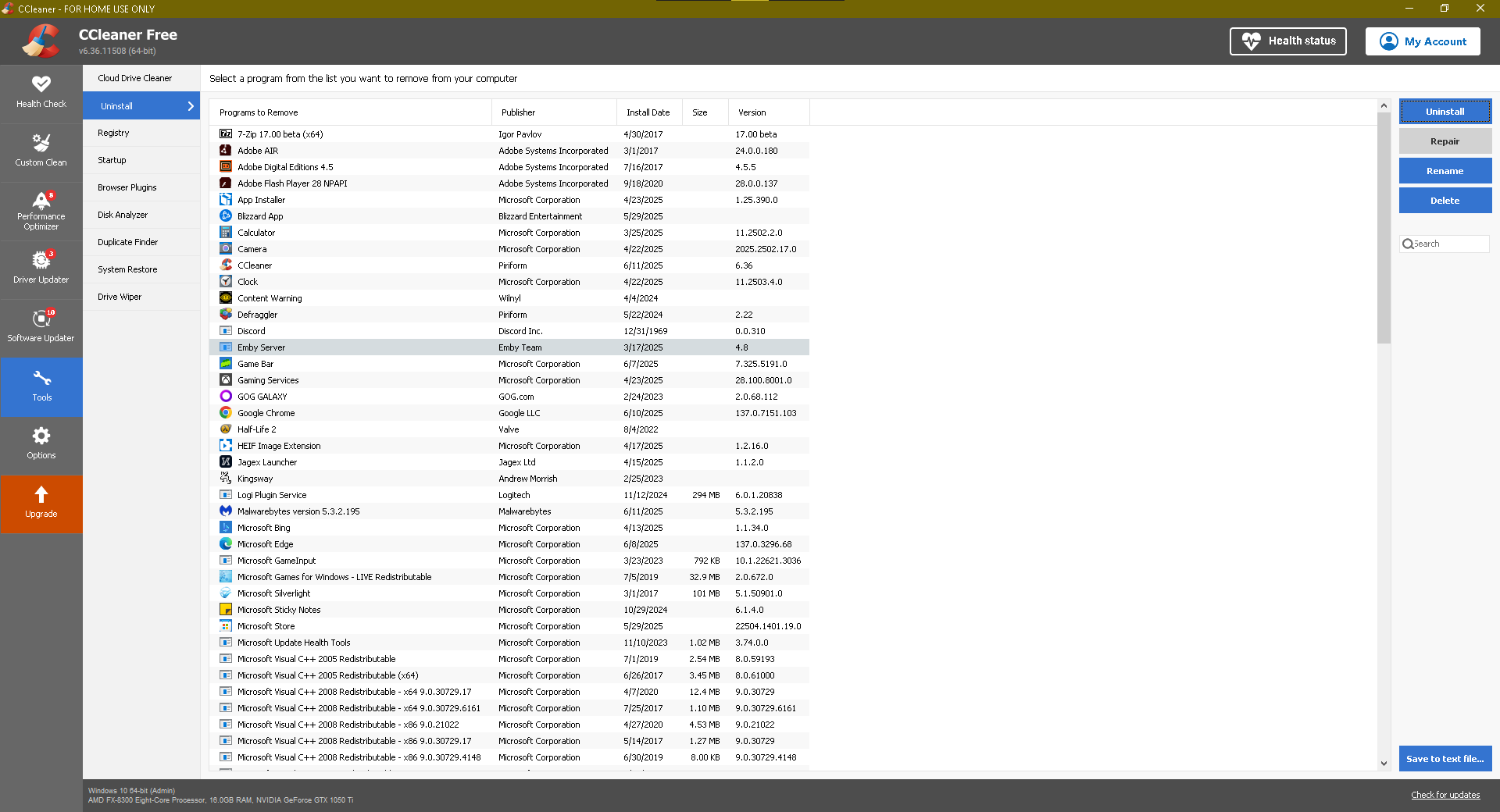
- Open the Task Manager and navigate to the Startup tab. Disable any item that lacks a verified publisher or looks suspicious.
- Open
services.mscand look for services with unusual names. Malware often masquerades as "Windows Update" or "System Framework" but with slight misspellings. - Check the Task Scheduler. Attackers frequently set tasks to trigger a malware re-infection every 30 minutes or upon system login.
Resetting Network Configurations
If you can still browse the web but experience redirects, the malware may have altered your Hosts file or your DNS settings.
- Navigate to
C:\Windows\System32\drivers\etcand open the 'hosts' file with Notepad. Ensure there are no unauthorized IP addresses listed at the bottom. - Flush your DNS cache by opening the Command Prompt as an administrator and typing
ipconfig /flushdns.
Dealing with Ransomware and Rootkits
Ransomware is the most destructive form of malware. If you find your files encrypted, do not pay the ransom. Paying identifies you as a "profitable target" and rarely results in a full data recovery.
Instead, use tools like the No More Ransom project or CISA’s Ransomware Resources to see if a public decryptor is available for your specific infection. For rootkits—which hide deep within the OS—you must use an "Offline Scanner." These tools run from a USB drive before Windows even starts, allowing them to see the malware before it has a chance to hide.
Post-Removal: Hardening Your System
Once the "Best Virus Removal" process is complete, you must ensure the vulnerability that allowed the infection is closed.
- Change All Passwords: Assume every password entered on the machine during the infection was logged by a keylogger. Use a password manager to generate unique, complex passwords for every account.
- Enable Multi-Factor Authentication (MFA): Even if an attacker has your password, MFA provides a critical second layer of defense.
- Update Firmware and Software: Many viruses enter via unpatched vulnerabilities in the BIOS, router firmware, or third-party apps like Adobe or Zoom. Ensure everything is running the 2026 updated versions.
- Verification Scan: Run a secondary scan with a "second-opinion" scanner like ESET Online Scanner or Kaspersky Virus Removal Tool to ensure no remnants were left behind by your primary software.
Frequently Asked Questions
Can I remove a virus without downloading extra software? Yes, but it is difficult for non-technical users. You can manually identify malicious processes in Task Manager, delete their files in Safe Mode, and clean the Registry. However, modern malware often employs "watchdog" processes where two malicious files monitor each other; if you delete one, the other immediately restores it. Professional-grade software is highly recommended for a complete clean.
Is free virus removal software as good as paid versions? In 2026, many free tools offer excellent detection, but they often lack remediation and real-time protection. A free tool might tell you that you have a virus but require a premium upgrade to remove it or to fix the system registry changes the virus made. For active infections, a premium tool or a high-quality trial version is more effective.
Does a factory reset remove all viruses? A "Standard" factory reset that keeps your files may not be enough, as malware can hide in user data folders. A "Full" factory reset (wiping the drive) is almost 100% effective against standard viruses. However, extremely rare "Firmware Rootkits" can survive even a hard drive wipe by residing in the motherboard’s UEFI/BIOS.
How do I know if a removal tool is legitimate? Always download security software directly from the official developer’s website. Avoid "Free System Scanners" that appear as pop-ups on websites, as these are often "scareware" designed to trick you into downloading the very malware you are trying to avoid. Stick to recognized names like Bitdefender, Malwarebytes, or ESET.
Will removing a virus delete my personal files? Most virus removal tools are designed to delete only the malicious code. However, if a virus has infected a legitimate system file, the software may have to delete or quarantine that file to neutralize the threat. Always ensure you have a "Clean" backup of your essential data on an external drive that was not connected during the infection.
Final Recommendation
For most users in 2026, the most effective path to recovery is to boot into Safe Mode, run a deep scan using Malwarebytes Premium, and follow up with a Microsoft Defender Offline scan. This combination covers both the broad spectrum of malware and the deep-seated persistence mechanisms common in modern cyberattacks. Once the system is clean, immediately implement a robust backup strategy and enable hardware-based MFA to prevent future compromises.
Image Gallery