How to Enable ASUS Router Remote Access Securely
To enable ASUS router remote access, log into the web interface (ASUSWRT), navigate to Administration, select the System tab, and toggle "Enable Web Access from WAN" to Yes. For security, you must specify an HTTPS port, configure an AS...
To enable ASUS router remote access, log into the web interface (ASUSWRT), navigate to Administration, select the System tab, and toggle "Enable Web Access from WAN" to Yes. For security, you must specify an HTTPS port, configure an ASUS DDNS address, and use a strong, unique administrative password.
Contents
Managing a home or office network often requires making adjustments when you are physically away from the premises. Whether you need to reboot the system, modify parental controls, or check connection logs, ASUS routers provide several pathways for remote management. However, exposing a router’s login interface to the public internet carries inherent risks. This guide explores the technical procedures for enabling remote access via the Web GUI and the ASUS Router App, while prioritizing the security protocols necessary in 2026 to protect your network from unauthorized intrusion.
Prerequisites for Remote Access
Before attempting to enable remote management, certain networking conditions must be met. Without these, the router may remain unreachable from external networks regardless of your internal settings.
A Public IP Address
The most common barrier to remote access is Carrier-Grade NAT (CGNAT). Many Internet Service Providers (ISPs) conserve IPv4 addresses by assigning multiple customers to a single public IP. If your router’s WAN IP (visible on the Network Map page) does not match the IP shown on "What is my IP" search results, you are likely behind CGNAT. In this scenario, standard port forwarding and remote access will not work unless you request a static IP from your ISP or use a software-defined perimeter solution.
Dynamic DNS (DDNS)
Residential internet connections typically use dynamic IP addresses that change periodically. To access your router reliably, you need a hostname that tracks these changes. ASUS provides a free DDNS service (e.g., yourname.asuscomm.com). Enabling this ensures that you do not lose access when your ISP assigns a new IP address to your modem.
Firmware Currency
Security vulnerabilities are frequently discovered in router firmwares. Before opening any ports for remote access, ensure your router is running the latest version of ASUSWRT. In 2026, most ASUS routers support automatic updates; ensure this is enabled under Administration > Firmware Upgrade.
Method 1: Enabling Remote Access via the Web GUI
The Web Graphical User Interface (GUI) provides the most comprehensive control over your router. This method is preferred for users who need to manage advanced settings like routing tables, VPN servers, or detailed firewall rules from a desktop browser.
Step 1: Configure DDNS
- Connect to your router via Ethernet or Wi-Fi.
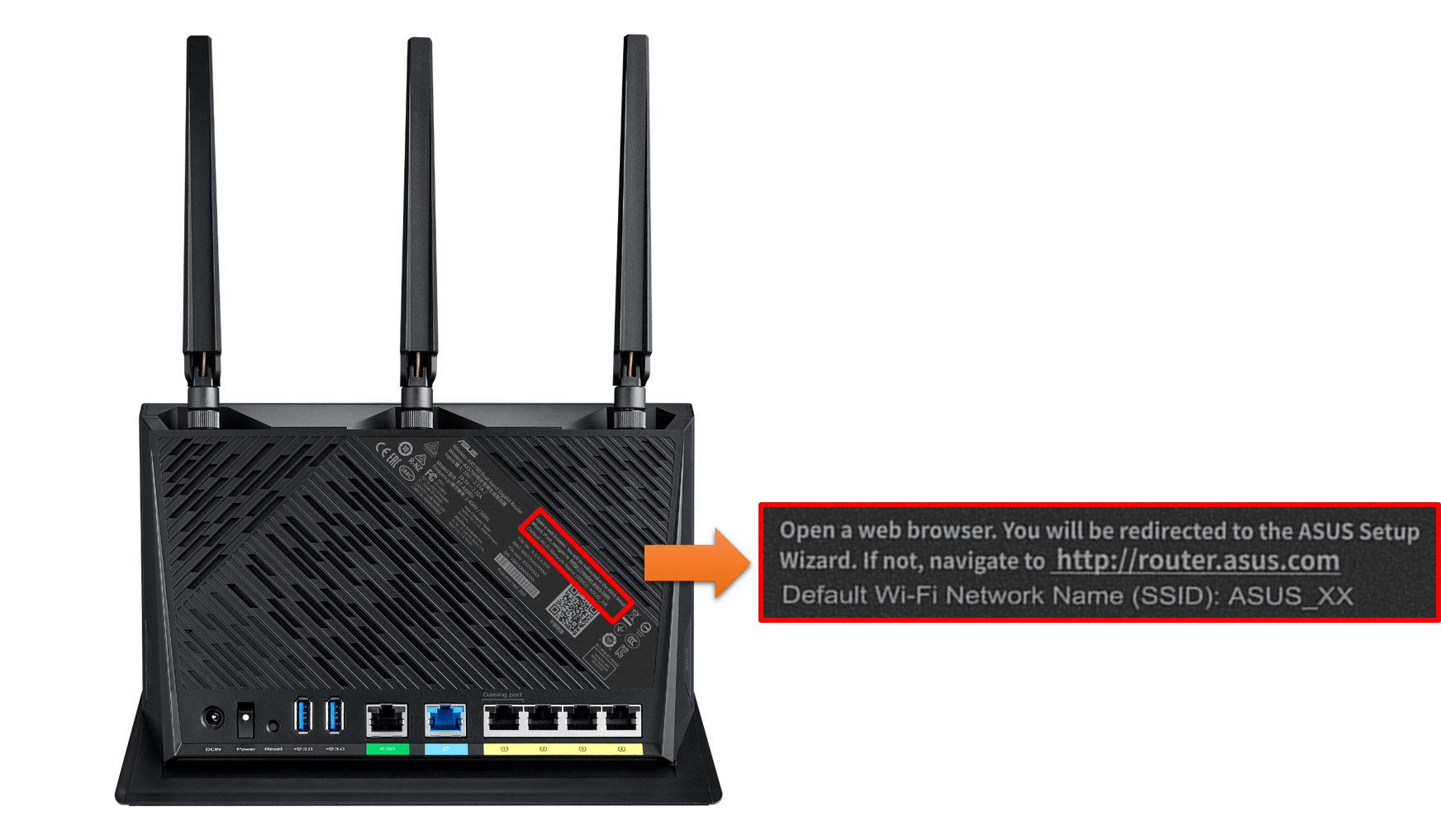
- Open a browser and navigate to
router.asus.comor192.168.50.1. - Navigate to Advanced Settings > WAN and click the DDNS tab.
- Set "Enable DDNS Client" to Yes.
- Select ASUS as the server provider and enter your desired host name.
- Click Apply. The router will register the name with ASUS servers.
Step 2: Enable WAN Access
- Navigate to Advanced Settings > Administration and select the System tab.
- Scroll down to the Remote Access Config section.
- Set "Enable Web Access from WAN" to Yes.
- Important: Set "Authentication Method" to HTTPS. Do not use HTTP, as it transmits your password in plain text.
- Change the HTTPS Port of Web Access from WAN. The default is often 8443 or 443. Changing this to a non-standard port (e.g., between 30000 and 50000) helps avoid automated "script kiddie" bots that scan common ports.
- Click Apply.
Once configured, you can access your router by typing https://yourname.asuscomm.com:port into any browser outside your home network.
Method 2: Using the ASUS Router App
The ASUS Router App is the most convenient method for most users. It uses a cloud-based relay system that often bypasses the need for complex port forwarding and provides a more user-friendly interface for mobile devices.
Linking the App
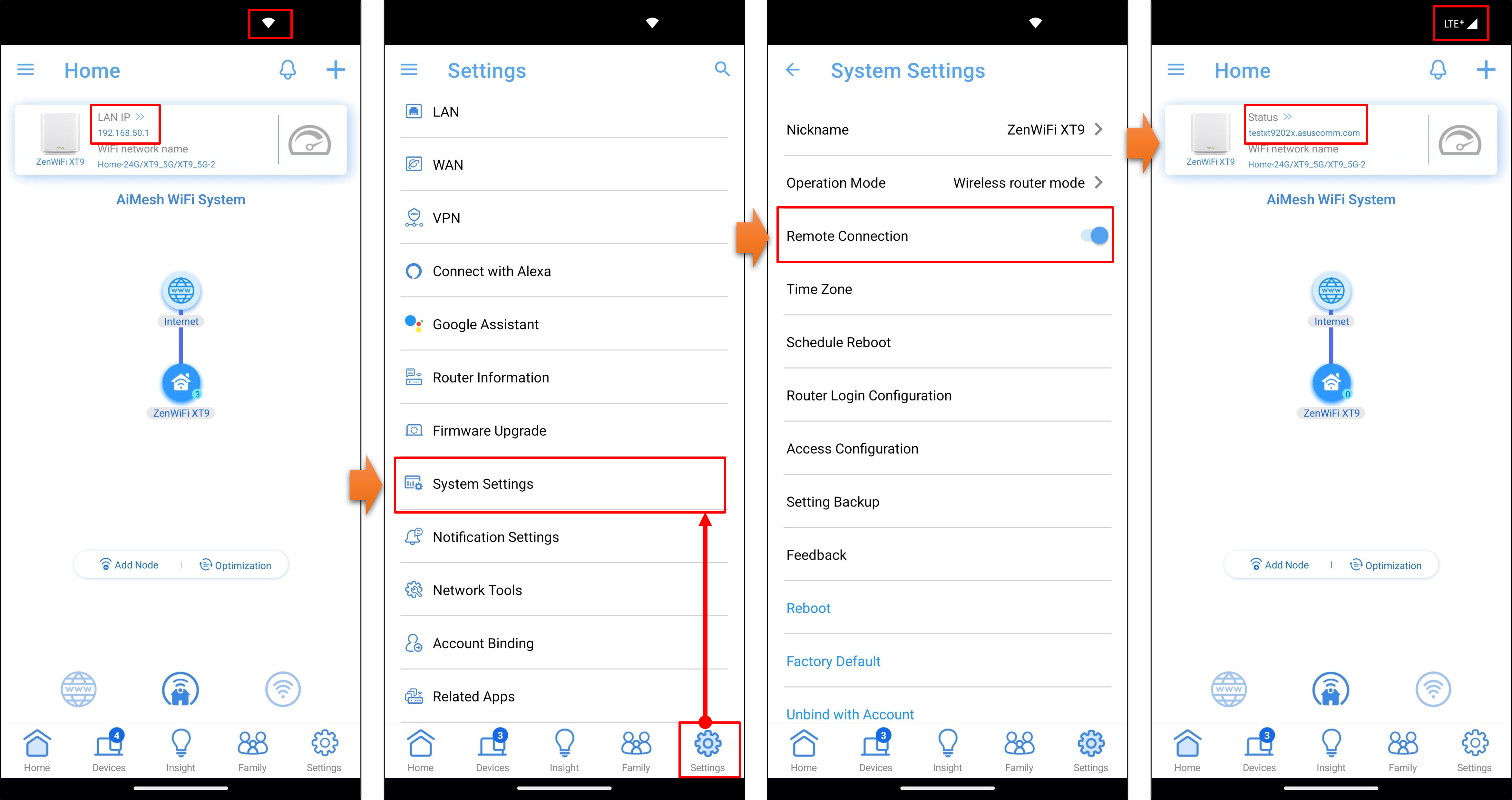
- Download the ASUS Router App from the iOS App Store or Google Play Store.
- While connected to your home Wi-Fi, open the app and follow the prompts to detect your router.
- Log in with your admin credentials.
- Go to Settings > System Settings and ensure Remote Connection is toggled on.
In 2026, the app includes enhanced biometric integration. You can configure the app to require FaceID or fingerprint scanning before allowing access to the router settings, adding a vital layer of security if your phone is ever lost or stolen.
Security Best Practices for Remote Management
Opening your router to the WAN is a calculated risk. To minimize the attack surface, implement the following security measures immediately after enabling access.
Implement Brute Force Protection
ASUSWRT includes a feature to block IP addresses after a specified number of failed login attempts. Under Administration > System, locate the login security settings. Set the "Lockout time" to at least 24 hours after five failed attempts. This effectively stops automated password-guessing tools.
Disable UPnP
Universal Plug and Play (UPnP) allows devices on your network to open ports automatically. While convenient for gaming, it can be exploited by malware to create "backdoors" into your network. Disable it under WAN > Internet Connection.
Use AiProtection
Most mid-to-high-end ASUS routers feature AiProtection, powered by Trend Micro. This suite provides a "Vulnerability Protection" feature that monitors incoming traffic for known exploit patterns. Keeping this enabled provides an active defense layer for your remote access port. You can verify the status of this service on the Official ASUS AiProtection page.
The VPN Alternative: The Gold Standard for Remote Access
Technical experts generally recommend against enabling "Web Access from WAN" directly. Instead, the most secure way to manage an ASUS router remotely is to set up a VPN (Virtual Private Network) Server on the router itself.
By using a VPN, you do not expose the router’s login page to the public internet. Instead, you create a secure, encrypted tunnel into your home network. Once connected to the VPN, you access the router as if you were sitting at home using its local IP (e.g., 192.168.50.1).
Setting up WireGuard (Recommended for 2026)
WireGuard is significantly faster and more secure than older protocols like PPTP or OpenVPN.
- In the Web GUI, go to VPN > VPN Server and select WireGuard.
- Click Enable WireGuard and click Apply.
- Create a "Client" profile for your phone or laptop.
- Download the WireGuard app on your remote device and import the configuration file or scan the QR code provided by the router.
This method ensures that even if a vulnerability is found in the ASUS login page, an attacker cannot see the page because it isn't exposed to the WAN.
Comparison of Remote Access Methods
| Feature | ASUS Router App | Web GUI (HTTPS) | VPN (WireGuard) |
|---|---|---|---|
| Setup Difficulty | Very Low | Moderate | Moderate |
| Security Level | High (Cloud-managed) | Moderate (Exposed Port) | Very High (Encrypted Tunnel) |
| Functionality | Basic to Intermediate | Full Admin Access | Full Admin Access |
| Primary Use Case | Quick status checks | Deep configuration | Secure, frequent access |
| Required Data | ASUS Cloud Account | DDNS + Port | VPN Client Software |
Troubleshooting Common Issues
Unable to reach the DDNS address
If you cannot reach yourname.asuscomm.com, check your router’s WAN IP. If it starts with 10.x.x.x, 172.16.x.x, or 192.168.x.x, your router is behind another router (like an ISP modem/router combo). You must set the ISP modem to Bridge Mode or forward the HTTPS port from the modem to the ASUS router.
Browser "Not Secure" Warning
When accessing your router via HTTPS, your browser may display a warning that the connection is not private. This happens because the SSL certificate is self-signed by the router. You can safely click "Advanced" and "Proceed," or you can use the "Let's Encrypt" integration found in the WAN > DDNS settings to generate a free, trusted SSL certificate.
Port Blocking by ISP
Some ISPs block common ports like 80, 443, or 8080 to prevent residential customers from hosting servers. If you cannot connect, try using a high-numbered port like 49152.
Frequently Asked Questions
Is it safe to leave ASUS remote access enabled all the time?
While ASUSWRT is generally secure, leaving a management port open indefinitely increases your risk profile. If you only need remote access occasionally, it is safer to disable it when not in use or use the VPN method, which provides a much smaller attack surface.
What should I do if I think my router has been compromised?
If you notice unfamiliar settings or log entries (found under System Log > General Log), immediately perform a factory reset using the physical reset button. Once reset, update the firmware, change all passwords, and consider using a different port for remote access.
Does remote access work with ASUS AiMesh?
Yes. When you enable remote access on the AiMesh Primary (Main) router, you gain access to the management interface for the entire mesh system. You do not need to enable remote access individually for AiMesh Nodes.
Can I limit remote access to a specific IP address?
Yes. In the Administration > System tab, there is an option for "Only allow specific IP." If you know you will only be accessing the router from a specific static IP (like a workplace office), entering that IP here will block all other connection attempts from the rest of the world.
Final Recommendation
For the vast majority of users in 2026, the ASUS Router App provides the best balance of convenience and security for remote management. If you require full access to the Web GUI, the most professional and secure approach is to avoid opening the WAN management port entirely and instead utilize a WireGuard VPN server. This ensures your administrative interface remains hidden from public scanners while providing you with a high-speed, encrypted connection to your entire home network.
Image Gallery