Selecting and Deploying Bluetooth Office Headsets for Enterprise Communications
Bluetooth office headsets combine mobile flexibility with enterprise communication features, using specialized microphone arrays and wireless protocols to deliver clear voice quality on call platforms like Microsoft Teams and Zoom. Cho...
Bluetooth office headsets combine mobile flexibility with enterprise communication features, using specialized microphone arrays and wireless protocols to deliver clear voice quality on call platforms like Microsoft Teams and Zoom. Choosing the right headset requires evaluating connectivity options, noise-canceling microphone technology, battery efficiency, and Unified Communications (UC) certification to ensure seamless operation in professional environments.
Contents
Technical Architecture of Bluetooth Office Headsets
Understanding how Bluetooth office headsets operate requires looking beyond basic consumer audio specifications. While consumer headphones prioritize stereo playback quality and active noise cancellation (ANC) for music, office-grade headsets are engineered specifically for bidirectional voice clarity, low latency, and protocol compatibility with desktop and mobile operating systems.
Bluetooth Profiles: HFP vs. A2DP
Bluetooth communication relies on standardized software protocols known as profiles. When connected to a computer or mobile phone, a headset dynamically switches between two primary profiles depending on the active workload:
Advanced Audio Distribution Profile (A2DP): Designed for unidirectional high-fidelity stereo audio streaming. A2DP utilizes codecs such as AAC, SBC, or aptX to deliver rich sound when listening to music or recorded media. However, A2DP does not support real-time microphone input transmission.
Hands-Free Profile (HFP): Designed for bidirectional voice communications. When a softphone application (such as Microsoft Teams, Zoom, or Cisco Webex) initiates a call, the operating system forces the headset into HFP mode.
A2DP Mode: Unidirectional High-Fidelity Audio (Music / Media)
HFP Mode: Bidirectional Narrowband/Wideband Audio + Mic Channel (Calls)
In standard consumer Bluetooth configurations, switching to HFP significantly reduces audio bandwidth. Native Windows and macOS Bluetooth drivers traditionally lower the sample rate to 8 kHz (narrowband) or 16 kHz (wideband) to accommodate simultaneous audio reception and microphone transmission over limited 2.4 GHz radio spectrum bandwidth. This transition is the primary reason standard consumer headphones often sound tinny or hollow during video calls. Enterprise-grade headsets mitigate this drop by employing advanced speech codecs—such as mSBC (Modified Subband Codec) or LC3 (Low Complexity Communication Codec)—and proprietary USB adapters.
The Role of Dedicated USB Bluetooth Adapters
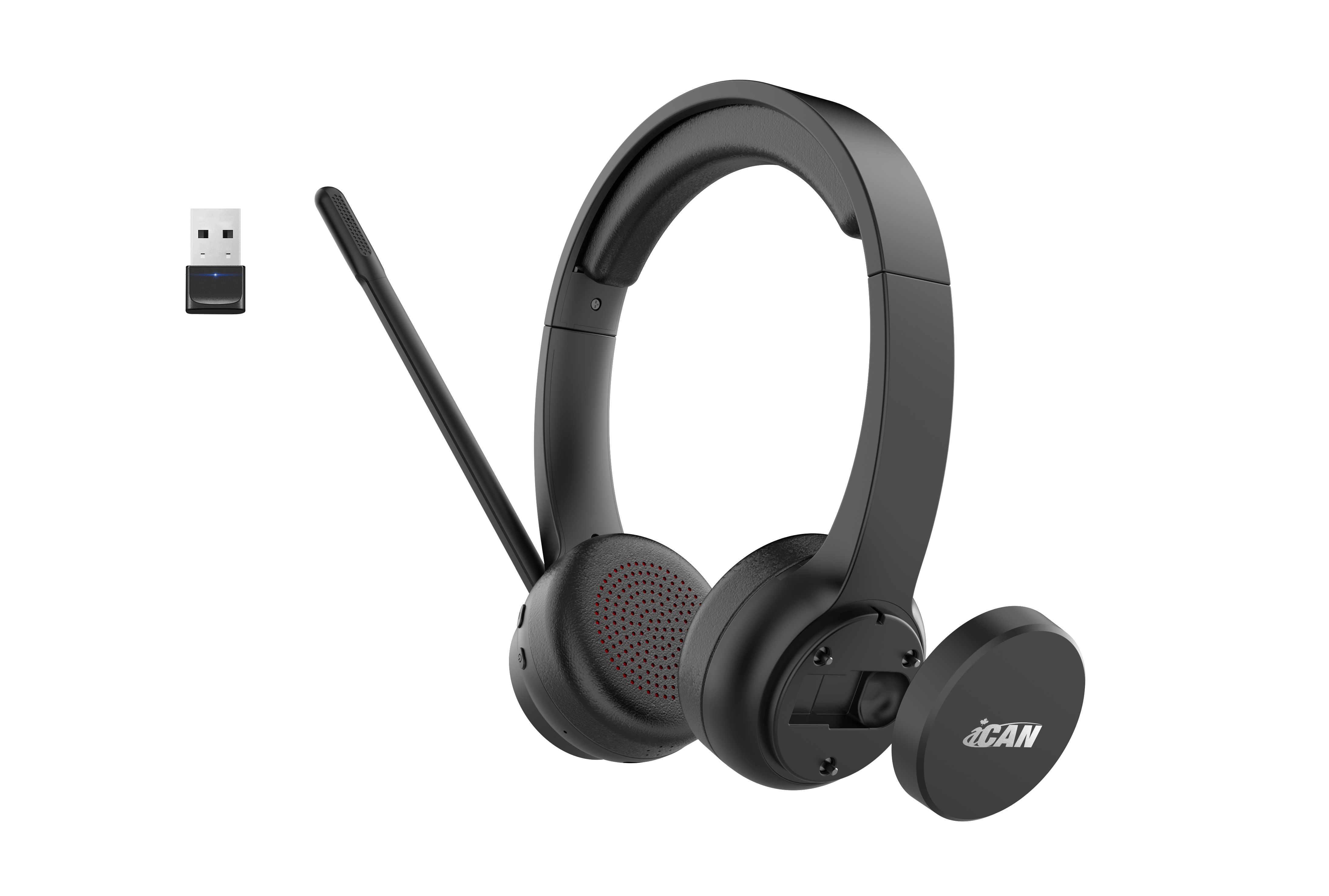
To overcome the native driver limitations of Windows and macOS, professional office headsets are frequently bundled with dedicated USB Bluetooth adapters (often referred to as dongles). These pre-paired adapters bypass the operating system's internal Bluetooth stack and present the headset to the computer as a direct USB audio device.
Using a dedicated USB adapter provides several distinct operational advantages:
- Driver Stability: The adapter manages the wireless link hardware execution, preventing operating system updates from interrupting Bluetooth driver stability.
- Enhanced Codec Support: The adapter negotiates wideband or super-wideband voice codecs directly with the headset processor, preserving mic and speaker audio fidelity.
- Hardware Button Synchronization: Physical call controls on the headset—such as answer, end call, and mute—synchronize directly with softphone software through standardized Human Interface Device (HID) commands over the adapter interface.
- Extended Range: Class 1 Bluetooth transmitters embedded in enterprise USB adapters provide operational ranges up to 30 meters (100 feet), compared to the standard 10-meter (30-foot) limit of internal Class 2 laptop chips.
Core Requirements for Business-Grade Audio Performance
Evaluating headsets for corporate deployment involves assessing specific hardware component standards. Enterprise environments require consistent voice capture that suppresses background office noise while allowing clear, natural voice output.
Office Headset Audio Processing:
- Primary Mic: Captures User Voice + Room Noise
- Secondary Mic: Captures Ambient Noise Only
- Digital Signal Processor (DSP): Processes combined mic inputs to produce Clean Voice Output
Microphone Beamforming and Acoustic Fencing
The core component of any office headset is its microphone assembly. Unlike omnidirectional consumer microphones, enterprise headsets use multi-microphone beamforming arrays combined with digital signal processors (DSP).
A beamforming array typically uses two or more micro-electro-mechanical systems (MEMS) microphones spaced along a rigid or flexible boom arm. The DSP analyzes the slight time-of-arrival delay between audio signals entering each microphone. Sound originating from the user's mouth arrives at the primary microphone micro-seconds before reaching the secondary microphone, whereas ambient room noise (such as keyboard clicks or neighboring chatter) hits both microphones simultaneously.
By subtracting the ambient signal from the primary signal, the DSP isolates the user's voice. Enterprise manufacturers build upon this using proprietary spatial algorithms, such as Poly’s Acoustic Fence or Jabra’s Multi-Sensor Voice technology, which create a virtual sound boundary that rejects audio outside a defined perimeter around the user's mouth. Headsets without physical microphone booms rely entirely on ear-cup MEMS arrays, which require significantly more aggressive DSP processing and can sometimes produce artificial or robotic voice artifacts in noisy environments.
Active Noise Cancellation (ANC) for Focus
While microphone noise cancellation protects the caller on the recipient end, Active Noise Cancellation (ANC) protects the local user from surrounding workplace distractions. Modern hybrid work environments necessitate varying ANC configurations:
- Feedforward ANC: Microphones on the outside of the ear cup capture ambient noise before it reaches the ear, generating an inverted phase signal ("anti-noise") to cancel low-frequency sounds.
- Feedback ANC: Microphones inside the ear cup listen to the audio reaching the user's ear canal, allowing the DSP to correct residual noise in real time.
- Hybrid ANC: Combines both feedforward and feedback processing. This approach provides maximum noise reduction across low and mid-range frequencies, which is ideal for eliminating HVAC humming, engine noise, and general office murmur.
- Adaptive/Adjustable ANC: Automatically adjusts the intensity of noise cancellation based on surrounding decibel levels, reducing the "ear pressure" sensation reported by some users in quiet environments.
Unified Communications (UC) Certification
Unified Communications (UC) certification indicates that a hardware vendor has submitted a headset to rigorous testing by software providers such as Microsoft, Zoom, or Cisco.
UC certification guarantees:
- Plug-and-Play Integration: Instant driver configuration upon inserting the USB adapter without requiring administrator privileges.
- Bidirectional Mute State Sync: Toggling mute on the softphone interface lights up the mute LED on the physical headset, and vice versa.
- Dedicated Teams/Zoom Functionality: Models certified specifically for Microsoft Teams often feature a hardware button that brings Teams to the foreground, joins scheduled meetings with one click, or checks voice notifications.
- Audio Quality Compliance: Certification mandates strict adherence to signal-to-noise ratio (SNR), frequency response parameters, and echo-cancellation standards specified by the platform developer.
Bluetooth Multipoint Technology
Modern office workflows require seamless switching between desktop softphones and mobile devices. Bluetooth Multipoint technology allows a single headset to maintain active connections to two distinct host devices simultaneously (e.g., a laptop via USB adapter and a smartphone via native Bluetooth).
Multipoint relies on underlying profile management within the Bluetooth protocol controller:
- Bluetooth Office Headset
- Laptop / PC (USB Adapter): Active Audio connection
- Mobile Phone (Native BT): Standby Link connection
When an incoming call hits the smartphone while the user is listening to media on the laptop, the headset automatically pauses the laptop's A2DP stream and routes the smartphone's HFP voice channel through to the user. Once the mobile call terminates, the headset switches back to the laptop audio stream.
Bluetooth vs. DECT Headsets: Enterprise Deployment Factors
When outfitting an enterprise office, IT procurement teams must decide between Bluetooth and Digital Enhanced Cordless Telecommunications (DECT) technologies. Both serve professional needs but differ significantly in radio frequency allocation, maximum range, and deployment density limits.
| Architectural Feature | Bluetooth Office Headsets | DECT Office Headsets |
|---|---|---|
| Operating Frequency | 2.4 GHz ISM Band (2.400–2.4835 GHz) | 1.9 GHz Dedicated Band (1.92–1.93 GHz US / 1.88–1.90 GHz EU) |
| Maximum Wireless Range | 10 to 30 meters (30 to 100 feet) | 100 to 180 meters (300 to 590 feet) |
| Density Limit (Per Area) | ~25–30 active devices per 100 m² before interference | ~80–100 active devices per base area without spectrum saturation |
| Device Interoperability | Pairs with PCs, Smartphones, Tablets, and Desk Phones | Connects strictly to a dedicated DECT Base Station (bridged to PC/Deskphone) |
| Base Station Requirement | Optional (Can use USB dongles or native BT) | Mandatory (Requires dedicated base unit plugged into power/USB) |
| Mobile Off-Site Utility | High (Can be used on commutes, remote locations) | Low (Restricted to the range of the physical base station) |
| Encryption Standard | AES 128-bit (Bluetooth Security Mode 4) | DECT Security Step A/B/C (AES 128-bit) |
| Typical Battery Life | 15 to 40 hours continuous talk time | 9 to 13 hours continuous talk time |
Spectrum Saturation and Workspace Density
The 2.4 GHz Industrial, Scientific, and Medical (ISM) radio band used by Bluetooth is shared with Wi-Fi networks (802.11b/g/n), wireless mice, keyboards, and microwave equipment. Bluetooth employs Frequency-Hopping Spread Spectrum (FHSS) technology, jumping between 79 individual 1-MHz channels at up to 1,600 hops per second to avoid interference.
However, in dense open-office environments where hundreds of employees conduct voice calls simultaneously, 2.4 GHz spectrum saturation can occur. When too many Bluetooth devices transmit in close proximity, packet retransmissions increase, leading to audio dropouts, robotic voice distortions, or reduced range.
Conversely, DECT operates in a dedicated, license-exempt 1.9 GHz frequency band reserved strictly for voice communications. Because DECT uses Dynamic Channel Selection (DCS) within a uncrowded spectrum, it supports significantly higher deployment densities per square meter. Large contact centers typically deploy DECT headsets for stationary workers, while hybrid employees and mobile executives rely on Bluetooth for cross-location versatility.
Configuring Bluetooth Headsets for Optimal Call Quality
Deploying a Bluetooth headset requires proper OS-level audio settings and firmware optimization to prevent common softphone routing errors.
- Step 1: Connect USB Adapter
- Step 2: Set Default Audio Devices in OS
- Default Communication Device: USB Adapter
- Disable Native Bluetooth Hands-Free Drivers
- Step 3: Configure Companion Enterprise Software
- Update Headset & Dongle Firmware
- Enable Wideband/Super-Wideband Codecs
- Calibrate Sidetone & Microphone Gain
- Step 4: Map Softphone Settings
- Select USB Adapter in Teams / Zoom Audio Config
Windows and macOS Settings Optimization
To ensure system stability, follow these configuration procedures when deploying USB-adapter-based Bluetooth headsets:
Windows 11 Audio Configuration
- Insert the dedicated USB Bluetooth adapter into an available USB port. Avoid unpowered USB hubs or docks, which can introduce power-throttling latency.
- Navigate to Settings > System > Sound.
- Under Output, select the dedicated USB adapter (e.g., Jabra Link 380 or Poly BT700) as the output device. Do not select the native "Hands-Free AG Audio" driver if listed.
- Under Input, select the USB adapter as the input device.
- Open the Sound Control Panel (
mmsys.cpl). - Locate the USB Adapter under the Playback tab, right-click, and select Set as Default Communication Device.
- Go to the Communications tab and select Do nothing under the automatic volume adjustment options to prevent Windows from altering microphone gain during calls.
macOS Settings
- Navigate to System Settings > Sound.
- Under the Output tab, highlight the dedicated USB adapter.
- Under the Input tab, select the USB adapter.
- Ensure the input volume slider is set between 75% and 80% to avoid clipping the microphone DSP buffer.
Managing Enterprise Companion Software
Major hardware vendors maintain enterprise desktop management applications (e.g., Jabra Direct, Poly Lens, EPOS Connect, Logitech Sync). These tools provide important configuration options:
- Firmware Synchronization: Ensures the USB adapter and the headset run matching firmware versions, preventing protocol mismatches during softphone call events.
- Sidetone Adjustment: Sidetone routes a small percentage of the user’s vocal input back into their ear-cup speaker in real time. Proper sidetone levels prevent users from speaking too loudly by providing natural vocal feedback.
- Wireless Range Control: Allows administrators to decrease the transmitter output power from "Very High" to "Low" in dense office spaces. Reducing the RF footprint minimizes interference between neighboring headsets.
Troubleshooting Common Audio and Connectivity Issues
Even high-end enterprise headsets can encounter operational anomalies due to software conflicts, RF interference, or profile degradation.
1. Metallic, Robotic, or Distorted Audio During Calls
- Root Cause: The headset has dropped into the basic 8 kHz HFP profile due to direct native Bluetooth pairing with the computer, or the 2.4 GHz spectrum is heavily saturated.
- Resolution:
- Unpair the headset from the computer’s internal Bluetooth manager.
- Plug in the manufacturer's dedicated USB adapter and pair the headset directly to the adapter.
- Ensure 2.4 GHz Wi-Fi access points in the office use 20 MHz channel widths instead of 40 MHz to reduce spectrum overlap with Bluetooth FHSS channels.
2. Mute Status Out-of-Sync Between Softphone and Headset
- Root Cause: The softphone application is accessing the headset via standard generic audio drivers rather than the HID protocol handled by the UC-certified adapter driver.
- Resolution:
- Verify that the softphone application (e.g., Microsoft Teams) has the specific USB adapter selected under its internal device settings menu, rather than "Same as System."
- Check the companion enterprise app to confirm that "Softphone Integration" or "Presence Sync" is toggled to ON.
- Apply the latest firmware update to both the headset and the USB adapter.
3. Audio Dropouts When Walking Away from Workstation
- Root Cause: Signal attenuation caused by structural obstructions (concrete walls, metallic office dividers) or exceeding the Bluetooth Class envelope.
- Resolution:
- Ensure the USB adapter is plugged into a port on the front of the computer or an elevated desktop dock, rather than the back of a metal desktop tower positioned under a desk.
- If extended mobility (over 30 meters) is required throughout a large facility, transition the user to a DECT wireless headset deployment.
4. Excessive Battery Drain
- Root Cause: Active Noise Cancellation operating at maximum power continuously, or high-power RF transmission modes left active in quiet home office settings.
- Resolution:
- Set ANC to "Adaptive" mode via the companion software.
- Enable "Auto-Sleep" or dynamic motion-sensor controls, which power down the DSP when the headset is resting on a desk.
Practical Recommendation for Buyers and Deployment Teams
To maximize investment protection and end-user satisfaction, structure your hardware selection around clear operational profiles:
Define User Persona
- Hybrid / Remote Worker:
- Bluetooth + USB Adapter
- Boom Mic + Hybrid ANC
- UC Certified (Teams/Zoom)
- Mobile Executive:
- Bluetooth ANC Headset
- Multi-device Multipoint
- Compact / Travel Case
- Dense Contact Center:
- Dedicated DECT Headset
- Max Range & High Density
- Central Base Station
- Hybrid / Remote Worker:
For Hybrid and Remote Knowledge Workers: Specify dual-ear (stereo) Bluetooth headsets equipped with a folding or retractable boom microphone, active noise cancellation, and a pre-paired USB adapter. Ensure the device is certified for your primary collaboration platform (Microsoft Teams, Zoom, or Webex).
For Mobile Executives and Field Personnel: Choose compact, lightweight Bluetooth headsets featuring advanced multipoint pairing capabilities, integrated wind-noise reduction, and a protective charging case with built-in battery extension.
For High-Density Call Centers and Stationary Desk Workers: Prioritize DECT headsets over Bluetooth to eliminate 2.4 GHz radio frequency congestion, ensure max wireless range across large floorboards, and provide centralized desk-dock charging.
Frequently Asked Questions
Why does my Bluetooth headset sound worse on video calls than when listening to music?
When listening to music, the headset uses the A2DP profile, which streams high-fidelity stereo audio in one direction. When a video call starts, the operating system activates the Hands-Free Profile (HFP) to enable the microphone, dropping the audio bandwidth to support bidirectional transmission. Using a dedicated USB Bluetooth adapter helps maintain higher speech fidelity than native computer Bluetooth connections.
Can I use consumer Bluetooth earbuds for enterprise calls?
While consumer earbuds can connect to laptops, they often lack boom microphones, advanced beamforming DSPs, and dedicated USB adapters. This makes them prone to picking up background office noise, dropping out in dense Wi-Fi environments, and causing mute-state desynchronization with softphone applications like Microsoft Teams.
What is the difference between UC-certified and Teams-certified Bluetooth headsets?
UC-certified headsets pass standardized testing across major communications platforms (Zoom, Cisco Webex, Avaya) for clear audio and basic call control synchronization. Microsoft Teams certification builds on UC requirements by adding a dedicated hardware Teams button, integrated notification lights, strict voice-isolation standards, and guaranteed compatibility with Teams software updates.
How do I resolve Bluetooth interference in an open-plan office?
To manage high-density Bluetooth deployments, lower the wireless range/power output settings on headsets via the manufacturer's management software, ensure office Wi-Fi networks operate primarily on the 5 GHz and 6 GHz bands rather than 2.4 GHz, and switch high-volume phone operators to dedicated DECT headsets.
How long do enterprise Bluetooth headset batteries last?
Modern business-grade Bluetooth headsets typically provide between 15 and 40 hours of continuous talk time on a single charge when ANC is disabled. Enabling advanced active noise cancellation reduces battery runtime by approximately 20% to 30%. Most enterprise units include quick-charging capabilities that supply 2 to 4 hours of talk time from a 15-minute charge.
Image Gallery