How to Find and Manage Your Alexa Voice History: A Complete Guide
To find your Alexa history, open the Alexa app, navigate to More, select Settings, and then tap Alexa Privacy. From there, choose Review Voice History to see transcripts and listen to recordings. You can also manage these records throu...
To find your Alexa history, open the Alexa app, navigate to More, select Settings, and then tap Alexa Privacy. From there, choose Review Voice History to see transcripts and listen to recordings. You can also manage these records through the Amazon Privacy Hub on any standard web browser.
Contents
Amazon’s Alexa ecosystem has become a central component of the modern smart home. As of 2026, millions of households rely on Echo devices, Fire TVs, and integrated smart appliances to manage their daily routines. However, with this convenience comes a massive trail of data. Every time you say the wake word, Alexa records your request, processes it in the cloud, and stores a record of that interaction. Finding and reviewing this history is not just a matter of curiosity; it is a fundamental step in maintaining digital privacy and troubleshooting device performance.
Why You Should Regularly Review Your Alexa History
Monitoring your interaction logs serves several critical purposes. First and foremost is privacy verification. Users often worry about "false positives"—instances where Alexa triggers without the wake word being spoken. By reviewing your history, you can identify these accidental recordings and delete them.
Secondly, reviewing history is a powerful troubleshooting tool. If a smart home routine fails or Alexa provides an incorrect answer, the voice log reveals exactly what the device heard. You may find that background noise or a thick accent caused a misunderstanding, allowing you to adjust your device placement or voice profile accordingly.
Lastly, for households with multiple users or children, the history log provides a way to monitor usage. You can see what questions are being asked or which third-party "Skills" are being activated. In an era where data is a primary commodity, knowing exactly what is stored on Amazon’s servers is a prerequisite for responsible smart home ownership.
How to Find Alexa History via the Mobile App
The most common way to access your records is through the Alexa app on iOS or Android. Because the app interface is updated frequently, navigating to the privacy settings requires a specific sequence of steps.
Step 1: Access the Main Menu
Open the Alexa app on your smartphone. Ensure you are signed into the primary account associated with your Echo devices. Tap the More icon (represented by three horizontal lines) located in the bottom-right corner of the navigation bar.
Step 2: Navigate to Privacy Settings
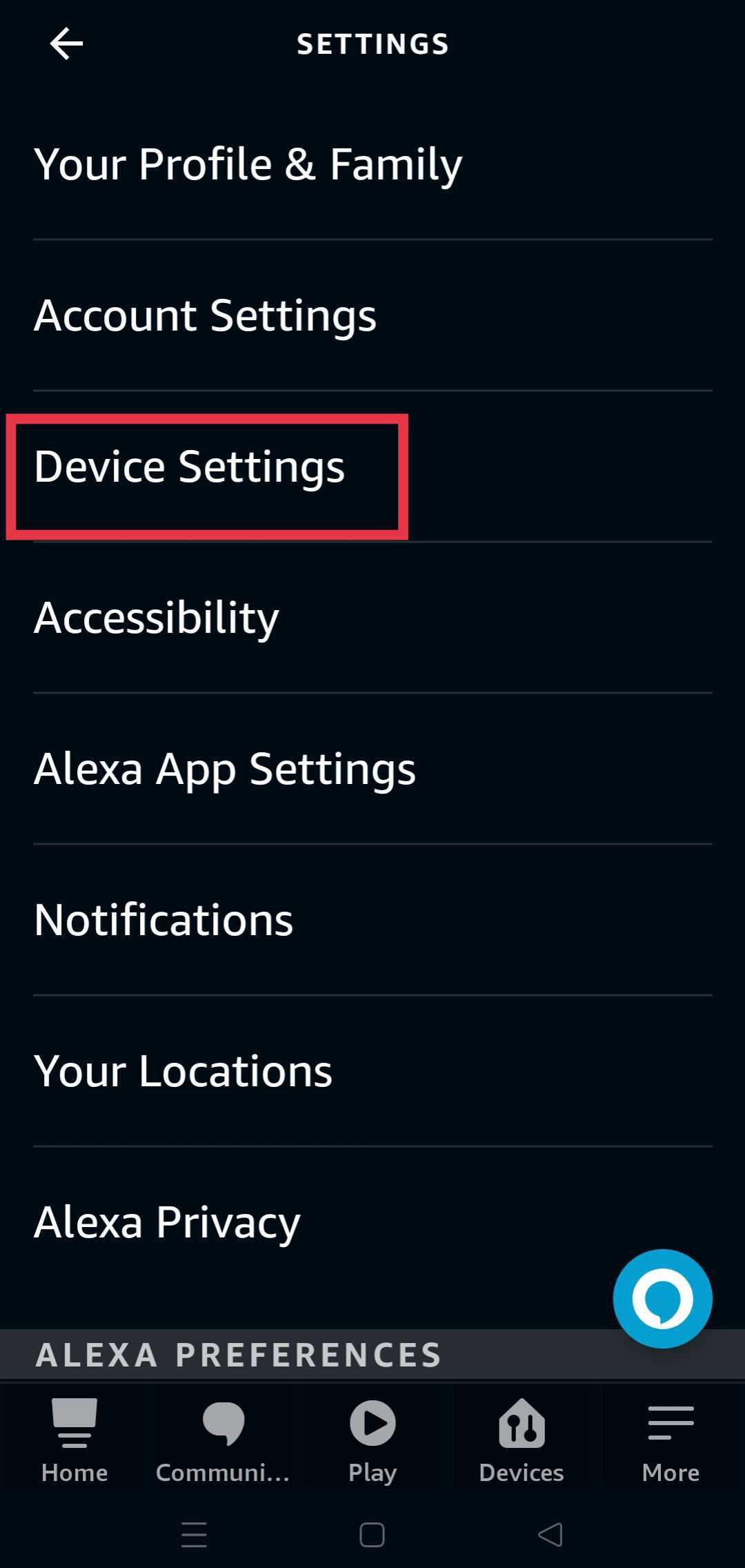
From the list of options, select Settings. Scroll down until you find the Alexa Privacy section. This is a specialized portal within the app that handles all data-related permissions and logs.
Step 3: Review Voice History
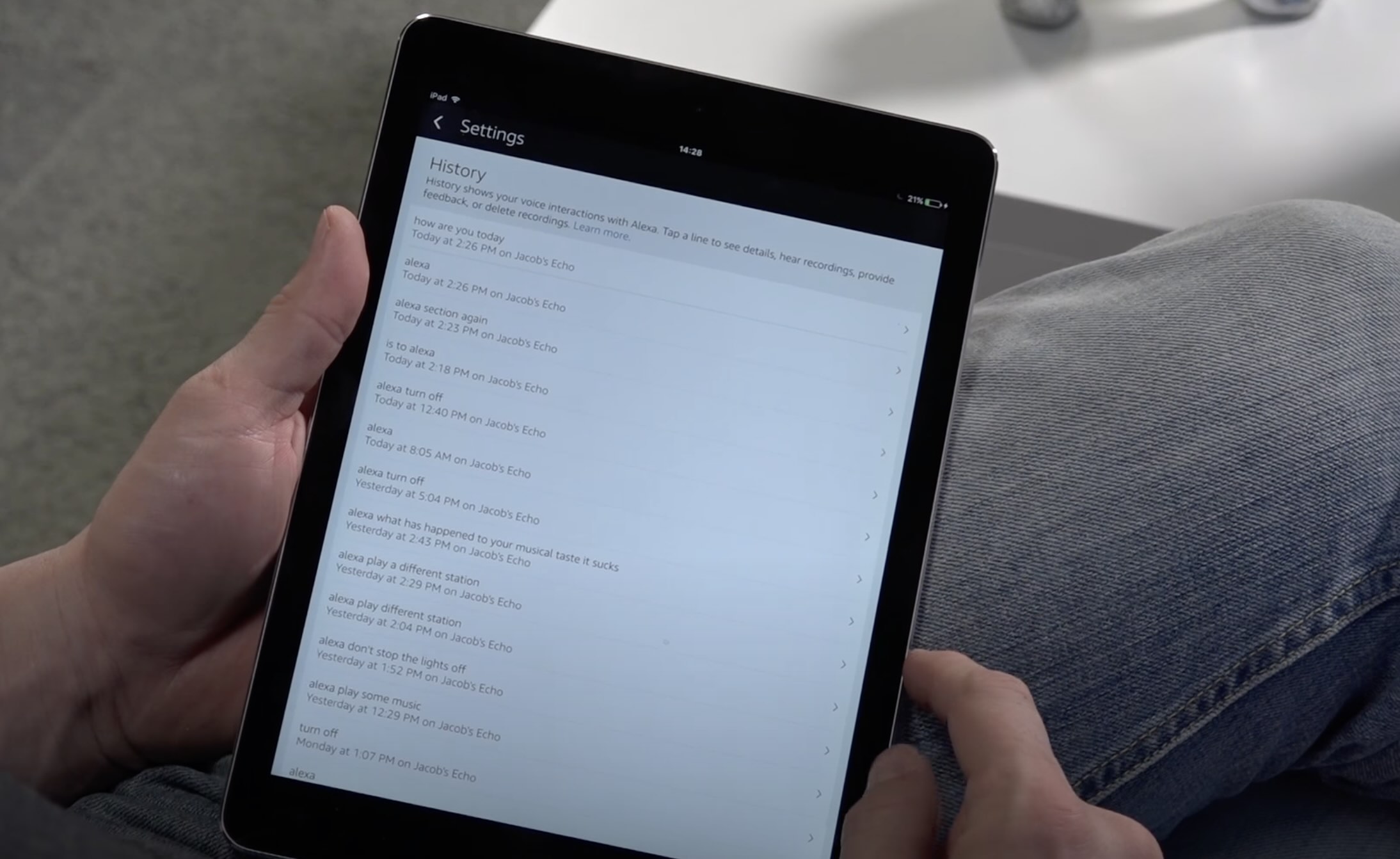
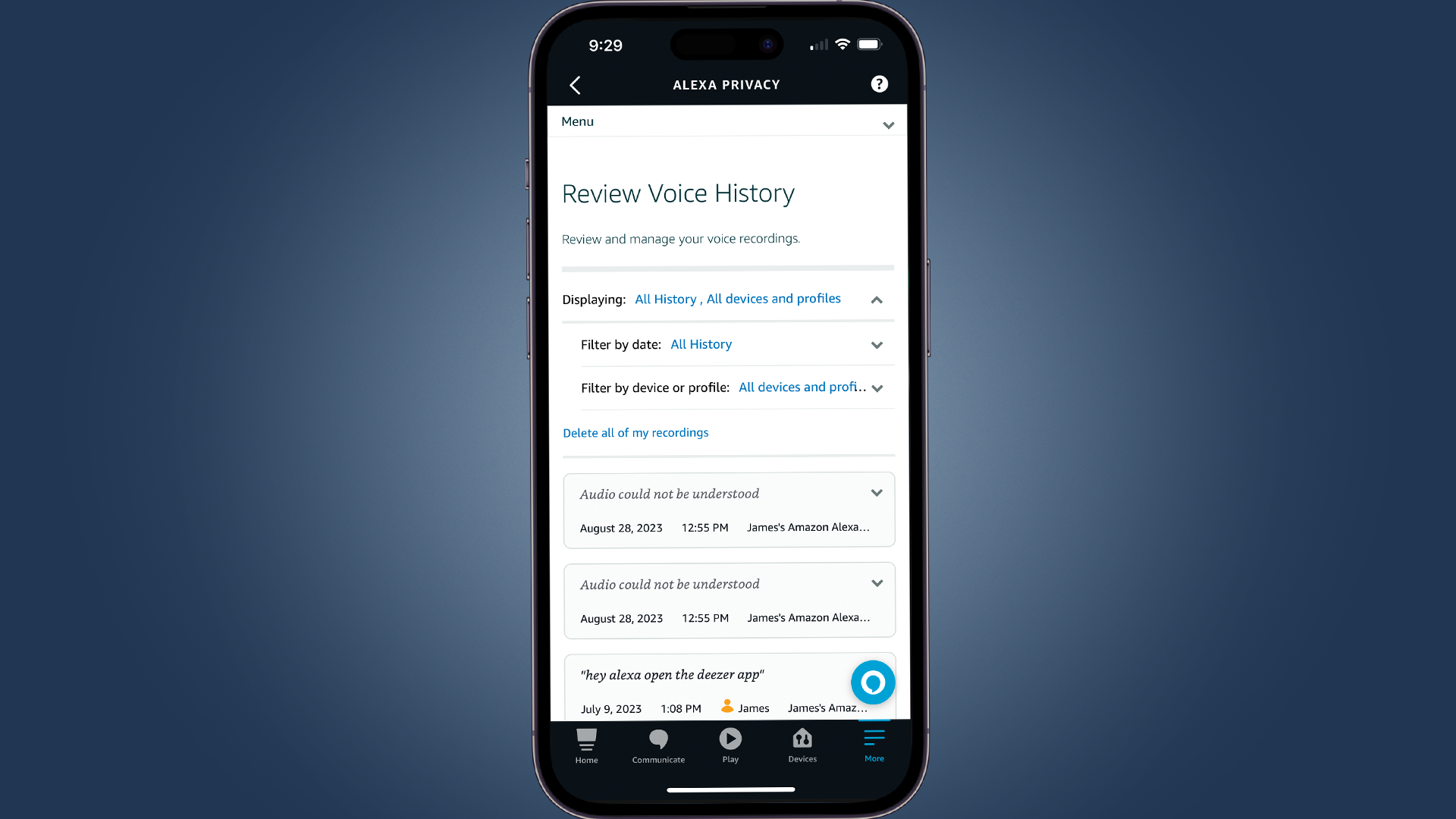
Inside the Alexa Privacy menu, tap on Review Voice History. This screen provides a chronological list of every interaction. You can filter this list by:
- Date Range: View history from today, yesterday, the last 7 days, the last 30 days, or a custom range.
- Device: If you have multiple Echo Dots, Shows, or Fire TVs, you can isolate recordings to a specific hardware unit.
Step 4: Listening to and Deleting Recordings
Next to each entry, you will see a small play icon. Tapping this allows you to hear the exact audio file sent to Amazon’s servers. Below the audio, a text transcript shows how the Alexa AI interpreted your command. To delete an individual entry, simply tap the checkbox next to it and select Delete Selected Recordings.
Finding Alexa History via a Web Browser
If you prefer a larger screen or need to manage a high volume of data, using a desktop browser is significantly more efficient. Amazon centralizes these controls in the Amazon Privacy Hub.
- Log In: Go to the official Amazon website and sign into your account.
- Account Settings: Hover over "Account & Lists" and select Manage Your Content and Devices.
- Privacy Settings: Click on the Privacy Settings tab at the top of the page, then select Alexa Privacy.
- Manage Data: Click on Review Voice History. The layout here is similar to the mobile app but offers a more robust interface for bulk-deleting records or exporting data.
Using the web interface is particularly useful for those who want to review "Smart Home Device History." While Voice History covers what you said, the Smart Home history covers what the devices did (e.g., "Front door locked at 10:00 PM"). This distinction is vital for auditing security logs.
Managing Automated Deletion and Privacy Preferences
Manually deleting every interaction can be a tedious chore. Recognizing this, Amazon has implemented automated tools that allow users to set a "retention policy" for their voice data.
Enabling Auto-Delete
Within the Alexa Privacy menu, look for an option titled Manage Your Alexa Data. Here, you can find the "Choose how long to save recordings" setting. As of 2026, the standard options generally include:
- Save until I delete them: The default setting, which keeps records indefinitely.
- Save for 18 months: Automatically purges recordings older than a year and a half.
- Save for 3 months: A stricter setting for privacy-conscious users.
- Don't save recordings: This prevents Amazon from keeping any audio logs, though text transcripts may still be used for a short period to fulfill requests.
The Trade-off: Personalization vs. Privacy
It is important to understand that deleting your history impacts Alexa’s ability to learn. Amazon uses these recordings to map your specific voice patterns, vocabulary, and preferences. If you frequently delete your history or opt-out of saving recordings, you may notice that Alexa becomes slightly less accurate in recognizing your commands over time.
Comparison of Alexa History Access Methods
| Feature | Alexa Mobile App | Amazon Web Portal | Voice Command |
|---|---|---|---|
| Speed of Access | High (always on phone) | Medium | Instant |
| Bulk Deletion | Limited | Comprehensive | Single entry only |
| Audio Playback | Yes | Yes | No |
| Filter by Device | Yes | Yes | No |
| Smart Home Logs | Yes | Yes | No |
| Best For | Quick checks | Privacy audits | Immediate verification |
Using Voice Commands to Review and Delete History
For immediate feedback, you can use voice commands to interact with your history. This is the fastest way to handle a "false trigger" without opening an app.
- Reviewing: You can ask, "Alexa, tell me what you heard." Alexa will read back the most recent command it processed.
- Deleting: You can say, "Alexa, delete what I just said" or "Alexa, delete everything I said today."
To enable the ability to delete by voice, you must first toggle this setting on in the Alexa Privacy menu under Manage Your Alexa Data. For security reasons, this feature is sometimes disabled by default to prevent guests or children from wiping the history without the owner's consent.
Identifying Specific Types of Interaction Data
Not all entries in your history are simple voice commands. Understanding the different "Entity Types" in your log can help you better manage your smart home.
1. Skills Interactions
When you use a third-party Skill (like a weather service or a game), the history log will note that the request was passed to a third-party developer. It is important to remember that while you can delete the record from Amazon’s servers, the third-party developer may have their own data retention policies.
2. Routine Triggers
If an Echo device performs an action based on a "Routine" (like turning on lights at sunset), this may appear in your Smart Home Device History rather than your Voice History. If a routine is behaving erratically, check the device history to see if a sensor (like a motion detector) is triggering incorrectly.
3. Voice ID and Profiles
If you have set up Alexa Voice ID, the history log can often distinguish between different members of the household. This is helpful for parents who want to see which child requested a specific song or asked a particular question.
Frequently Asked Questions
Can I recover Alexa history after I delete it?
No. Once you delete voice recordings or transcripts from the Alexa app or the Privacy Hub, they are permanently removed from Amazon’s cloud servers. There is no "trash" or "recovery" folder for this data. If you are deleting records for legal or documentation purposes, ensure you have noted the necessary information beforehand.
Does Alexa record me all the time?
Technically, Echo devices are always "listening" for the specific acoustic pattern of the wake word (e.g., "Alexa," "Echo," or "Ziggy"). However, the device does not record or transmit audio to the cloud until it detects that wake word. You can verify this by checking your history; you should only see entries that began with the wake word or its phonetic equivalent.
Why do some entries say "Text not available" or "Audio not available"?
This usually occurs during a network interruption. If the device triggers but loses its internet connection before the full command is processed, a partial log may be created without a complete transcript. It can also happen if the device detects a sound it perceives as a wake word but realizes it was an error before a full command was issued.
Can I download my entire Alexa history?
Yes. Through the Amazon Privacy Hub on the web, you can request a download of your data. Amazon will compile a file containing your voice transcripts, smart home interactions, and other account data, and email you a link to download it. This is useful for users who want to perform a deep dive into their data usage over several years.
How do I see history for a guest using my Echo?
If a guest uses your device, their voice interactions will appear in your history log just like your own. If they have their own Amazon account and you are using "Amazon Household," their interactions might be siloed under their profile, but as the primary device owner, you generally retain oversight of all activity occurring on your hardware.
Final Recommendation for Users
To maintain the best balance between convenience and privacy, enable the 3-month or 18-month auto-delete feature. This ensures your data doesn't sit on a server indefinitely while still giving Alexa enough historical context to maintain voice recognition accuracy. Additionally, make it a habit to check your "Review Voice History" once a month to catch any accidental recordings caused by "false wakes." If you discover a specific device is frequently recording without being prompted, consider moving it away from televisions or speakers that might be triggering it.
Image Gallery