Bluetooth Pairing PS5 Controller: A Practical Overview
To pair a PlayStation 5 DualSense or DualSense Edge controller via Bluetooth, make sure the controller is turned off, then press and hold the Create button and the PS button simultaneously until the light bar begins blinking rapidly. O...
To pair a PlayStation 5 DualSense or DualSense Edge controller via Bluetooth, make sure the controller is turned off, then press and hold the Create button and the PS button simultaneously until the light bar begins blinking rapidly. Open the Bluetooth settings on your host device—such as a PC, Mac, Android, or iOS device—select the controller from the list of available wireless devices, and complete the connection process.
Contents
Understanding PS5 Controller Bluetooth Pairing
The PlayStation 5 DualSense wireless controller utilizes Bluetooth 5.1 technology, allowing it to pair seamlessly with a wide range of devices beyond the PlayStation 5 console. Whether you intend to use the controller on a Windows PC, a Mac, an iPhone, an iPad, an Android phone, or a Linux-based system such as the Steam Deck, Bluetooth provides a convenient wireless input solution without requiring proprietary dongles.
When operating over Bluetooth, the DualSense controller functions as a standard Human Interface Device (HID). This universal protocol allows host operating systems to detect button presses, analog stick movements, and trigger inputs. However, native advanced features—such as high-fidelity haptic feedback, dynamic adaptive triggers, integrated audio passthrough, and touch pad gesture routing—behave differently over a Bluetooth connection compared to a direct USB Type-C connection.
Understanding how the DualSense controller negotiates Bluetooth signals, enters pairing mode, and manages connection profiles ensures a smooth setup process across all your gaming platforms.
How to Put the PS5 Controller into Bluetooth Pairing Mode
Before attempting to connect your PS5 controller to any third-party device, you must initiate its broadcast mode. If the controller is currently paired to a PS5 console, turning it on normally using the PS button will automatically turn on the console instead of searching for new devices.
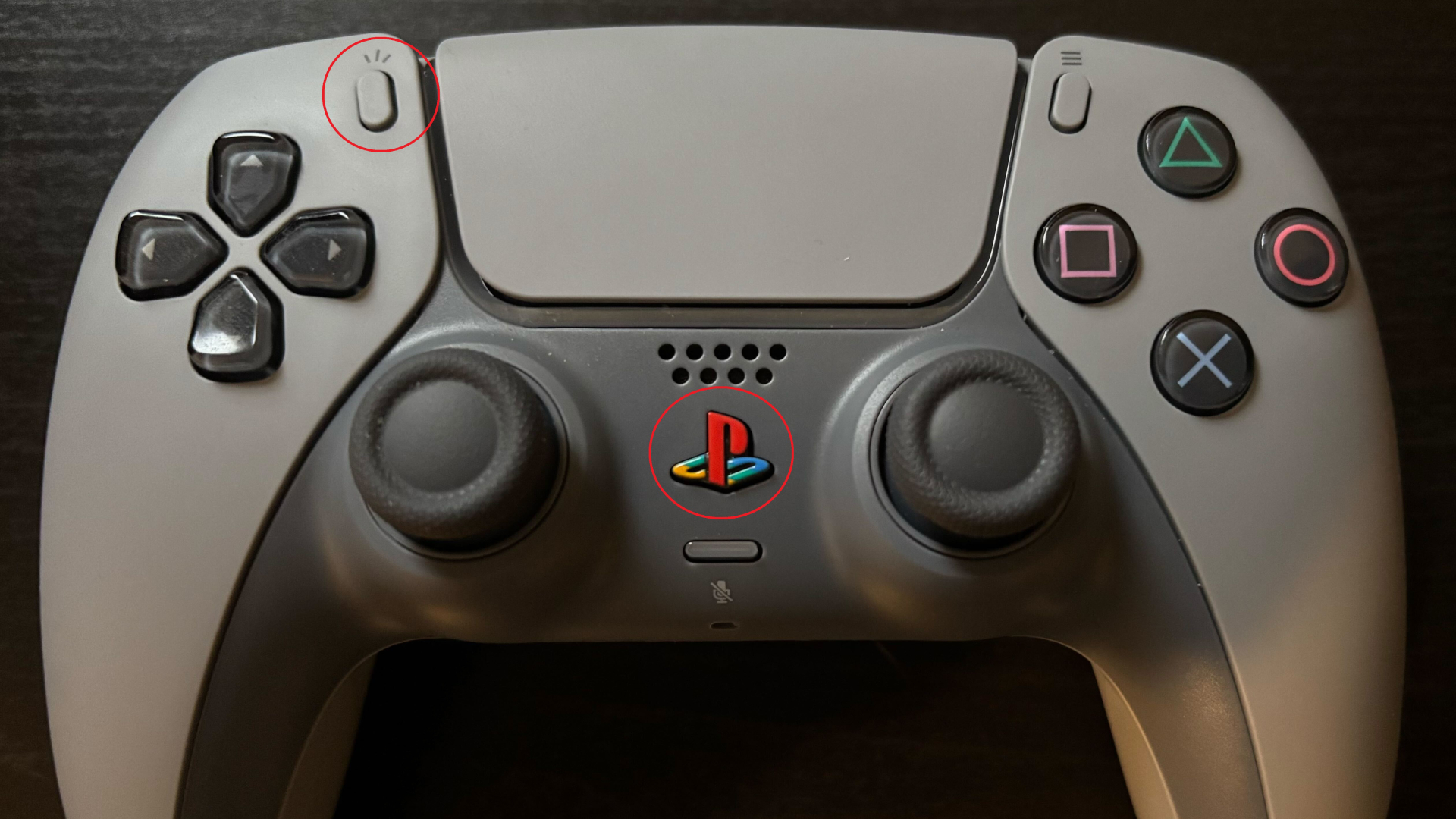
- Create Button (Top-left of touchpad) and PS Button (Center between sticks)
- Hold Both Simultaneously
- Light bar begins flashing rapidly (Pairing Mode Active)
- Hold Both Simultaneously
Follow these operational steps to enter Bluetooth pairing mode correctly:
- Power Off the Controller: Ensure the controller light bar and player indicators are completely turned off. If the light bar is illuminated, hold down the PS button (the PlayStation logo in the center) for roughly 10 seconds until the lights turn off.
- Press and Hold the Pairing Buttons: Simultaneously press and hold the Create button (located to the upper-left of the touchpad, marked by three vertical lines radiating outward) and the PS button.
- Verify the Visual Signal: Keep holding both buttons for 3 to 5 seconds until the light bar around the touchpad begins flashing rapidly in a double-blink pattern. This blue light pulse indicates that the controller is in discovery mode and ready to pair with external Bluetooth hosts.
If the light bar flashes slowly or turns solid blue without flashing rapidly, the controller failed to enter pairing mode and may have reconnected to its previously paired host. Turn off the controller and repeat the process.
Platform-Specific Bluetooth Pairing Instructions
While the step-by-step process on the controller side remains identical across platforms, configuring the operating system settings varies depending on the host system.
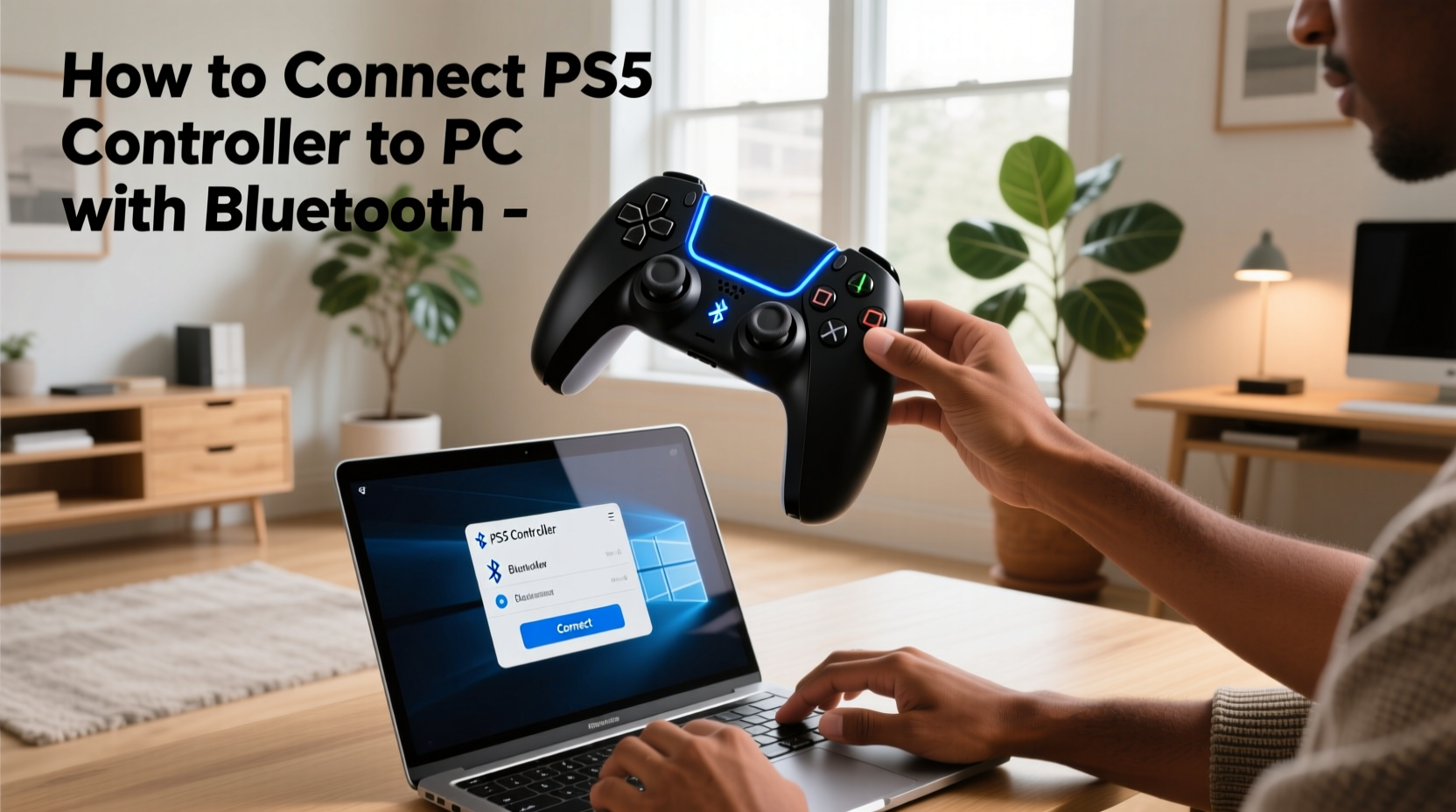
Pairing with Windows 10 and Windows 11 PCs
Connecting your PS5 controller to a PC gives you access to a massive library of computer games, particularly through platforms like Steam that offer native driver translation for PlayStation pads.
- Put the DualSense controller into pairing mode (rapidly flashing light bar).
- On your Windows PC, open Settings (press
Windows Key + I). - Select Bluetooth & devices (or Devices in Windows 10).
- Ensure Bluetooth is toggled On, then click Add device (or Add Bluetooth or other device).
- Choose Bluetooth from the device type options.
- Look for Wireless Controller in the list of discovered devices and click it.
- Windows will complete the connection, and the light bar on the controller will stabilize to a solid glow, signaling a successful pairing.
Note on PC Compatibility: While Windows recognizes the controller out of the box, legacy non-Steam PC games may require input mapping utilities (such as Steam Input or DS4Windows) to translate the controller's DirectInput signal into the widely recognized XInput format used by Xbox controllers.
Pairing with macOS, iOS, iPadOS, and tvOS
Apple added native support for the PS5 DualSense controller across its operating systems (macOS Big Sur or later, iOS 14.5 or later, iPadOS 14.5 or later, and tvOS 14.5 or later).
- Enable Bluetooth pairing mode on your DualSense controller.
- On iOS or iPadOS, navigate to Settings > Bluetooth. On macOS, open System Settings > Bluetooth. On Apple TV, go to Settings > Reminders & Devices > Bluetooth.
- Confirm that Bluetooth is active and scan the list under Other Devices.
- Select DualSense Wireless Controller (or Wireless Controller).
- Once paired, the controller light bar will illuminate, and Apple devices will let you remap buttons and adjust sensitivity through system preferences under Settings > General > Game Controller.
Pairing with Android Devices
Android platforms (Android 12 and higher recommended for low-latency input) support direct Bluetooth connection for cloud gaming services, mobile titles, and emulation.
- Set the controller into pairing mode.
- Swipe down from the top of your Android screen to expand the quick settings panel, then tap and hold the Bluetooth icon.
- Tap Pair new device (or scan for nearby devices).
- Locate Wireless Controller under Available Devices and tap to pair.
- Confirm the Bluetooth pairing prompt if requested.
Pairing with Steam Deck and Linux
Valve's Steam Deck runs SteamOS (Linux-based) and features comprehensive driver support for DualSense controllers over Bluetooth.
- Put the controller into pairing mode.
- Press the Steam button on your Steam Deck to open the main menu.
- Select Settings, then navigate to Bluetooth.
- Ensure Bluetooth is enabled, locate Wireless Controller under the unpaired list, and select it to establish a wireless link.
Feature Support: Bluetooth vs. Wired USB Connections
While Bluetooth provides complete motion freedom, certain advanced DualSense hardware capabilities are constrained by Bluetooth bandwidth limits and third-party operating system APIs. Understanding these differences helps set reasonable performance expectations.
| Feature / Hardware Capability | Bluetooth Connection | Wired USB Connection |
|---|---|---|
| Standard Input (Buttons/Sticks) | Supported natively across all platforms | Supported natively across all platforms |
| Basic Vibration (Rumble) | Supported (via Steam/XInput emulation) | Fully supported natively |
| Haptic Feedback (Dual Actuators) | Limited / Not supported natively on PC | Fully supported (in compatible games) |
| Adaptive Triggers (Pneumatic Force) | Rarely supported over wireless | Fully supported (in compatible PC games) |
| 3.5mm Headphone Jack / Audio Output | Disabled over Bluetooth | Fully operational (Presents as USB Sound Card) |
| Built-in Microphone & Mute Button | Disabled / Restricted | Fully operational on host OS |
| Motion Controls (Gyroscope/Accel) | Supported (Application-dependent) | Supported |
| Input Latency | Low (~4ms to 10ms depending on host receiver) | Minimal (~1ms to 3ms) |
For games that rely heavily on immersive haptic feedback and dynamic resistance on the L2 and R2 triggers (such as titles ported from PlayStation to PC), connecting the DualSense controller via a high-speed USB Type-C cable is recommended over a Bluetooth link.
Troubleshooting Common PS5 Controller Bluetooth Issues
Despite Bluetooth's convenience, pairing hiccups, latency issues, and disconnections can occasionally happen. Use these actionable solutions to clear common connection obstacles.
Controller Light Bar Flashes but Fails to Connect
If the controller blinks rapidly but your host device fails to detect it or throws a connection error:
- Remove Old Bluetooth Profiles: Go to your host device's Bluetooth settings, find any previous instances of "Wireless Controller," select Forget Device or Remove, and attempt the pairing process again.
- Check Battery Level: A weak battery can prevent the Bluetooth transmitter from sustaining discovery mode. Charge the controller via USB for at least 30 minutes before attempting to pair.
- Clear Host Bluetooth Cache: On Windows or mobile devices, toggle Bluetooth off for 10 seconds and turn it back on to clear stale cache entries.
Severe Input Lag or Unstable Signal
If you experience delayed responses, missed inputs, or sudden disconnections while playing over Bluetooth:
- Reduce Wireless Interference: Ensure there is a clear line of sight between the controller and the Bluetooth receiver. USB 3.0 ports, external hard drives, Wi-Fi routers, and metal computer cases positioned between the controller and receiver can cause 2.4 GHz signal interference.
- Upgrade Bluetooth Adapters: If your desktop PC relies on an older Bluetooth 4.0 USB dongle, consider upgrading to a Bluetooth 5.0 or 5.3 adapter, preferably attached to an external antenna or an extension cable positioned away from interference sources.
Reconnecting the Controller Back to the PlayStation 5 Console
Once a DualSense controller is paired to a PC or smartphone via Bluetooth, pressing the PS button will no longer automatically wake up your PS5 console. To resynchronize the controller with your PS5:
- Connect the controller directly to one of the PS5 console's USB ports using a data-capable USB Type-C cable.
- Press the PS button on the center of the controller.
- The light bar will glow solid blue, confirming that the controller has successfully paired back to the PlayStation 5. You can now safely unplug the USB cable for wireless console play.
Frequently Asked Questions
Why does my PC show "Wireless Controller" instead of "PS5 Controller"?
The generic label "Wireless Controller" is standard for Sony DirectInput devices. Host operating systems read the controller's vendor ID and product ID to recognize it as a generic Bluetooth HID gamepad. Applications like Steam translate this input automatically to show proper PlayStation button prompts on screen.
Can I connect multiple PS5 controllers via Bluetooth simultaneously?
Yes. Most modern operating systems—including Windows, macOS, and Android—support pairing multiple Bluetooth gamepads at once. However, the exact limit depends on your host system's Bluetooth receiver bandwidth. Connecting more than two or three controllers simultaneously over a single Bluetooth adapter may introduce input latency.
How do I turn off the PS5 controller when connected via Bluetooth?
To manually power down the DualSense controller without turning off your host device's Bluetooth, press and hold the PS button for approximately 10 seconds. The light bar will turn off, confirming the controller is powered down.
Why does the 3.5mm audio jack not work over Bluetooth on PC?
The standard Bluetooth Human Interface Device (HID) protocol does not provide enough bandwidth to simultaneously handle low-latency gaming controller inputs and high-quality uncompressed stereo audio passthrough. Audio transmission over the controller jack requires a wired USB connection.
Next Steps for Optimal Performance
After pairing your PS5 controller to your primary gaming device via Bluetooth, take a moment to configure your control mapping:
- For PC Gamers: Open Steam, navigate to Settings > Controller, and ensure Enable Steam Input for PlayStation controllers is toggled on. This grants custom remapping support, trackpad navigation control, and gyro aiming for games that do not natively support PlayStation inputs.
- Firmware Updates: Sony provides a standalone desktop utility ("Firmware updater for DualSense wireless controller") for Windows. Periodically connect your controller via USB cable to a PC or PS5 console to install official device updates, ensuring maximum stability and Bluetooth compatibility.
Image Gallery